



Imagine spending a joyful gathering night with close friends, candles flickering and popcorn ready, while watching MP4 videos you've captured from your own life. Or perhaps you want to burn MP4 movies to DVD as a special gift for your partner or friend on a birthday.
Converting these cherished memories into discs adds a personal touch. In this guide, we review three ways to convert MP4 to DVD using the best burning tools: DVDneXtCOPY DVD Creator, DVD Styler, and DVD Flick.
Best MP4 to DVD Converter for Windows: DVDneXtCOPY DVD Creator
DVDneXtCOPY DVD Creator is a versatile DVD burner that not only converts MP4 to DVD format but also supports burning over 200 other digital video formats to blank DVDs, including DVD5 and DVD9. It offers features like customizable menu templates, and allows to adjust audio tracks, subtitles, disc types, aspect ratios, etc. Compatible with Windows 10/11/8/7, this software receives regular updates, ensuring smooth performance and prompt customer support.
Pros
- Support over 200 video formats such as MP4, MOV, AVI, etc.
- Support disc/folder/ISO as output
- Fast batch-conversion with GPU Acceleration
- Maintain video quality during MP4 to DVD burning
- Create personalized DVD menus with customizable menu templates
- Allow for deselecting subtitles and audio tracks, and adding external subtitles
- Simple workflow for beginners while offering advanced settings for experienced users
Cons
- Paid software, but it provides a 30-day free trial with full functionality
How to Use DVDneXtCOPY DVD Creator to Convert MP4 to DVD
Step 1. Download and install DVDneXtCOPY. Launch the software and select the "Creator" module. Drag and drop MP4 files to the interface or use the "+Add Source" feature.
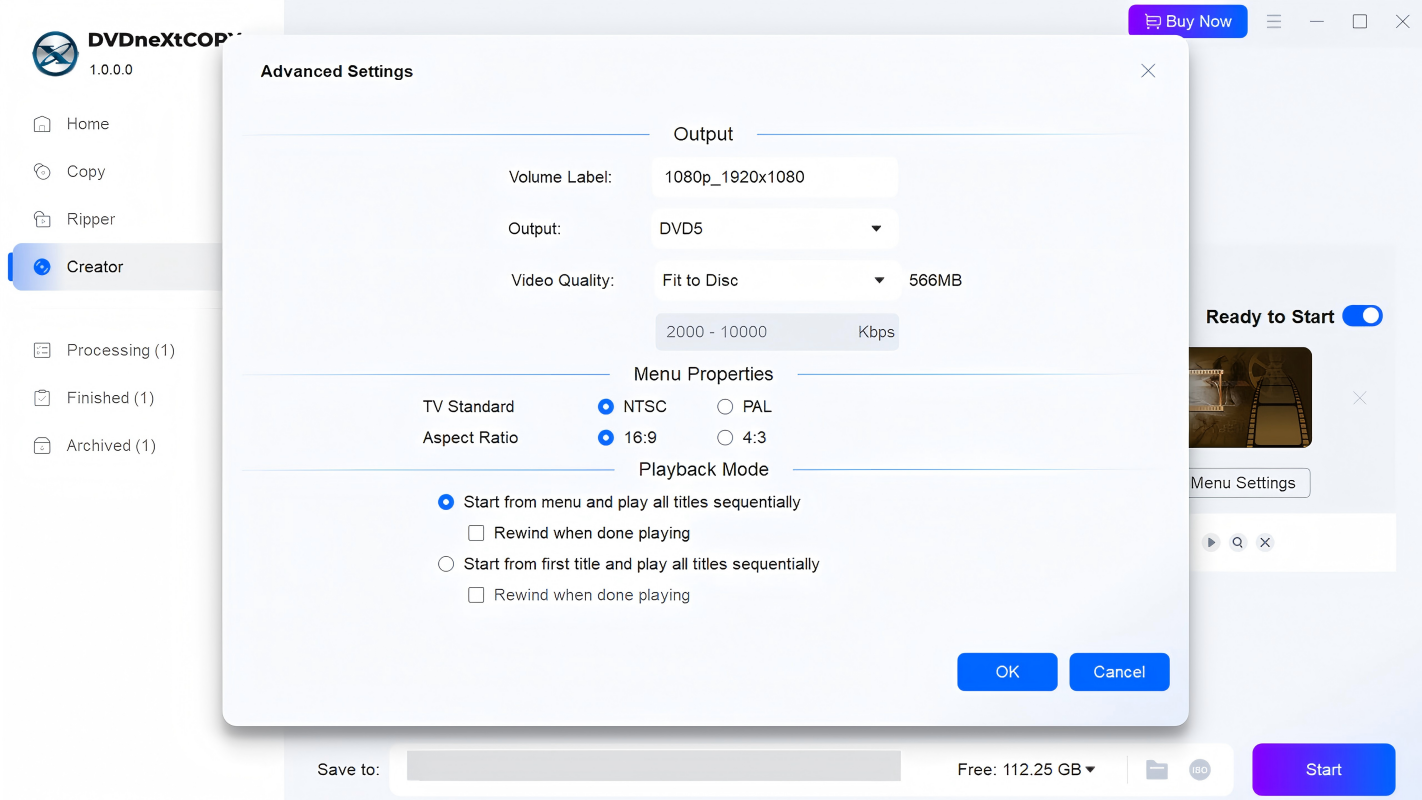
Step 2. Go to the "Advanced Settings" panel to set the video size and quality (DVD5 or DVD9). Set the Menu's TV standard (NTSC or PAL), aspect ratio, and how you wish to play the created DVD, starting from a menu or title. You can also change the volume label name if needed.
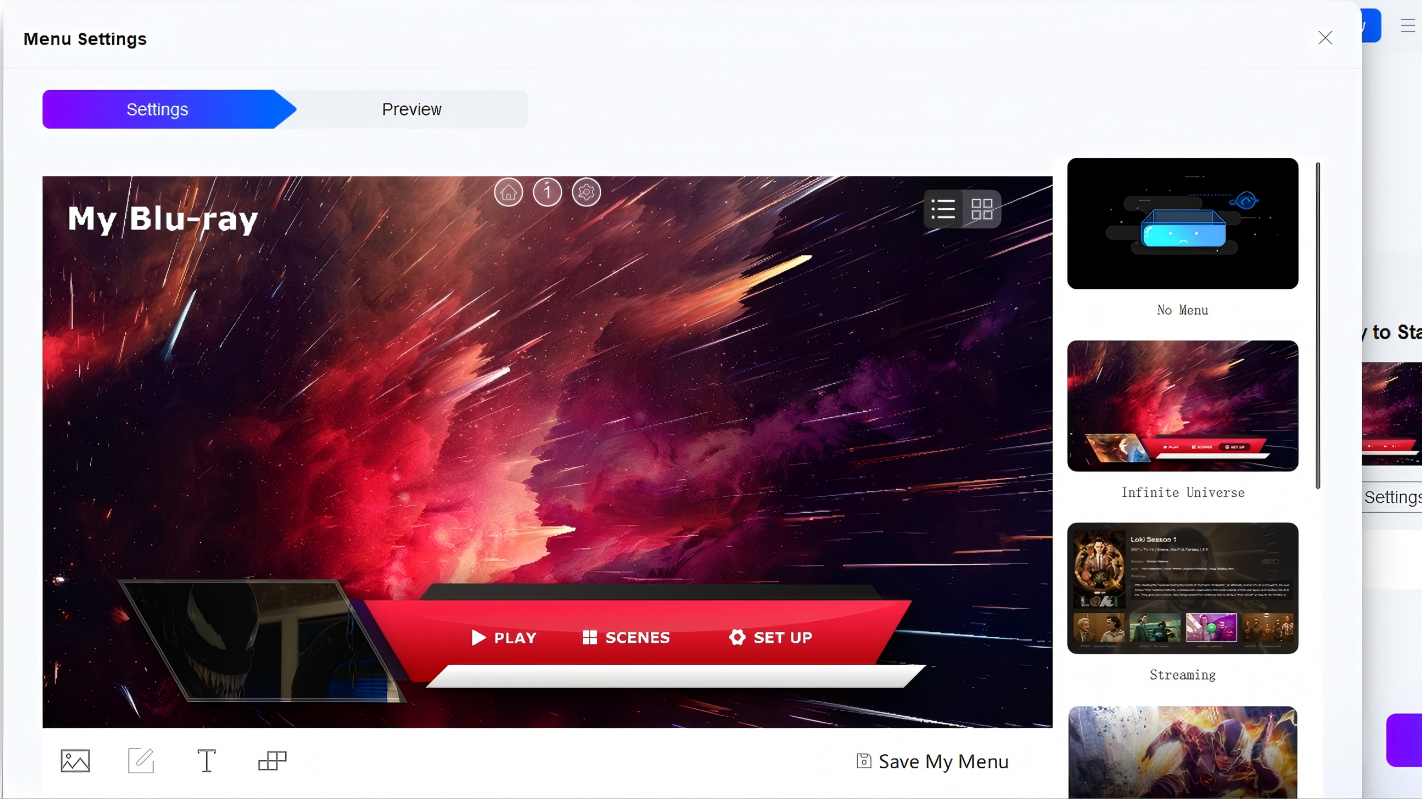
Step 3. Go to the "Menu Settings" panel, choose a menu template, and customize the buttons, background image, and text.
Step 4. Choose the PC drive that includes the blank DVD in the "Save to" field. You can also choose to save it as a Folder or an ISO image file. Then, click the "Start" button to begin the process.
Free MP4 to DVD Burning Software: DVD Styler
DVD Styler is a free tool to burn MP4 to DVD for Windows, macOS, and Linux. This versatile burner lets you combine files in various audio and video formats onto one DVD, complete with a customizable menu and a selection of pre-installed templates. Among the 3 DVD burning tools for Windows, I think DVD Styler is the most lightweight MP4 to DVD converter for use, and I find that it allows us to add chapters, subtitles, and audio tracks, which are really helpful.
Pros
- Cross-platform software with intuitive interface
- Support popular file formats, such as MP4, AVI and MOV
- Support adding chapters, multiple subtitles, and audio tracks
- Design custom menus or select from pre-made templates
Cons
- Lack of advanced video editing features
- The installer sometimes comes with Bundleware
- Cannot preview DVDs before production
How to Burn MP4 to DVD with DVD Styler
Step 1. Download and install DVD Styler on your computer, and then launch this program. Upon seeing the welcome window, select "Create a new project", and adjust the disc label and capacity, aspect ratio, etc.
Step 2. In the next window, choose the menu template you want. Choose "No template" if you don't need any menu.
Step 3. Click the "+" button at the top menu to add your MP4 files. You can also drag & drop the video files into the main window.
Step 4. Adjust the DVD options per your need and then click the "Burn" button (the red disc icon in the top navigation bar) to burn the files to a blank DVD.
Free MP4 to DVD Converter: DVD Flick
DVD Flick is a free MP4 to DVD burner that can handle a variety of container formats like 4xm, AVI, DXA, and more. It also backs a range of video and audio codecs, giving you the ability to enhance titles with external subtitles and audio tracks. The user-friendly interface enables effortless reordering of titles for crafting stylish DVD content.
Pros
- Support 60 popular video codecs
- Provide simple DVD menu templates
- Support adding subtitles and audio tracks to the videos
- Support creating DVDs/ISOs with PAL, NTSC, or Mixed format
Cons
- Outdated menu template options
- Lack of advanced video editing features
- Occasional crash issue when loading different videos
- The developer has not released updates in a long time
How to Convert MP4 to DVD with DVD Flick
Step 1. Launch DVD Flick and click the "Add title" button to add one or multiple files as the source.
Step 2. Highlight the title you want to edit, and then click the "Edit title..." button to set the aspect ratio, and chapters or add external subtitles and audio tracks.
Step 3. Customize the DVD menu and preview it to see how it works.
Step 4. Open the "Project Settings" window to set the DVD format as PAL, NTSC, NTSC-film, or Mixed, adjust the video/audio bitrate, and more.
Step 5. So now we switch to the Burning tab, tick the "Burn Project to disc" box and set a burner in the "Drive" field. If you want to save it to your hard drive as an ISO image which can be burned later, tick the "Create ISO image" box.
Step 6. Click "Create DVD" to start the burning process.
Conclusion
Whether you choose a free tool like DVD Flick or a feature-rich option like DVDneXtCOPY DVD Creator, these MP4 to DVD converters offer effective solutions for creating DVDs from digital videos. Each software provides unique features for menu customization, adding subtitles, and adjusting video settings, ensuring your collection can be enjoyed on DVD players.


