



If you've ever lost a file somewhere in your Linux system, you know how difficult it is to locate the file, and that's where the "find" command proves to be particularly useful.
The find command scours your directories to locate files based on names, sizes, permissions, and even modification dates. Unlike locate, which relies on a prebuilt database, find searches in real time, making it perfect for tracking down freshly created or modified files.
Whether you’re hunting for that one config file buried deep in /etc, cleaning up old logs, or automating batch operations, find is your go-to tool. Below, we’ll break down its most powerful features.
 Oyinebiladou Omemu
1/ Find a File by Name (Case-Sensitive)
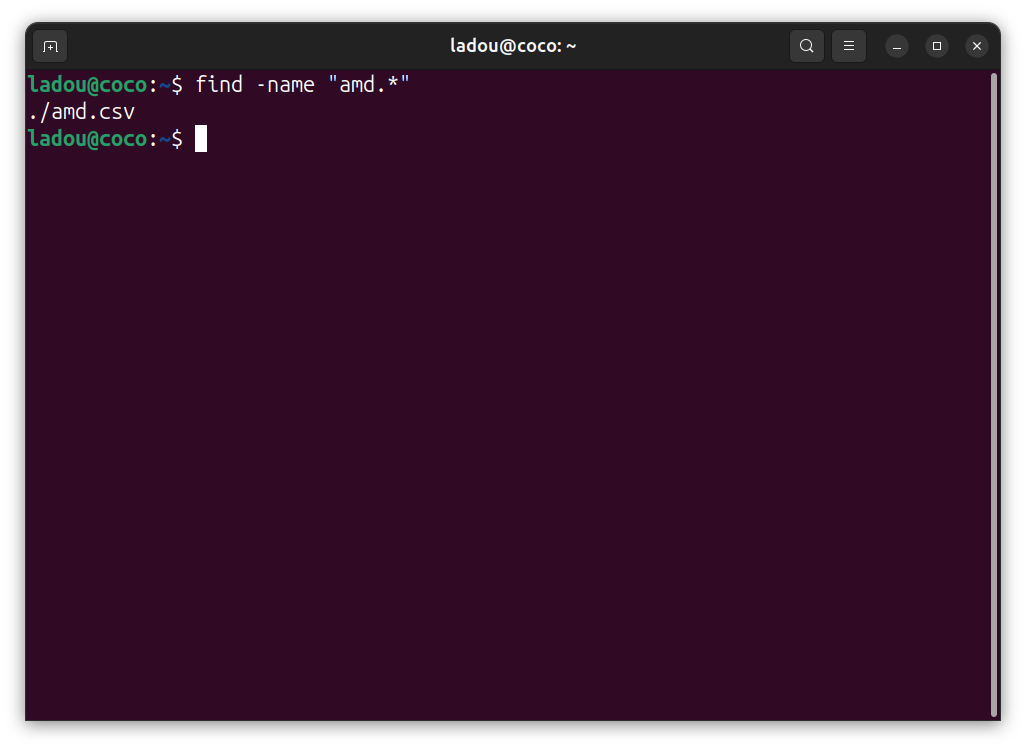
find -name "amd.*"
This uses the find command to search for a file named amd (you can search for anything, really). It's case-sensitive, so Amd won’t match.
2/ Case-Insensitive Search
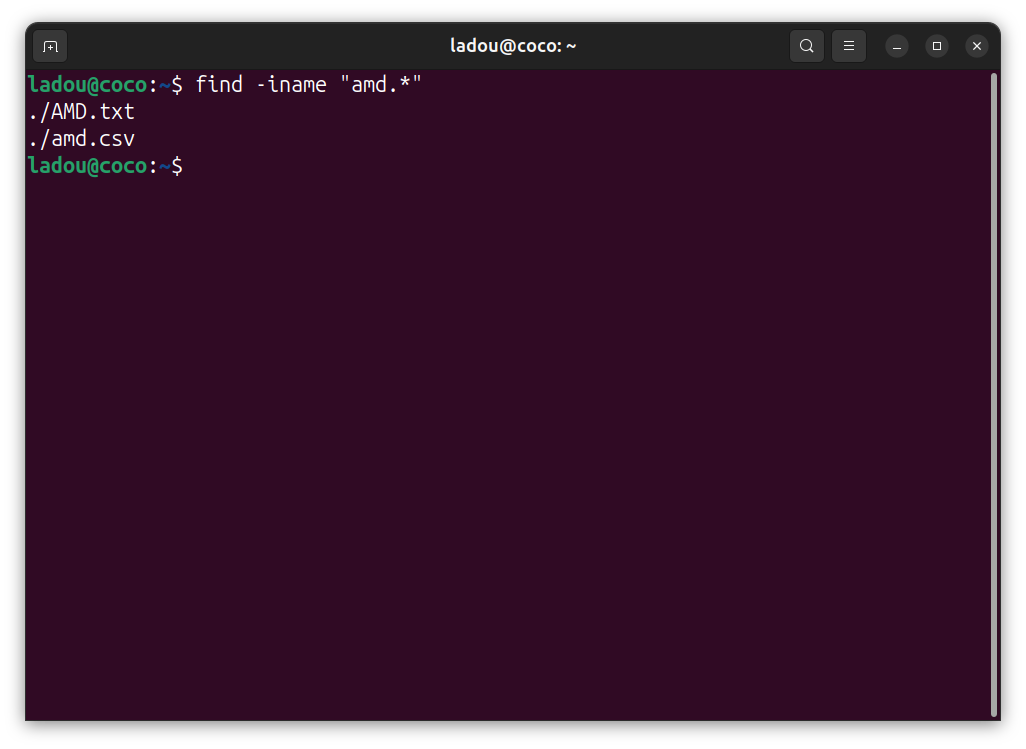
find -iname "amd.*"
This finds files like Amd.txt, Amd.pdf, etc. The -iname flag ignores capitalization, the opposite of what "name" does. It's best to use it when you’re unsure about the filename’s exact casing.
3/ Find Files Larger Than 100MB
find / -type f -size +100M
This scans the entire system for files (-type f) bigger than 100MB. + means "greater than"; so typically. -100 would mean "smaller than. 100MB" You use it to free up disk space by locating space hogs.
4/ Find Files Modified in the Last 7 Days
find ~ -type f -mtime -7
This lists files in your home directory (~) edited in the last week. -mtime -7 means "modified within 7 days." This is useful for checking recent changes or backing up recent work.

5/ Find and Delete Temporary Files
find /tmp -type f -name "*.tmp" -exec rm {} \;
This command locates all .tmp files in /tmp and deletes them. Particularly useful for cleaning up cache or temporary files.
If you're skeptical about removing the files, you can simply take out the remove function:
find /tmp -type f -name "*.tmp"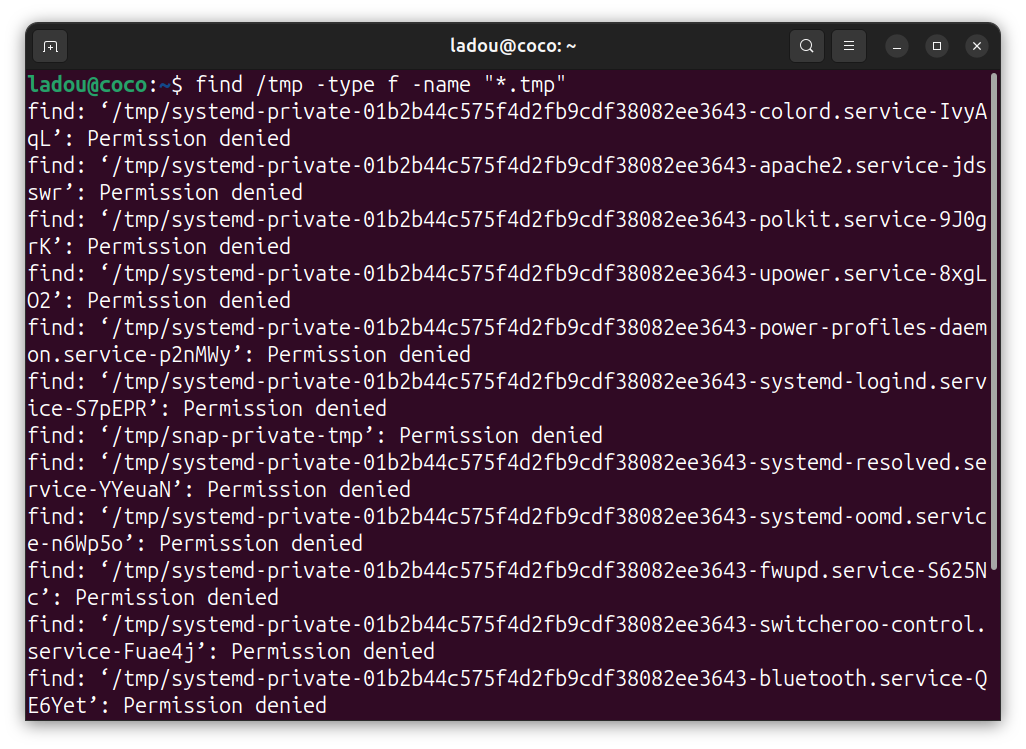
6/ Find Empty Files/Directories
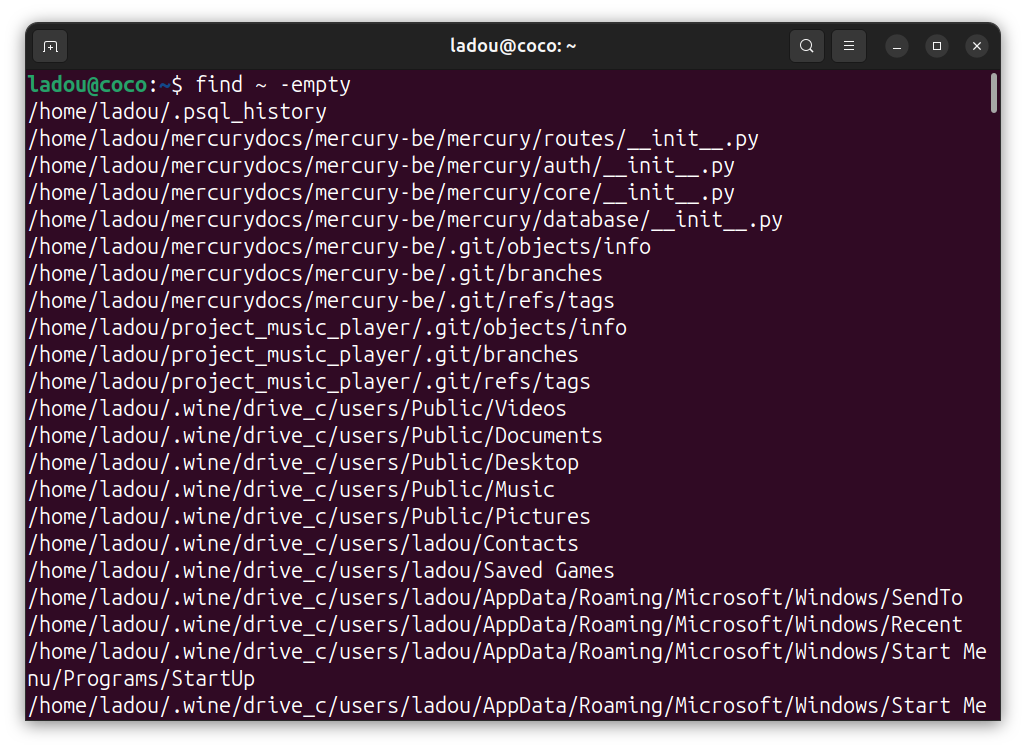
find ~ -empty
This lists all empty files or folders in your home directory. Quite useful for removing clutter.
7/ Search Inside Files for Specific Text
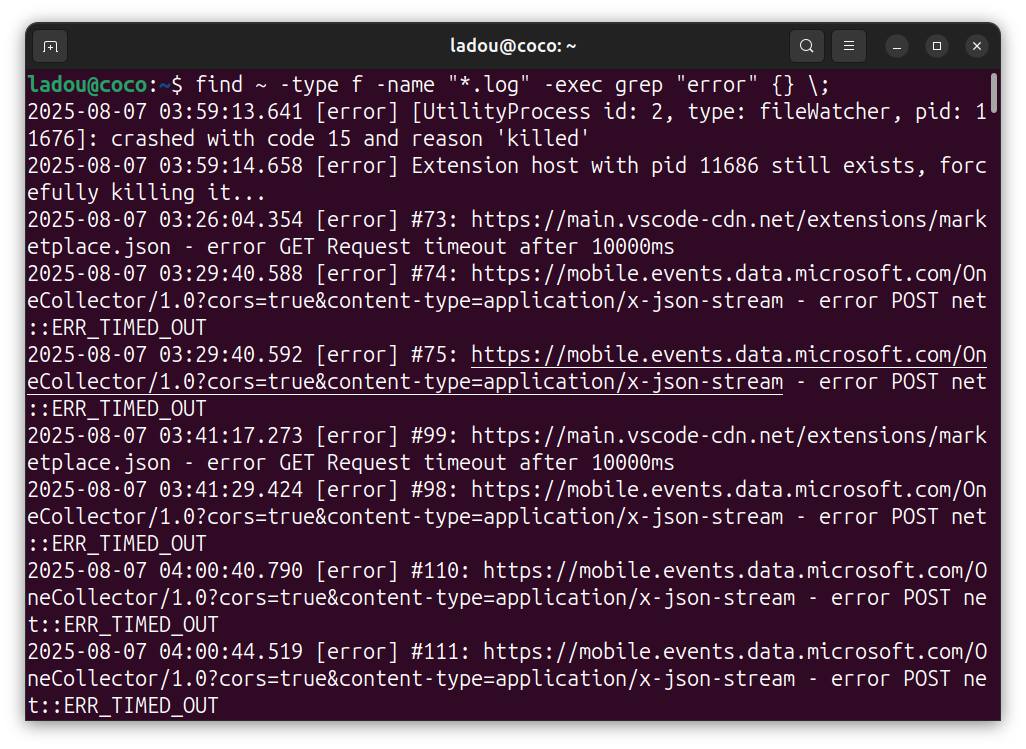
find ~ -type f -name "*.log" -exec grep "error" {} \;
This code scans all .log files for the word "error". This is very useful for debugging or log analysis.
Conclusion
The find command is very useful in Linux file management, and once you get comfortable with its syntax, you'll wonder how you ever lived without it. From simple file searches to complex automated operations, find gives you complete control over your filesystem with just a few keystrokes.
While powerful, the command requires some caution, especially when combining it with commands like rm or chmod. Start with simple searches, then gradually incorporate more advanced options as you become comfortable.
Image Credit: Oyinebiladou Omemu/Techloy.com


