



Oftentimes, I open my Windows PC and the first thing I notice is how hard it is to read the text. I end up squinting, leaning closer, or even rubbing my eyes after a few minutes. If that sounds familiar, you’re not the only one. Plenty of us run into the same issue, and it’s usually not your eyesight, but the way Windows renders text on the screen. The fix is surprisingly simple. Windows has a built-in tool called ClearType that makes letters look sharper and easier to read. It only takes a minute to set up, and once you do, the difference is obvious. Here’s how:
 Partner Content
Steps to set up ClearType
Step 1. In your Windows search bar, type "ClearType Tune."
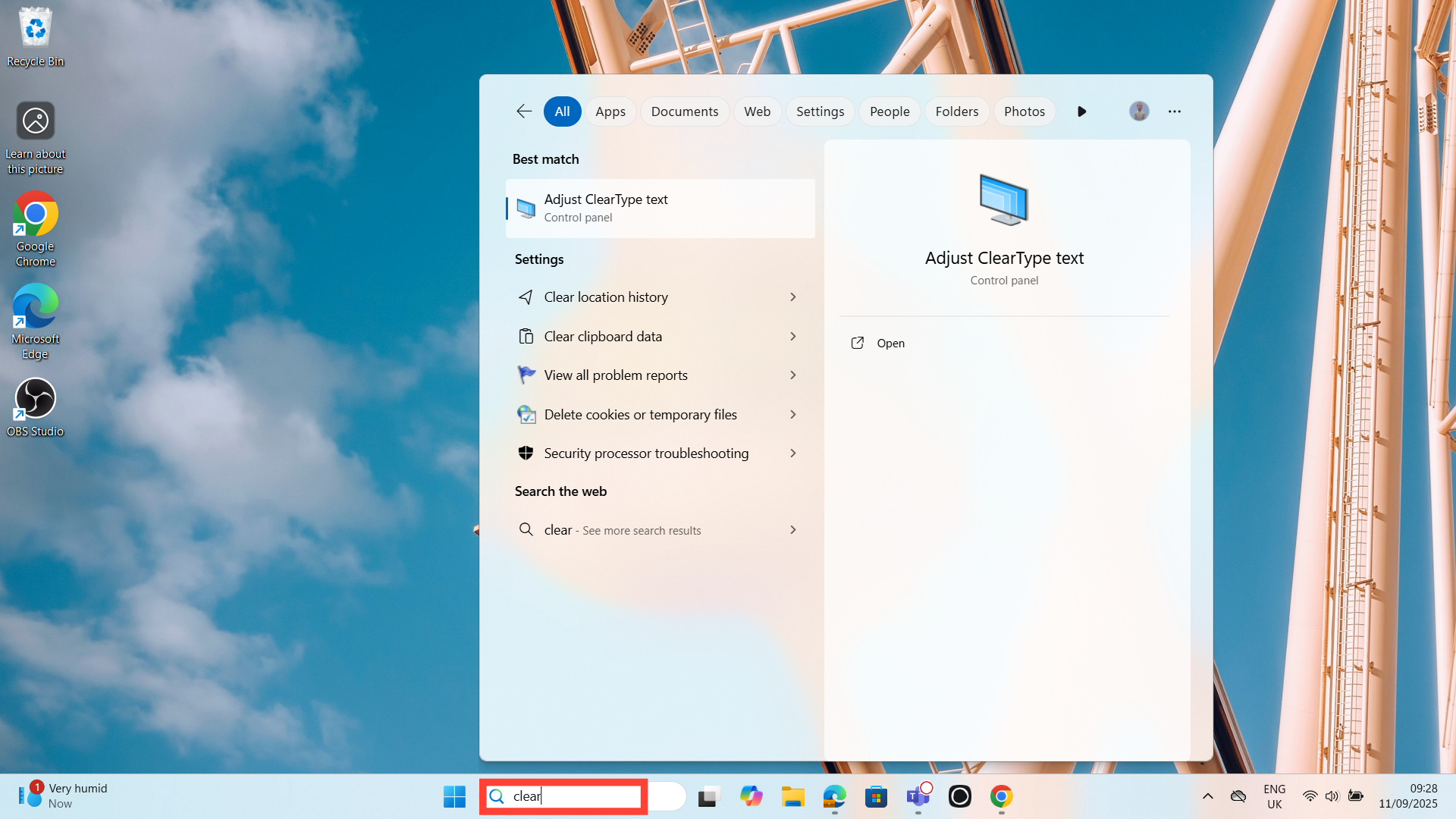
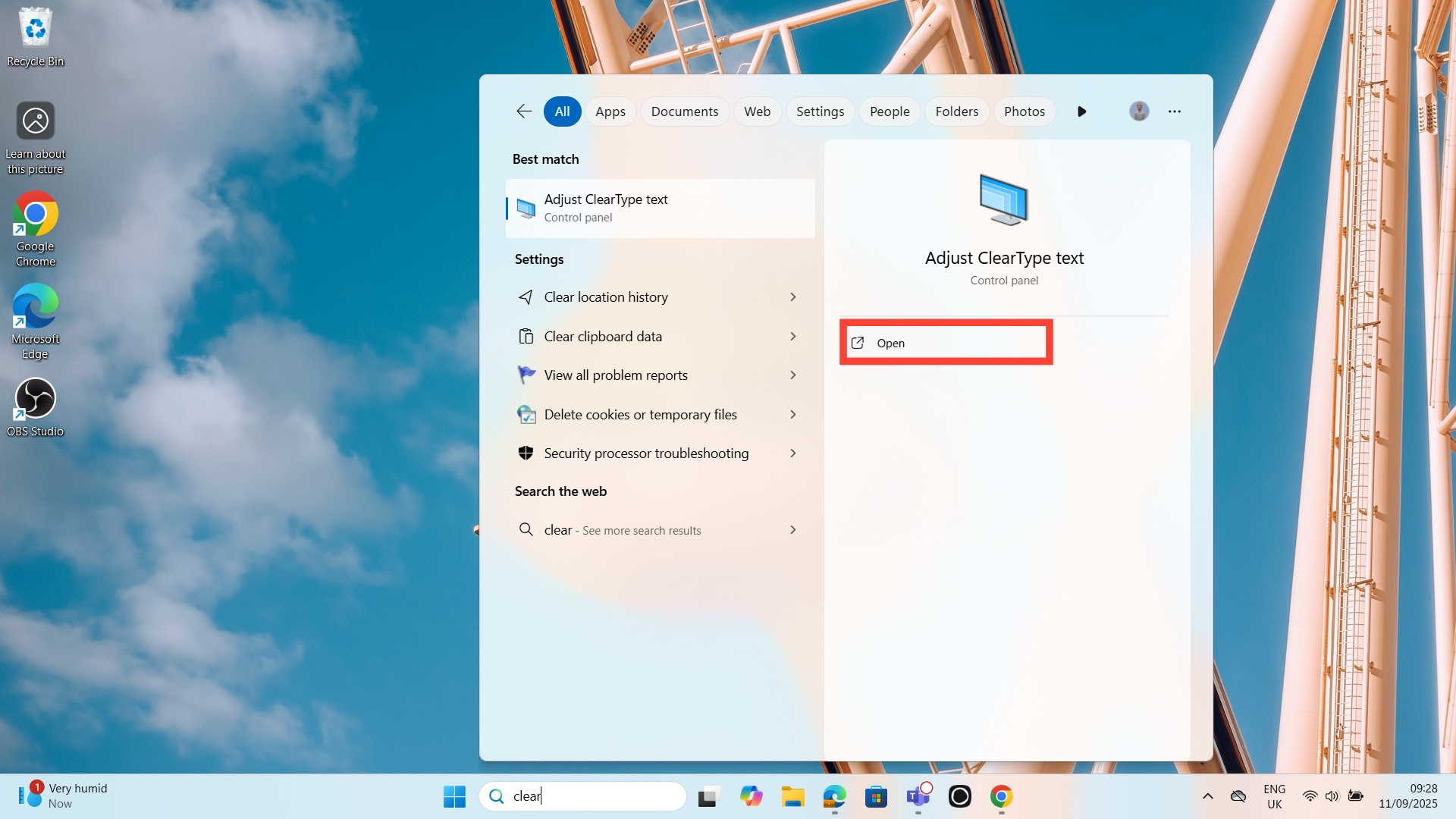
Step 2. Click on the "Open" option that comes up — this will open the ClearType Text Tuner.
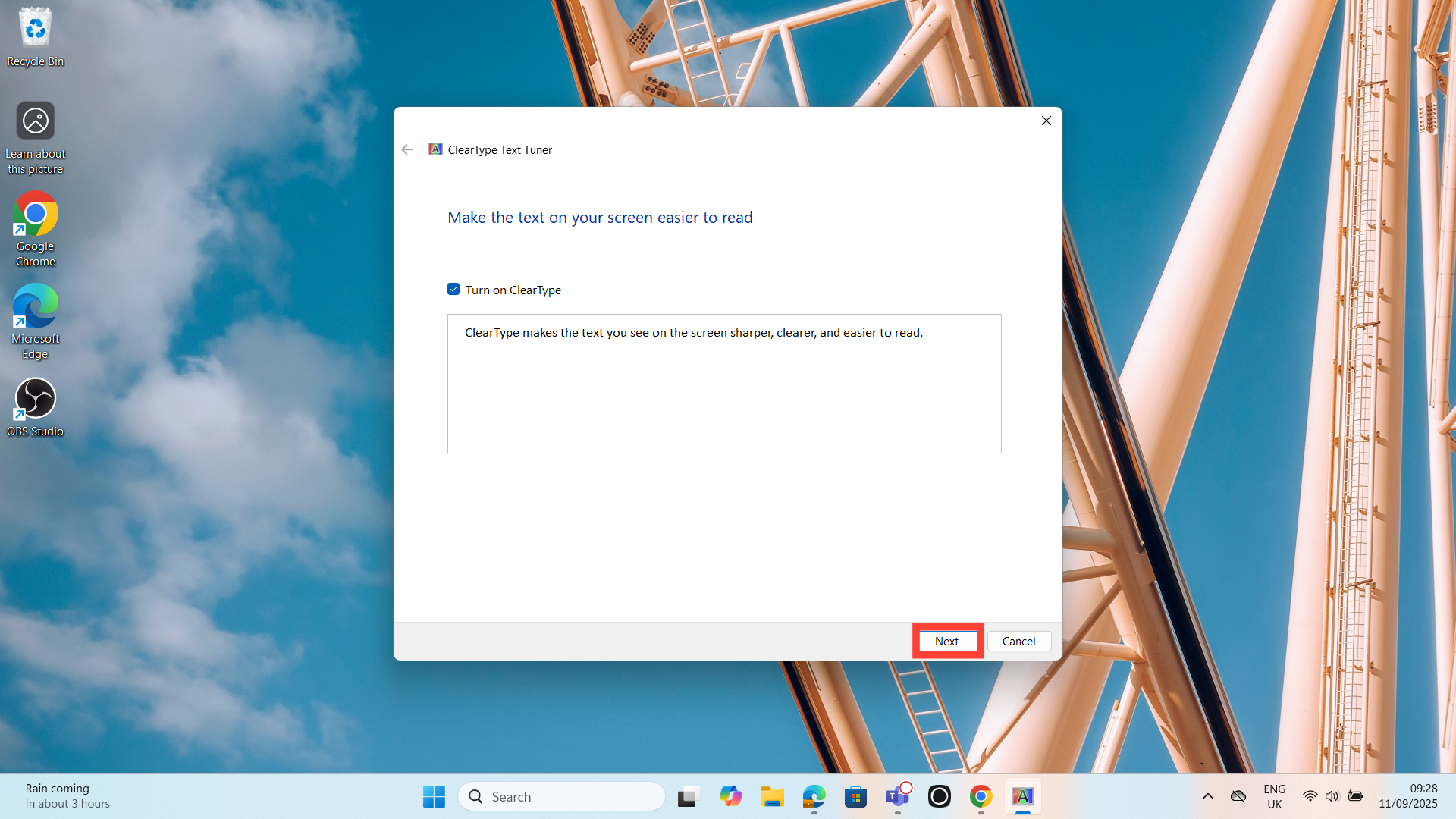
Step 3. Click "Next" to begin. Windows will display a few text samples; just choose the one that looks sharpest and easiest for you to read and tap "Next".
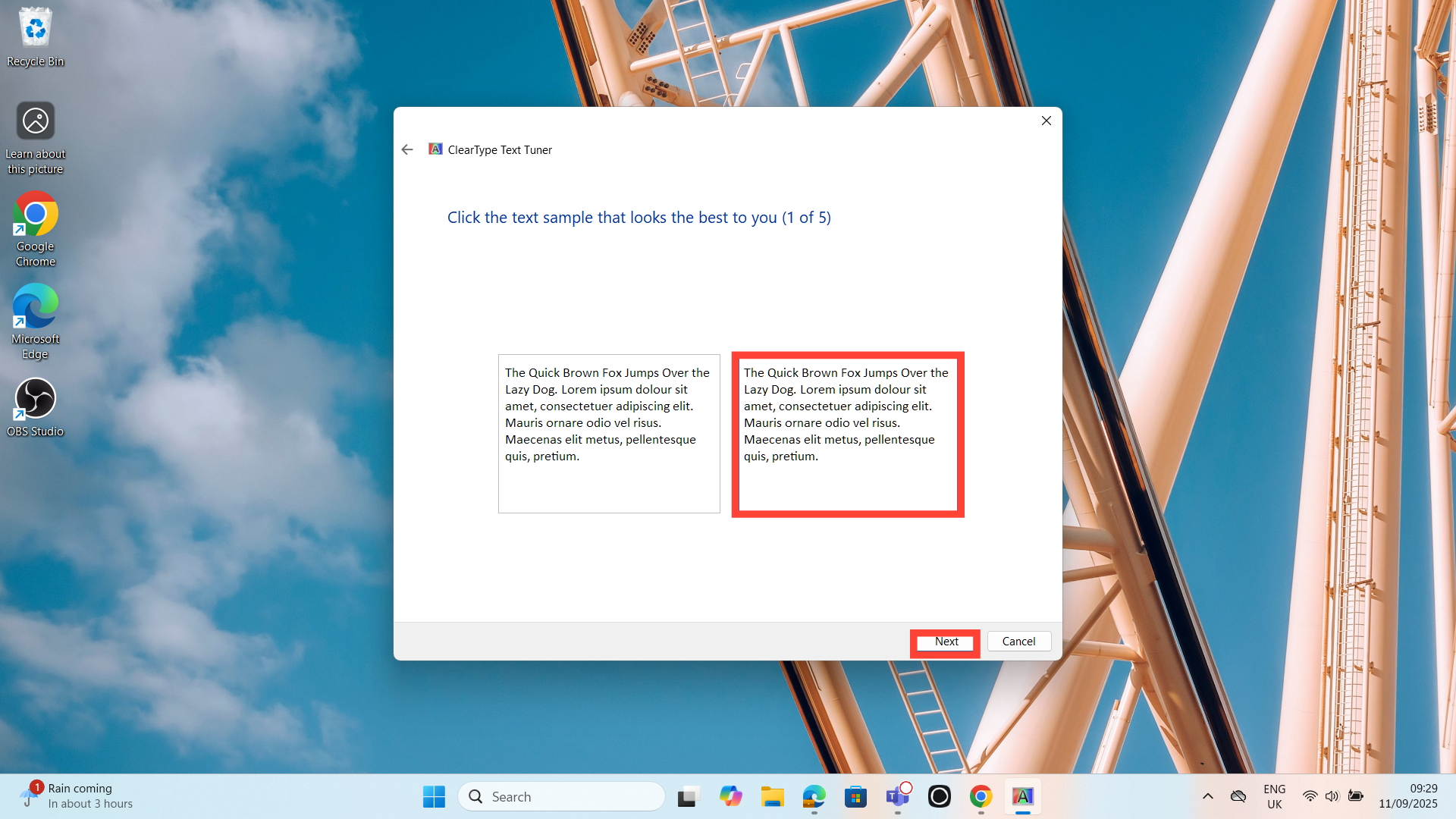
Step 4. Keep choosing the text that looks clearest to you on each screen and tap "Next". When you reach the last one, click Finish to save your settings.
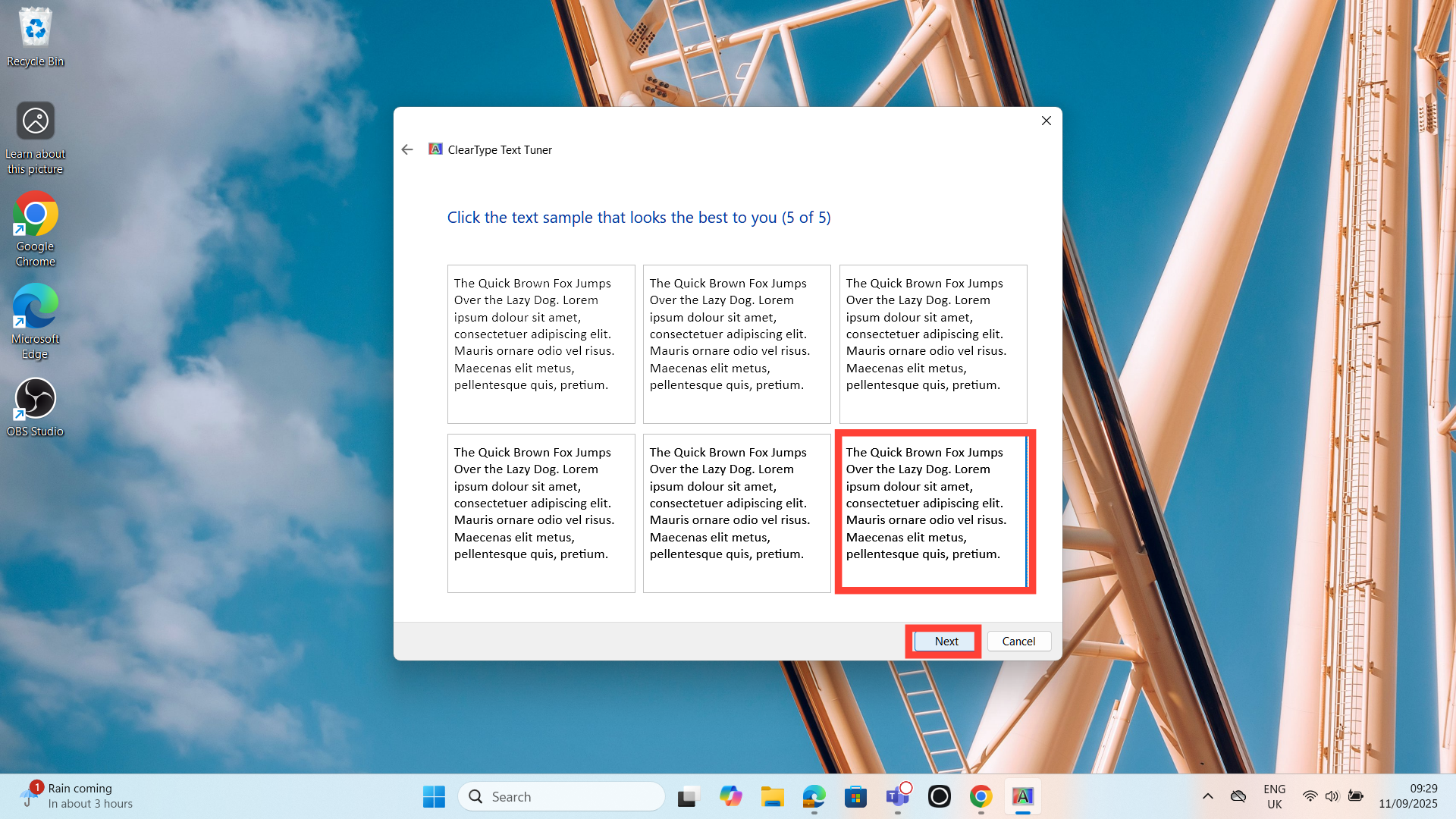
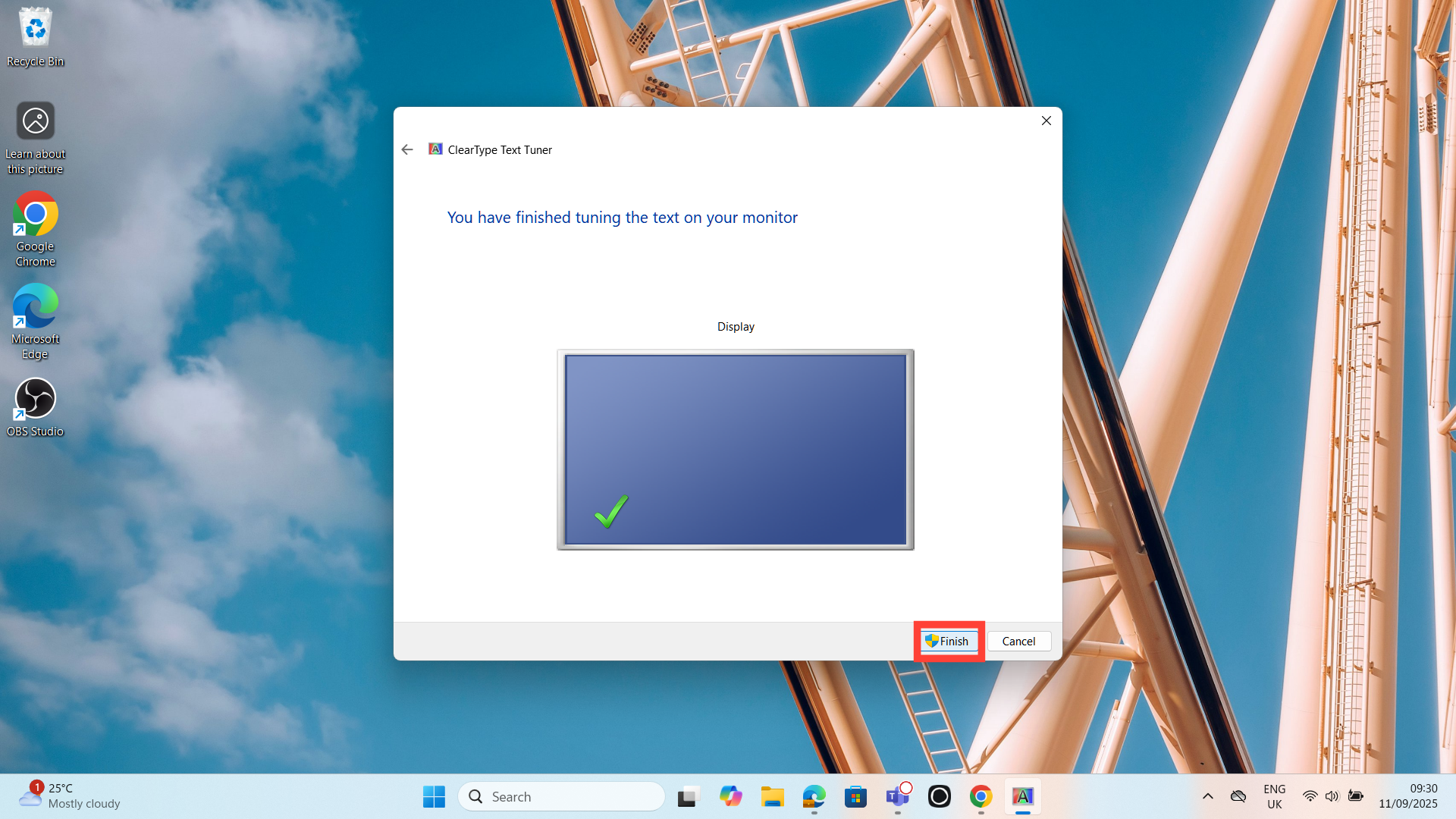
After you finish, your text will instantly look sharper and easier to read.
 Oluwaseun Bamisile
Conclusion
Once you set up ClearType, the difference shows almost immediately. Text looks sharper, edges are smoother, and long reading sessions won’t feel as tiring. You’ll catch yourself leaning back instead of squinting, and that little bit of eye strain that used to creep in after a while won’t be as noticeable. It’s such a small adjustment, but it makes everyday tasks feel a lot more comfortable. Sometimes the simplest fixes are the ones that make your computer easier to live with.
Have you tried ClearType on your PC before? Drop a comment and let us know if it made a difference for you.
Image credit: David Adubiina/Techloy.com


