



We've all been there: a friend needs to quickly look up a directions, a family member wants to place a call, or a colleague needs to check an email on their own account using your phone. Handing over your device may sometimes leave you panicking. I mean, your personal apps, data, and activities are all over your phone, and you don't want them to see those things.
Fortunately, your Google Pixel has a Guest Mode solution designed to protect your privacy. The Guest Mode works just like having multiple user accounts on a computer. By enabling it, you can give someone temporary access to a clean, separate version of your phone where they can browse the web, make calls, or use apps, but your personal data remains completely isolated and protected.
In this guide, we will show you how to enable this useful feature on your device.
 Oluwaseun Bamisile
How to add a Guest Account on Google Pixel
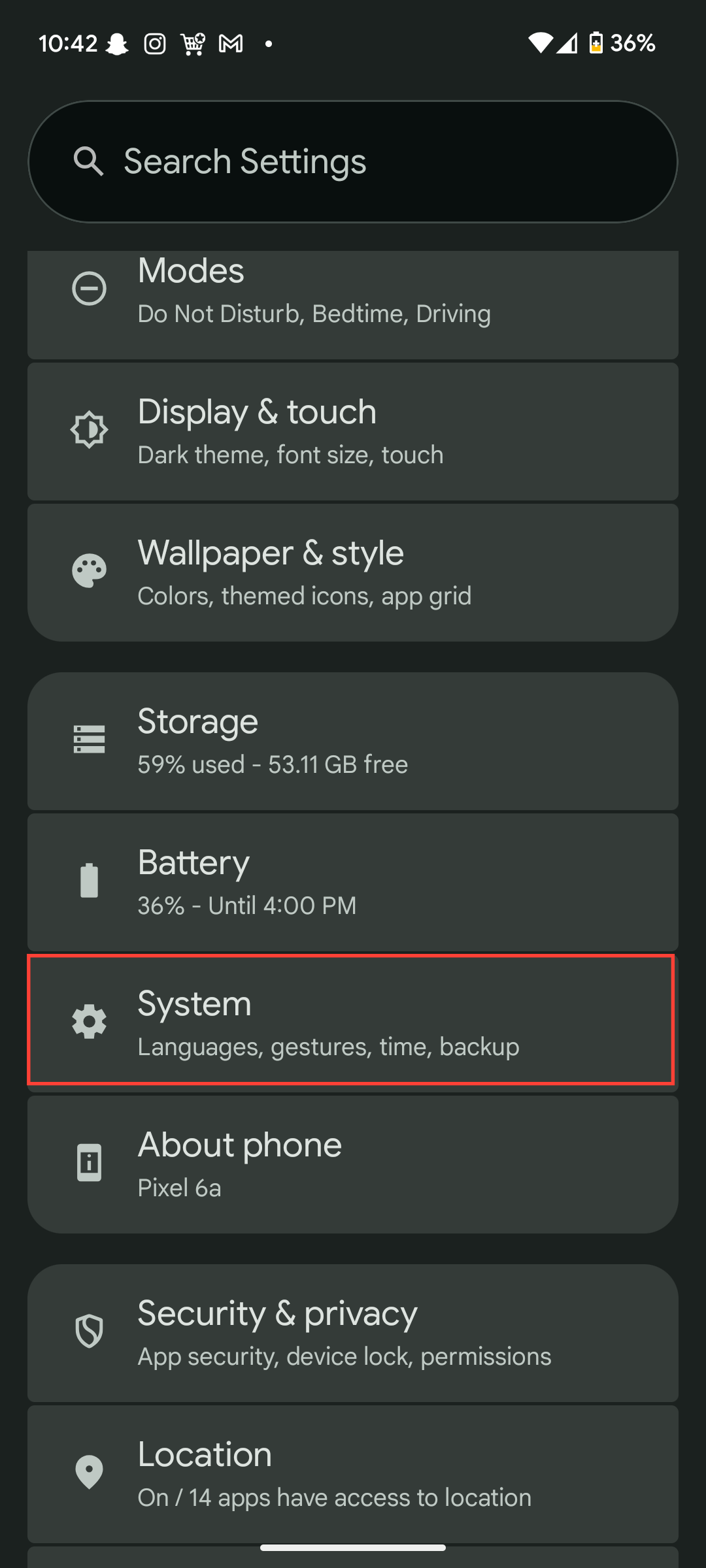
Step 1: Open the Settings app and tap System.
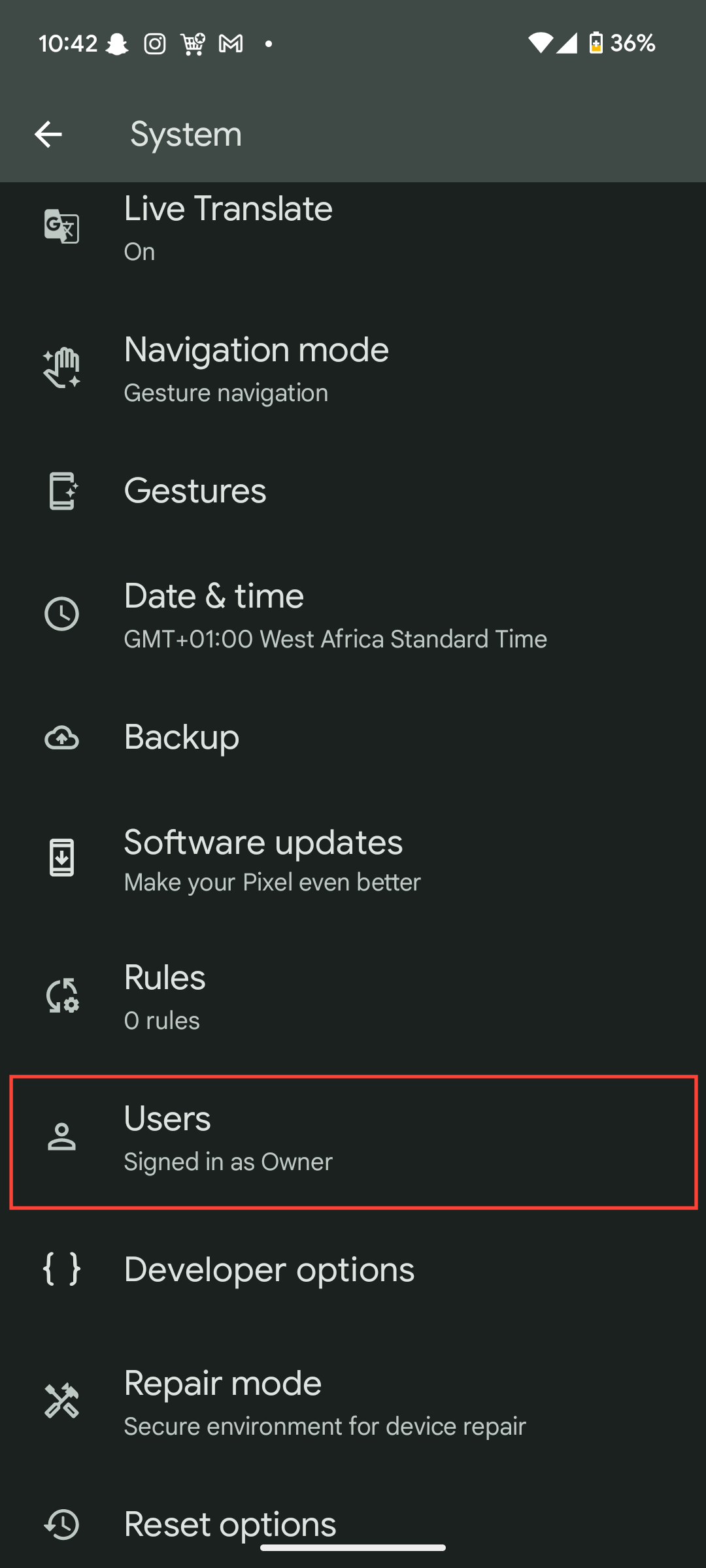
Step 2: Scroll down and select Users.
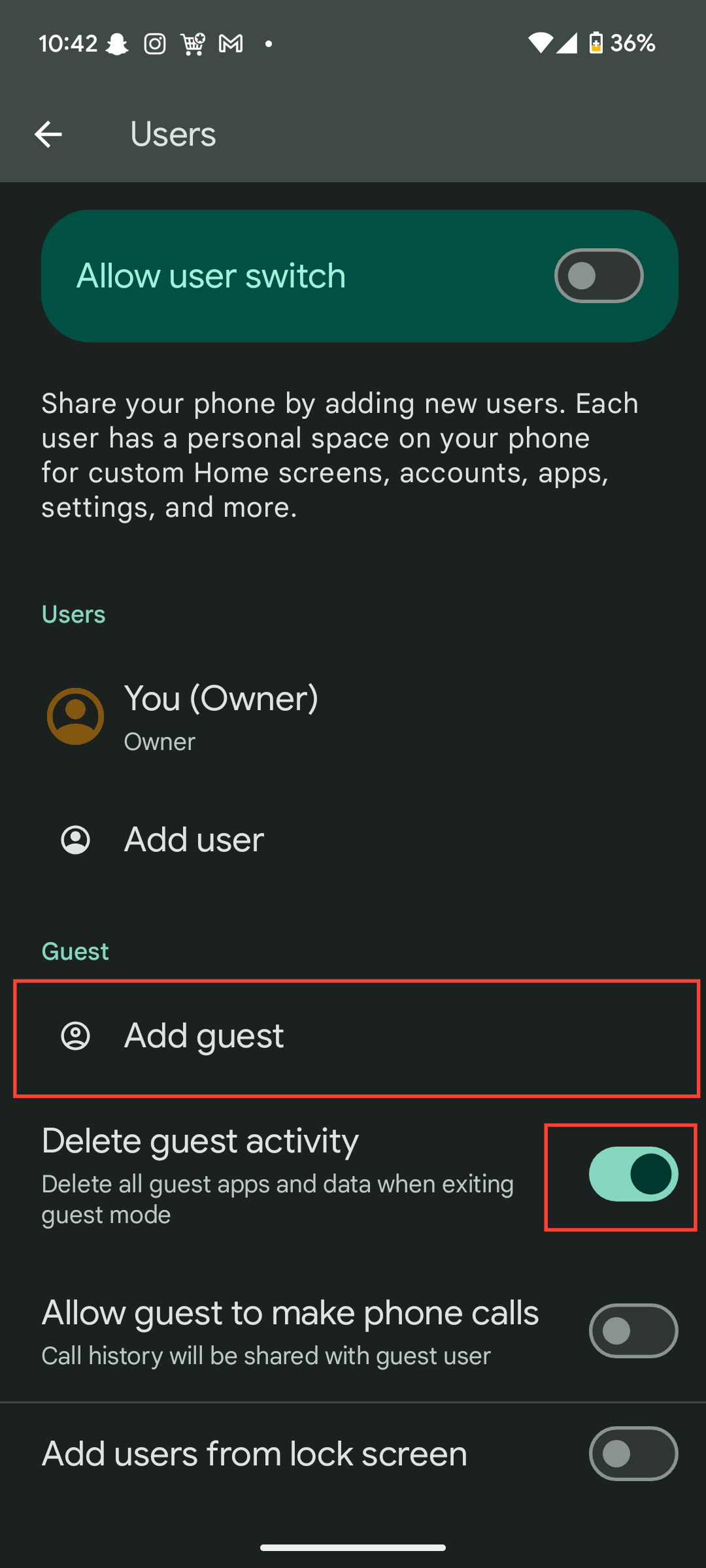
Step 3: Tap Add guest. This will automatically take your phone to the isolated guest Account.
- For additional security, toggle on the Delete guest activity to erase all data used and received in the guest session.
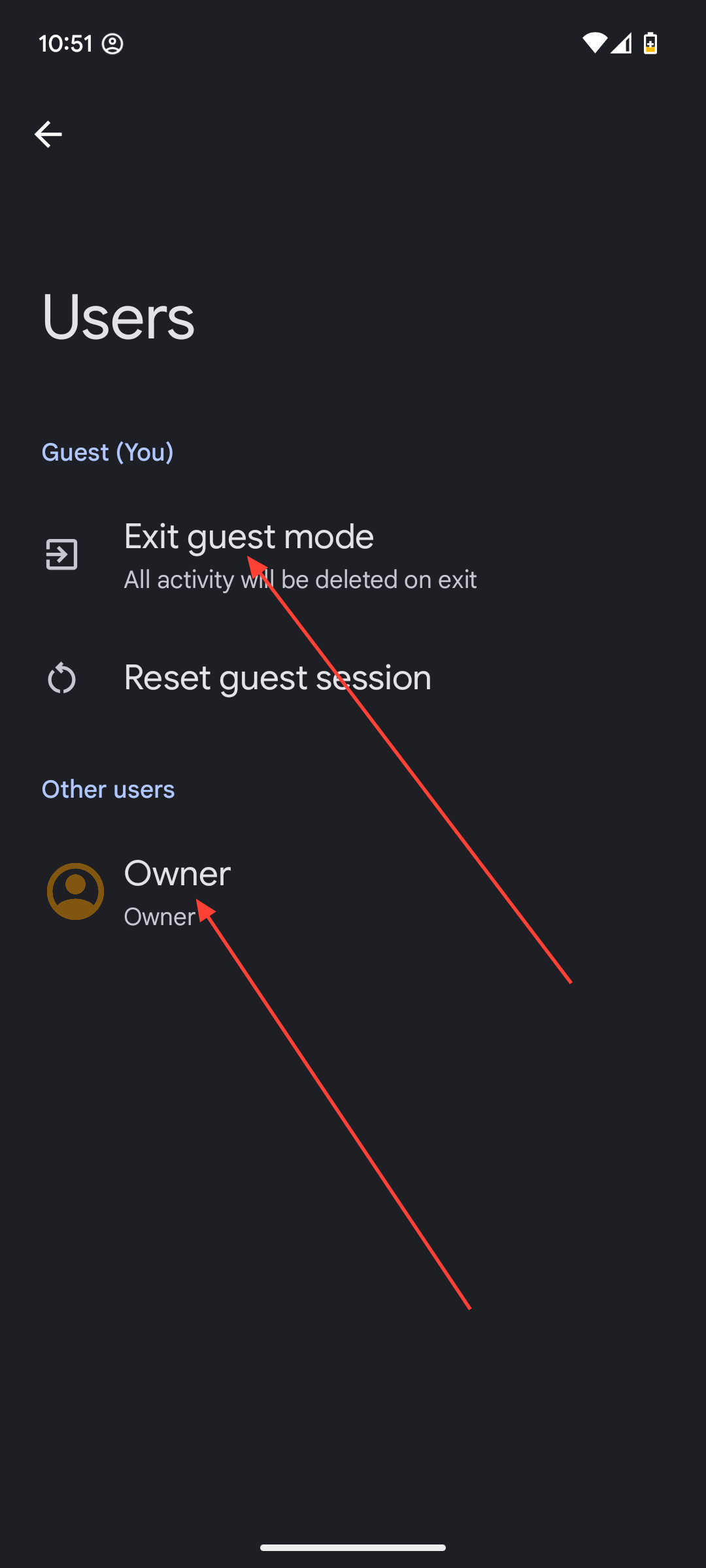
Step 6: To leave guest mode:
- Return to the Users menu and tap your user profile or Exit guest.
Conclusion
By setting up a Guest Account, you’ve created a space for your visitors while ensuring that your private messages, photos, and files remain secure. It completely removes the stress and awkwardness from loaning your device, because you know that whatever they do will all be contained within that temporary guest profile and wiped clean later.
So the next time someone needs to borrow your phone, you can hand it over without much thought, knowing your account is perfectly secure.
Image Credit: Oyinebiladou Omemu/Techloy.com


