



There is nothing more frustrating than reading a long article or following step-by-step instructions, only to have your phone screen go black before you finish. I remember helping a friend troubleshoot an app issue, and the screen kept timing out every few seconds.
It made the process way more stressful than it needed to be. That was when I realised just how important the screen timeout setting really is. On Android, you can easily control how long your display stays awake before going to sleep. It is one of those small tweaks that can make a big difference in how comfortable and efficient your phone feels.
 Louis Eriakha
Steps to Adjust Screen Timeout
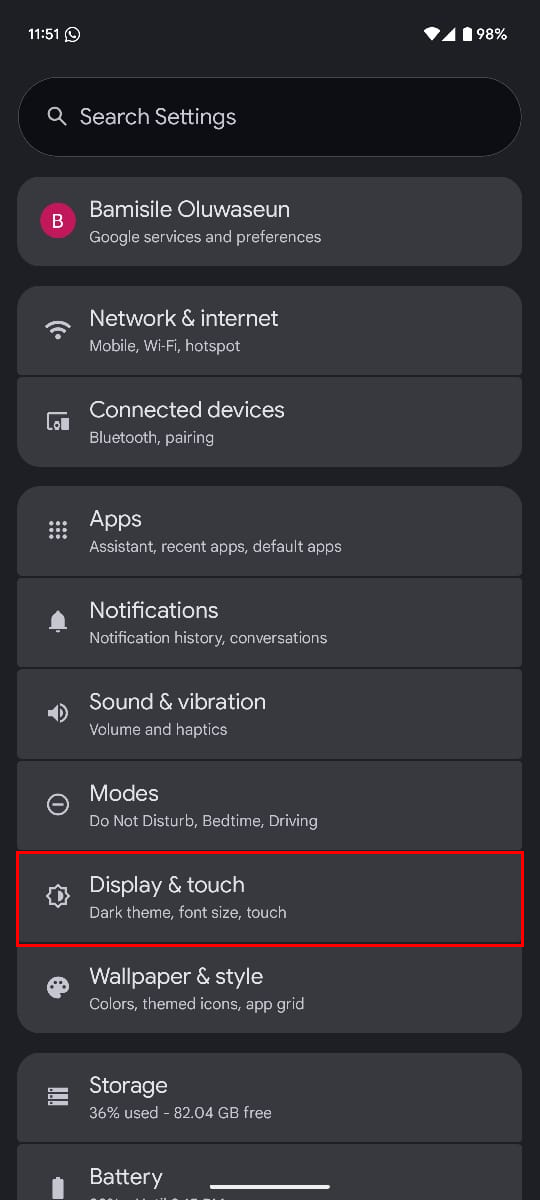
Step 1: Open your Settings app on your device, then select "Display & Touch"
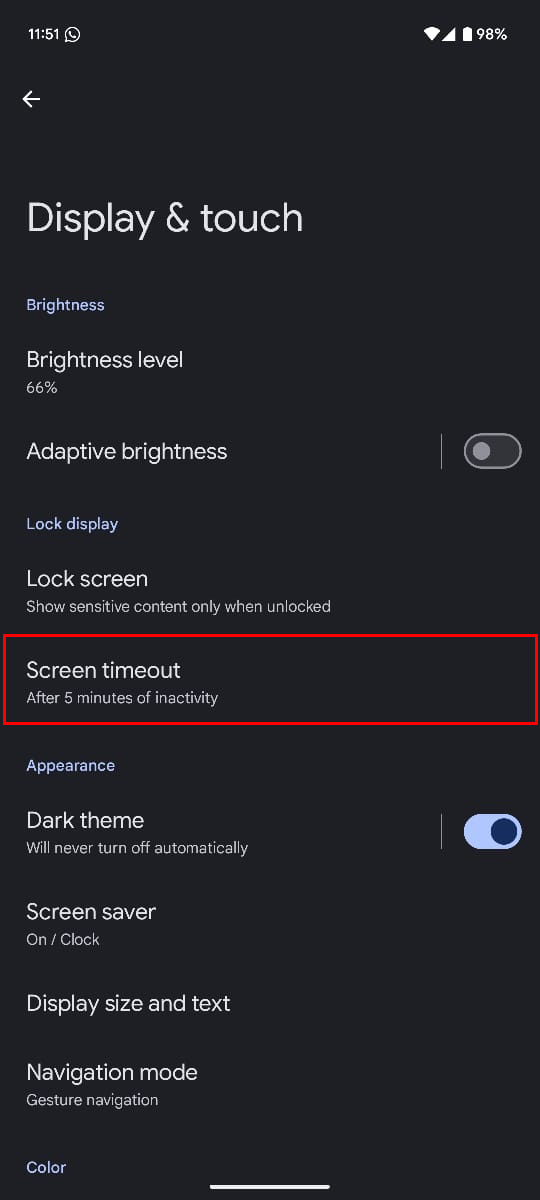
Step 2: Now, select "Screen timeout"
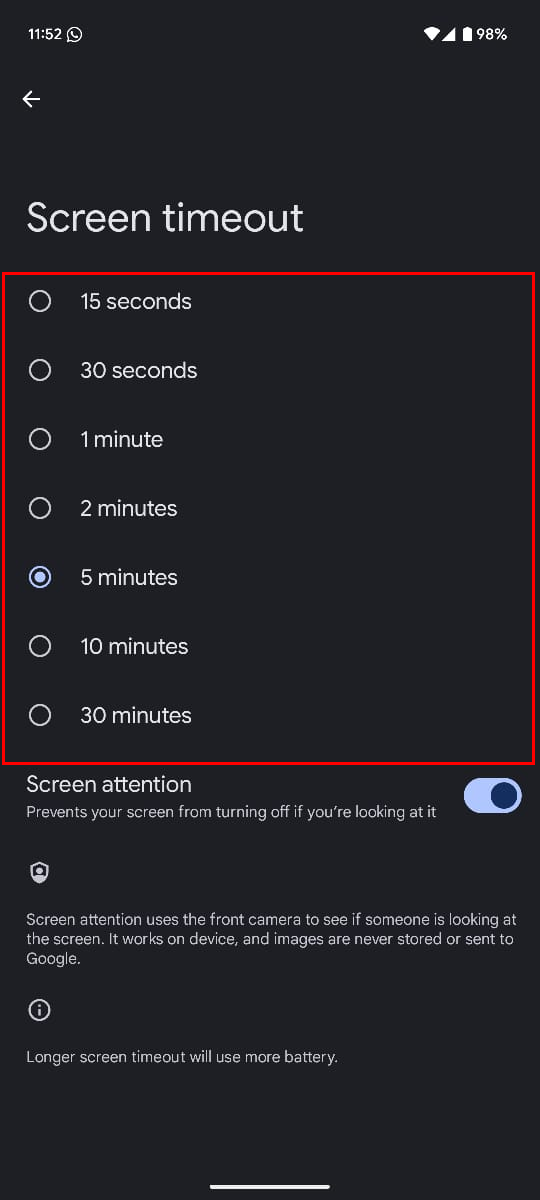
Step 3: Choose a duration that fits your needs. Some phones may also include a Never option that keeps the display on until you manually lock it
 Oluwaseun Bamisile
Conclusion
Screen timeout may feel like a tiny setting, but it has a big impact on your phone’s usability. By adjusting it, you can reduce wasted power and also make sure your screen stays on long enough when you need it most.
This setting is especially useful if you read a lot on your phone, use it for recipes in the kitchen, or follow along with tutorials. On the other hand, shortening the timeout can help preserve battery life if you are often away from your device. It is all about finding the right balance for how you use your Android every day.
Image credit: Oluwaseun Bamisile/Techloy.com


