



If you game a lot on your Android, you may have noticed the pixelated edges in your mobile games that make graphics look rough around the edges. That’s aliasing, a common issue caused by square pixels trying to display smooth curves and diagonal lines.
What is 4x MSAA?
4x MSAA, or Multisample Anti-Aliasing, is a computer graphics technique that smooths out jagged edges (aliasing) in rendered images. It works by checking four different places in each pixel (four in the case of 4x MSAA) and using those samples to determine a better color for the pixel.
These jaggies are not such a discomfort, but if you'd rather not have them, 4x MSAA (Multisample Anti-Aliasing) is a graphics setting that helps clean up these jagged edges.
Enabling 4x MSAA smooths out jagged edges in graphics by blending extra color samples along object borders. However, this improvement comes at a cost. You get increased GPU workload, which can lead to faster battery drain and potential performance drops on weaker devices.
If you’re a mobile gamer with a flagship phone and don’t mind sacrificing some battery life for better visuals, enabling it might be worth it. But if your device struggles with demanding games or you prioritize battery longevity, you might want to skip it.
Let’s show you how to enable it for a better gaming experience.
 Oyinebiladou Omemu
How to force 4x MSAA on Android
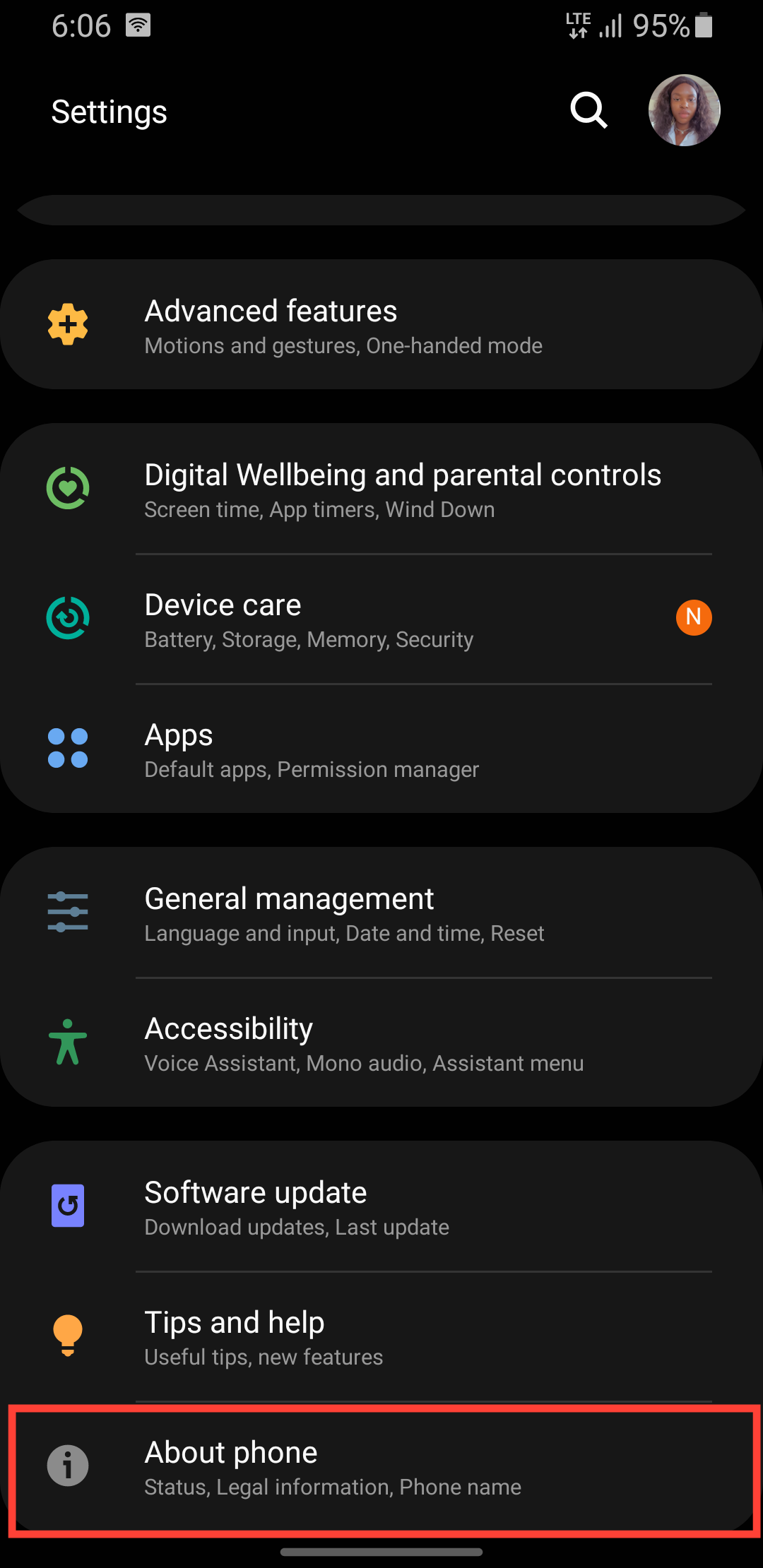
Step 1: Go to settings on your phone and scroll down. Then, select About phone.
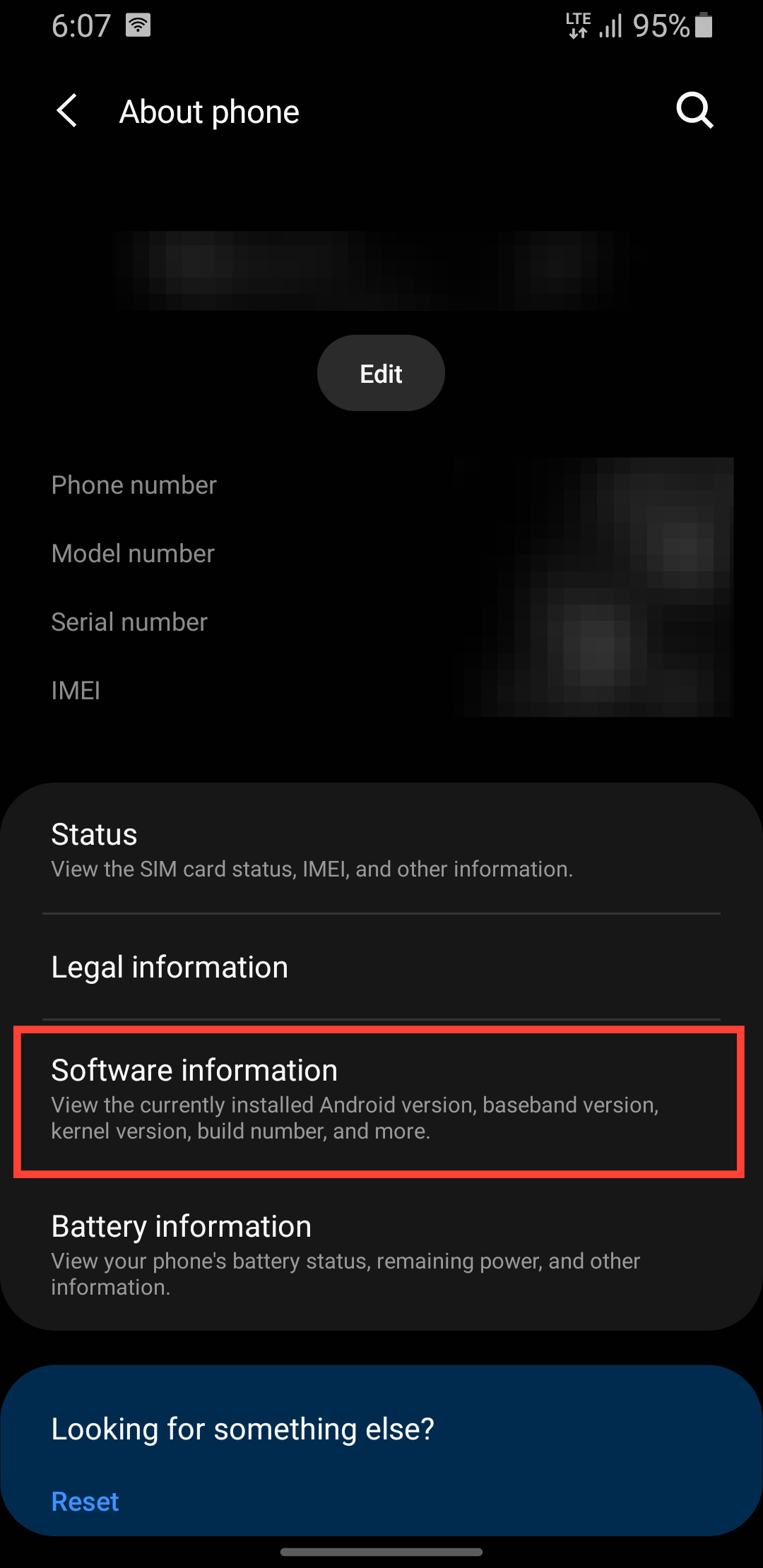
Step 2: Select Software information.
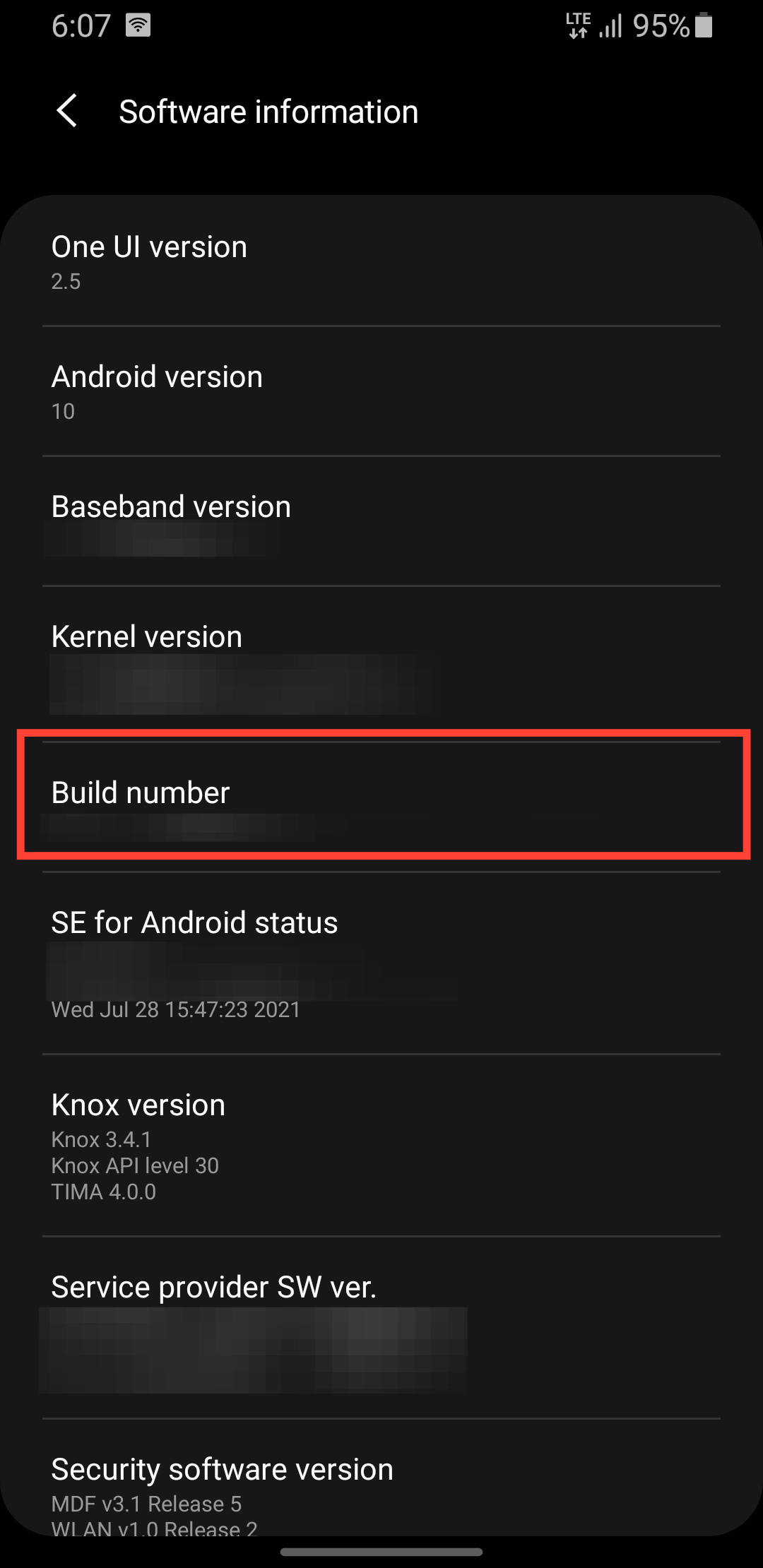
Step 3: Tap build number 7 times. This should enable developer mode.
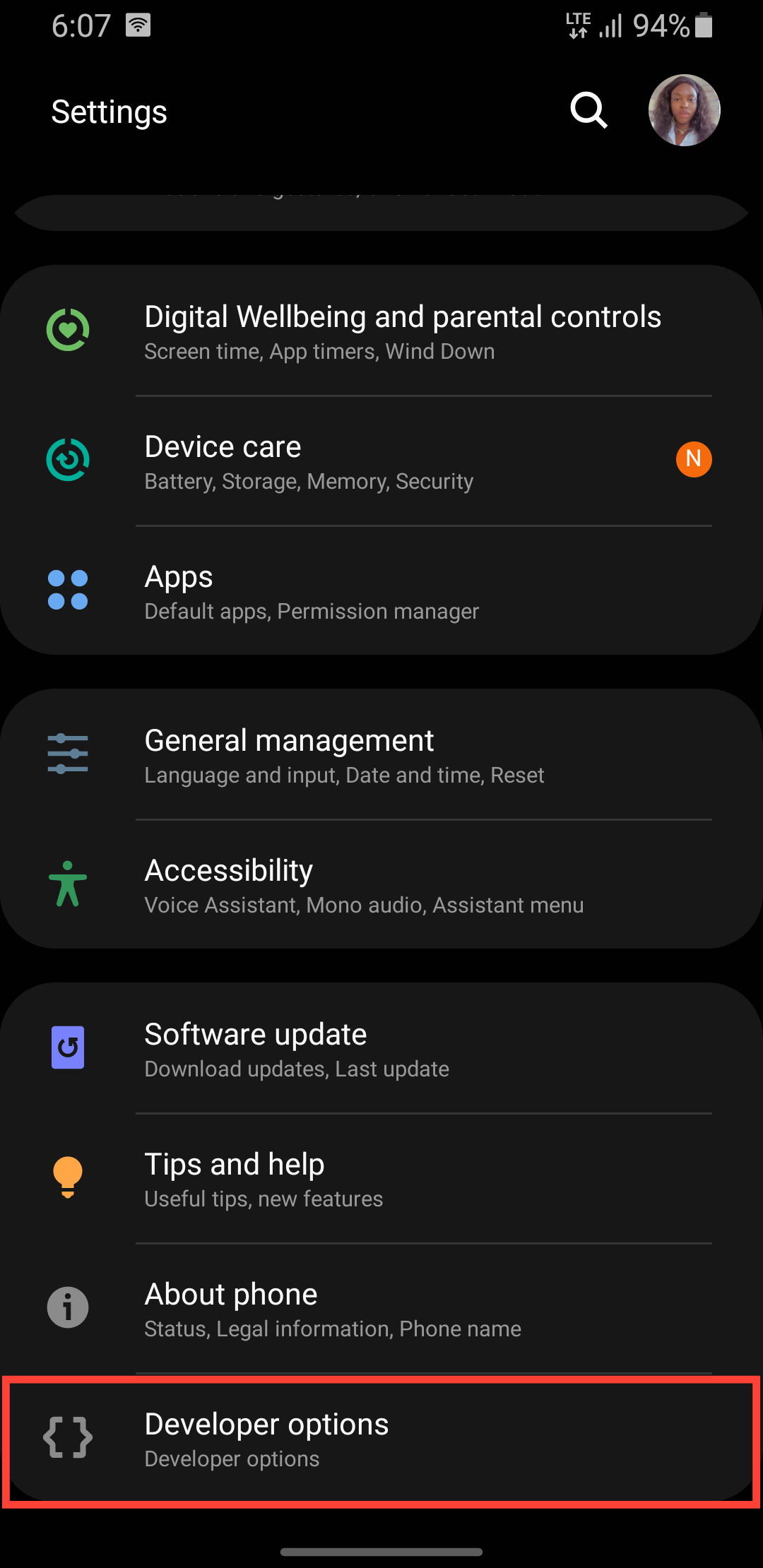
Step 4: Return to the Settings main menu, scroll down, and select Developer options.
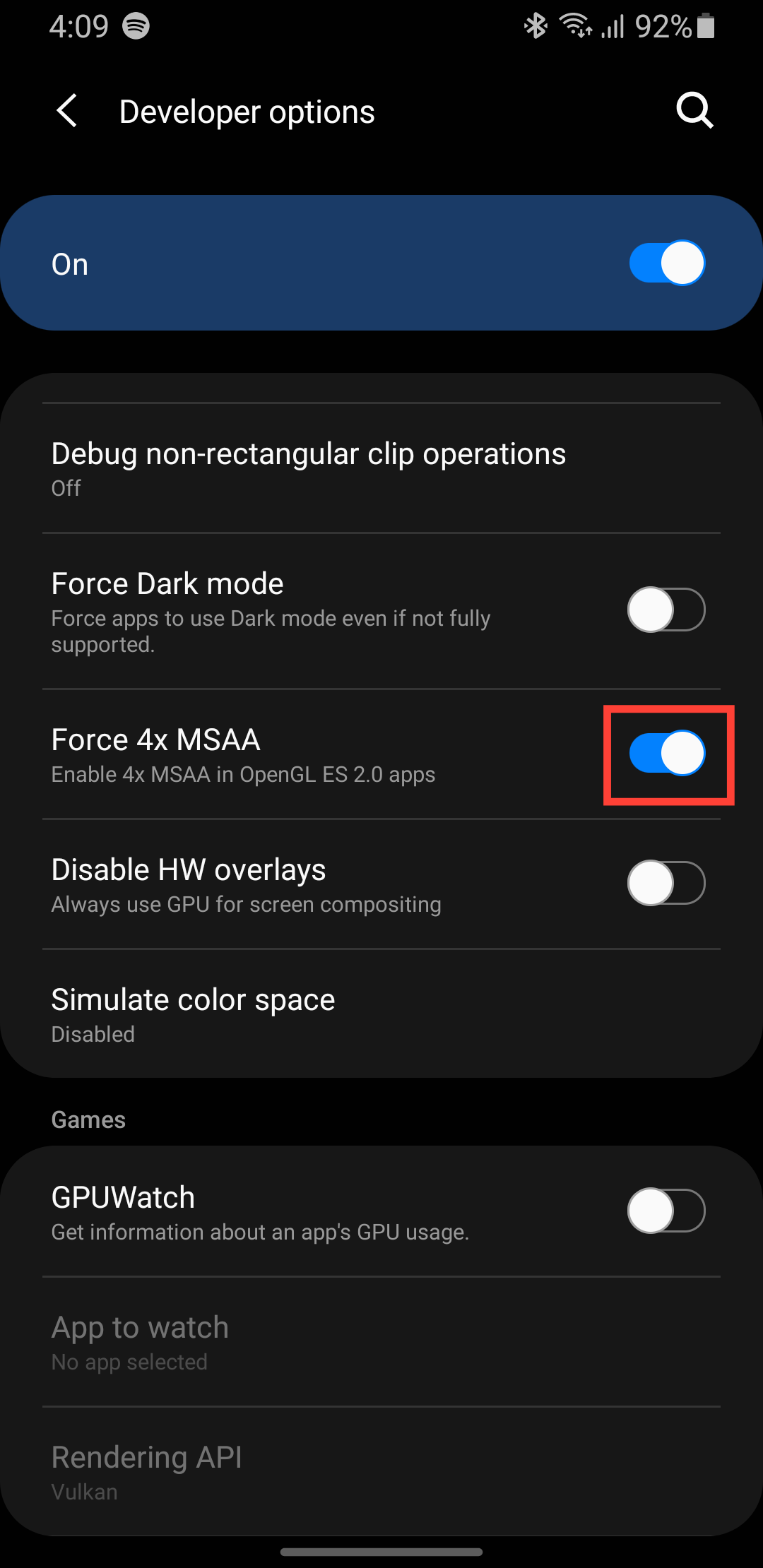
Step 5: Scroll down, and you'll see 'Force 4x MSAA.' Toggle the button next to it on.
Conclusion
Enabling 4x MSAA can give your Android games a visual boost by smoothing out jagged edges, but it comes with real trade-offs. On a powerful device, the improved graphics might be worth the extra battery drain, but on mid-range or older phones, the performance hit could make games stutter or drain your battery faster than usual.
Since it’s tucked away in Developer Options, it’s obvious this setting isn’t meant for casual use. If you decide to try it, monitor your device’s performance and battery life. And if you notice any performance issues, turning it off is just as easy as turning it on.
Image Credit: Oyinebiladou Omemu/techloy.com


