



Chrome's default download location gives you a clean file structure by creating a central "Downloads" folder. This is great for convenience; you can always find your files in one predictable place. However, this very simplicity can become a drawback.
Without any organization, this single folder can quickly become a chaotic mix of important documents, temporary installers, and random images, making it frustratingly difficult to find what you actually need later.
But you can always take a minute to customize your download settings. By either setting a new default location for specific file types, like automatically sending work PDFs to a "Projects" folder, or simply turning on the prompt to choose a spot for each download, you proactively prevent the digital clutter before it even starts.
This guide will show you how to customize your download flow on both your computer and your mobile phone.
 Oyinebiladou Omemu
How to change Chrome download location
On Laptop/Desktop
Step 1: Open Chrome on your computer.
Step 2: At the top, click the more icon, and click settings.

Step 3: Click Downloads.
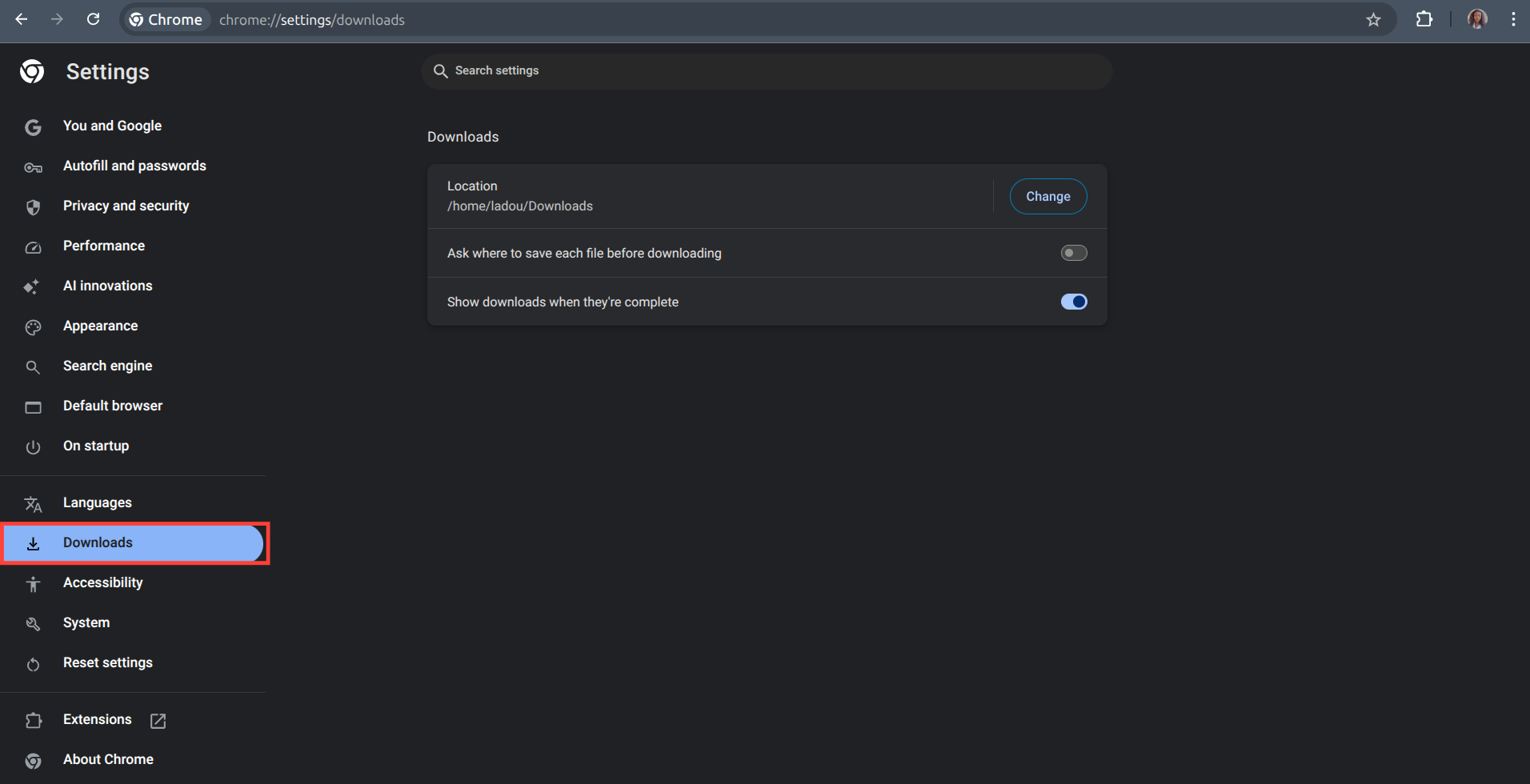
Step 4: Adjust your download settings:
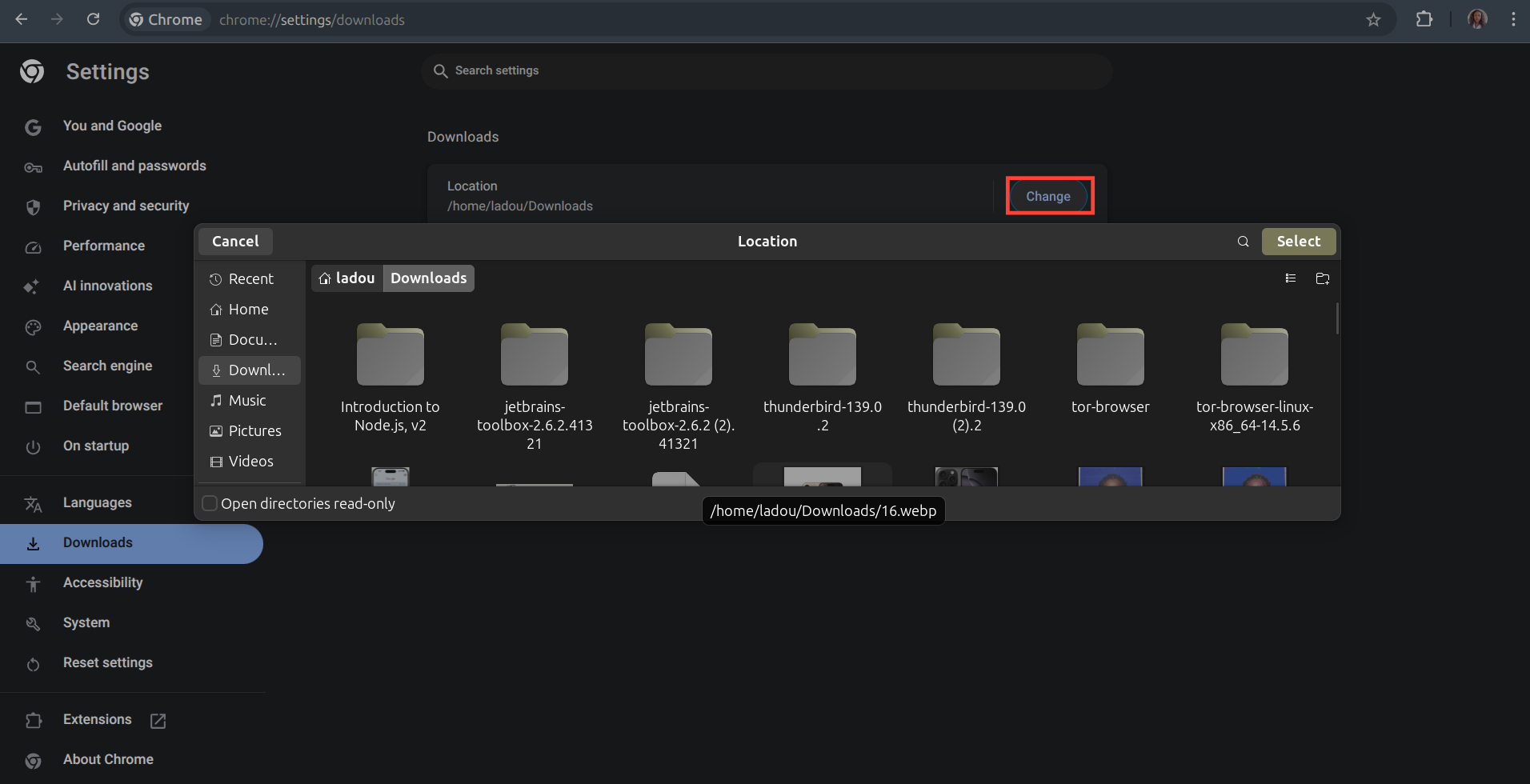
- To change the default download location, click Change and select where to save your files.
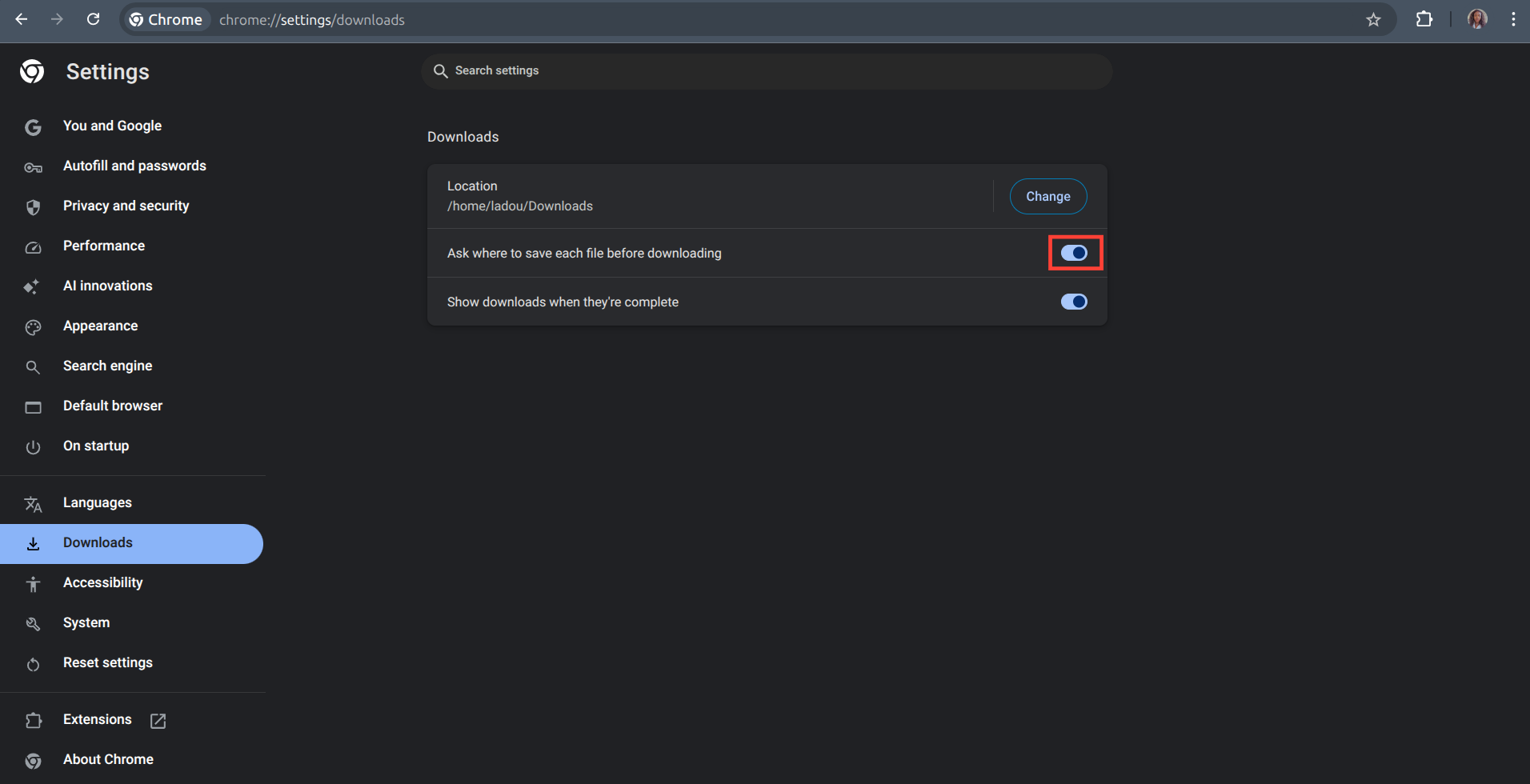
- If you'd rather choose a specific location for each download, turn on Ask where to save each file before downloading.
On a Mobile Phone
Step 1: Open Chrome on your phone.
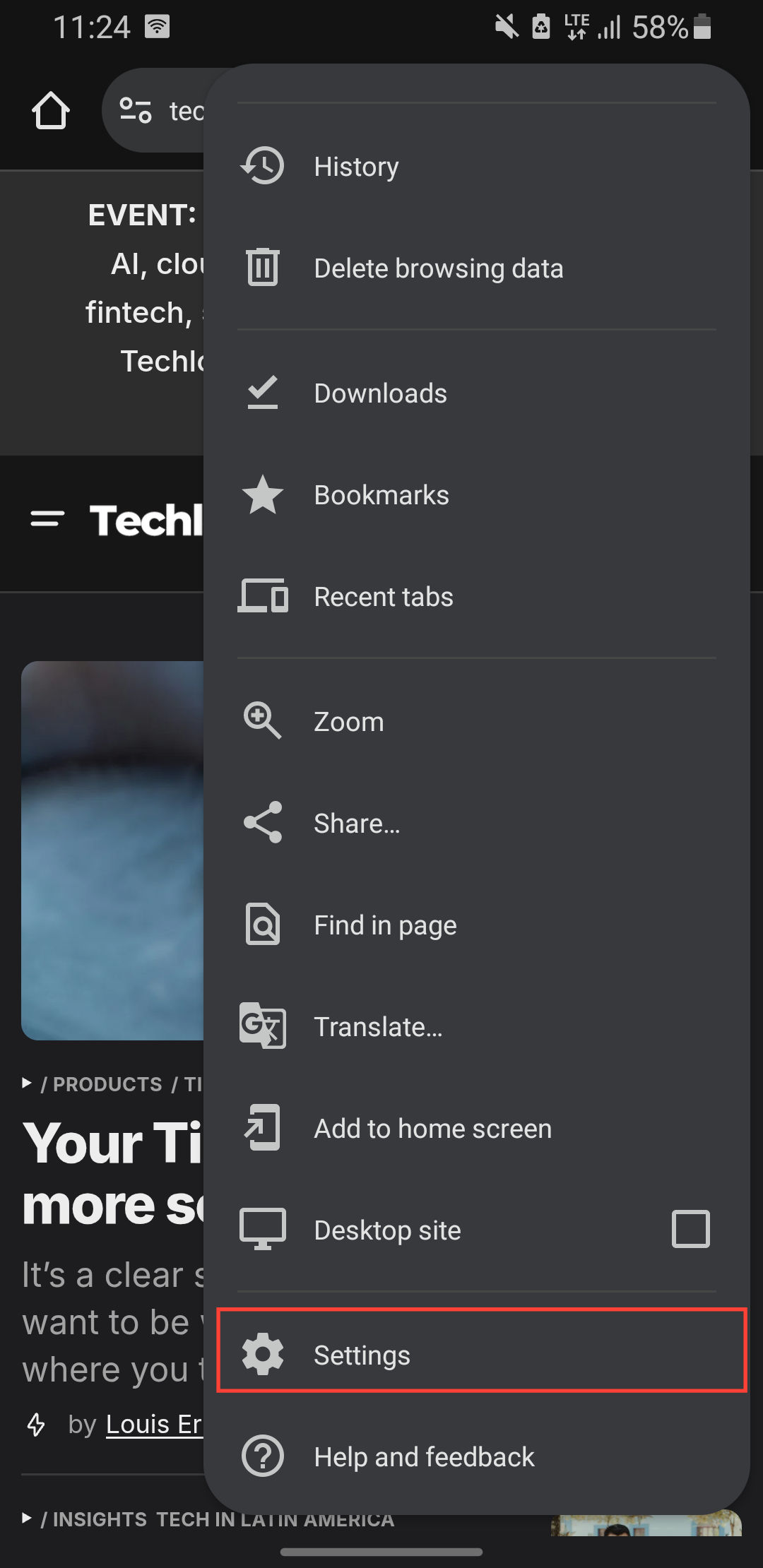
Step 2: Tap the more icon on the top right.

Step 3: Scroll down and select Settings.
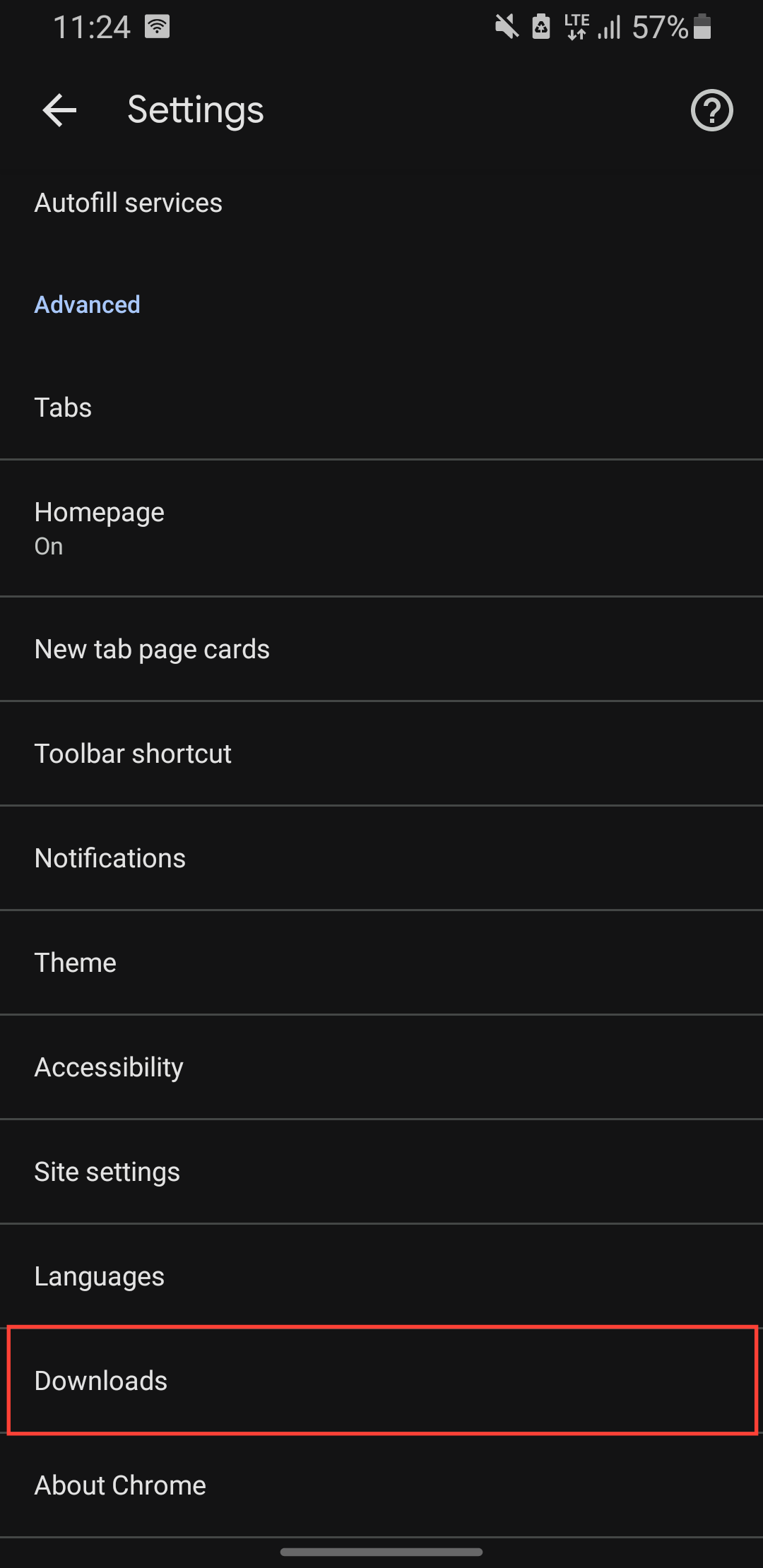
Step 4: Tap Downloads.
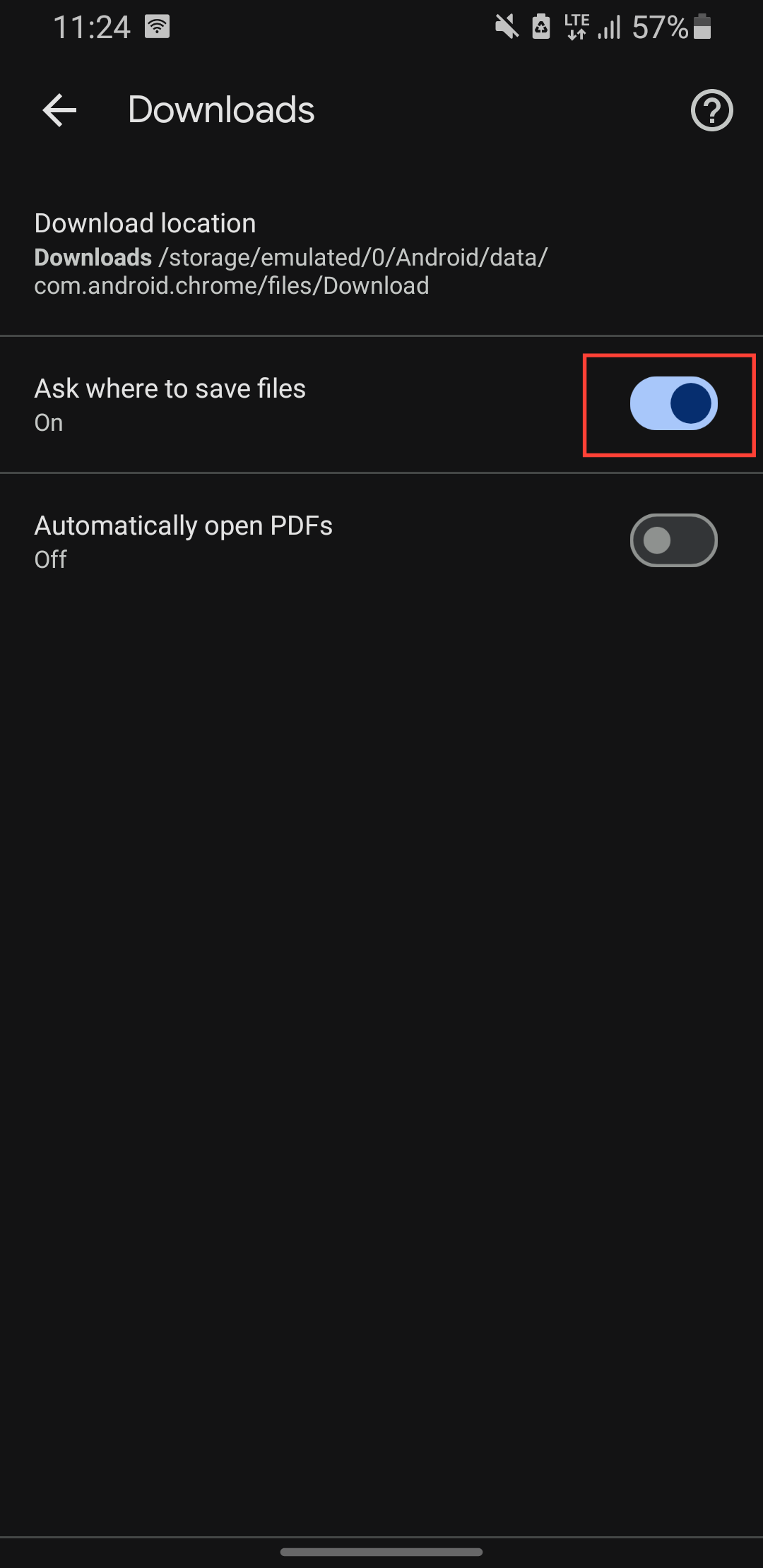
Step 5: Toggle on the Ask where to save files button.
 Oyinebiladou Omemu
Conclusion
While the default Downloads folder is fine for passive saving, actively choosing where your files stay creates a structured system that serves you. This simple habit saves you from the frustration of endlessly scrolling through a cluttered folder.
Whether you’ve opted for a dedicated default folder that matches your workflow or you’ve enabled the "Ask where to save" feature for maximum flexibility, you’ve taken a key step in taming digital chaos.
Image Credit: Oyinebiladou Omemu/Techloy.com


