



Ever felt like your Android phone screen is showing either too much or too little at once? Maybe the icons look oversized, or the text is so small you have to squint like you’re reading fine print. Your display isn’t one-size-fits-all, and thankfully most Android phones know that.
Display density determines how many pixels fit into each inch of your screen. Think of it as how tightly those dots are packed together to form what you see. Adjusting this setting changes how your phone interprets those pixels, so the size of icons, text, and menus looks right for you.
Because Android runs on thousands of devices with different screen sizes and resolutions, one layout doesn’t fit all. A button that looks perfect on one phone might appear huge or tiny on another. Tweaking your display density helps you control how much content fits on your screen and makes everything feel balanced.
In this guide, we’ll walk you through how to adjust your display density to match your preferences.
 Oyinebiladou Omemu
6 Steps to Change Display Density on an Android Phond
Step 1: Go to Settings on your Phone
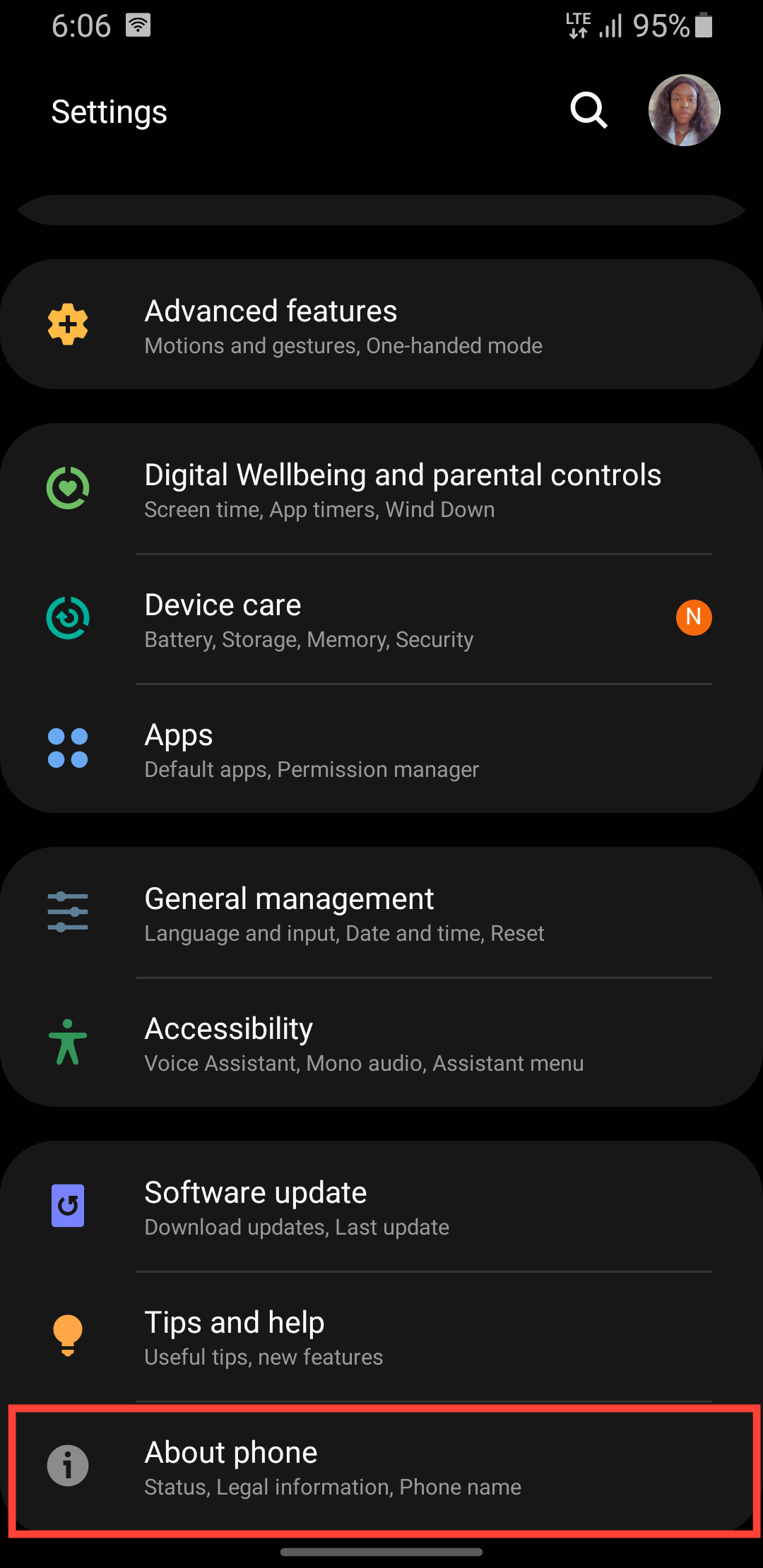
Step 2: Select About phone
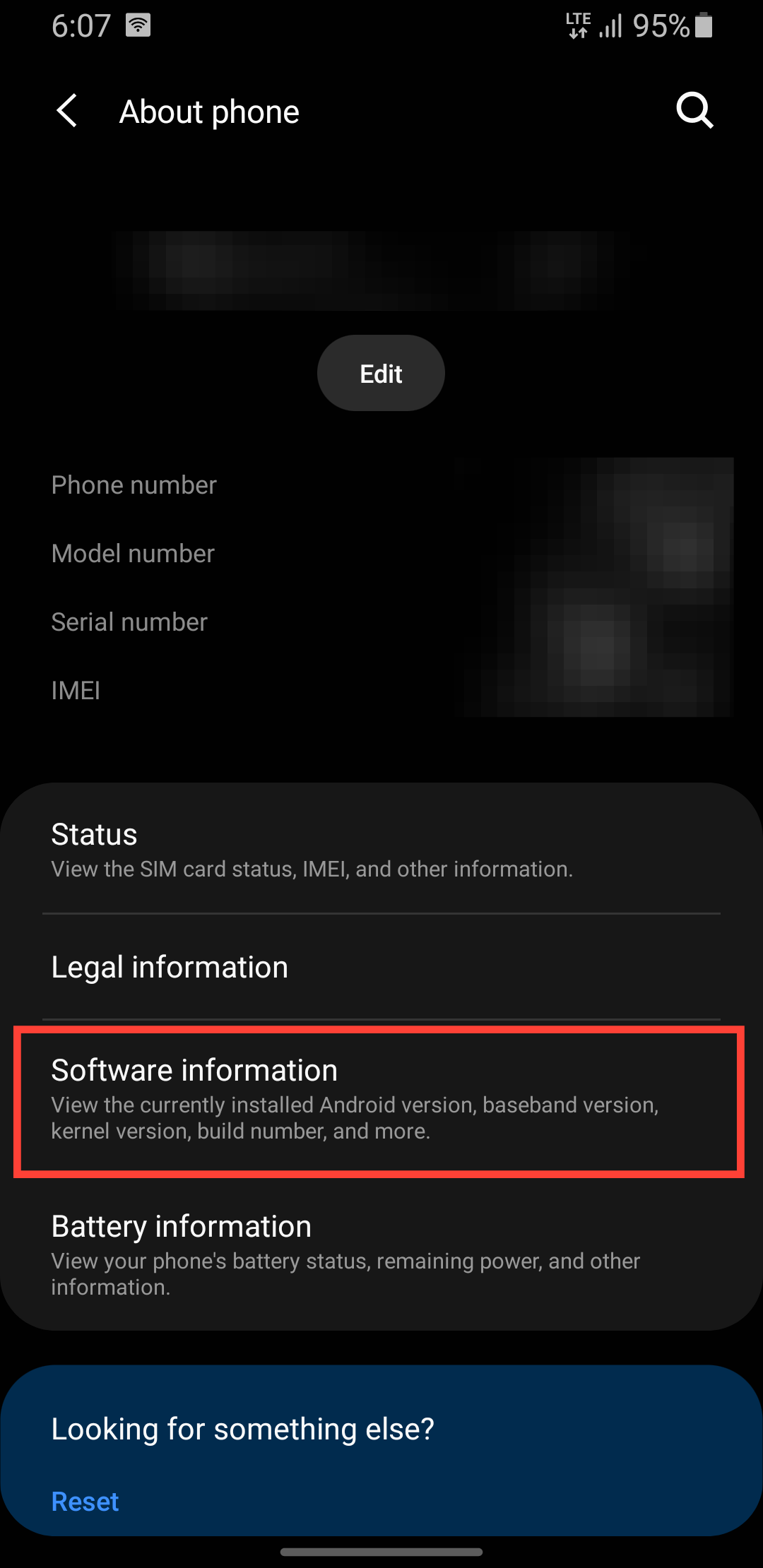
Step 3: Tap Software information
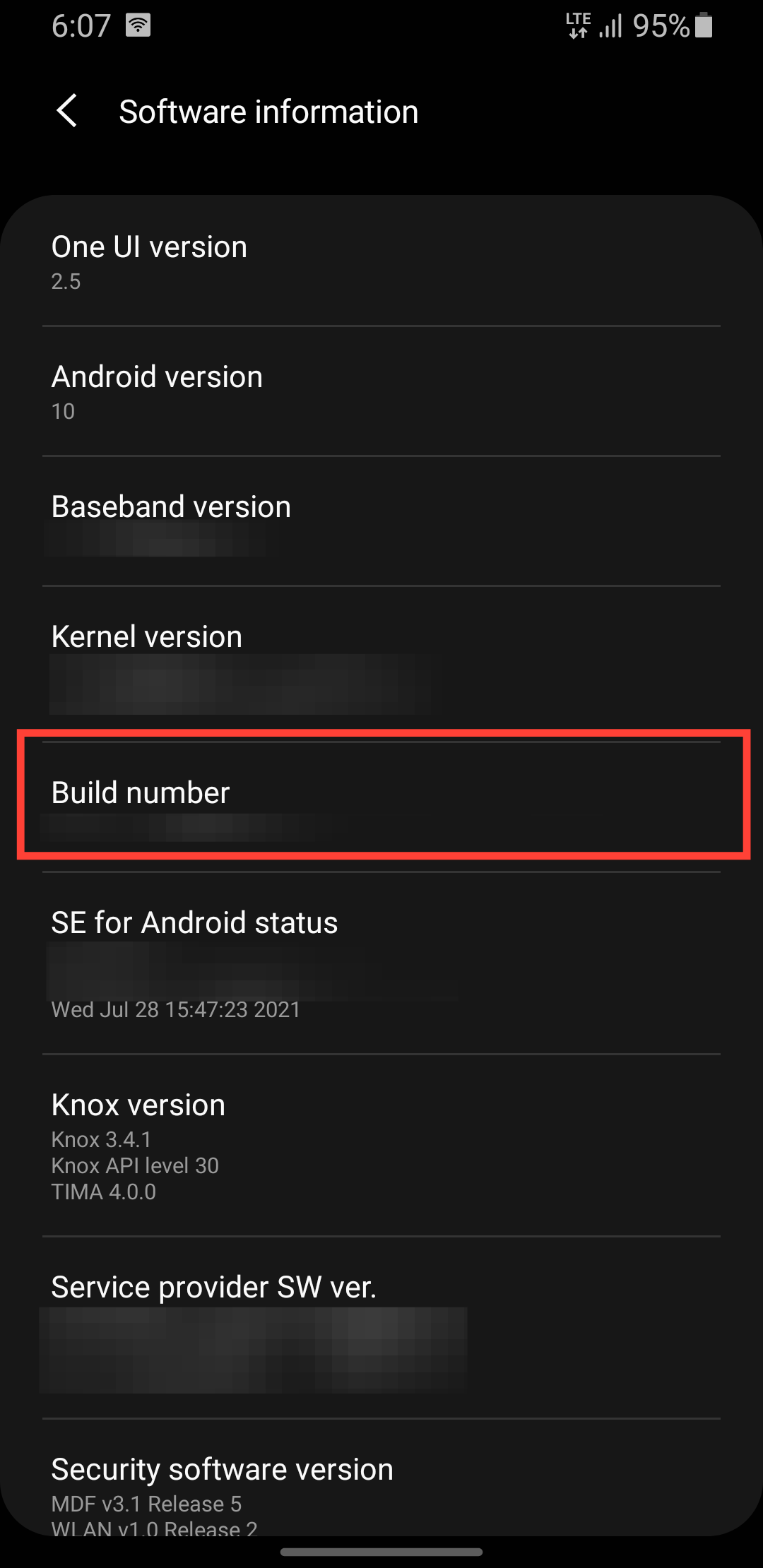
Step 4: Tap build number ten times to enable developer mode.
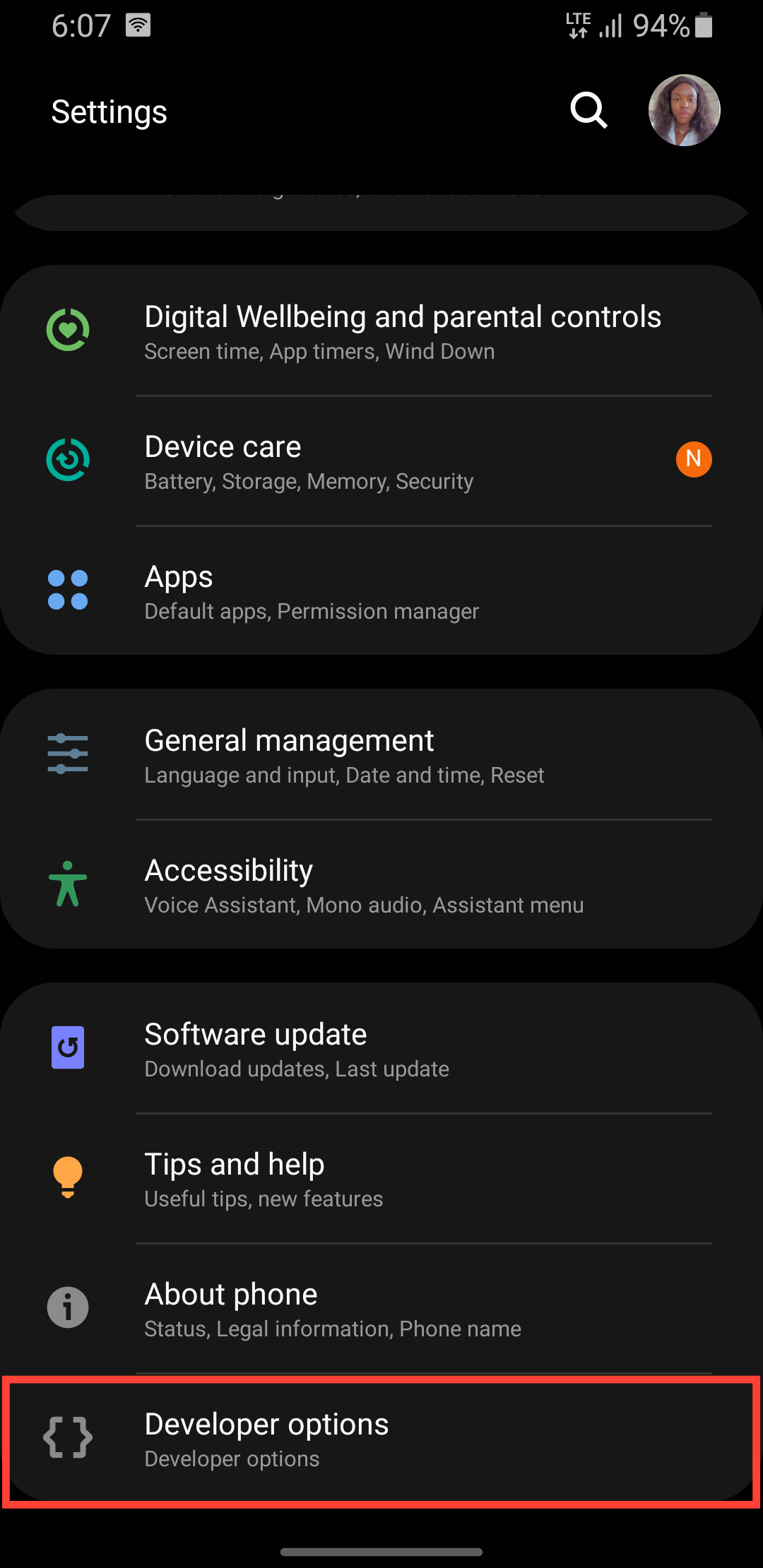
Step 5: Go back to Settings main menu, scroll down and select Developer options.
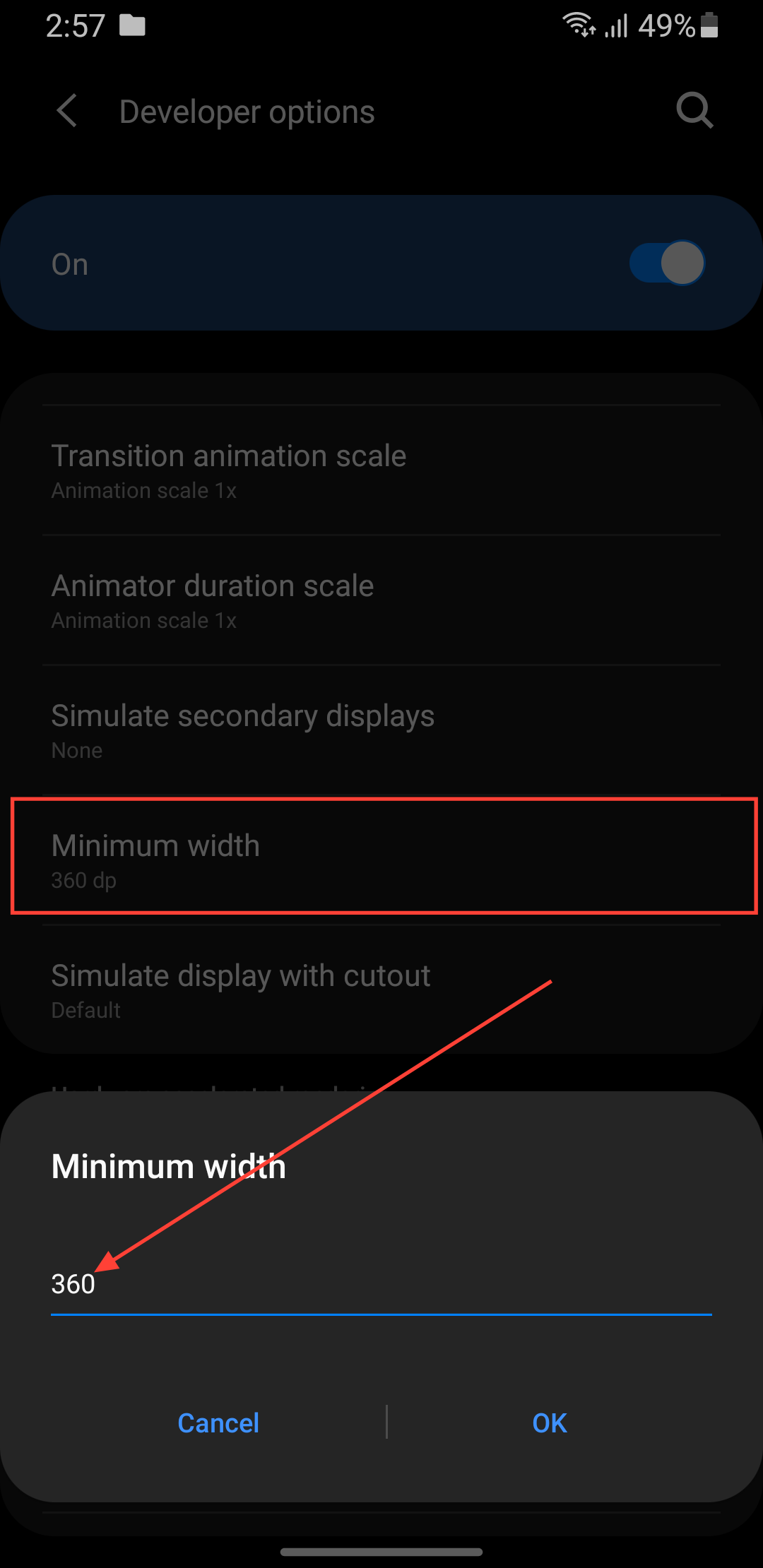
Step 6: Scroll down and tap minimum width and tweak the number. A higher number makes everything smaller, while a lower number makes everything bigger.
 Oyinebiladou Omemu
Conclusion
Adjusting your Android's display density might sound technical, but it's really just about making your phone work the way you want it to. It conveniently lets you break free from the manufacturer's default settings and create a viewing experience that actually fits your needs.
Whether you love fitting as much information as possible onto your screen, or you prefer a more spacious, breathable layout, the display density setting in Developer Options gives you that control.
Image Credit: Oyinebiladou Omemu/Techloy.com


