



Google Docs is a fantastic tool for writing and collaboration, but let’s be honest—it can feel visually bland sometimes.
If you're working on a presentation handout, a creative project, or even just trying to distinguish between drafts, changing the page color can make a big difference. I started using custom page colors when I was designing digital worksheets for a workshop, and not only did it make them easier to navigate, but it also made the content pop.
Whether you want to add visual interest, align your document with a brand color, or just reduce eye strain, changing the background color of a Google Doc is quick, easy, and surprisingly impactful. Here's how to do it.
Steps to Change Page Color
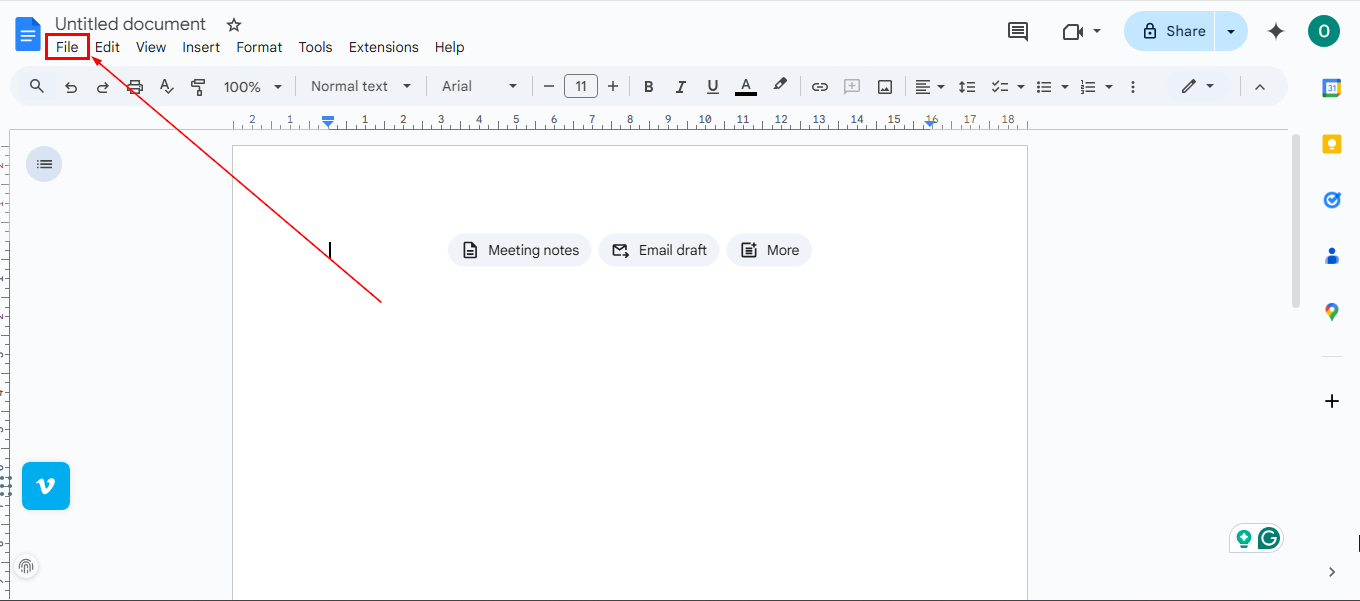
Step 1: Open the Google Docs file and click "File" among the menus on the top-left corner of your screen
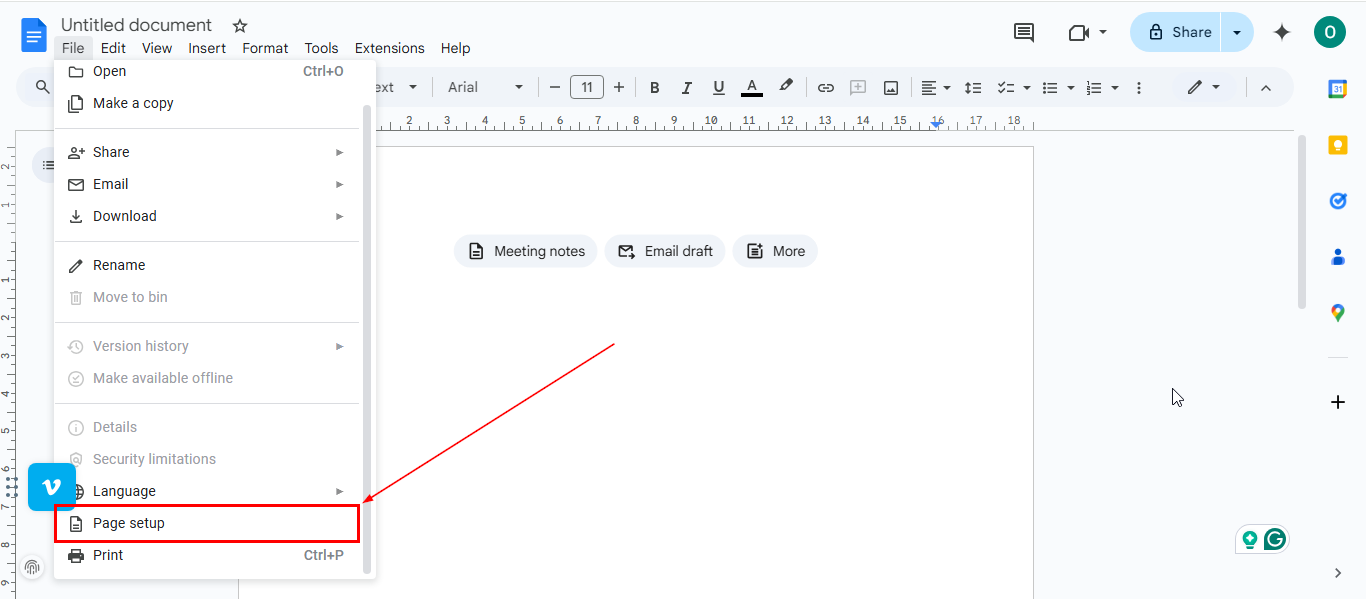
Step 2: From the dropdown, select "Page setup"
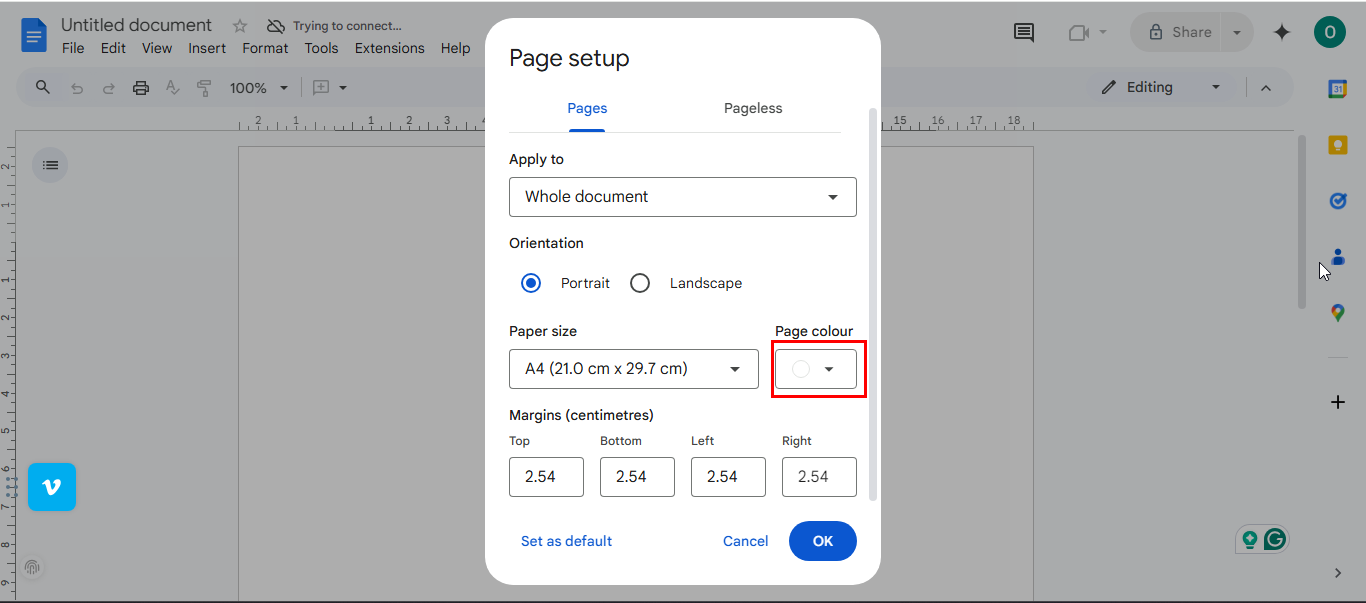
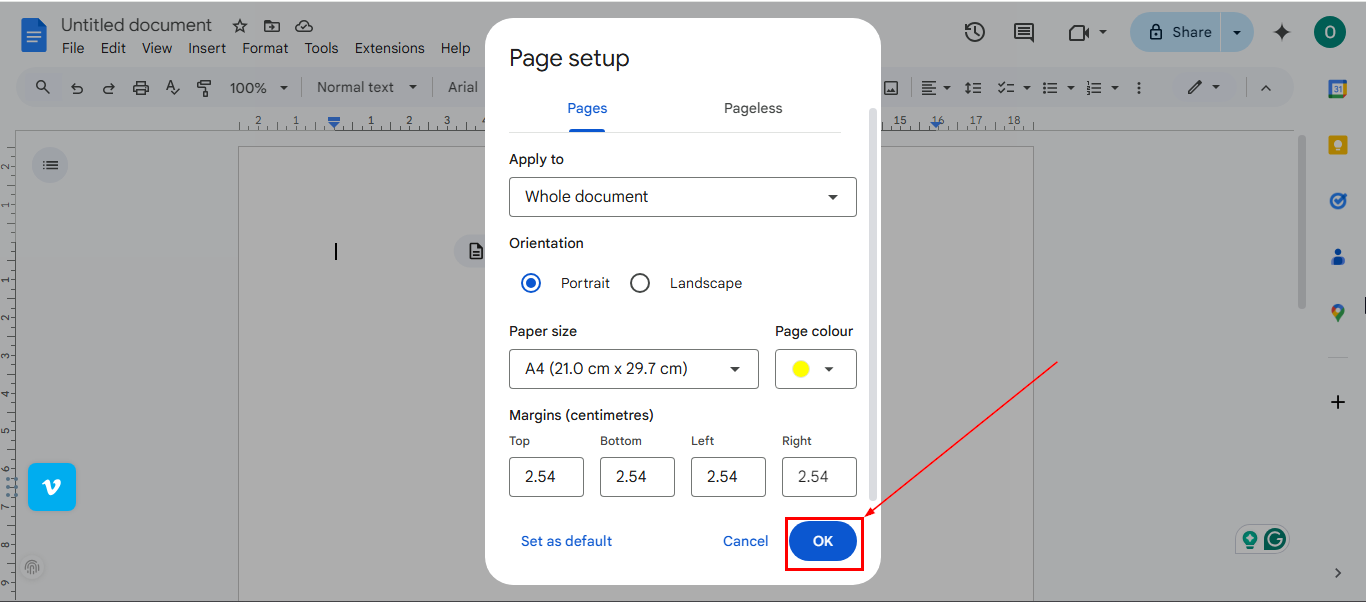
Step 3: In the Page setup window, click the Page color box
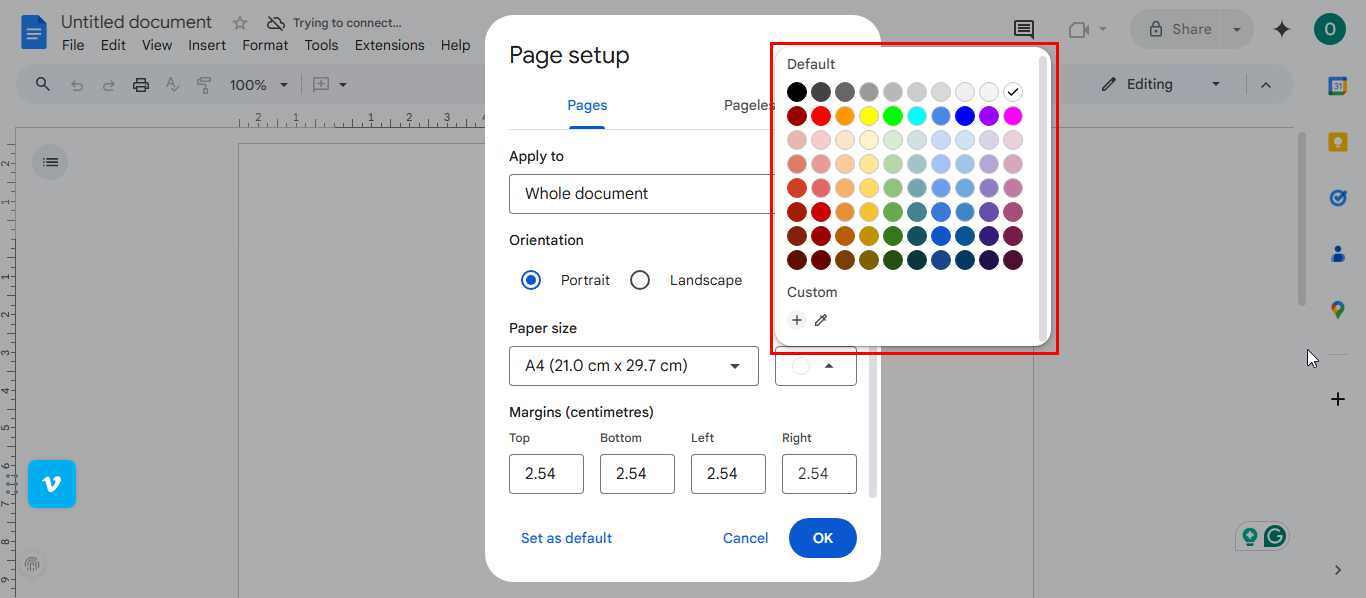
Step 4: Then, choose a preferred color from the color palette
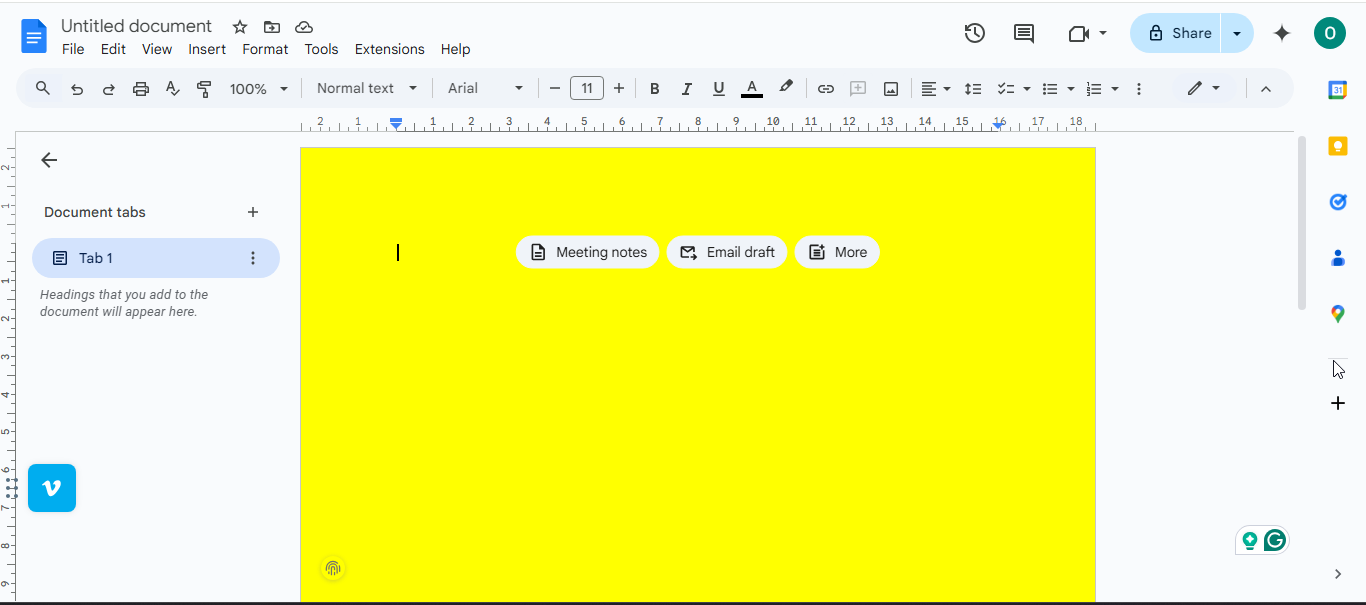
Step 5: Finally, click the OK button, and the page background will instantly update to reflect your new selection
 Oyinebiladou Omemu
Conclusion
Changing the page color in Google Docs might seem like a small thing, but it can have a big impact on both presentation and productivity.
Whether you're aiming for a sleek professional look or something more fun and expressive, customizing your background color is a great way to make your work stand out. So play with color, find what suits your style, and make that blank page your own.
Image Credit: Oluwaseun Bamisile/Techloy.com


