



LinkedIn is a platform that enables professionals to network, showcase their skills, and connect with potential employers. However, one feature many users overlook is the LinkedIn URL.
By default, the URL includes a string of random numbers and letters, which can appear unprofessional and be difficult to remember. Nevertheless, customizing your LinkedIn URL to what you can recall is a subtle and efficient way to enhance your brand and make your profile more accessible.
Whether you're looking to make a strong impression in a job search, share your profile on a business card, or stand out in your industry, taking a few moments to customize your LinkedIn URL can make a lasting impact.
In this article, you will learn how to change your LinkedIn URL, making it shareable and professional for your online presence.
7 Steps to Change Your LinkedIn URL
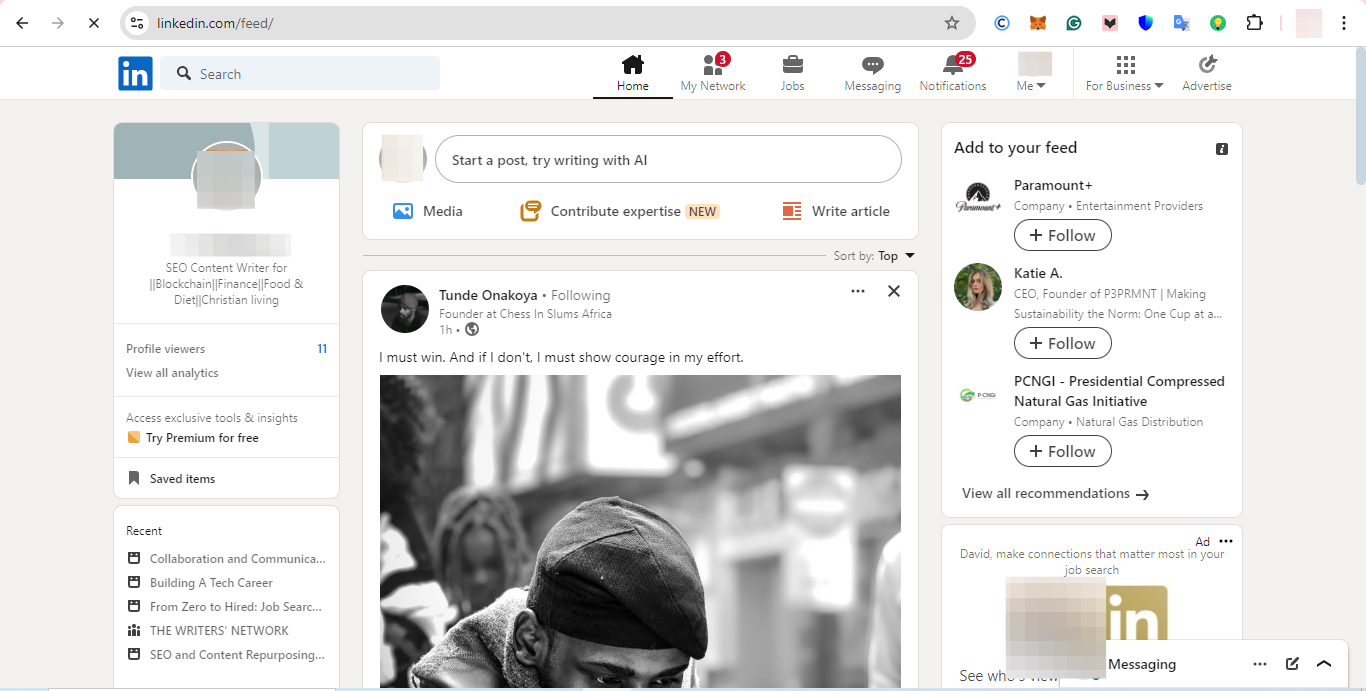
Step 1: Log in to LinkedIn
Start by logging into your LinkedIn account on your web browser rather than the mobile app for easier access to all settings.
Step 2: Navigate to Your Profile
Once logged in, click on your profile picture or name at the top of the LinkedIn homepage to go to your profile page.


