



As BI platforms now guide decisions in 80% of large enterprises, the demand for HubSpot SQL analytics is growing. But here’s the challenge: HubSpot was never built for SQL, leaving its data siloed from the BI ecosystems executives rely on for reporting. For companies competing on speed and precision, this gap is costly.
The proven solution is to make HubSpot SQL-accessible with ODBC Drivers. Once connected, teams can query HubSpot in real time, blend it with ERP and financial data, and deliver dashboards that clearly link marketing efforts to business outcomes.
This guide outlines how to connect HubSpot with SQL-based BI tools, enabling unified analytics across the business.
Table of contents
- Why HubSpot needs a SQL bridge
- Traditional solutions and their drawbacks
- The better way: using ODBC connectors
- Step-by-step: connecting HubSpot to SQL Server + BI tools
- Step 1: Install the ODBC driver on Windows
- Step 2: Configure a DSN for HubSpot on Windows
- Step 3: Connect BI Tools to HubSpot via ODBC
- Advanced: querying HubSpot from SQL Server
- Real-time reporting benefits
- Conclusion
Why HubSpot needs a SQL bridge
HubSpot holds a wealth of marketing and sales activity data, but its closed architecture makes it difficult to unlock that information for enterprise analytics. For BI teams, three issues stand in the way:
- No direct SQL access: Analysts cannot query HubSpot data natively, making it challenging to combine CRM activity with ERP, finance, or support systems.
- Incomplete attribution: Marketing teams can track form submissions, but they cannot clearly connect campaign spending to closed revenue.
- Heavy reporting overhead: Analysts spend days exporting and transforming data, only to deliver dashboards that lag behind business reality.
The consequences are felt at every level: campaign ROI stays hidden, sales and marketing alignment stalls, and leadership teams lack the real-time visibility needed to guide growth with confidence. Without CRM-to-SQL integration, HubSpot becomes a silo: valuable for engagement, but cut off from the systems that drive enterprise-wide decision-making.
Traditional solutions and their drawbacks
To work around HubSpot’s lack of SQL connectivity, organizations typically resort to three stopgaps, each with significant trade-offs. These include:
- CSV exports: Quick to set up but impossible to scale. Data is stale the moment it leaves HubSpot, analysts spend hours reconciling files, and executives lose confidence in reports that never match the latest numbers.
- Custom ETL pipelines: Technically possible but fragile. Every API change risks breaking the pipeline, maintenance consumes developer time, and latency creeps into dashboards that were meant to be real-time.
- Third-party sync tools: Easier on the surface, but costly and limiting. Licenses accumulate, vendor lock-in increases, and the data still arrives with a lag, undermining the very promise of real-time analytics.
Each of these paths shares the same flaw: they move HubSpot data instead of making it accessible where it already lives. Instead of these fragile workarounds, teams need a way to query HubSpot with SQL directly, without duplication or sync delays.
The better way: using ODBC connectors
Instead of exporting files or building fragile pipelines, organizations can connect HubSpot directly into their SQL environments with an ODBC driver. ODBC (Open Database Connectivity) is the industry standard that allows applications to treat any data source as if it were a SQL database. This means tools like SQL Server, Power BI, and Tableau can query HubSpot data in real time.
With Devart’s HubSpot ODBC driver, this becomes straightforward. This tool offers:
- SQL-native access: Query HubSpot directly using the same SQL syntax already in use across the enterprise.
- Linked server support: Expose HubSpot as a linked server inside SQL Server for seamless joins with ERP, finance, or support data.
- Cross-platform flexibility: Works across Windows, macOS, and Linux, fitting into diverse enterprise environments.
- Direct BI integration: Pushes live HubSpot data into Power BI, Tableau, or Looker dashboards without replication or sync delays.
The result is a familiar, SQL-native workflow that eliminates the need for exports or ETL, while giving analysts and executives real-time, unified visibility into performance.
Step-by-step: connecting HubSpot to SQL Server + BI tools
Integrating HubSpot into a SQL analytics workflow does not require complex data pipelines. With ODBC, you can establish the connection in just a few steps.
Step 1: Install the ODBC driver on Windows
Set up the foundation by installing the Devart ODBC Driver for HubSpot:
- Download and run the installer: Get the setup package from Devart and launch the installation wizard.
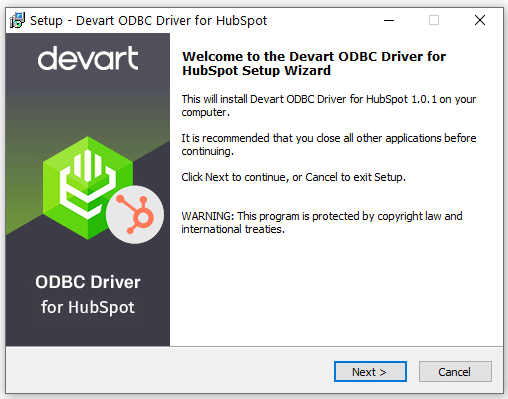
- Remove old versions: Uninstall any existing drivers to prevent conflicts before proceeding.
- Select components: Choose whether to install the 64-bit driver and optional documentation.
- Activate the license: Enter the key from your registration email or Customer Portal account and paste it into the activation field.
If you have an activation key file, click Load Activation Key and browse to the file.
- Complete the installation: Click Install, then Finish to finalize the setup.
After installation, the driver must be configured as a DSN. This configuration is what enables you to connect HubSpot to Power BI, Tableau, or other BI tools.
Step 2: Configure a DSN for HubSpot on Windows
Here’s what to do for Windows to recognize HubSpot as a data source:
- Open ODBC Data Source Administrator: Type ODBC Data Sources in the Windows search bar and choose the version (32-bit or 64-bit) that matches your application. You can also access it via Control Panel > Administrative Tools, or run odbcad32.exe from the C:\Windows\SysWOW64 (32-bit) or C:\Windows\System32 (64-bit) directory.
- Select DSN type: Choose User DSN or System DSN. Most applications support both, but some may require one specifically.
- Add a new data source: Click Add, select the Devart ODBC Driver for HubSpot, and click Finish. The driver setup dialog will open.
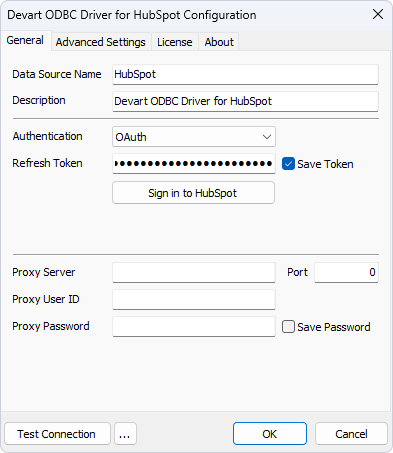
- Enter HubSpot connection details: Provide the required authentication credentials in the setup dialog.
- Test and save: Click Test Connection to verify connectivity, then click OK to save the DSN.
Step 3: Connect BI Tools to HubSpot via ODBC
With the DSN configured, HubSpot SQL BI tools integration becomes straightforward. Any BI tool that supports ODBC can access HubSpot data as if it were a SQL source. The general workflow is as follows:
- Open your BI tool and select ODBC as the data source.
- Choose the HubSpot DSN you configured in the previous step.
- Apply a SQL filter to limit the data returned (Optional).
- Authenticate if required with your HubSpot credentials.
- Preview and load data into the BI environment for reporting.
For example, in Power BI Desktop, you navigate to Get Data > Other > ODBC, select the HubSpot DSN, and then load the desired tables into your report. The exact process applies to a HubSpot to Tableau integration, where Tableau connects through the ODBC DSN to pull HubSpot data directly into dashboards.
This approach ensures HubSpot data flows directly into the BI environment of your choice, supporting real-time HubSpot data visualization alongside ERP, finance, or support system data.
Advanced: querying HubSpot from SQL Server
For enterprises that centralize reporting in SQL Server, HubSpot can also be added as a linked server through the ODBC connection. This option is not required for BI tools, but it can be valuable for IT teams who want to query HubSpot directly in SQL Server and join CRM data with ERP or finance data before surfacing it in dashboards.
Example: Add HubSpot as a linked server
EXEC sp_addlinkedserver @server='HubSpotODBC', @srvproduct='', @provider='MSDASQL', @datasrc='HubSpotDSN';
Example: Query HubSpot data through SQL Server
SELECT DealName, Amount, DealStage FROM OPENQUERY(HubSpotODBC, 'SELECT DealName, Amount, DealStage FROM Deals');
This approach is optional but powerful for enterprises that centralize analytics in SQL Server. It ensures HubSpot data can be queried and joined natively before being surfaced in BI dashboards.
Real-time reporting benefits
Connecting HubSpot through ODBC delivers tangible gains the moment it’s in place:
- Unified analytics across CRM, ERP, and marketing platforms: Leadership can finally view customer, sales, and finance metrics side by side in one dashboard, achieving accurate unified CRM analytics.
- Reduced time-to-insight: Reports that once took days to compile now refresh in minutes, delivering accurate real-time HubSpot reporting and keeping decisions aligned with business performance.
- No need to duplicate or sync data: A single live connection replaces manual exports or third-party sync jobs, cutting overhead and errors.
- SQL-native workflows for analysts: Teams continue to utilize the SQL skills and BI tools they already possess, thereby avoiding the need for retraining or new platforms.
- Faster campaign attribution and reporting: Marketing can trace campaigns and UTM sources directly to closed deals, delivering efficient HubSpot marketing data reporting.
Together, these benefits turn HubSpot from a standalone CRM into an integrated source of real-time insight across the enterprise.
Conclusion
The challenge with HubSpot has never been capturing data; it’s been connecting that data to the SQL-driven tools enterprises rely on for reporting. Traditional fixes, such as exports, pipelines, or sync platforms, only add delay and complexity.
An ODBC Driver changes that dynamic. HubSpot becomes a SQL-accessible source that integrates smoothly into SQL Server, Power BI, Tableau, or Looker. Marketing, sales, and finance data converge in real time, giving leadership the visibility to act decisively. Accurate HubSpot campaign attribution ties marketing spend directly to revenue outcomes, ensuring growth strategies are guided by evidence, not assumptions.
This results in faster decisions, unified reporting, and analytics workflows that finally keep pace with the business. It also positions HubSpot as a valid driver of enterprise-wide HubSpot business intelligence.
Explore the ODBC Driver for HubSpot and see how it can unify your CRM analytics with the SQL BI tools you already trust.


