



DVDs are fading as new devices drop disc drives, but your movies don't have to. Converting DVD to MP4 lets you keep your library playable on phones, tablets, TVs, and the cloud. In this guide, we review the three best DVD rippers and walk you through each one step by step—what it does well, where it falls short, and how to go from disc to a working MP4 in minutes.
No.1 DVDFab DVD Ripper
DVDFab DVD Ripper is a feature-rich DVD to MP4 converter. No matter the disc's encryption, it rips both new and old discs effortlessly. Beyond MP4, it supports over 1,000 conversion formats for DVDs, ISO files, and folders and offers lossless compression to maintain video quality. It also allows conversion speeds up to 50x faster. Its integrated professional editor helps tailor your output to meet your specific needs.
Features
- Supports DVD ripping from physical discs/ISO/VIDEO_TS
- Exports to 1,000+ video/audio formats including MP4, MKV, AVI, and more
- Can remove the latest DVD protection, including region codes, CSS, and others
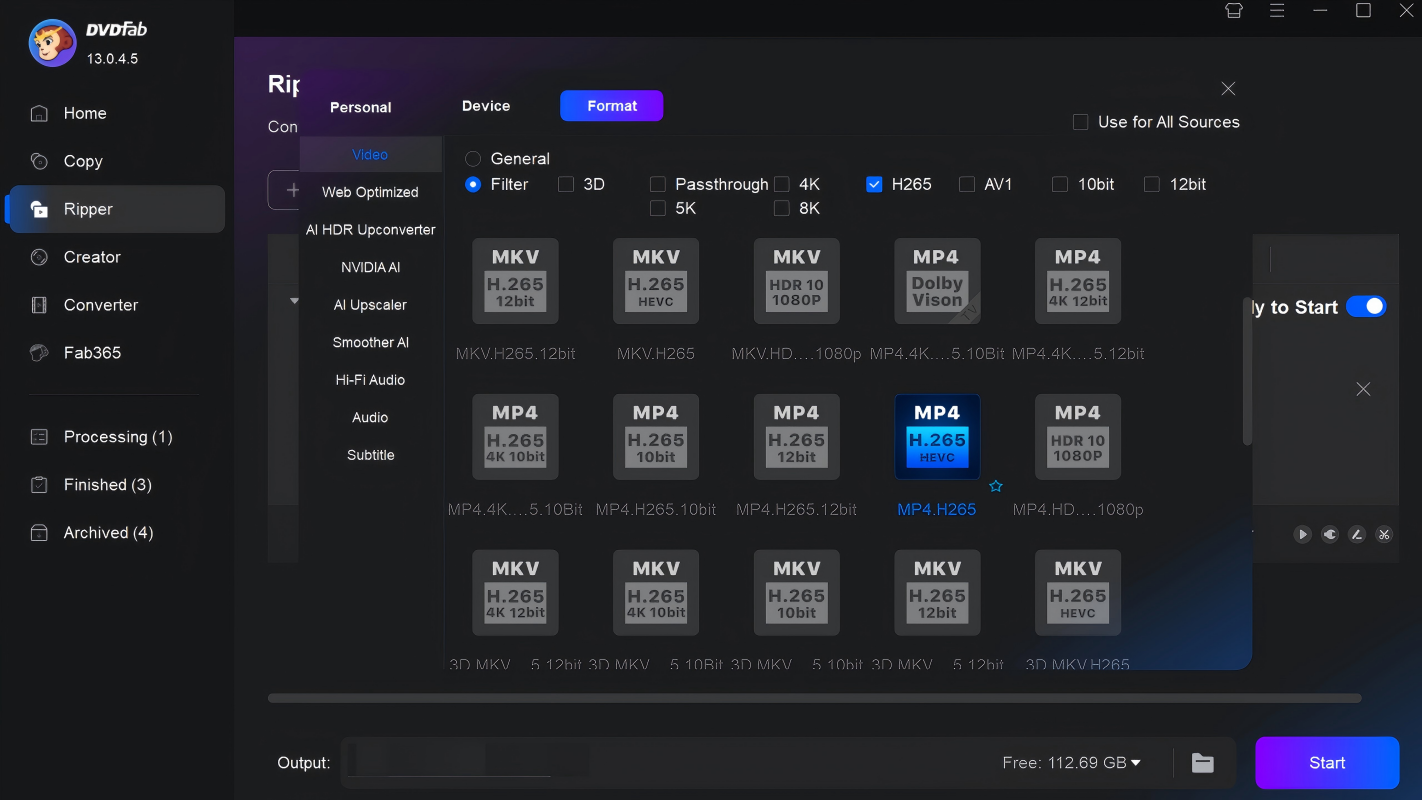
- Offers preconfigured MP4 profiles, including passthrough, 4K/8K, H.265, 3D and more
- Offers 260+ preset profiles for devices (phones, PlayStation, smart TVs) to avoid manual tuning
- Built-in video editing tools to customize your videos
- Supports GPU hardware acceleration
- Queue multiple titles or discs for unattended conversion
Cons
- Not compatible with Linux
- Free tier limits exports to MP4 and MKV
How to Rip DVD to MP4 with DVDFab DVD Ripper on Windows/Mac
Step 1: Launch DVDFab and Load the Source
Open DVDFab, select the "Ripper" module, insert the DVD, and click "Add Source" to load the DVD, ISO, or VIDEO_TS.
Step 2: Select the Output Profile as MP4
Click the "Choose Other Profile" button. You can simply choose MP4 format in the "General" module. For specific presets like MP4.Passthrough or MP4.H265, click "Filter."
Step 3: Tailor the Final Video Parameters
Click the "Advanced Settings" icon (wrench) to adjust video and audio parameters, such as codec, resolution, quality, and frame rate. You can also click "Choose Other Titles" to select additional titles for ripping. For audio tracks and subtitles, simply click the respective boxes to choose from available options or add external subtitles.
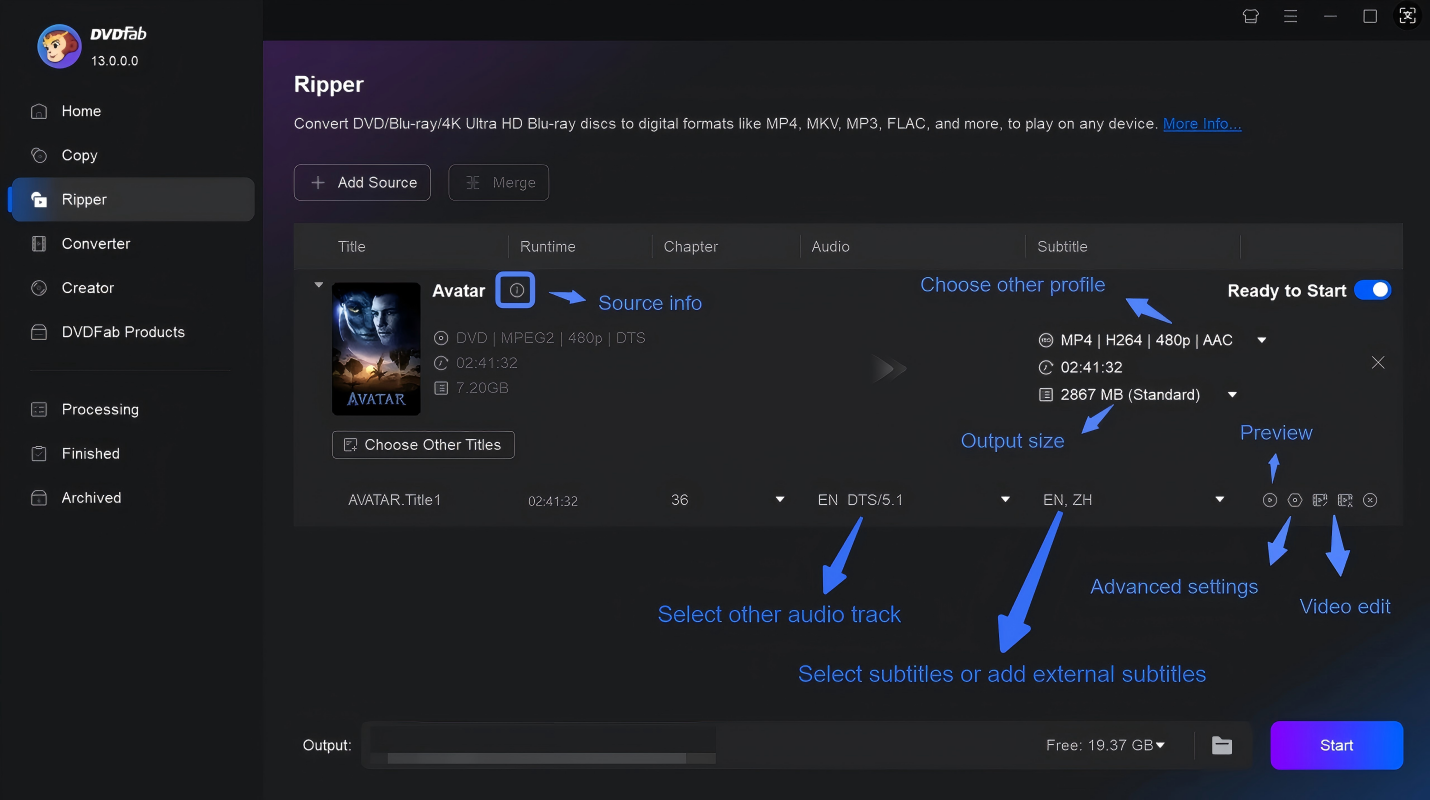
Click the "Video Edit" button, then you can trim, crop, add watermarks, and apply effects. Additionally, the "Trim" module allows you to cut unwanted segments from your movie. After making edits, click the "Preview" button to review the changes before finalizing.
Step 4: Convert or Rip DVD to MP4
After adjusting the necessary settings, select an output folder and click "Start" to begin ripping. You can view progress in the "Processing" tab.
No.2 HandBrake
HandBrake is a free, open-source tool for converting DVD to MP4, MKV, or WebM formats. While it doesn't support ripping copy-protected DVDs, it excels at digitizing personal, unprotected discs. With options to customize output parameters and apply video effects, it offers flexibility for users seeking quality conversions. Its cross-platform compatibility makes it accessible on Windows, macOS, and Linux, and its advanced editing features allow for more refined, professional-looking results.
Features
- Imports unencrypted DVD sources (discs/ISO/VIDEO_TS) and titles/chapters.
- Exports MP4, MKV and WebM with modern codecs
- Ready-made profiles optimized for phones, tablets, and web streaming in MP4
- Allows complete control over resolution, bitrate, codecs, and audio options
- Provides a batch queue for multiple sources
Cons
- Steep learning curve makes the conversion process complex for novices
- Does not rip encrypted commercial DVD discs
- Supports only MP4, MKV and WebM as output options
- Batch processing requires too many steps and may crash when handling 10+ items
How to Convert DVD to MP4 with HandBrake
Step 1: Run HandBrake on your PC. Insert the DVD into the optical drive, and then choose your DVD source on the "Source Selection" page. HandBrake will scan the DVD and display available titles.
Step 2: In the "Title" dropdown, choose the main movie title. Under the "Summary" tab, set the format to MP4. Optionally, adjust other settings like codecs, resolution, and quality under the "Video" and "Audio" tabs.
Step 3: Once you're done, click "Browse" to select the destination folder and name your output file, and then click "Start Encode" to begin the ripping process.
No.3 VLC Media Player
VLC is a free, open-source media player that can also convert and play various digital formats, including DVDs. Many users are unaware of its DVD ripping capabilities, but for basic conversions, VLC is a simple and convenient tool. It works across multiple platforms, making it an accessible option for beginners who want to rip DVD to MP4. However, VLC only works with unprotected DVDs and cannot handle encrypted ones.
Features
- Free and open-source media player and DVD ripper
- Allows conversion of unprotected DVDs to MP4, MKV, and other formats
- Enables cross-device/OS compatibility for smooth performance
- Converted files are free of watermarks
Cons
- Lacks conversion of encrypted DVD discs
- Conversion process can be time-consuming
- May experience quality degradation like audio-video sync problems
- Lacks advanced features such as batch processing and comprehensive subtitle support
How to Rip DVD to MP4 Via VLC
Step 1: Insert your DVD into the optical drive. Click "Media" in the top menu of VLC and select "Open Disc." In the "Disc" tab, choose "DVD" and ensure the correct disc device is selected. Check the box labeled "No disc menus" to prevent VLC from getting stuck on the DVD menu. Click "Convert/Save" to proceed.
Step 2: In the "Convert" window, under "Profile," select "Video - H.264 + MP3 (MP4)" for standard MP4 output. Click the "Settings" icon next to the profile dropdown to adjust codecs, bitrate, resolution, and other parameters if desired.
Step 3: Click "Browse" to select the output folder and click "Start."
Conclusion
Converting DVDs to MP4 is a convenient way to ensure your movie collection is accessible across various devices. Whether using free tools like HandBrake and VLC, or the powerful DVDFab DVD Ripper, you can easily achieve this and enjoy better compatibility and convenience.


