



Visual representation is an invaluable tool for communicating ideas, concepts, and processes. Diagrams serve as a universal language, making complex information more accessible and facilitating understanding.
When it comes to creating diagrams, ChatGPT and Draw.io (now Diagrams.net), a popular online diagramming tool, provide a powerful combination that allows you to effortlessly translate your thoughts into visual representations.
In this guide, we will explore how you can leverage the capabilities of ChatGPT, a state-of-the-art language model, to generate diagram descriptions and instructions. Additionally, we will delve into the practical implementation of these descriptions using Draw.io, a versatile and user-friendly web application for creating a wide range of diagrams.
With these tools at your disposal, you'll be able to transform complex ideas into clear and concise visual representations that are sure to enhance your communication and problem-solving abilities.
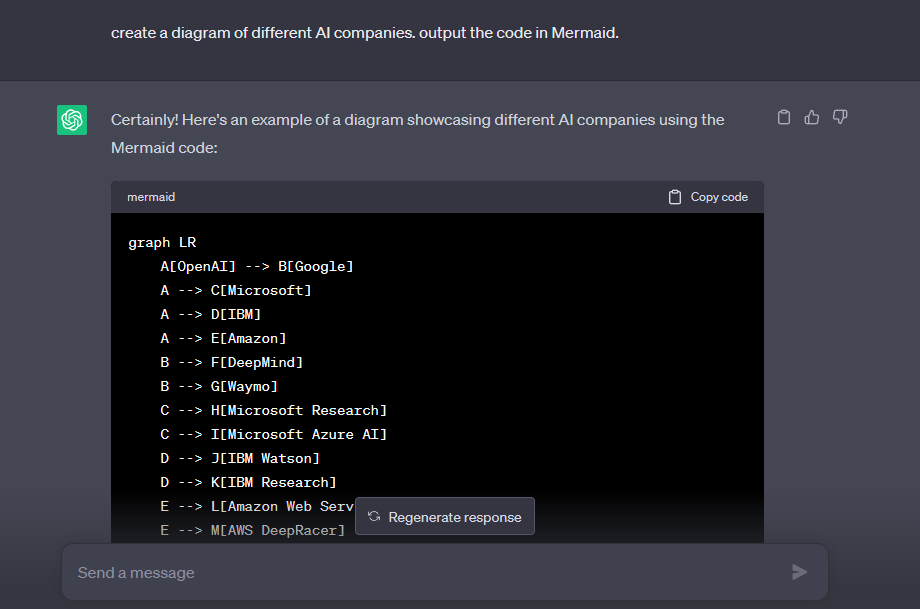
- Go to ChatGPT, and input your prompt, asking it to create a diagram on whatever you want then ask it to output the code in Mermaid.
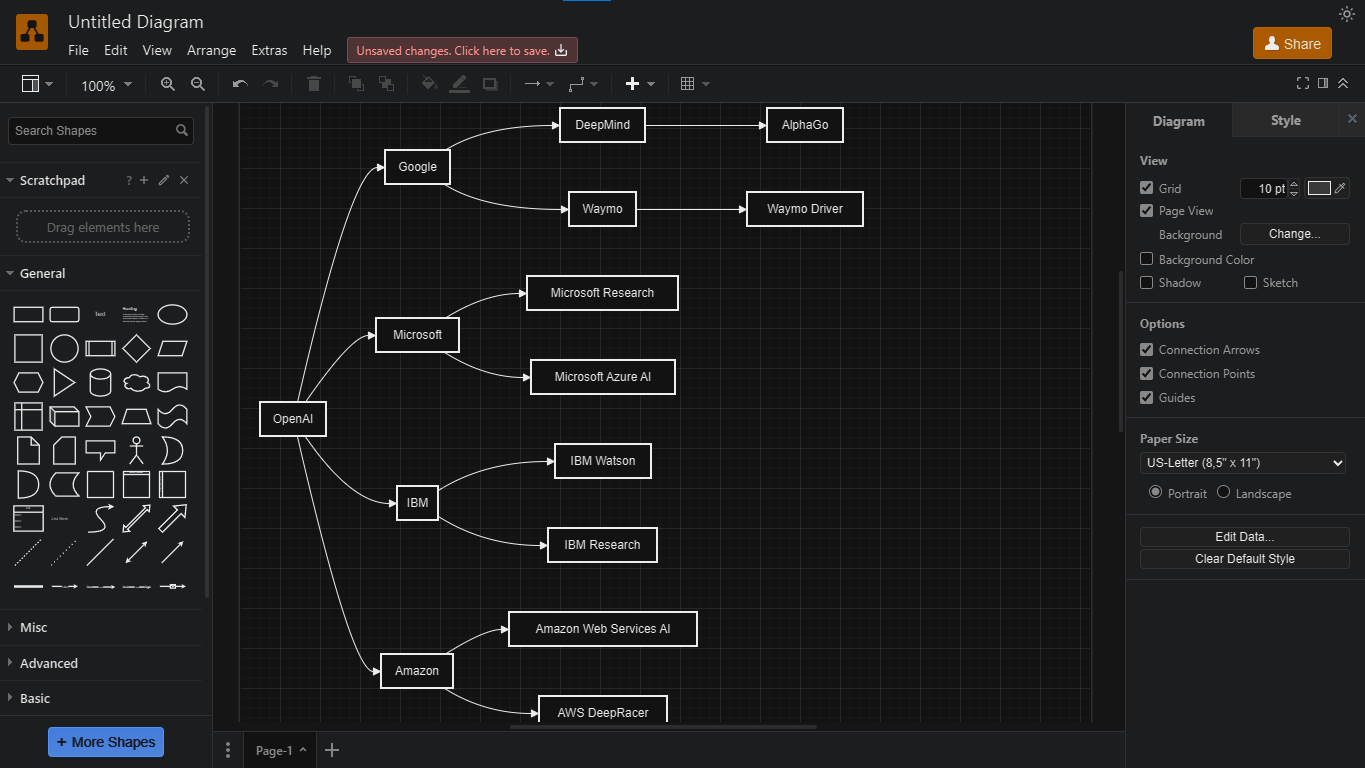
The Prompt: Create a diagram of different AI companies. Output the code in Mermaid.
- Next, copy the code.
- If you have a diagramming application that would be great but in this tutorial, I would be making use of draw.io it is easy to use and also free.
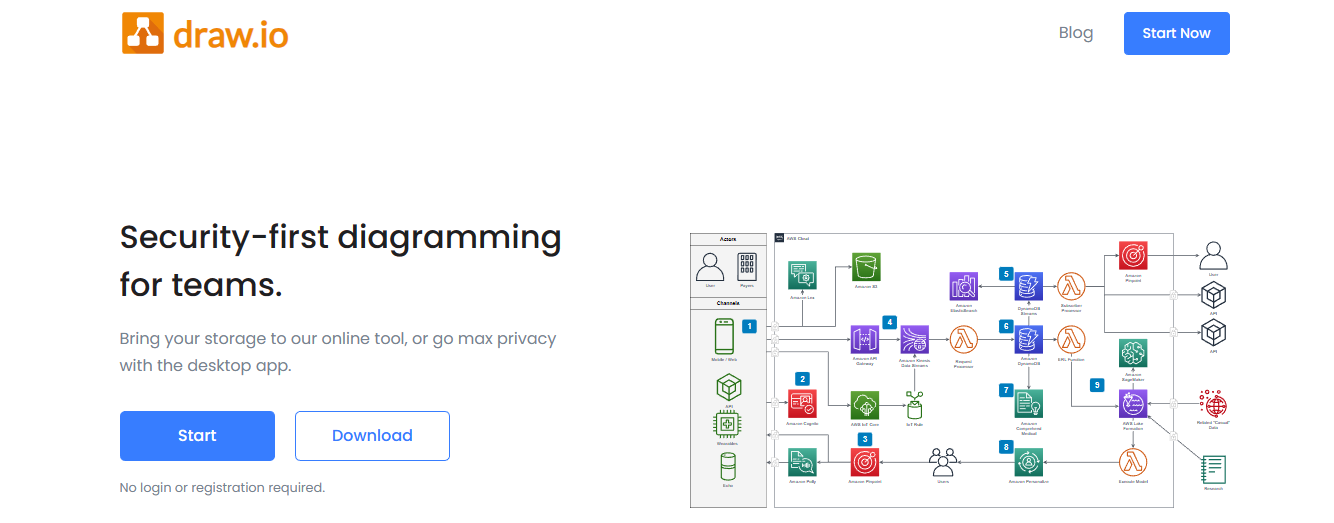
- You can proceed right away by clicking Start.
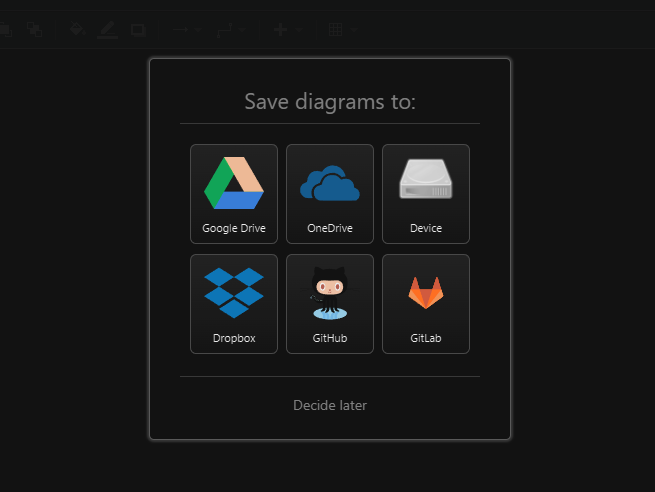
- After clicking on Start, you would be asked where you want your diagrams to be saved, if you're unsure, click Decide later.
- Click on Decide Later.
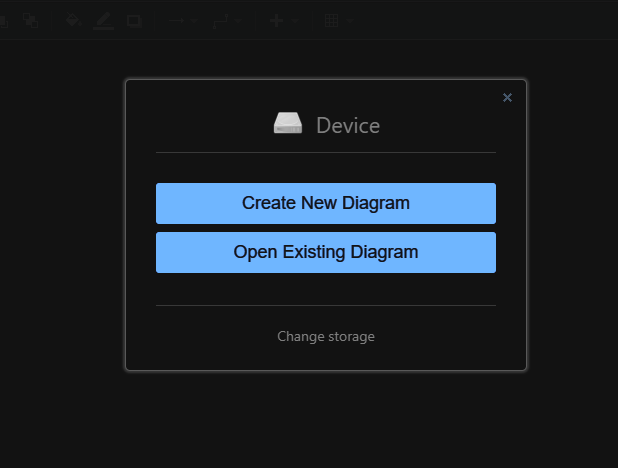
- If you've already clicked on Device, you would get a prompt asking you to create a new diagram or open an existing diagram. Click on the cancel button, the little x at the top right corner.
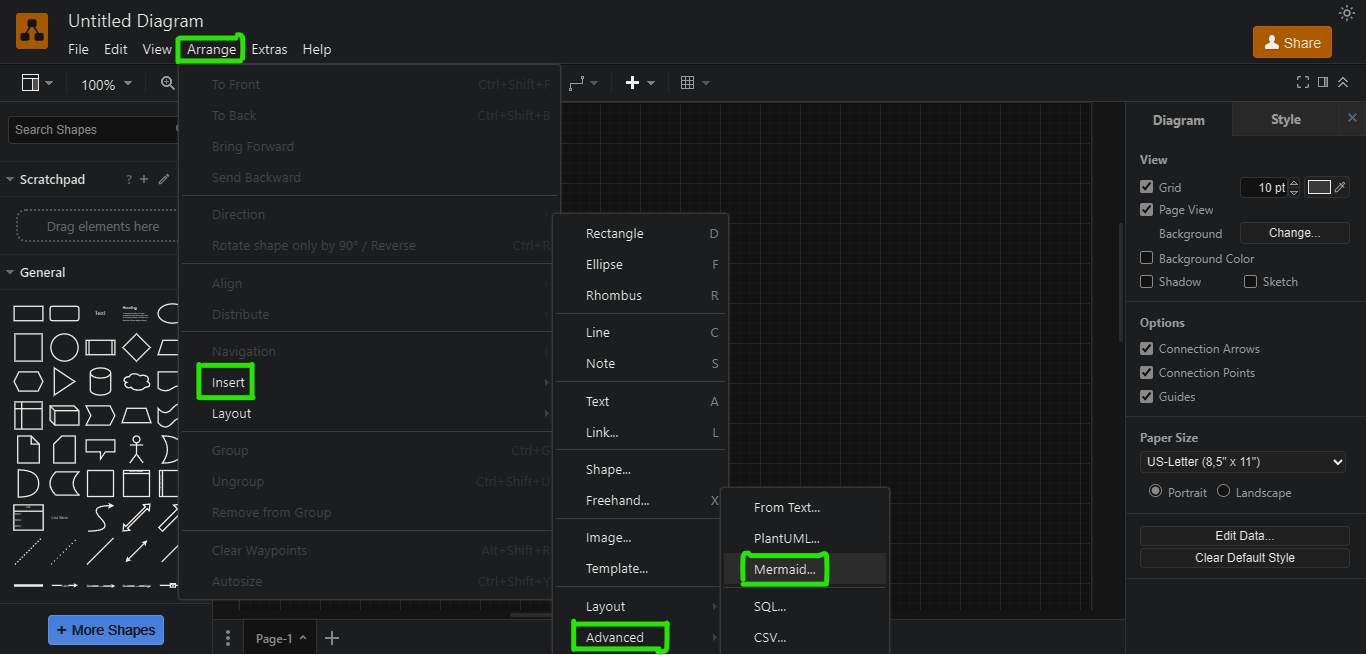
- Next, click on Arrange, then select Insert, Navigate to Advanced, select Mermaid then click on it.
- Clear the existing code then paste the Mermaid code you copied from ChatGPT and click on Insert.
- Then, go back to ChatGPT and ask it to make a family tree, and then enter the prompt you want.
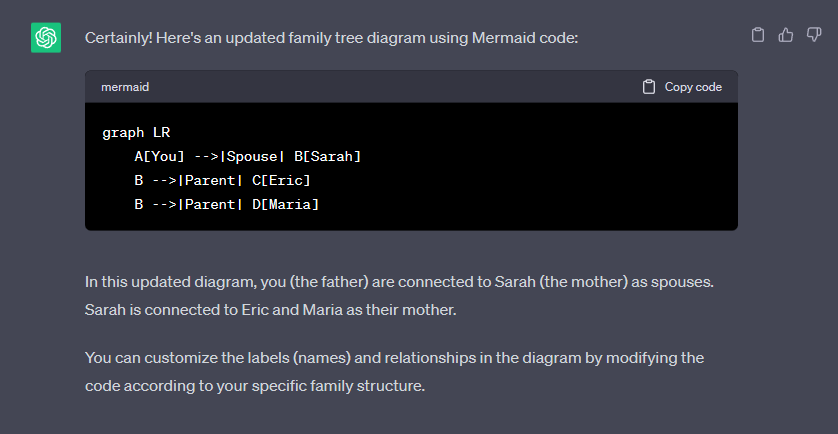
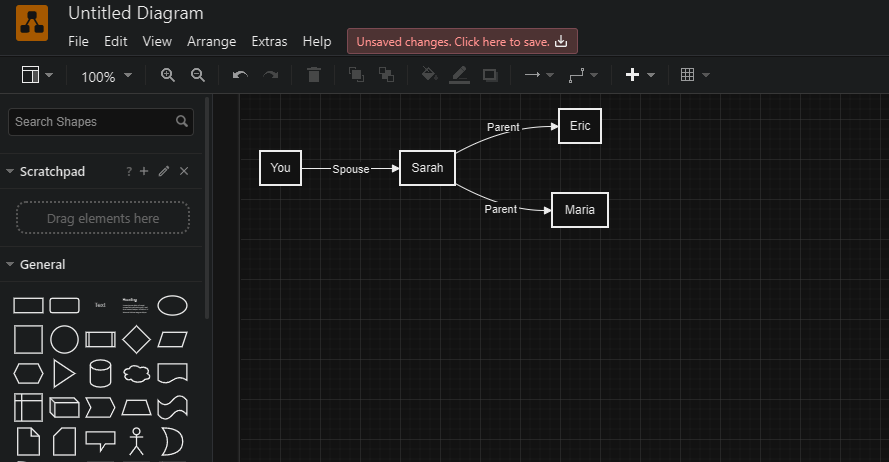
During my test, I copied the code and took it to Draw.io and used the same steps I had already written to turn it into a diagram.
Tadaa!! It created the exact prompt I inputted into ChatGPT in the form of a diagram.
Conclusion
Creating diagrams using ChatGPT and Draw.io can be a powerful and efficient way to visually represent information and ideas.
By combining the natural language processing capabilities of ChatGPT with the intuitive interface of Draw.io, users can easily communicate complex concepts and enhance their communication.
Image Credit: Gabriel Ojeh / Techloy.com


