



Siri might be handy for reminders and quick questions, but it hasn’t exactly earned a gold star for privacy. Just a few months ago, Apple agreed to pay $95 million to settle a lawsuit claiming Siri recorded people’s conversations without permission.
While Apple said the recordings were anonymized and used to refine Siri, the story raised red flags for users who didn’t know their voice clips might be heard by humans.
If you’d rather keep your Siri requests to yourself, here’s how to clear Siri's history.
 David Adubiina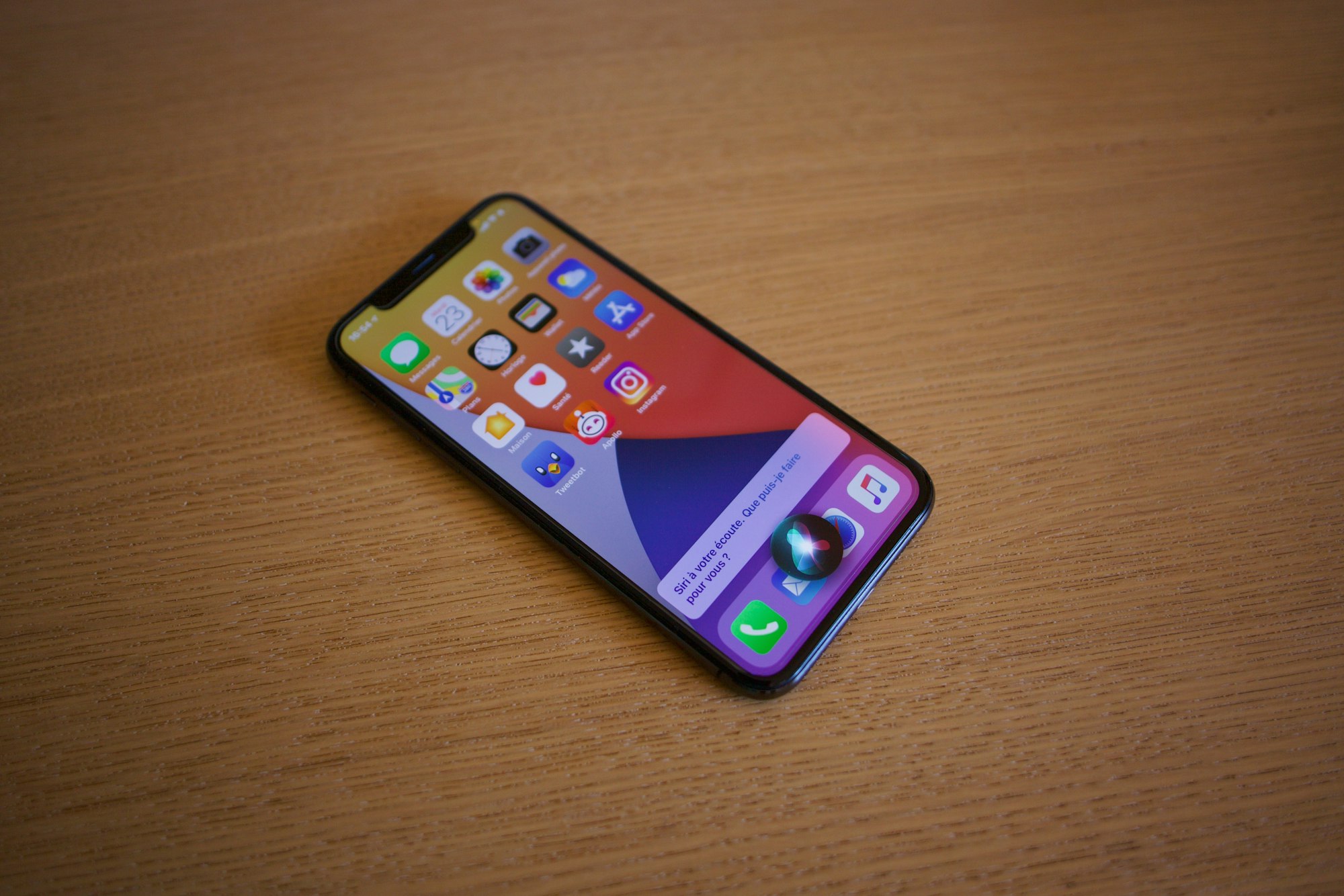
How to delete Siri voice history
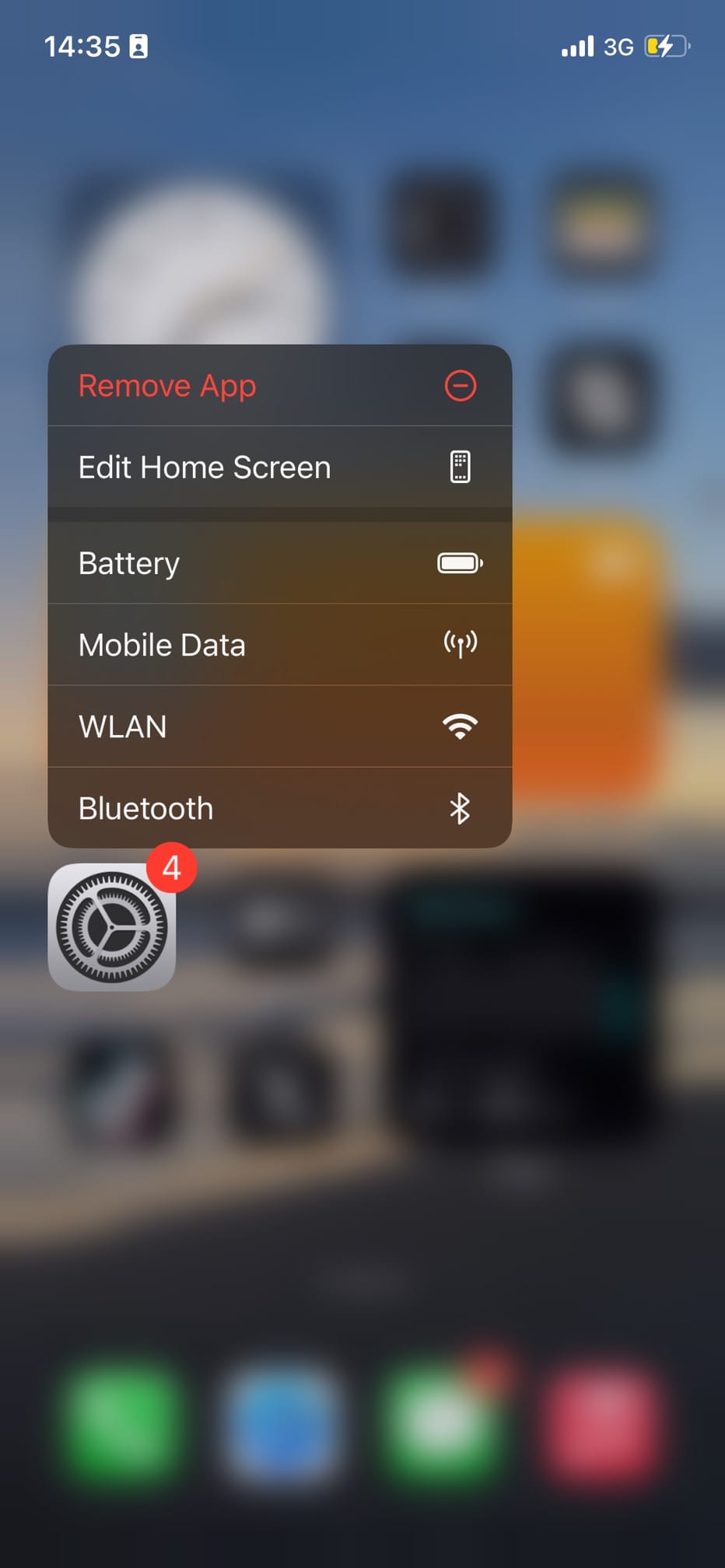
Step 1: Open the Settings app on your iPhone.
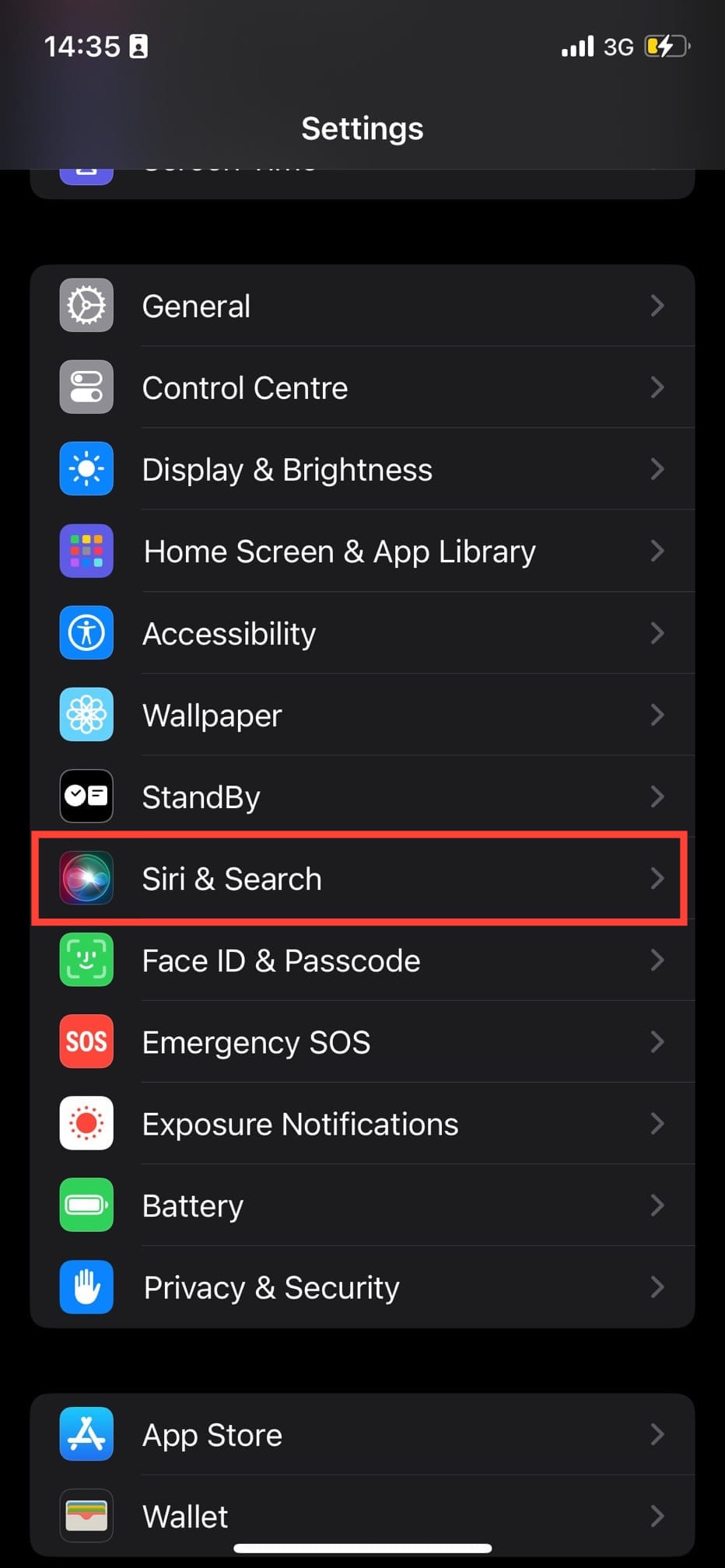
Step 2: Scroll down and select Siri and Search.
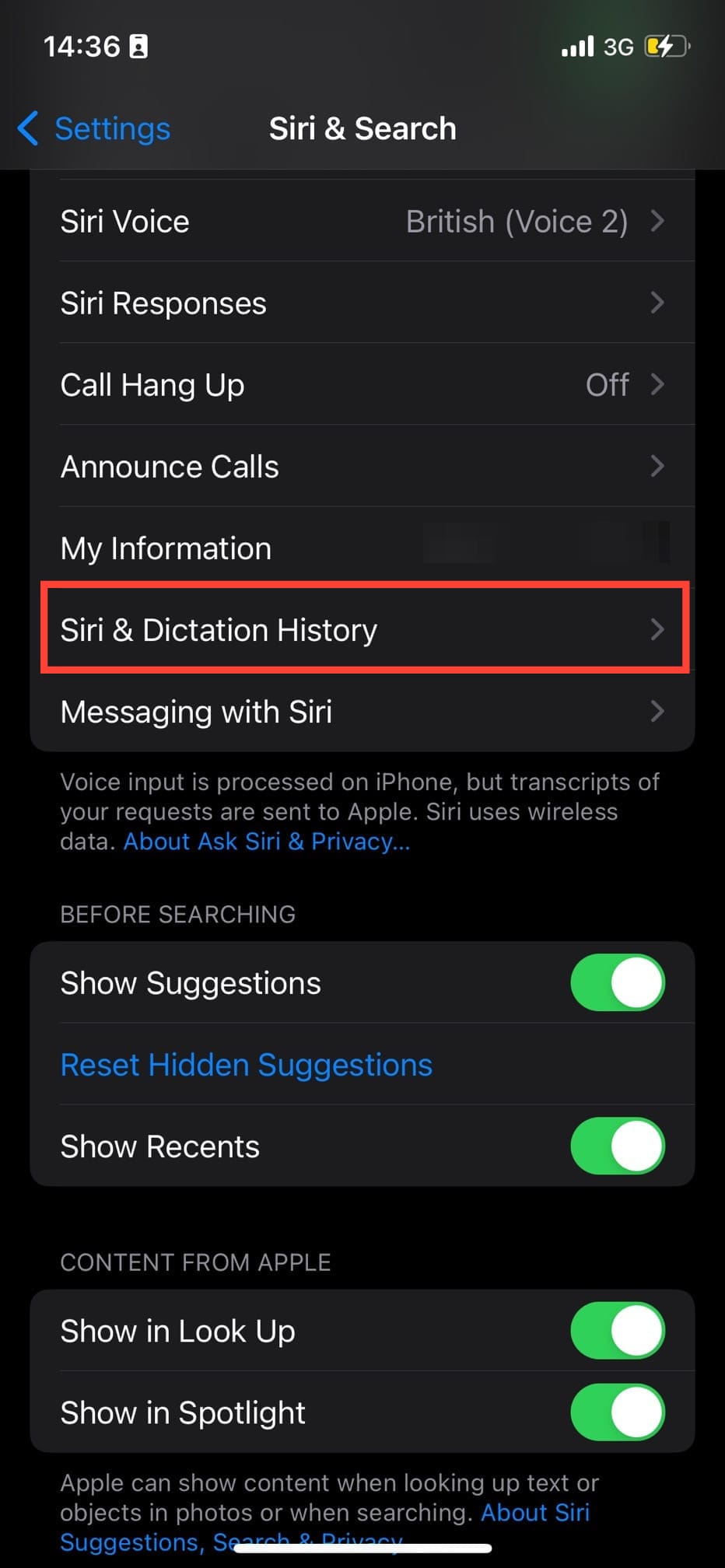
Step 3: Tap Siri & Dictation History.
Step 4: Tap Delete Siri and Dictation History.

 Oyinebiladou Omemu
Conclusion
Deleting your Siri history is a simple way to tighten up your privacy on Apple devices. While Apple anonymizes and eventually deletes old data, manually clearing your history ensures no recent voice snippets stay on their servers. Plus, disabling Siri grading means your future requests won’t be used for review.
Keep in mind that deletions only cover the last six months of history. And older, anonymized data may stay on Apple’s servers for up to two years.
Image Credit: Oyinebiladou Omemu/Techloy.com


