



Sometimes Android’s helpful privacy features can get a little too helpful, take Android 15’s new screen share protections. They automatically hide sensitive information, such as messages and passwords, when you’re sharing your screen. This is great for privacy, but if you’re demoing an app or helping a friend troubleshoot, suddenly, those well-meaning protections become problems.
That’s where this guide comes in. You will learn how to temporarily disable these safeguards when you need full visibility. No rooting or complicated hacks required, just a quick stop to Developer Options.
 Oyinebiladou Omemu
How to disable screen share protections on Android
Step 1: Go to settings on your phone and scroll down and select About Phone.
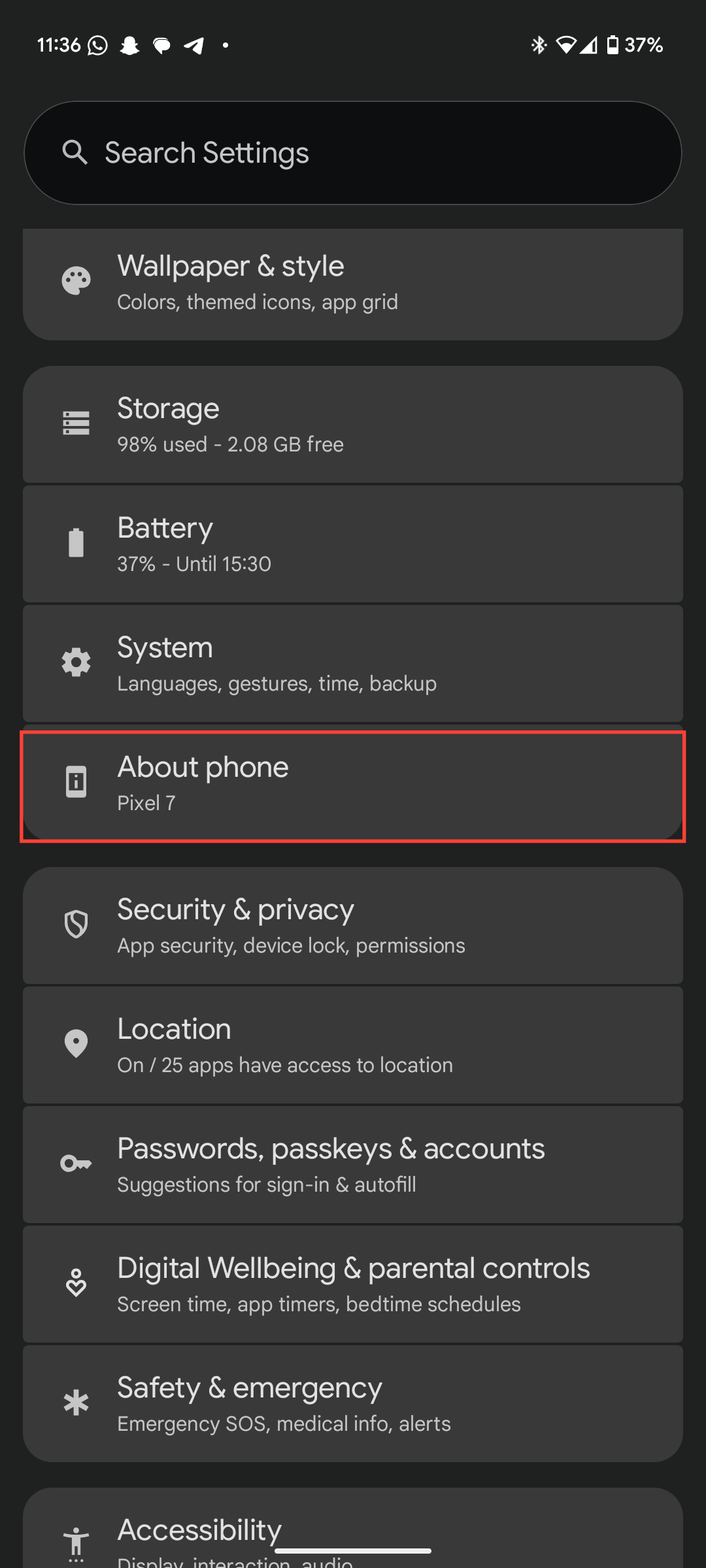
Step 2: Select Software Information, if available.
Step 3: Tap the build number continuously (7 to 10 times) to enable Developer Mode.
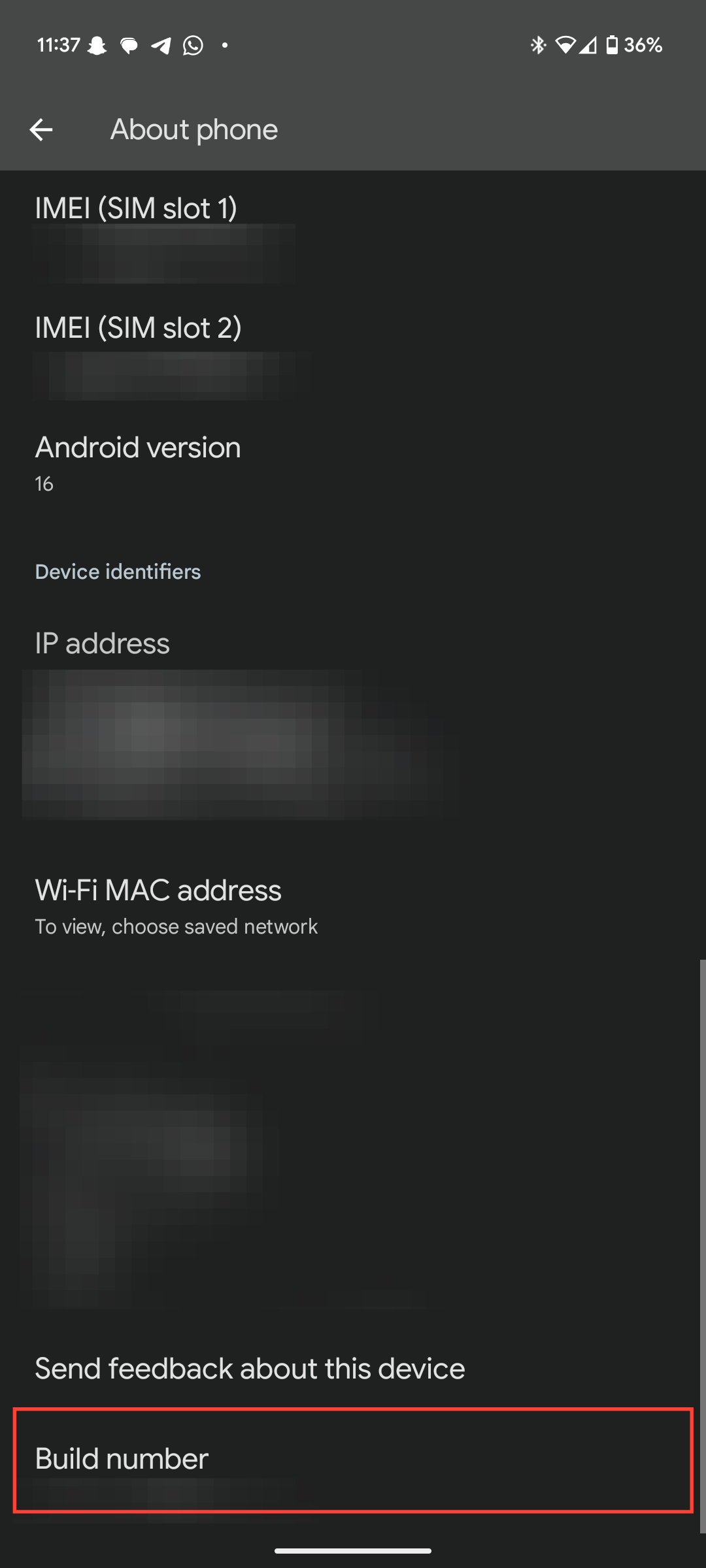
Step 4: Go back to the Settings main menu, scroll down, and select the Developer option.
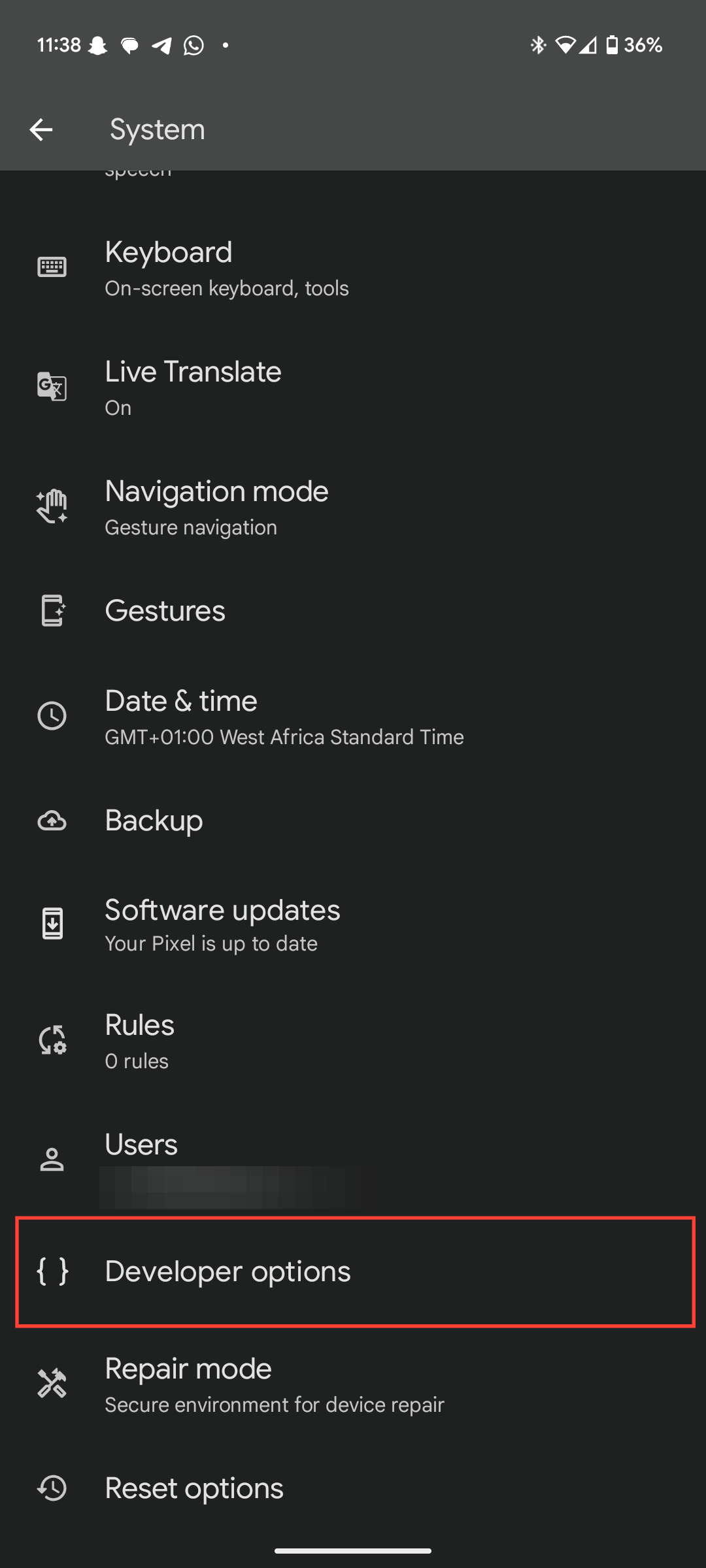
- If you use a Pixel device, it's a bit different. Go back to the settings main menu and select System.
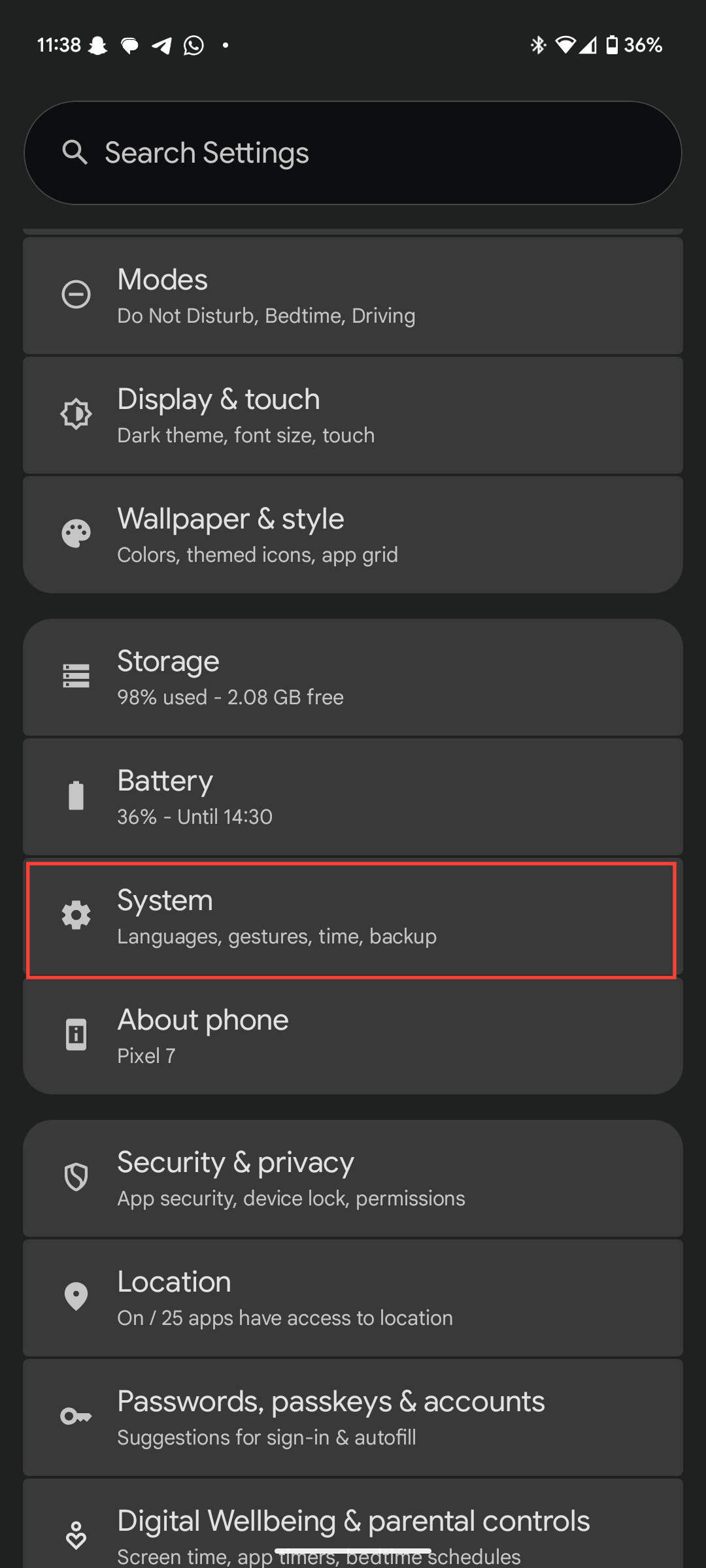
- Scroll down and select Developer options.
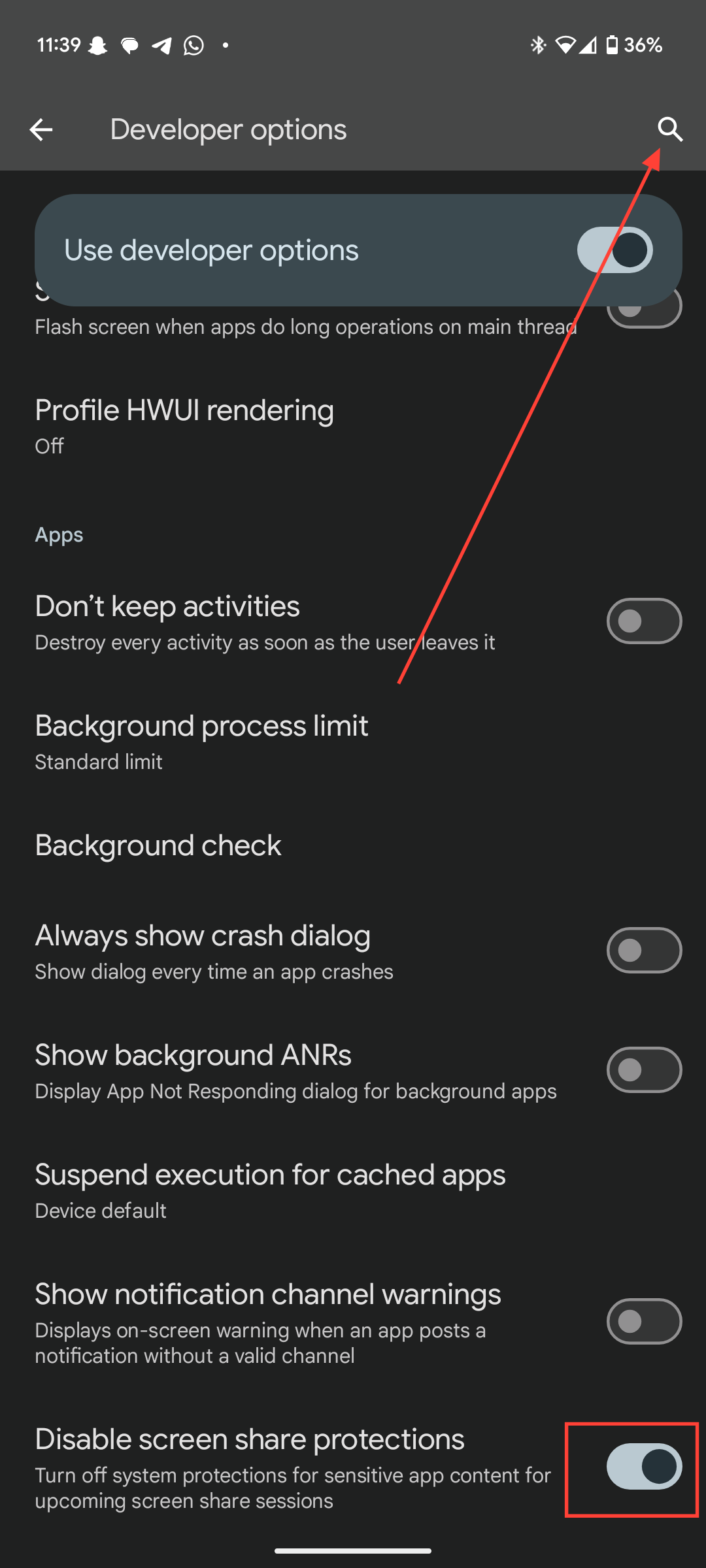
Step 5: Either use the search icon at the top, or scroll and find "Disable screen share protections." Once you find it, toggle on the switch next to it.
 Oyinebiladou Omemu
Conclusion
Disabling screen share protections gives you complete control over what appears when sharing your Android 15 screen. But remember the potential dangers, you'll now need to manually check for sensitive content before every screen share or recording.
To be safer, consider re-enabling these protections when you're done with your specific task, because they provide an important layer of security for your daily smartphone use. If you ever want to reactivate these privacy protections, simply revisit Developer Options and toggle the setting off.
Image Credit: Oyinebiladou Omemu/Techloy.com


