



We all love sharing little moments on WhatsApp, but sometimes, you want those updates to stay just between you and the people you actually meant to share them with. WhatsApp’s Status feature makes it easy to post short-lived updates that disappear after 24 hours, but others can re-share your status if the “Allow sharing” option is turned on. This can spread your content beyond your intended audience.
Fortunately, WhatsApp gives you full control over how your updates are shared. Whether you simply want to stop friends from re-posting your pictures or prefer to keep your life updates within a close circle, disabling status sharing takes just a few quick taps.
In this guide, we will show you how to disable WhatsApp status sharing to keep your status under your control.
 Oluwaseun Bamisile
How to disable status sharing on WhatsApp
Step 1: Open WhatsApp on your phone.
Step 2: Go to Settings.
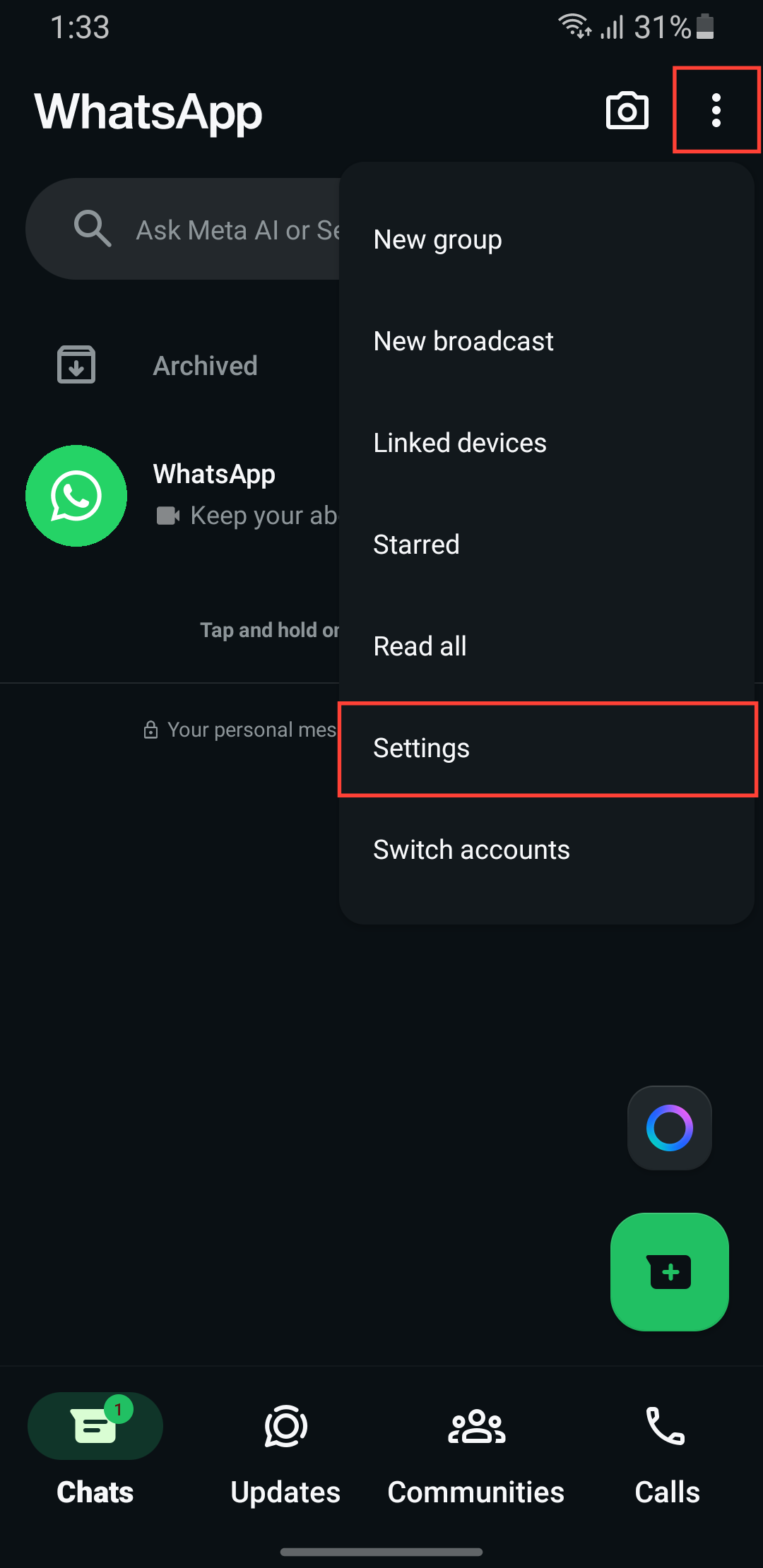
Step 3: Select Privacy.
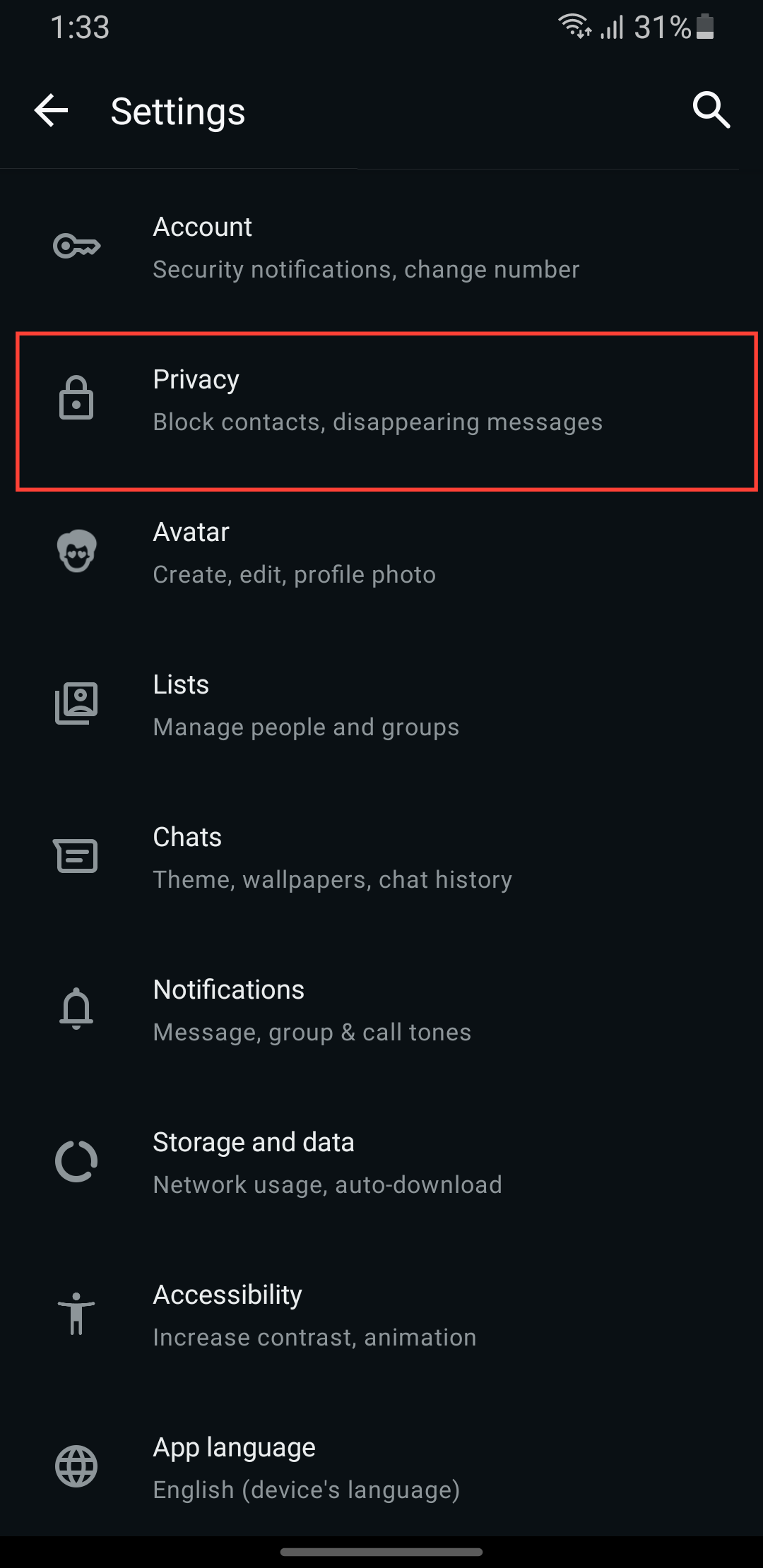
Step 4: Tap Status.
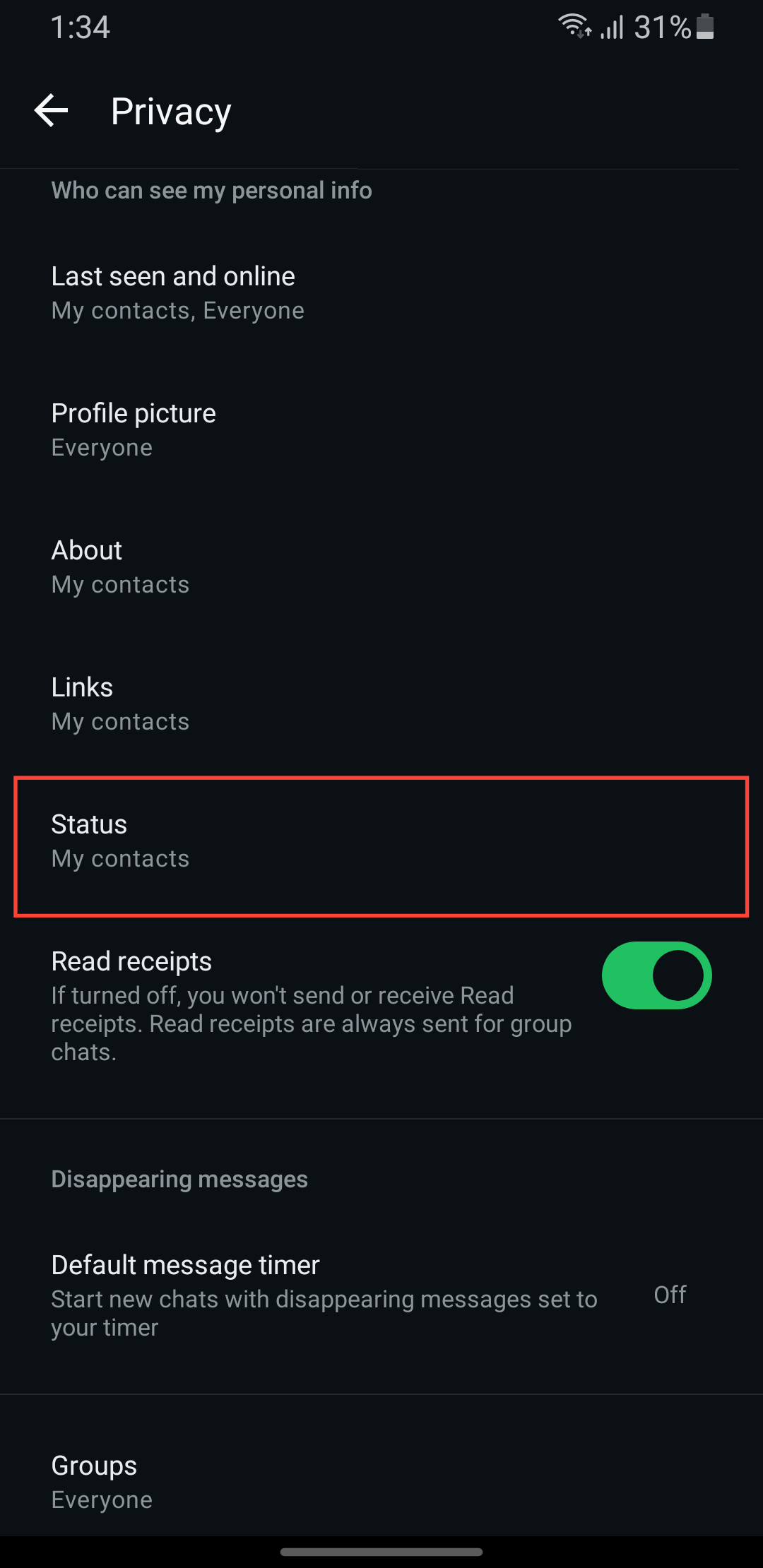
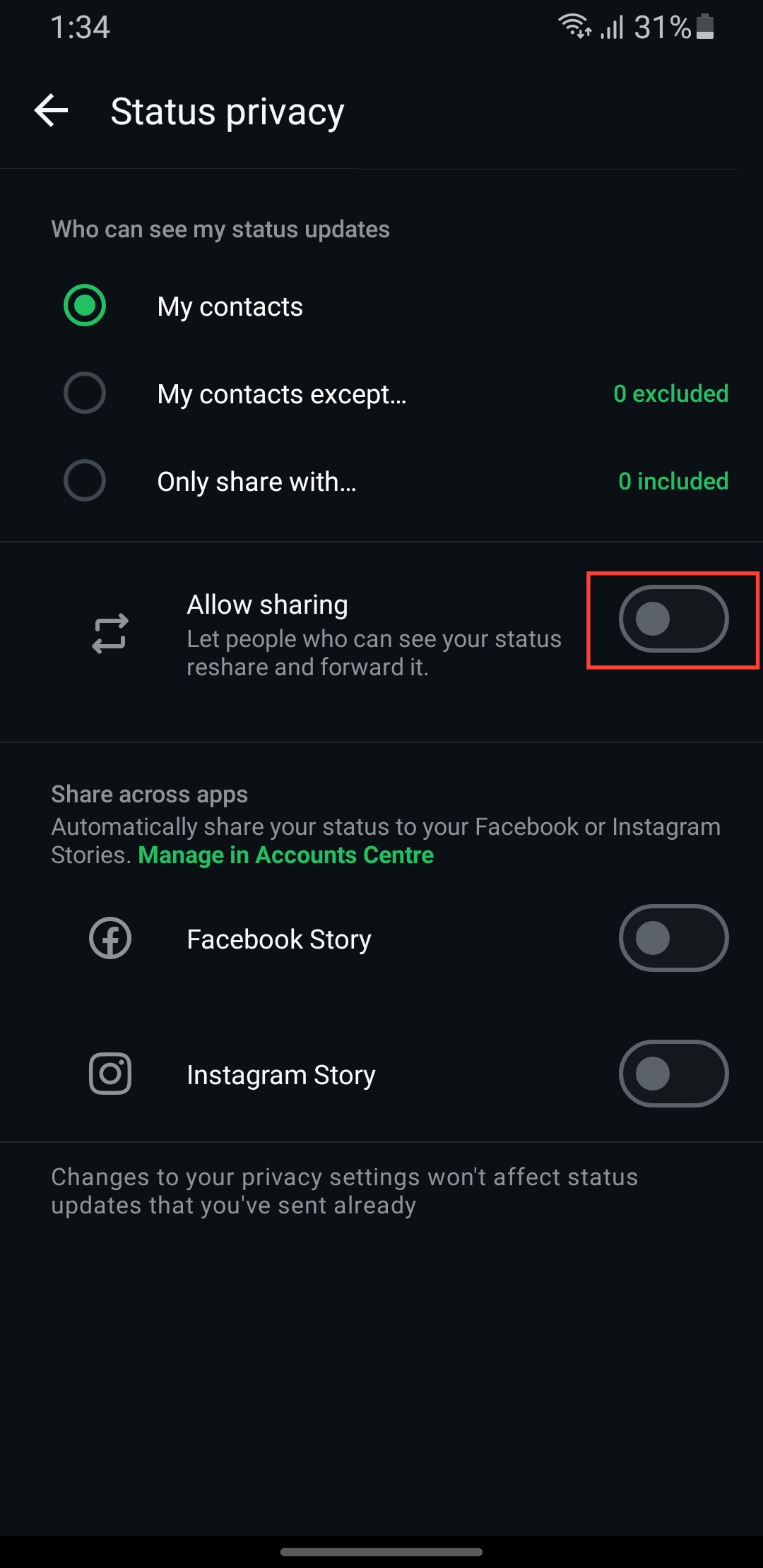
Step 5: Toggle off Allow sharing.
 David Adubiina
Conclusion
Once you’ve turned off the Allow sharing option, you’ll have total control over how your updates move around. It’s a small step, but it gives you the freedom to post more comfortably.
So, before posting your next update, take a moment to check those privacy settings. A quick toggle can make all the difference between an update meant for your close friends and one that accidentally ends up on someone else’s status.
Image Credit: Oyinebiladou Omemu/Techloy.com


