



Running out of storage on your Android phone is a very common problem among Android users, especially if you use a 64GB phone like me. Between photos, apps, downloads, and cached files, it’s easy to hit that dreaded "Storage Full" warning. But cleaning up doesn’t have to mean digging through endless folders or guessing what’s safe to delete.
With Files by Google, managing storage becomes quick, effortless, and almost satisfying. Instead of manually hunting down junk files, old screenshots, and unused apps, this app does all of that for you. In just a few taps, you can free up gigs of space without worrying about accidentally deleting something important.
In this guide, learn how to clean up your phone the smart way.
 Oyinebiladou Omemu
How to easily manage storage on an Android device
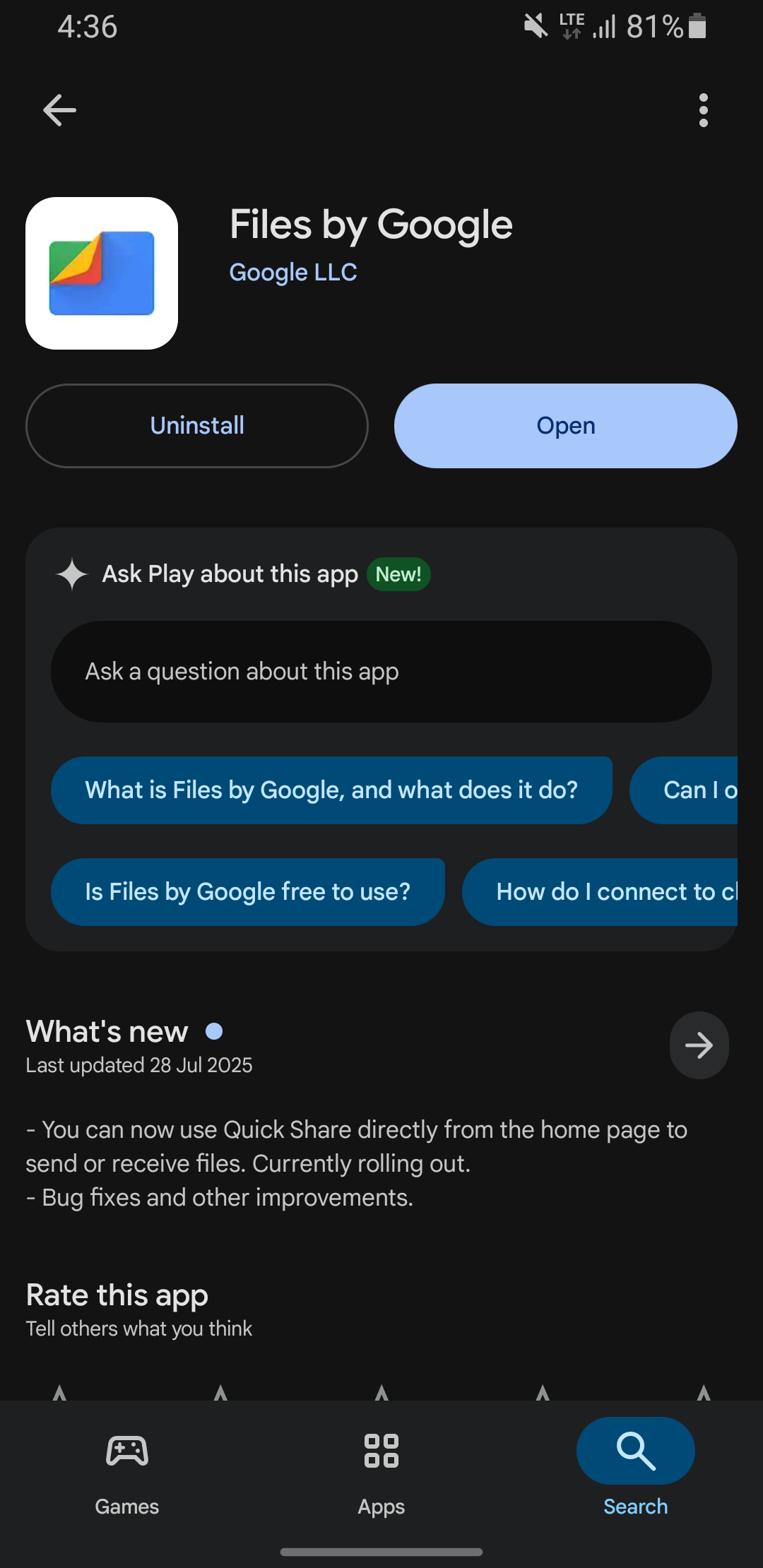
Step 1: Go to Google Play Store and download Files by Google.
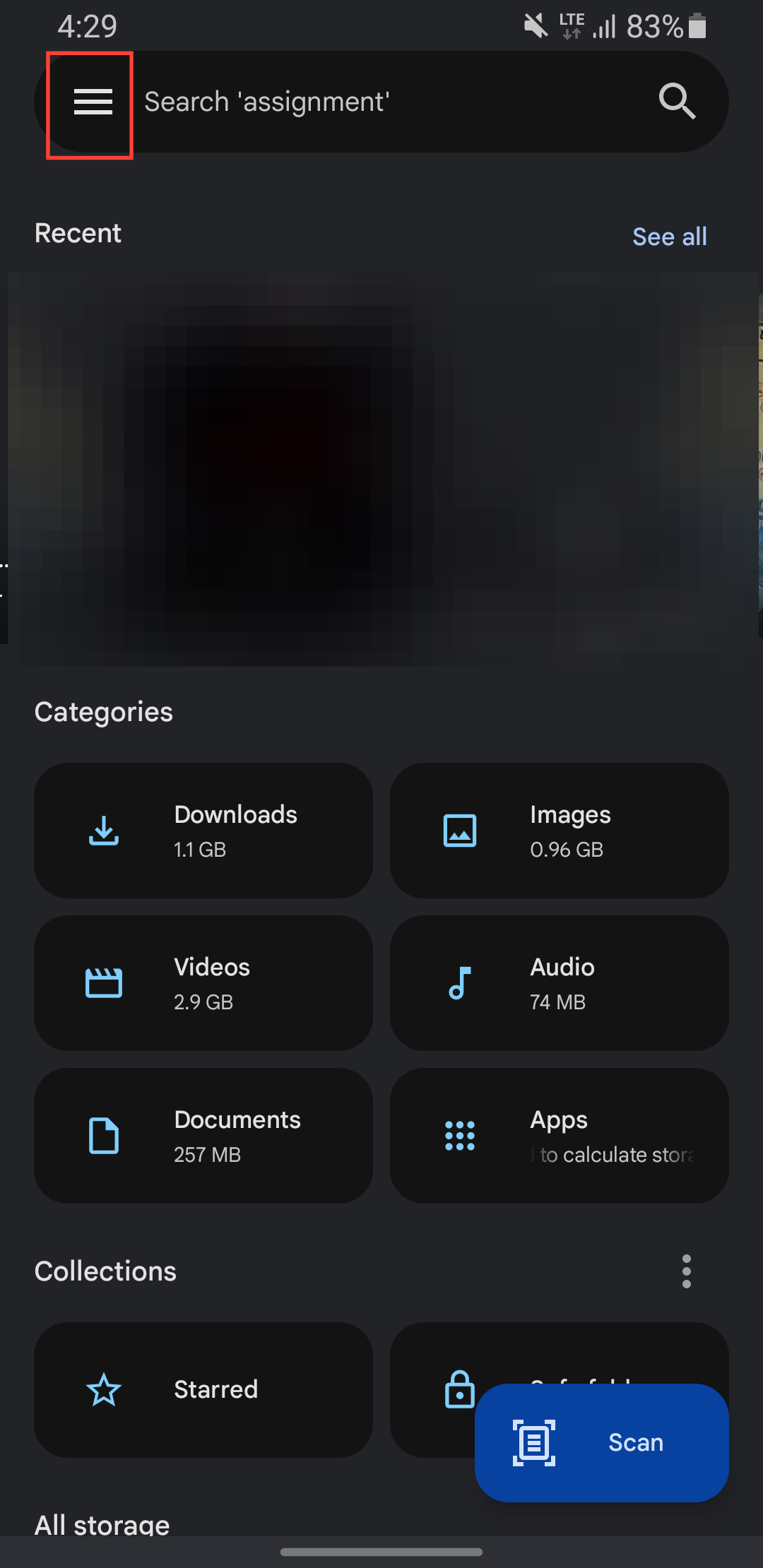
Step 2: Open the app, and tap the hamburger menu in the top left corner.
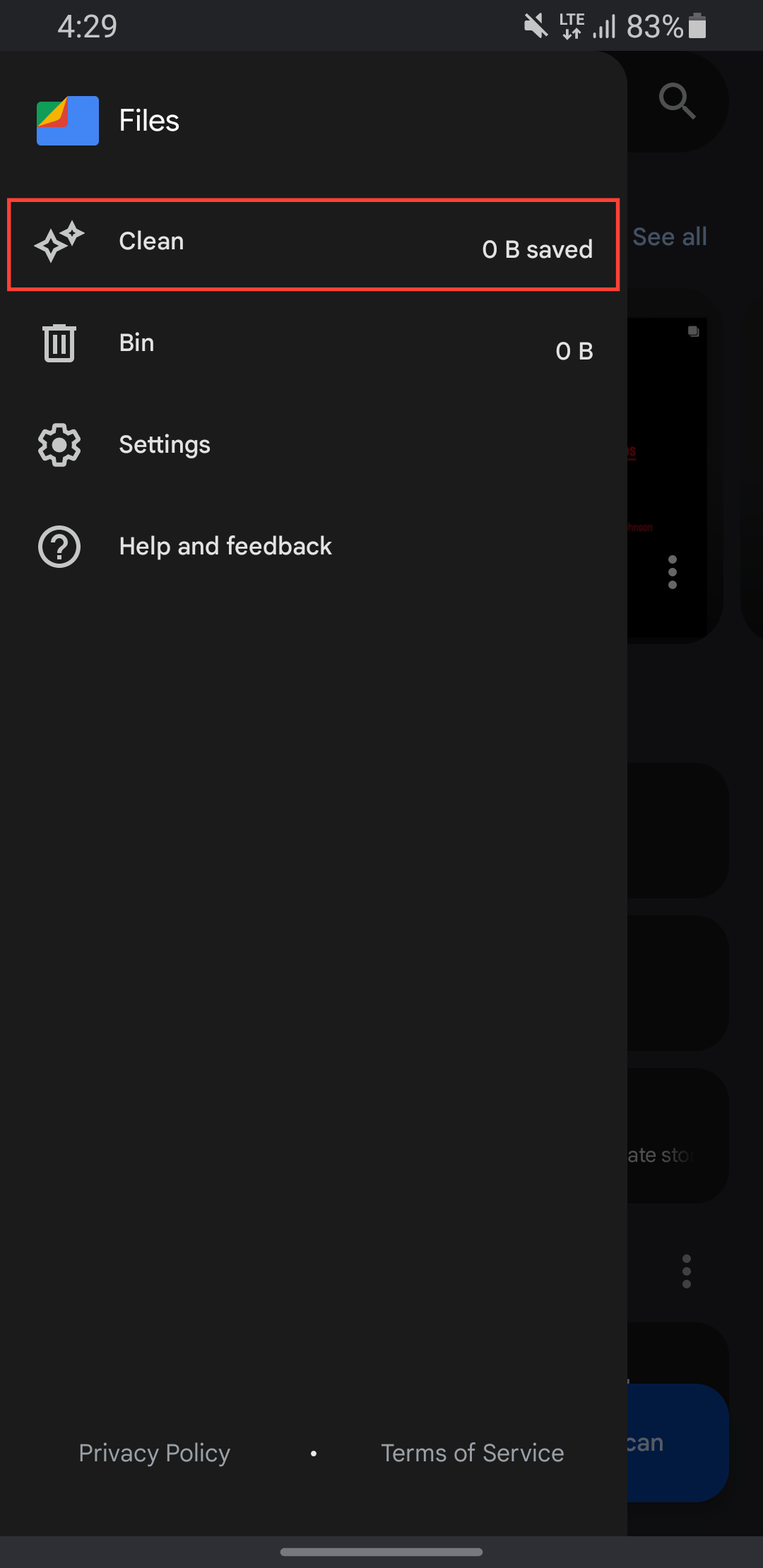
Step 3: Select Clean. This gives a storage summary showing:
- Your used vs. available space.
- Quick access to system storage settings.
- And all cleanup suggestions are organized in one scrollable list.
Step 4: Review Storage Suggestions. The app automatically identifies these space-wasters:
- Junk files: Temporary app data (safe to delete).
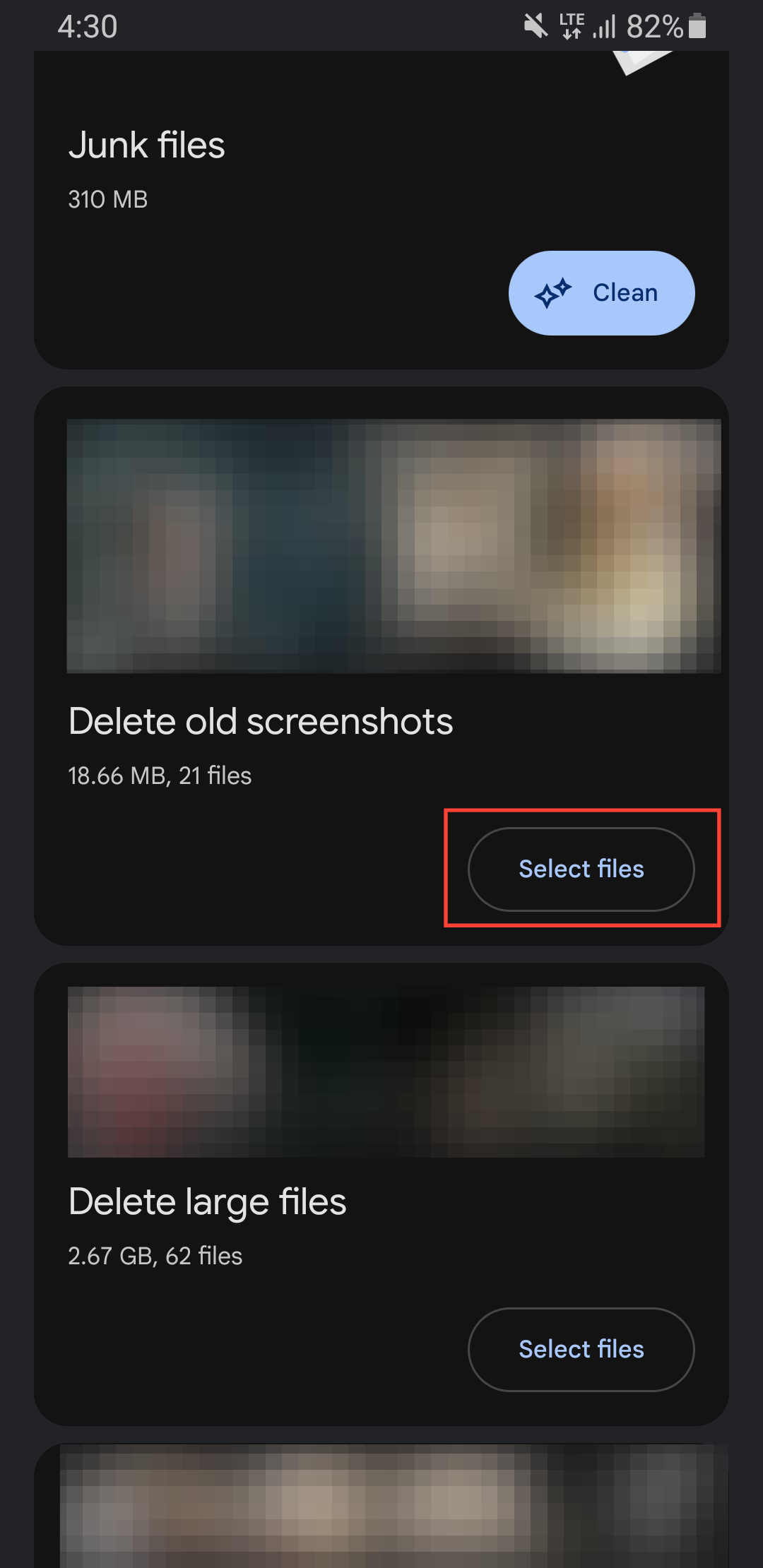
- Old screenshots: Captures older than 4 weeks.
- Large files: Anything >10MB (photos, videos, APKs).
- Unused apps: Not opened in 30+ days.
- Downloads: Forgotten files from browsers/messaging apps.
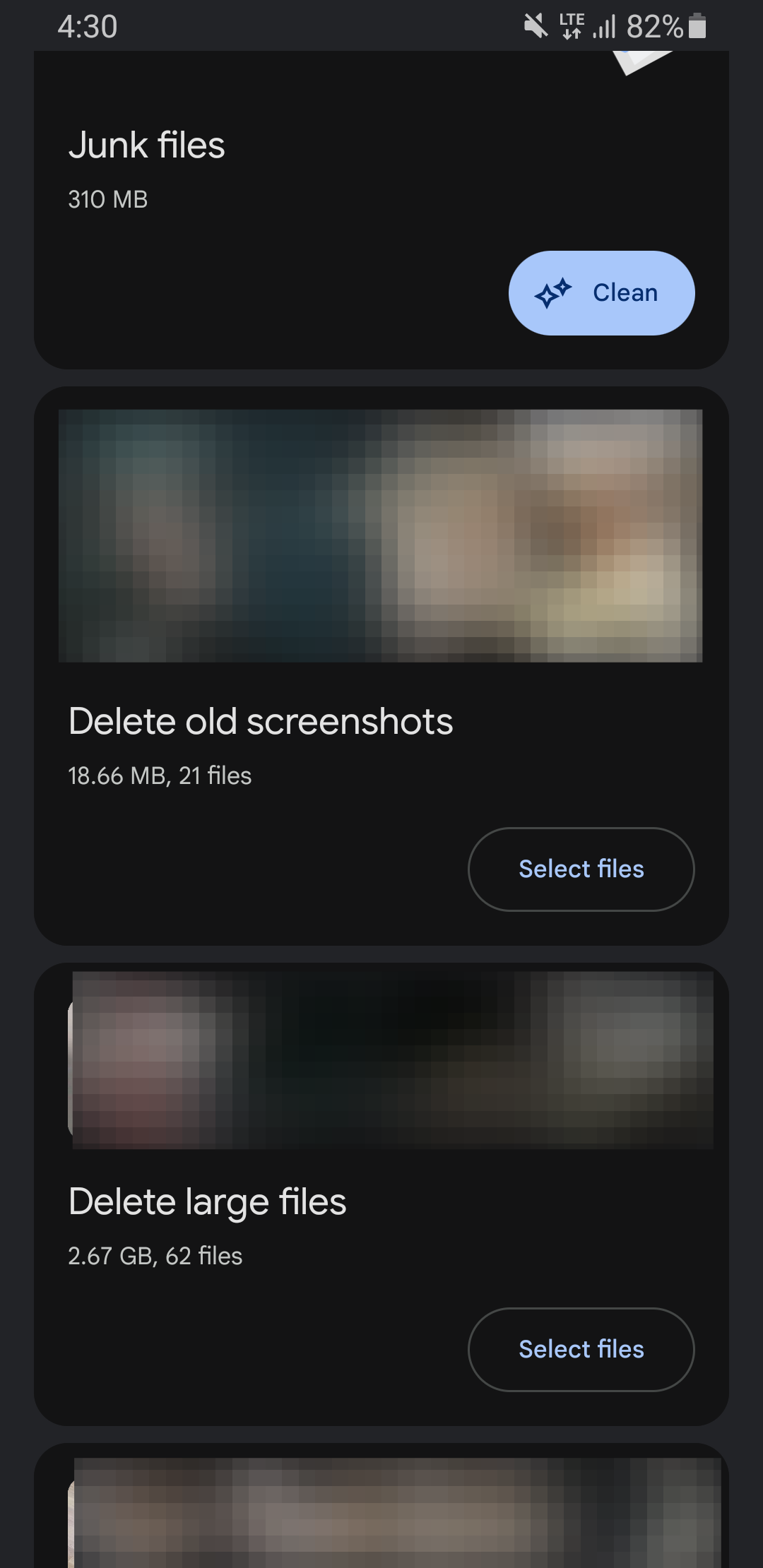
Step 5: Now that you've identified the space waters, you can selectively clean. Tap Select files under the category you wish to clear.
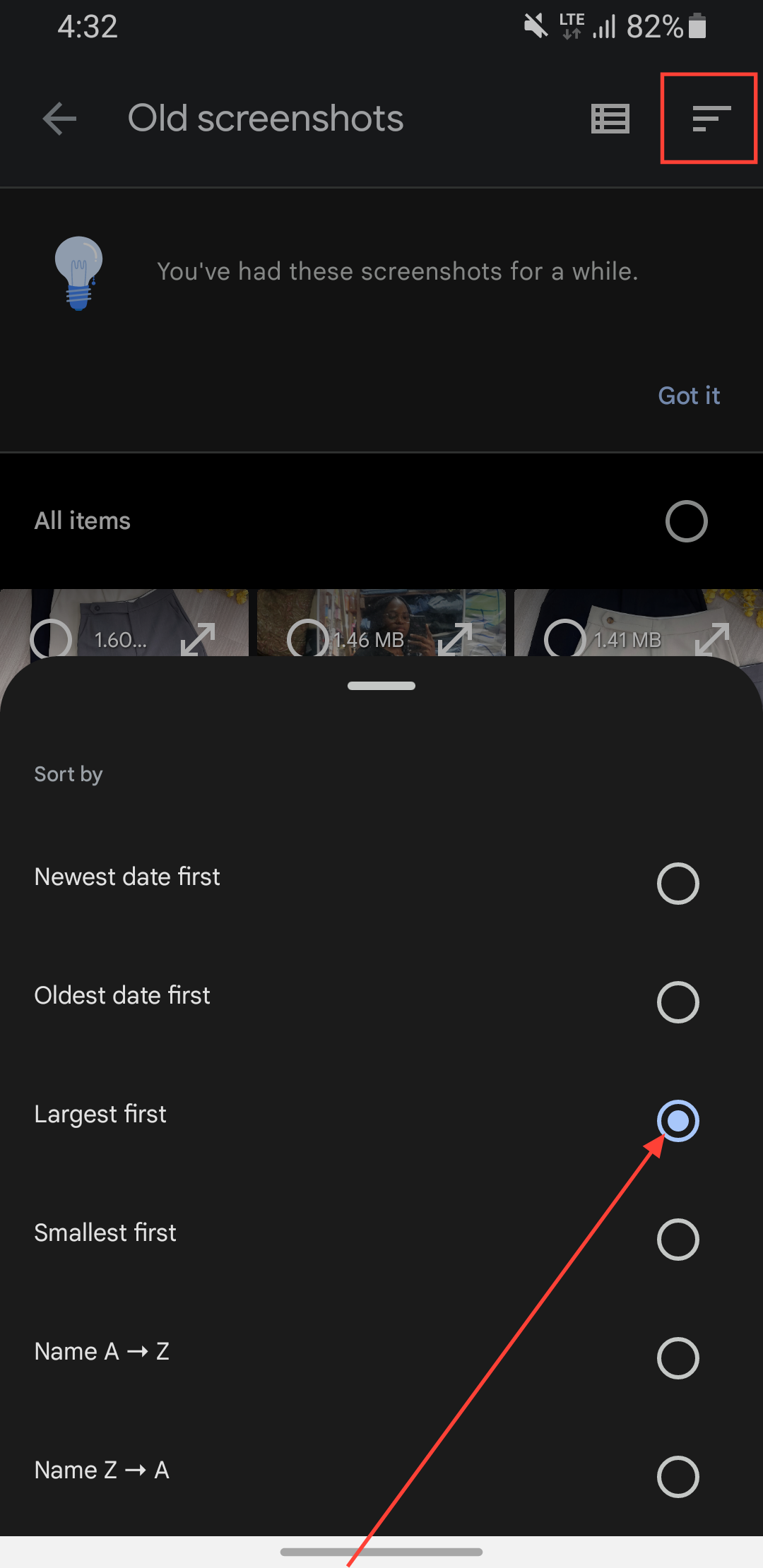
For each category, tap the category to preview files. You can sort by:
- Size (find the biggest space-hogs).
- Date (remove oldest first).
- Name (organized browsing).
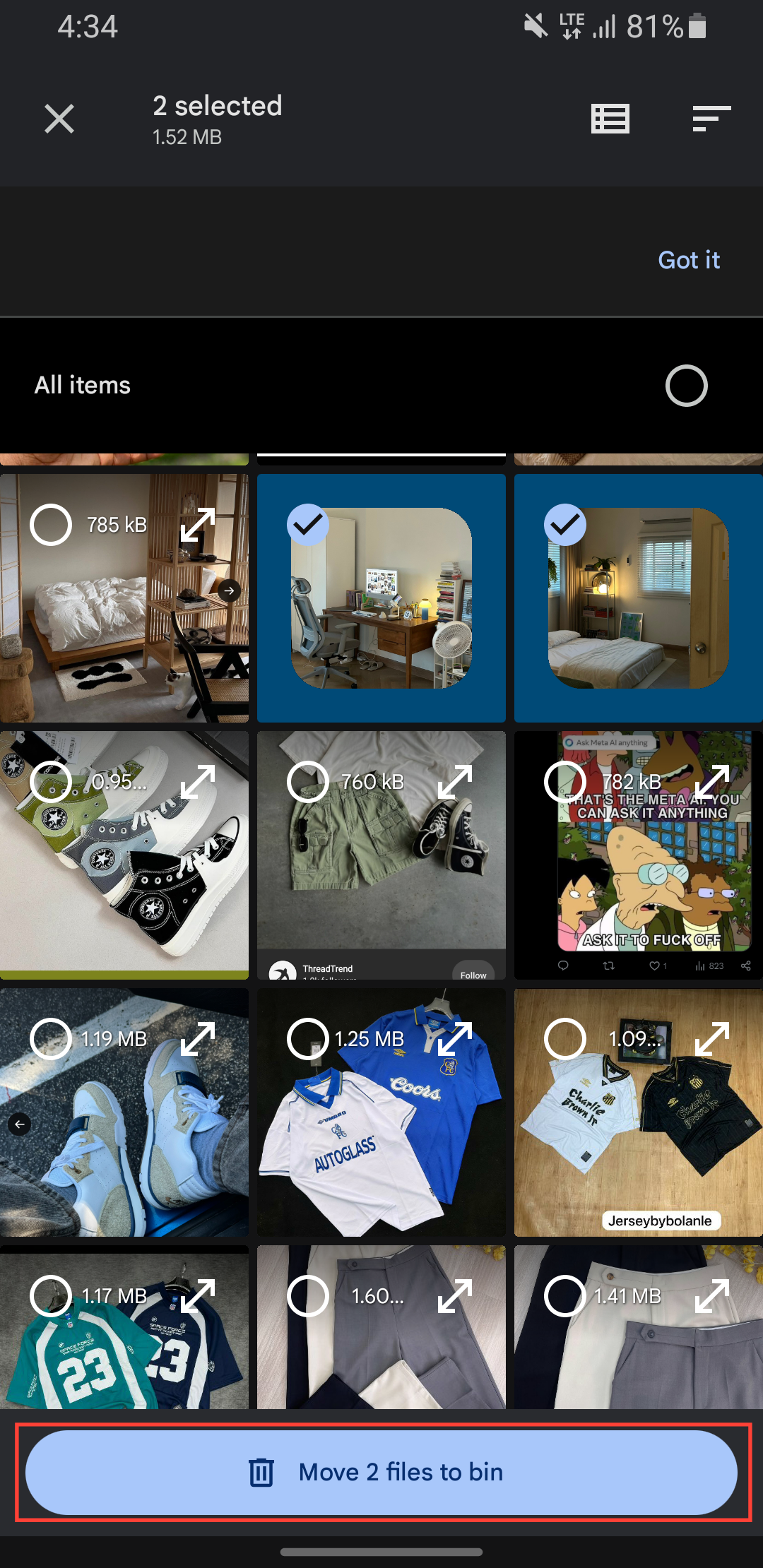
Step 6: Select the item(s) to remove and tap Move to Bin.
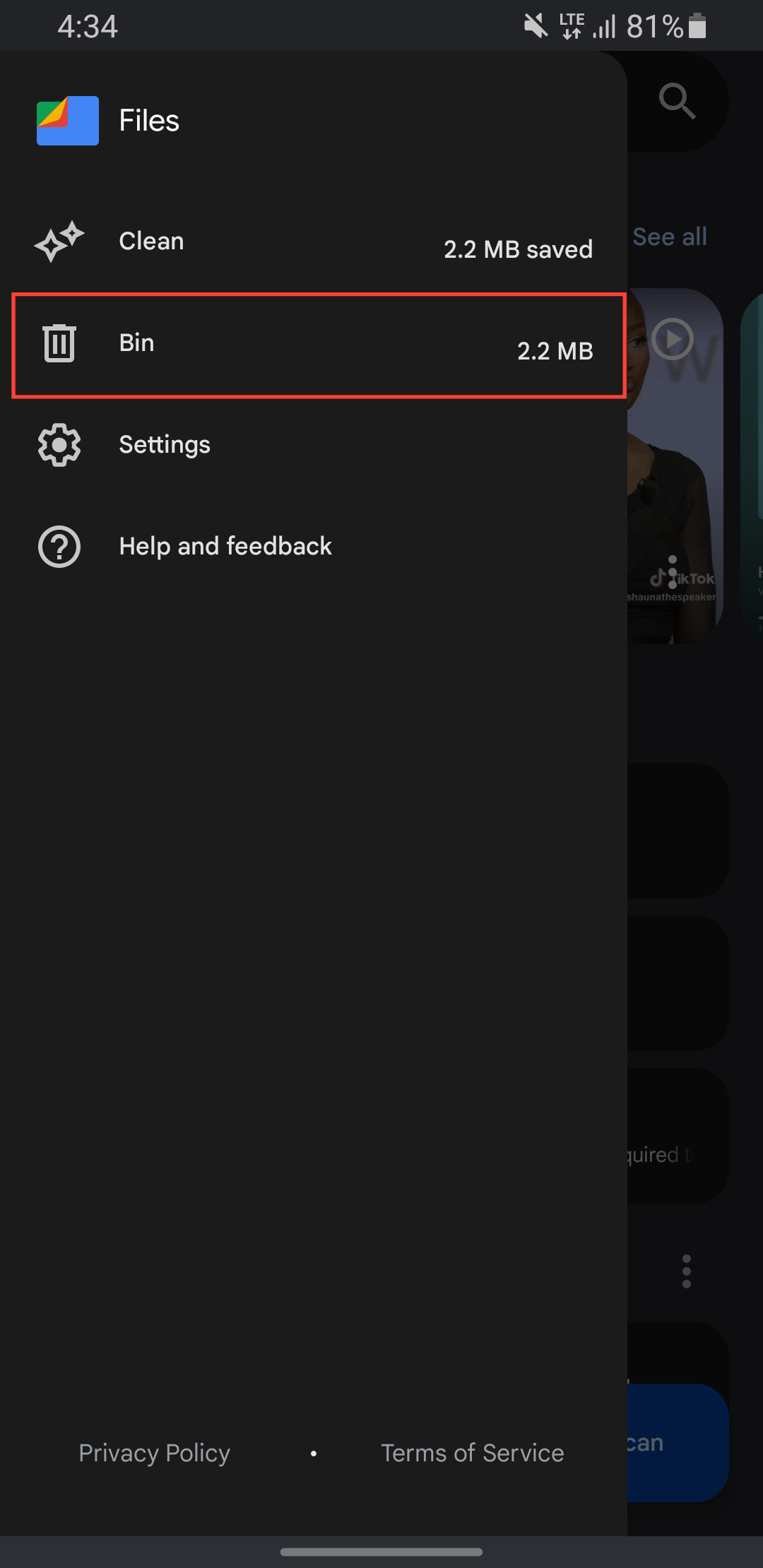
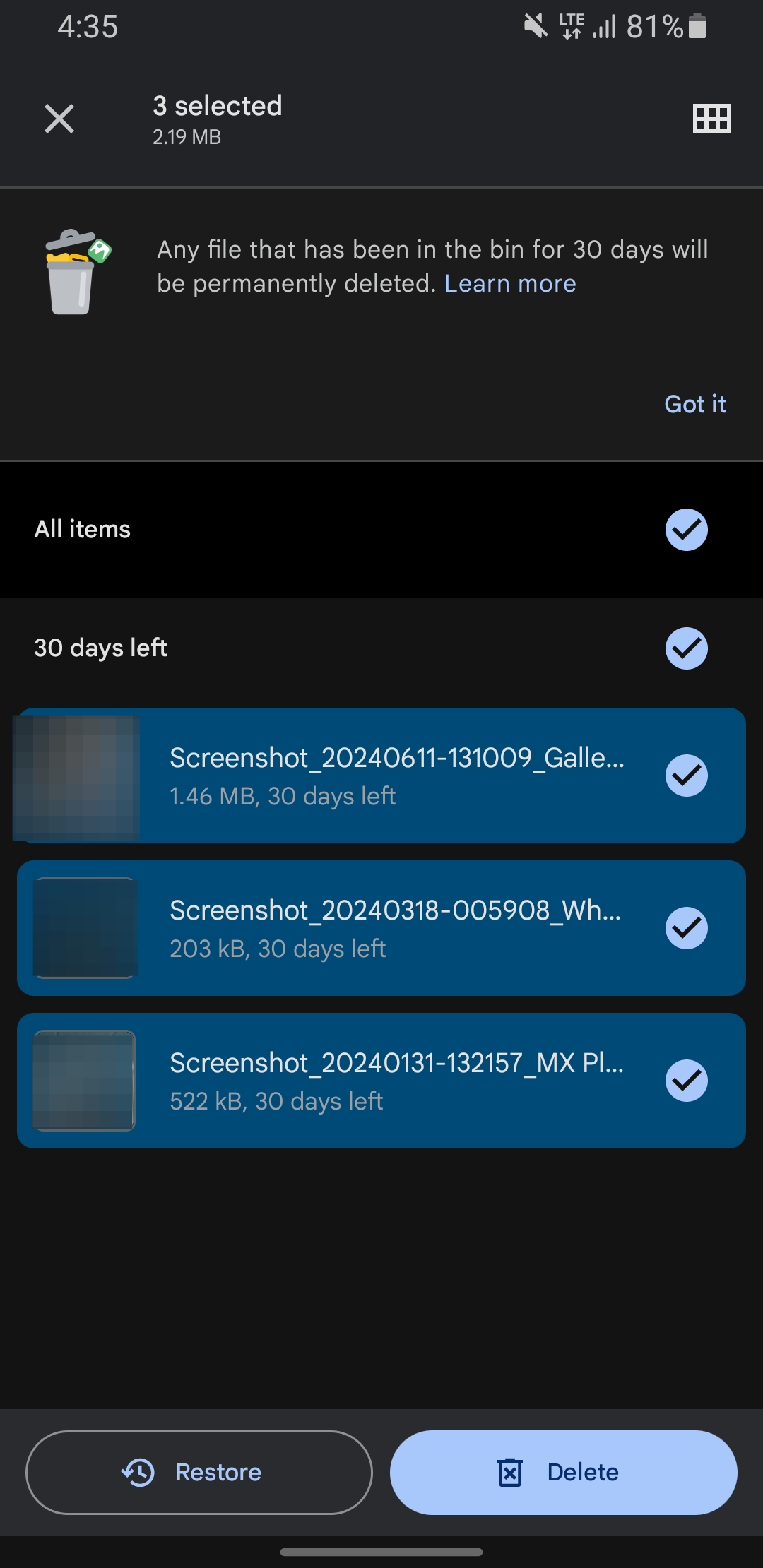
Step 7: Empty the trash to clear junk space.
- Tap the hamburger menu and select Bin.
- Select "All items."
- Tap Delete.
 Oluwaseun Bamisile
Conclusion
And just like that, your Android storage is back under control. Files by Google turns what used to be a frustrating chore into a fast cleanup. By automating the hunt for junk files, unused apps, and forgotten downloads, it saves you time and hassle.
The best part is that you don’t have to be a storage expert. The app guides you every step, showing exactly what’s taking up space and letting you decide what stays or goes. So next time your phone starts lagging or that "Storage Full" alert pops up, you’ll know exactly what to do.
Image Credit: Oyinebiladou Omemu/Techloy.com


