



We’ve all been there, you lend your phone to a friend to show them a photo, or let a child play a game, and suddenly you’re worrying they might peek into your messages, open your email, or even mess with your settings.
That’s where App Pinning on Android comes in. It locks your phone to a single app, so whoever’s using it can only stay within that app until you decide otherwise. It’s a simple but powerful way to protect your privacy and keep your device secure when it’s in someone else’s hands.
 Ogbonda Chivumnovu
Steps to Enable App Pinning on Android
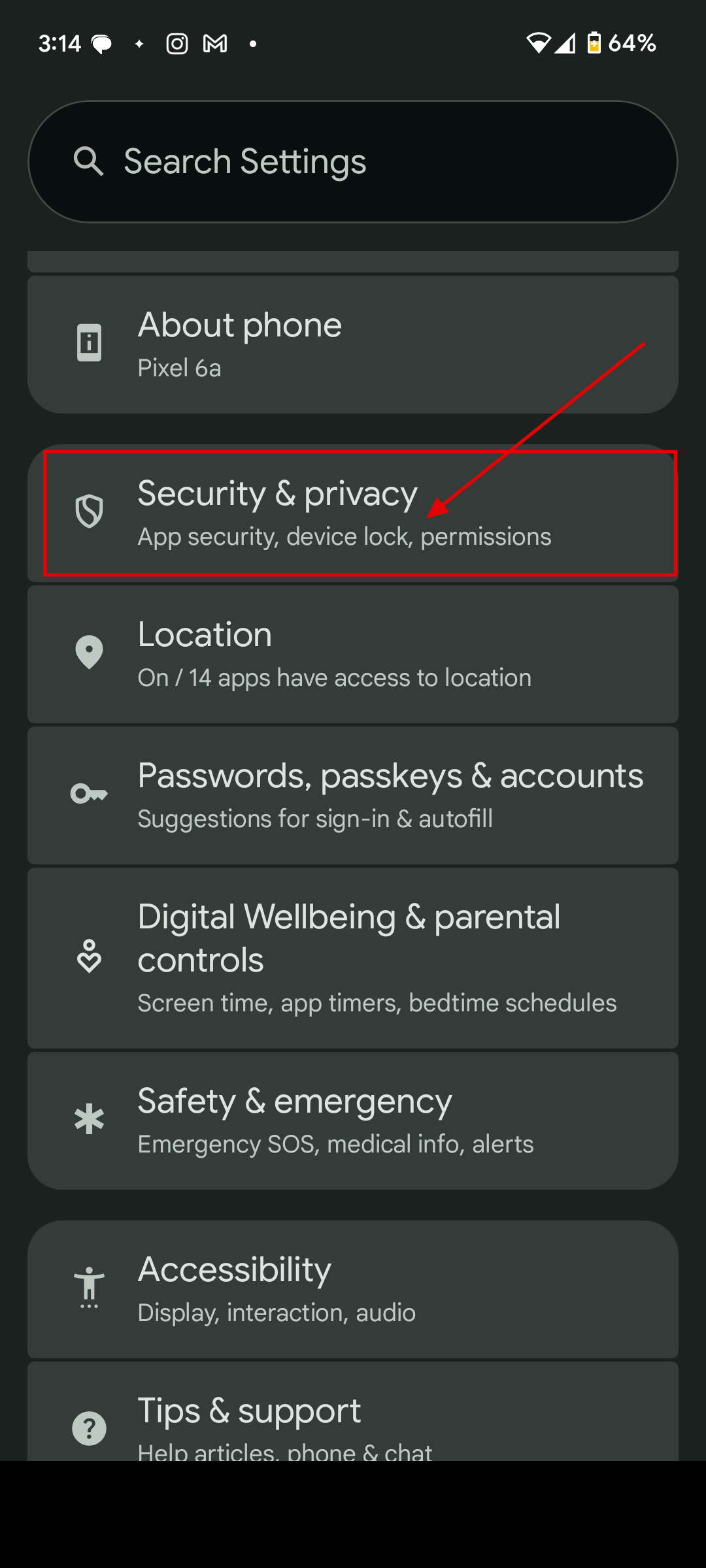
Step 1: Open the settings app on your device, scroll down and select Security & Privacy
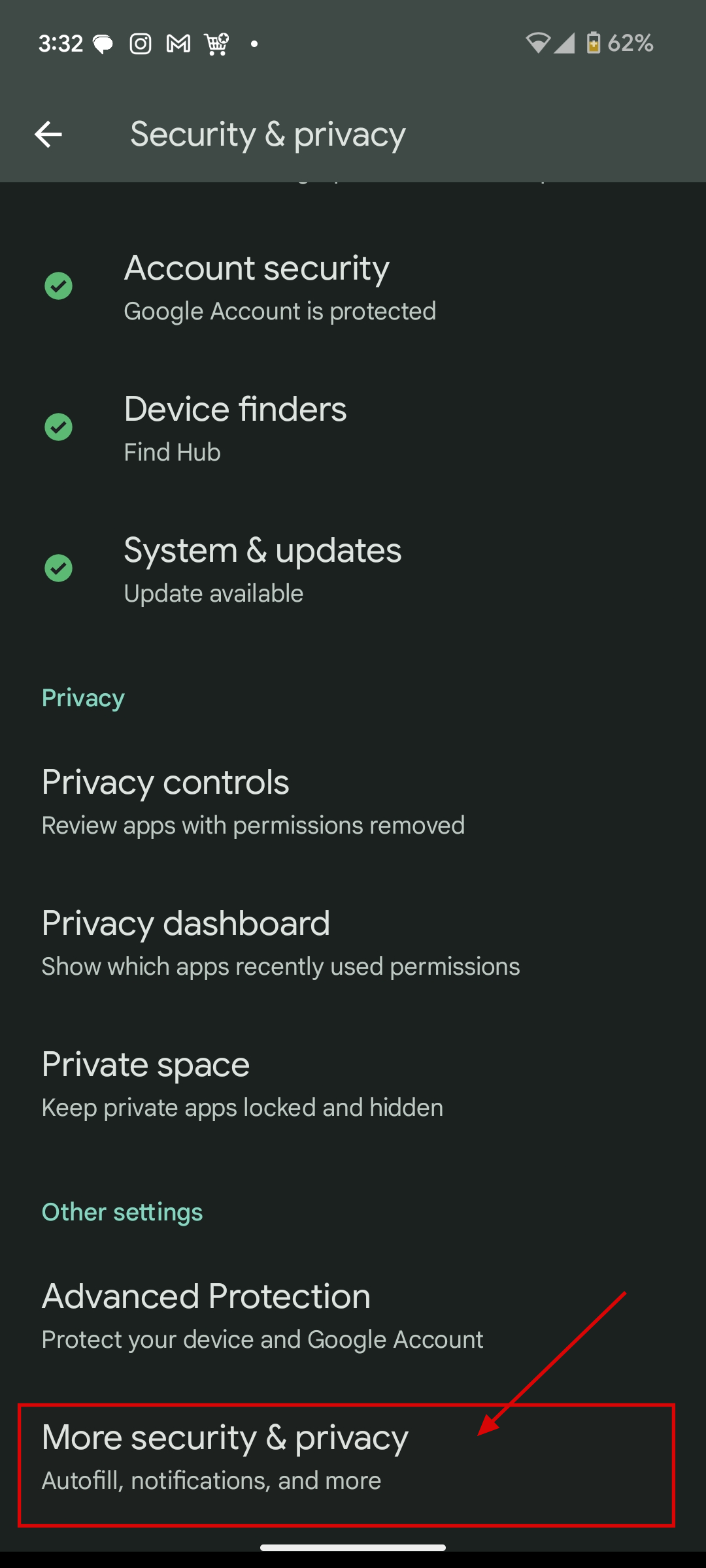
Step 2: Then, select More security & privacy
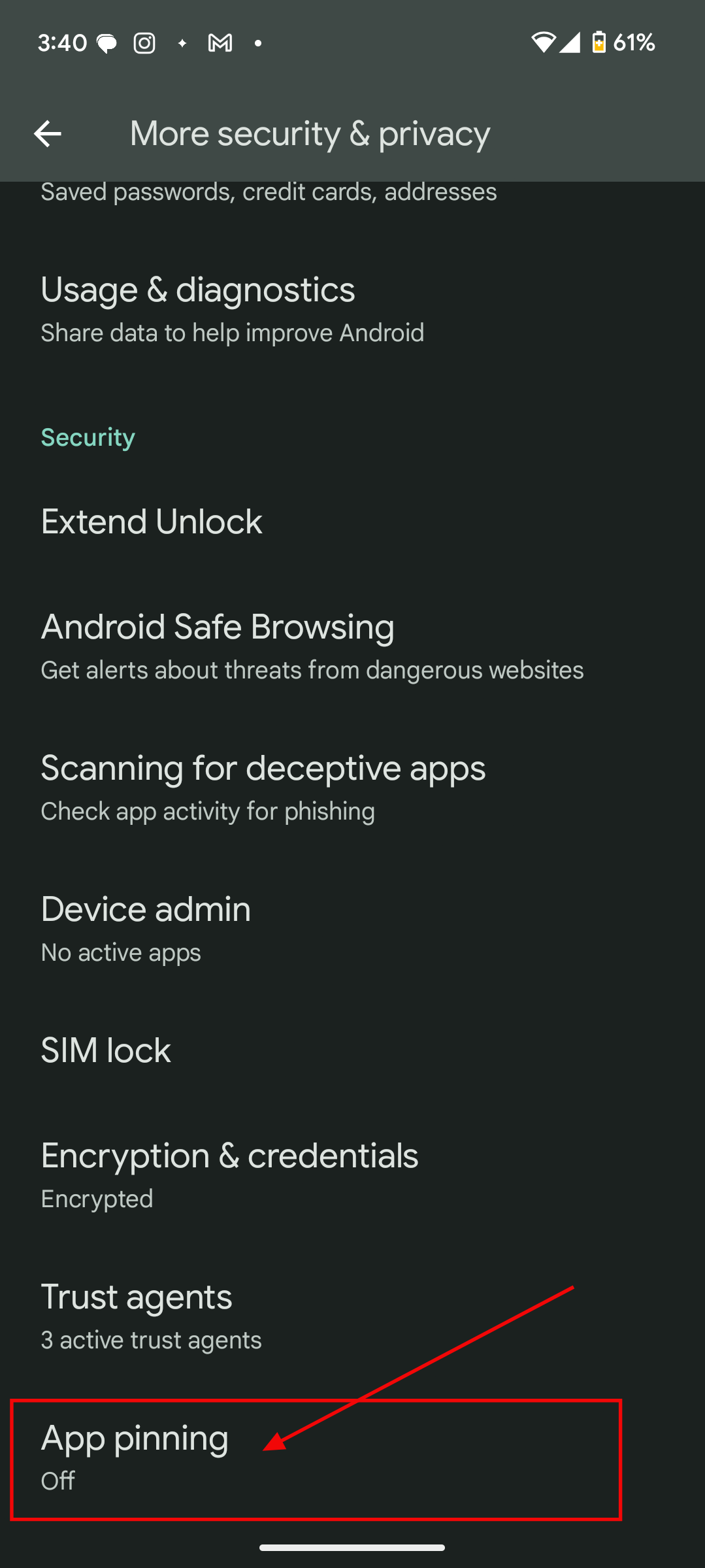
Step 3: Scroll down and select App pinning
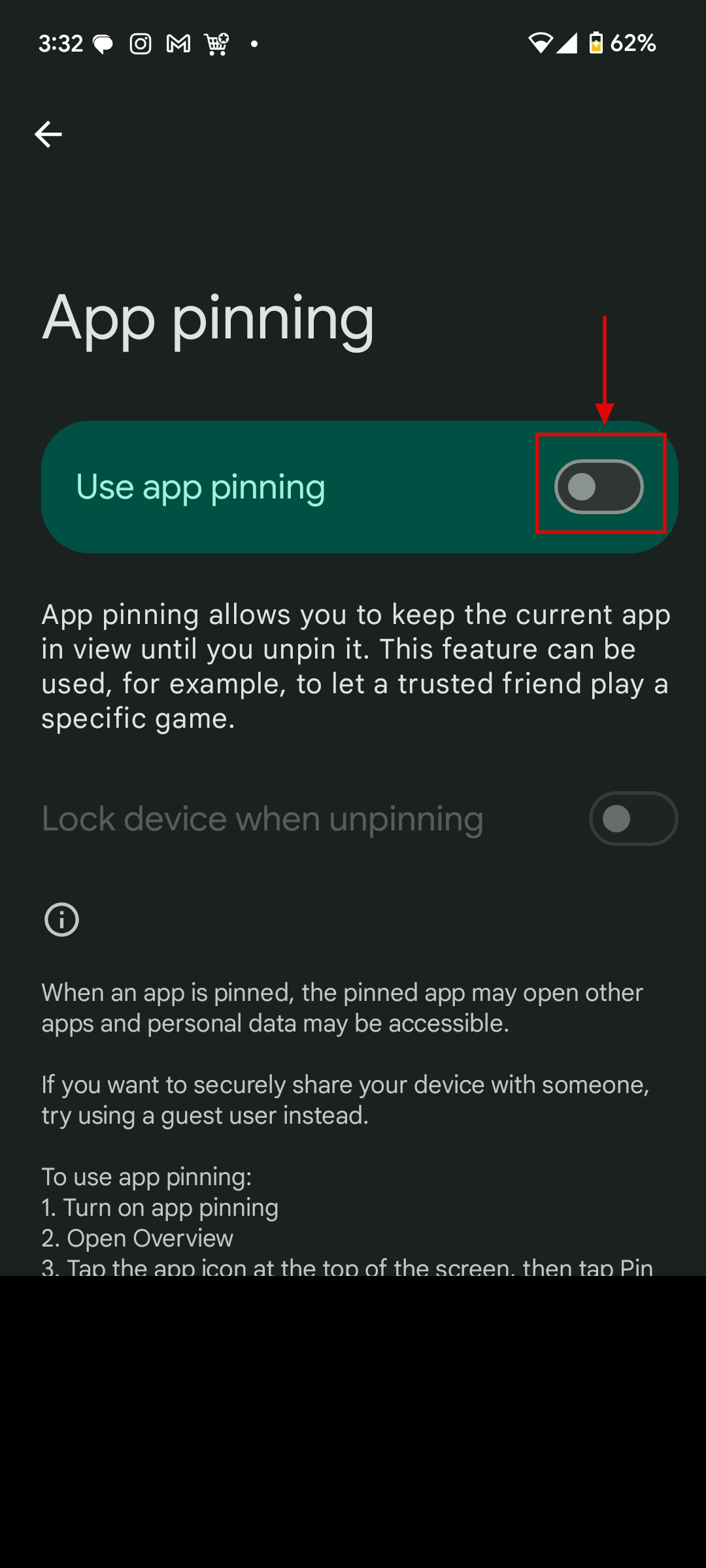
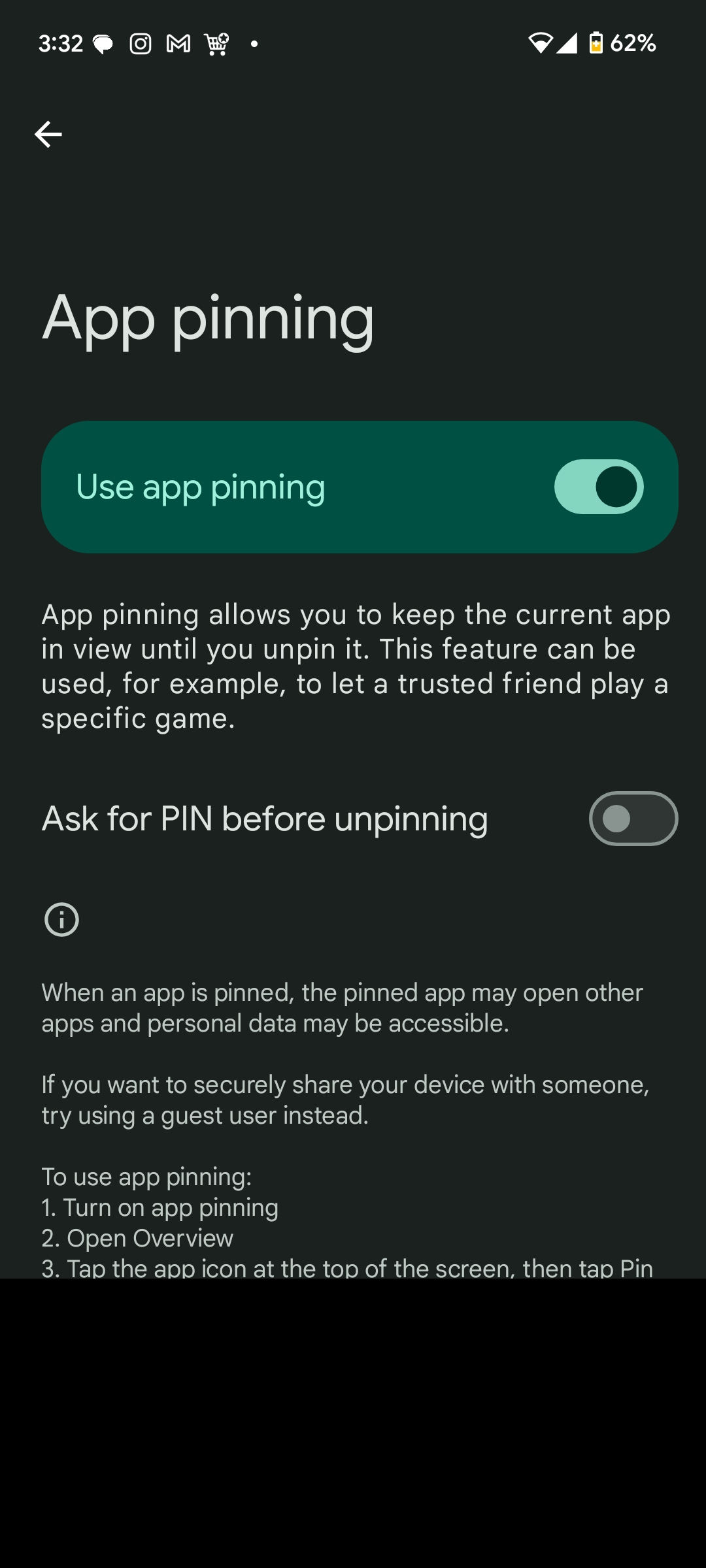
Step 4: Toggle on Use app pinning
 David Adubiina
Conclusion
App Pinning might sound like a small feature, but it’s one of those tools you’ll be glad to have once you start using it.
Whether you’re handing your phone to a child, a friend, or even a co-worker, it gives you peace of mind that your personal apps, files, and messages stay private. Turn it on once, and you’ll never have to second-guess sharing your device again.
Image Credit: Ogbonda Chivumnovu / Techloy.com


