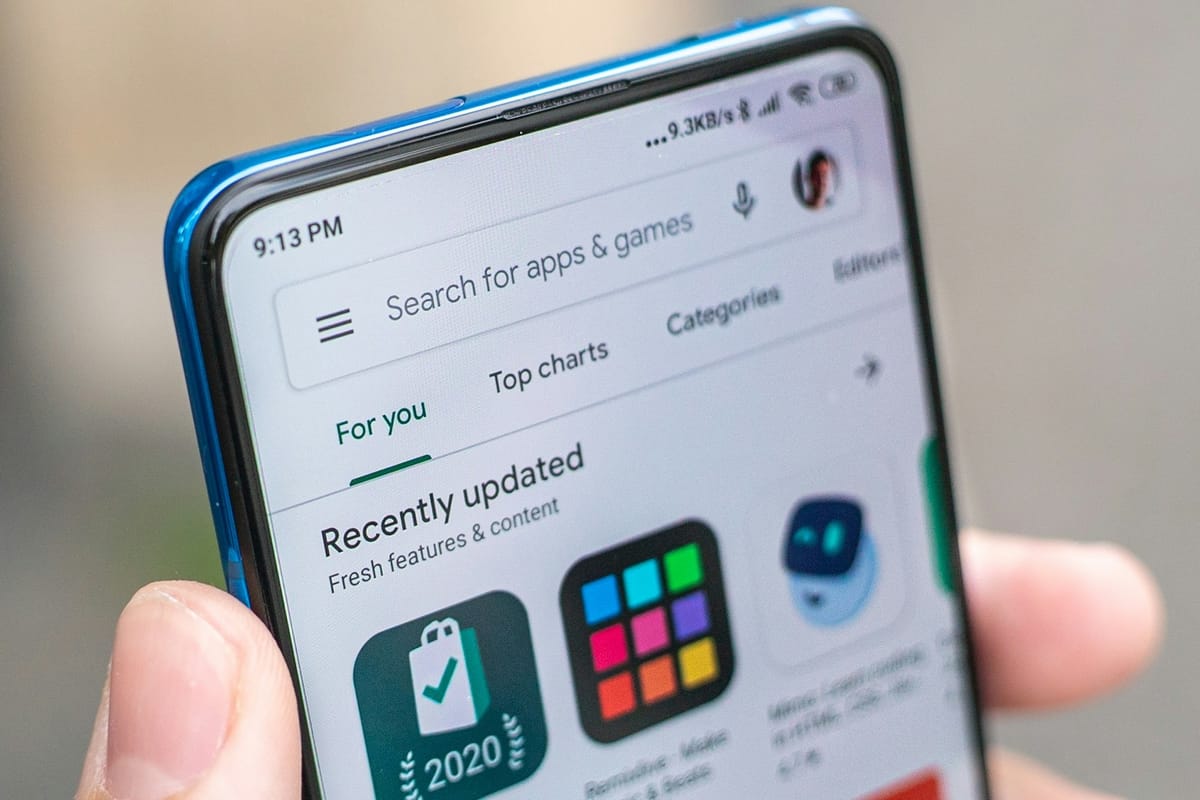
You probably don’t think twice before installing an app from the Play Store, but not every download is as harmless as it looks. That’s where Google Play Protect steps in. It’s like a free, built-in security guard that’s always on, scanning your apps and phone to catch anything shady before it causes trouble.
And sometimes it is not turned on by default. If you want your phone to watch your back, you’ll want to ensure that Play Protect is turned on. Here’s how to do it in seconds.
How to Enable Google Play Protect on Android
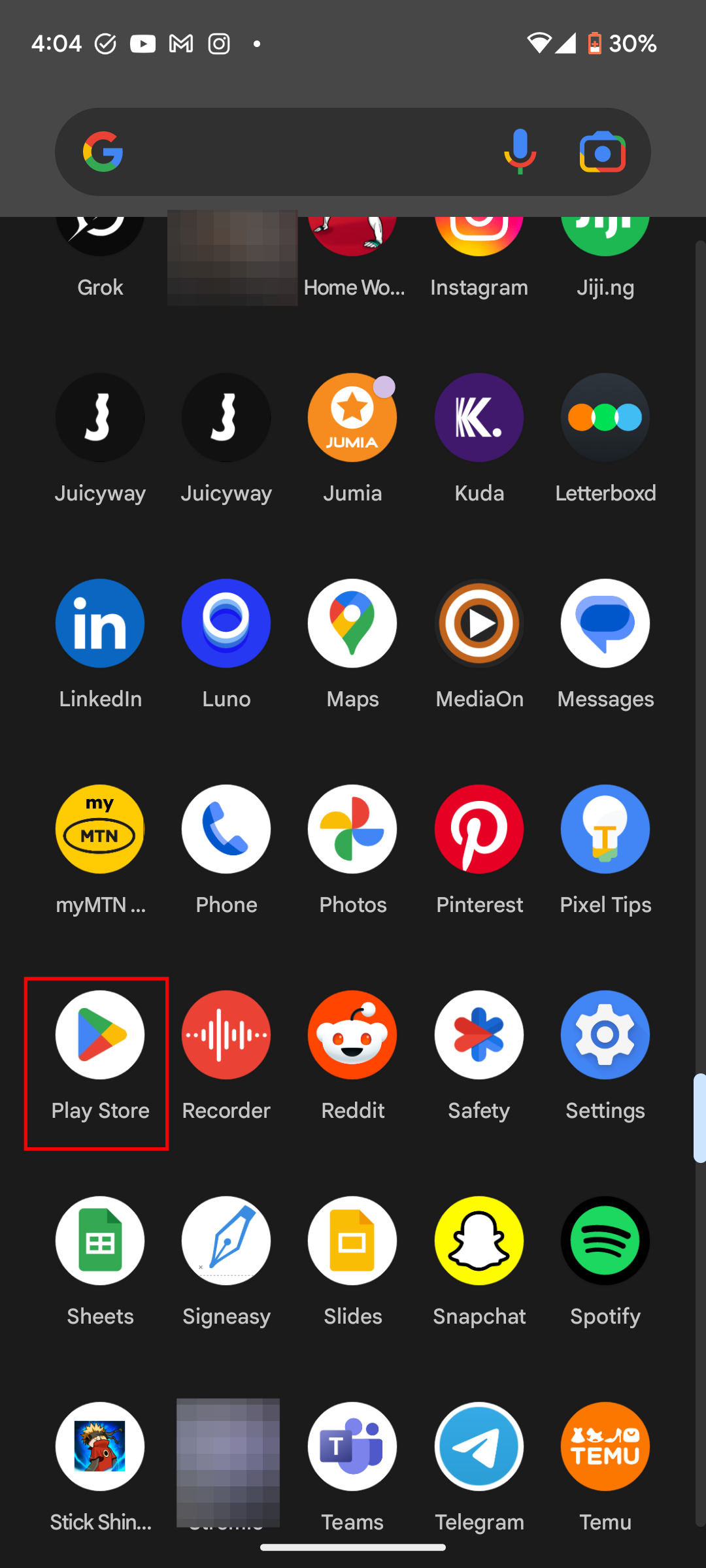
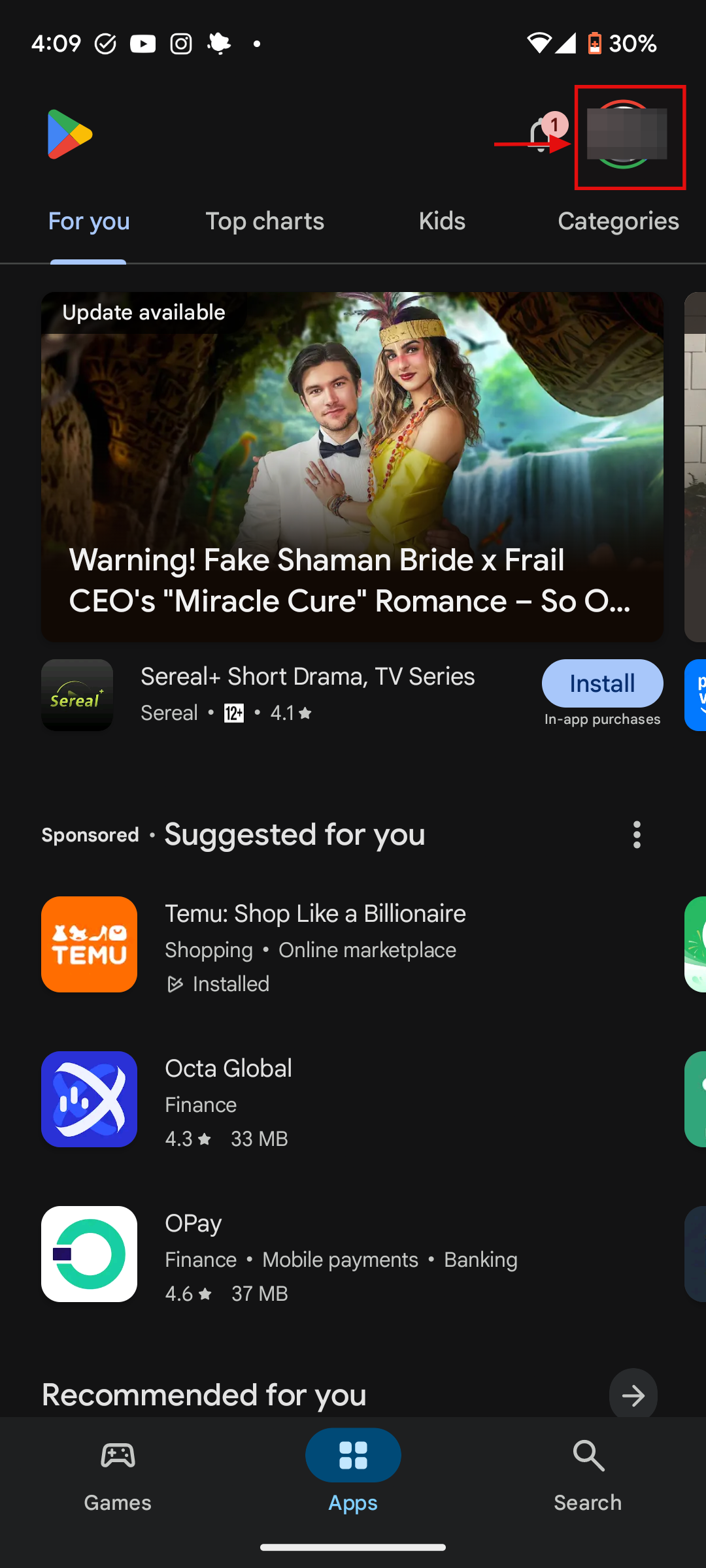
Step 1: Open the Google Play Store app on your device, then tap your profile icon in the top right corner of the screen
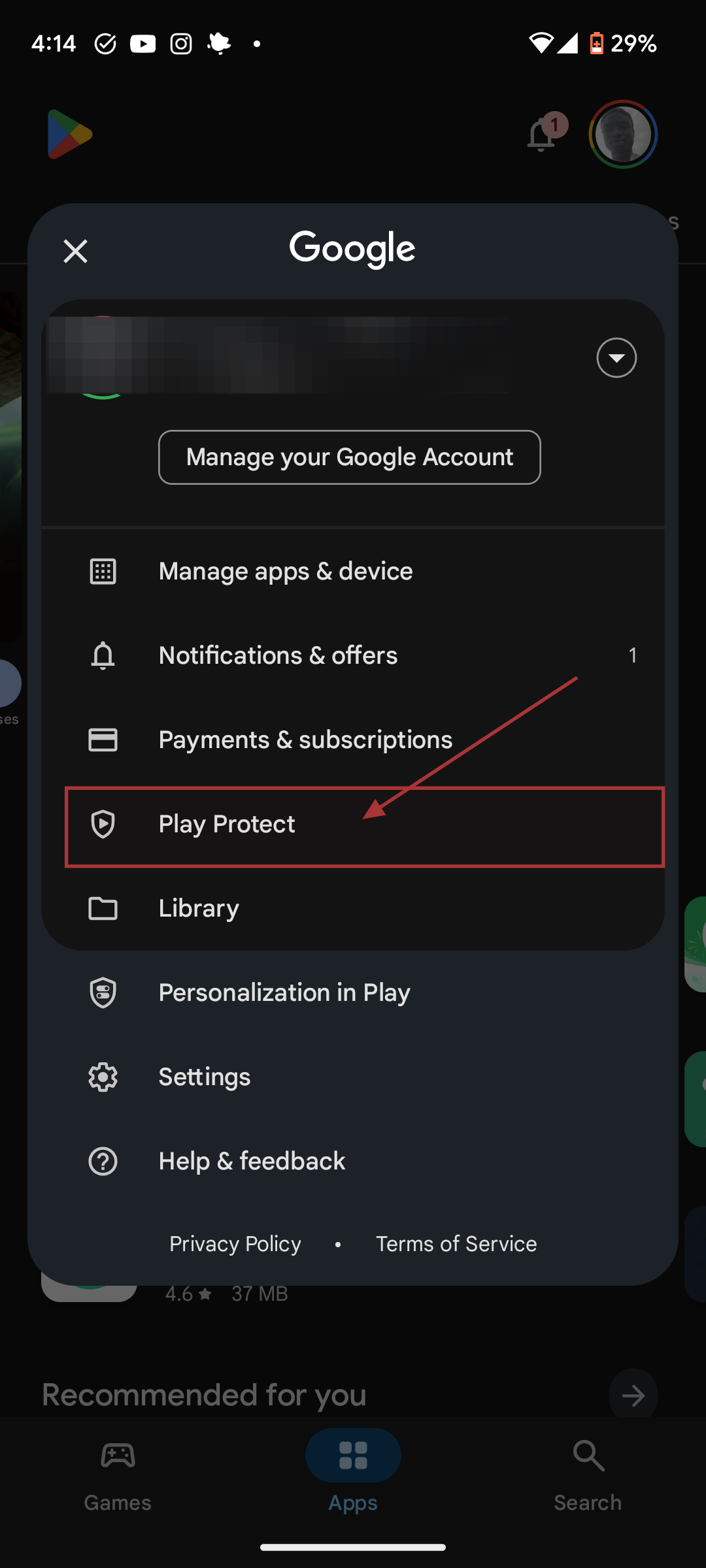
Step 2: Tap Play Protect
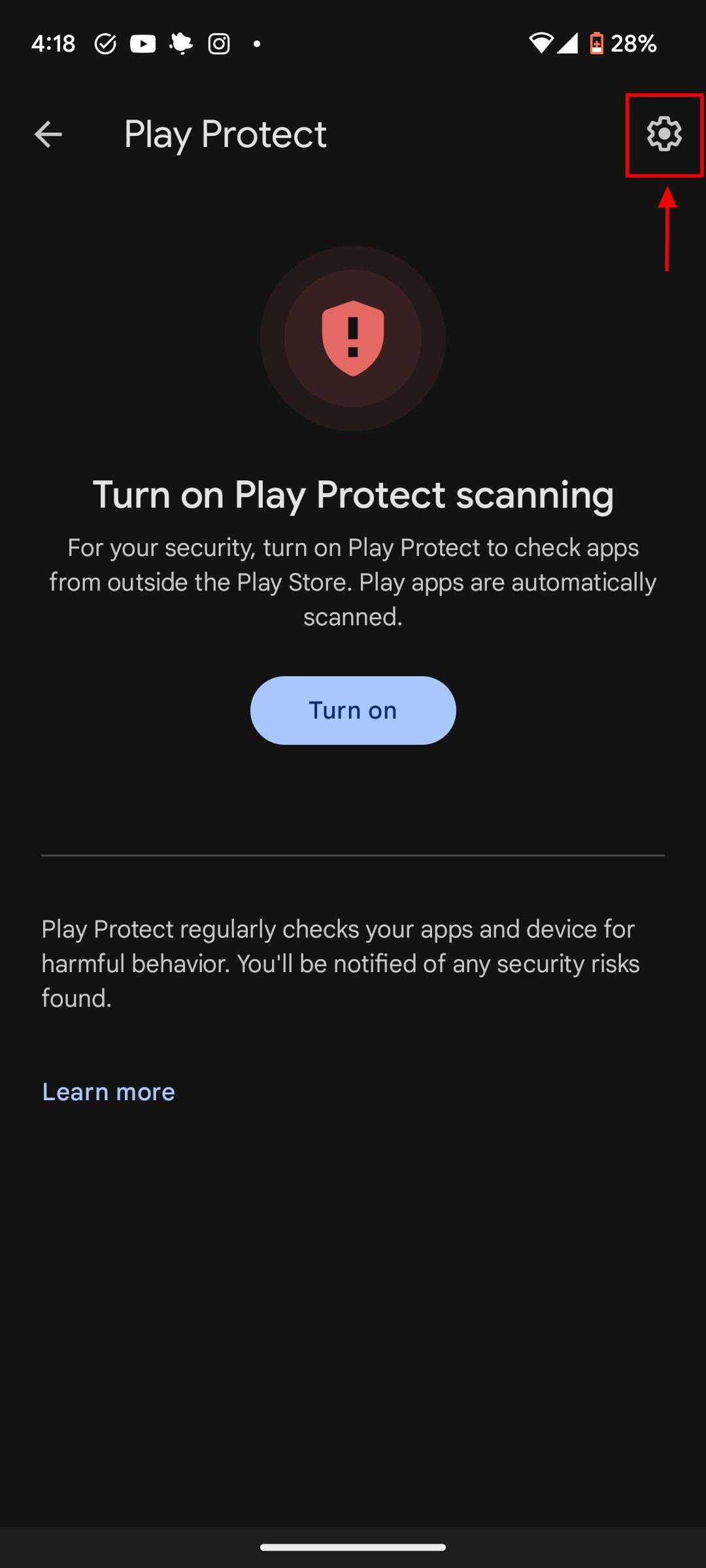
Step 3: Tap the Settings icon (a gear) in the top right corner of the Play Protect screen
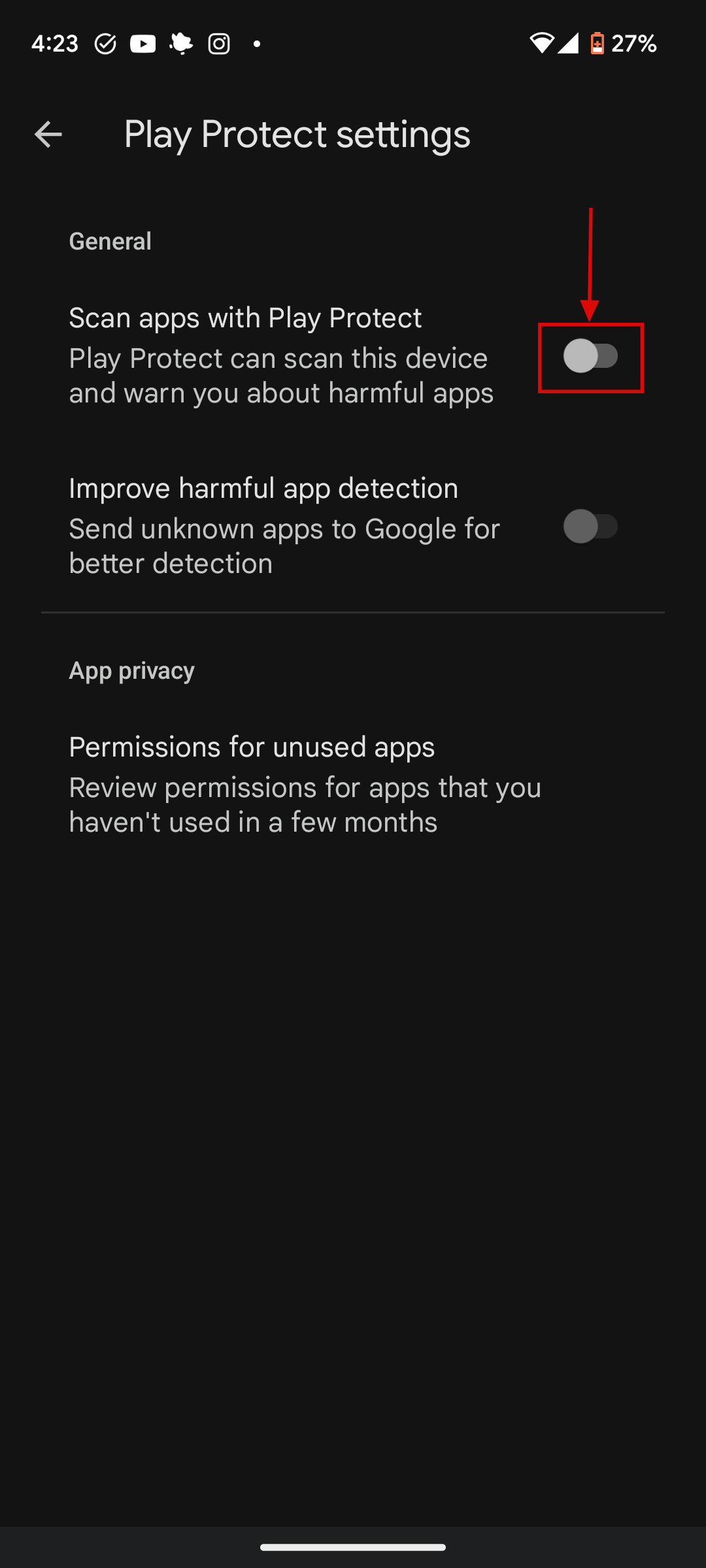
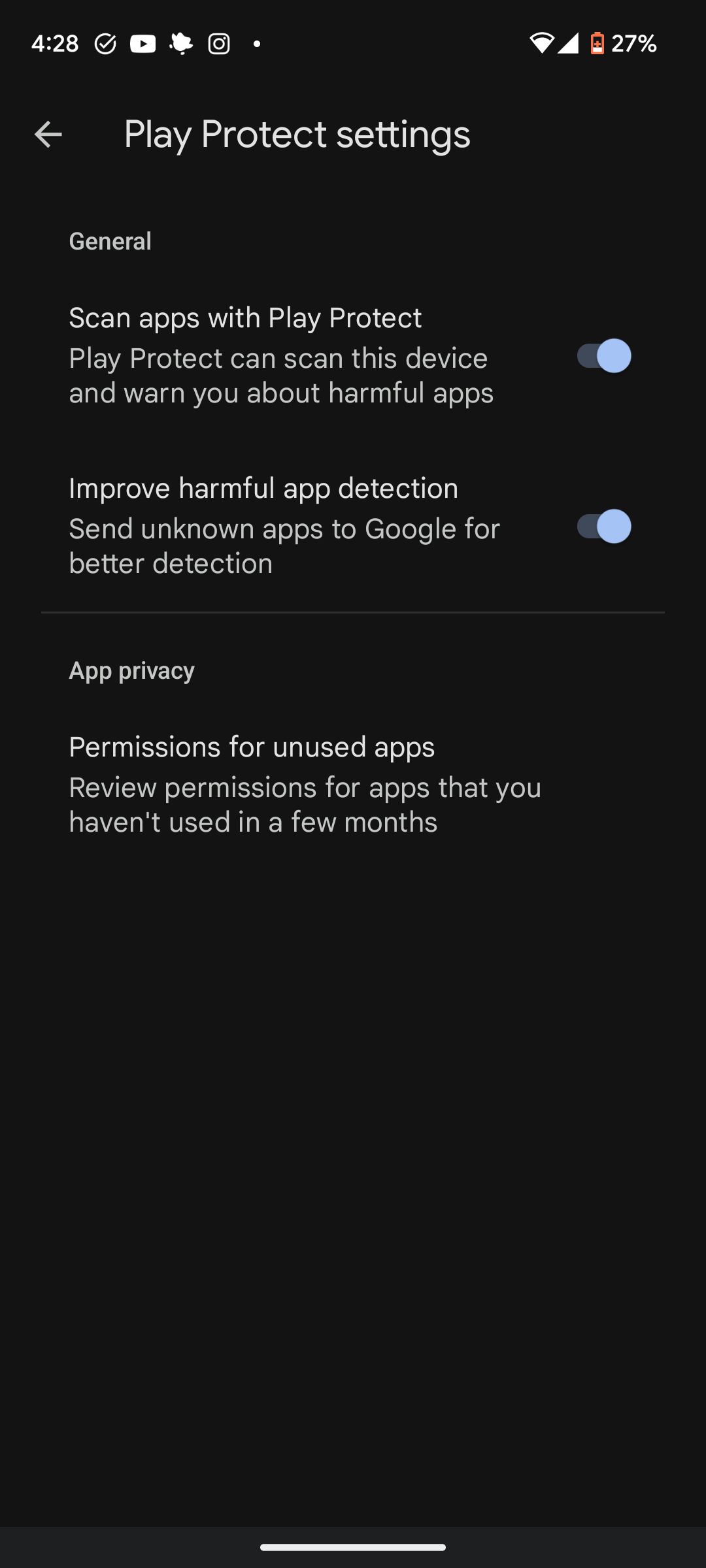
Step 4: Turn on the toggle for Scan apps with Play Protect to enable Google Play Protect on your device. You can also choose to toggle on Improve harmful app detection to review unknown apps.
Conclusion
Turning on Google Play Protect is a simple but powerful step towards keeping your Android device safe. It constantly checks your apps and device for harmful behaviour, alerting you if something seems off. While no system is foolproof, Play Protect gives you real-time protection from the most common threats on the Play Store and beyond. It’s easy to overlook, but enabling it ensures you’re not leaving your phone wide open to risks, and that’s peace of mind worth having.
 Oyinebiladou Omemu