



If you use split screen often on your Android, you may have noticed that one stubbornly refuses to cooperate. This happens because app developers can choose to block multi-window mode, but you can always bypass that from your phone's Developer Options with the "Force activities to be resizable" feature that overrides these restrictions.
Once you enable that feature, every app on your phone becomes a candidate for split-screen view. This is especially great if you're using a foldable phone or tablet, where multi-window makes even more sense.
In this guide, learn how to enable the force activities to be resizable feature for smooth split screen mode.
 Oyinebiladou Omemu
How to Force Activities to be Resizable on your Android Phone
Step 1: Go to Settings on your Phone. Scroll down and select About phone.
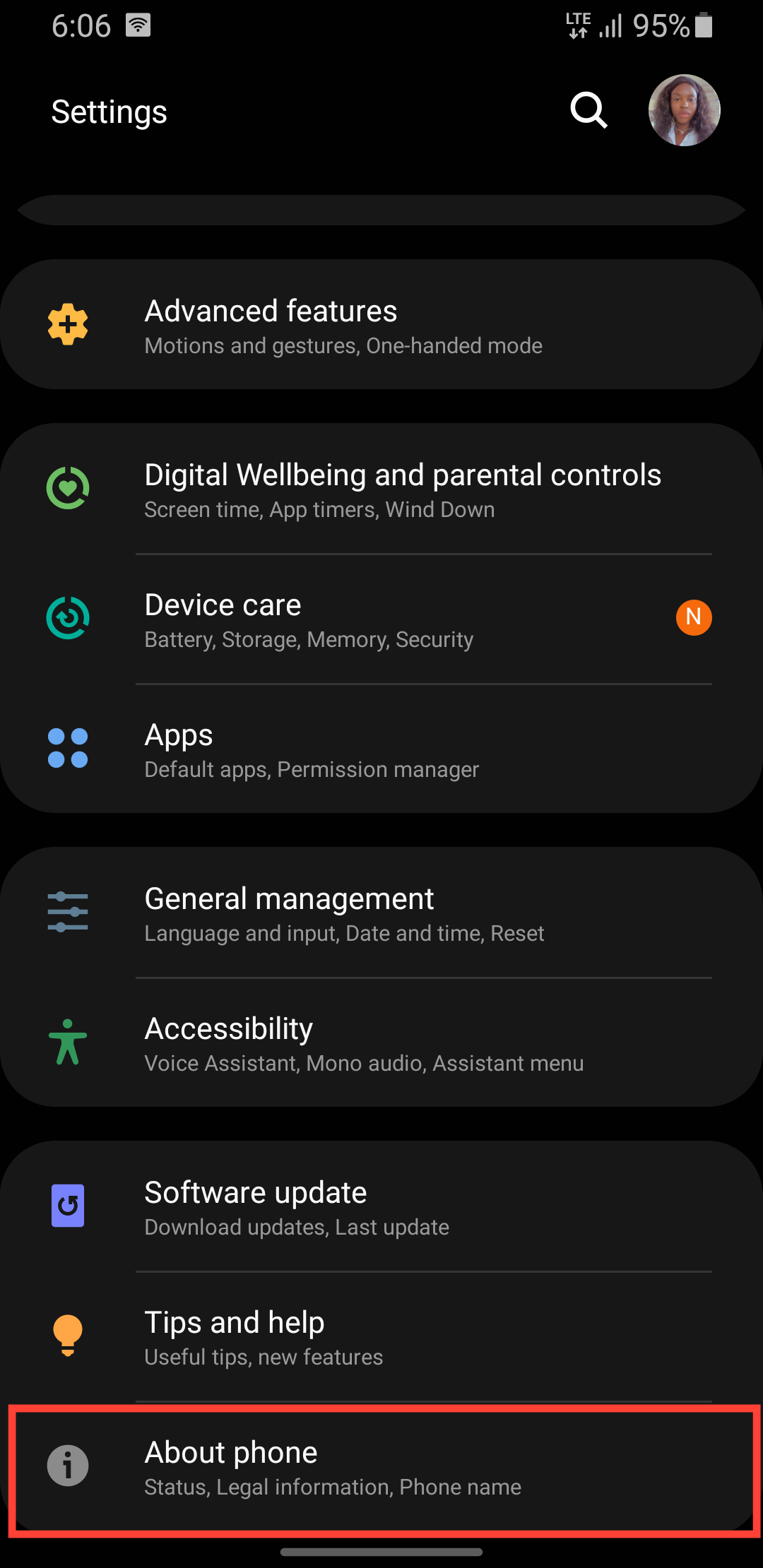
Step 2: Select Software Information.
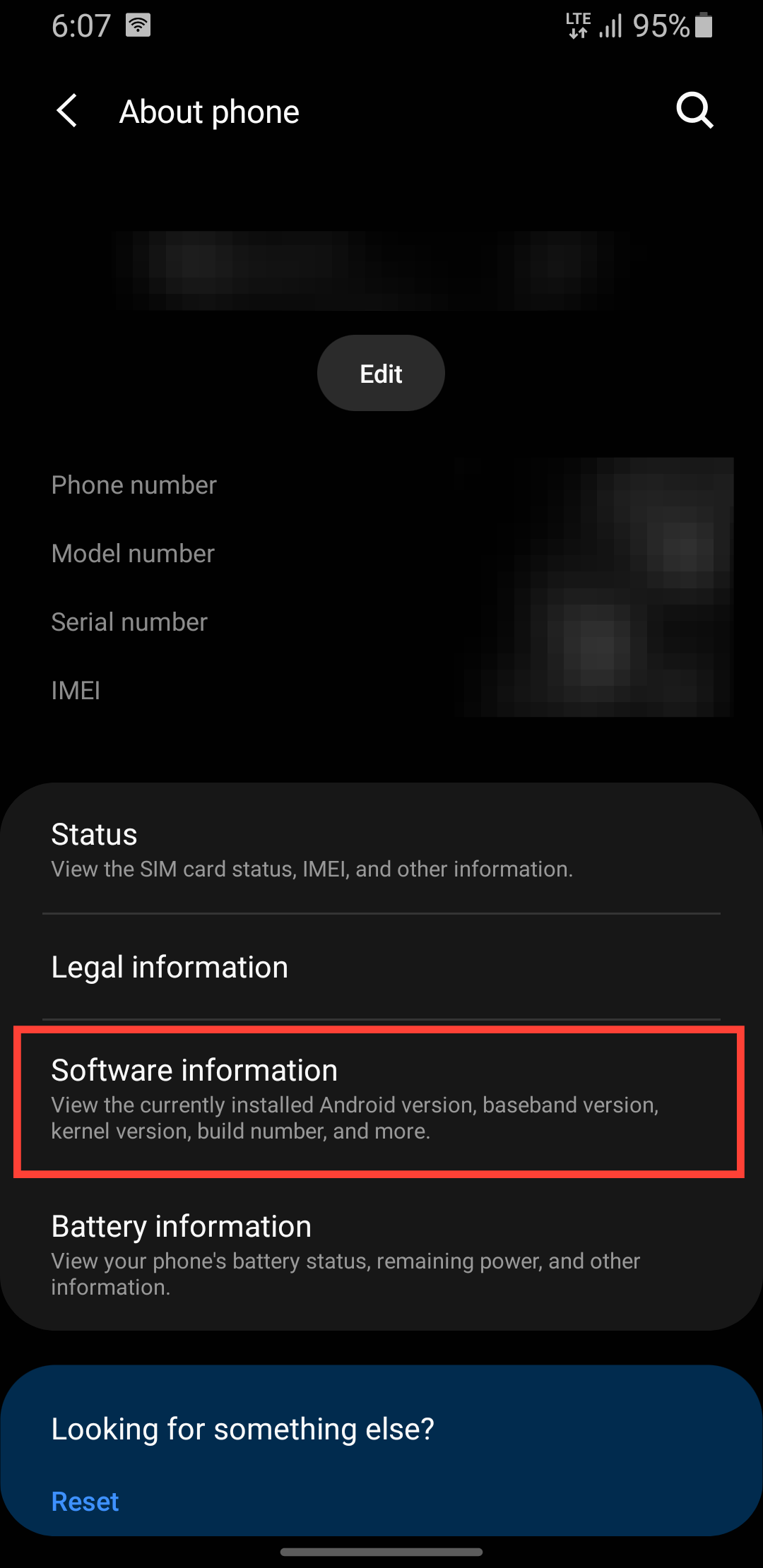
Step 3: Tap the Build number continuously (ten times) to enable Developer Mode.
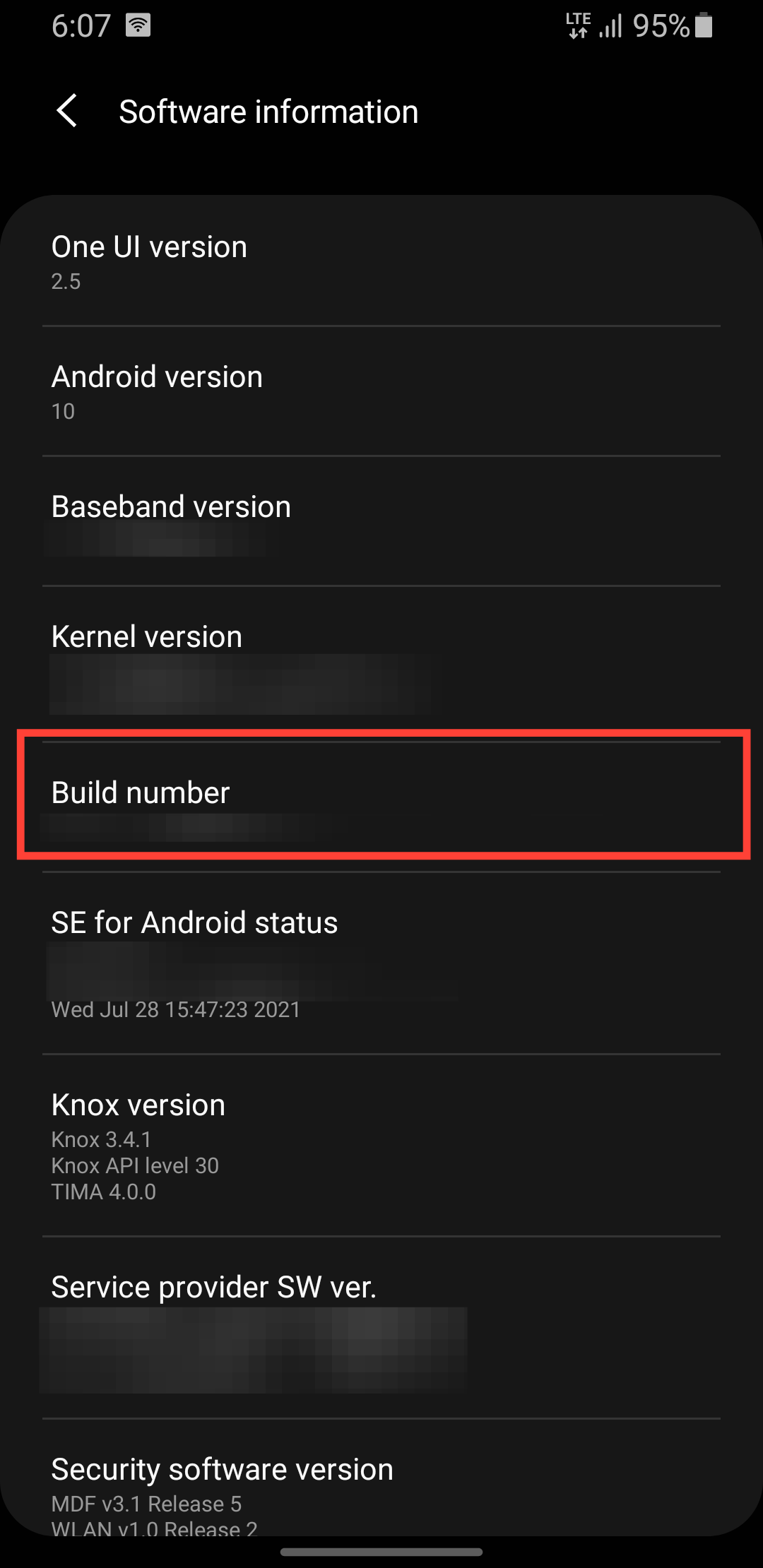
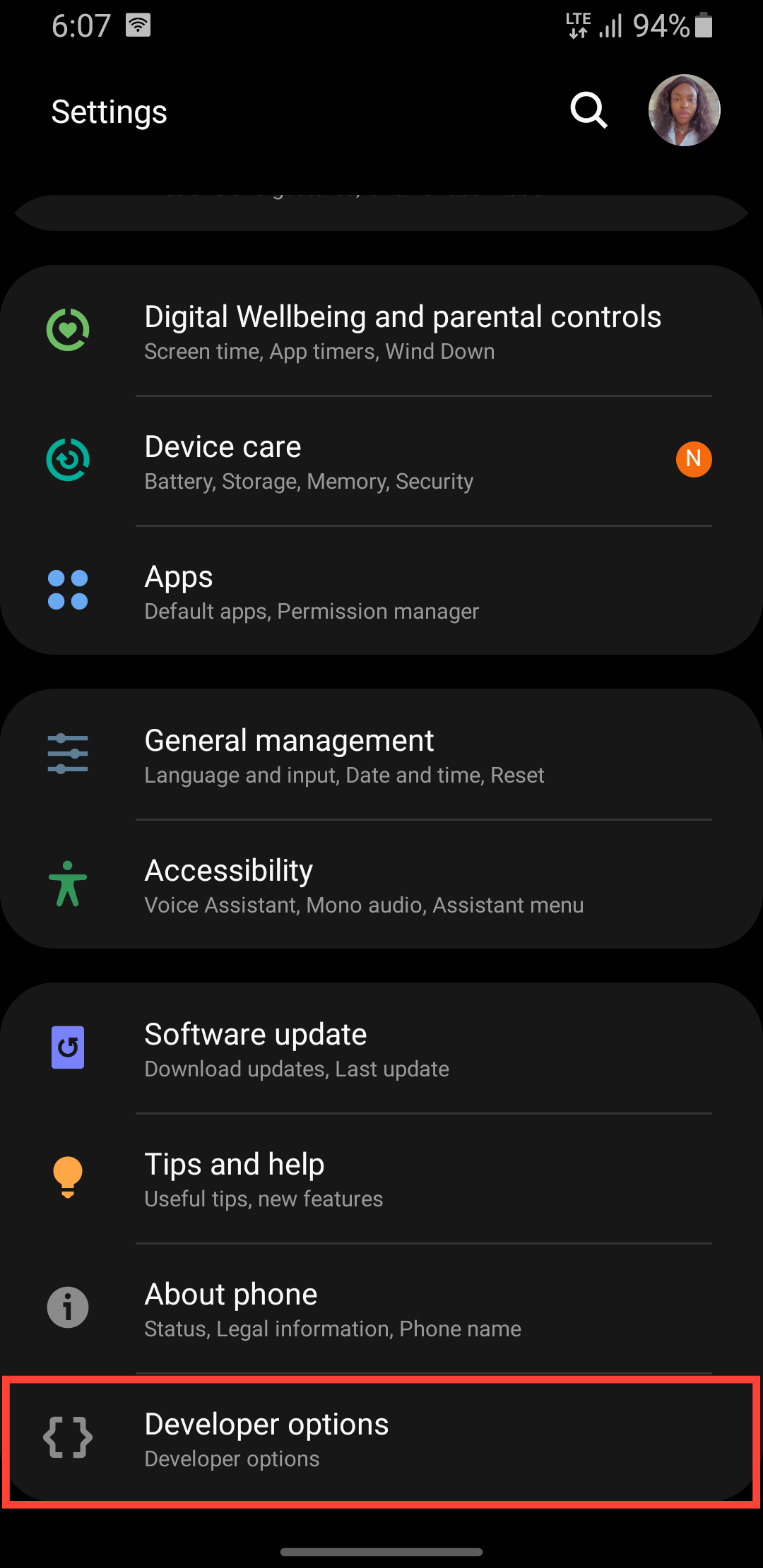
Step 4: Go back to the Settings main menu, scroll down to the bottom, and select Developer Options.
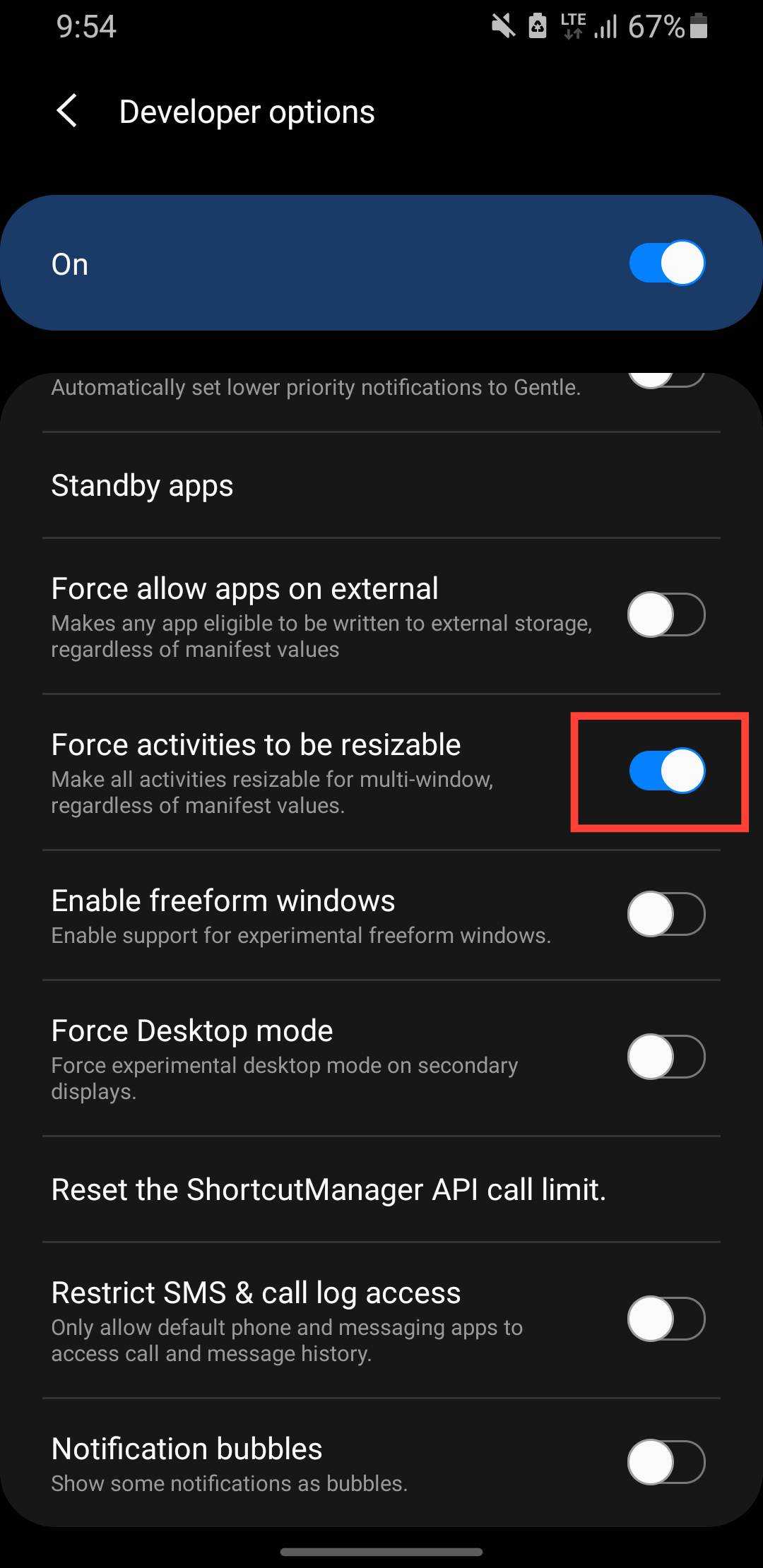
Step 5: Scroll down and toggle on Force activities to be resizable.
Conclusion
Enabling forced resizing allows every app on your Android to play nicely with multi-window mode. You'll gain the flexibility to arrange apps exactly as you want, whether that's comparing documents side by side or watching a video while browsing.
Just be prepared for some apps to look a little wonky or have minor glitches, since they weren't built with resizing in mind. If you find an app that struggles, you can always temporarily disable the setting just for that one.
Image Credit: Oyinebiladou Omemu/techloy.com


