It’s been a long wait, years of rumours, whispers, and hopeful promises from Spotify. But it’s finally here: Spotify Lossless.
The long-anticipated feature lets Premium subscribers stream songs in their original, uncompressed quality using the FLAC format.
Think of it as hearing your favourite track exactly how the artist intended, every detail, every note, untouched. Pretty cool, right?
To get started, you’ll need a Spotify Premium subscription. Make sure your app is updated (or reinstall if needed) so the option appears. Keep in mind, Bluetooth doesn’t support lossless playback, so the audio will be compressed before it reaches your device. For the best experience, plug in wired headphones or use a Spotify Connect-enabled speaker.
The feature is rolling out gradually, so don’t worry if you don’t see it yet. Here’s how to turn on Spotify Lossless.
How to Enable Spotify Lossless
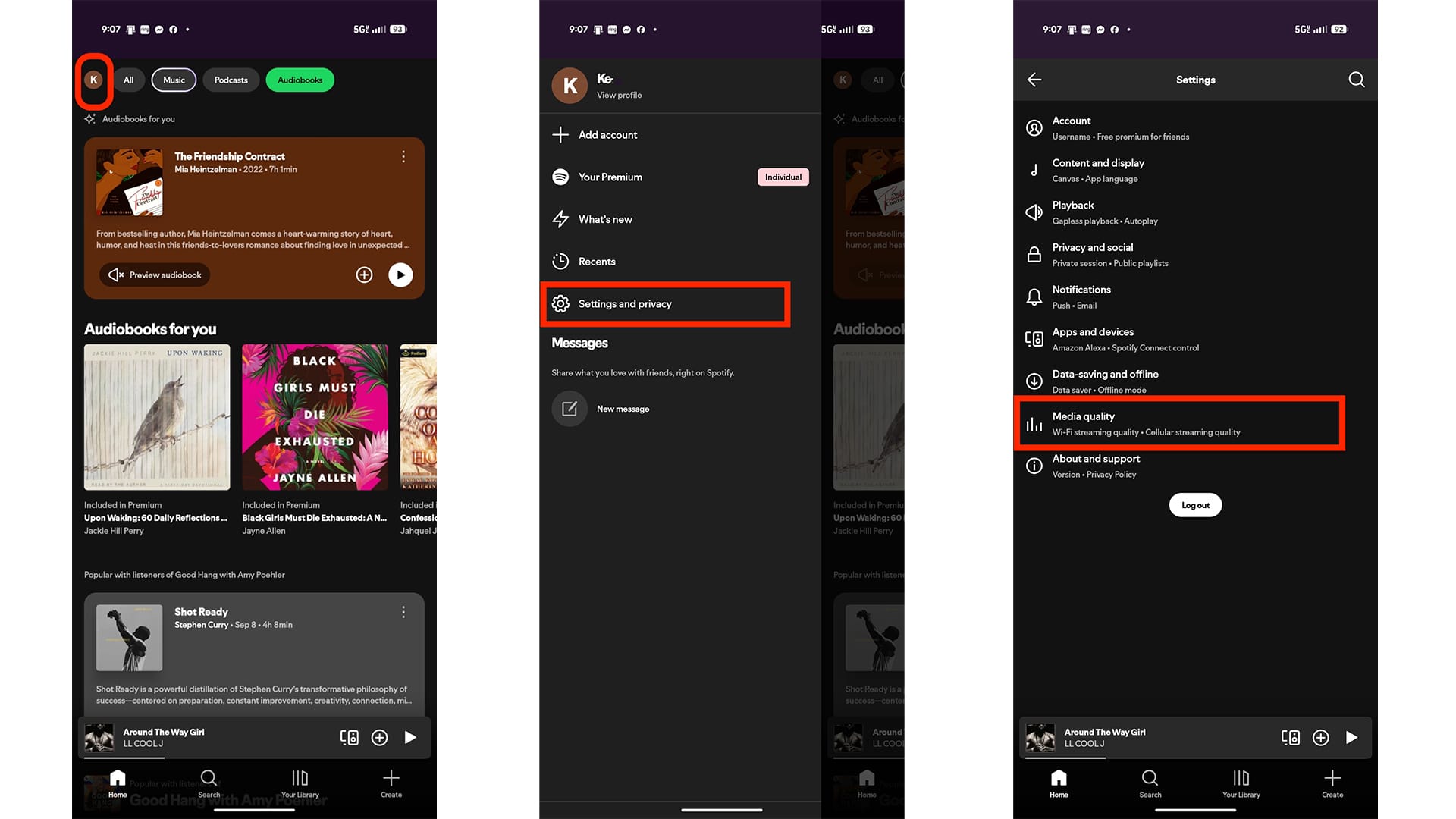
Step 1: Open your Spotify app and then click on your profile image
Step 2: Select Settings and privacy
Step 3: Select Media quality
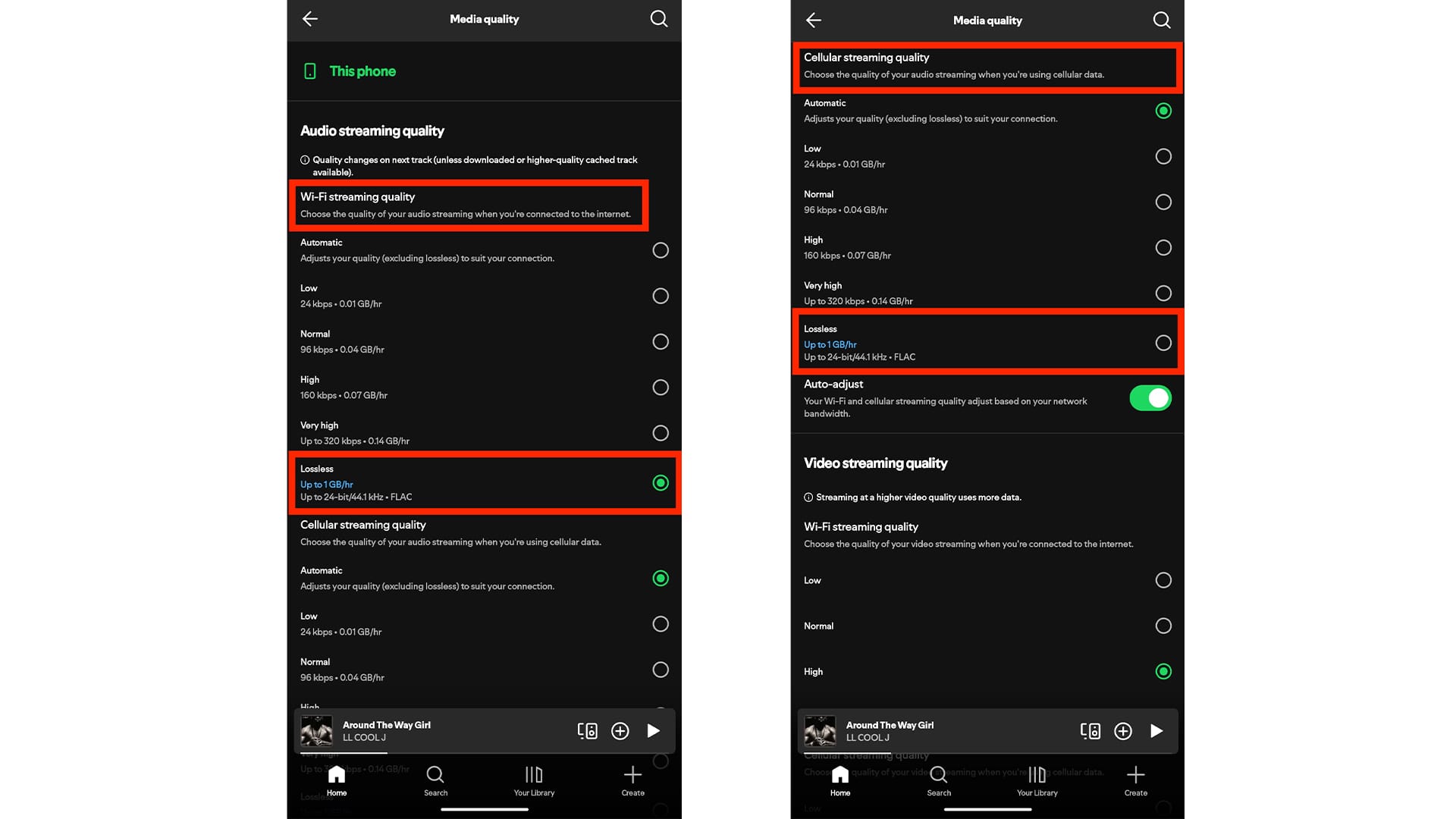
Step 4: Under Wi-Fi streaming quality, select Lossless
Step 5: Do the same under Cellular streaming quality, select Lossless. With that, you’re ready to enjoy music at the highest possible quality
Conclusion
Spotify’s Lossless feature marks a huge step forward for music lovers who’ve been craving richer, more authentic sound. Once enabled, it transforms how you experience your favourite tracks, crisp, detailed, and exactly as the artist intended. Just remember to use a solid internet connection or Wi-Fi for the best results, and you’ll be ready to hear Spotify like never before.
 Emmanuel Umahi