



Have you ever tried to enhance photo quality online but ended up with blurry or dull results? You're not alone. It's common to have old pictures, selfies, or product images that don't look sharp or clear.
The good news is, AI can fix that easily. In this guide, you'll learn step-by-step how to enhance photos online using AI tools so your pictures look bright, clear, and professional, without any editing experience.
So, let's get started.
How Enhance Photo with AI Work
Before getting straight to how to enhance photo online with AI, it's essential to first understand how this all works.
Well, AI photo enhancers use powerful algorithms trained on millions of images. These smart systems analyze your picture, detect what's missing or unclear, and automatically rebuild fine details like edges, colors, and textures. It's like having a virtual photo expert who knows exactly how to fix your image.
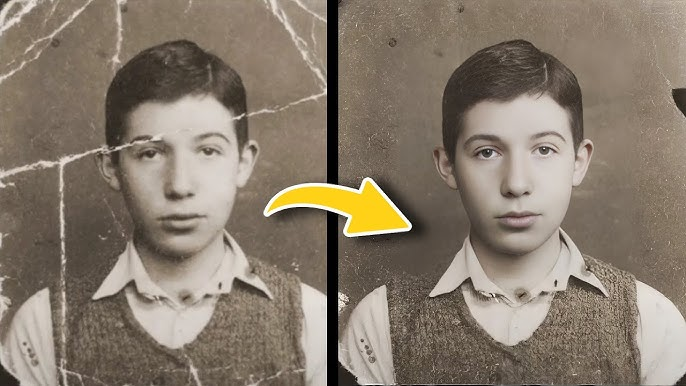
For example, if your photo is blurry, AI identifies which areas are out of focus and sharpens them. If it's dark or noisy, the tool brightens it up and removes grain while keeping natural texture. Some models can even colorize black-and-white photos or repair old, damaged ones.
Unlike manual editing, which takes time and skill, AI photo enhancement is automatic. You simply upload your image, let the AI model process it, and get a clean, improved version within seconds. This makes AI enhancers a perfect solution for anyone, whether you're fixing old memories, improving portraits, or preparing product images for your online store.
HitPaw FotorPea: The Best AI Photo Enhancer
HitPaw FotorPea is a one-click AI-powered photo enhancer designed to help both everyday users and professionals restore, enhance, and upscale images effortlessly.
Whether you're working with blurry portraits, low-res product photos, or faded old snapshots, this tool offers smart AI models that sharpen, denoise, colorize, and upscale images with very little manual effort.
With a clean, user-friendly interface and support for batch processing and high-resolution output, it stands out as a top choice for online photo enhancement.
Key Features:
- AI Upscale & Enhance: Increase image resolution (HD > 2K/4K/8K/16K) without major quality loss.
- Blur Repair & Denoise: Remove motion blur, camera shake and reduce noise from low-light or compressed pics.
- Colorize & Restore Old Photos: Add realistic color to black-and-white or faded photographs and repair scratches.
- Face-Model / Portrait Enhancer: Specialized AI model to improve facial details for portraits, selfies, group photos.
- Background/Object Removal: Remove unwanted background elements or objects from images cleanly.
- Batch Processing & Multiple Formats: Process multiple images in one go; supports common formats like JPG, PNG, TIFF, BMP, WEBP.
- Easy UI & One-Click Workflow: Designed for simplicity, upload, pick model, preview, export.
How to Enhance Photo Online?
Here are the steps you can follow:
Step 1: Download and Install HitPaw FotorPea
Go to the official HitPaw FotorPea website and click the Download button. Once the installer is downloaded, open it and follow the simple on-screen steps to install the program.
After installation, launch HitPaw FotorPea on your computer. The tool has a clean and easy-to-use interface, so even beginners can start enhancing photos right away.
Step 2: Upload Your Photo
Click Enhance Photos Now to begin improving your image. You can either click Choose File to select your picture or drag and drop it directly into the tool.
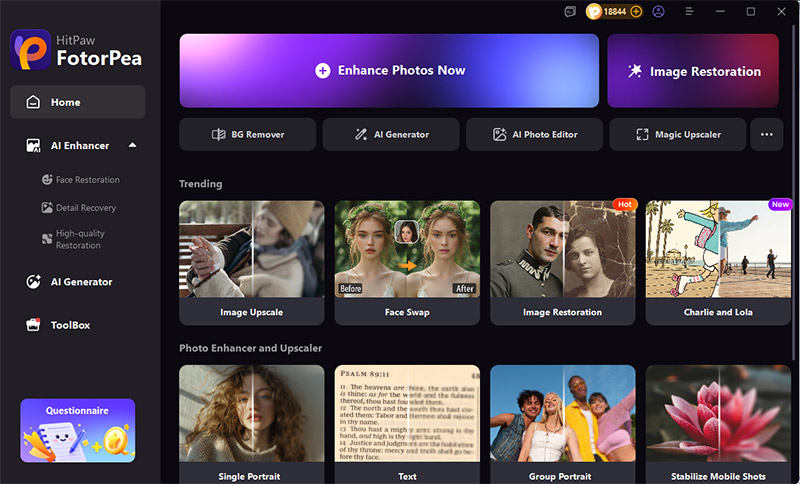
Step 3: Pick the Right AI Model
This is where the real magic happens. HitPaw FotorPea uses smart AI models to enhance your photo based on what it needs. You just have to choose the right one:
- Face Model: Perfect for portraits and selfies. It smooths skin, brightens eyes, and makes faces look clear and natural.
- Upscale Model: Increases image resolution without losing quality. Great for old photos, product pictures, or prints.
- Denoise Model: Removes grain or noise from dark or low-quality photos while keeping important details.
- Blur Repair Model: Fixes blurry images caused by motion, lens issues, or compression.
- Colorize Model: Adds natural color to black-and-white or faded images for a fresh, modern look.
After choosing a model, click Preview to see the difference instantly. You can switch models or adjust settings until you get the result you like.
Step 4: Export Your Enhanced Photo
Once you're happy with the preview, click Export to save your enhanced image. Choose where you want to save it on your device.
Additional Tips for Better Results
Here are a few quick tips to help you get the best photo enhancement results with HitPaw FotorPea:
- Use clear and high-quality originals: The AI works better when the image isn't too small or pixelated. Start with the best version you have.
- Try different AI models: Every photo is different. Don't hesitate to test multiple models to find the one that gives the most natural look.
- Preview before exporting: Always check the before-and-after view to make sure the result looks realistic and balanced.
FAQs
1. Can I use HitPaw FotorPea on both Windows and Mac?
Yes, HitPaw FotorPea works on both Windows and macOS. You can download the version that matches your operating system from the official website.
2. Does HitPaw FotorPea support batch photo enhancement?
Currently, HitPaw FotorPea enhances one image at a time. However, batch processing may be added in future updates to make editing faster.
3. Will enhancing a photo change its original size or aspect ratio?
No. The tool keeps the original aspect ratio unless you manually upscale it using the Upscale Model. This ensures your photo stays properly proportioned.
Final Words
Enhancing photos doesn't have to be hard or time-consuming anymore. With HitPaw FotorPea, anyone can bring dull, blurry, or old photos back to life in just a few clicks. Its smart AI models handle everything, from noise removal to color correction, making your photos look sharp and professional without any editing skills.
Give it a try, experiment with different models, and you'll be amazed at how easily you can transform ordinary images into stunning ones.


