



In my country, Nigeria, it’s almost second nature to memorise your own phone number. Whether it’s for topping up airtime, filling out a bank form, or sharing it with a new contact, we make sure it’s committed to memory—just in case.
In fact, many of us even save our own numbers as a contact in our phones under names like “My Number” or “Self,” simply to avoid forgetting or fumbling when we need it. But if you’re using an iPhone, there’s a simpler way.
Instead of relying on memory or manually saved contacts, Apple actually gives you a few built-in ways to check your phone number instantly. This can save time and takes the pressure off remembering every detail, especially when you’re juggling multiple SIMs or switching lines.
 Louis Eriakha
Steps to Find Your Phone Number on an iPhone via Settings
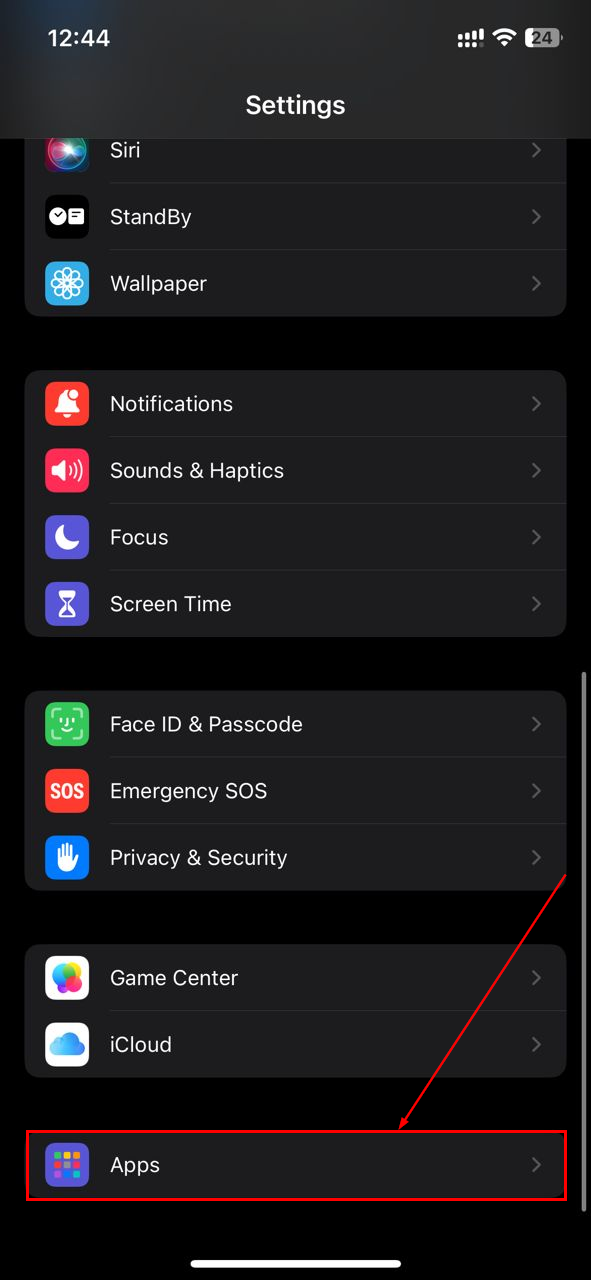
Step 1: Open the Settings app on your iPhone and select "Apps"
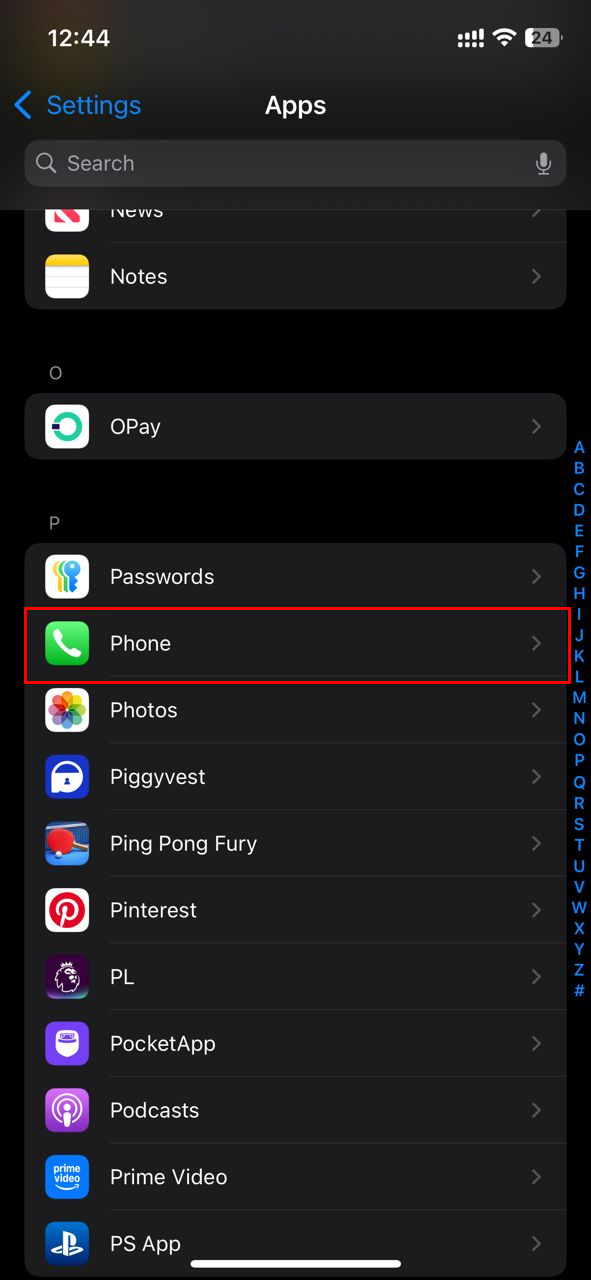
Step 2: Scroll down and select "Phone"
Step 3: Click "My Number"
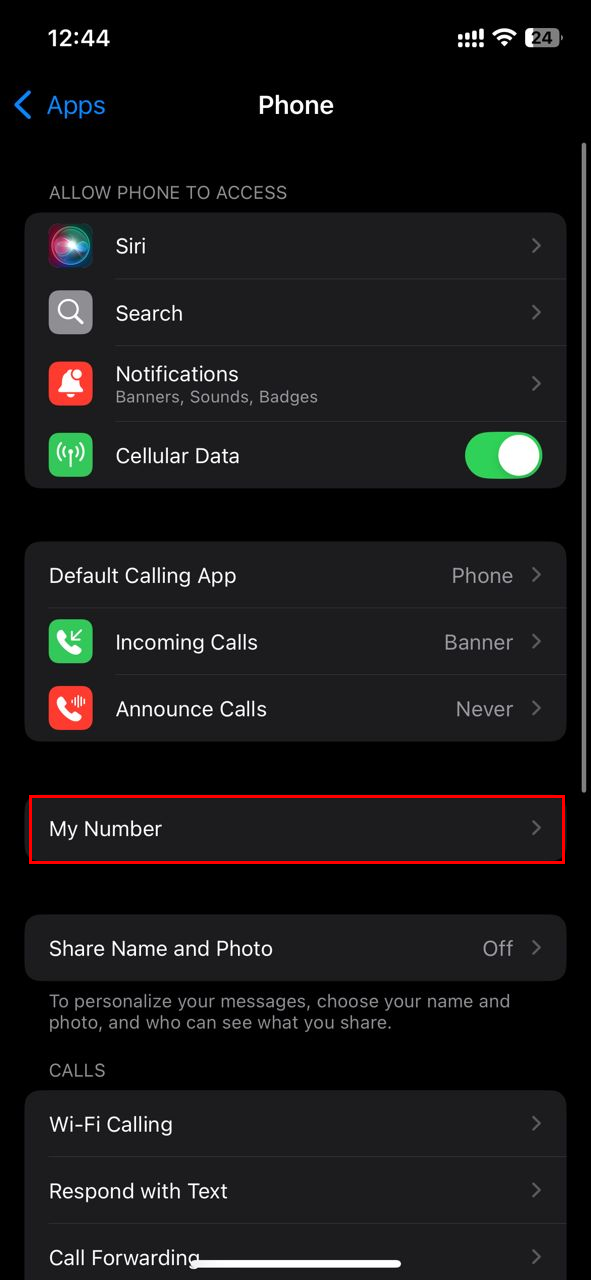
Step 4: Here, you will see your phone number(s)

Steps to Find Your Phone Number on an iPhone Through Contacts
Step 1: Open the Phone app and select the Contacts icon at the bottom
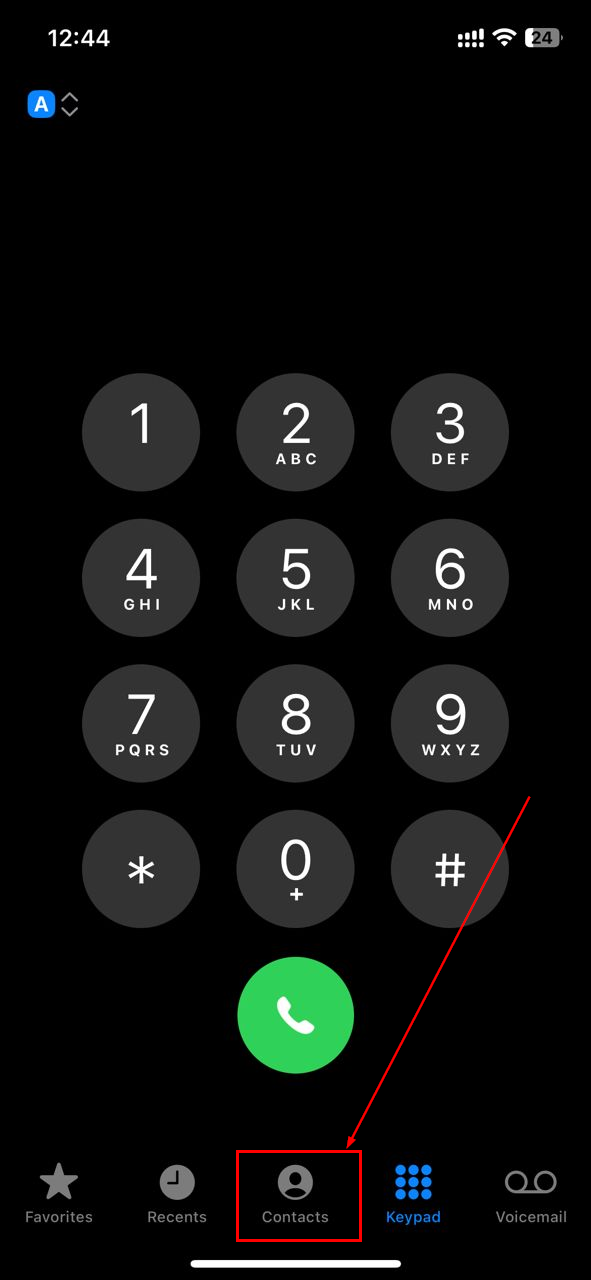
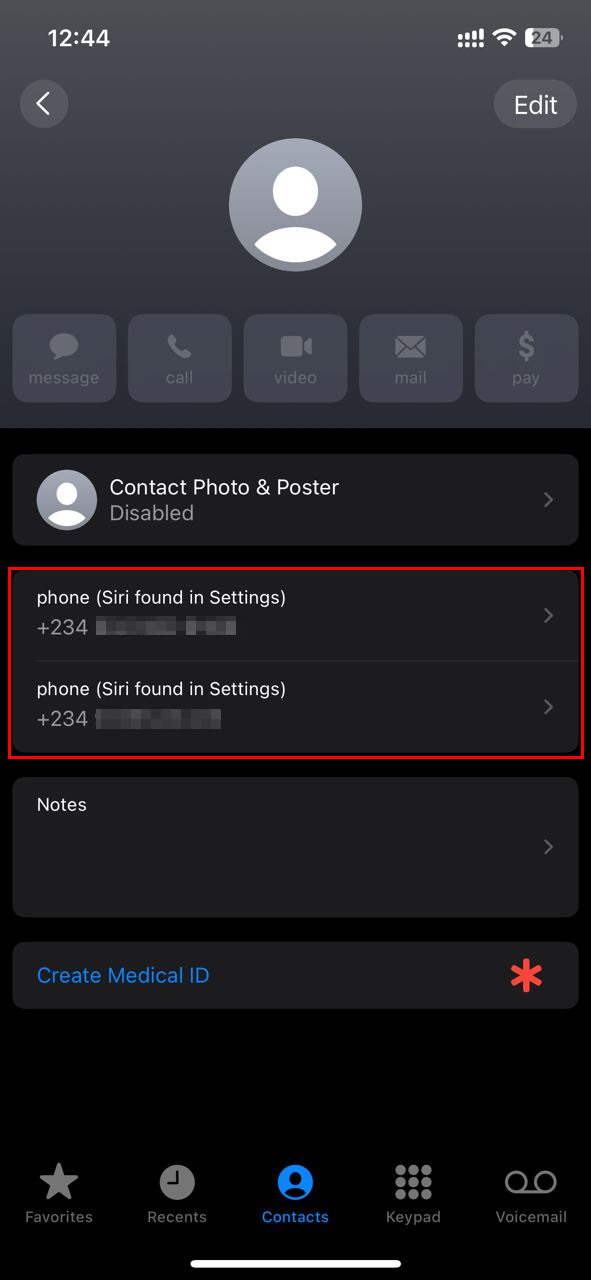
Step 2: Select "My Card" at the top
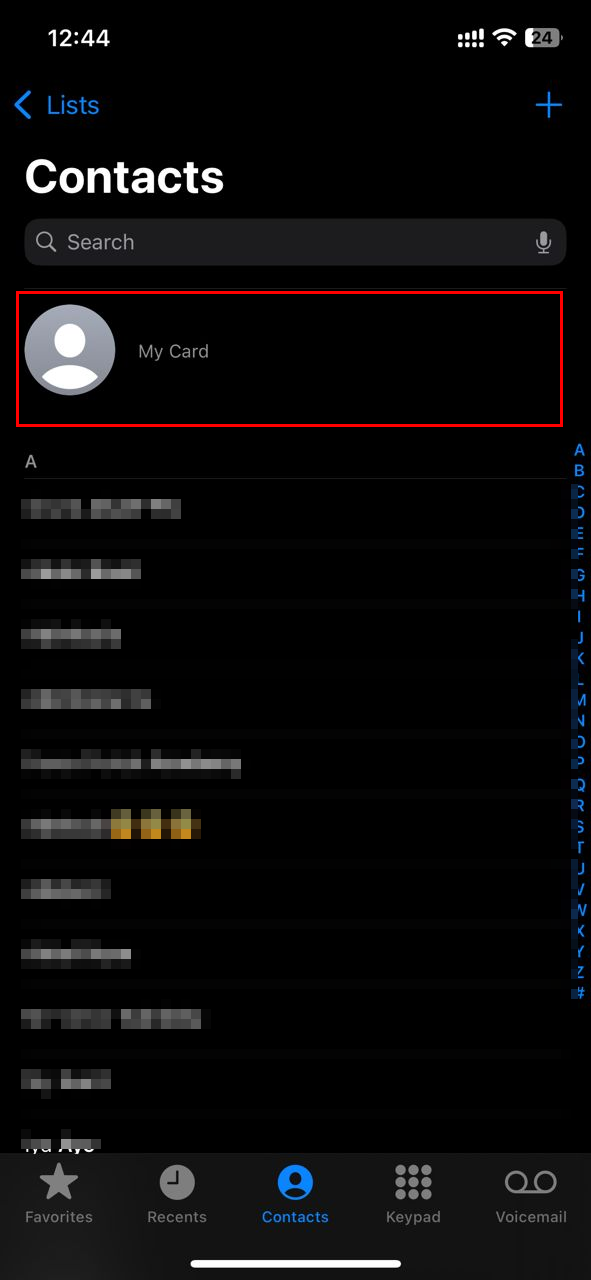
Step 3: You should see your phone number(s) when the contact card opens
 Kelechi Edeh
Conclusion
There’s nothing wrong with memorising your number or saving it in your contacts—it’s a habit many of us grew up with. But now that iPhones make your number easily accessible through the settings, there’s no need for backup tricks.
Just a couple of taps and your number is right there, whether you use one SIM, dual SIMs, or an eSIM setup.
Image credit: Oluwaseun Bamisile/Techloy.com


