



If there’s anything Bluetooth connectivity does differently, I believe it would be letting you stay in your groove. Whether it’s helping you sink into your music, making communication smoother, or just keeping your devices working together without the hassle of wires.
But it’s a different story when you can’t access all it has to offer because of connectivity problems. A while back, I knew firsthand how it felt not having access to all this because I couldn’t connect with my Windows PC. Frustrating doesn’t even cover it. After trying the usual “turn it off and on again” routine, nothing changed. That’s when I went digging deeper, and I found a fix that actually worked.
Here’s what I did that got it fixed; you can also apply this if you have Bluetooth connectivity problems with a Windows PC.
 Oyinebiladou Omemu
Steps To Fix Bluetooth Not Connecting on Windows PC
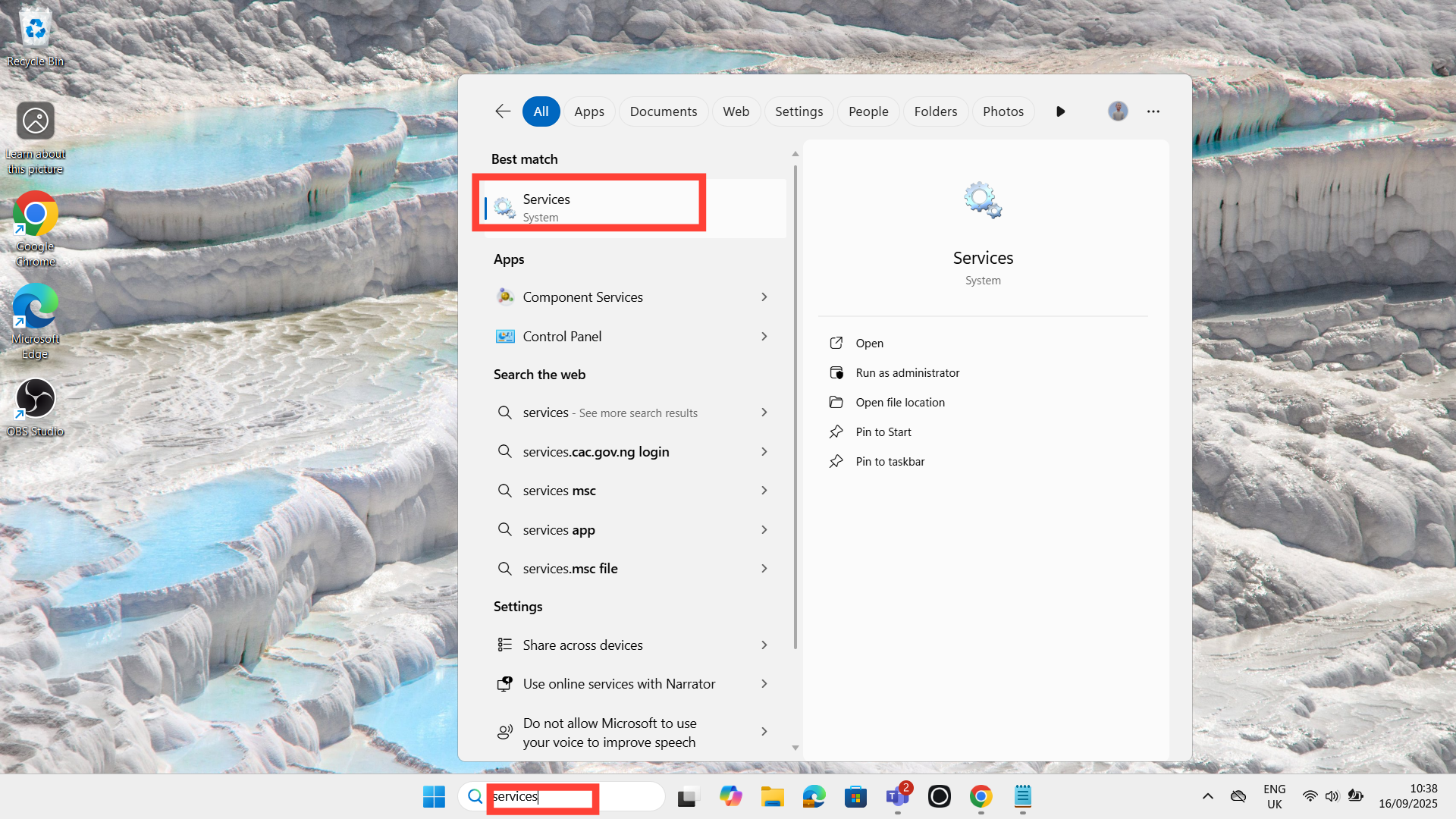
Step 1. In your search bar, type "Services" and click on it to open the page.
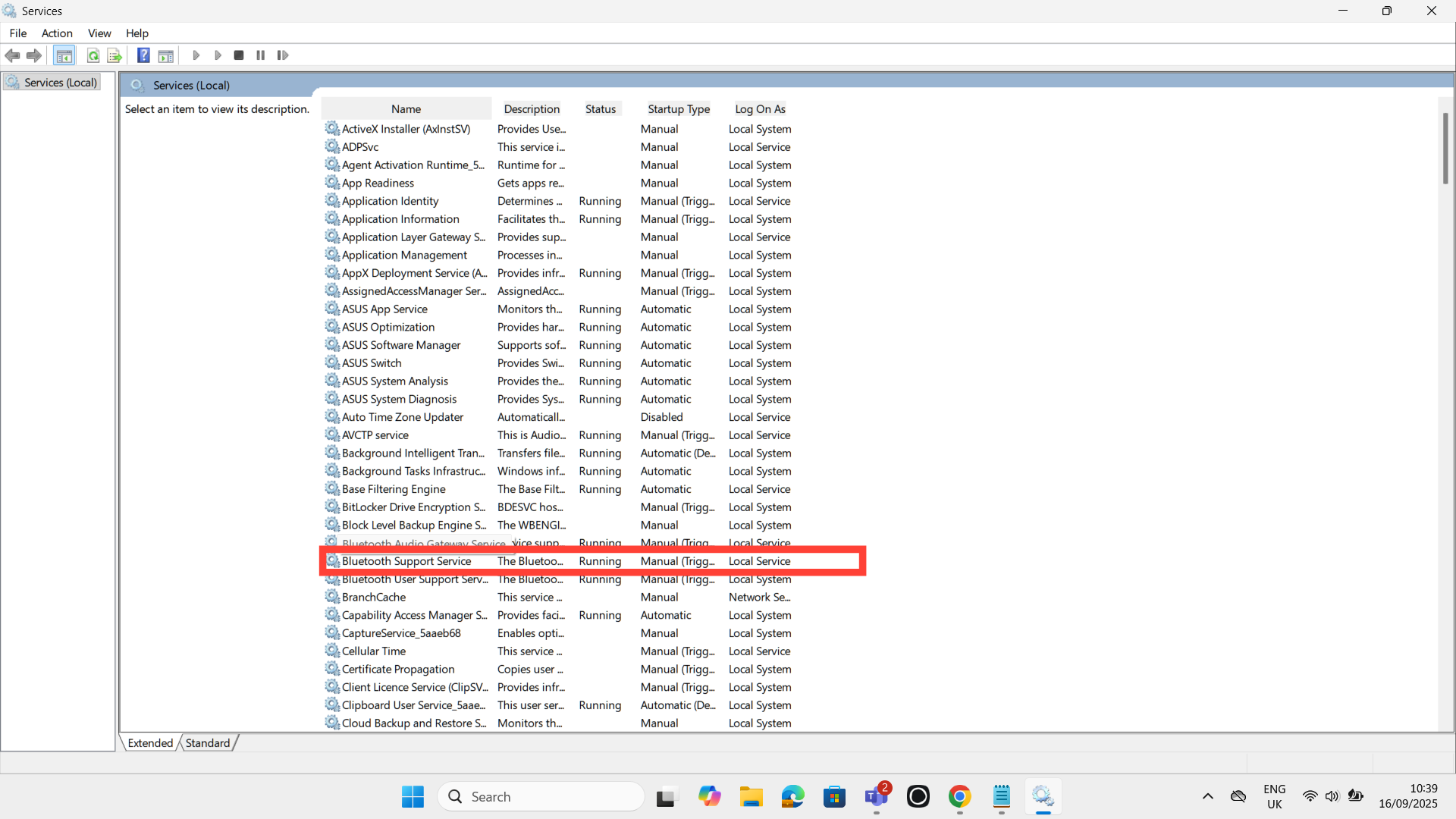
Step 2. Scroll down until you find Bluetooth Support Service.
Step 3. Click on it to open the Bluetooth Support Service window.
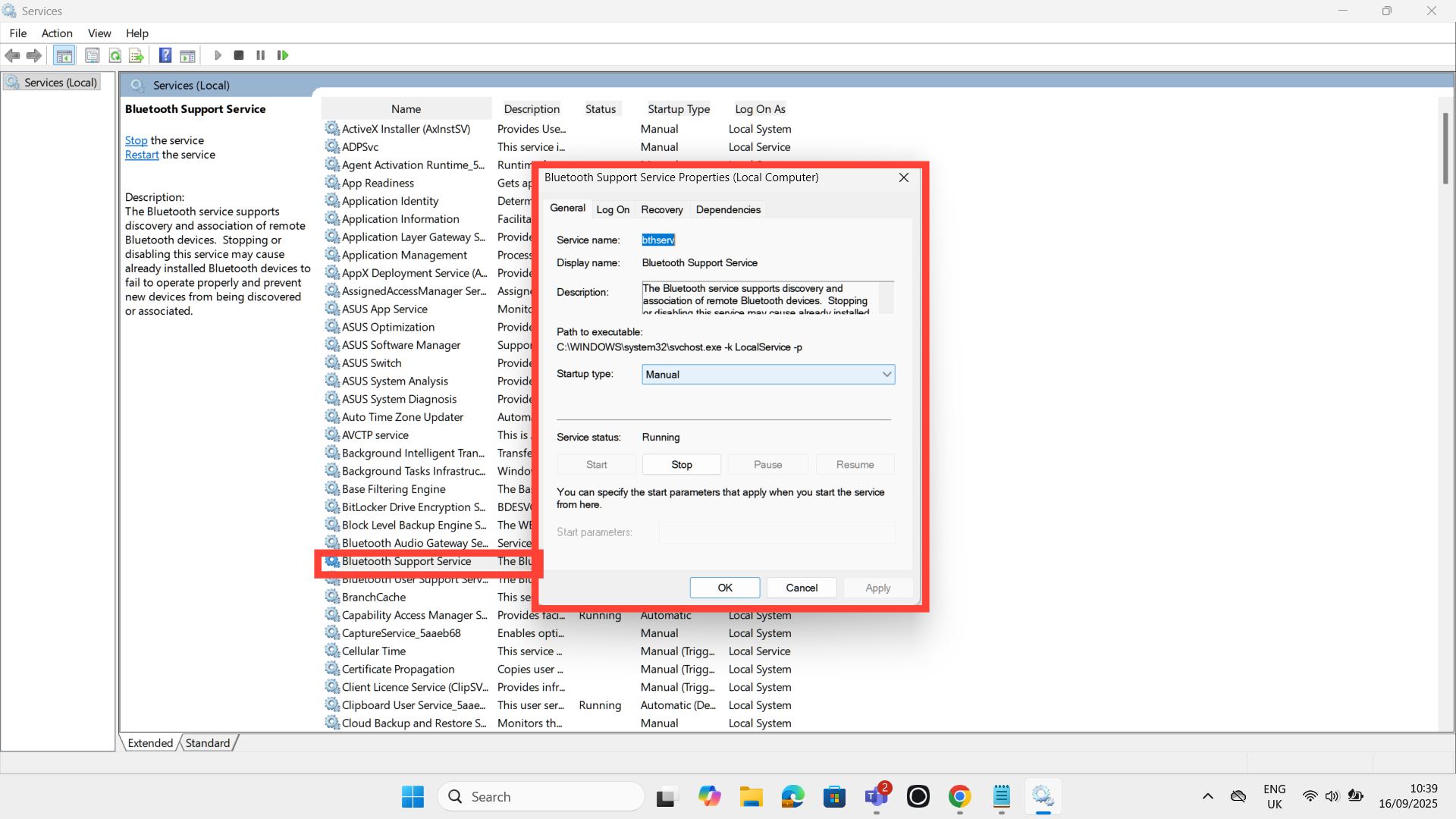
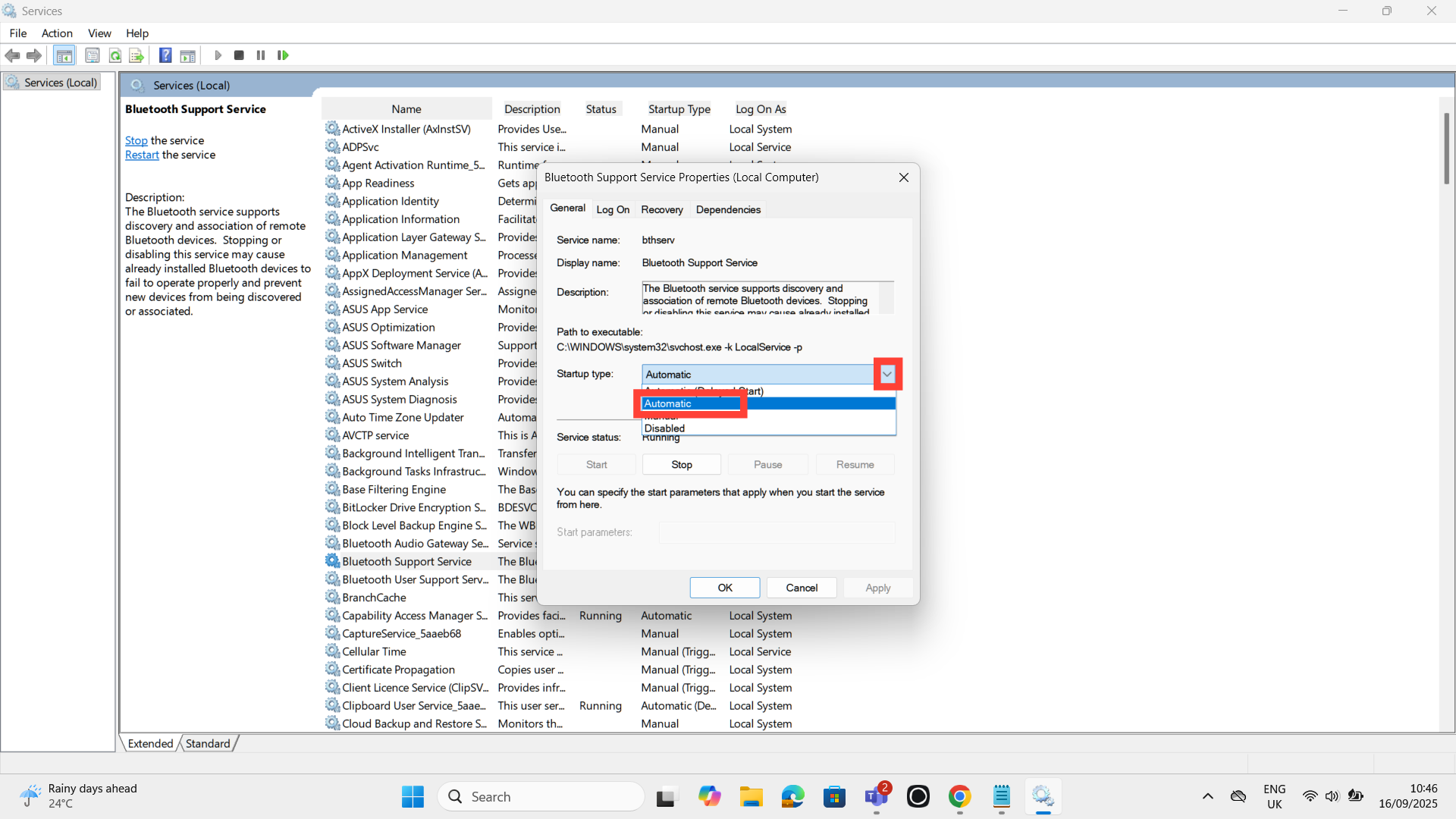
Step 4. Under "Startup type", click on the drop-down arrow and select "Automatic."
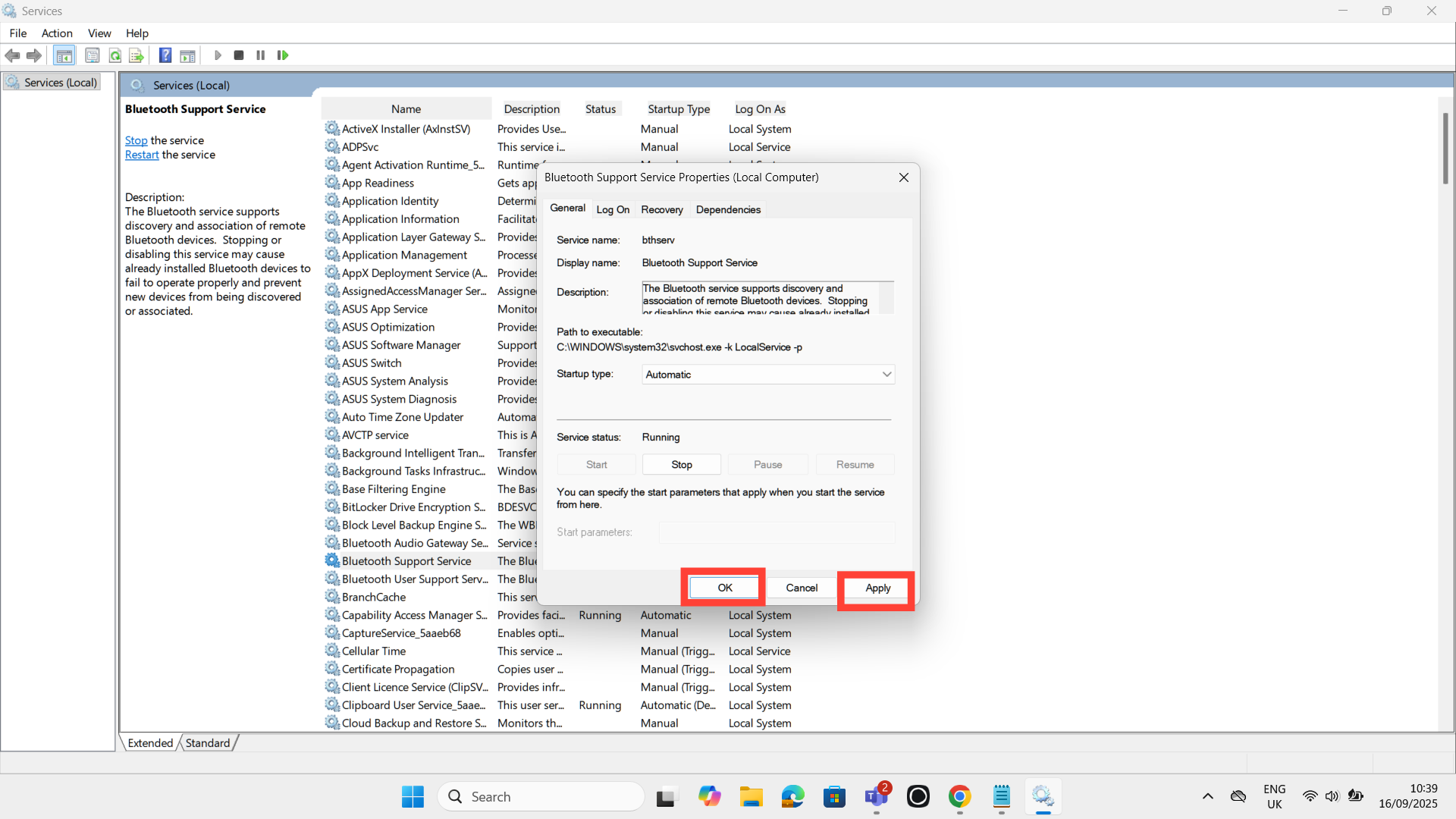
Step 5. Tap on "Apply" and "OK" to save and apply the changes.
 Oyinebiladou Omemu
Conclusion
After that tweak, my PC picked up my Bluetooth devices right away. Honestly, I couldn’t believe something so small fixed what had been driving me crazy. It’s a reminder that half the time, the fix isn’t some big overhaul but the hidden setting you’d never think to check until you’re desperate enough to go digging.
So if you’re stuck with Bluetooth refusing to connect on Windows, try this out. It might just save you the headache I went through and get you back in your groove without the endless trial and error. At the very least, it’s one more trick you can keep in your back pocket for the next time Windows decides to act up.
Image credit: David Adubiina/Techloy.com


