If you’re anything like me and take your privacy seriously, then you probably don’t want anyone stumbling upon certain folders when using Spotlight search, a built-in tool for quickly finding files, apps, and more on your Mac.
Maybe it’s a work project, sensitive documents, or simply a personal folder you’d rather keep out of sight, whatever the case, not everything needs to pop up with a quick Command + Space.
Thankfully, macOS gives you control over what shows up in Spotlight results. In just a few steps, you can keep specific folders hidden from search, so you won’t have to worry about accidental snooping or cluttered results. Whether you’re sharing your screen, working in public, or just want a cleaner Spotlight experience, this guide has you covered.
How to Hide Folders in Spotlight Search on Mac
Step 1: Open System Preferences on your Mac
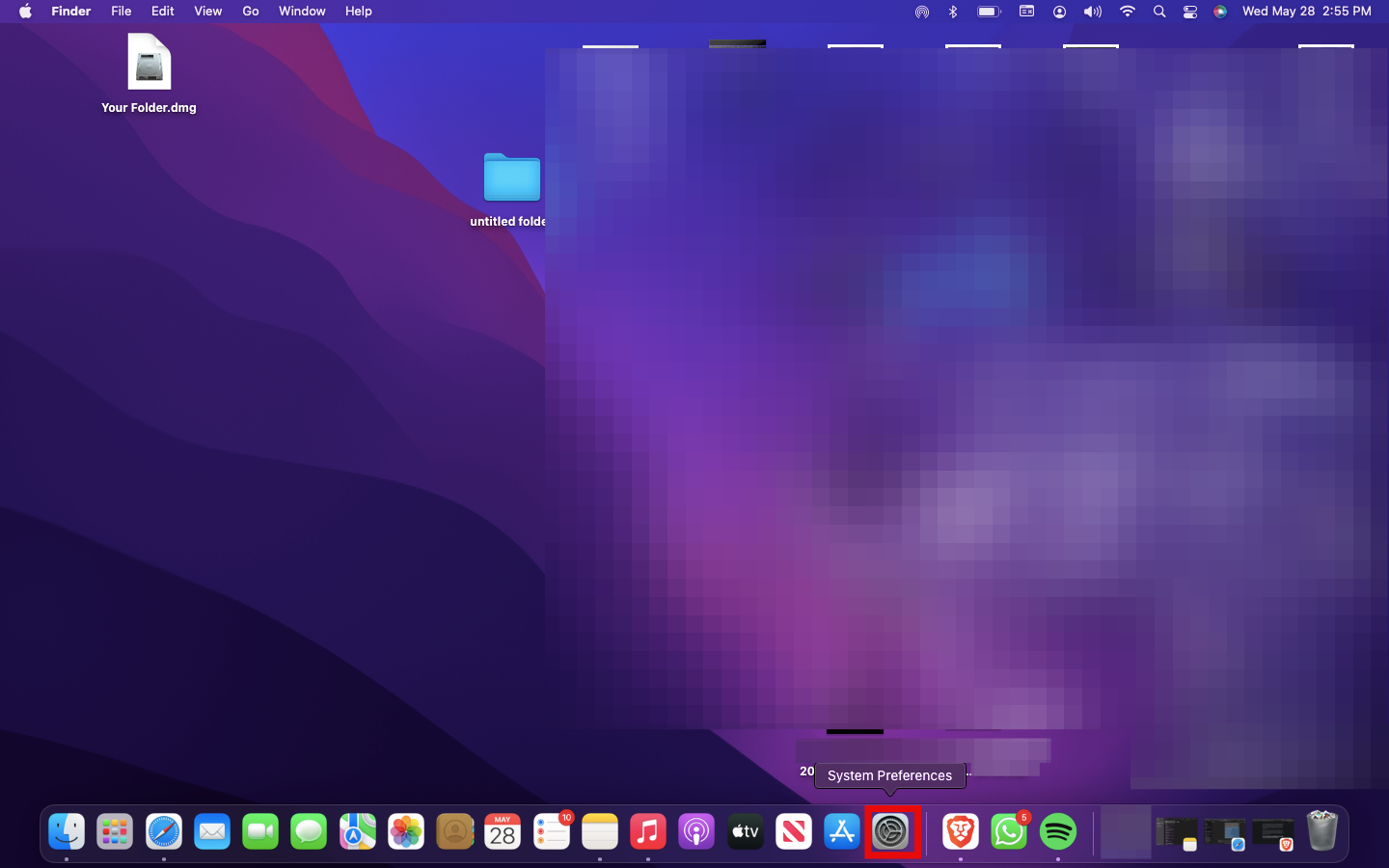
Step 2: In system preferences click on Spotlight

Step 3: Click on Privacy
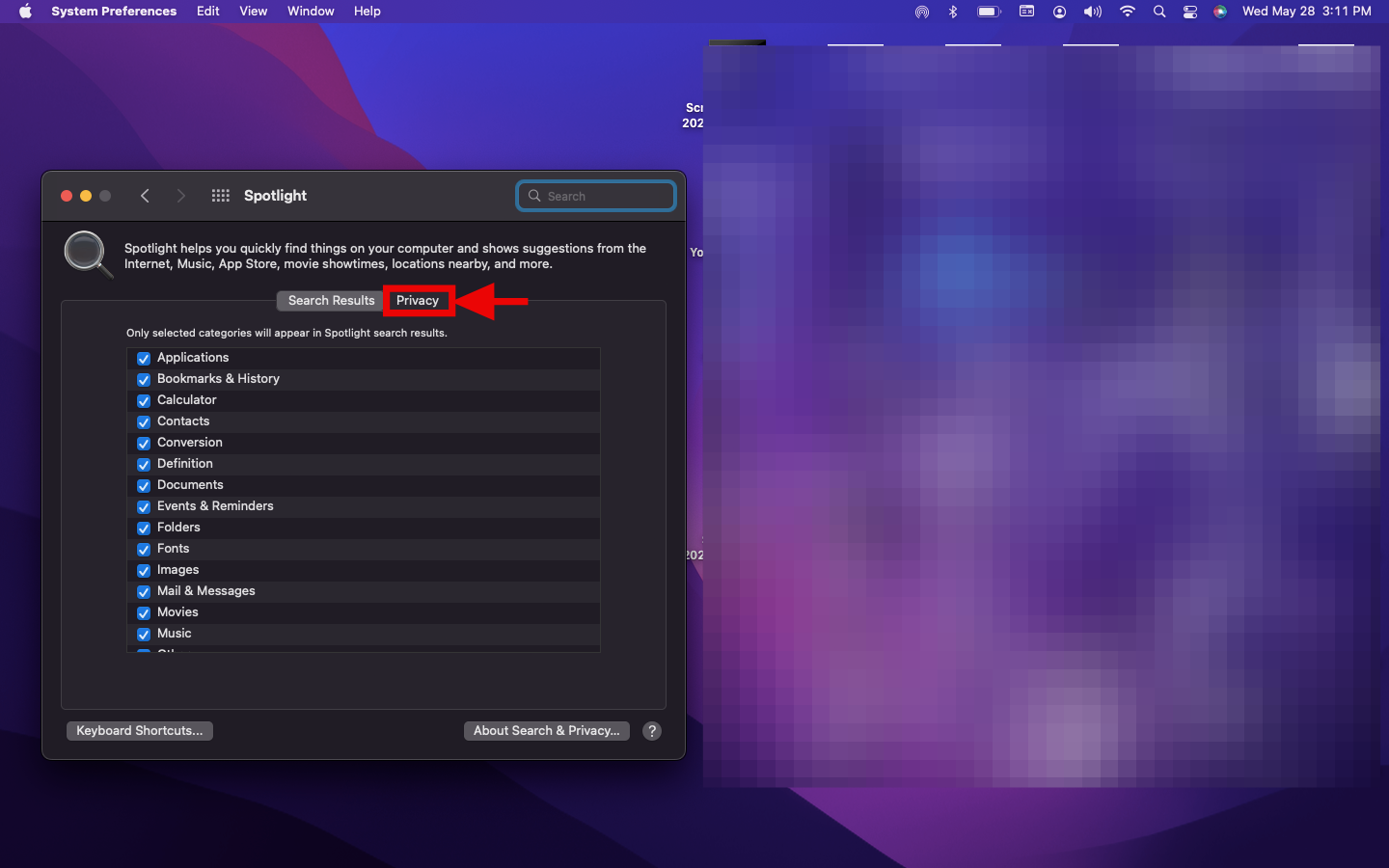
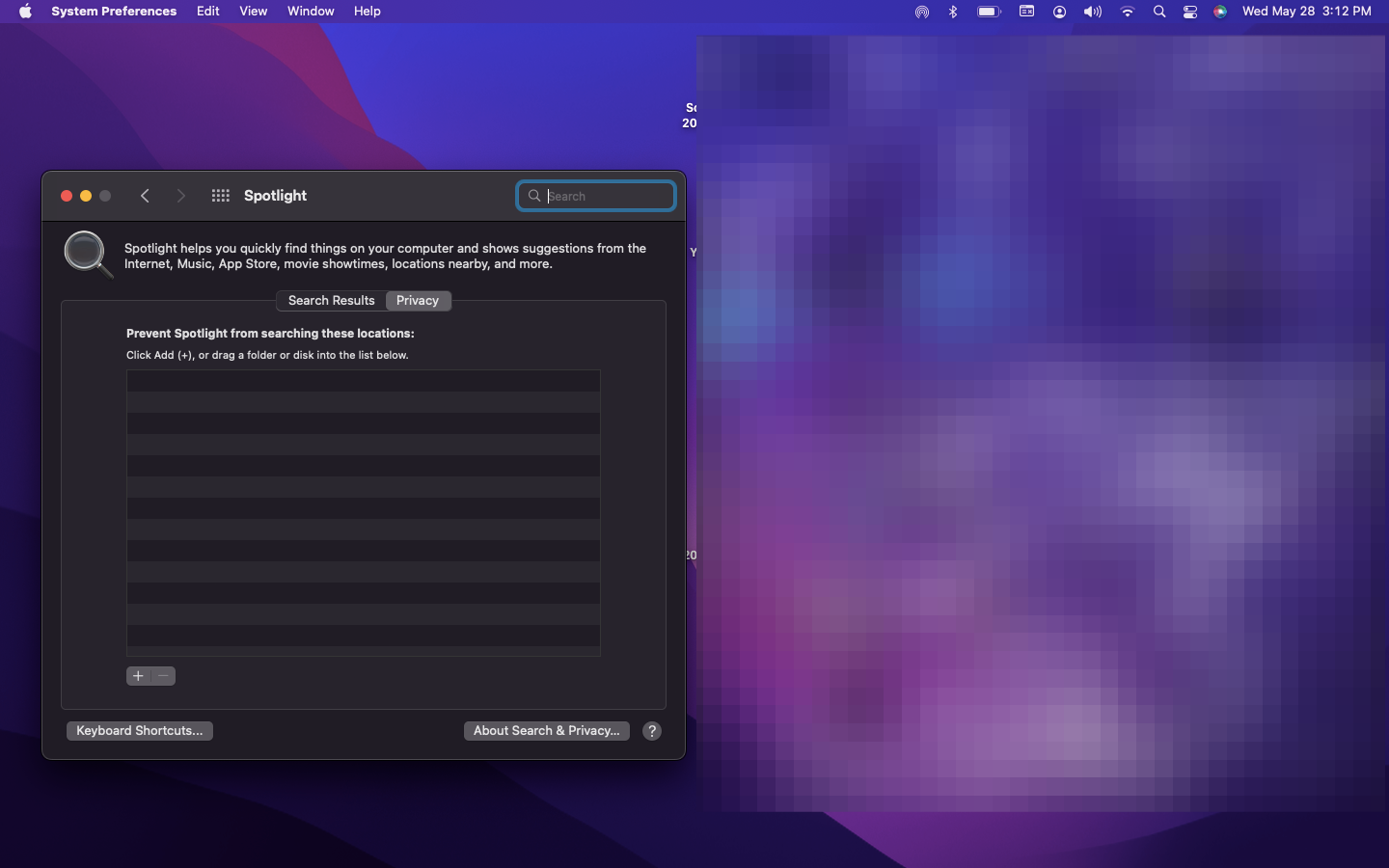
Step 4: Click the + sign or drag a folder you want to hide into the list
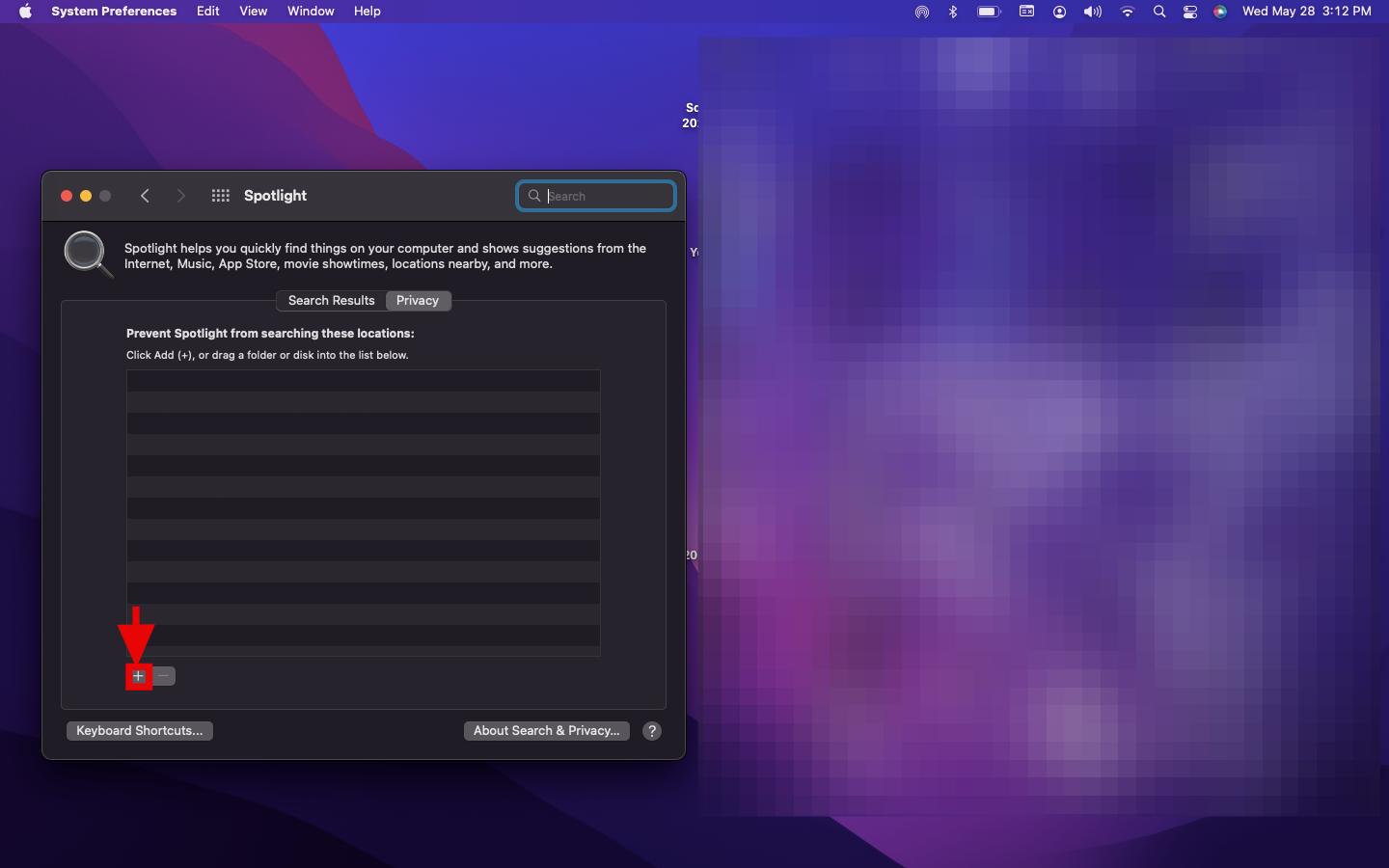
Step 5: If you clicked the + sign pick the folder you want to hide, then select Choose. Once you have done that the folder would no longer show in spotlight search

Conclusion
Hiding folders from Spotlight search on your Mac is a simple yet effective way to maintain a bit more control over your privacy. Whether you’re keeping sensitive documents out of sight or just decluttering search results, this tweak ensures that what’s personal stays personal, without compromising the convenience Spotlight offers.
 David Adubiina