



If you’re new to Linux, one of the first issues you’ve likely had is installing software. The good thing about Linux is that you get a powerful tool at your disposal, the package manager.
The package manager is a system that allows you to easily install, update, and manage software on your computer. Think of it like an app store for Linux, where you can find and install a wide range of software packages, from popular media players like VLC or Kodi, to IDE tools like VS Code.
Without a package manager, you'd have to manually search for, download, and install software, which can be time-consuming and prone to errors. With a package manager like apt, you can easily manage your software packages and keep your system up to date.
In this guide, we'll focus on using apt to install and uninstall software on your Ubuntu Linux system. We'll cover the basics of updating your package list, installing new packages, and removing unwanted ones.
 Oyinebiladou Omemu
How to install software on Linux
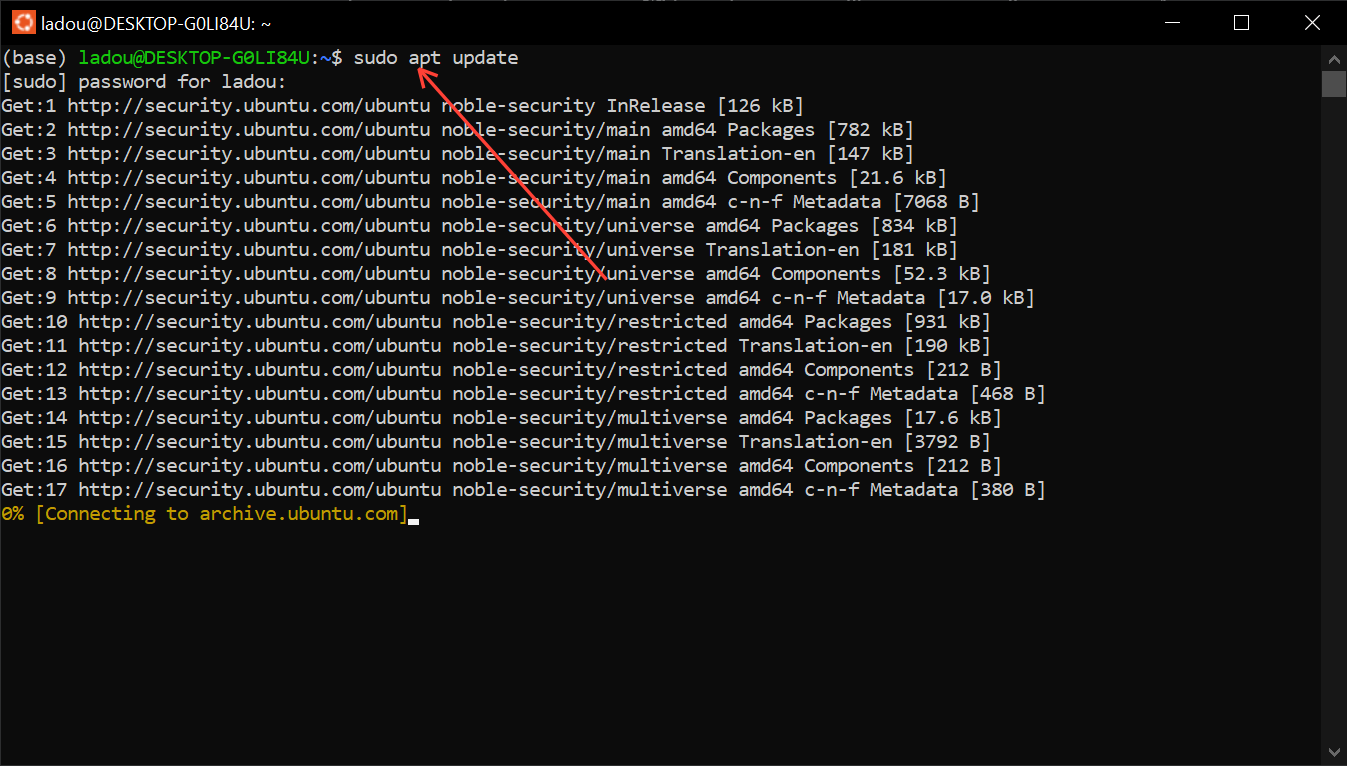
Step 1: Update your available packages. To do this, run "sudo apt update"
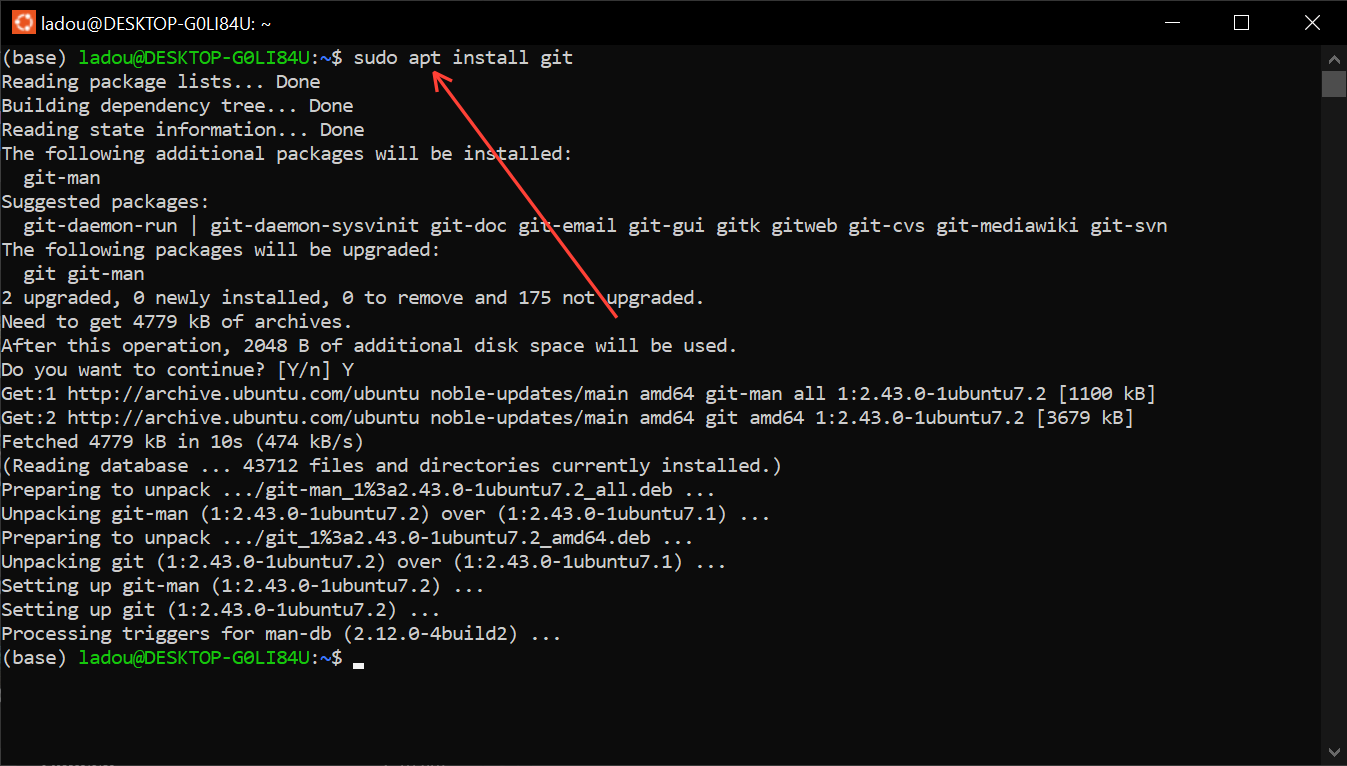
Step 2: To install software, use "sudo apt install". For instance, I want to install the Git software, so I'll run "sudo apt install git"
How to uninstall software on Linux
Step 1: Run "sudo apt remove package-name" on your terminal. This command removes the package, but keeps its config files.
- When you remove a package using apt remove, the package itself is deleted, but its configuration files remain on your system. This can cause issues if you reinstall the package or install a different version, as the leftover configuration files might not be compatible. Additionally, these files occupy disk space, even though the package is no longer installed, so you have to safely remove the configuration files.
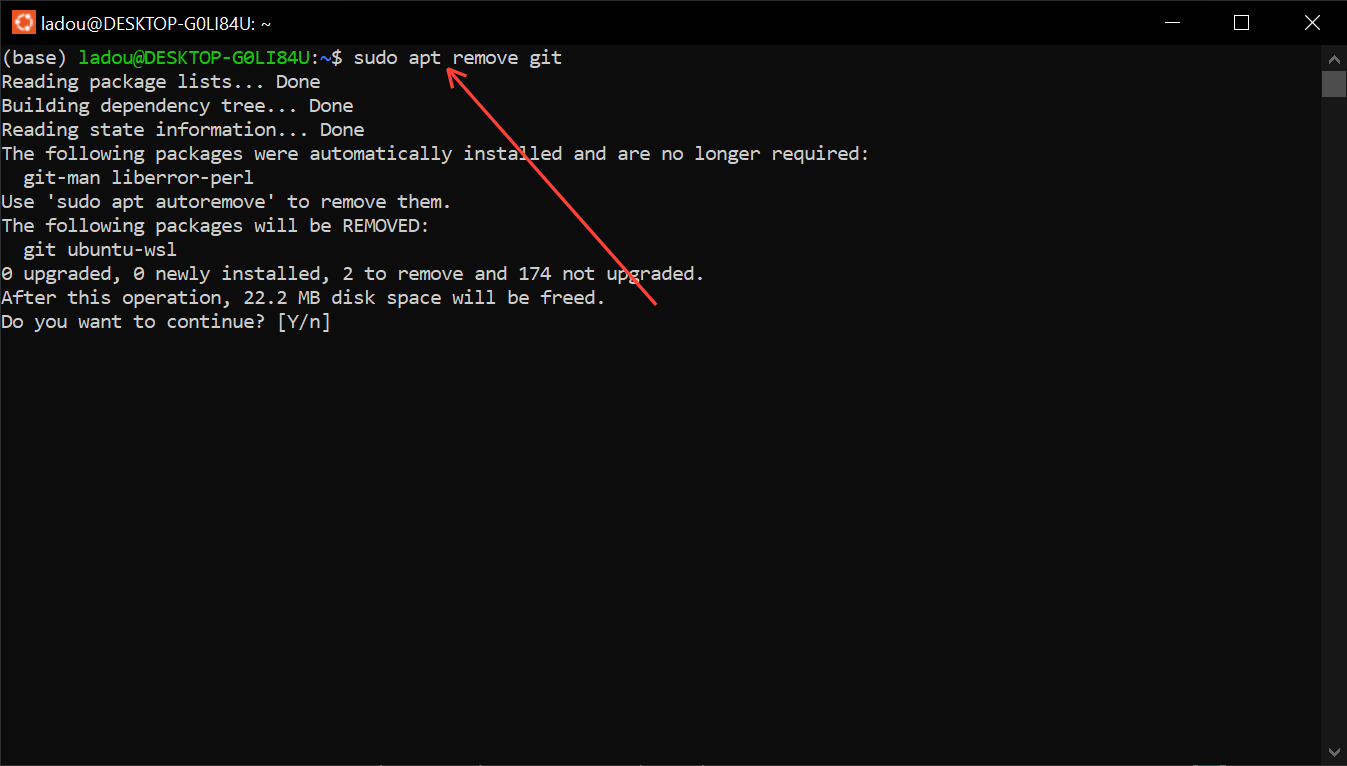
Step 2: Now that the package has been removed, to safely clean up unnecessary dependencies that were installed along with the package you're removing, use the "apt autoremove" command.
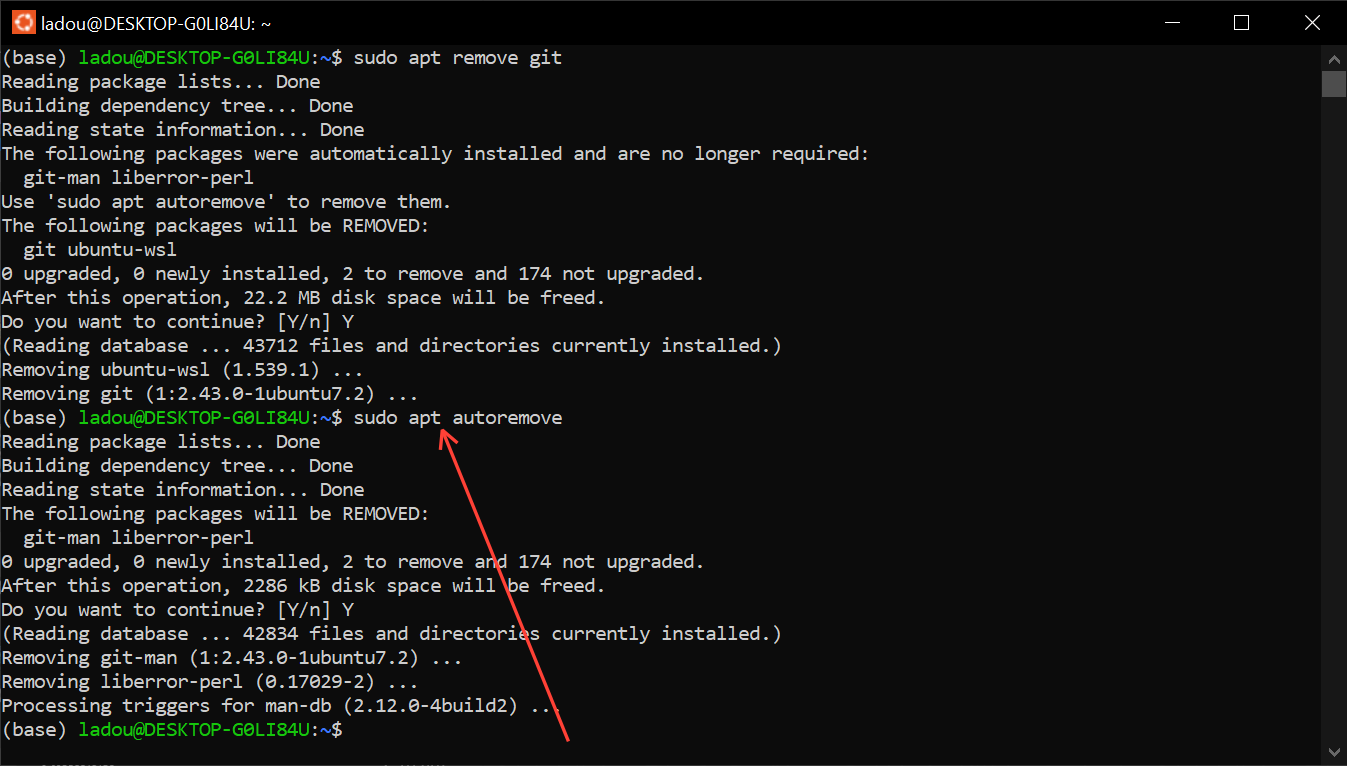
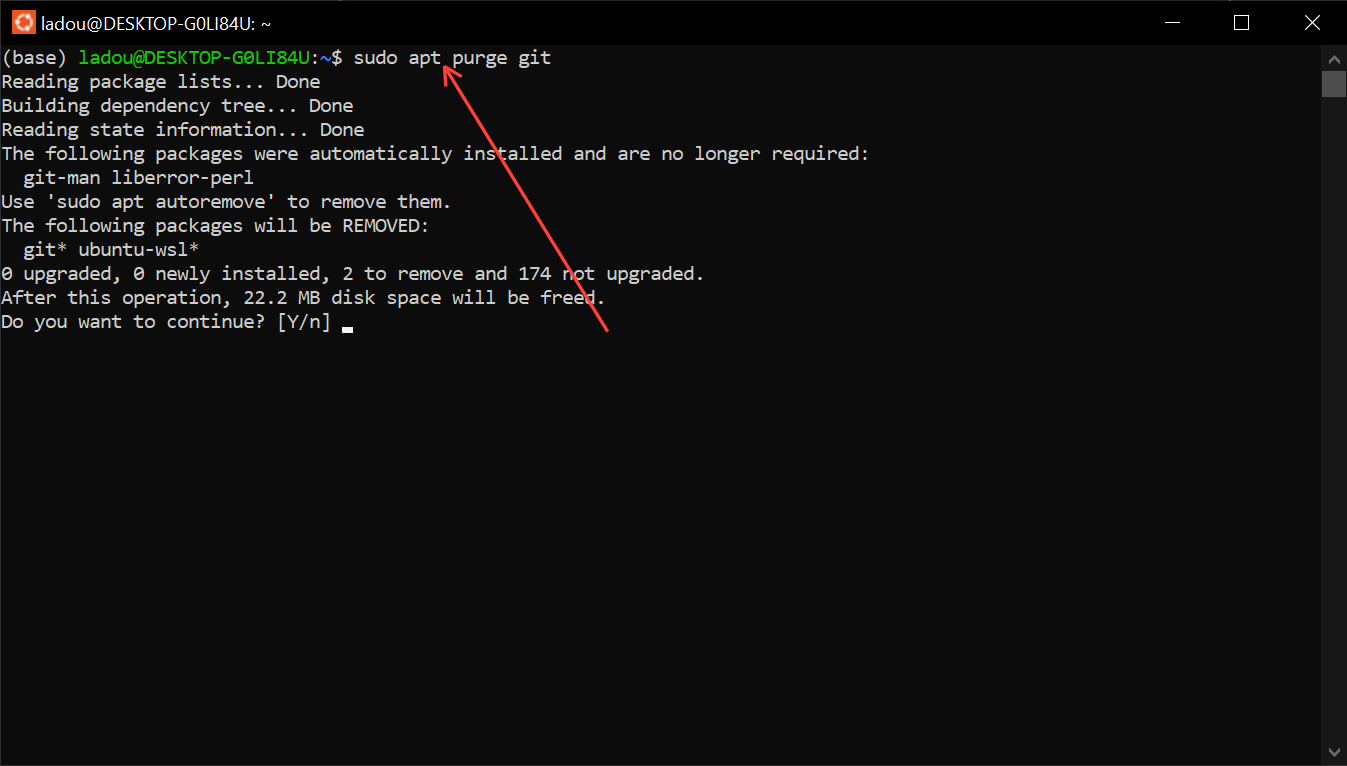
- Another way to remove or uninstall software on Linux is by using the "sudo apt purge package-name" command. Unlike the "sudo apt remove" command, the "purge" removes the package and its configuration file.
 Oyinebiladou Omemu
Conclusion
Managing software on Linux is easy with the apt package manager. By following the simple steps outlined in this guide, you can easily install and uninstall software on your Linux system. If you've just started in Linux, apt makes it easy to find and install the software you need.
With apt, you can quickly and easily manage your software packages, keeping your system up-to-date and running smoothly. By understanding the basics of apt usage, you'll be able to tackle a wide range of tasks, from installing new software to removing unwanted packages.
Image Credit: Oyinebiladou Omemu/Techloy.com


