



YouTube Music is a popular choice for many music fans since it has a huge library of songs, lets you make your own playlists, and works well with the rest of YouTube.
One of the downsides is that YouTube Music doesn't offer a separate desktop app as most other music streaming apps do. Still, you can install it as a Progressive Web App (PWA) in browsers like Google Chrome or Microsoft Edge, which opens YouTube Music in its own window, making it feel like a normal app.
In this article, you will learn how to easily install the YouTube Music 'app' on your Windows PC or laptop and how to remove it if you don't need it anymore.
Steps to Install YouTube Music on a Windows laptop – Using Google Chrome
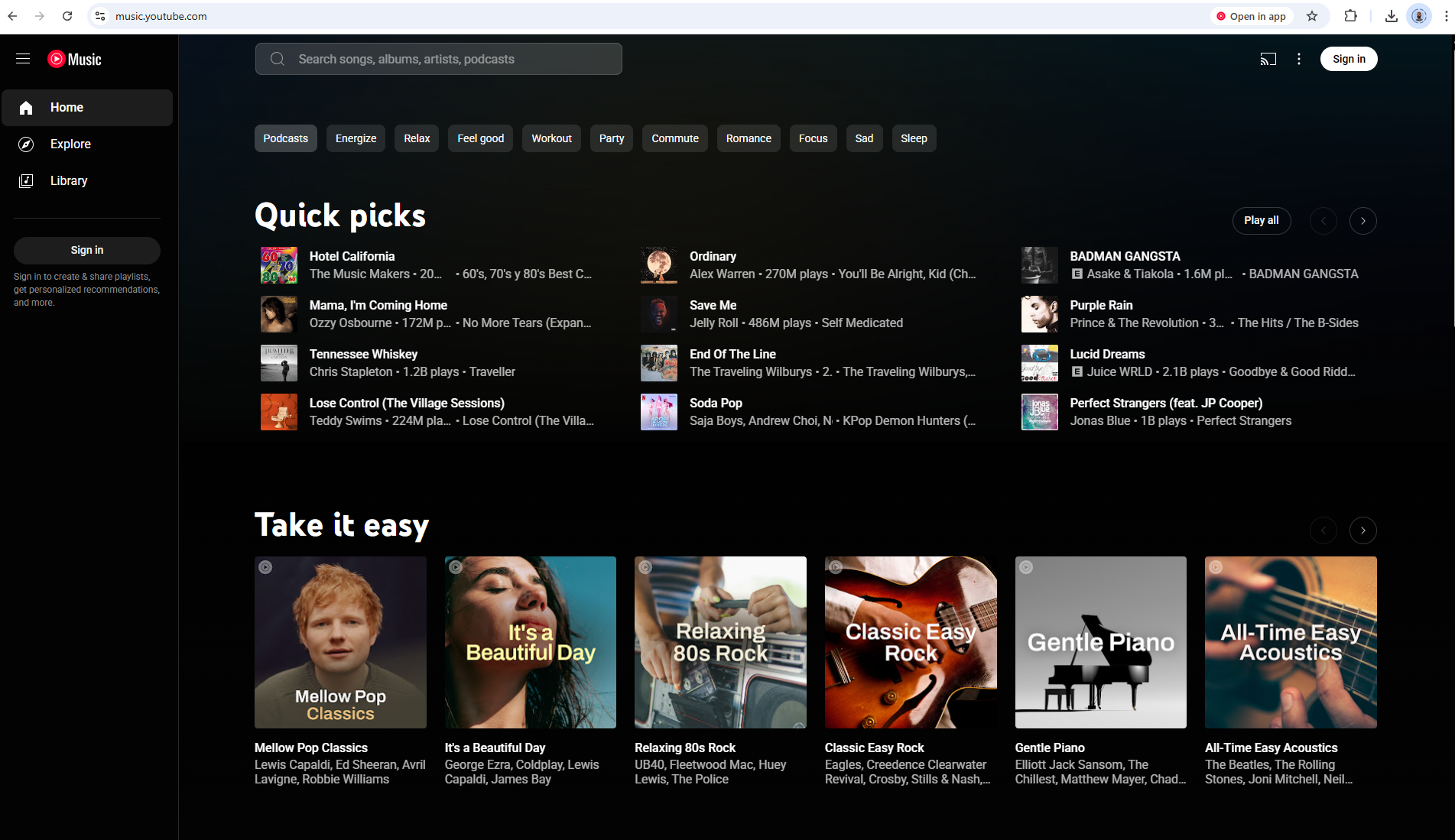
Step 1: Open Google Chrome and go to the official YouTube Music website music.youtube.com and sign into your account (Optional, but recommended)
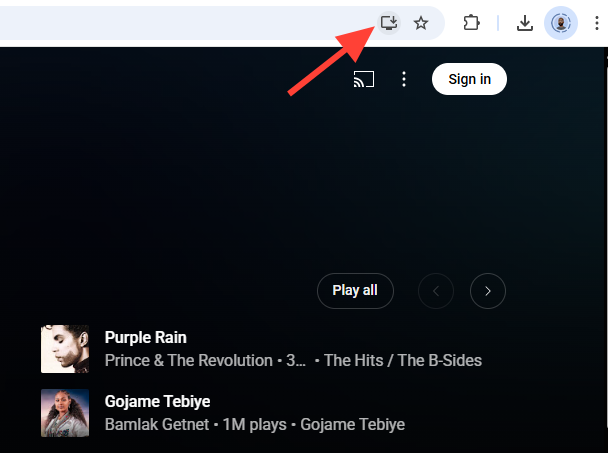
Step 2: Look for an "Install" icon in the address bar. It usually looks like a screen with an arrow pointing inwards or a square with a plus sign.
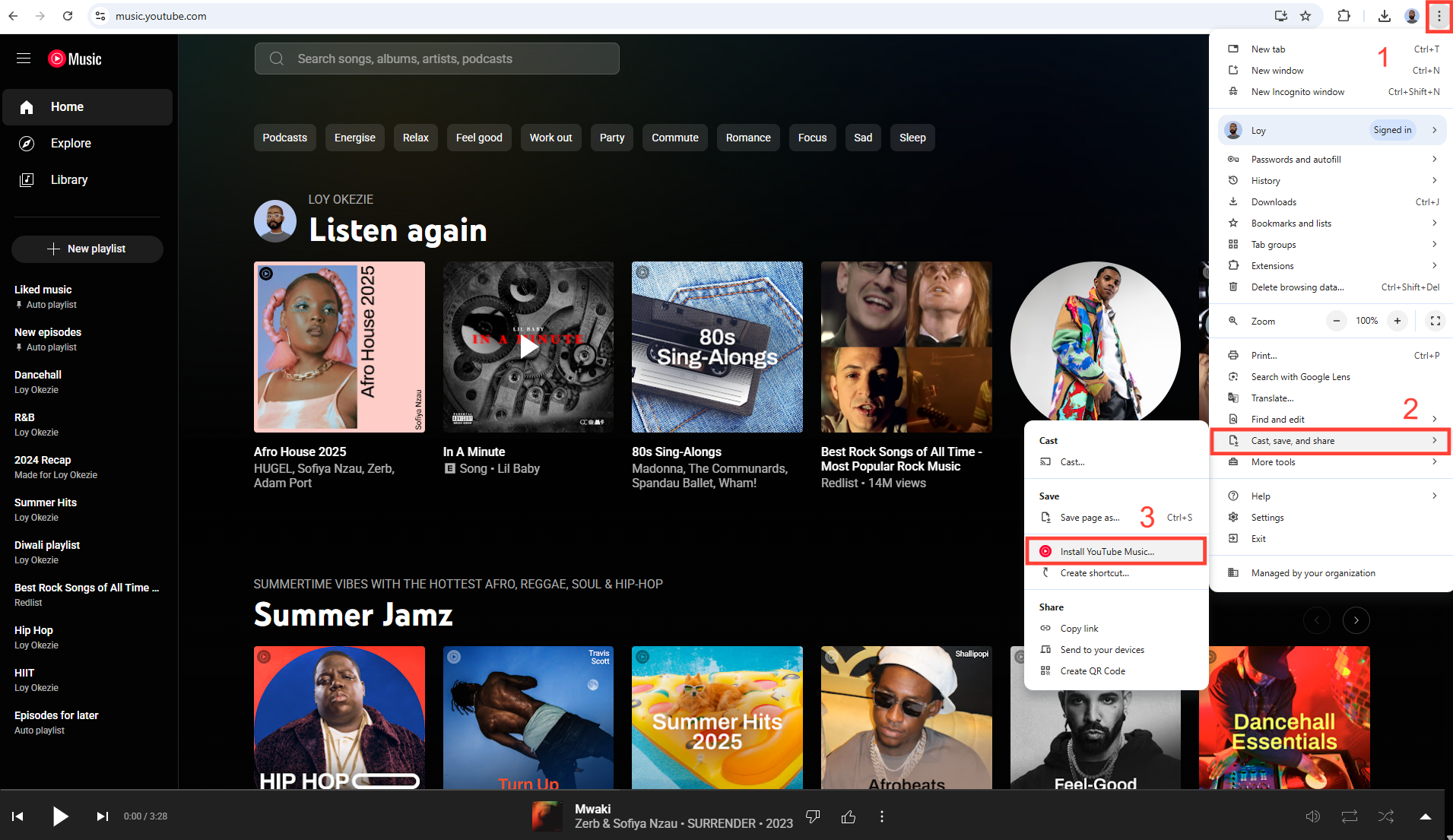
- Alternatively, click the three vertical dots in the top-right corner of the browser. Go to "Cast, save and share" and then select "Install YouTube Music."
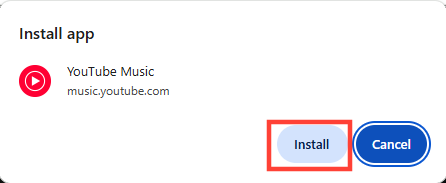
- A pop-up will appear asking you to confirm the installation. Click "Install."
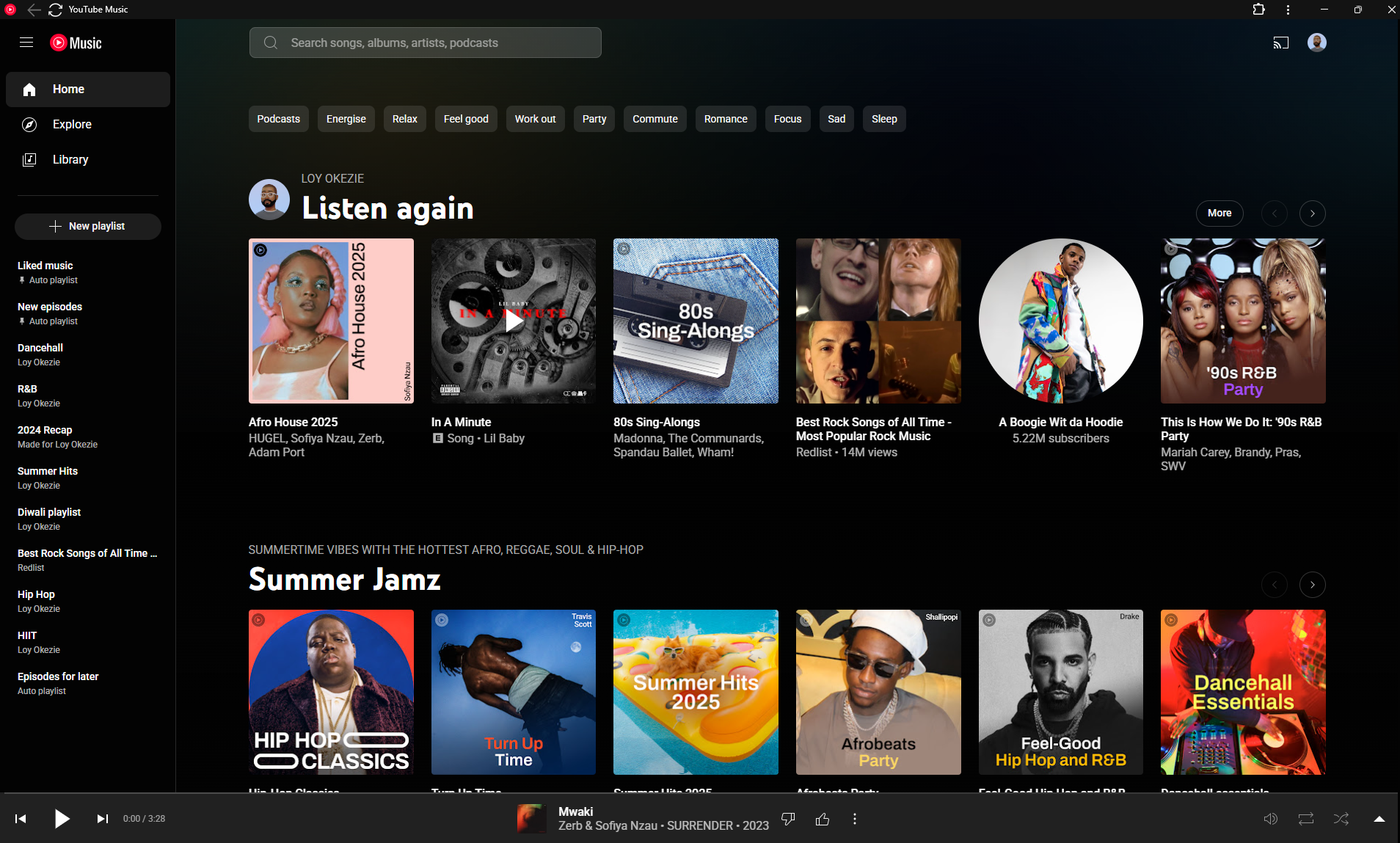
Step 3: Open the YouTube Music app which will now open in its own window as an app and an icon will be added to your desktop, Start Menu, and/or taskbar (depending on your choices).
Steps to Install YouTube Music on a Windows laptop – Using Microsoft Edge
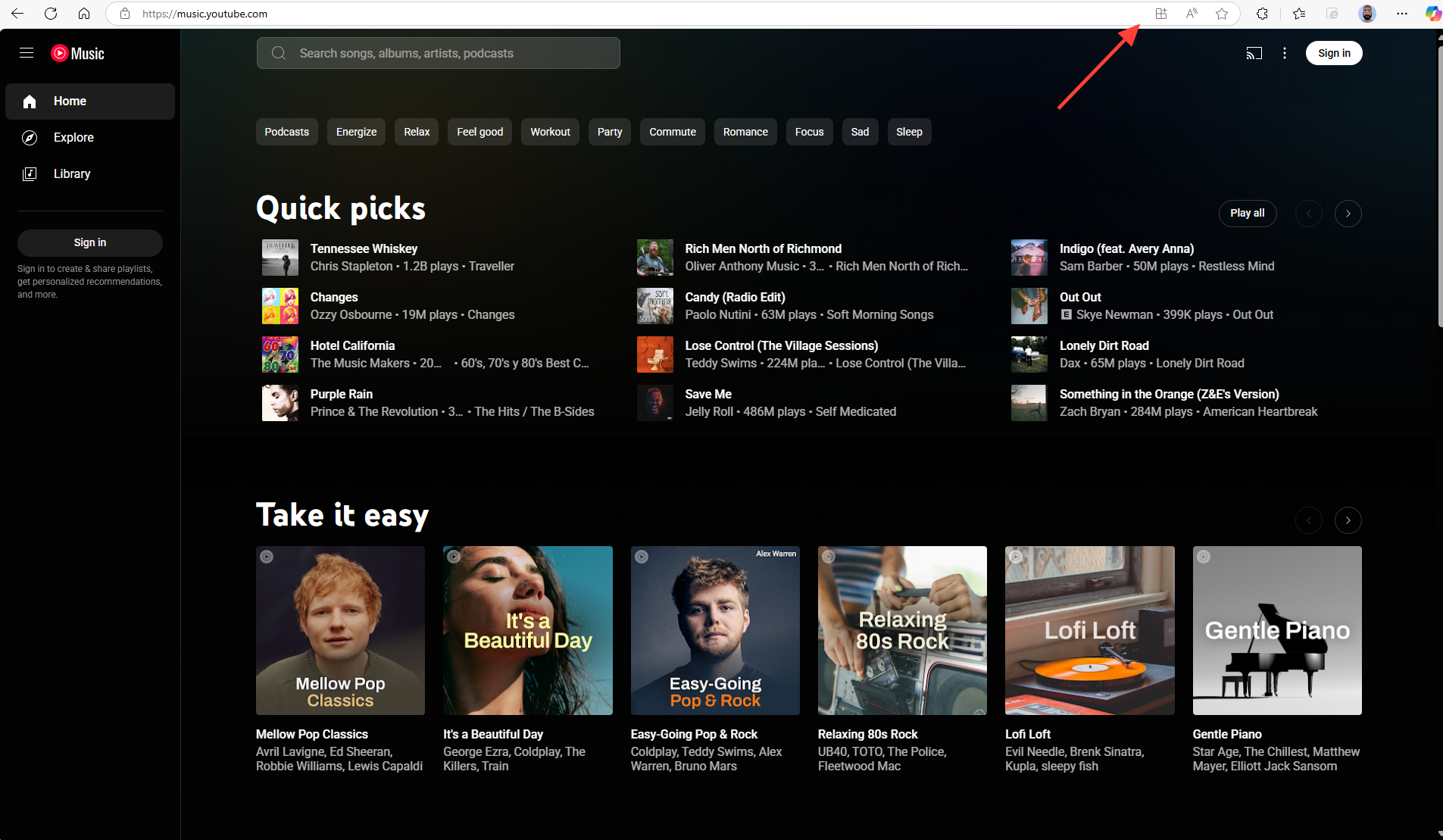
Step 1: Open Microsoft Edge and go to the official YouTube Music website music.youtube.com and sign into your account (Optional, but recommended)
Step 2: Click on the "Install" icon in the address bar (a square with the top-right corner detached and a small plus (+) sign).
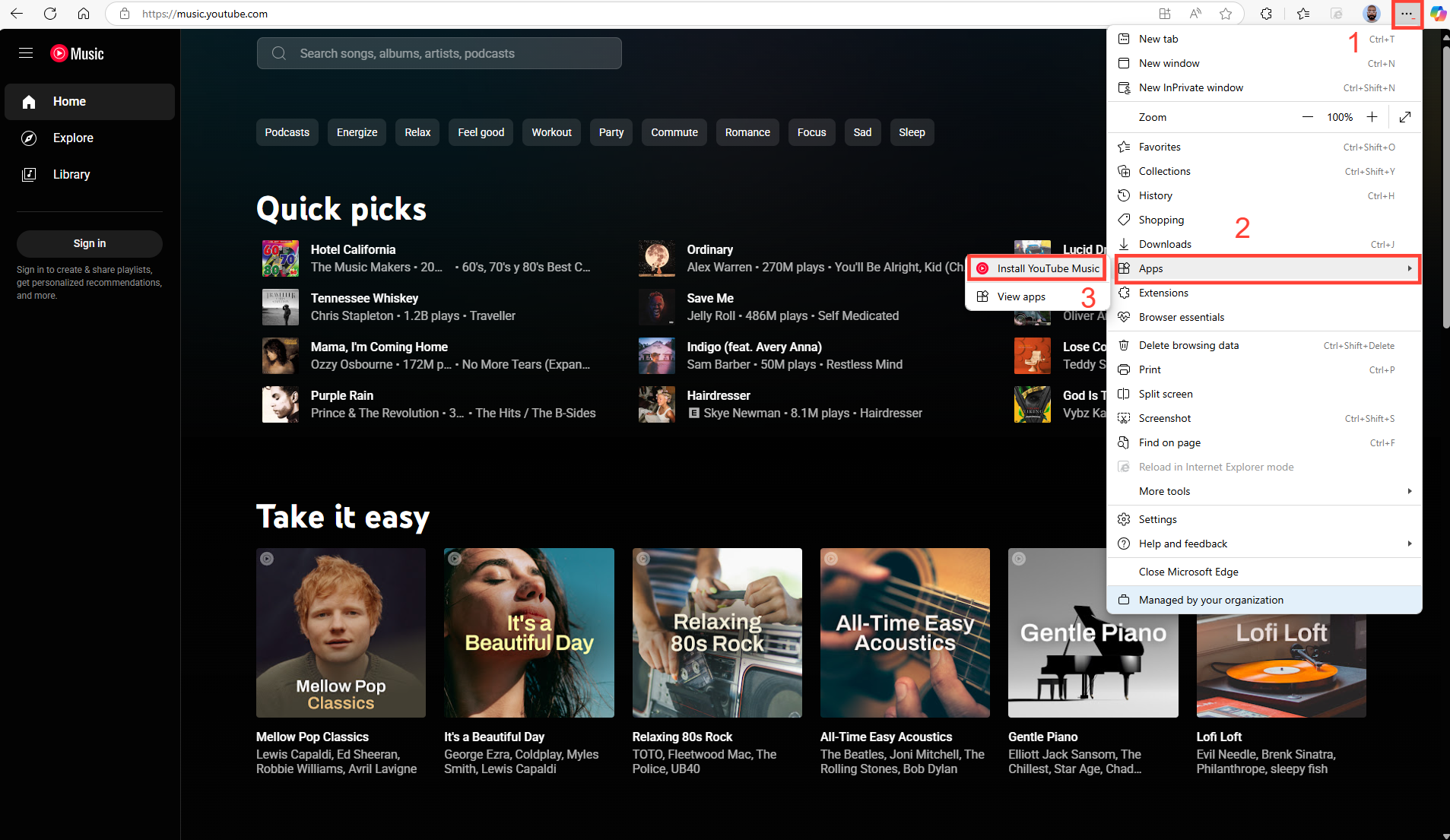
- Alternatively, click the three horizontal dots in the top-right corner of the browser. Go to "Apps" and then select "Install YouTube Music".
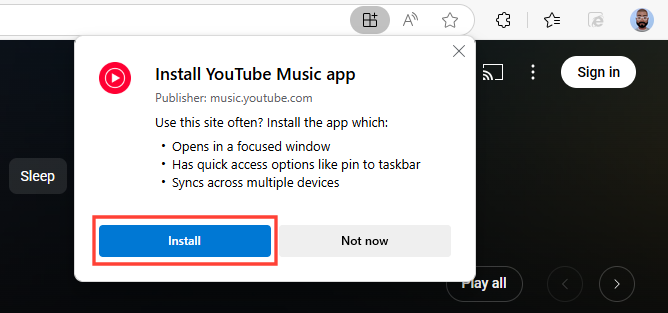
- A pop-up will appear. Click "Install."
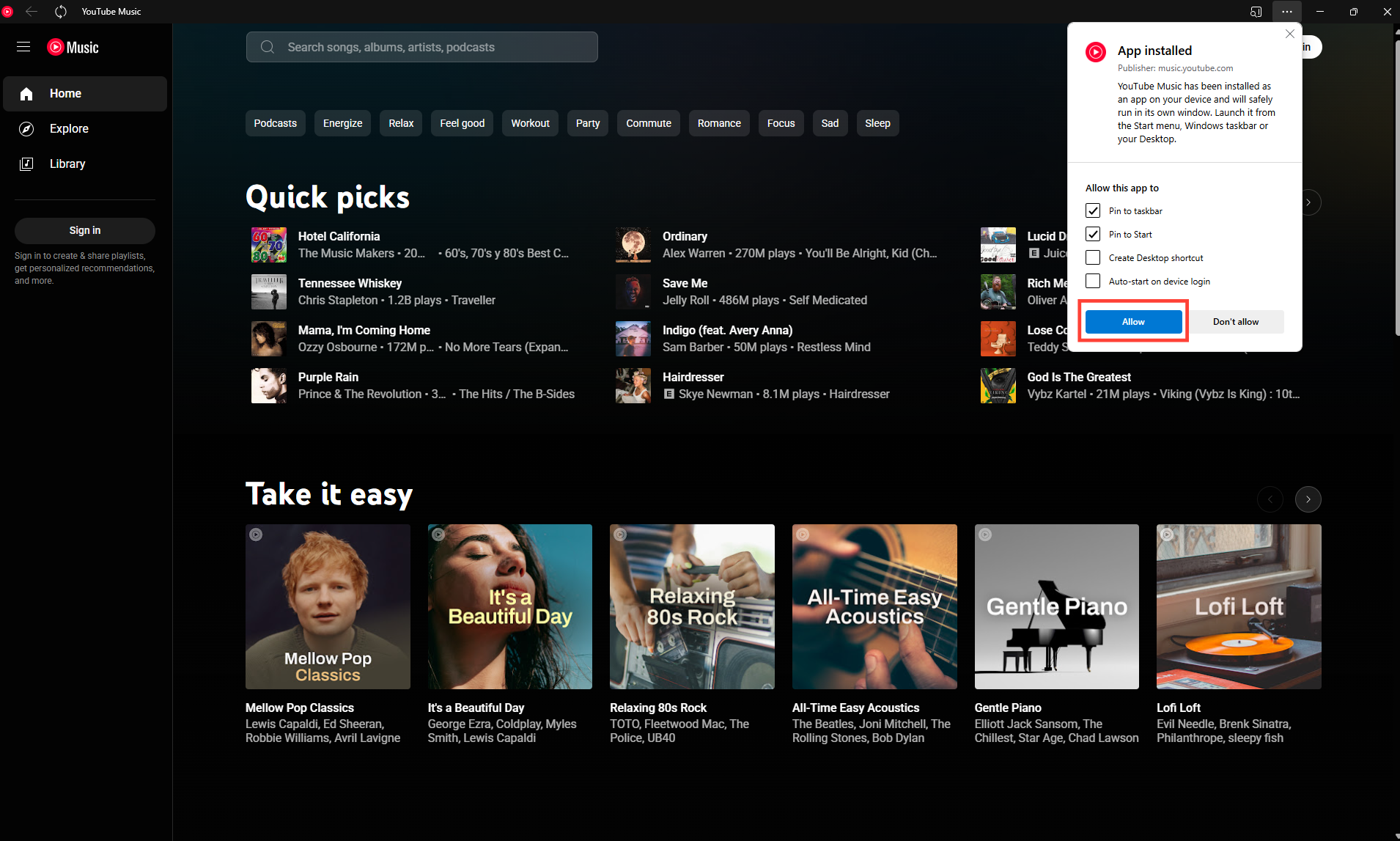
Step 3: Open the YouTube Music app which will open in a separate window, and shortcuts will be created based on your selection
Steps to Uninstall YouTube Music app from a Windows laptop – Using Google Chrome
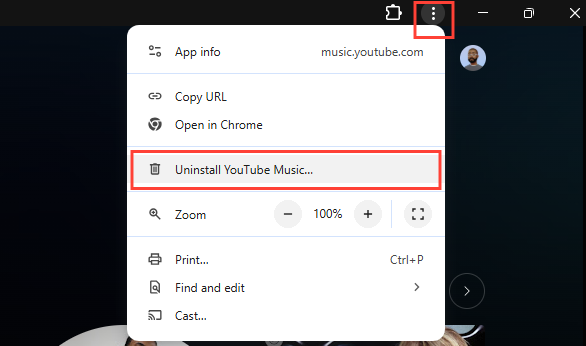
Step 1: Open the YouTube Music app and click the three vertical dots in the top-right corner of the app window. Choose "Uninstall YouTube Music."
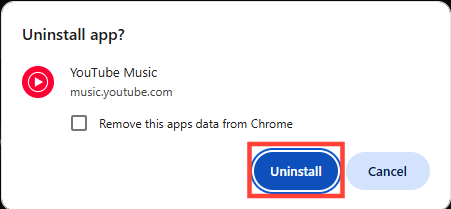
Step 2: A confirmation pop-up will appear. You might see an option to "Remove this apps data from Chrome". It's recommended to check this box for a clean uninstall. Click "Uninstall" to confirm.
Steps to Uninstall YouTube Music app from a Windows laptop – Using Microsoft Edge
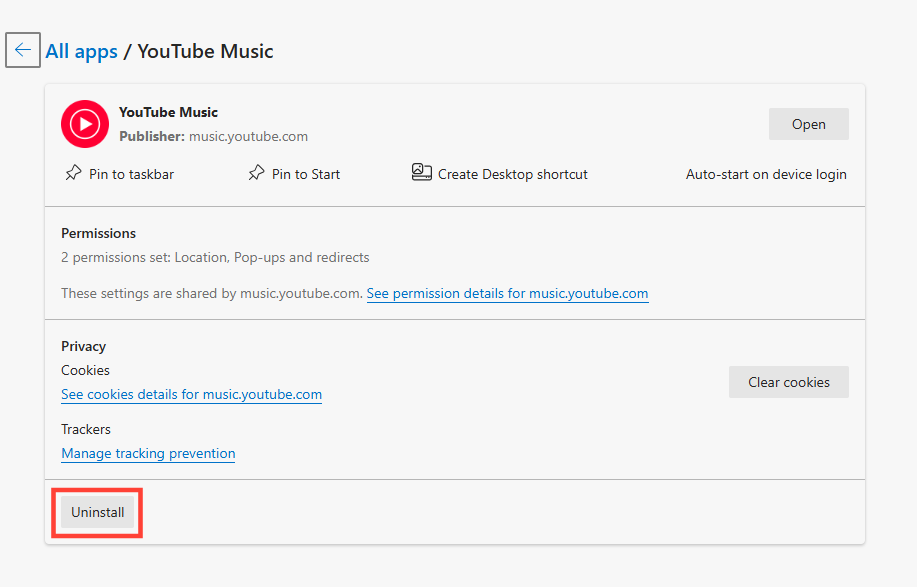
Step 1: Open the YouTube Music app and click the three horizontal dots in the top-right corner of the app window. Choose "App Settings"
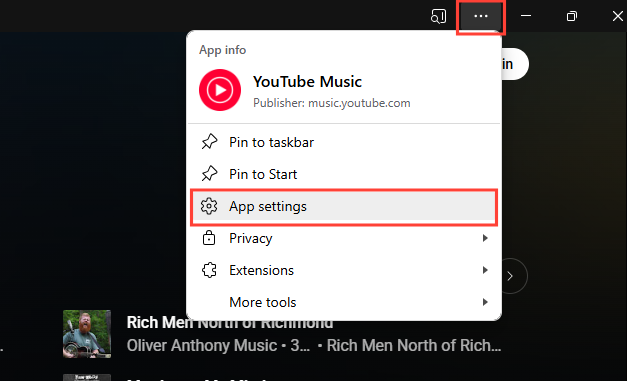
Step 2: The Installed apps page will open in Settings. Click "Uninstall" to confirm.
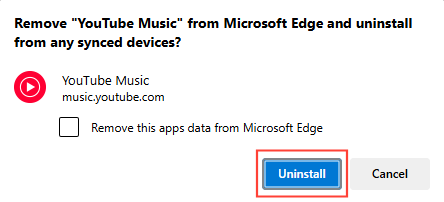
Step 3: A confirmation pop-up will appear. You might see an option to "Remove this apps data from Microsoft Edge". It's recommended to check this box for a clean uninstall. Click "Uninstall" to confirm.
Conclusion
You can use either Google Chrome or Microsoft Edge to listen to YouTube Music, but making a separate desktop software for it makes it easier and more integrated, without the clutter of a web browser. It's just as easy to uninstall the software, and there are several ways to do it, either from within the app or through Windows Settings.
Users may easily manage their YouTube Music desktop app by following these simple steps. This way, they can quickly get to their favorite songs when they want to and easily uninstall the app when they don't need it anymore.


