



Tor (The Onion Router) is a free, open-source browser designed to protect your privacy online by routing your internet traffic through a global network of servers. This makes it extremely difficult for anyone to track your browsing habits or identify your location.
Whether you're working in a sensitive environment, a privacy-conscious user, or someone who just wants to browse without being tracked, Tor offers a powerful layer of anonymity.
Installing Tor on Linux might seem technical, but it's straightforward when broken down into clear steps. This guide will walk you through downloading, verifying, and installing Tor safely, ensuring you get a genuine, untampered copy.
 Oyinebiladou Omemu
How to install Tor on Linux
Step 1: Download the Tor Package
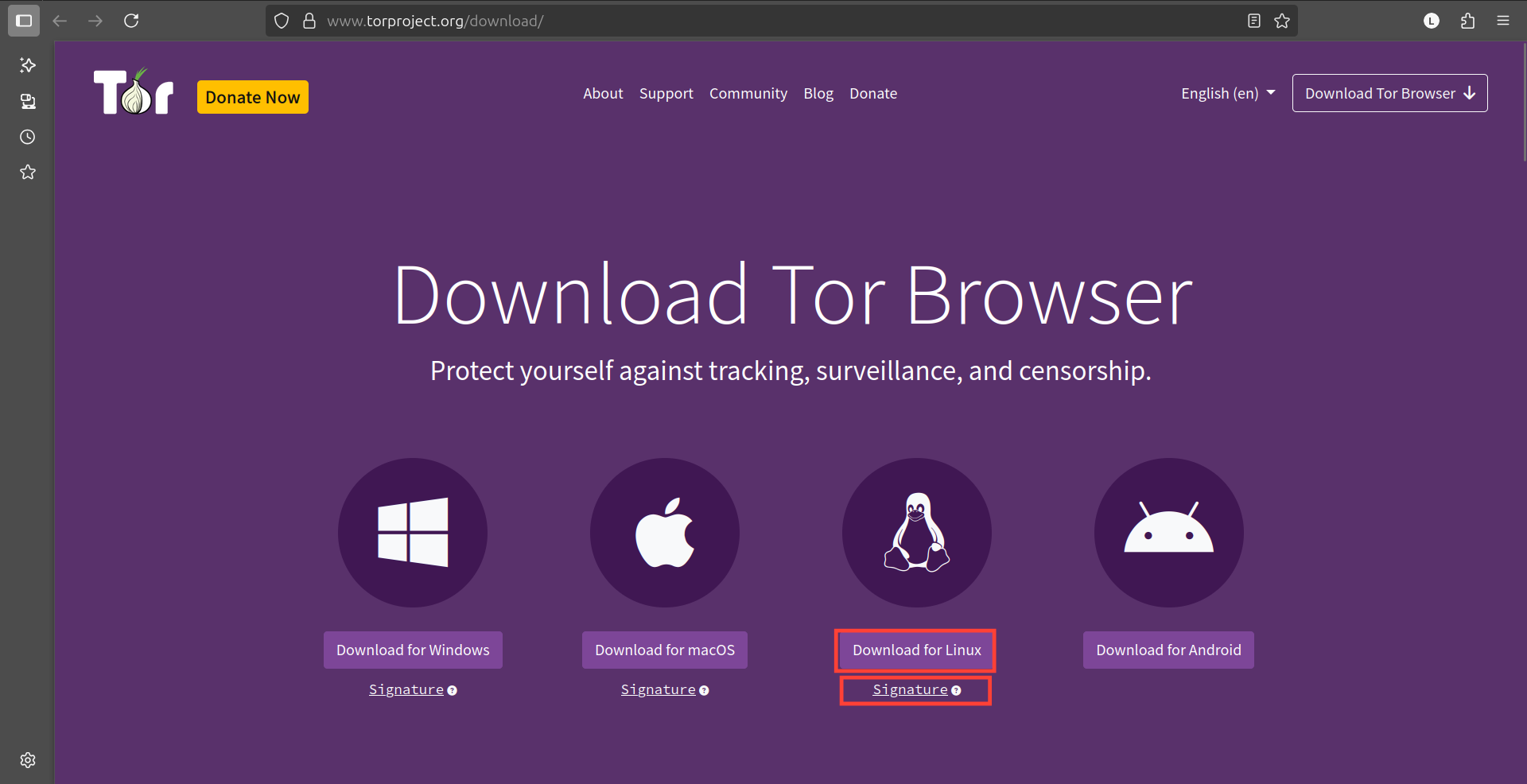
Visit the official Tor Project download page at https://www.torproject.org/download/ in your regular browser. Select the Linux option to download the appropriate package for your system.
You're to download two files here: the browser and the signature.
Step 2: Verify the Download Signature
- Open the terminal and run:
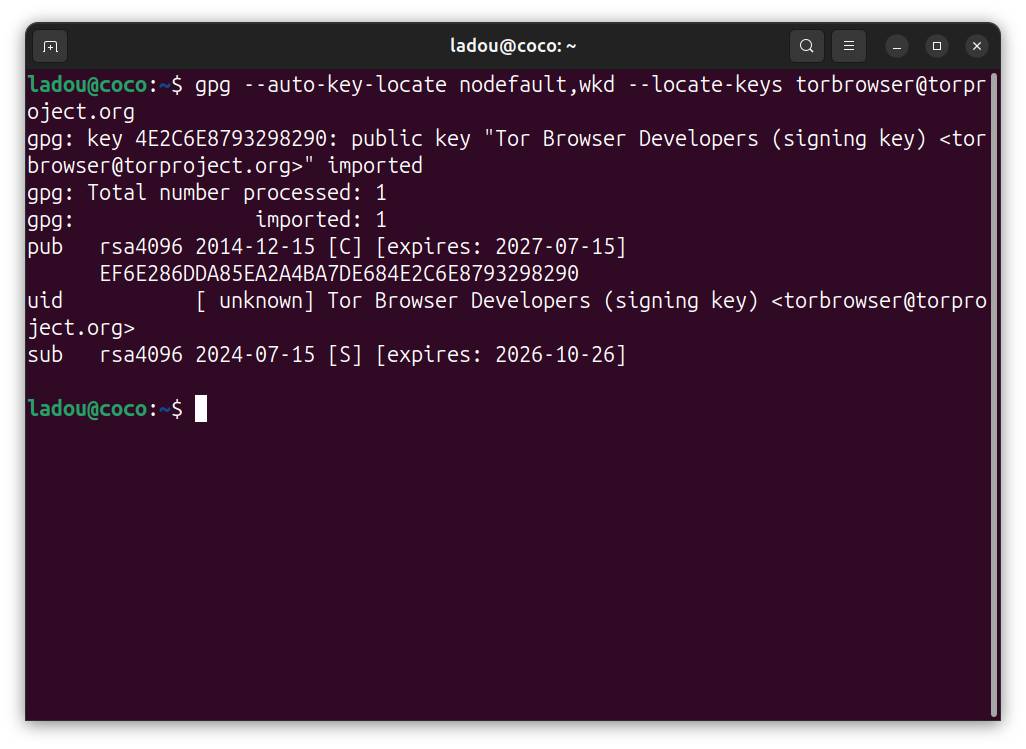
gpg --auto-key-locate nodefault,wkd --locate-keys torbrowser@torproject.org
This command automatically finds and imports Tor's official public signing key from the internet so you can verify that your Tor Browser download is genuine and hasn't been tampered with.
- Now, export the key by running the command below:
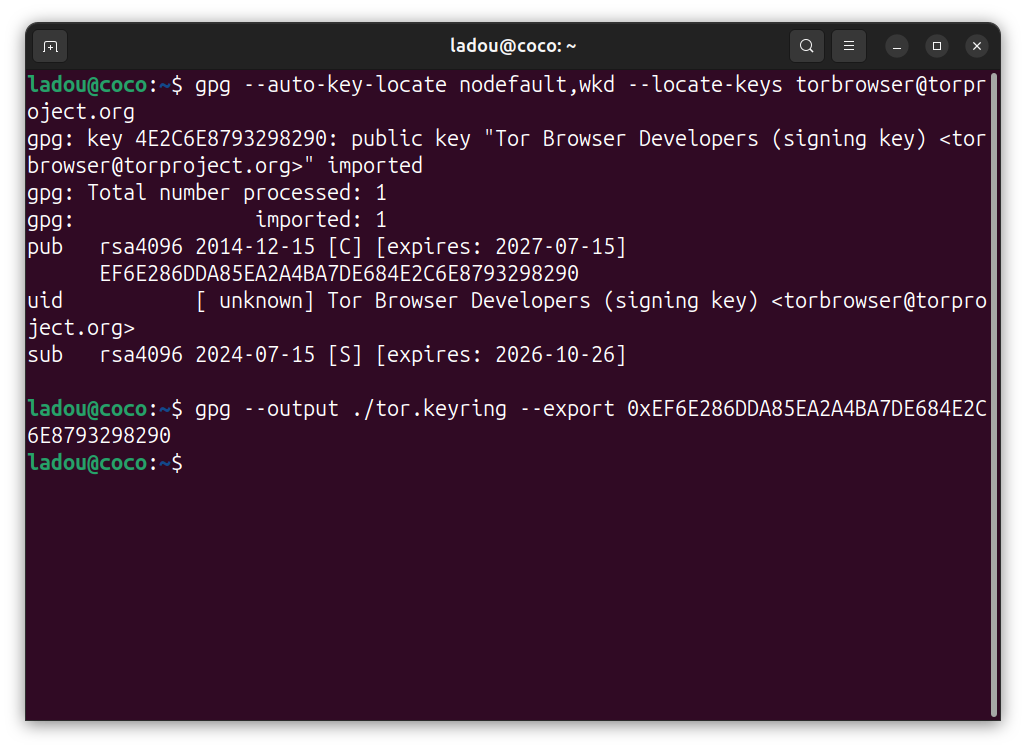
gpg --output ./tor.keyring --export 0xEF6E286DDA85EA2A4BA7DE684E2C6E8793298290
This exports the key to a file named "tor.keyring" in your home directory, so you can use it to verify the download signature.
- Finally, verify the signature by running the command below:
gpgv --keyring ./tor.keyring ~/Downloads/tor-browser-linux-x86_64-14.5.6.tar.xz.asc ~/Downloads/tor-browser-linux-x86_64-14.5.6.tar.xz
Your file is in the download folder. Confirm and replace the file name with the one you have in your downloads (based on the release year, as our versions may differ). Copy your file name from your downloads and insert the name where I have [FILENAME]; that's the only change you might make based on varying versions.
gpgv --keyring ./tor.keyring ~/Downloads/[FILENAME].asc ~/Downloads/[FILENAME]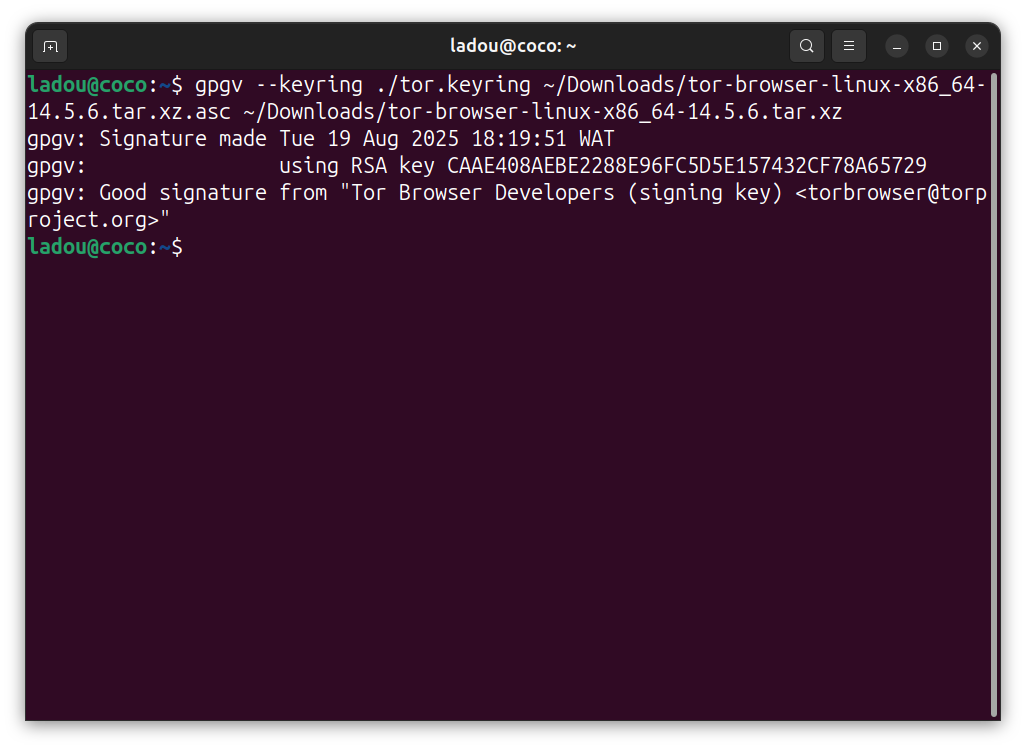
Step 3: Extract the Files
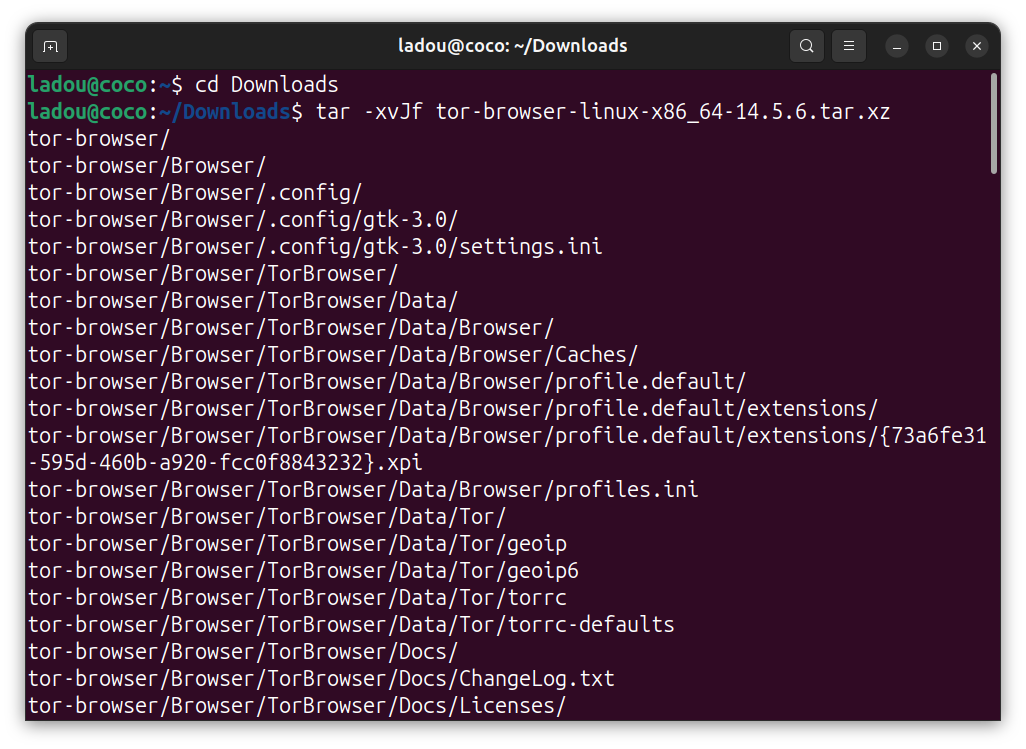
Navigate to your Downloads folder and extract the package:
cd ~/Downloads
tar -xvJf tor-browser-linux-x86_64-14.5.6.tar.xz
You're essentially doing
tar -xvjf [FILENAME]This unpacks the Tor Browser files into a new folder named tor-browser. You can see the directory name in the terminal upon extraction.
Step 4: Launch Tor Browser
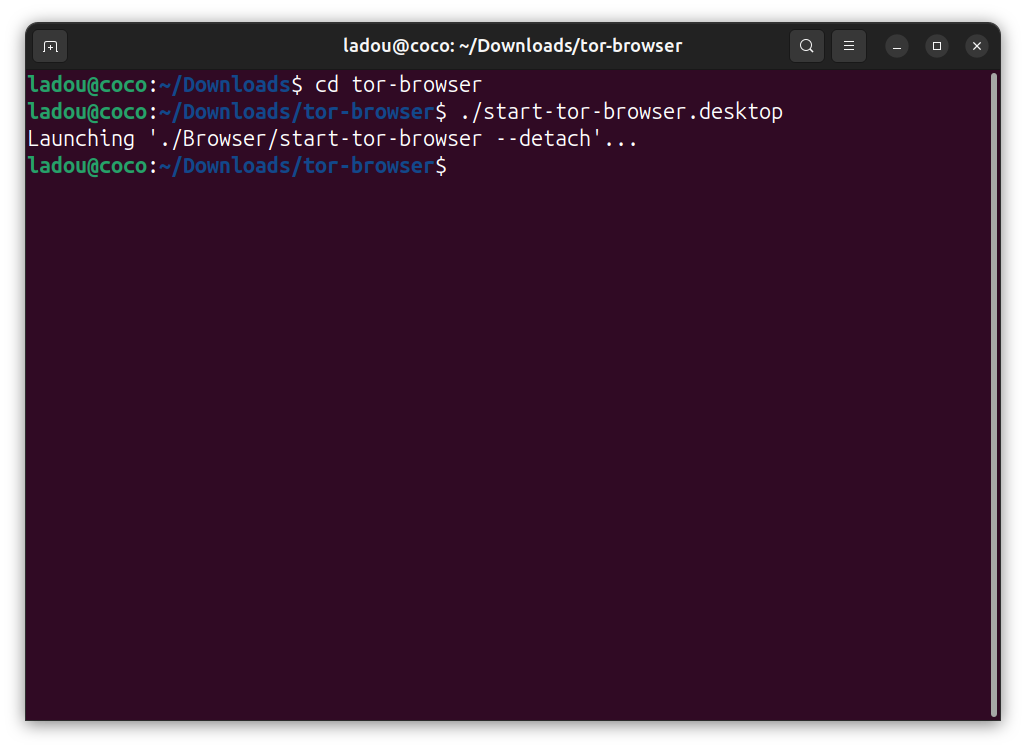
- Move into the extracted directory and run the browser:
cd tor-browser
./start-tor-browser.desktop
To launch the Tor browser, you'll keep running this last command only on your terminal, unless you configure the .desktop file, or find a way to move it to the dock. We will cover that later.
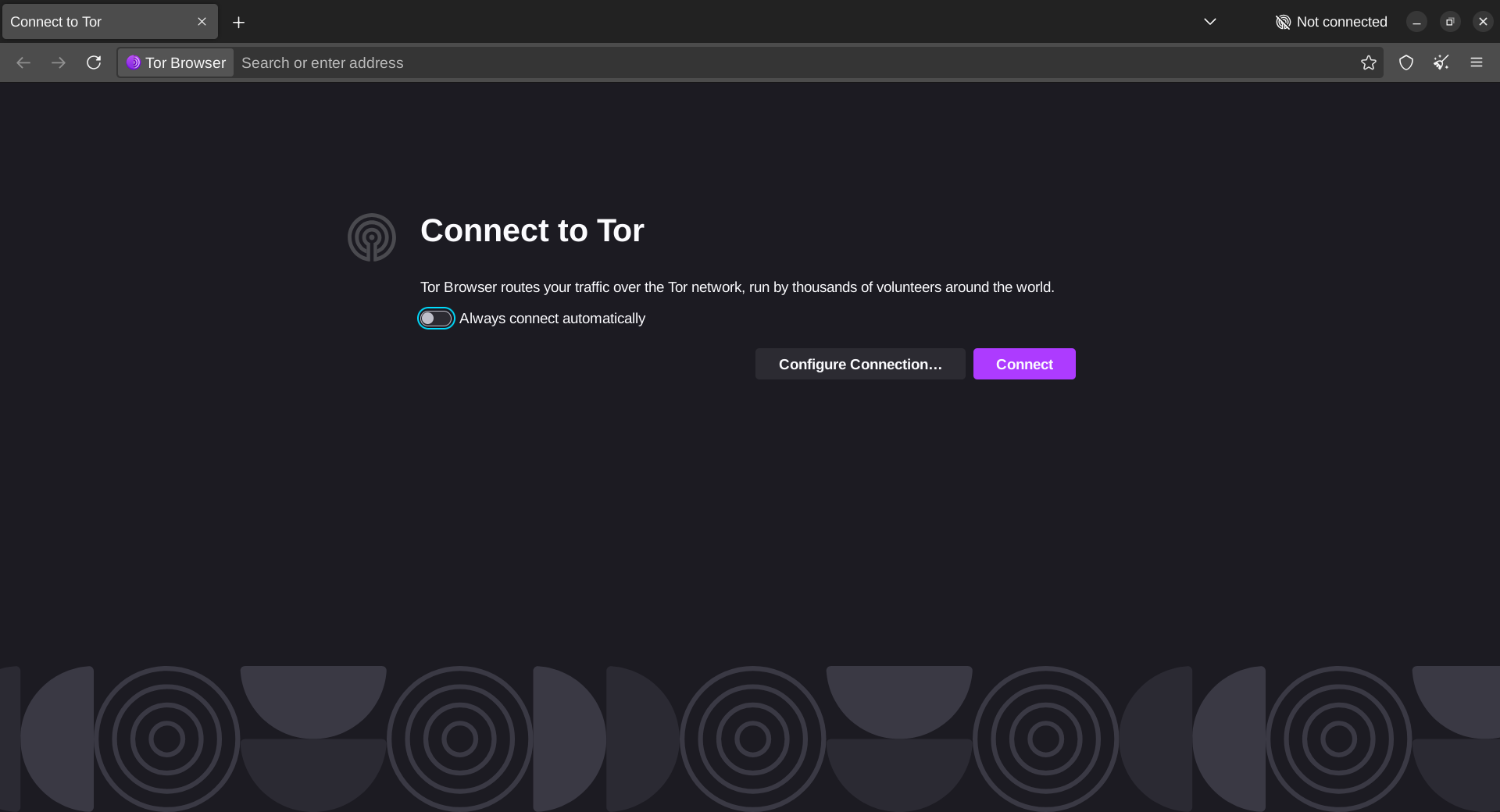
- Click Connect in the Tor Launcher window to establish a secure connection.
The browser will automatically route your traffic through the Tor network. For the best privacy, avoid resizing the window or installing additional browser extensions.
 Oyinebiladou Omemu
Conclusion
Installing Tor on Linux is a very simple process if you follow the guide carefully. By following these steps, you’ve ensured that your copy of Tor is genuine and secure, giving you access to a browser designed to protect your identity and data from prying eyes.
While Tor provides strong anonymity, it’s not a silver bullet; avoid logging into personal accounts or sharing identifiable information while using it. For everyday privacy, consider combining Tor with other tools like VPNs or encrypted messaging apps.
Image Credit: Oyinebiladou Omemu/Techloy.com


