



Millions of people still use Windows 10 every day, and for good reason. It’s stable, familiar, and runs smoothly on older computers that can’t handle Windows 11’s hardware demands.
But that stability is running out of time. Microsoft will officially end support for Windows 10 on October 14, 2025, closing the chapter on an operating system that has powered PCs for nearly a decade.
When that day comes, your computer won’t suddenly stop working. You’ll still be able to open files, run apps, and browse the web. What changes is security. Without regular updates, your system will slowly become more vulnerable to new threats and compatibility issues.
 David Adubiina
So if you plan to keep using Windows 10, now’s the moment to decide how you’ll stay protected. You could upgrade to Windows 11 for free if your PC is compatible, buy a new PC that ships with Windows 11 pre-installed, or switch to a different operating system, like macOS or ChromeOS.
But among the various options, you could opt for the Extended Security Updates (ESU) program, which gives you more time for updates and protection, sometimes even for free.
How to Sign Up for Windows 10 Extended Security Updates
Step 1: Use an administrator account
Make sure you’re signed in as an administrator. You can confirm under Settings > Your Info.
Step 2: Enroll in ESU
Open Settings > Update & Security and click Enroll Now. If you don’t see it, install the latest Windows 10 updates and check again.
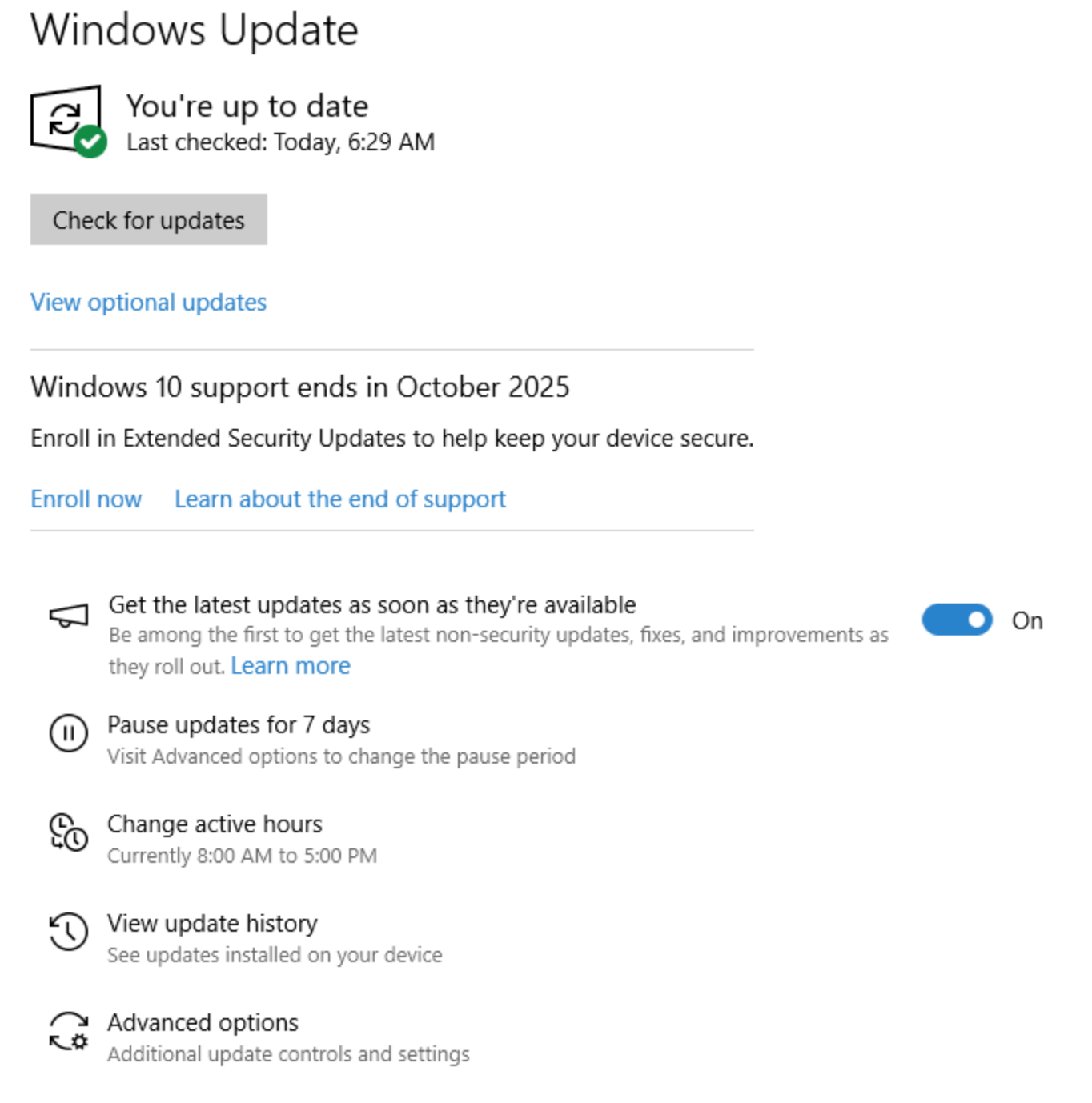
Step 3: Choose your upgrade method
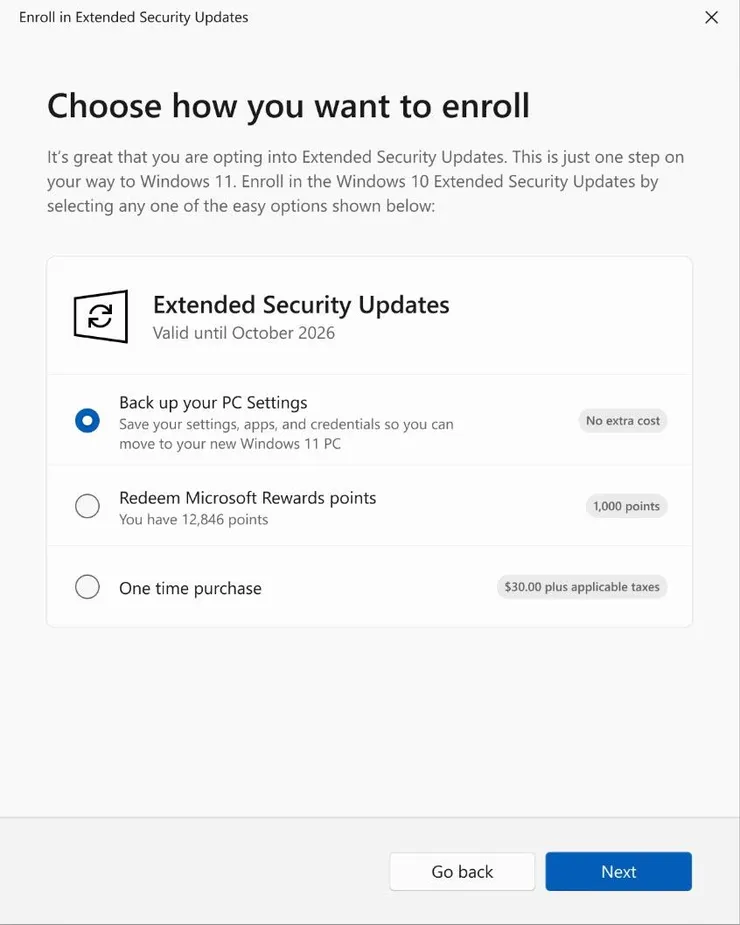
You can back up your settings through Microsoft’s cloud service (free up to 5 GB). If you’ve already linked your Windows login to Microsoft 365, OneDrive, or GamePass, you’re set. If you use a local account, you’ll need to connect it to access the free ESU offer.
Who can get ESU for free?
If you’re a Windows 10 user in the UK, you can get ESU for free, with no strings attached. Some Windows 10 users in the U.S. can also get ESU for free by syncing their system with Microsoft’s cloud services. The trade-off is that your Windows login will be tied to Microsoft’s online ecosystem, and the free backup only covers the first 5 GB of cloud storage.
Anything beyond that requires a paid OneDrive plan. You can manage what gets backed up by going to Settings > OneDrive and toggling off folders like Documents, Pictures, or Videos.
For users outside the U.S., options include a one-time $30 purchase, redeeming 1,000 Microsoft Rewards points, or free enrollment if your PC is already synced with a paid OneDrive or Microsoft 365 plan. Education users get a much cheaper deal: $1 for the first year, $2 in the second, and $4 in the third, totaling $7 per device. Business users, however, will pay $61 per device for the first year, with the cost doubling each year for up to three years.
 David Adubiina
Conclusion
While Windows 10 will keep running after October 14, 2025, it won’t be as safe as before. Without regular updates and security patches, your PC becomes more vulnerable over time if you browse the web frequently or handle sensitive files.
If your computer meets the Windows 11 requirements, upgrading is still the best long-term solution. It keeps you secure, compatible with new apps, and eligible for future updates. But if not, enrolling in ESU ensures your system doesn’t fall behind overnight.
The bottom line is, if you plan to keep using Windows 10, what you do next determines whether your PC stays protected and reliable or slowly turns into a security risk that struggles to keep up with modern software.


