Meta is slowly turning its family of apps, Facebook, Instagram, WhatsApp, and even Threads, into one tightly connected ecosystem. If you’ve ever accidentally posted a WhatsApp Status to Facebook or noticed similar friend suggestions across platforms, that’s no coincidence; it’s all part of Meta’s push to create its own ecosystem.
The good news? You can link your apps together, too, and it only takes a few clicks.
So why should you bother? Linking your accounts can help you manage settings like login, ads, and privacy from one central place. Plus, it unlocks cross-platform features that can make your digital life feel a little less scattered.
If you’re curious (or just tired of jumping between apps), here’s how to do it.
 Louis Eriakha
How to link your WhatsApp to your Meta Account Centre
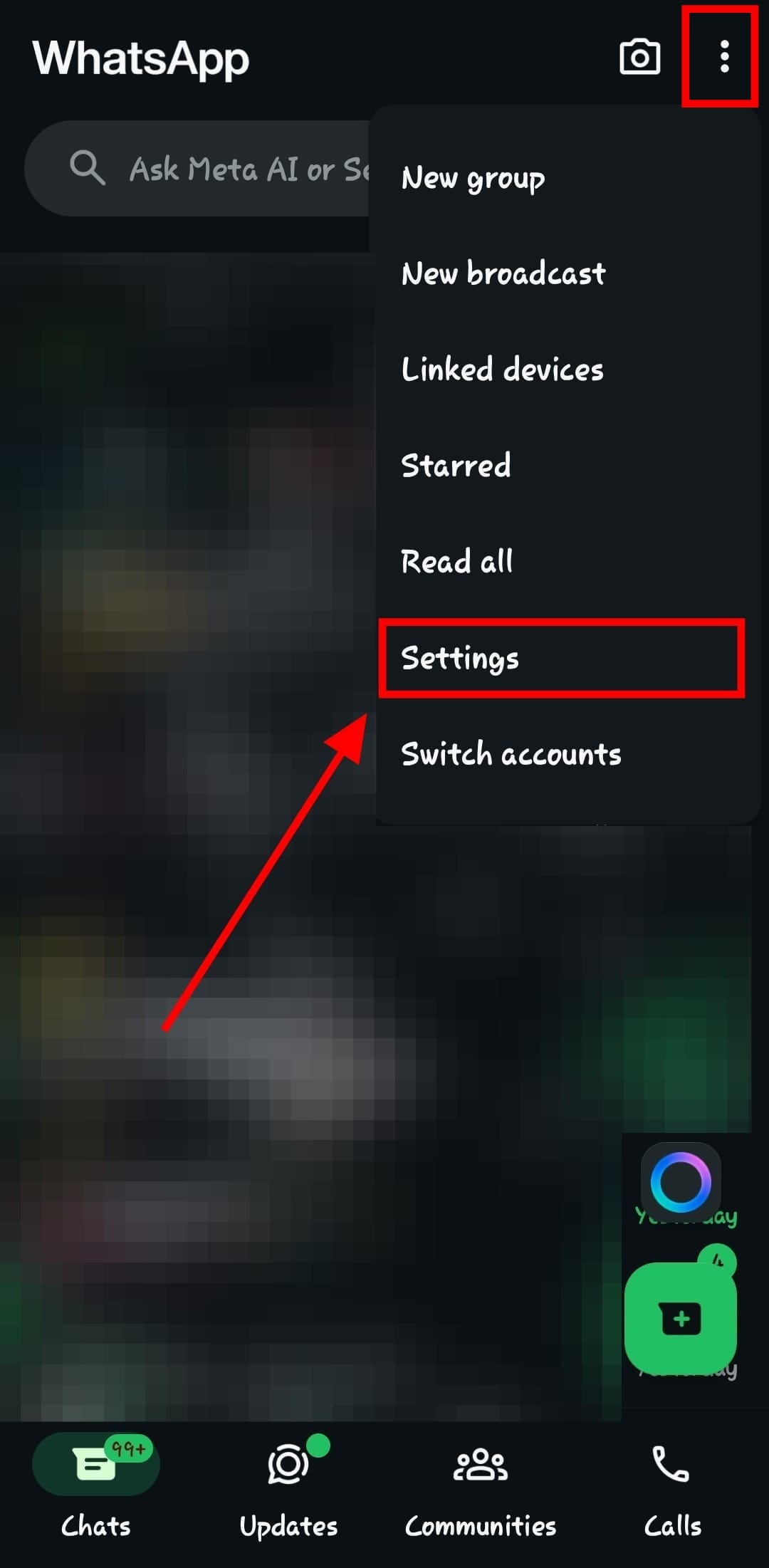
Step 1: Open up WhatsApp and tap on the three-dot button at the top right. Then, tap on 'Settings'
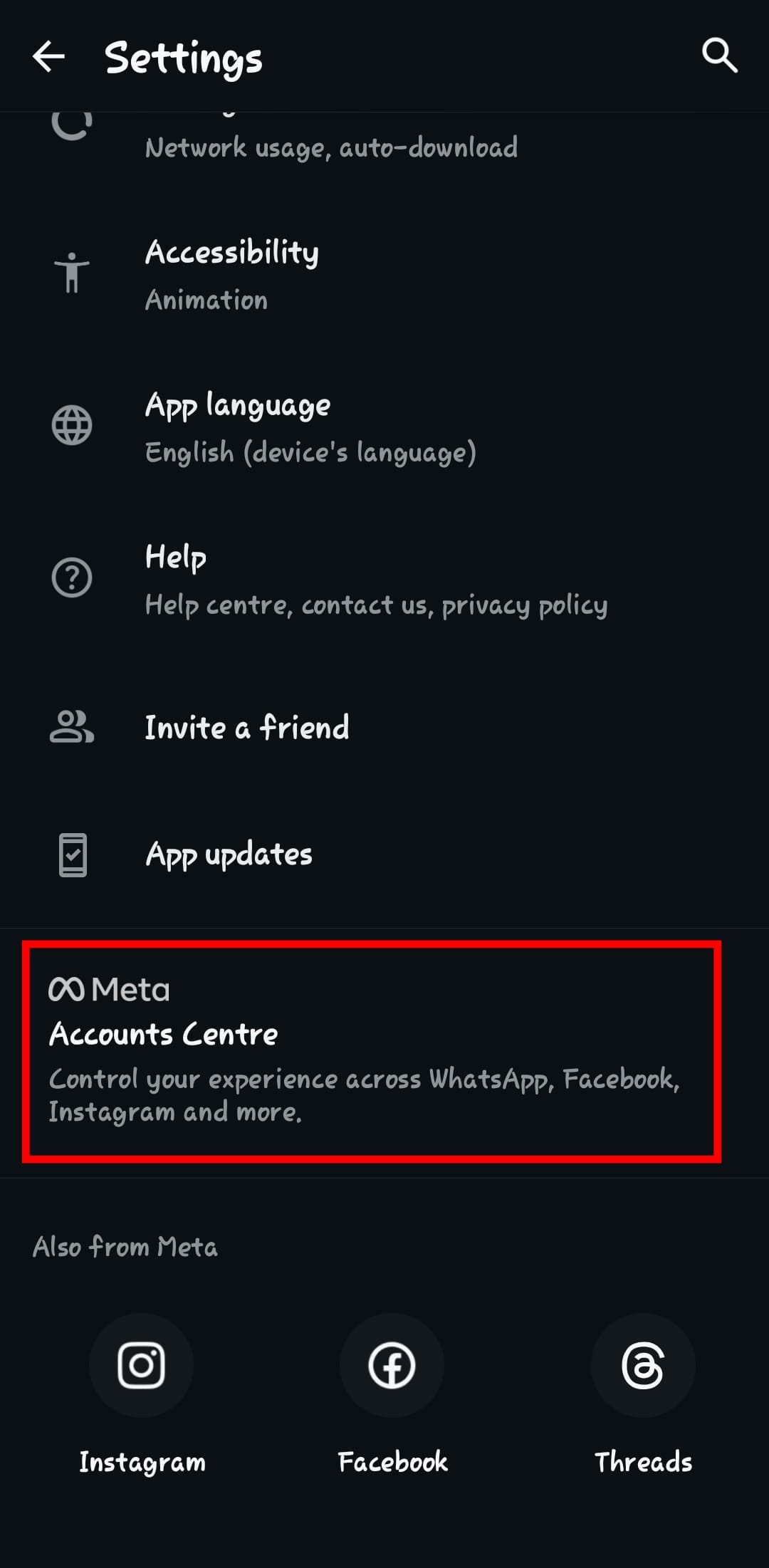
Step 2: Scroll down till you see 'Accounts Centre'
 Louis Eriakha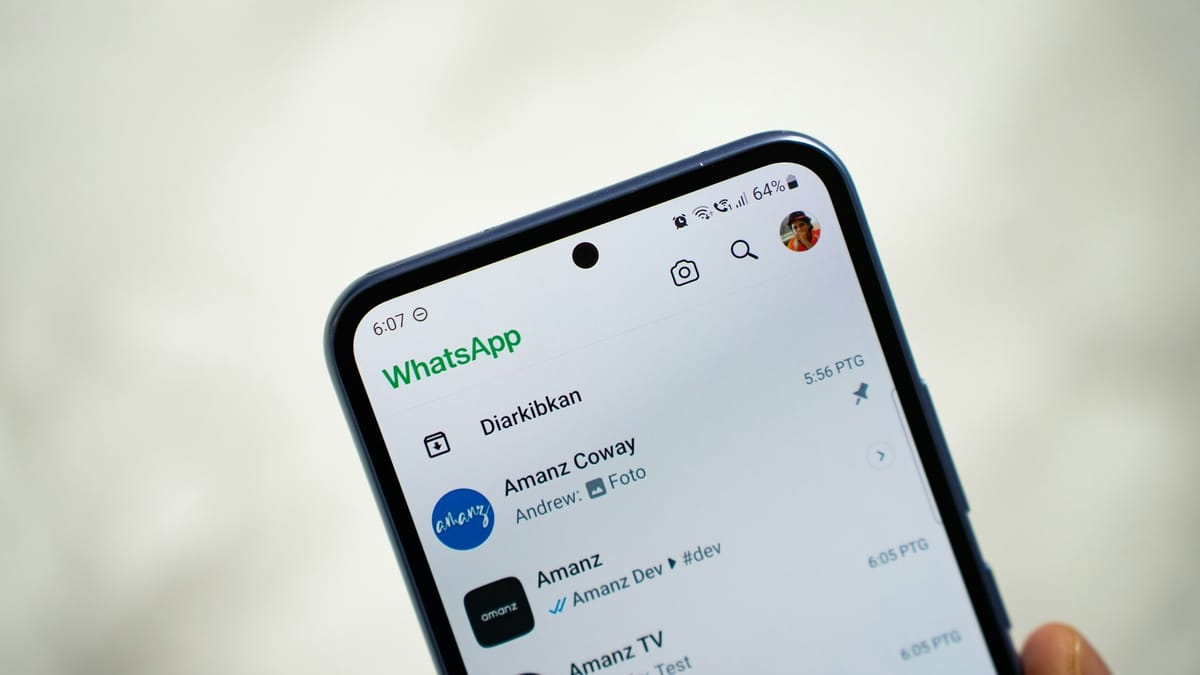
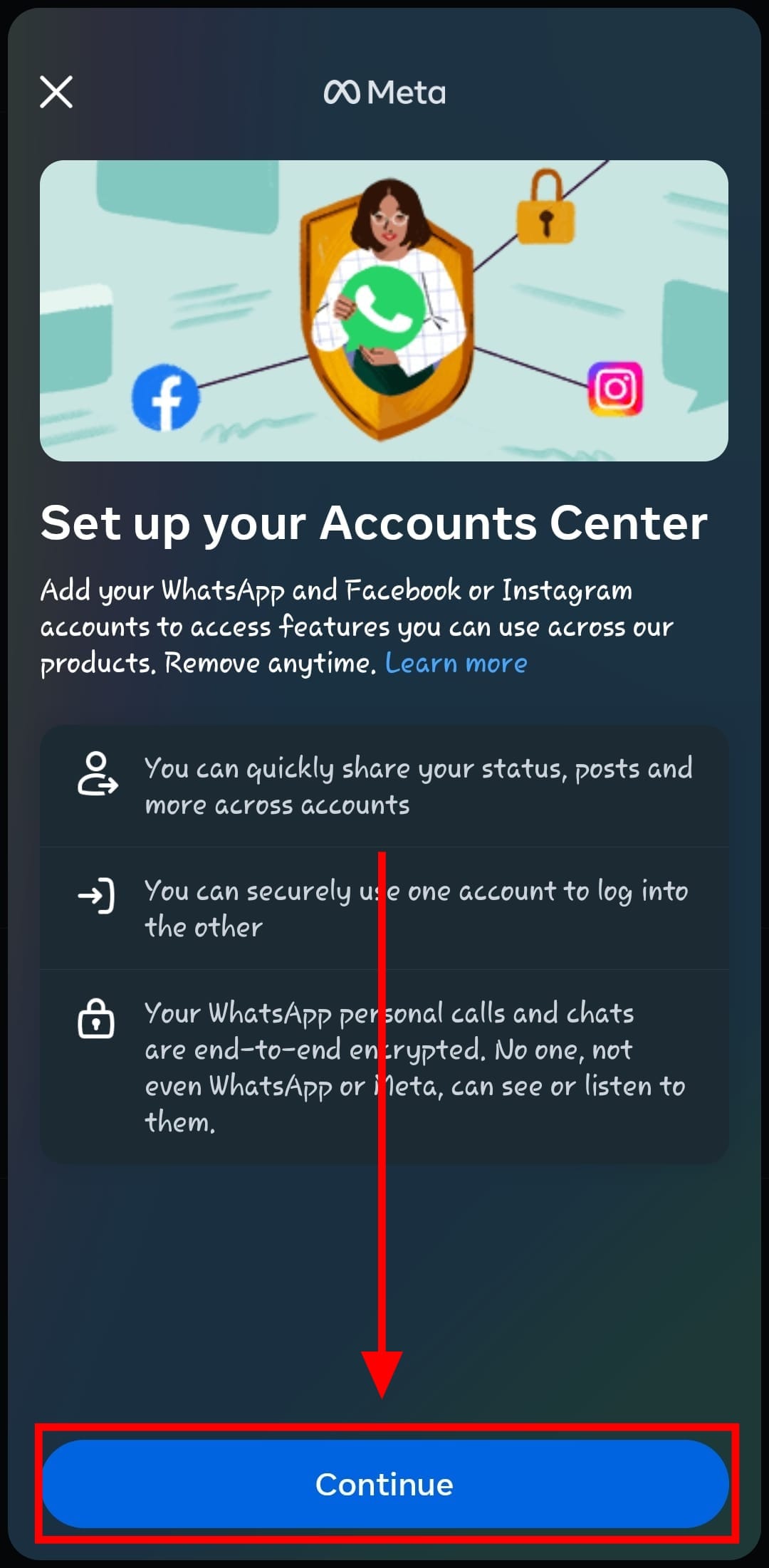
Step 3: Tap 'Continue'
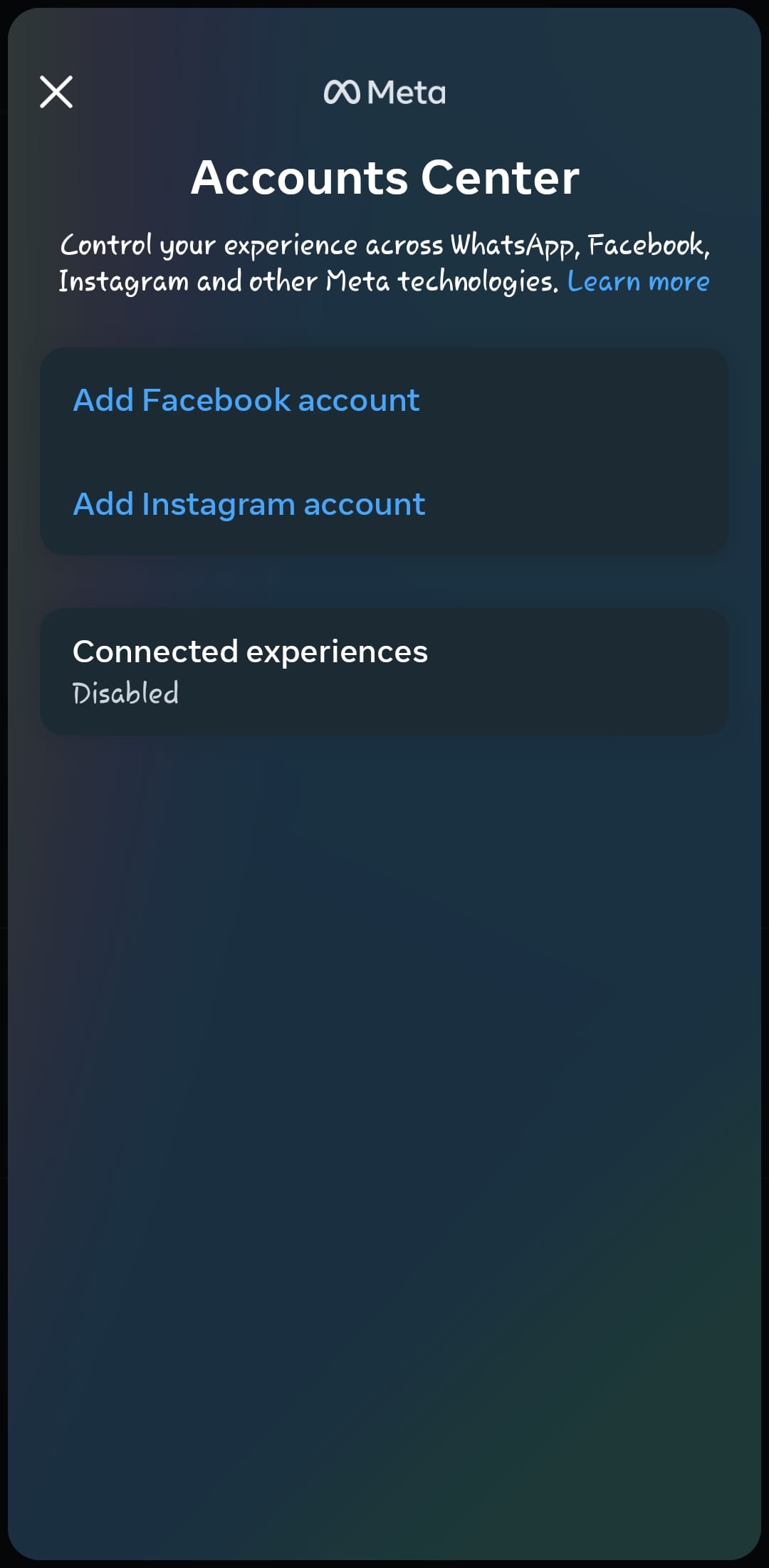
Step 4: In my case, none of my other Meta apps have been added, so to add them, simply tap on one of them, 'Add Facebook account' or 'Add Instagram account'
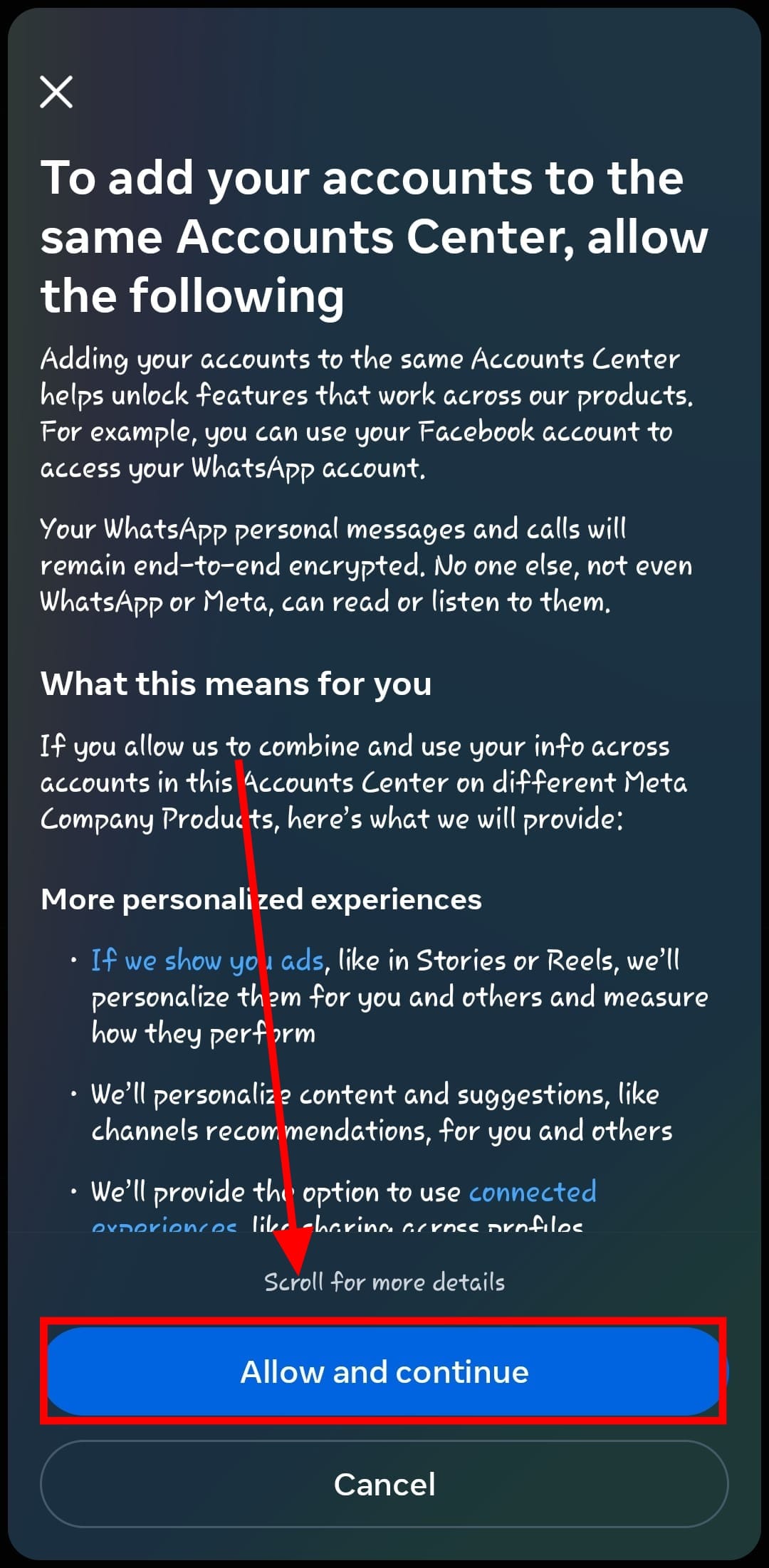
Step 5: Select 'Allow and Continue'
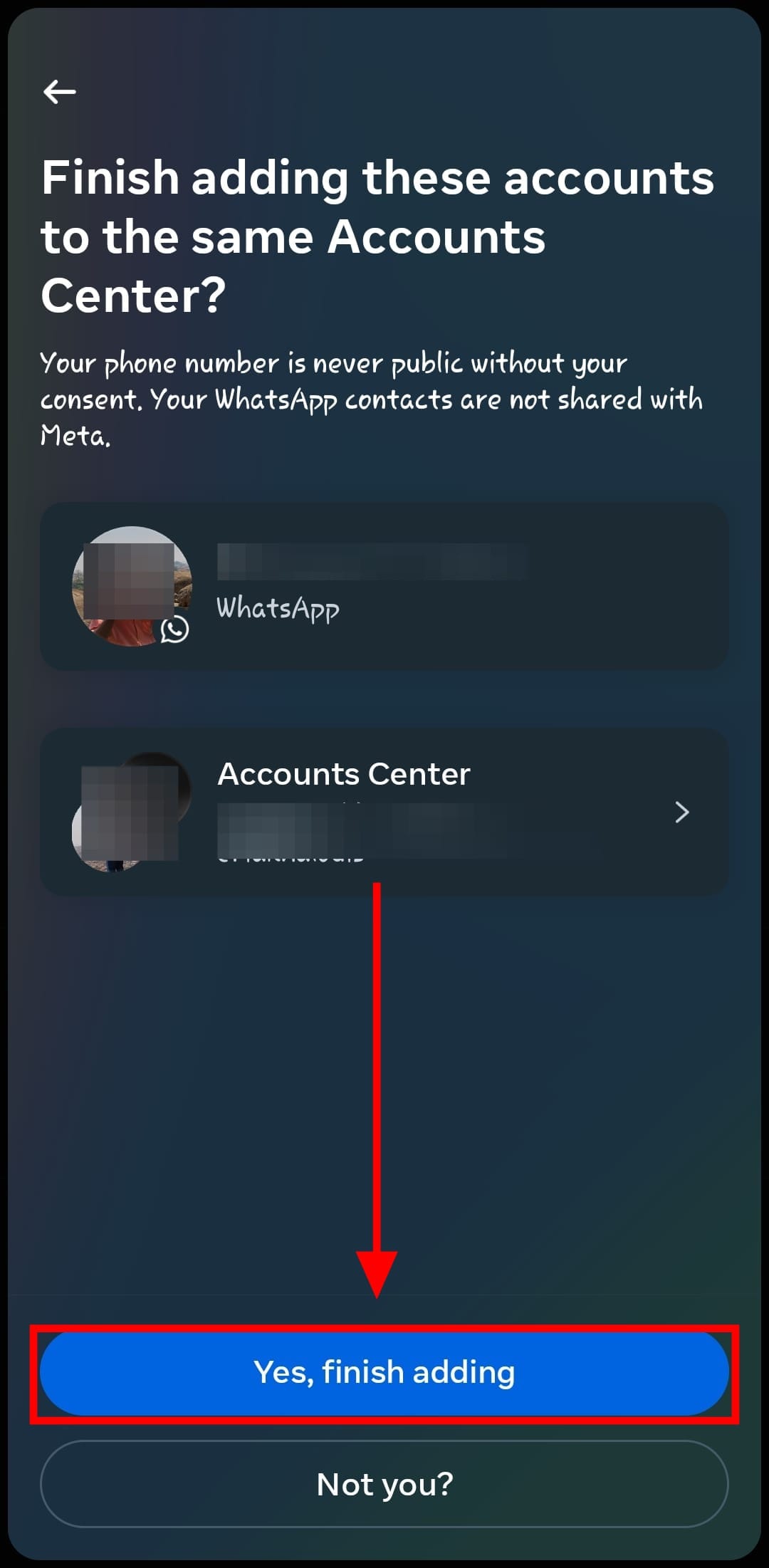
Step 6: You should see your accounts pop up on the screen for the account you decided to add, alongside your WhatsApp account too. Simply tap 'Yes, finish adding' to continue'
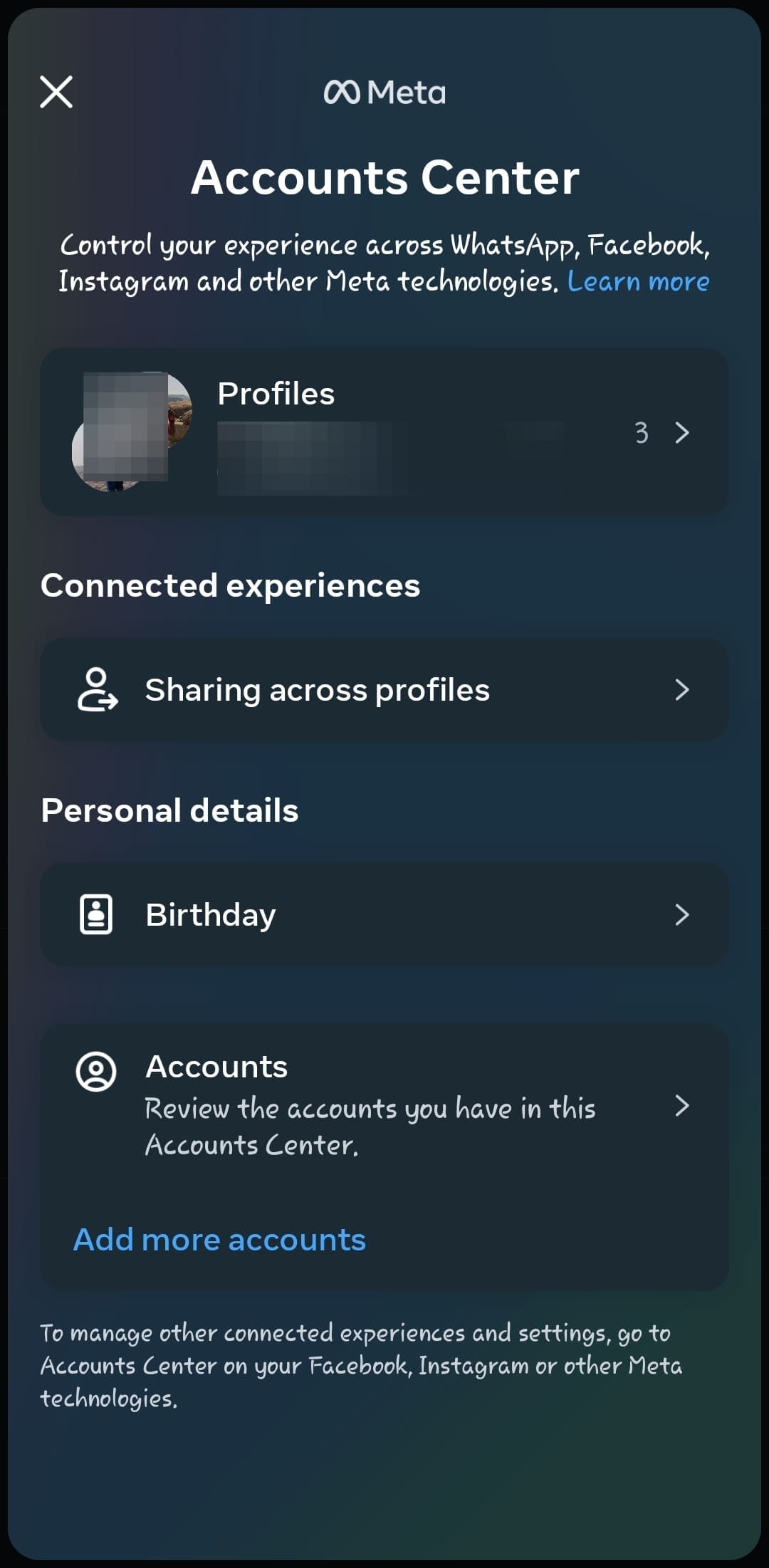
Step 7: Just like that, you've been able to put all your Meta apps under one umbrella. Well, technically under one Account Centre, but you get the idea.
Conclusion
Linking your WhatsApp to the Meta Account Centre won’t radically change your app overnight, but it does give you easier control over how your accounts work together. Whether you want smoother login settings, better ad personalisation, or just a unified view of your connected apps, this simple process is a good place to start.
And don’t worry, if you change your mind later, you can always head back into Settings and unlink anything you’re not comfortable with. Simple as that.
Image Credit: Louis Eriakha /Techloy.com
 Louis Eriakha