



When your Android phone is locked, anyone who picks it up can swipe down and mess with your Quick Settings, like turning on Airplane Mode to block tracking, disabling Wi-Fi and Bluetooth to stop remote wipes, or even killing Location to prevent Find My Device from working.
Fortunately, from your lock screen options in Settings, you can cut out quick access. Once Lock network and security is enabled, critical settings changes cannot be made while your phone is locked. Your Wi-Fi, Bluetooth, and Airplane mode settings cannot be altered without your password.
In this guide, we will show you how to lock down access to quick settings on your phone and tighten your security.
 Oyinebiladou Omemu
How to Lock Down Quick Settings on Android
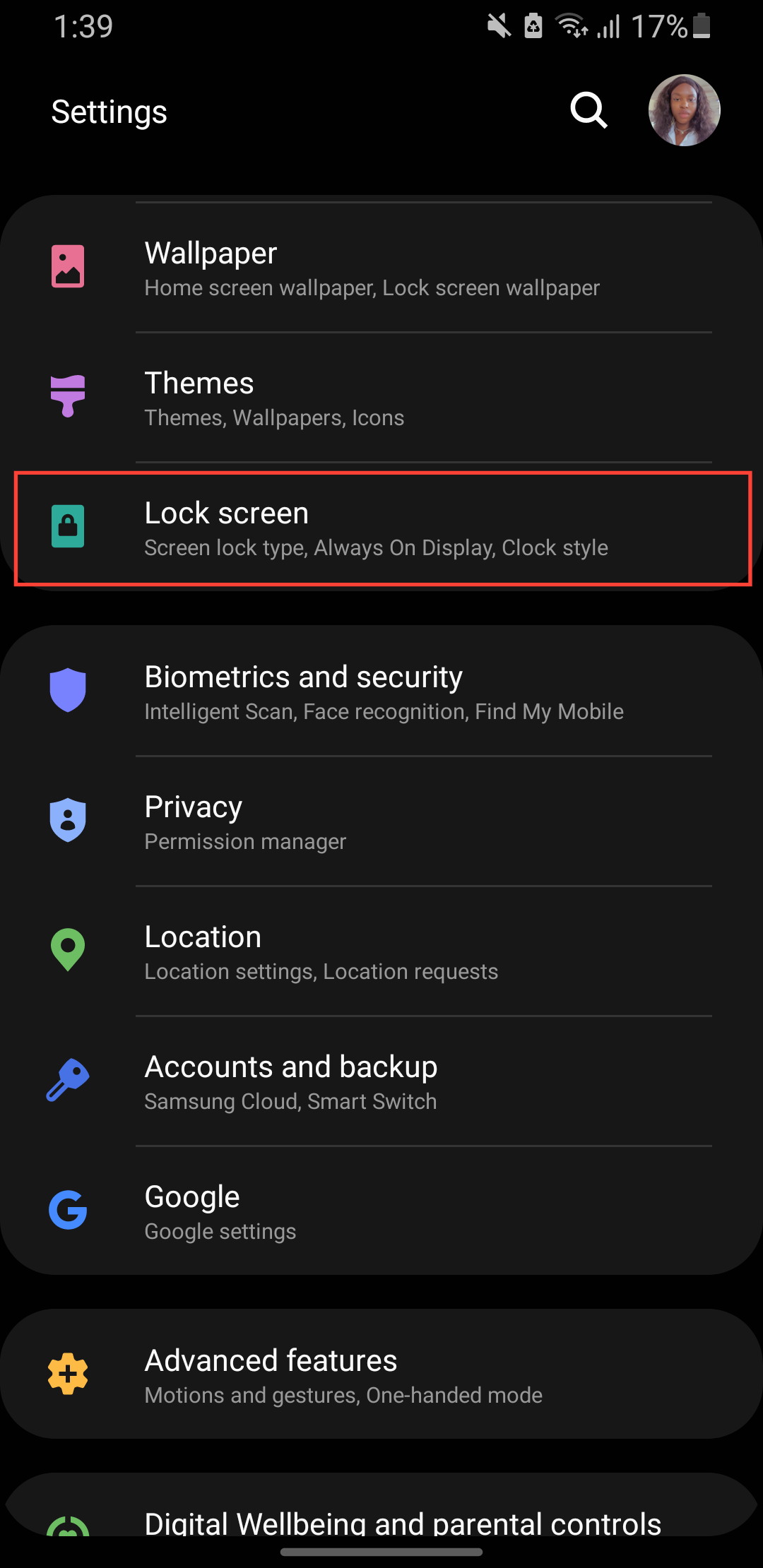
Step 1: Go to Settings on your Phone. Scroll down and select Lock Screen.
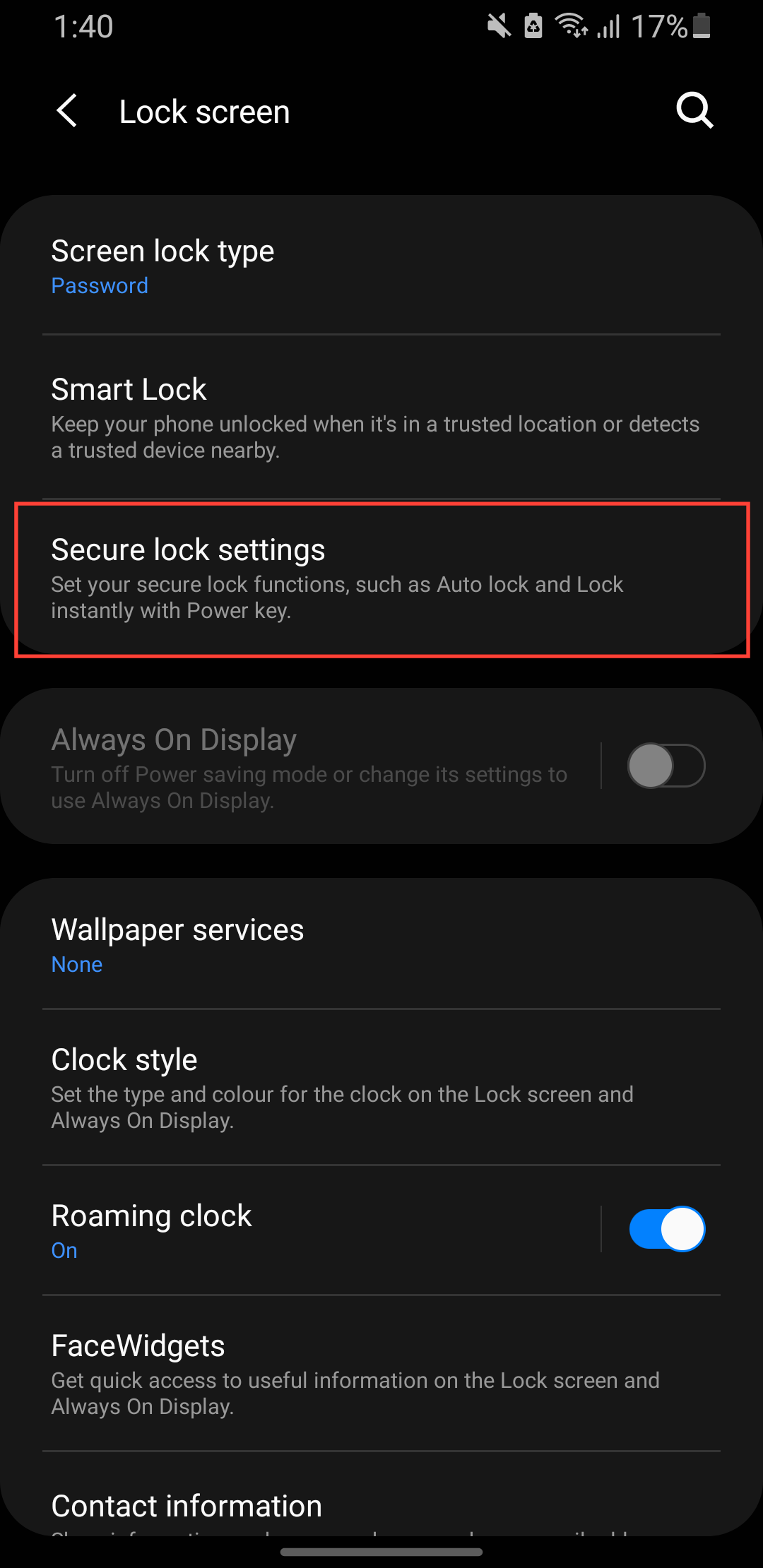
Step 2: Select Secure lock settings and enable it.
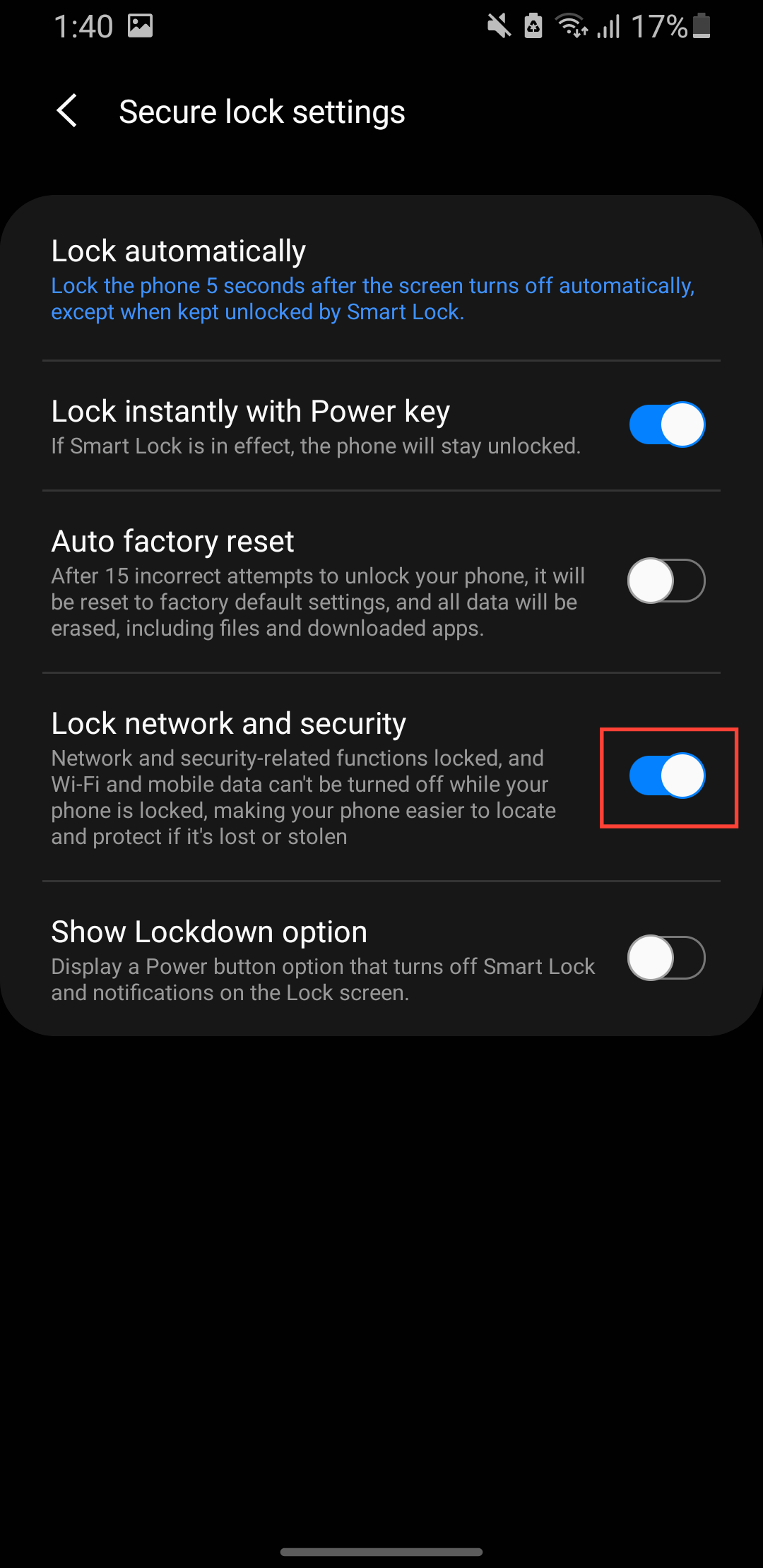
Step 3: Toggle on Lock network and security.
 Oyinebiladou Omemu
Conclusion
Locking down Quick Settings is one of those small changes that make a big difference in security. With "Lock network and security" enabled, you’re no longer leaving the back door open for thieves to disable tracking or connectivity. Your Find My Device, remote wipe, and other safety nets stay active, even if someone else gets their hands on your phone.
It takes seconds to set up, costs nothing, and could save you a massive headache later. So go flip that switch, then rest easy knowing your phone’s defenses stay strong.
Image Credit: Oyinebiladou Omemu/Techloy.com


