



Sometimes, your Android phone may be slower than usual, your apps may be taking forever to load, your animations may be stuttering, or your phone may be generally lagging when switching between tasks. While not always, this may be because you have a lot of processes running in the background.
In order to squeeze out more performance, you may need to limit background processes. By changing the background process limit from "Standard" to "No background processes," or allowing just a few processes, you're essentially telling Android to be more aggressive about closing apps that aren't actively in use, freeing up memory for what you're doing at the moment.
Contrary to what the name might suggest, it won't stop your email from syncing or prevent messaging apps from delivering notifications. What it will do is clear out cached apps faster, which can lead to snappier performance.
In this guide, learn how to turn off your background processes on your Android device.
 Ogbonda Chivumnovu
How to limit background processes on Android
Step 1: Go to Settings on your Phone. Scroll down and select About phone.
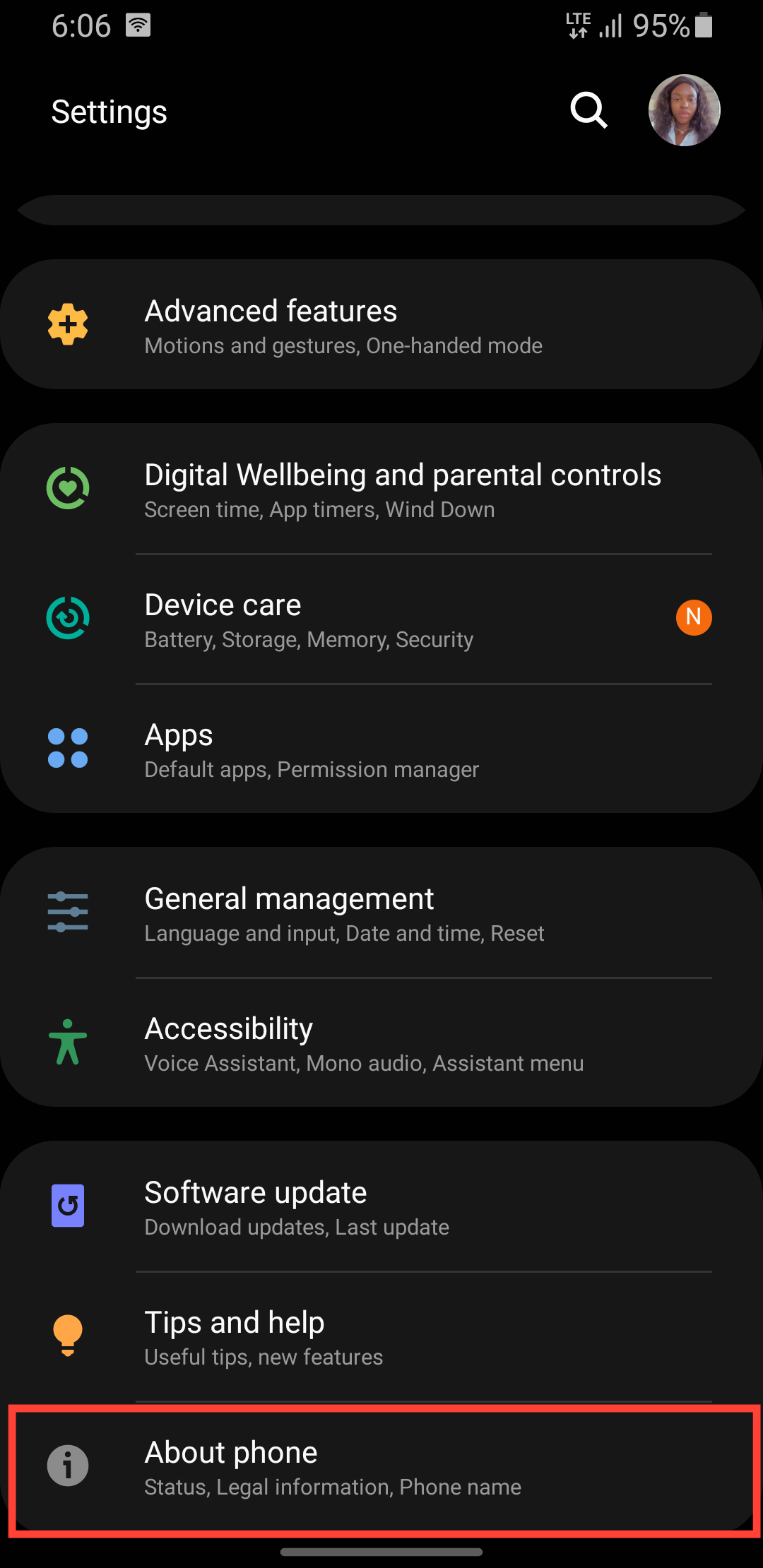
Step 2: Select Software Information.
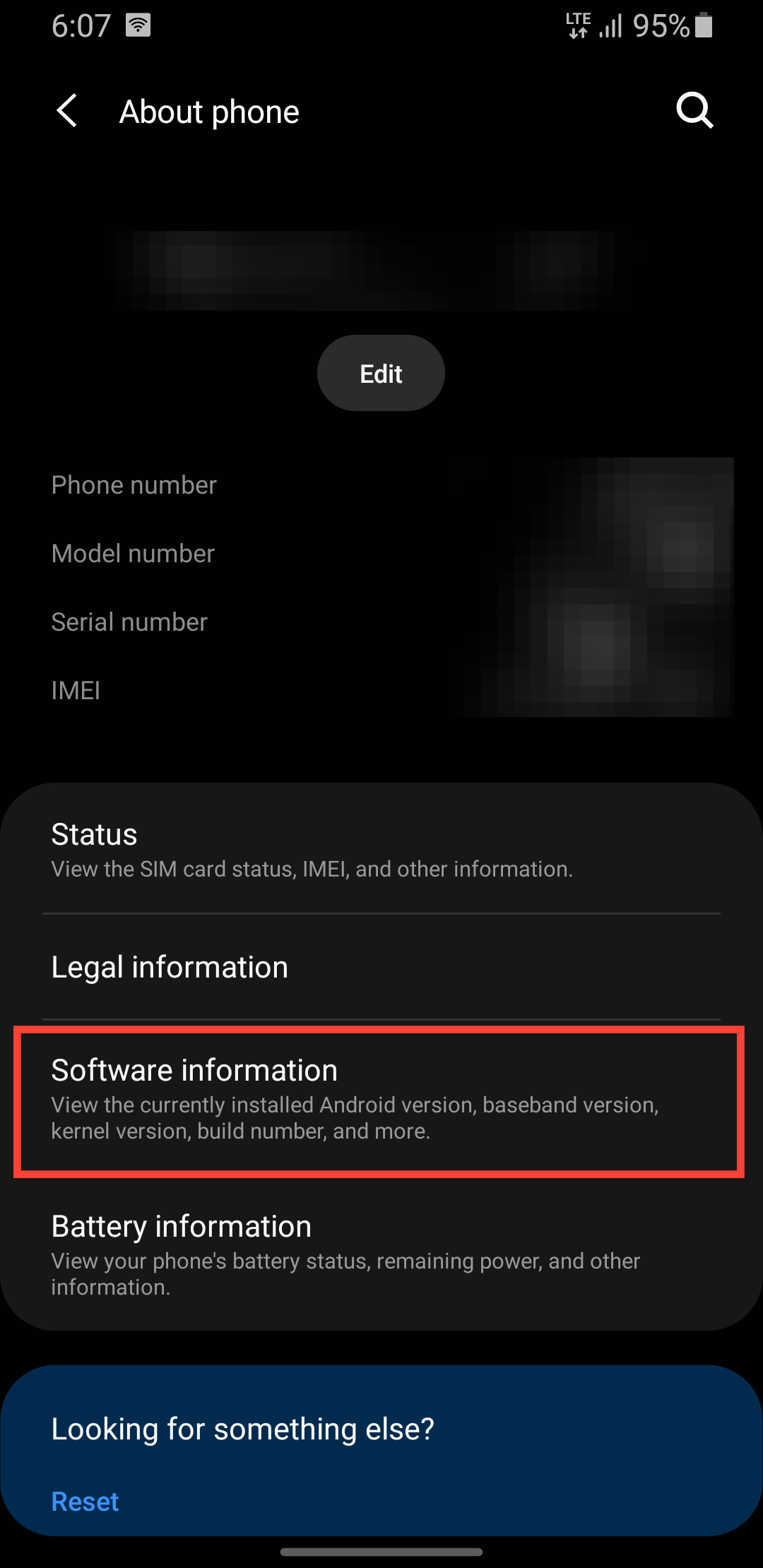
Step 3: Tap the build number continuously (ten times) to enable Developer Mode.
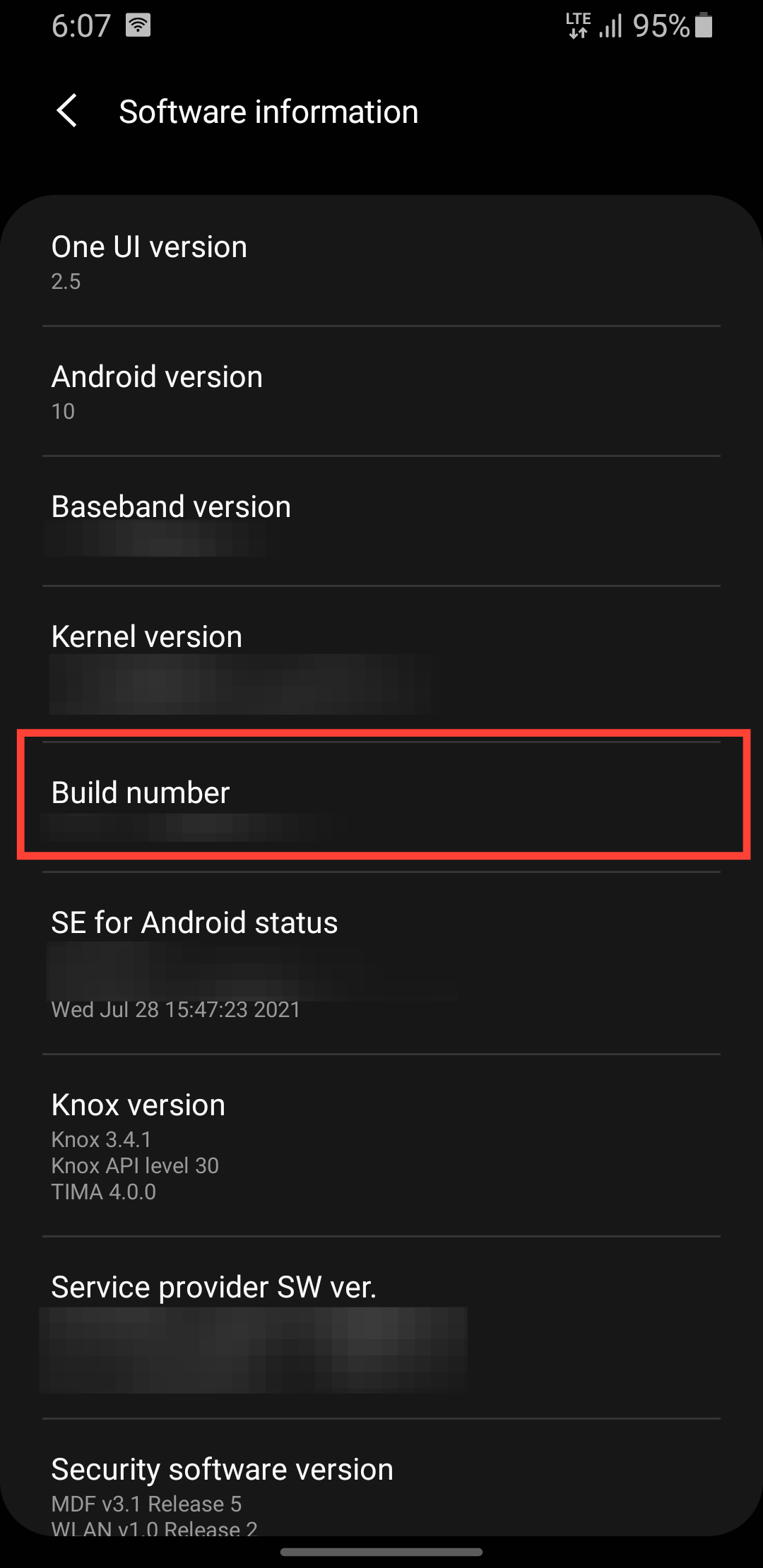
Step 4: Go back to the Settings main menu, scroll down to the bottom, and select Developer Options.
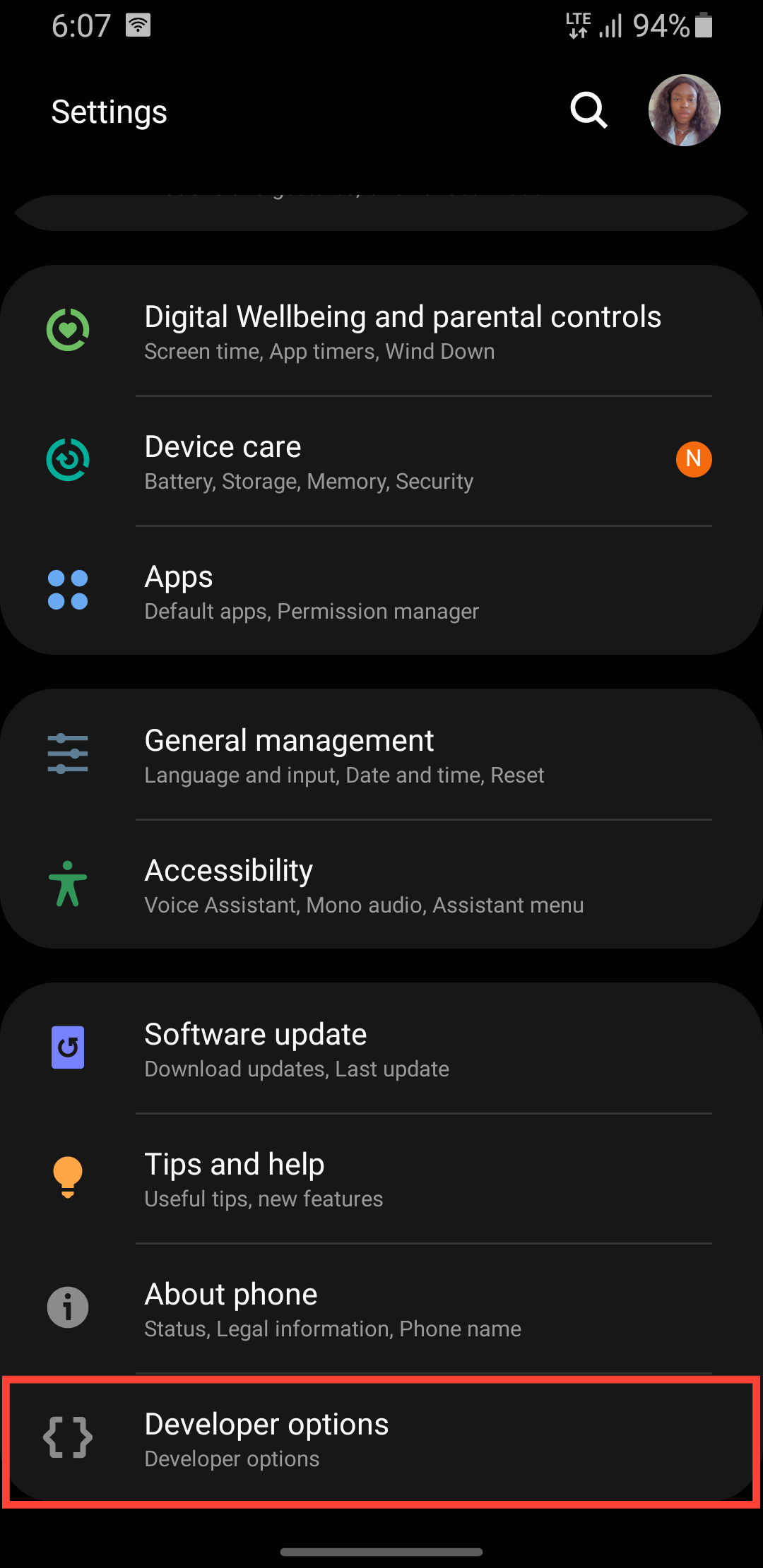
Step 5: Scroll down or use the search option to find the Background process limit.
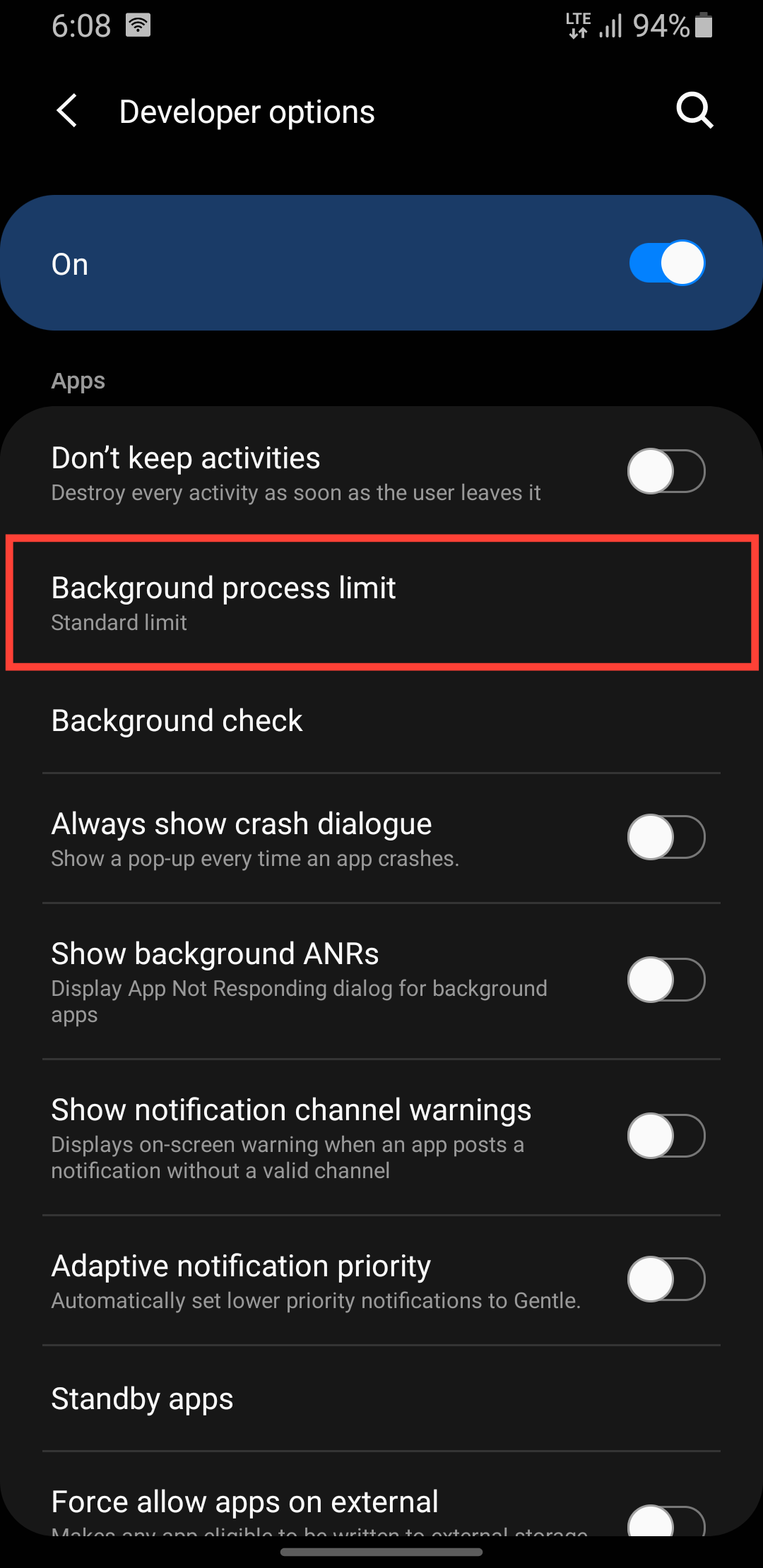
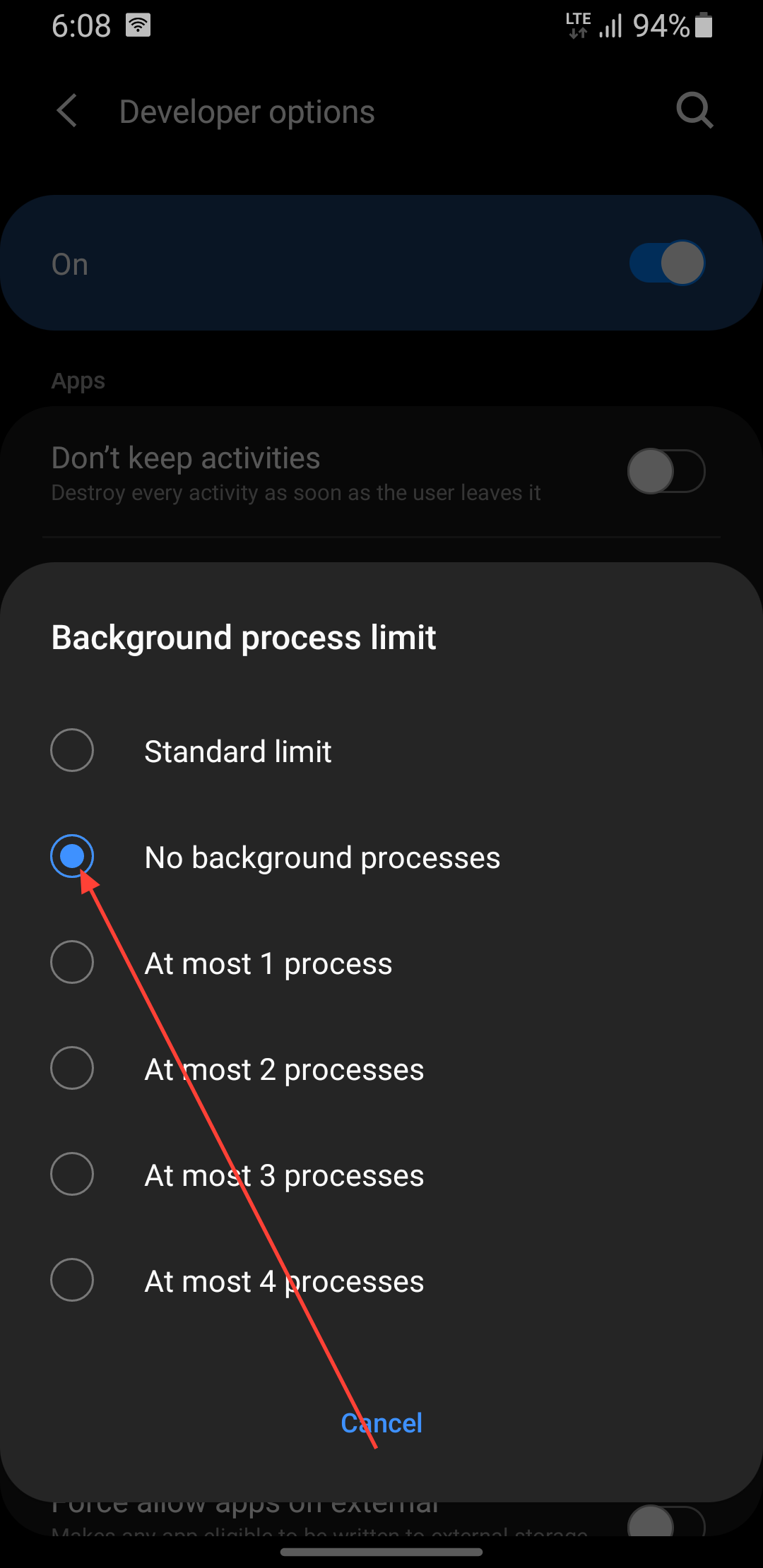
Step 6: Change the settings from Standard Limit to No background processes.
 Oyinebiladou Omemu
Conclusion
Limiting background processes can be a quick fix for a sluggish Android phone, especially if you’re dealing with constant slowdowns and don’t mind a few trade-offs. While your essential apps (like email and messaging) will keep working normally, you might notice that some apps take an extra second to reopen since they’re not staying cached in the background.
Battery life could go either way, slightly better if your phone was struggling with too many background tasks, or slightly worse if you frequently switch between the same apps. Since this is a developer-level setting, there’s also a small chance some apps might behave oddly, though most should work fine. If you ever run into issues, just switch back to "Standard limit," no harm done.
Image Credit: Oyinebiladou Omemu/Techloy.com


