



If you constantly juggle multiple tabs or revisit the same websites every day, Safari’s pin tab feature can be a real time-saver. It’s a small trick that can make a big difference in how you manage your browser.
Pinned tabs stay locked and neatly tucked to the left side of your tab bar, no matter how many other sites you open.
Whether you're managing research, keeping an eye on your email, or just trying not to lose that one important page, pinning ensures your go-to sites are always just a click away, even after closing and reopening your browser.
How to Pin and Unpin Tabs in Safari
For iPhone
Step 1: Open the Safari app on your iPhone


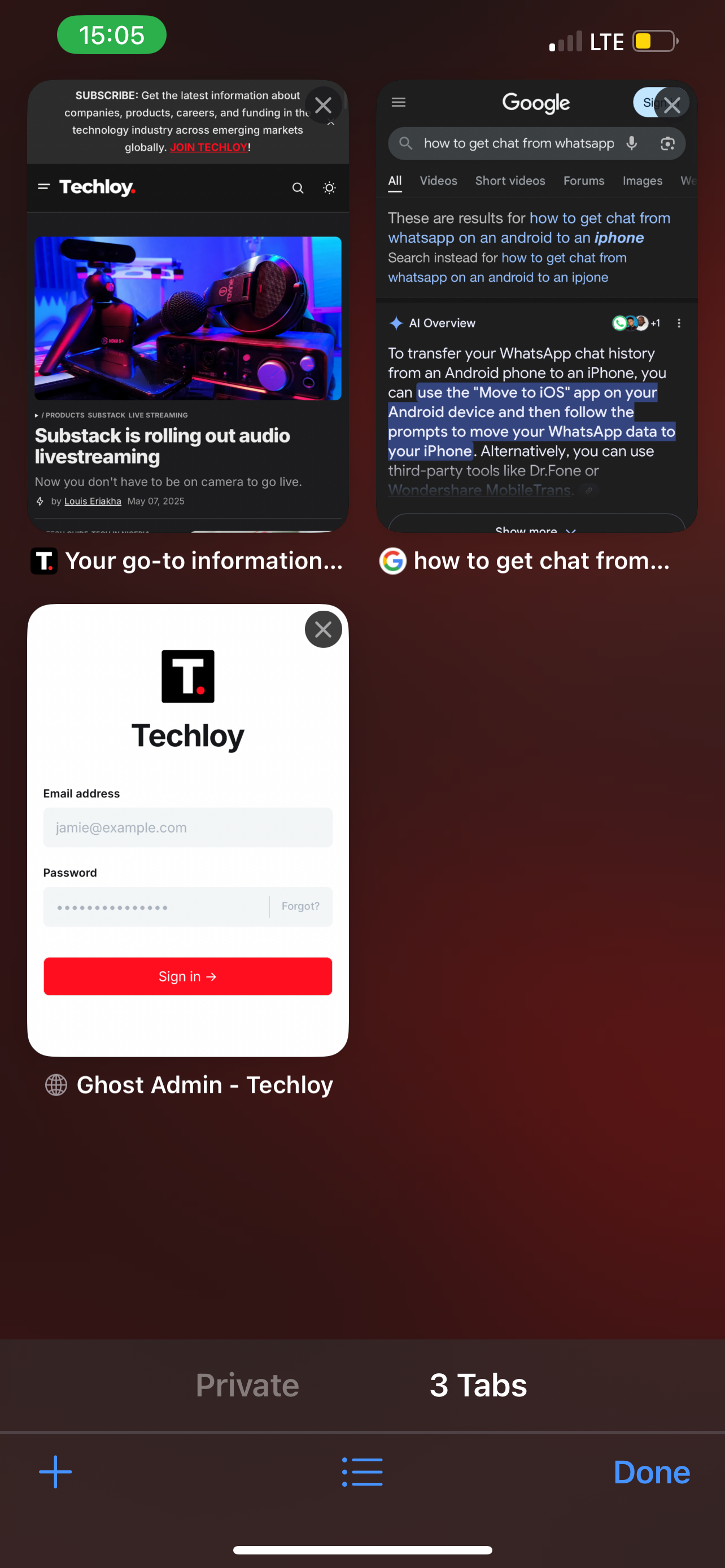
Step 2: Select the Tabs icon at the bottom-right corner to see all your tabs

Step 3: Long press the tab icon you want to pin and select pin
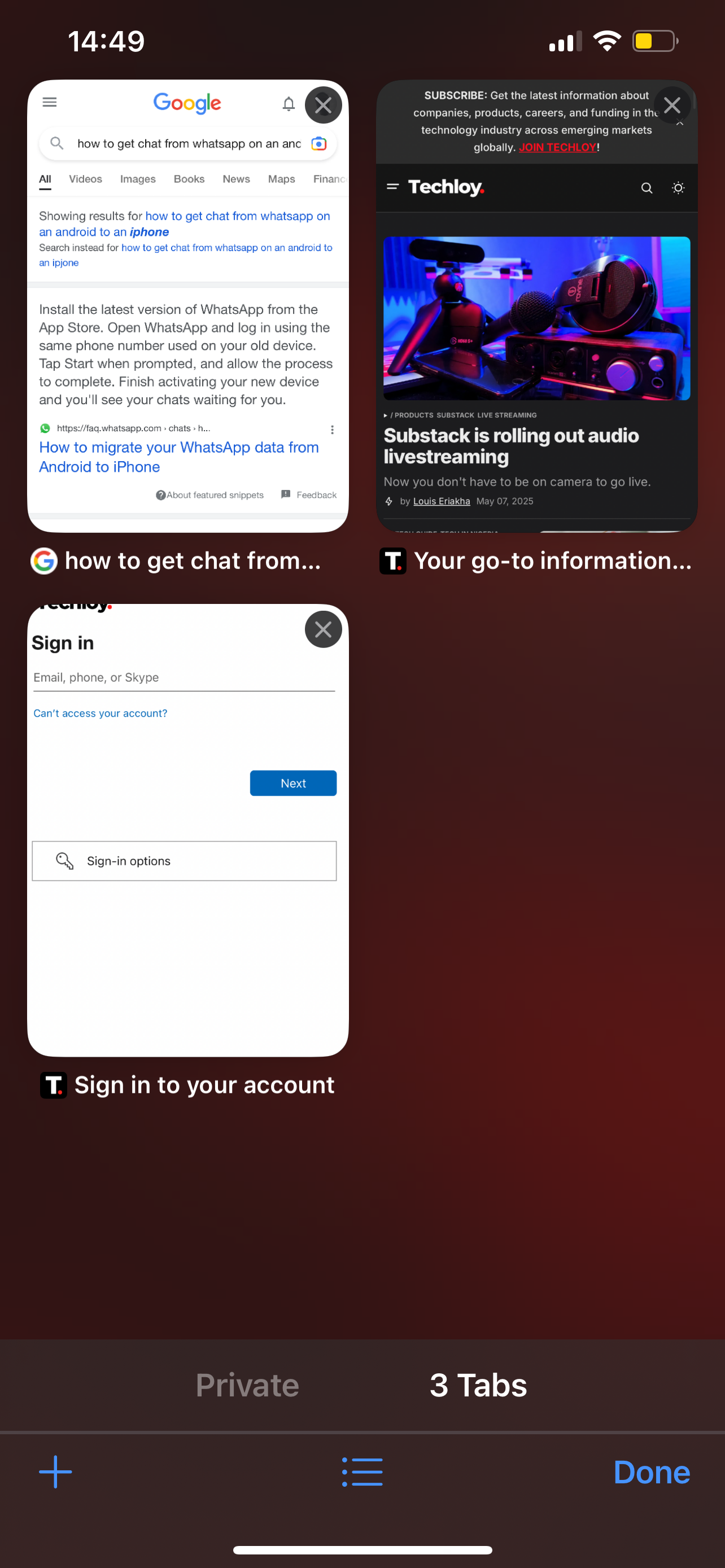
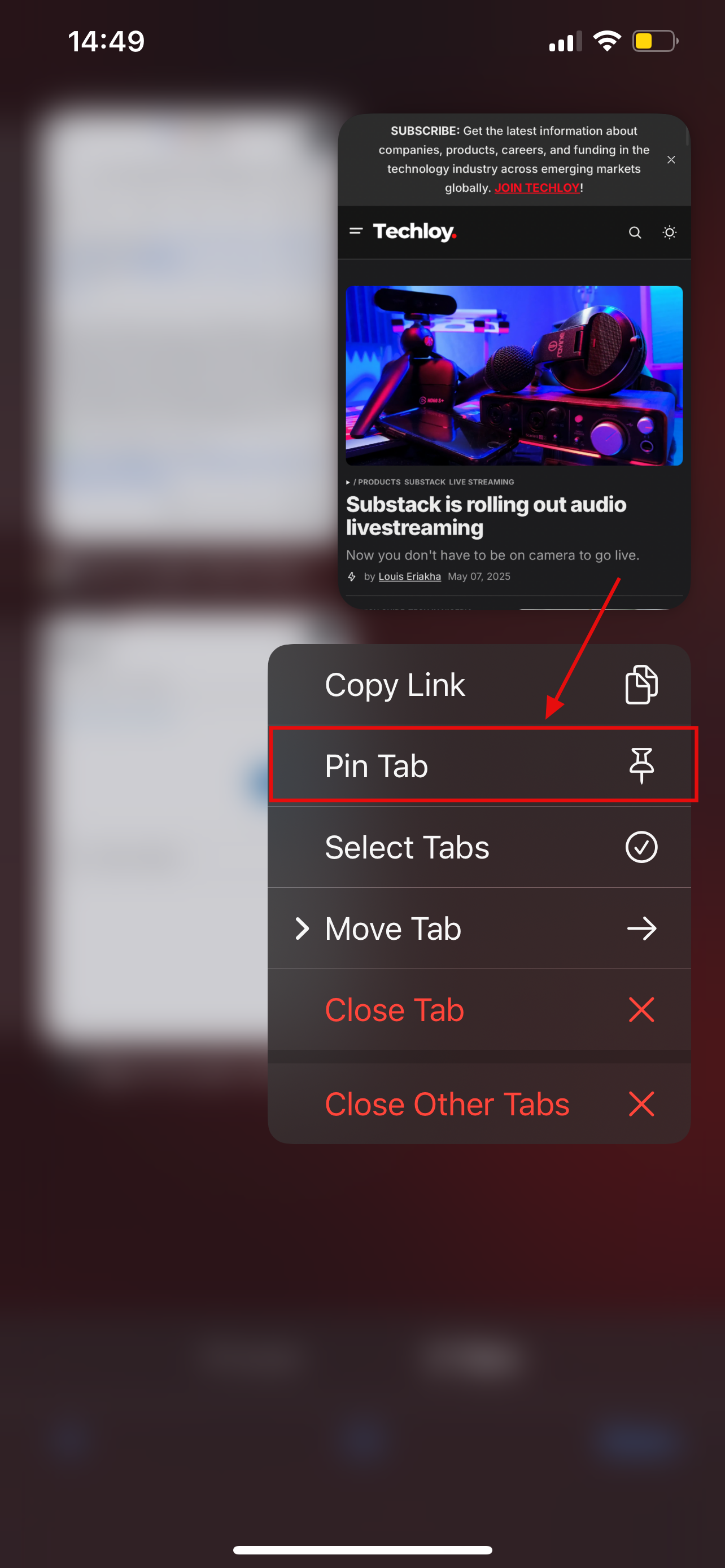
You’ll see the tab move and be pinned to the top
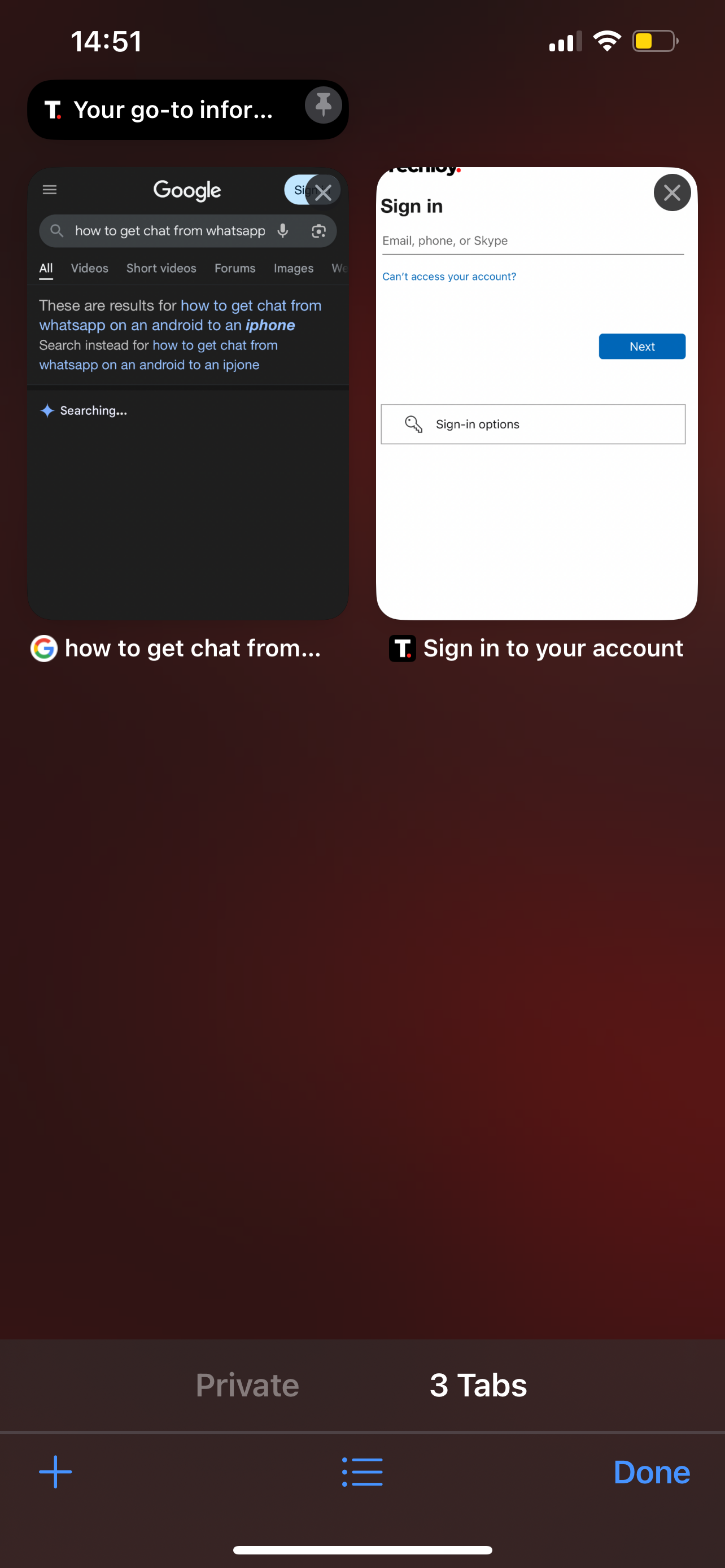
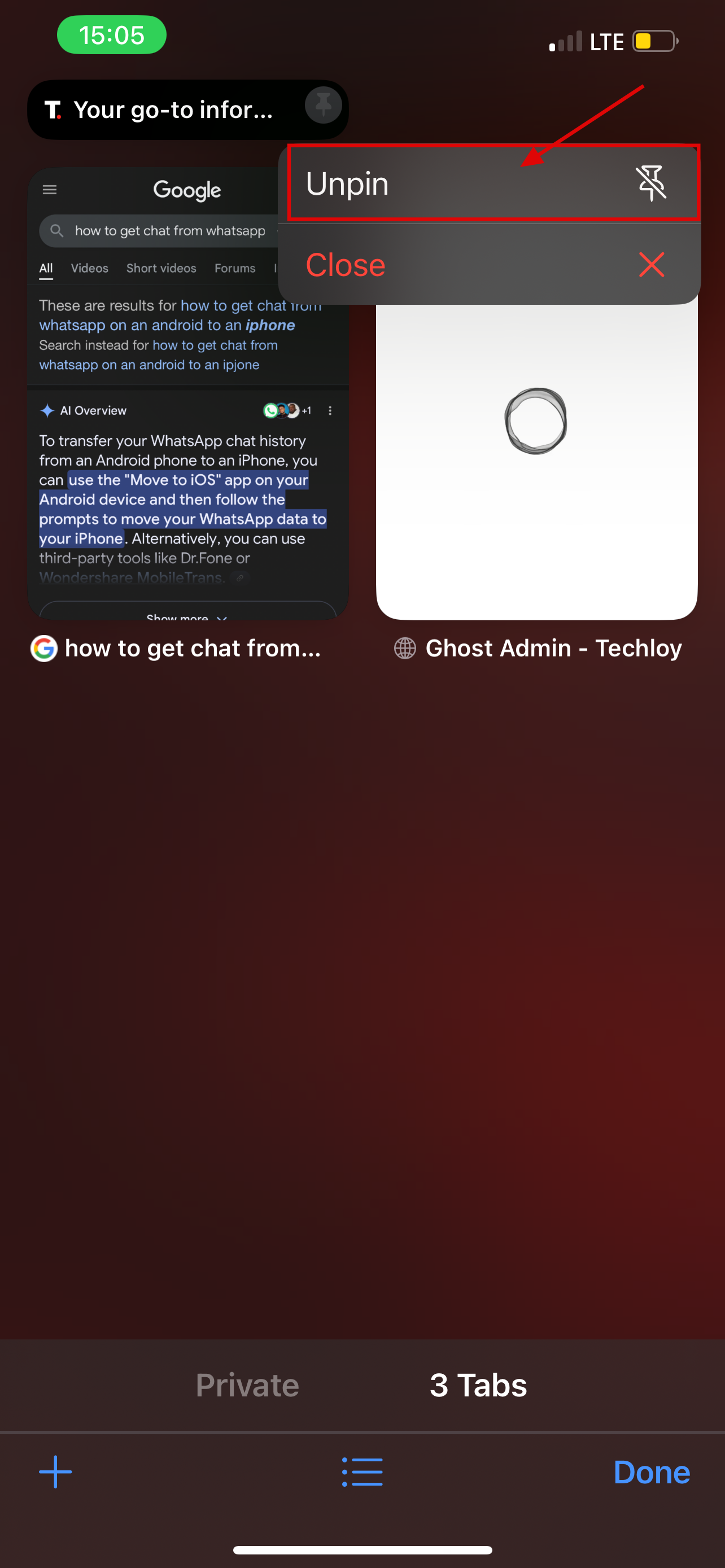
Step 4: To unpin long press the pinned tab
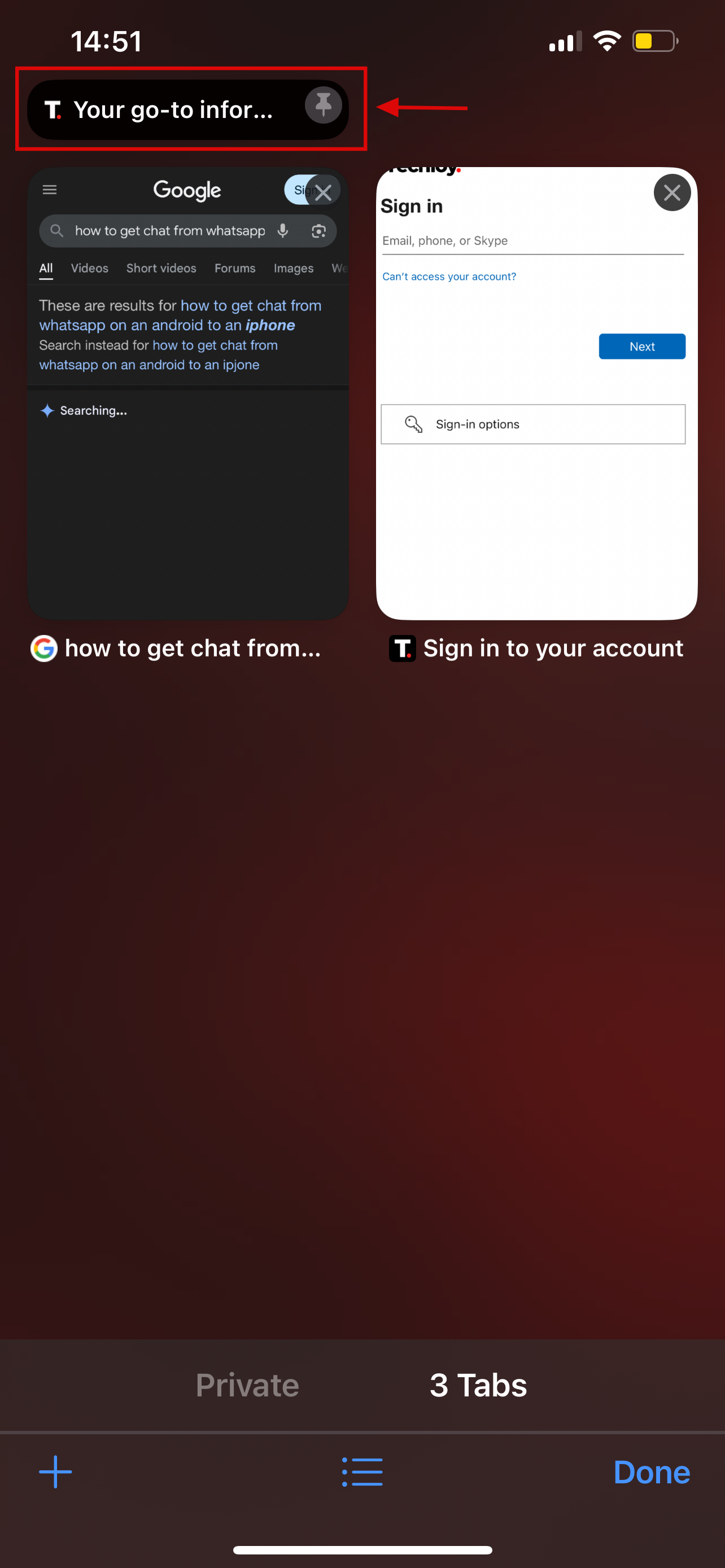
Step 5: Select Unpin
For Mac
Step 1: Right-click on the tab that you want to pin and select Pin Tab

Pinned tabs stay locked to the left side of your tab bar, no matter how many new pages you open.

Step 2: To unpin right-click the pinned tab and select Unpin



Conclusion
Pinning and unpinning tabs in Safari is a simple yet effective way to stay organised, especially if you frequently revisit certain websites.
Whether you're working on a project, monitoring a dashboard, or just want quicker access to your favourite sites, using pinned tabs can help streamline your browsing and save time. Once you get used to it, it’s one of those small features that make a big difference.


