



You’ve probably had to hand your Samsung phone over at some point, maybe to a friend who just needed to make a quick call, or at a repair shop when something stopped working, only to get it back and notice someone had been snooping around. Not exactly a pleasant feeling when you see someone you didn't permit going through your photos, opening your chats, or even messing with your apps.
That’s exactly what Samsung’s Maintenance Mode is meant to stop. It locks down your personal data during repairs. Once you switch it on, the phone creates a separate account (Samsung calls it MUM—Maintenance User Mode). In this space, only the default apps are available, while all your personal files, accounts, and messages stay hidden.
Basically, it works like a guest mode that keeps your data or information secured while your phone gets fixed or lent out. And the best part? Turning it on only takes a few taps. Here’s how to set it up.
 David Adubiina
4 Steps to Protect Your Data Using Samsung Maintenance Mode
Step 1. Go to Settings on your Samsung phone.
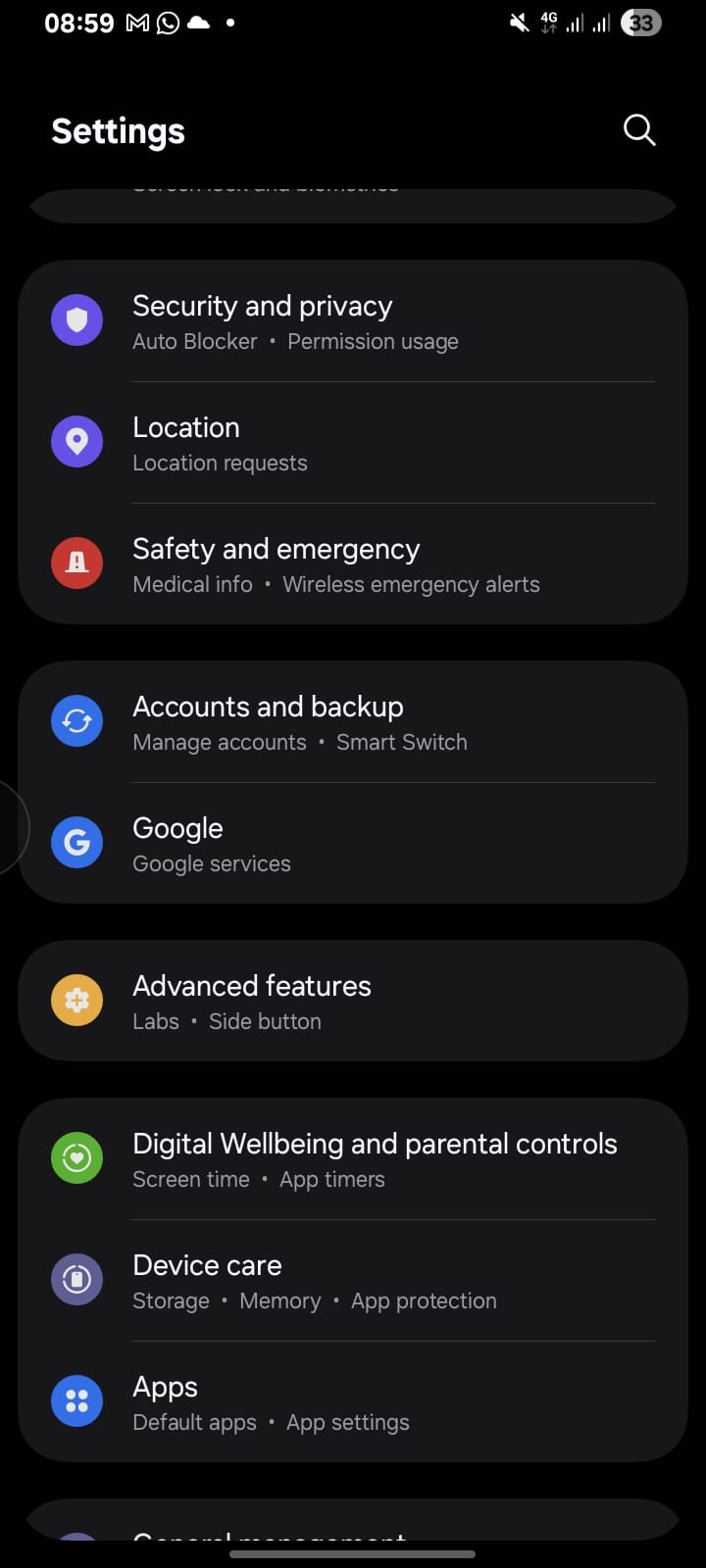
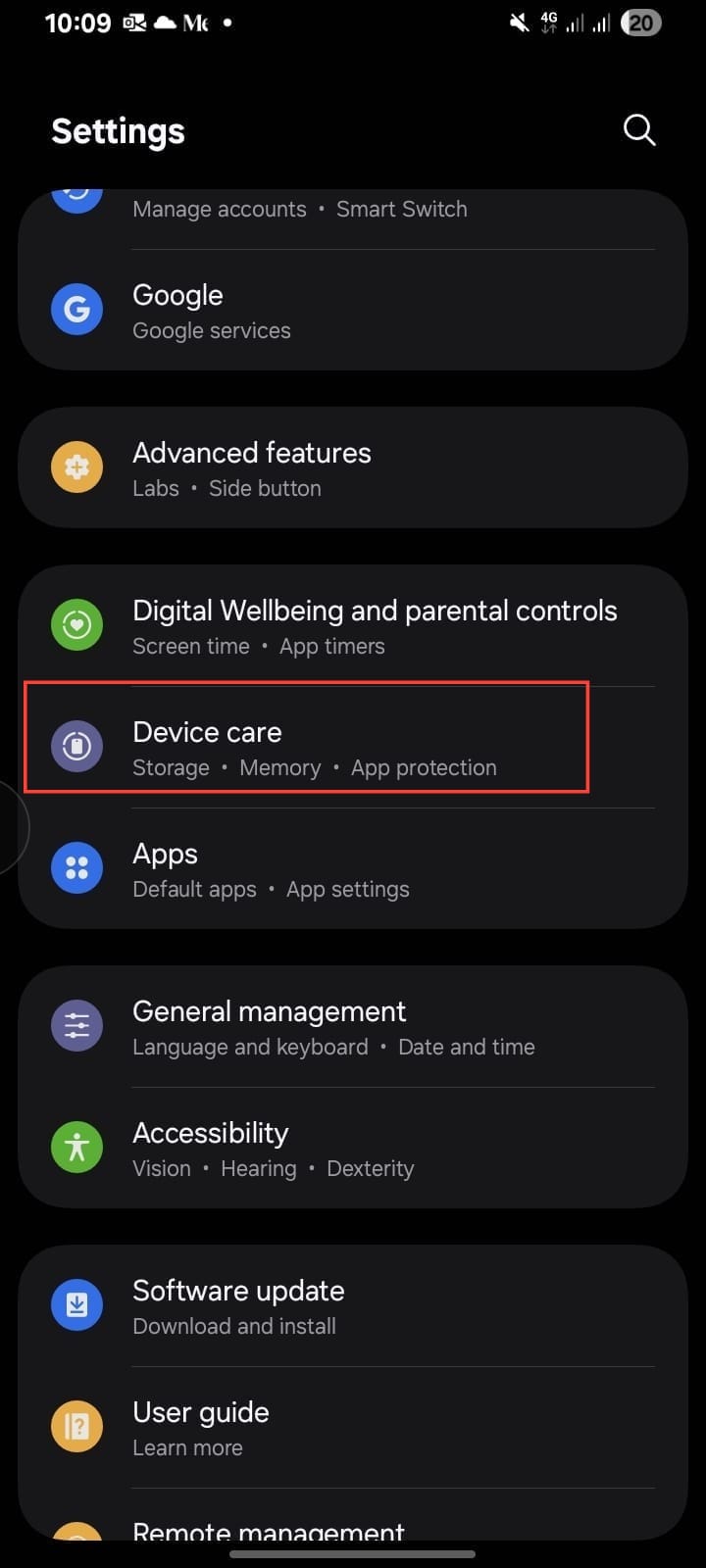
Step 2. Scroll down and tap Device Care.
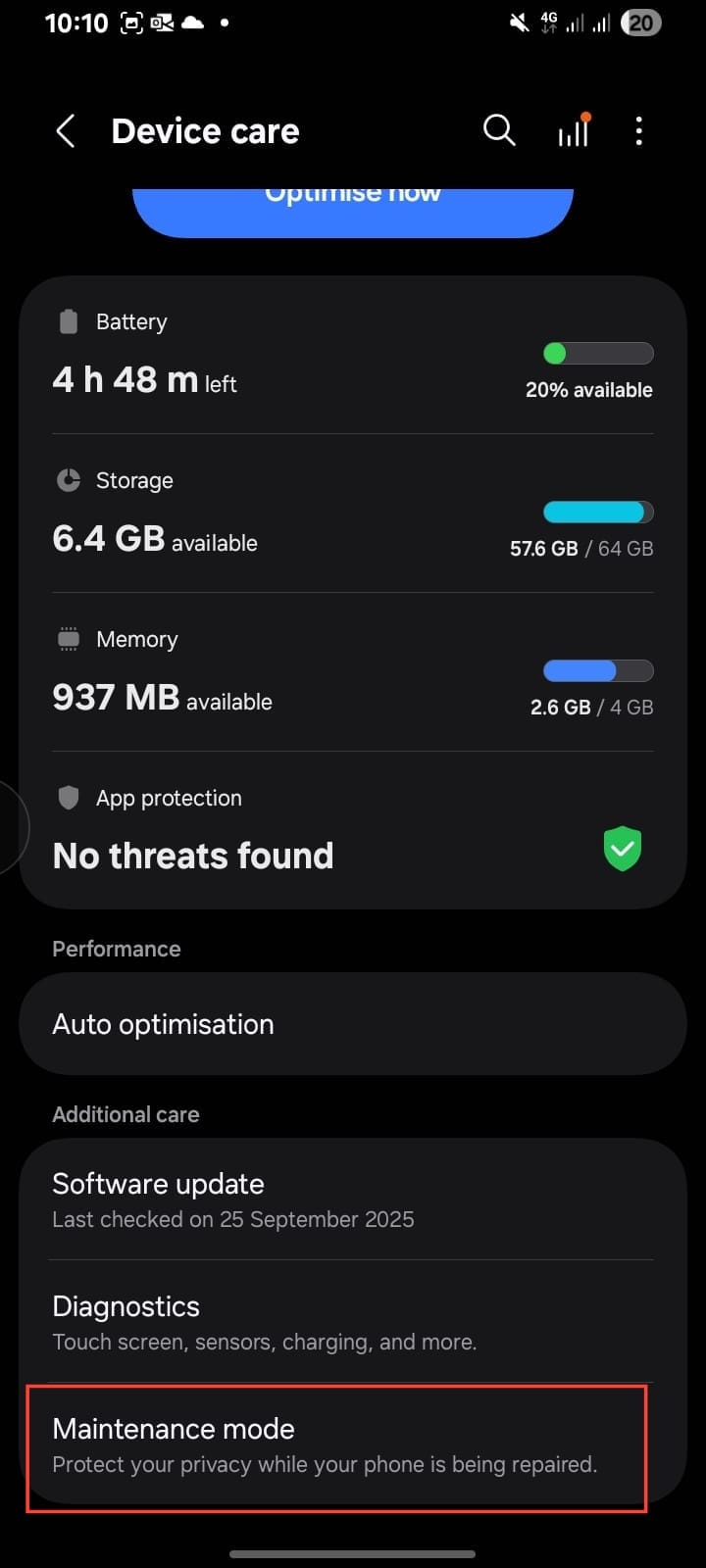
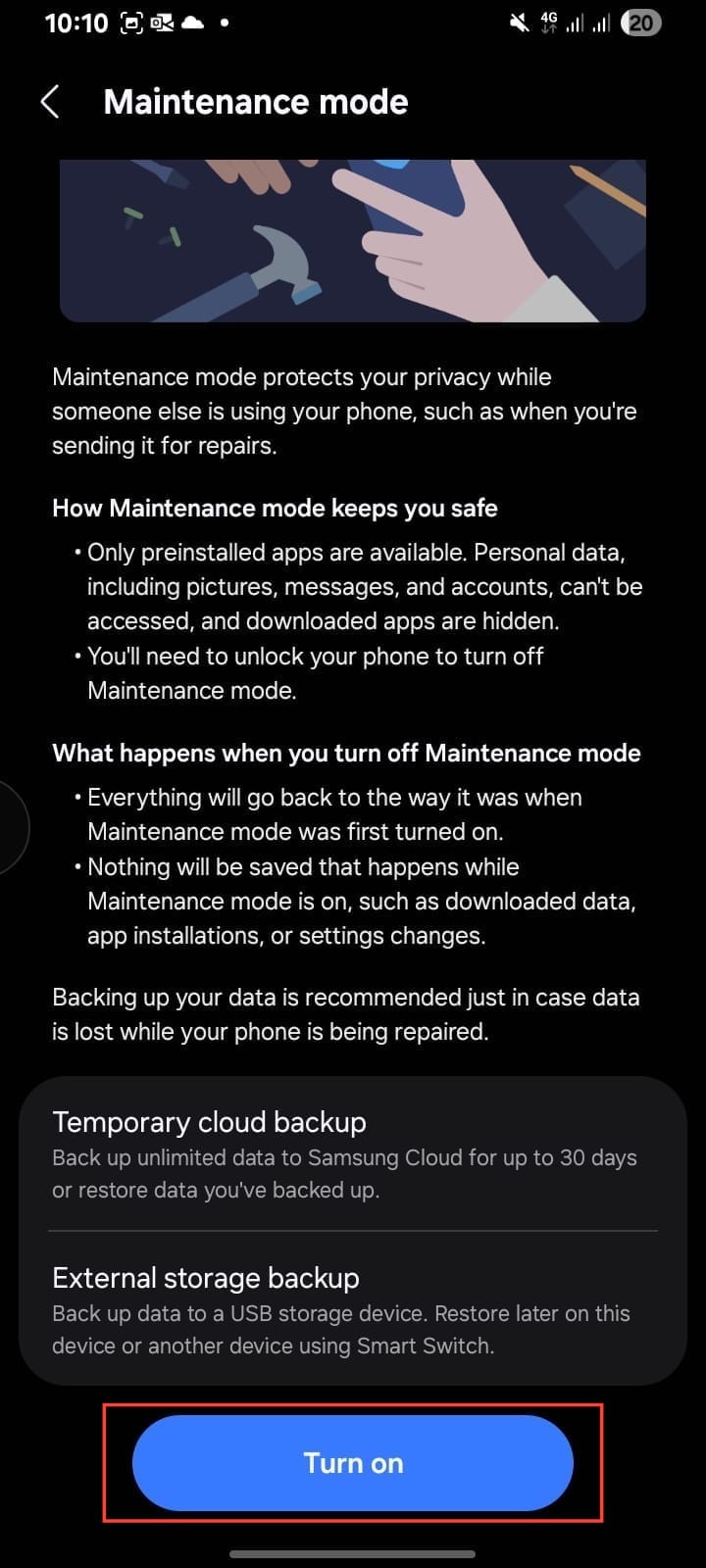
Step 3. Select "Maintenance Mode" and hit Turn On.
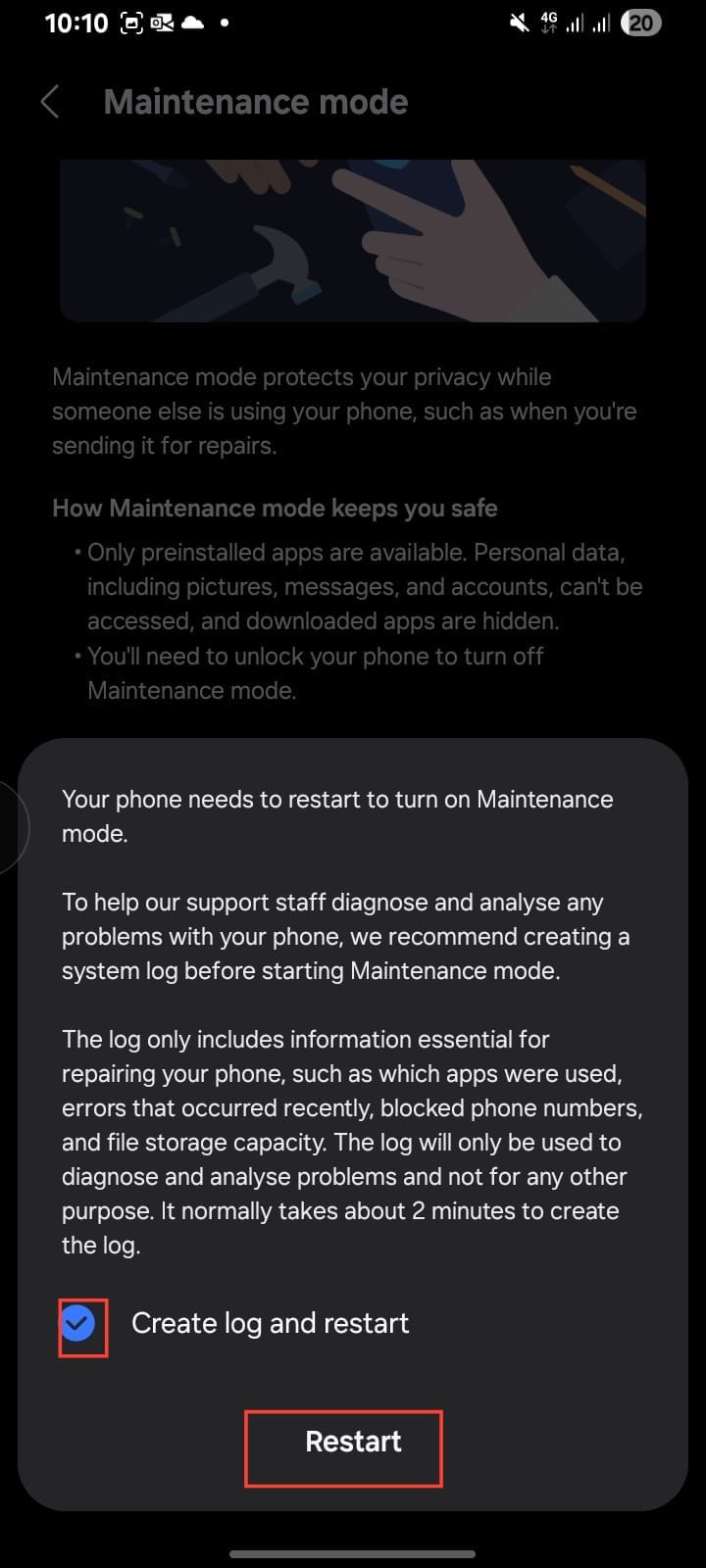
Step 4. Your phone will ask to restart (you can choose to create a log if you want), tap Restart, and enter your password to confirm.
4 Steps to Turn of Samsung's Maintenance Mode
Now, when you’re ready to get back to your stuff, turning it off is just as easy.
Step 1. Swipe down your quick panel
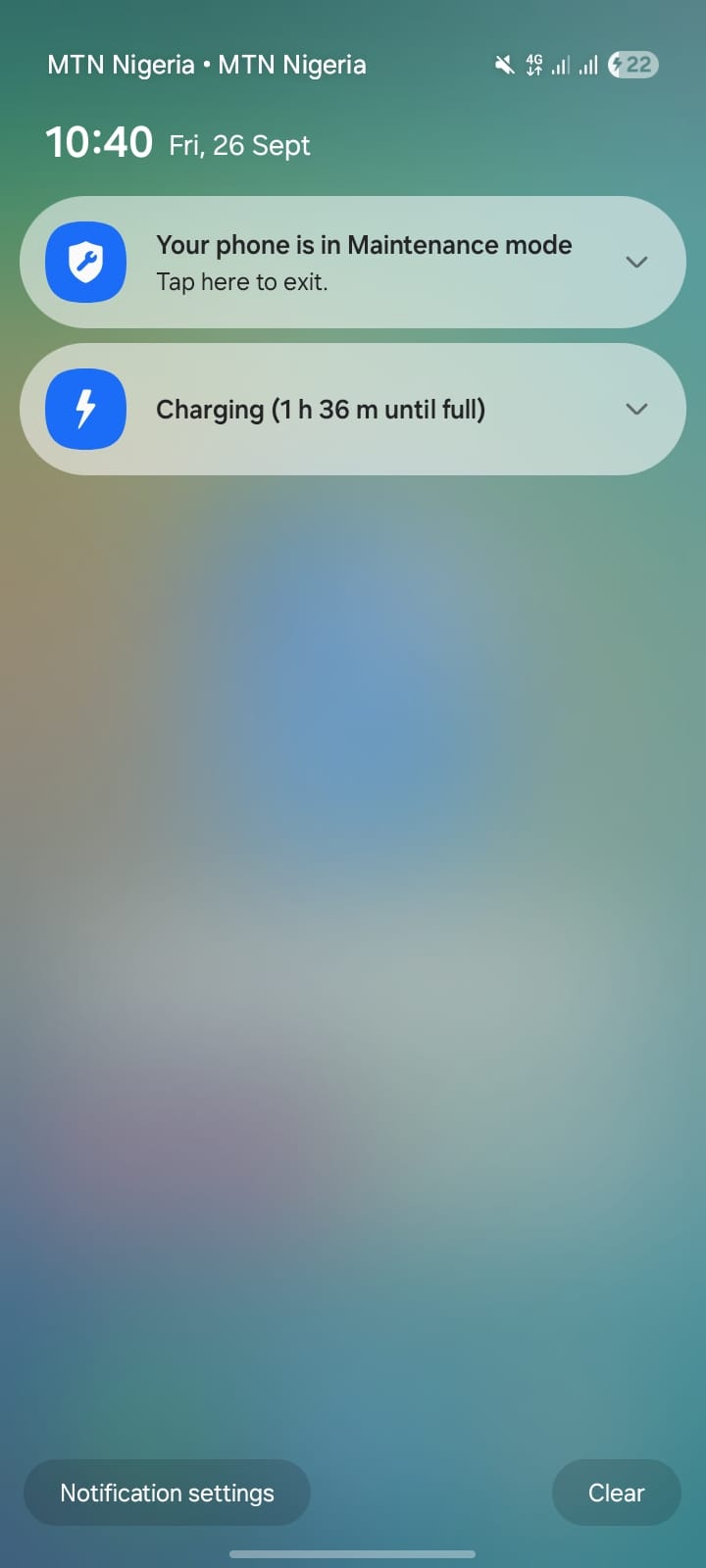
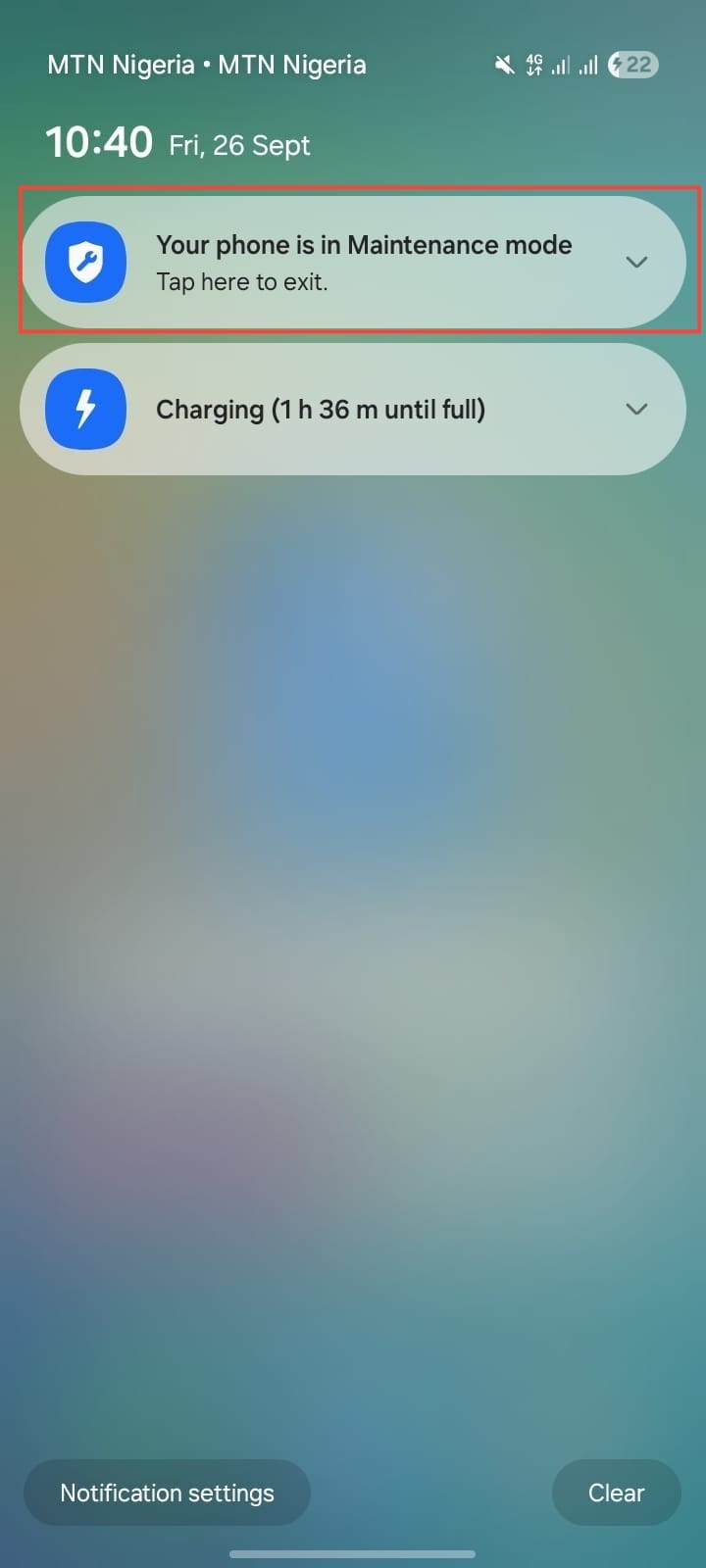
Step 2. Tap the banner that says, "Your phone is in Maintenance mode."
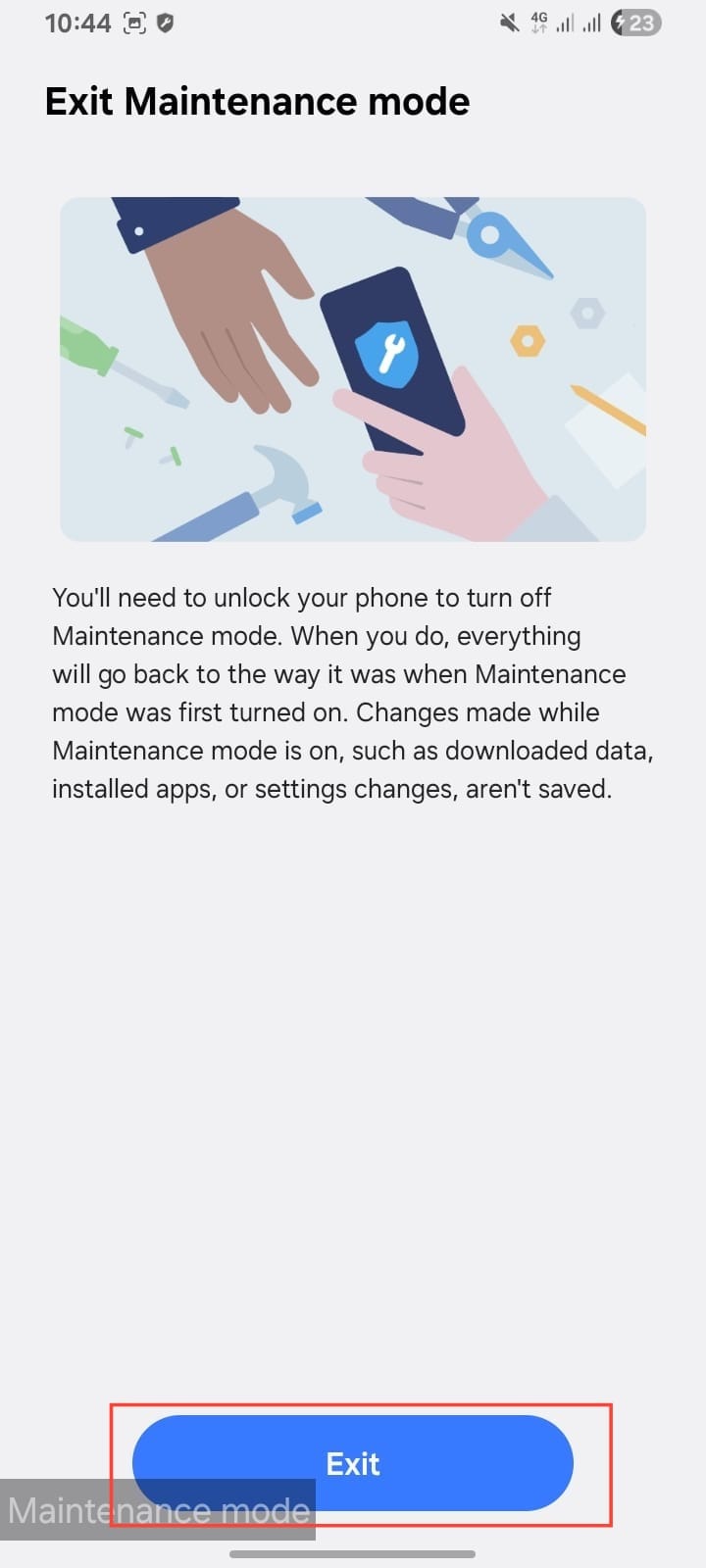
Step 3. Tap "Exit" Maintenance Mode.
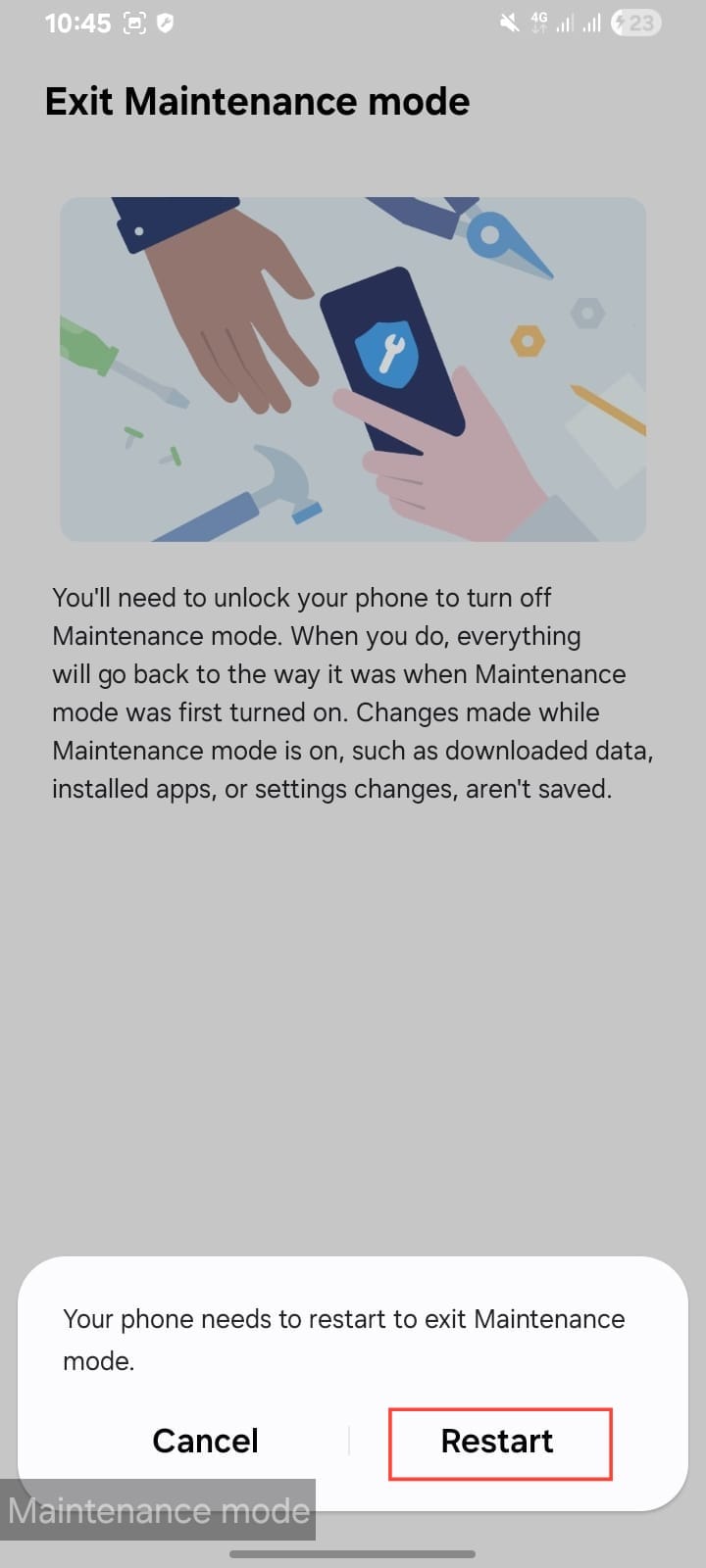
Step 4. Click on "Restart" and enter your password to confirm your identity.
 Oyinebiladou Omemu
Conclusion
Before enabling Maintenance Mode, it’s advisable to back up your data first. Samsung actually gives you the option to create a temporary cloud backup before you switch it on, or you can move your files to external storage like a memory card or hard drive.
This extra step matters because in some cases, like repairs that need a factory reset, you don’t want to risk losing your stuff — even if you’re letting a friend or family member use your phone for a quick call, or you just don’t want curious hands scrolling through your photos and chats.
Maintenance Mode keeps your private world locked away in both cases, so you can lend out your device without worrying about anyone poking around where they shouldn’t.
Image credit: David Adubiina/Techloy.com


