



We've all been there: it's late at night, the lights are off, and you just want to scroll through your phone or read an article in peace. You slide your brightness bar all the way down to the minimum, but it still feels too bright. What many iPhone users don't realize is that Apple has built a brilliant, hidden feature specifically for this problem, the Reduce White Point feature.
The Reduce White Point is like a hidden dimmer switch for your display. Unlike the regular brightness control that only lowers the backlight, this setting softens the brightest pixels on your screen, toning down harsh whites and intense colors, giving you a gentler, muted display that can go darker than the standard minimum.
This guide will show you how to access the Reduce White Point feature and reduce your phone's brightness.
 Emmanuel Umahi
How to Make Your iPhone Screen Even Darker
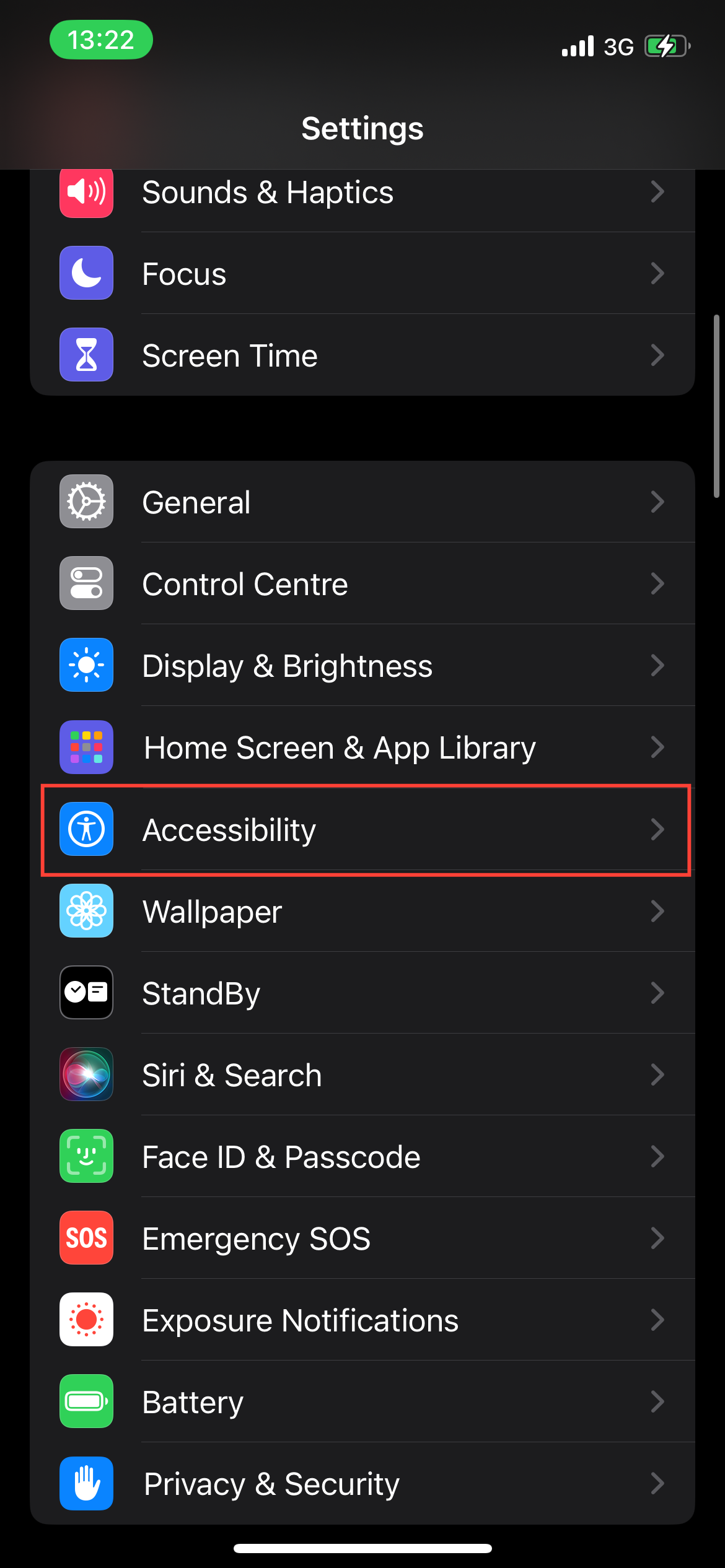
Step 1: Open the Settings app on your phone.
Step 2: Select Accessibility.
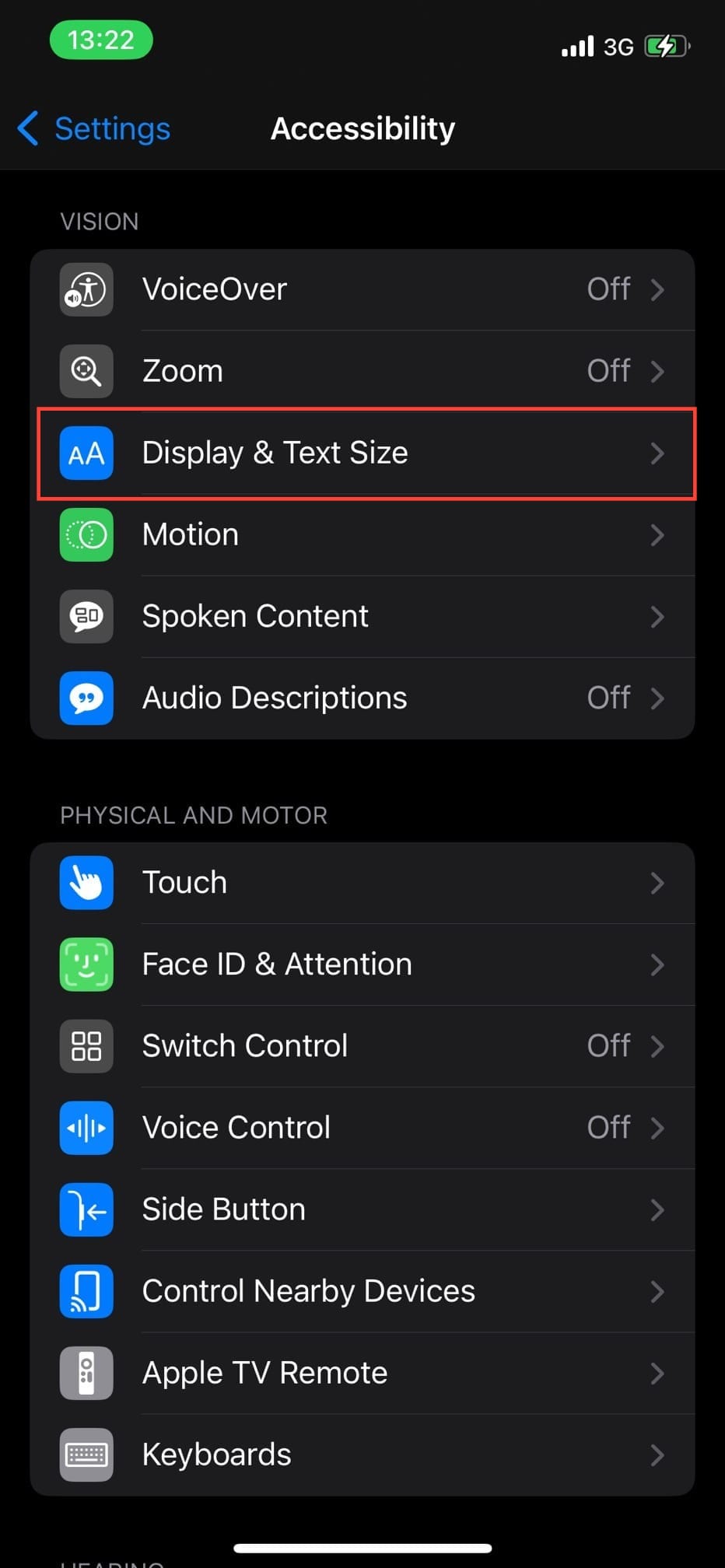
Step 3: Select Display & Text Size.
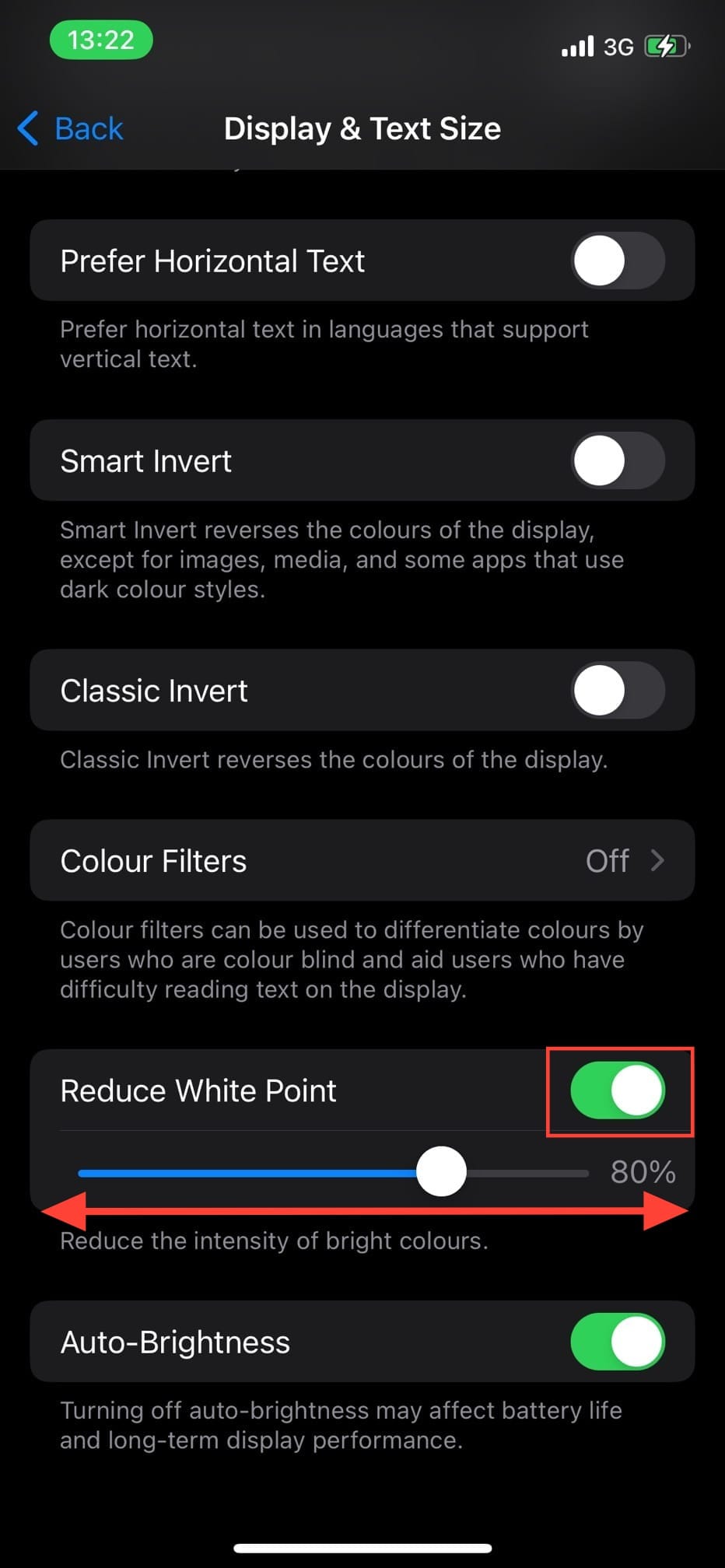
Step 4: Toggle on Reduce White Point. Then use the slider to adjust its intensity.
 Oluwaseun Bamisile
Conclusion
Using the Reduce White Point feature transforms your iPhone from a source of eye strain into a much more comfortable device for low-light environments. It’s one of those hidden accessibility options that has universal benefits, offering a simple yet powerful way to customize your experience to your surroundings.
Whether you're a night owl reading in bed, trying to conserve the last bits of your battery, or have light-sensitive eyes, this tool gives you control over your screen's intensity.
Image Credit: Oyinebiladou Omemu/Techloy.com


