



The search bar in your Samsung's app drawer is meant to be a shortcut, not another thing to scroll through. You tap it to find an app in a flash, but instead of a clean list, you might be greeted by a jumble of suggestions from Samsung Music, Netflix, or other apps you never intended to search.
It’s like asking a librarian for one specific book and having them enthusiastically recommend every single title in the building. Helpful in theory, but overwhelming and distracting in practice.
What if you could teach the finder exactly what you're interested in? Fortunately, the Samsung Galaxy gives you complete control to fine-tune this experience. You don't have to endure a cluttered search results page. By taking a minute to adjust a few simple settings, you can create a clean, hyper-focused search that only looks where you want it to, helping you find your target app instantly.
 Oyinebiladou Omemu
How to remove apps from Finder search on Samsung
Step 1: Go to your App menu and tap the three-dot icon on the Finder search bar at the top.
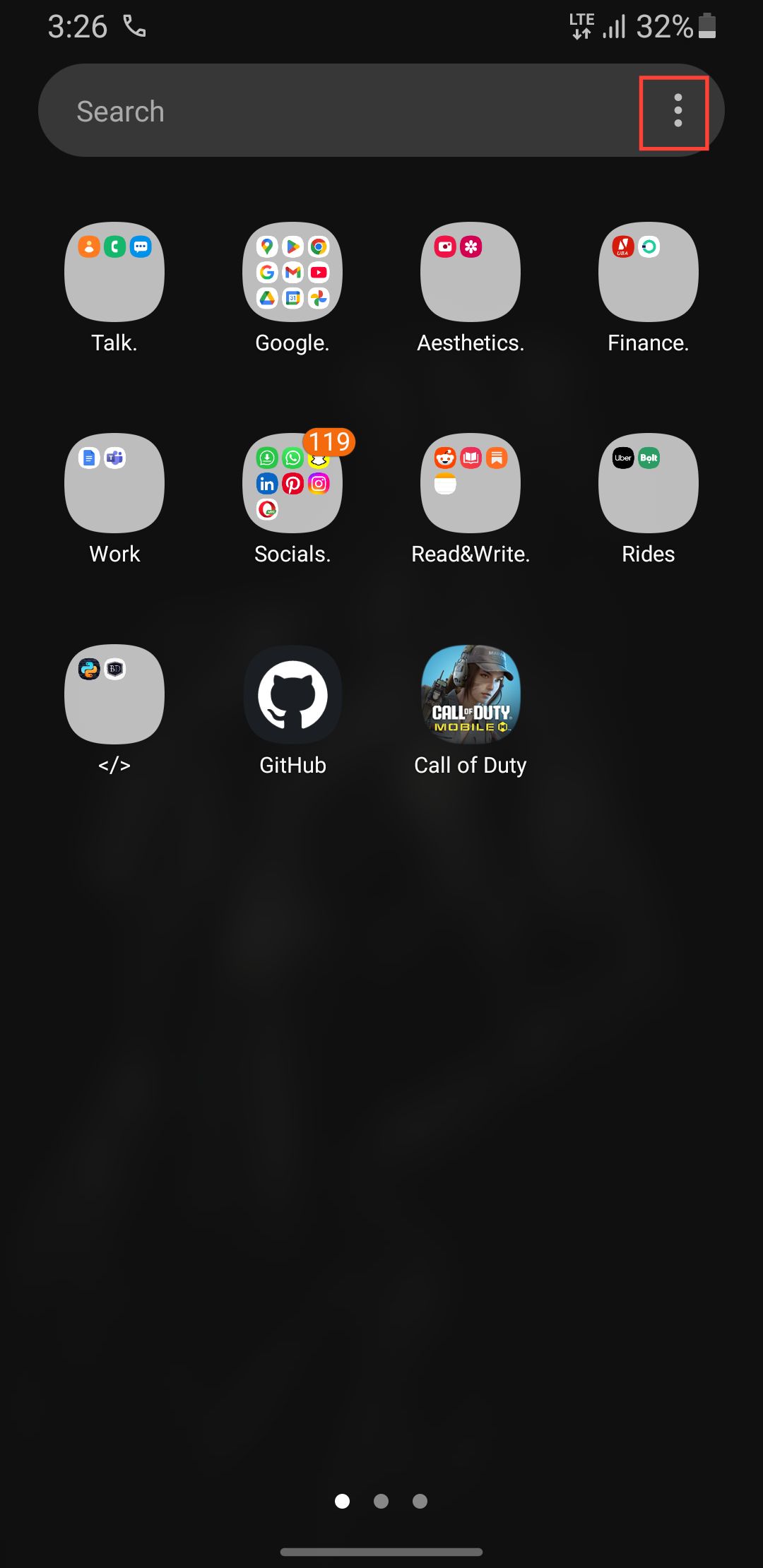
Step 2: Select Finder settings.
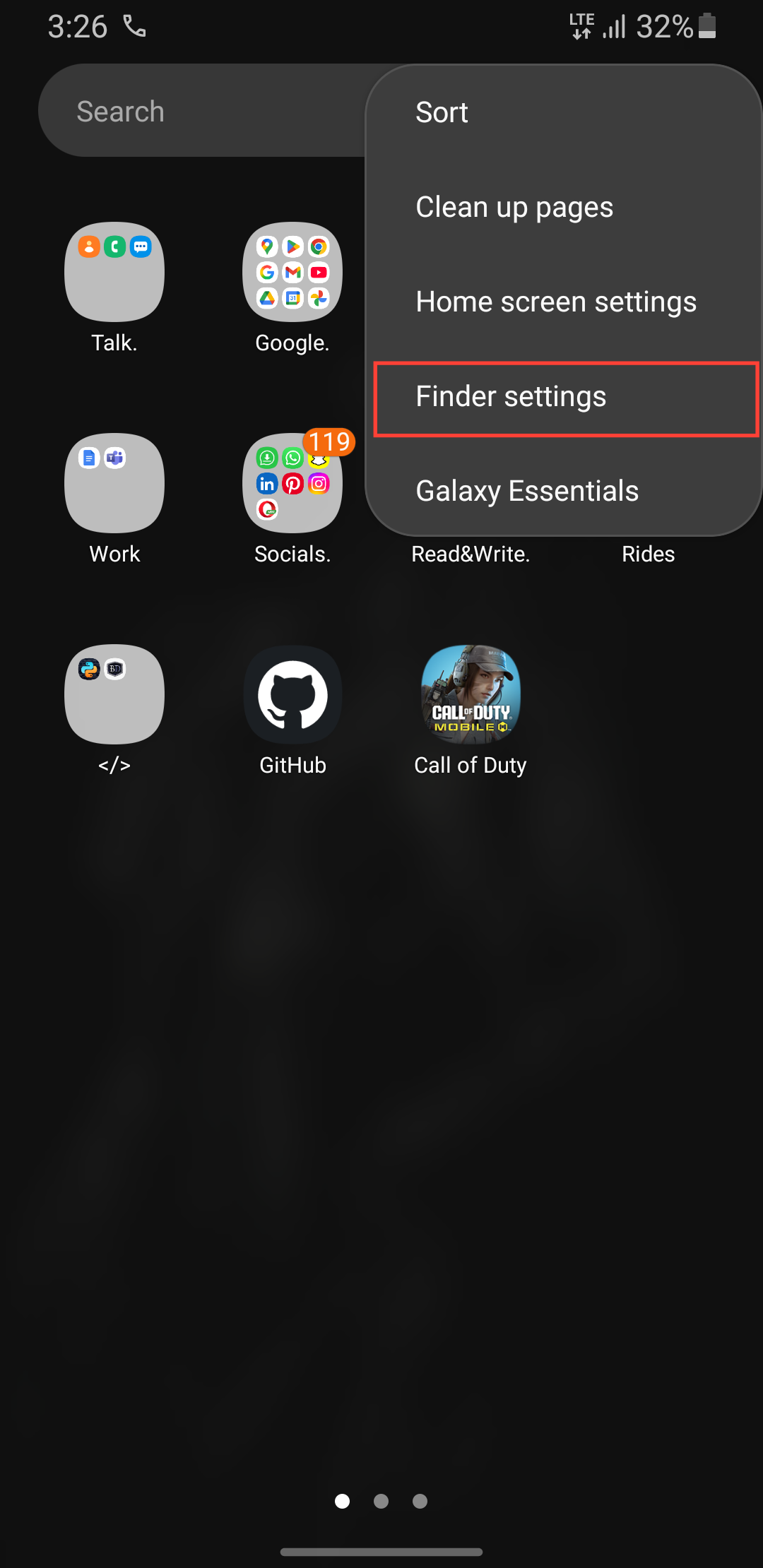
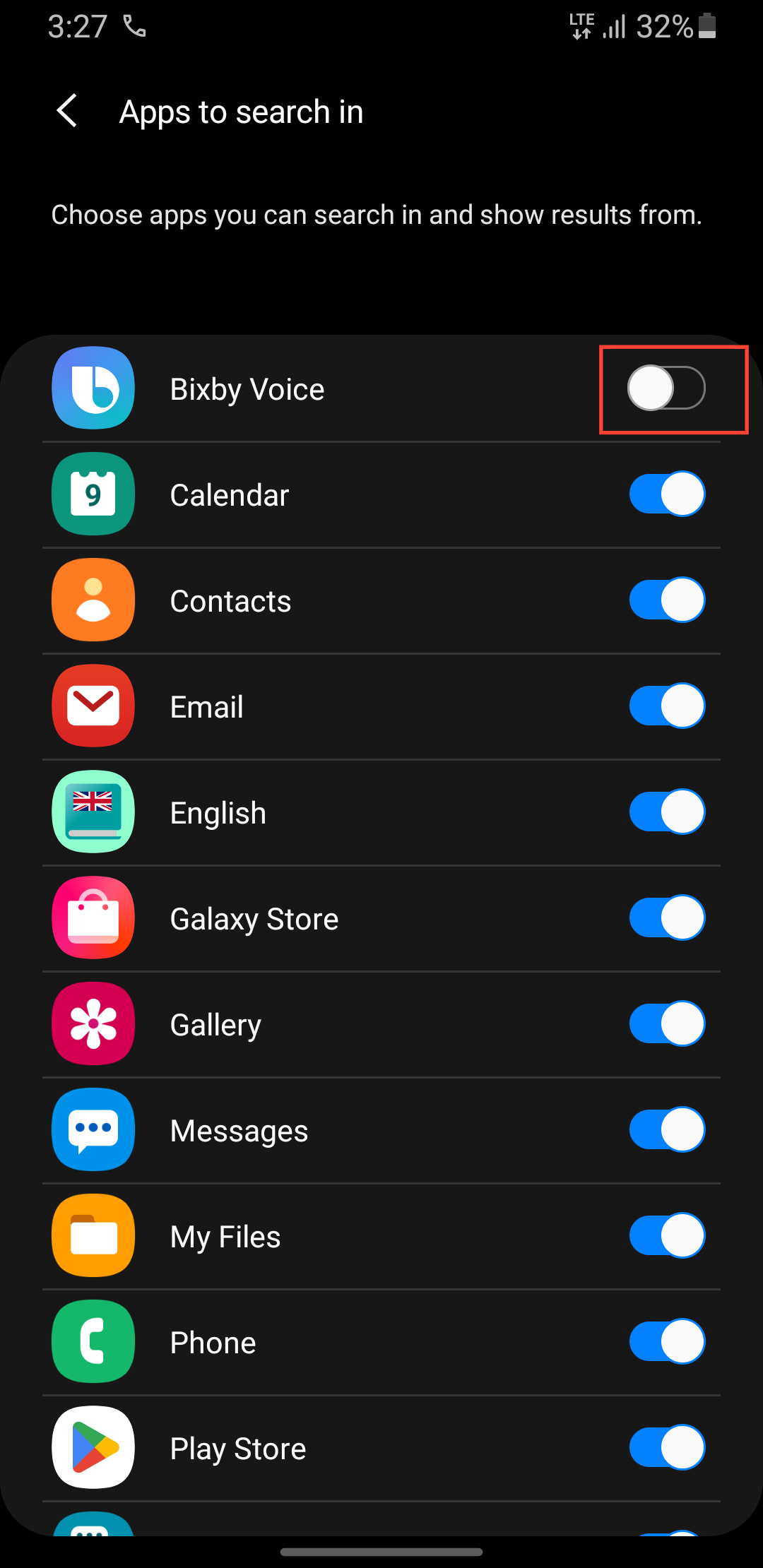
Step 3: Select Choose apps to search in.

Step 4: You’ll see a list of all your apps; toggle off any app you don’t want showing up in search results.
 Oyinebiladou Omemu
Conclusion
By carefully choosing which apps can even appear in those results, you've ensured that every time you type, you're only getting relevant, useful suggestions. No more wading through results from apps you never use, just a clean, fast path to the app you need.
You can take this newfound control even further by exploring the Finder settings to remove other elements like web search results or shortcuts, crafting a truly minimalist and distraction-free experience.
Image Credit: Oyinebiladou Omemu/Techloy.com


