



Google Drive is an incredible tool for collaboration. You can store, organize, and share files with colleagues and clients easily. It’s also built with solid security features to keep your organization's data safe. But notwithstanding the security, every time you grant access to one of those third-party apps, you're giving a copy of your digital key to your Drive.
This access can become a serious vulnerability. An old project management tool, a forgotten photo editor, that random PDF converter you used once, any of them could be a potential backdoor to your sensitive information. Fortunately, you can manage your access control by just revoking it.
This guide will show you exactly how to safeguard your data by identifying and disconnecting those unnecessary apps from your Google Drive.
 Ogbonda Chivumnovu
How to Disconnect Apps from Google Drive
Step 1: Open Google Drive on the web and log in to your account.
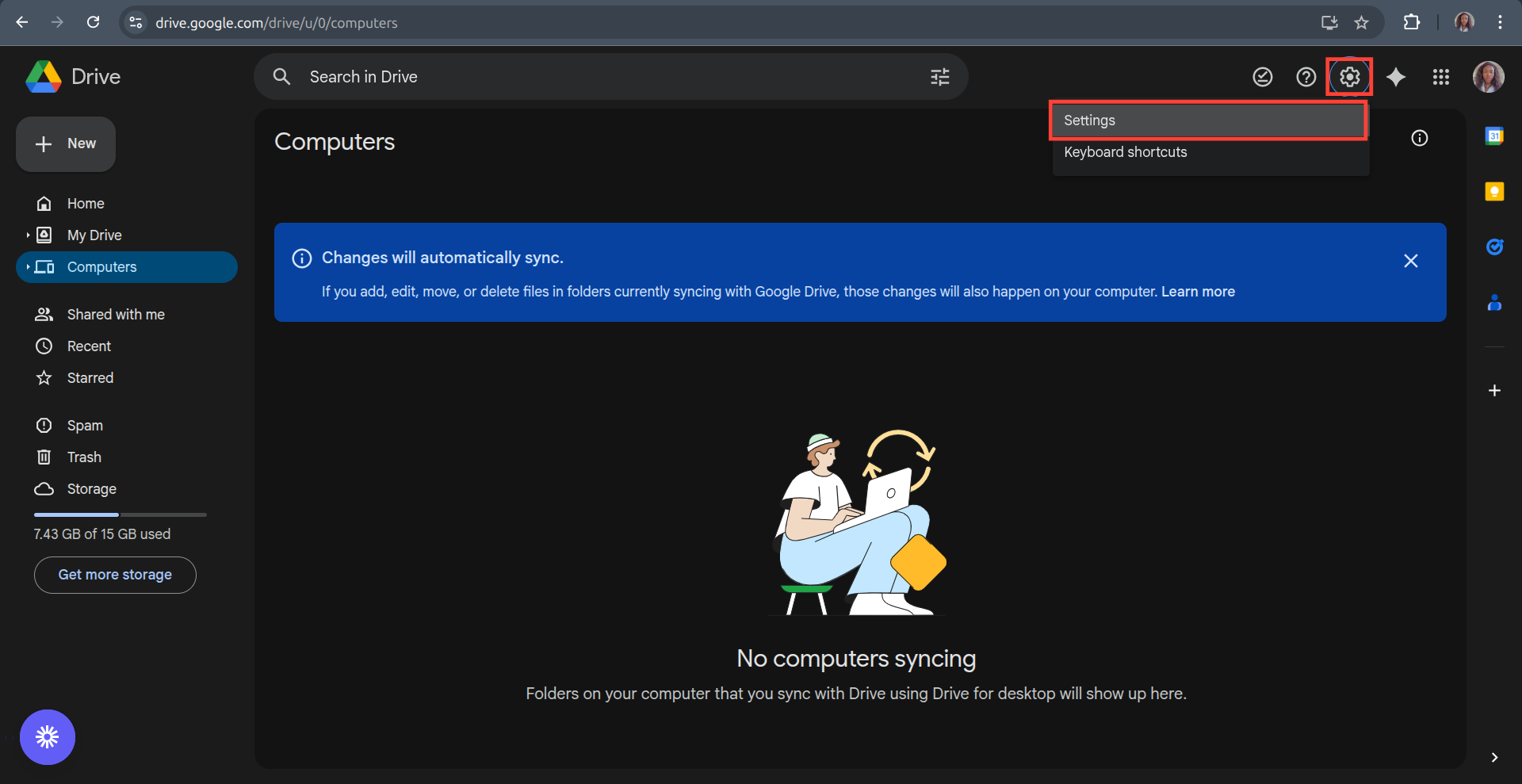
Step 2: Click on the gear icon at the top right and select Settings.
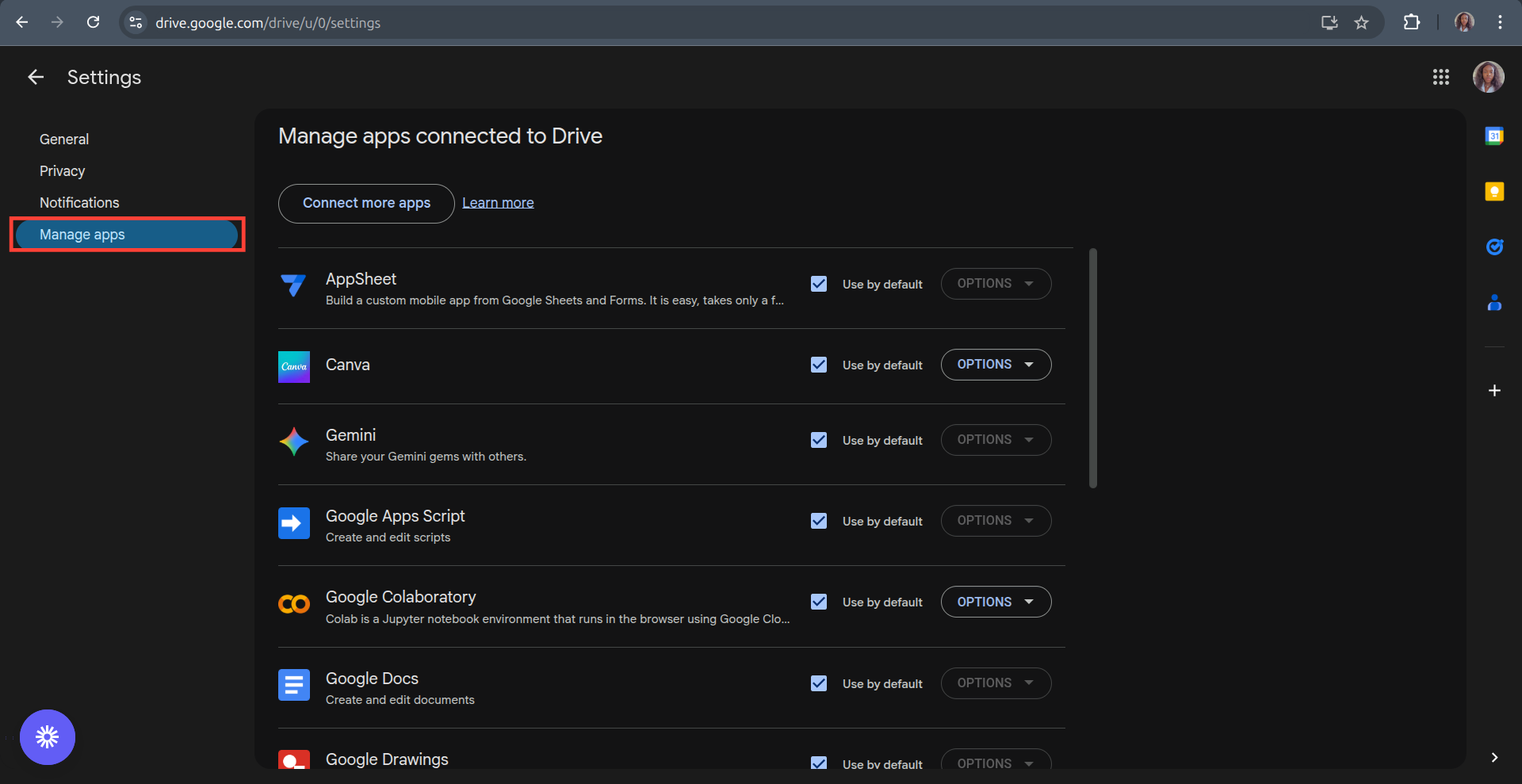
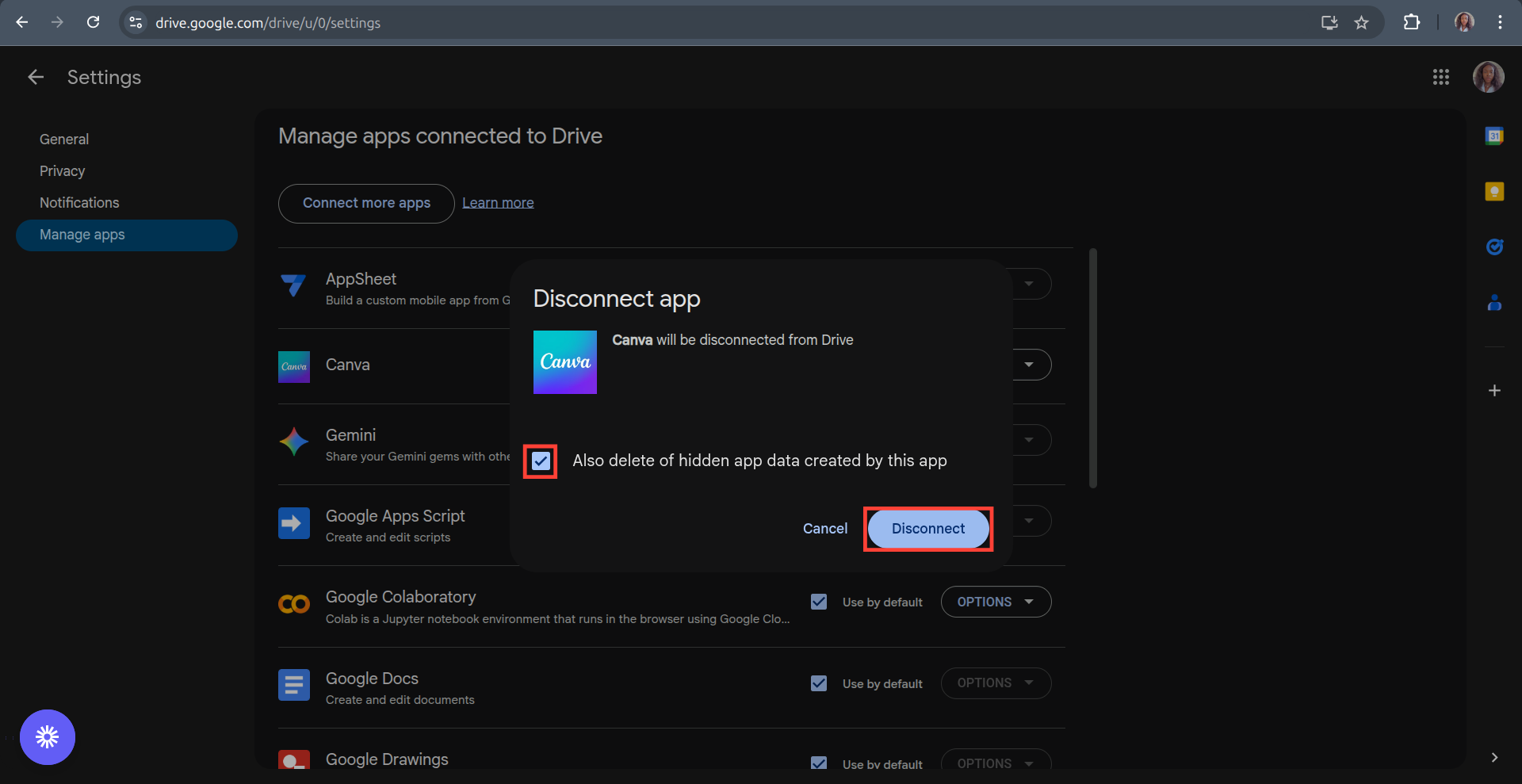
Step 3: On the left, click Manage apps. This will show you apps connected to your Google Drive.
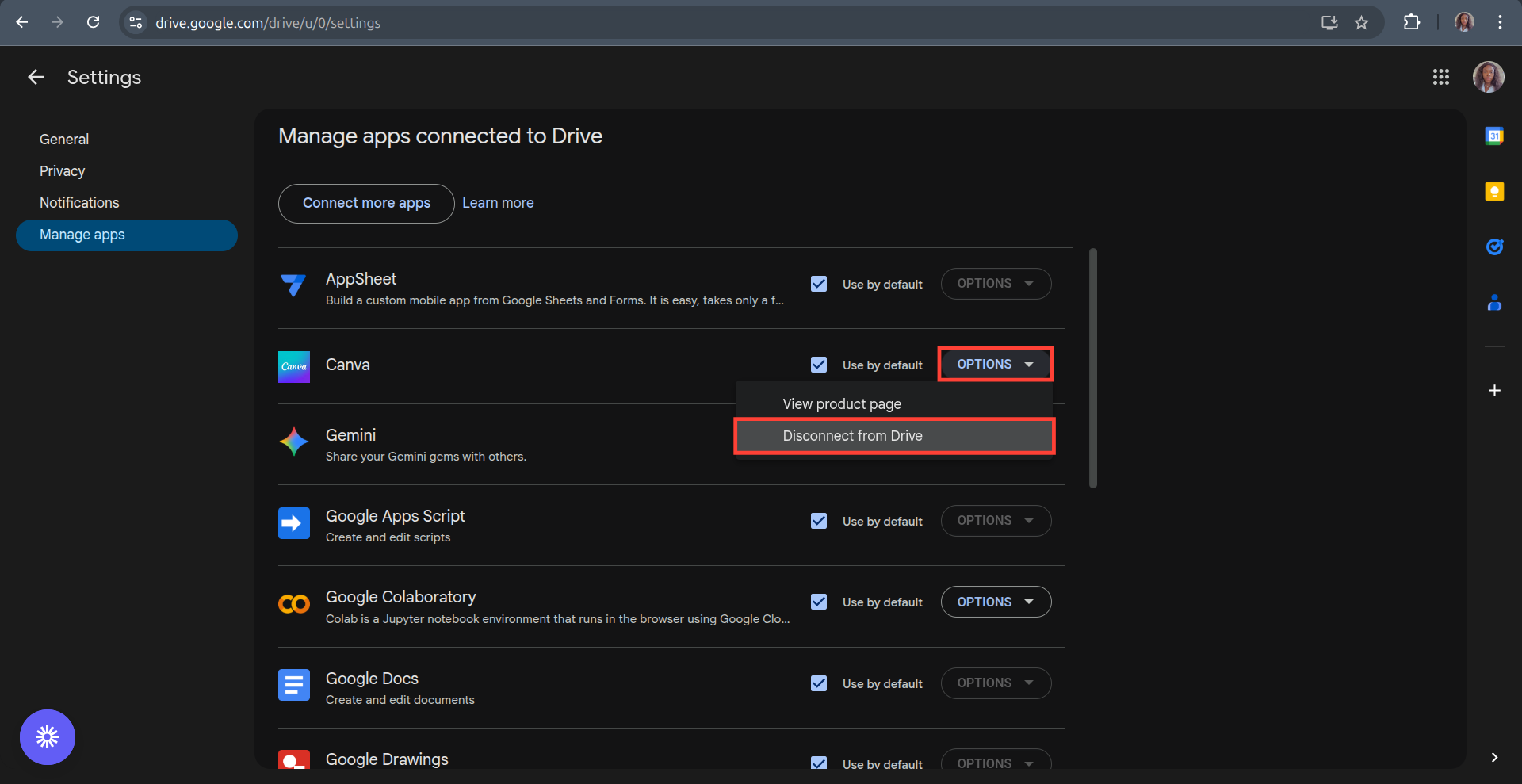
Step 4: Next to the app you want to disconnect, click on Options and then click on Disconnect from Drive.
Step 5: You'll get a pop-up to confirm the disconnect. Check the Also delete hidden app data created by this app box to delete hidden data, then click Disconnect to confirm the prompt.
 Oyinebiladou Omemu
Conclusion
By following these steps, you’ve taken a step toward securing your data. You’ve cleared out your app connections and significantly reduced the potential avenues for data leaks and security breaches.
To be more secure, you can make it a habit to periodically revisit your connected apps list, perhaps every few months, to ensure nothing suspicious has slipped through and to disconnect anything you're no longer actively using.
Image Credit: Oyinebiladou Omemu/Techloy.com


