



Most of us don’t think twice when an app, especially a bank app, asks for permission to use Face ID. It pops up, we tap "Allow," and just like that, our face becomes the key to logging in, confirming transactions, or unlocking sensitive content. It’s fast, seamless, and honestly, kind of cool.
But what if you change your mind? Maybe you don’t want your face to unlock everything, especially when someone else might be holding your phone. Or maybe you’d rather enter your passcode for certain apps just to add an extra layer of caution.
Well, iPhone gives you the option to revoke Face ID access for certain apps without turning it off completely for everything else. Here's how to do it.
 Gabriel Ojeh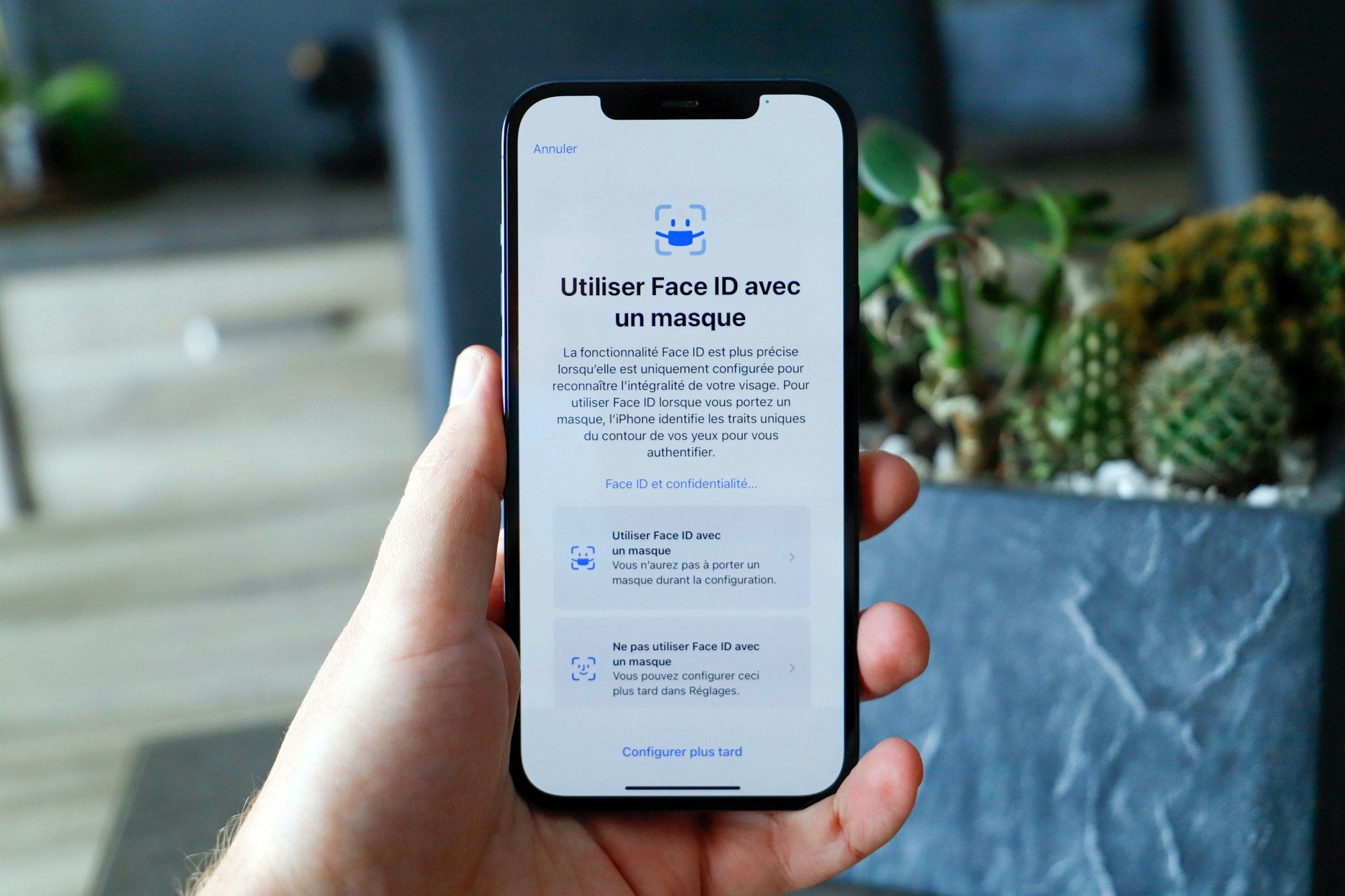
Steps to Revoke Face ID Access for Certain Apps on the iPhone
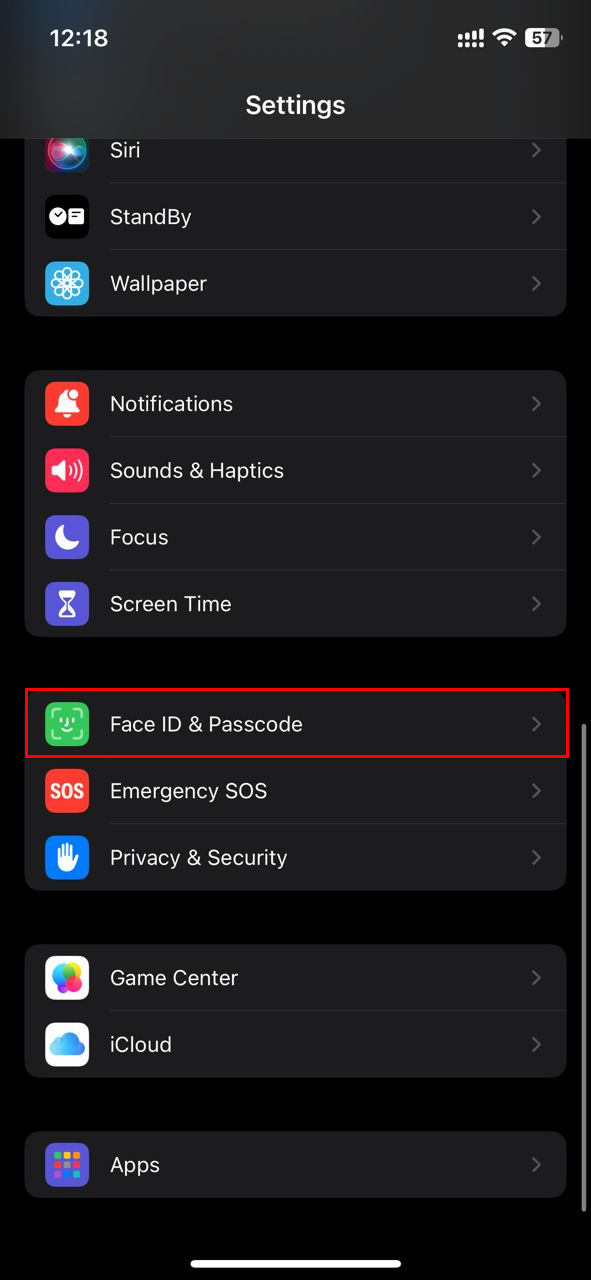
Step 1: Open the Settings app and select "Face ID & Passcode"
Step 2: Afterwards, enter your phone's password

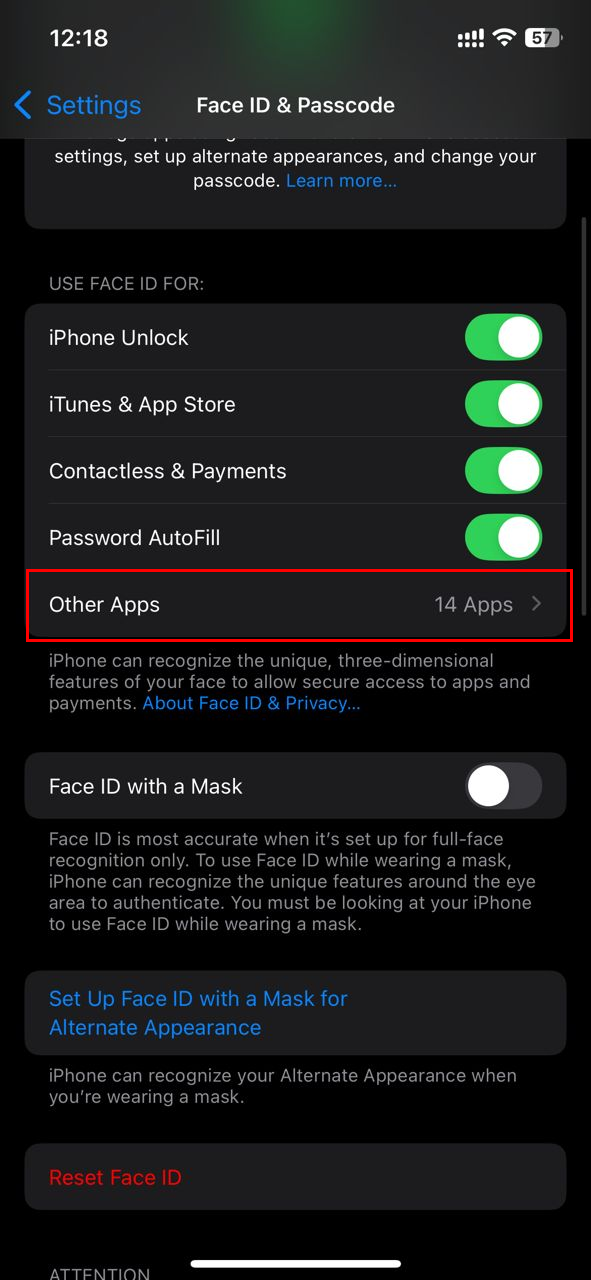
Step 3: Now, click on "Other Apps"
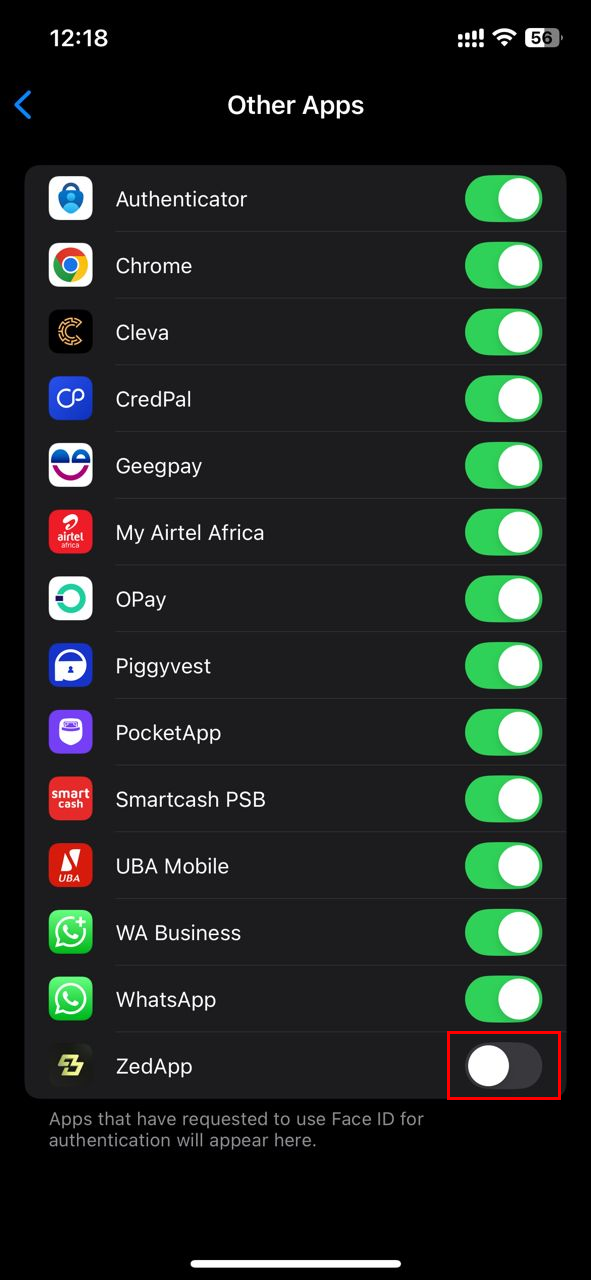
Step 4: Here, you will see a list of apps that have requested access to Face ID. Now, toggle off the switch beside an app you wish to revoke its Face ID access
 David Adubiina
Conclusion
Face ID is designed to make life easier, but convenience shouldn’t mean giving up control. Whether it’s your finance apps, notes, or private journals, you can decide which apps should still require your face and which ones should stick to the old-school passcode.
It’s a subtle but powerful way to keep your phone secure on your own terms. And if you ever change your mind, toggling Face ID back on for a specific app is just as simple.


