



As technology keeps evolving, we constantly rely on computers to store important stuff like photos, work documents, and memories.
But what happens if something goes wrong, and we lose all that stuff? It can be a real headache. That's where OneDrive, a handy tool from Microsoft, comes in.
Think of OneDrive as a cloud where you can put your computer stuff to keep it safe. Plus, you can access it from anywhere, on another computer.
In this guide, we'll show you how to use OneDrive on your Windows PC to save and back up your folders, so you never have to worry about losing your important files again.
How to Backup Folders to OneDrive
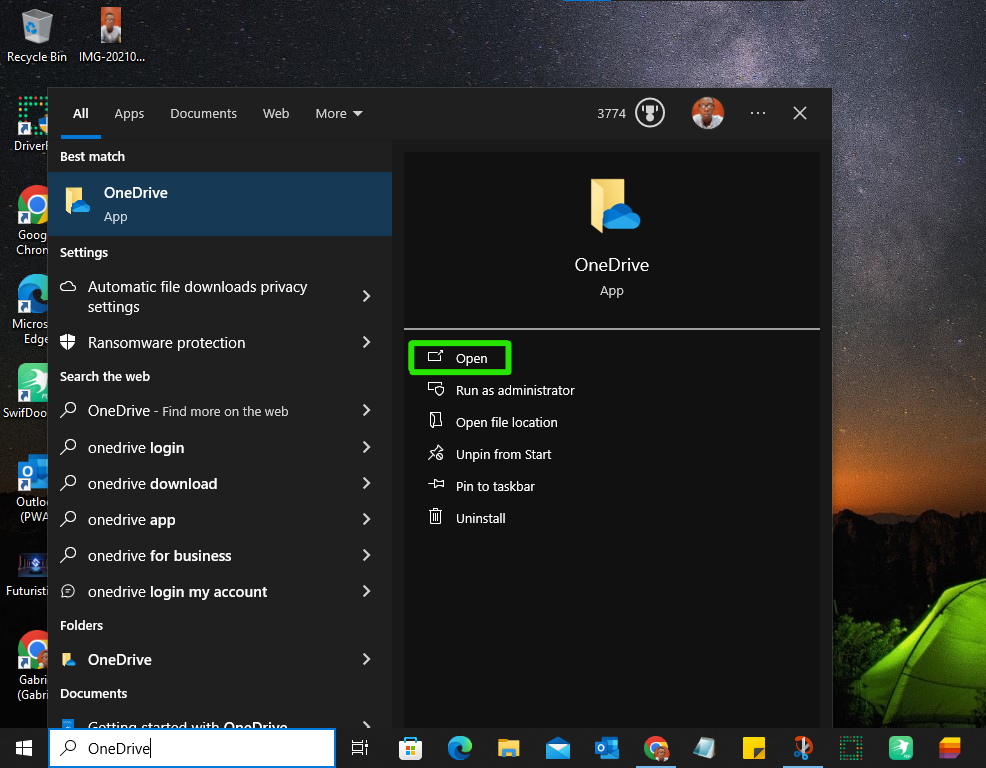
- On your PC search bar, search OneDrive.
- Click on Open.
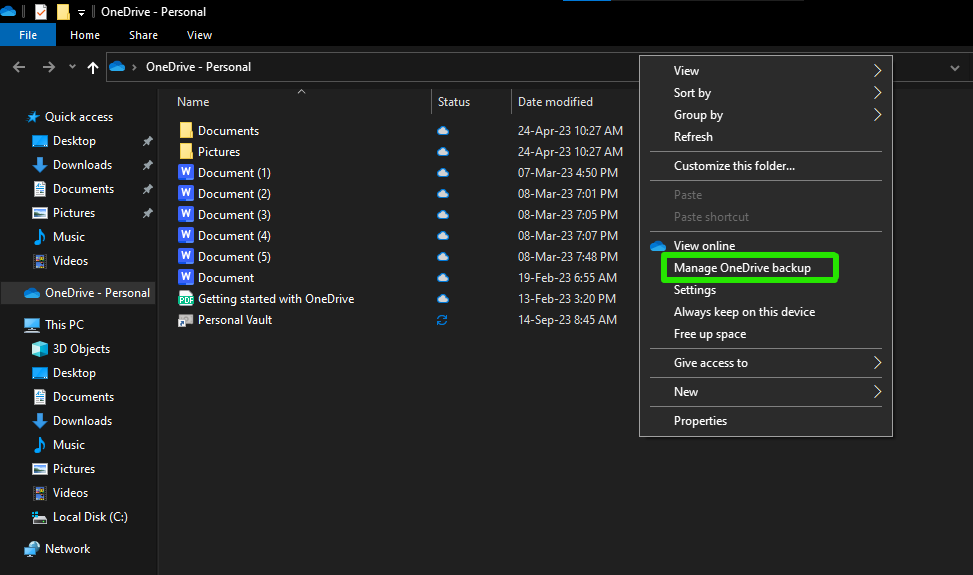
- On the OneDrive Personal folder tab, Right-click, and from the dropdown select Manage OneDrive Backup.
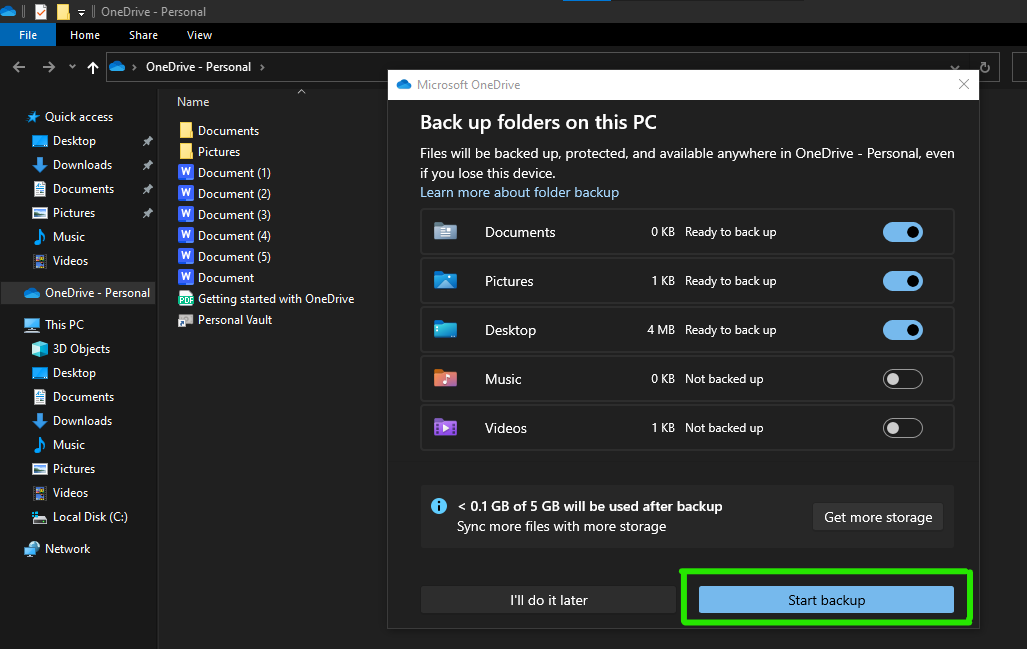
- Toggle on the switch you want to Backup.
- Once done, click on Start Backup.
Conclusion
By following the steps we discussed, you've made sure that your photos, documents, and memories are protected from accidents or computer problems. And the best part is that you can reach them from any device.
So, keep backing up your files regularly, and you can relax knowing that your digital files are safe and sound in OneDrive, ready for you to use whenever you want.
Image Credit: Gabriel Ojeh / Techloy.com


