QR codes, those barcodes that store information digitally, are everywhere—restaurant menus, event tickets, payment links, even subway ads. But what happens when you need to scan one and don’t have a second device? That moment of frustration—holding your phone, staring at a QR code on its own screen—is more common than you think.
Well, there's good news.
Every modern smartphone already has built-in tools to solve this exact problem. Whether you’re trying to access a Wi-Fi network, claim a discount, or join a virtual queue, you can scan QR codes with just one device—no second phone, no special apps, and no complicated tricks needed.
Here's your quick guide to using this built-in tool.
How to Scan a QR Code on Your Phone’s Screen (Without Using Another Phone)
For Android:
Step 1: Take a screenshot of the QR code
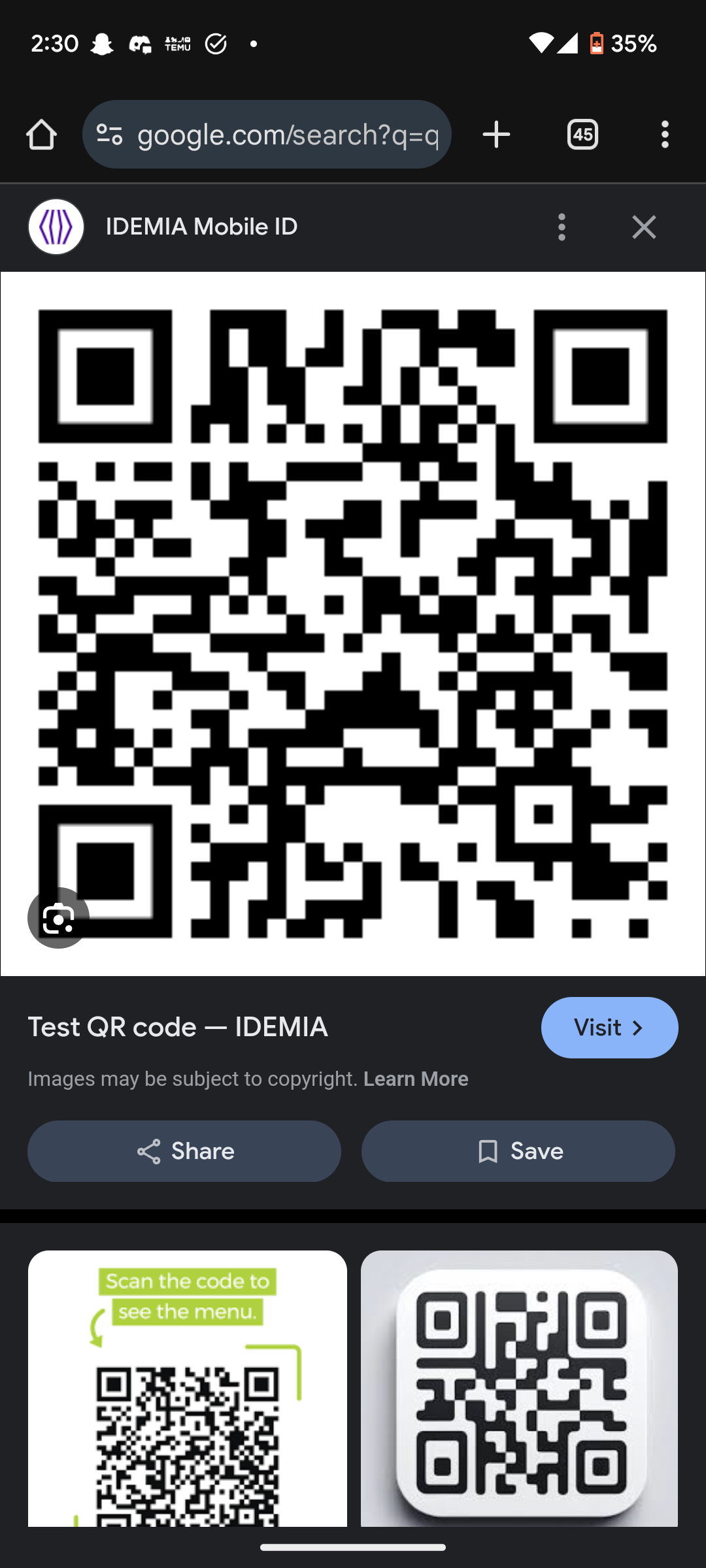
Step 2: Open the Google Photos app

Step 3: Select the Screenshots section
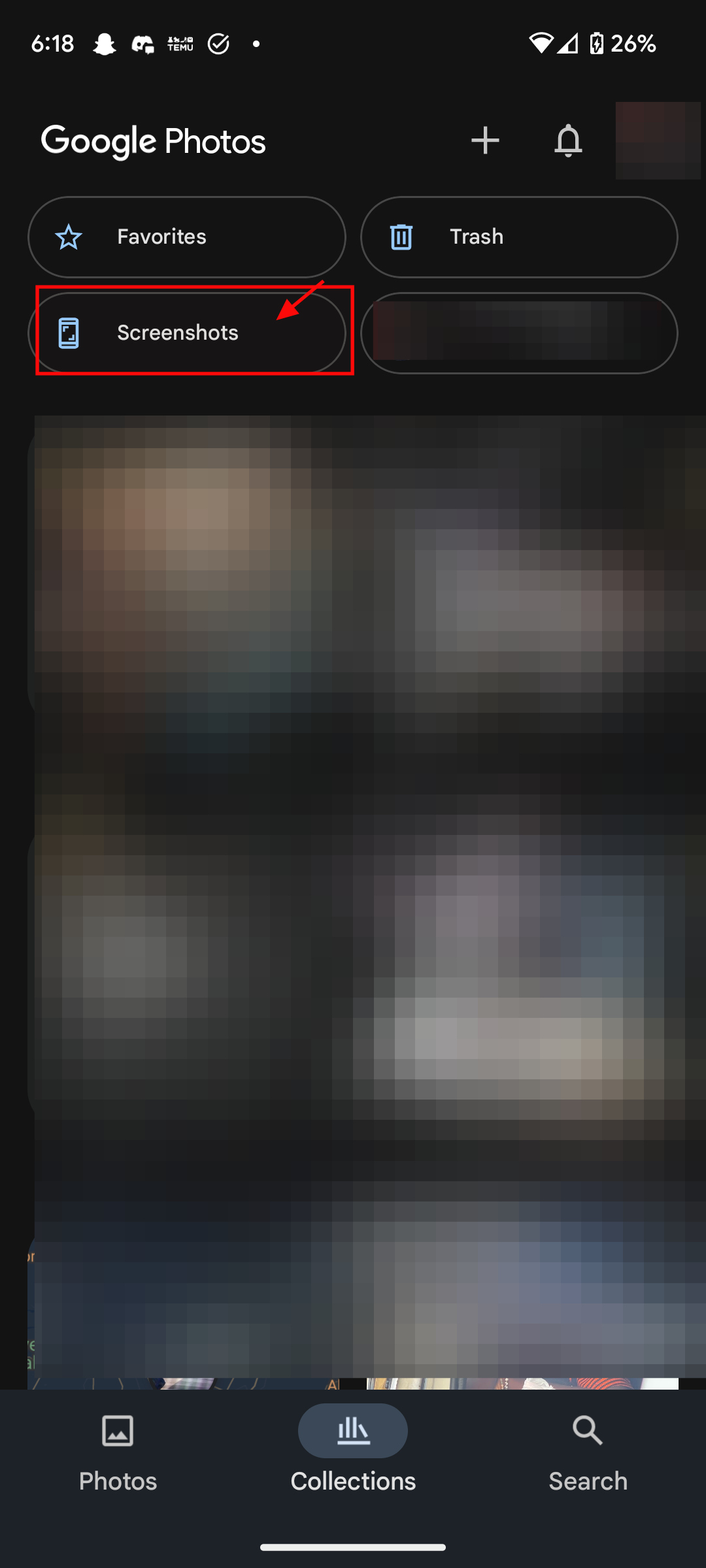
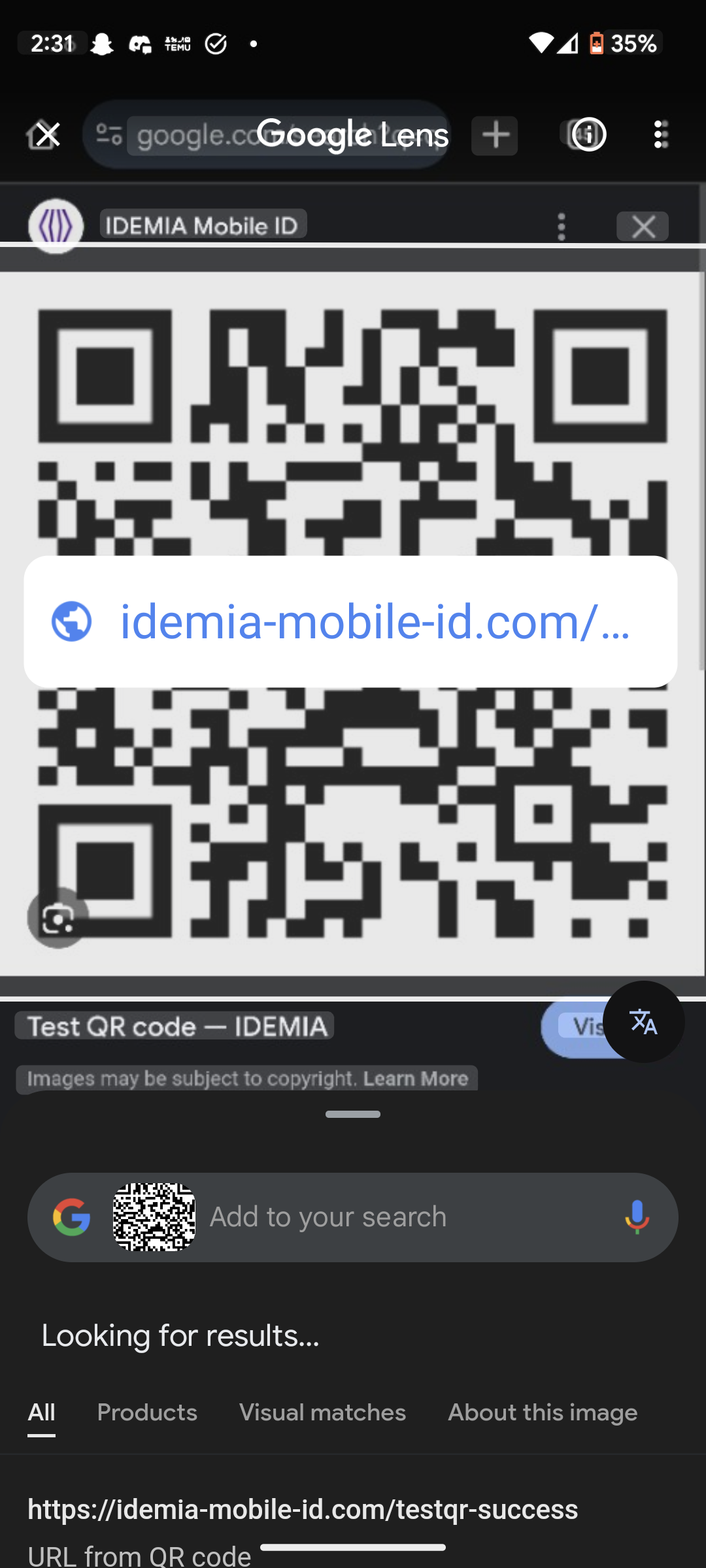
Step 4: Go the screenshot of the QR code you took earlier, and tap the Google Lens icon (usually at the bottom of the screen)


Step 5: Google Lens will detect the QR code and show you the link or action
For iPhone:
Step 1: Take a screenshot of the QR code
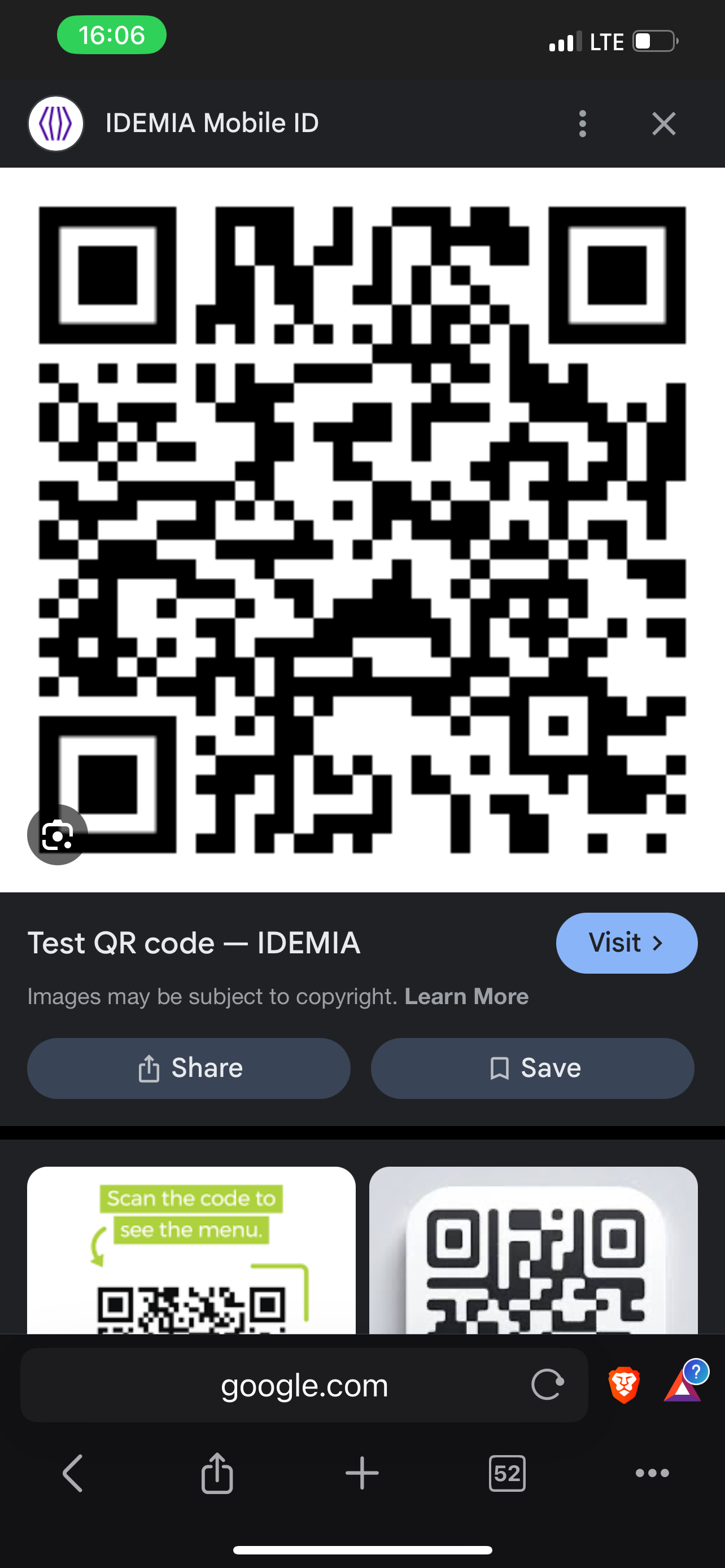
Step 2: Open the screenshot in the Photos app
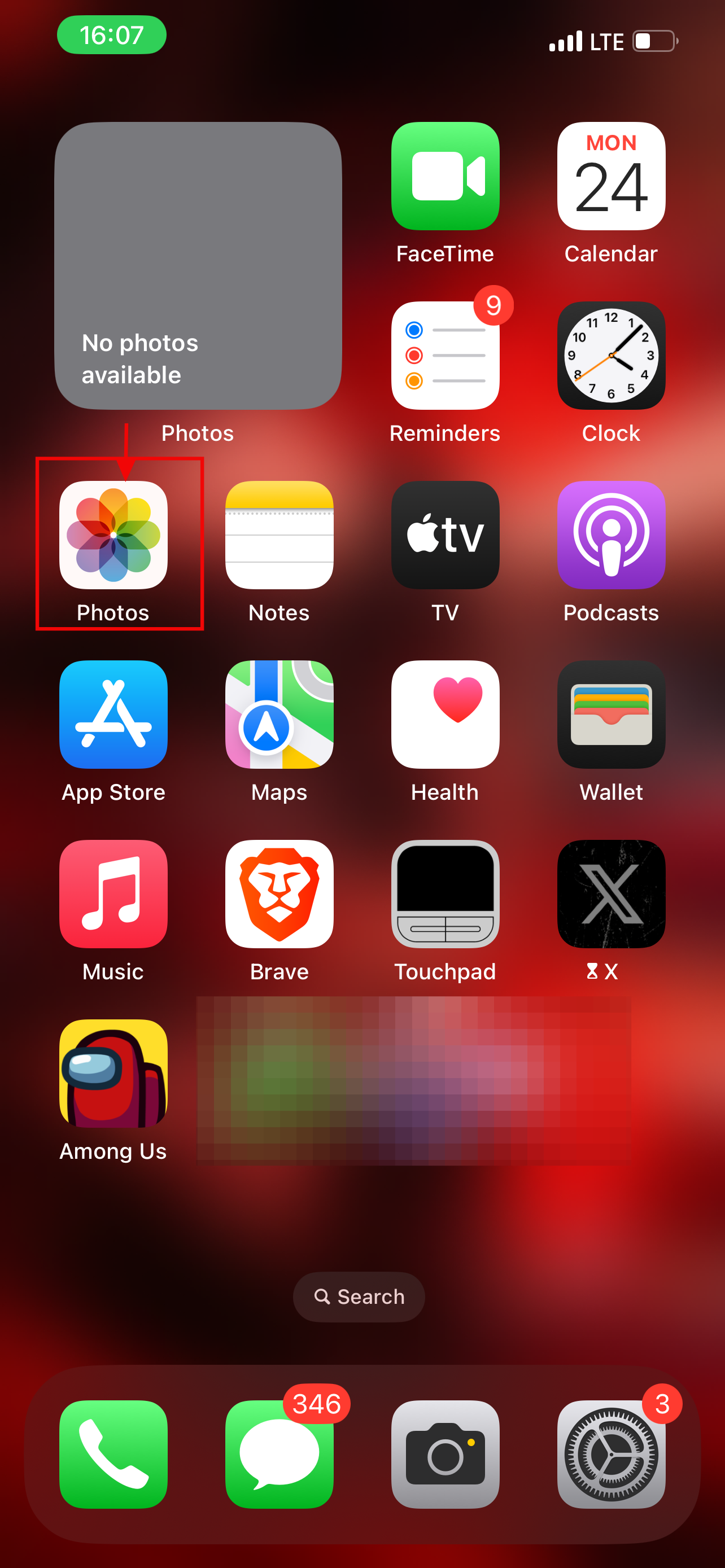
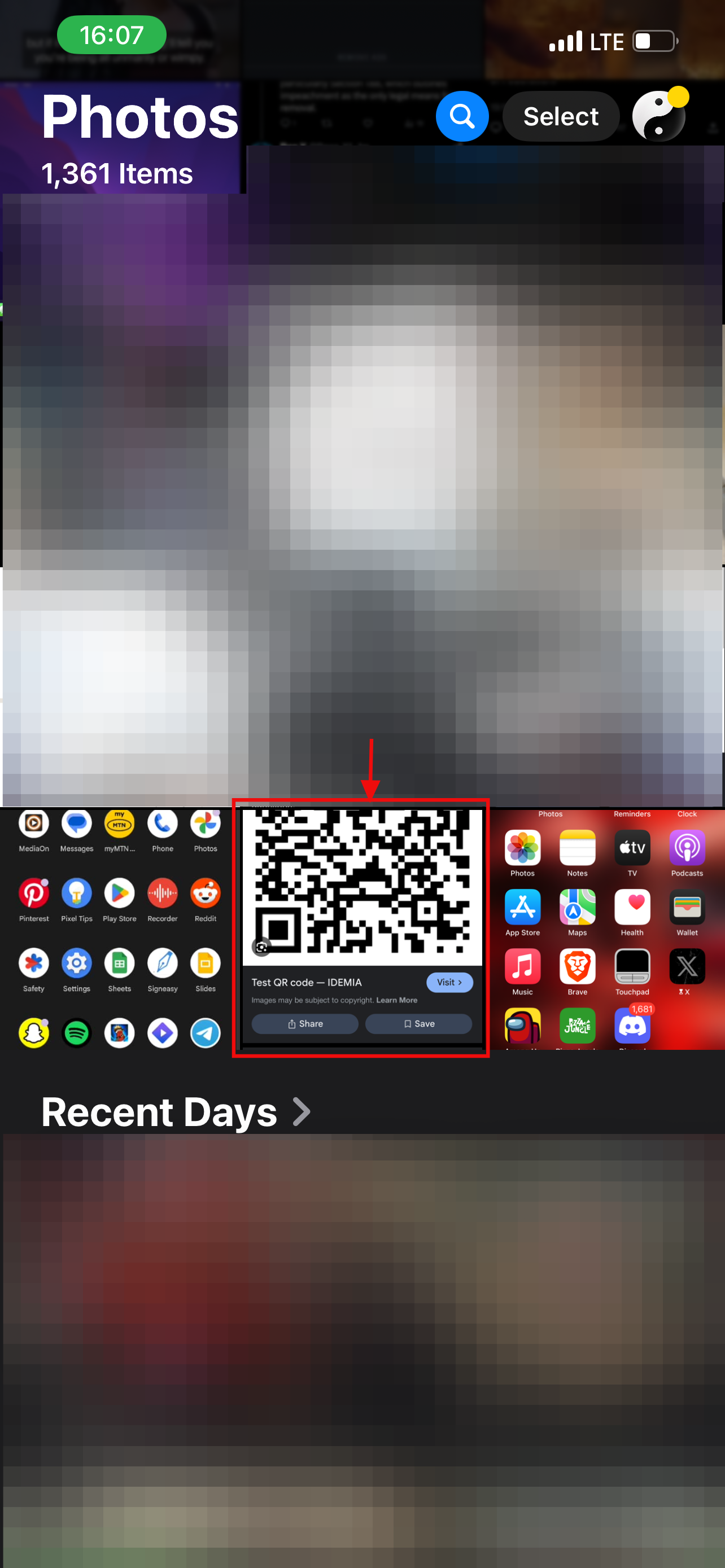
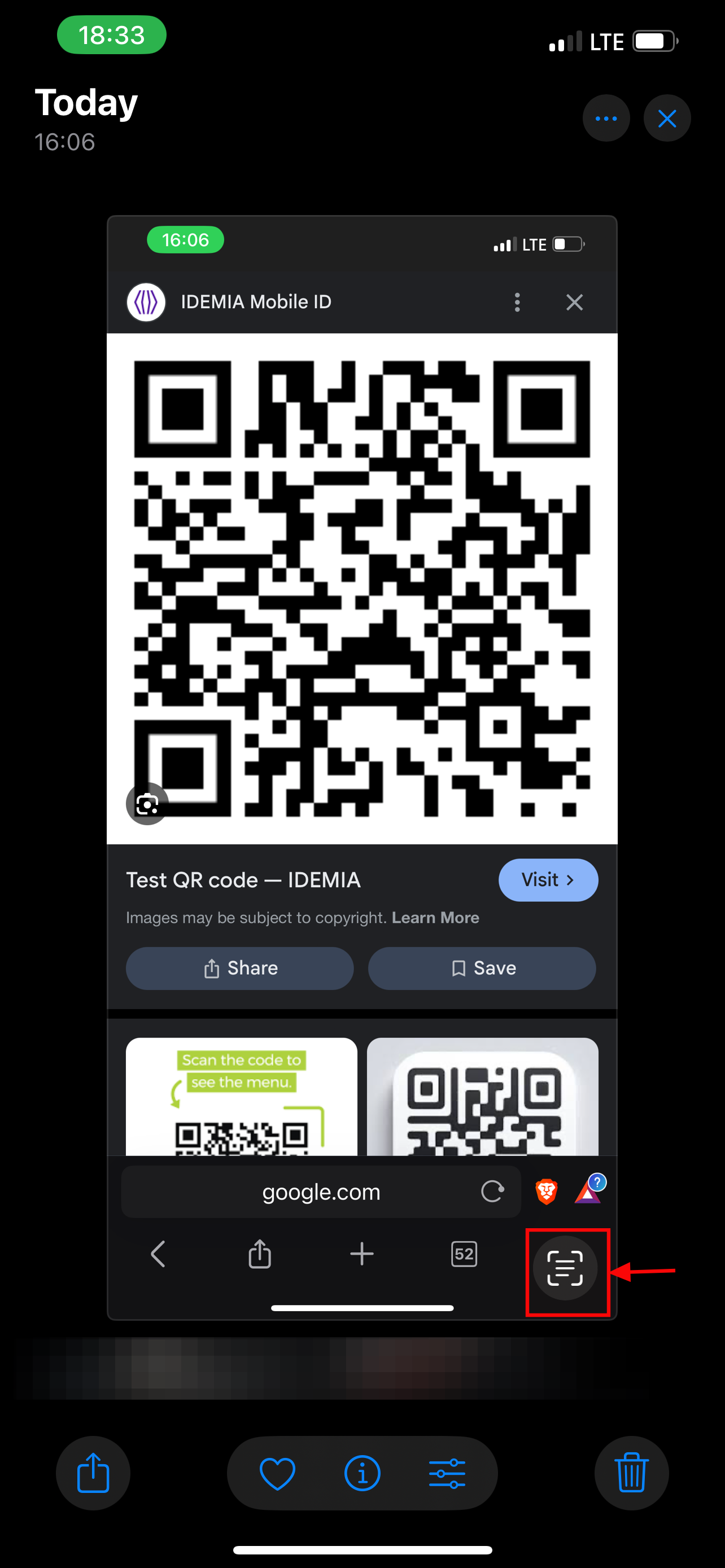
Step 3: Tap the Live Text icon (a small square with lines) or press and hold on the QR code
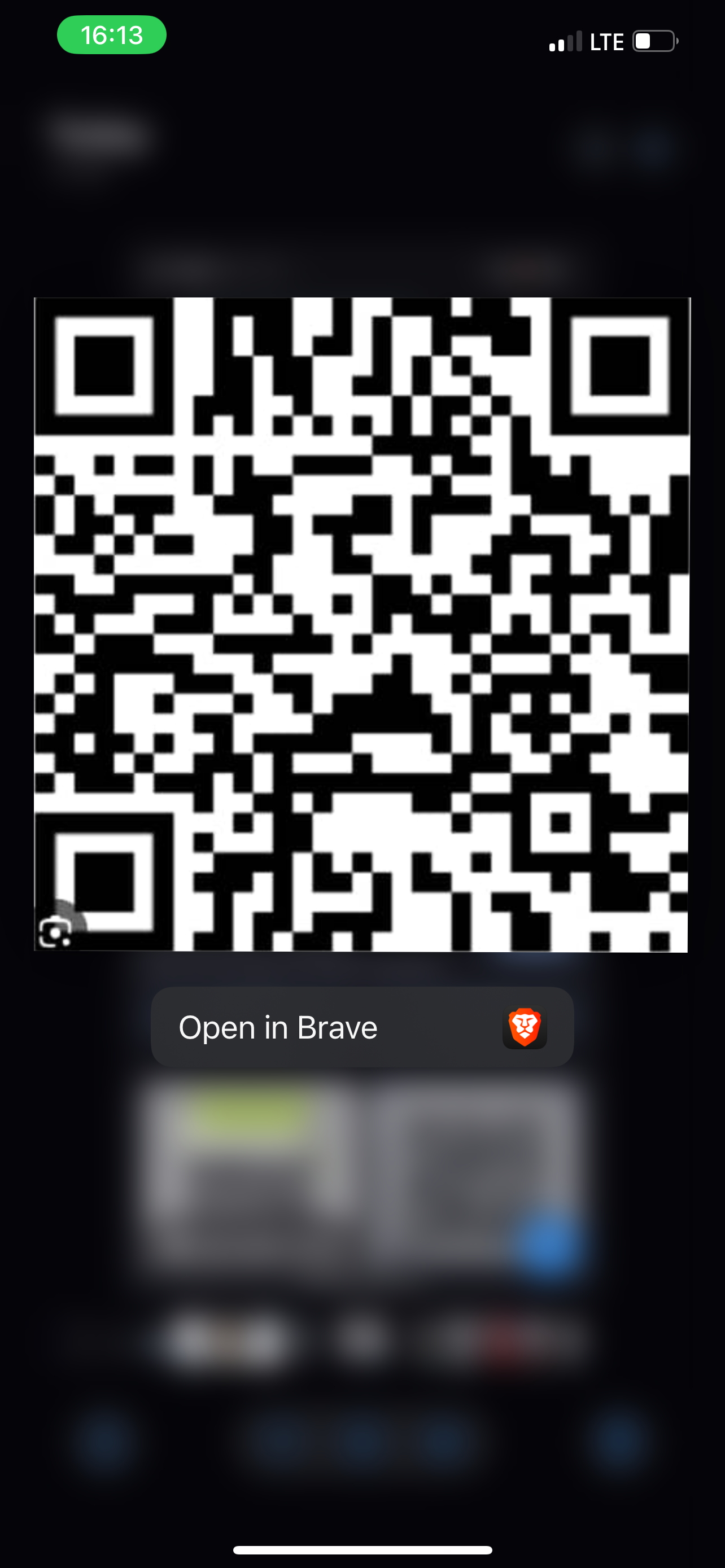
Step 4: Tap the link or suggested action that appears
Conclusion
Scanning a QR code on your phone’s screen is easier than you think—no second device needed! Simply use your phone’s built-in camera (most modern smartphones automatically detect QR codes) or try Google Lens for better accuracy. Now you can effortlessly access links, menus, or promotions without any hassle.
 Gabriel Ojeh