



We've seen a lot of situations where an accident happens or a stranger is drunk and in need, and we don't know who to call to their aid. Now, when you’re in an unfamiliar place and something unexpected happens, you'll need help fast. That’s where your Samsung phone’s emergency contact feature becomes very useful.
The emergency contact lets you store important contacts that can be accessed right from your lock screen, no password needed. This means if someone finds your phone after an accident, or if you’re unable to unlock it yourself, your emergency contacts can still be reached
By adding a trusted person, whether it’s a family member, close friend, or doctor, you’re creating a direct line for help when it matters most. In this guide, we will show you how to add an emergency contact to your Samsung device.
 David Adubiina
How to add an emergency contact on Samsung
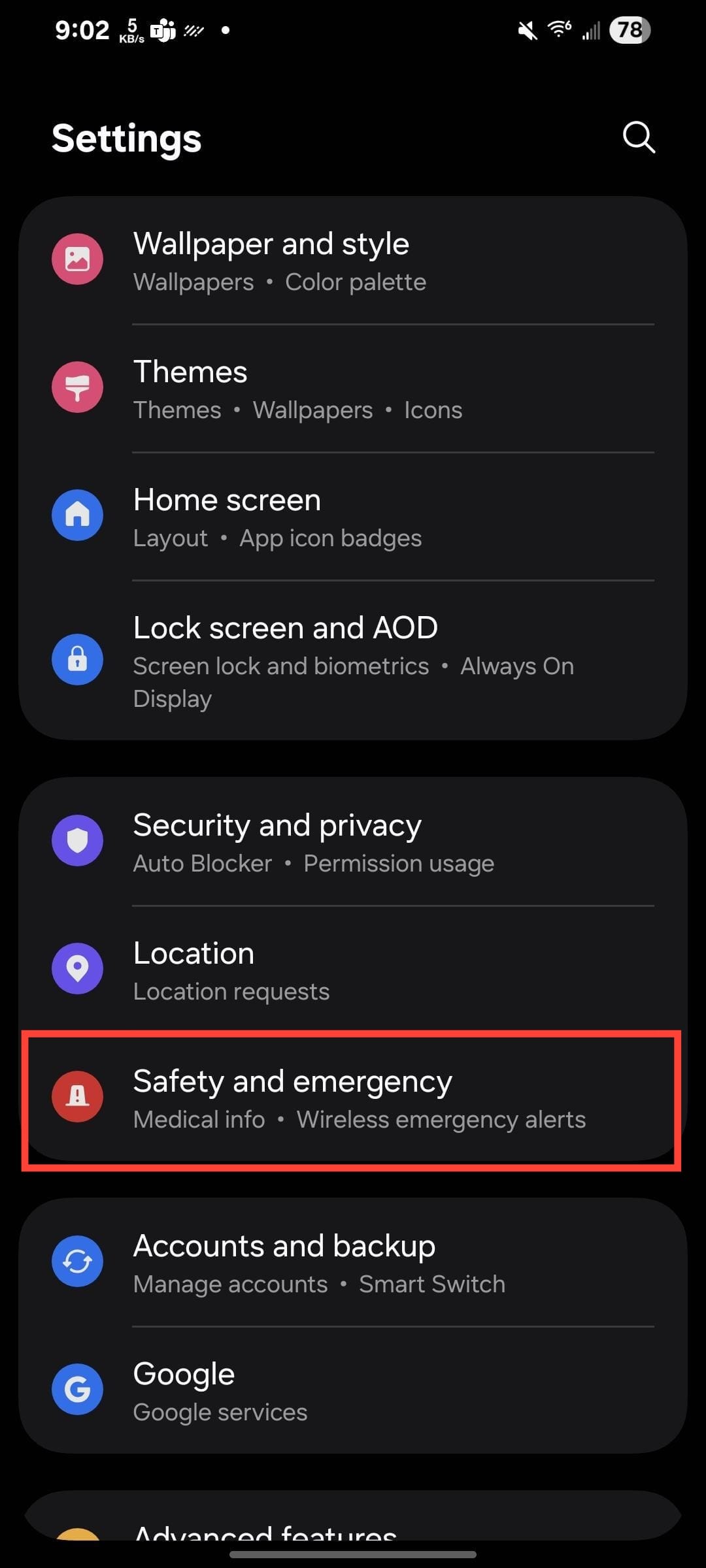
Step 1: Go to Settings on your Samsung Galaxy phone and select Safety and Emergency.
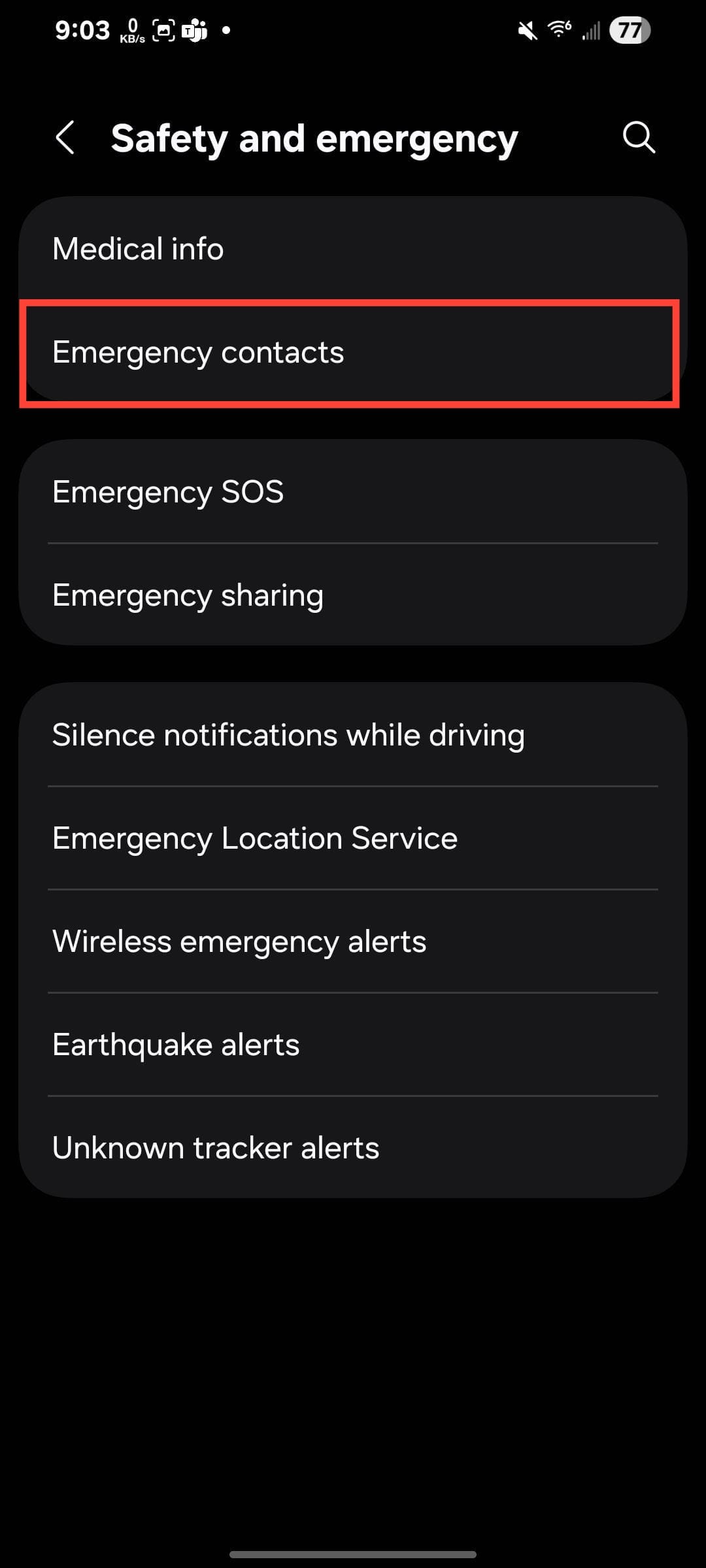
Step 2: Select Emergency contacts.
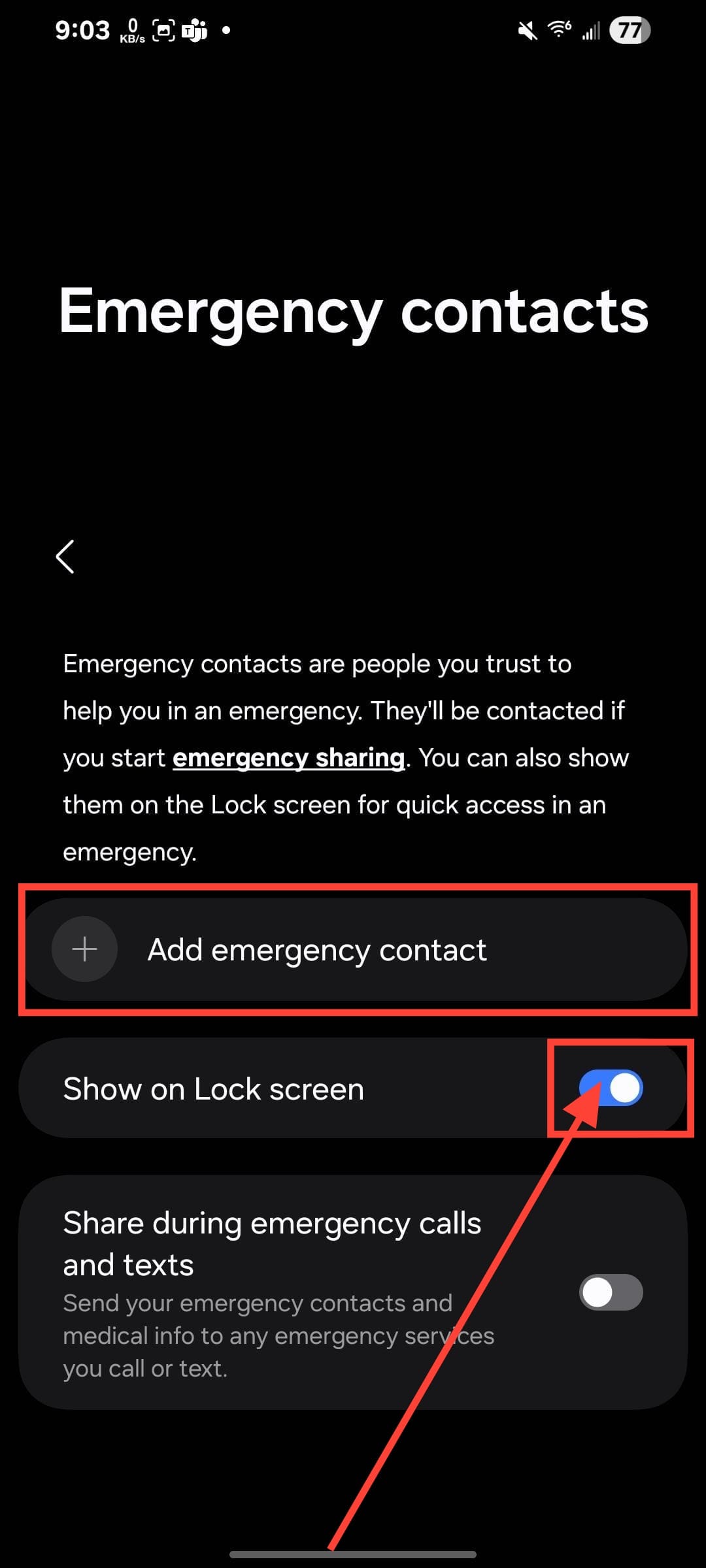
Step 3: Select Add Emergency Contact. To make your contacts more easily available in an emergency, toggle on Show on Lock screen.
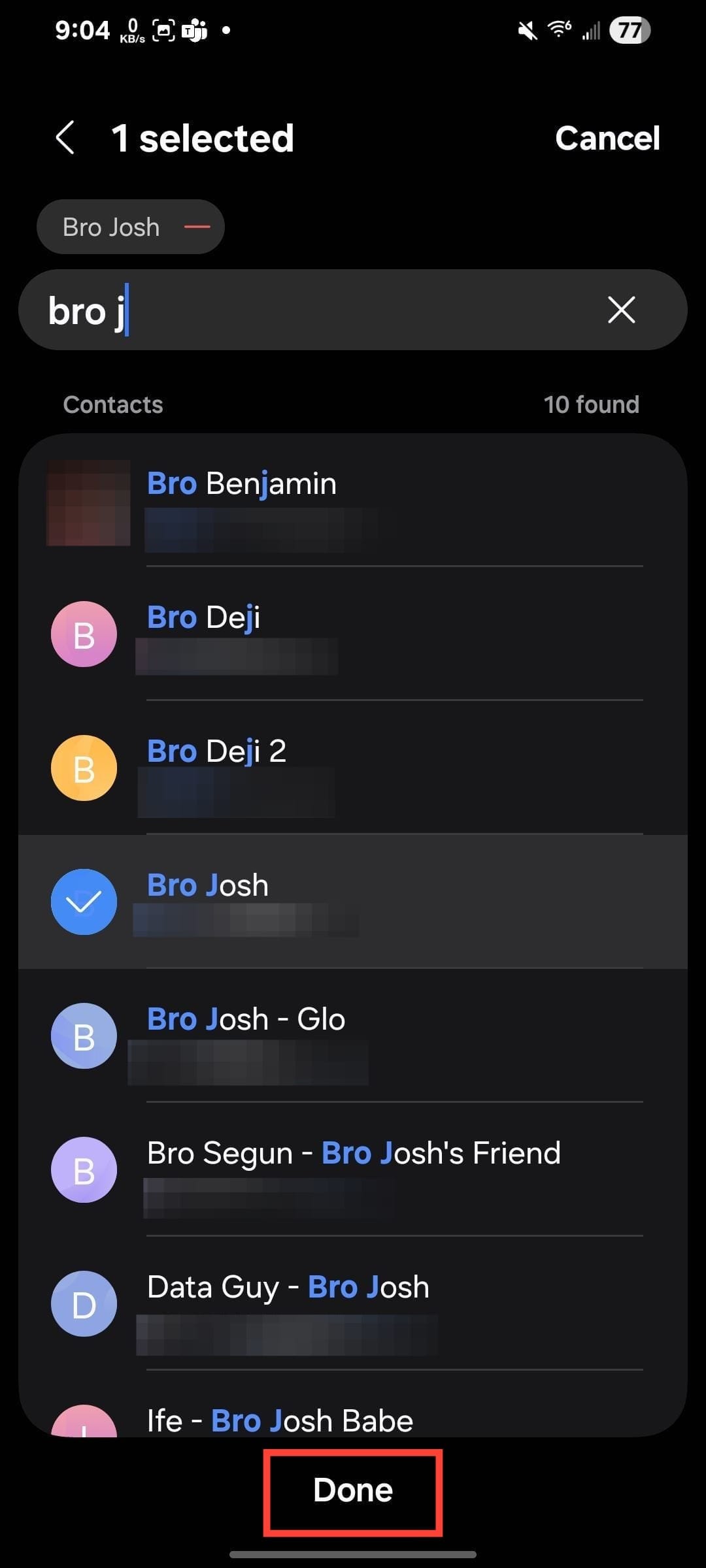
Step 4: Select the contact you want to add and click Done.
How to contact an emergency contact
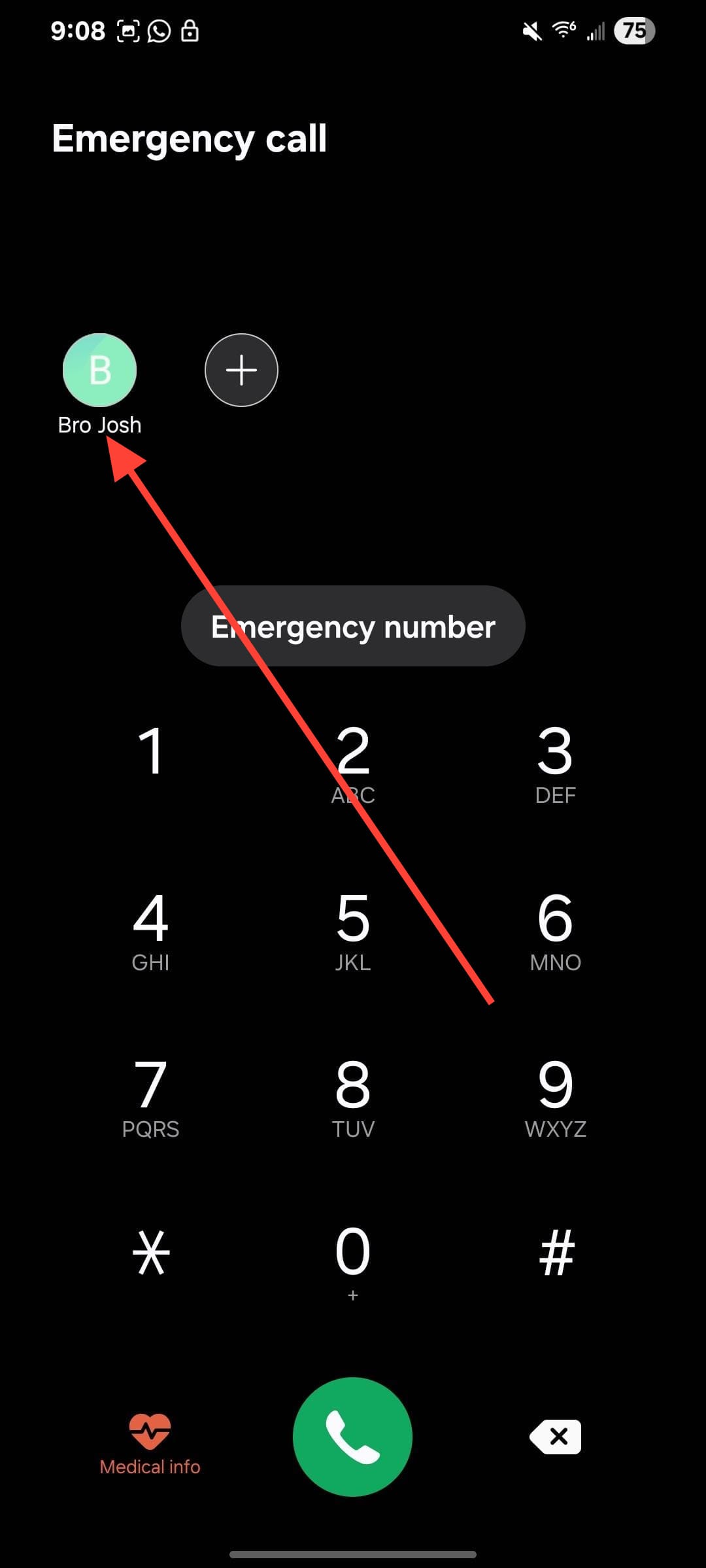
Step 1: Press the power button to wake the phone. Then tap "Emergency call” on the lock screen.
Step 2: Tap the green Dialpad icon.
Step 3: This will display a list of the device's registered emergency contacts. Tap any of the contacts to call.
 Oyinebiladou Omemu
Conclusion
Now that you’ve added an emergency contact, your phone will be safer. Whether it’s a family member, close friend, or your doctor, having that critical number one tap away could save precious time in an emergency.
You can also pair this with other safety features like medical info on your lock screen for extra protection. Now, you’ve just made your phone and yourself a little more prepared for the unexpected.
Image Credit: Oyinebiladou Omemu/Techloy.com


