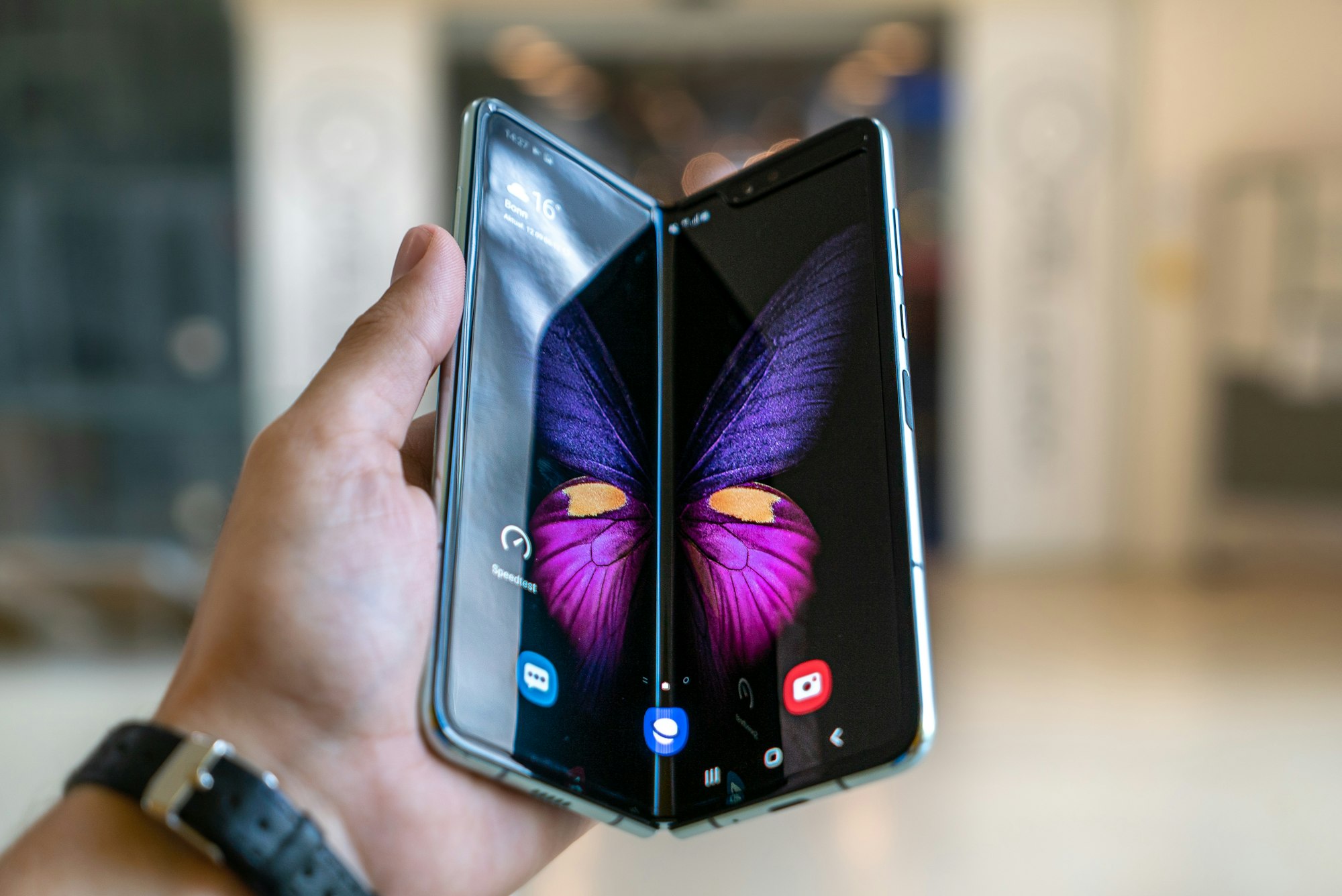
Not everyone needs full access to your phone just because they’re using it to take a photo or make a quick call. Maybe you’ve got confidential files, personal apps, or sensitive data you’d rather keep private; that’s exactly what Privacy Space is for.
It creates a hidden, secure area on your device where you can store anything you don’t want others to see. Imagine it as your own digital vault. Whether you're keeping work documents tucked away or simply want a clear line between personal and shared use, here's how to set it up in just a few steps.
How to Set up Privacy Space on Android
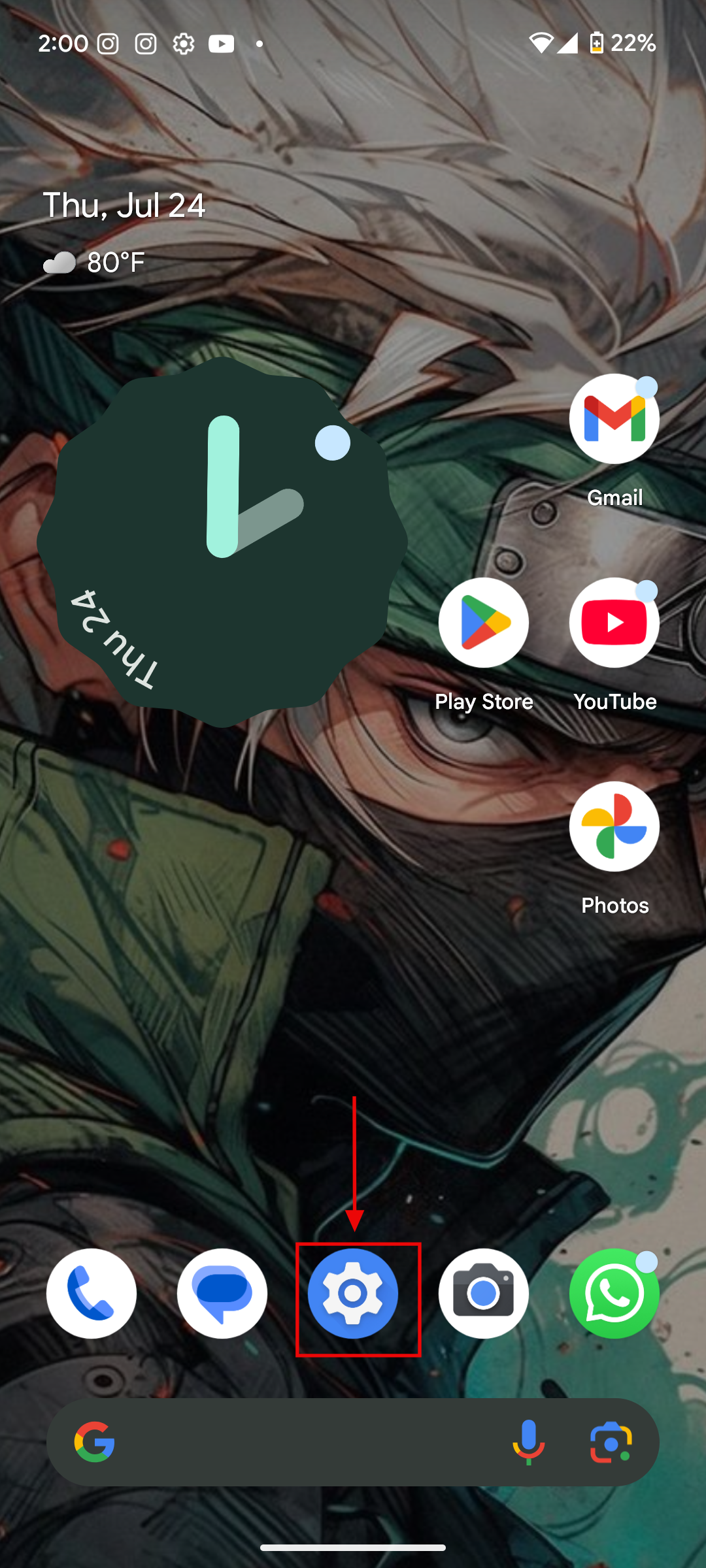
Step 1: Open the settings app on your device, scroll down and click on Security & privacy
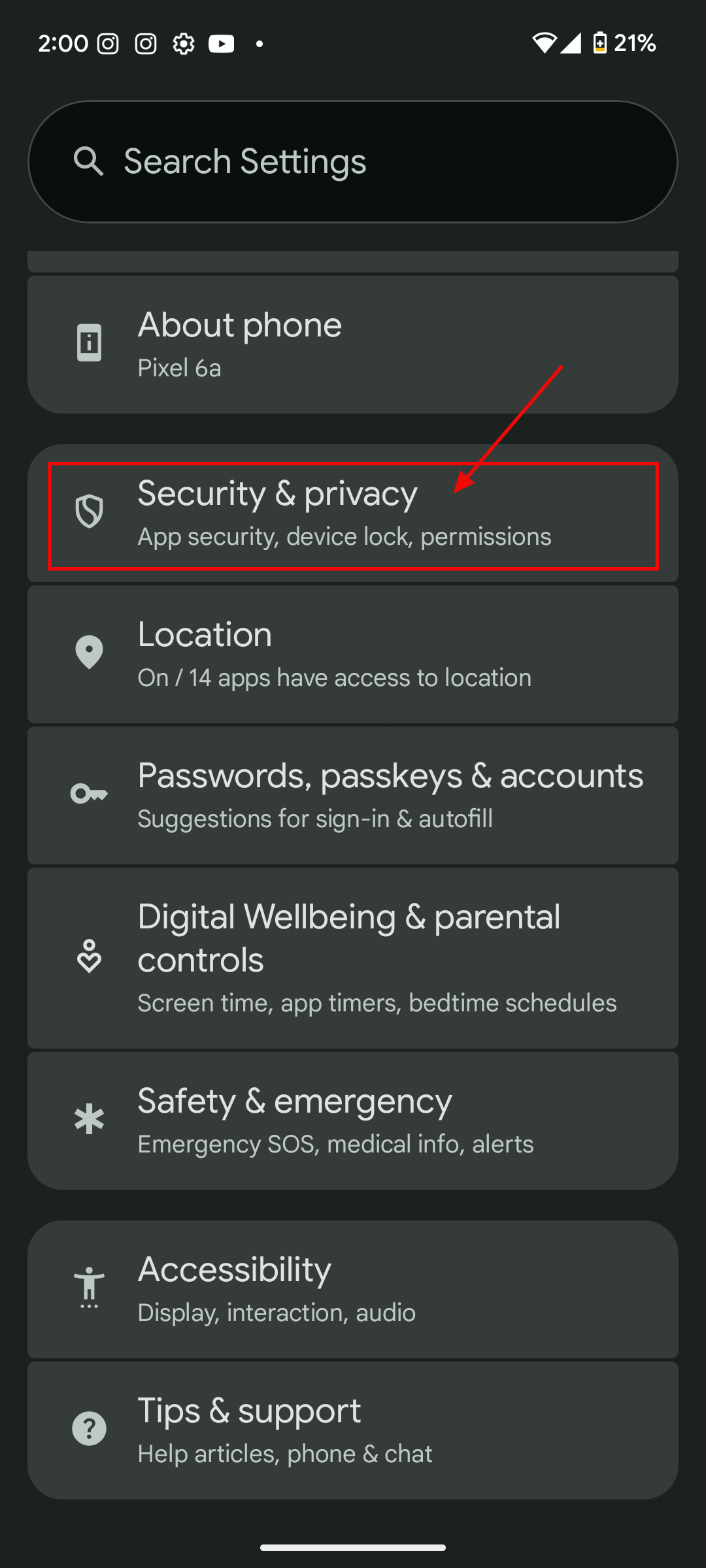
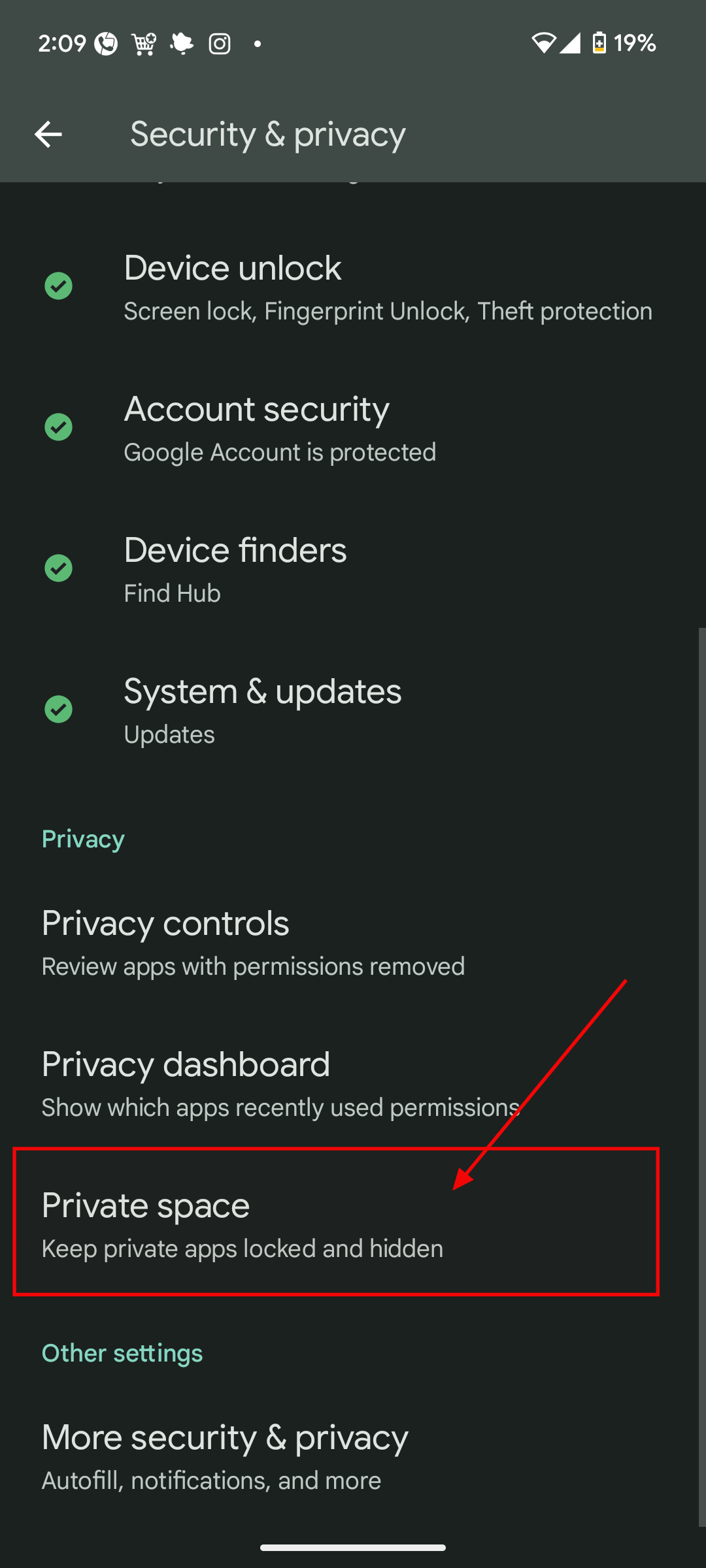
Step 2: Select Privacy space
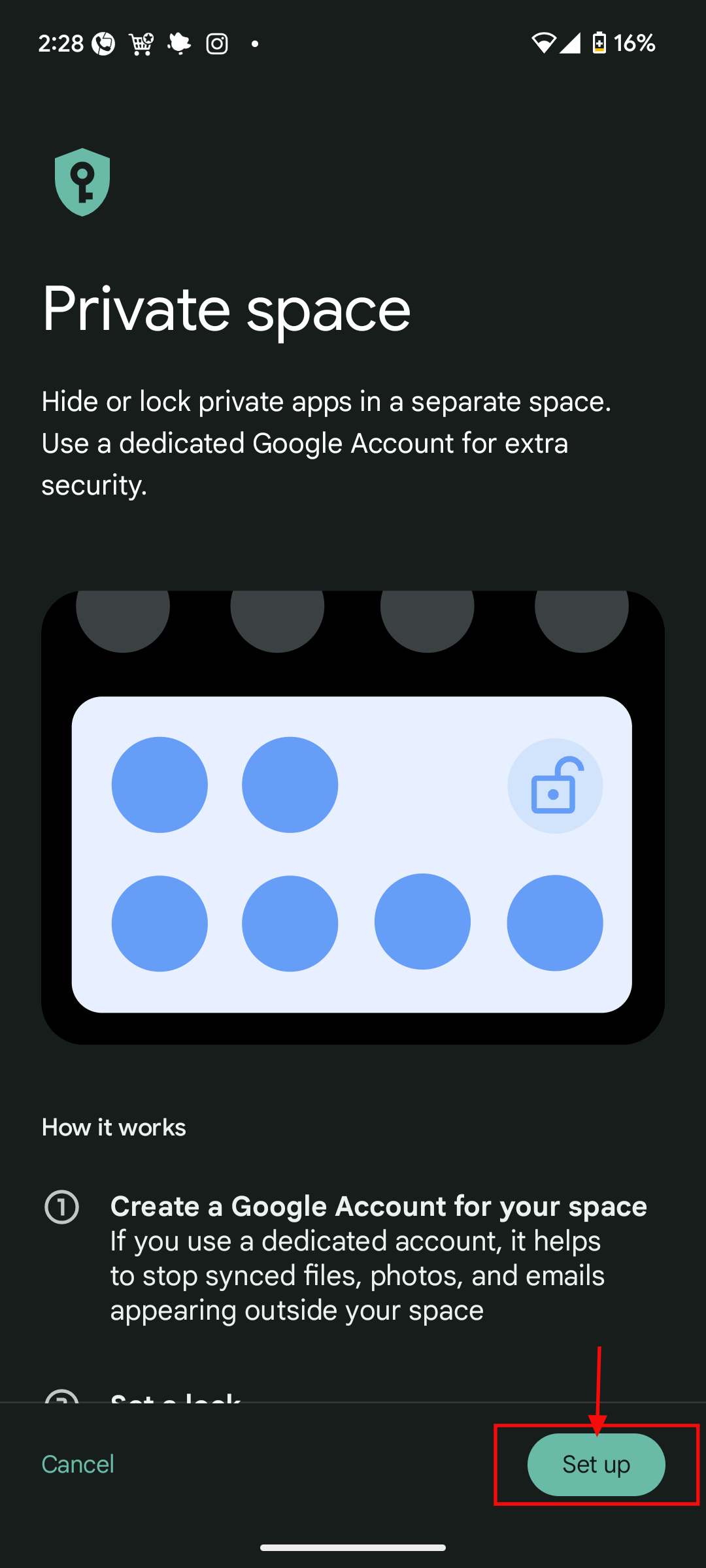
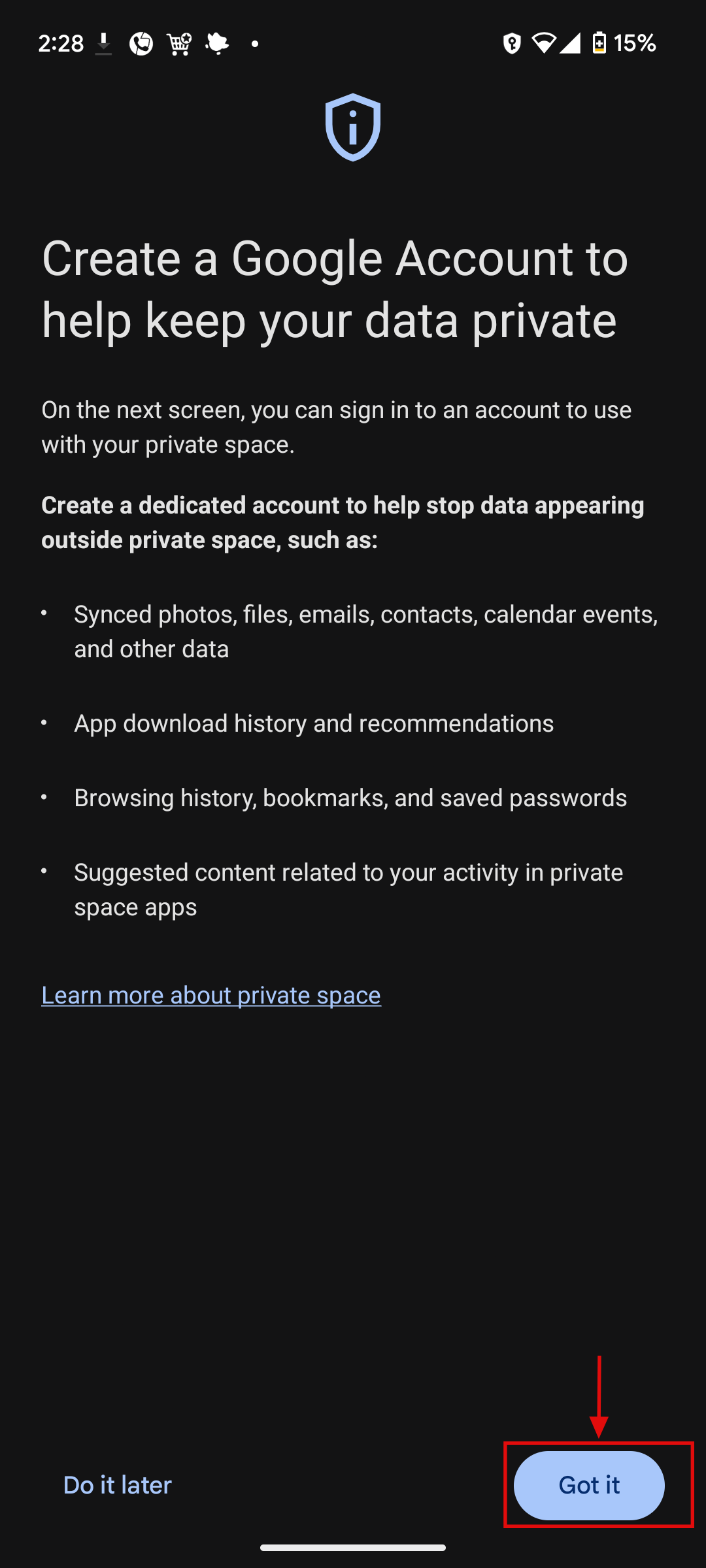
Step 3: In Privacy space select Set up, then in the next window select Get it
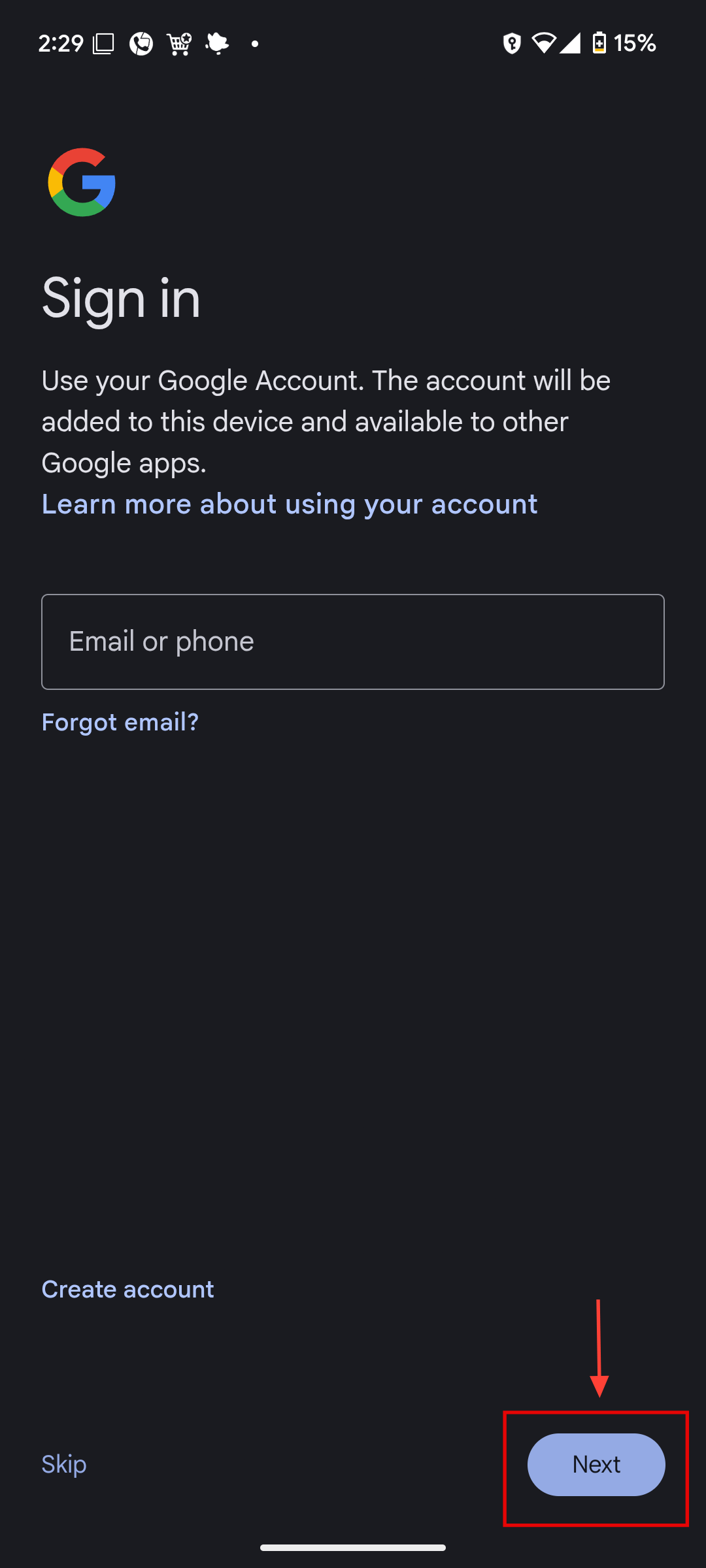
Step 4: Sign in to a Google Account and select Next.
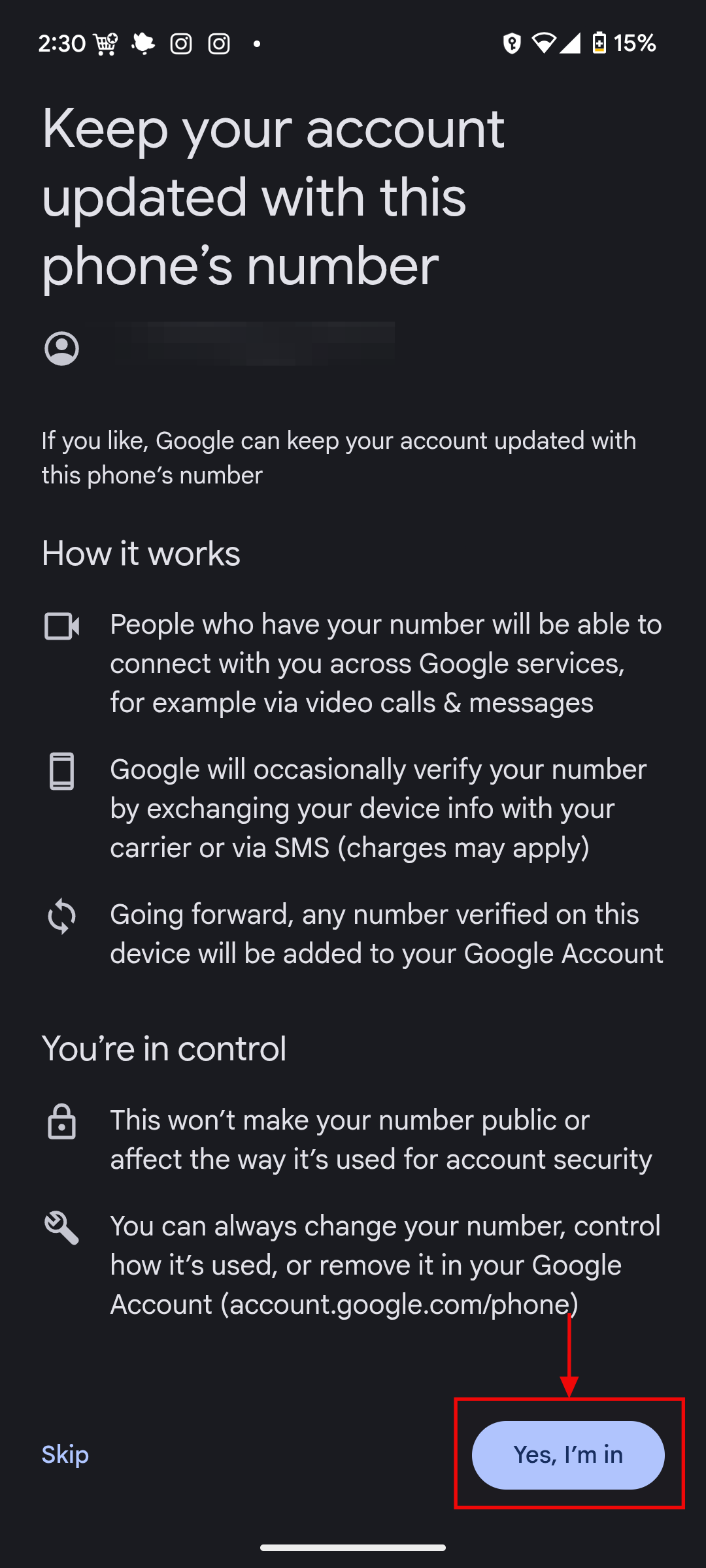
- To use your private space securely, add a different Google Account for your private space. Then select Yes, I'm in and agree to the terms of service.
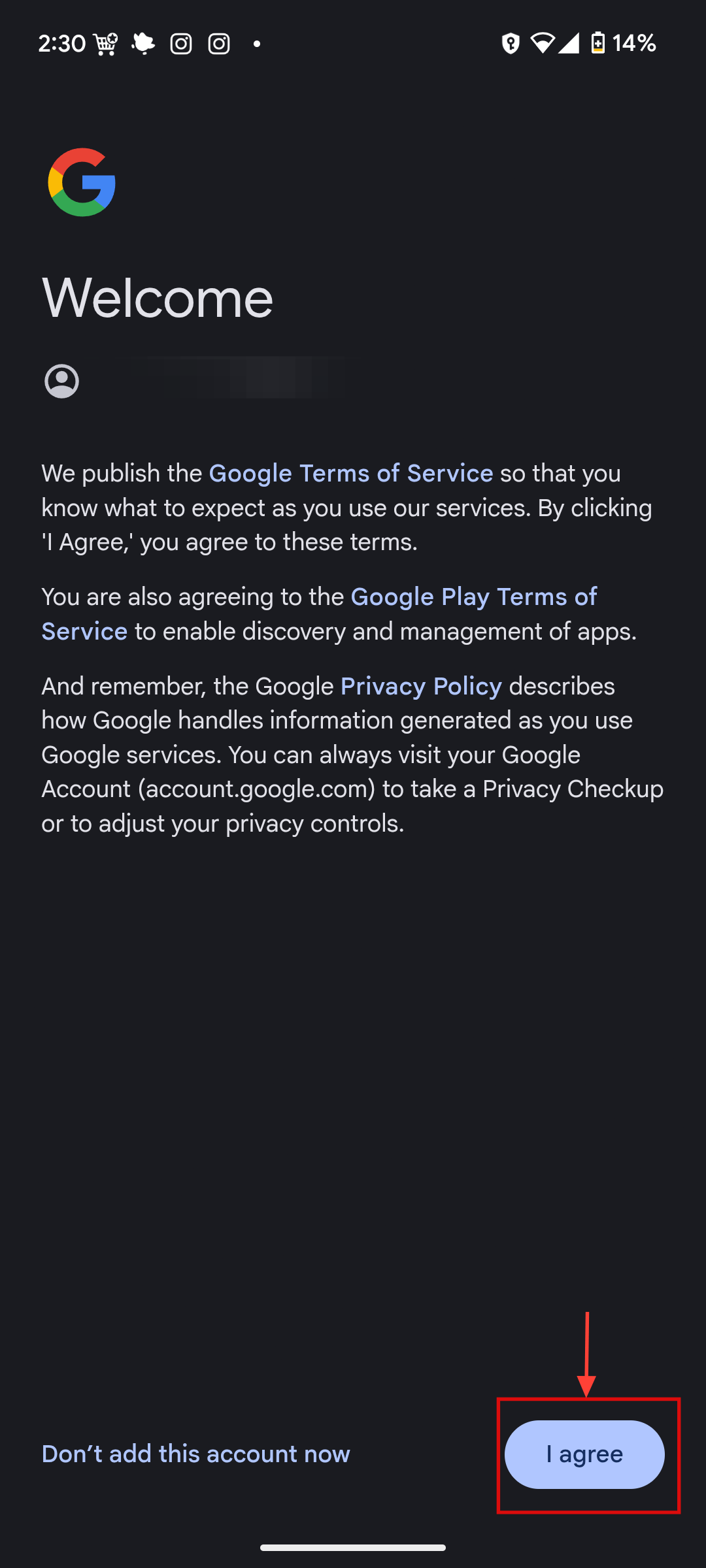
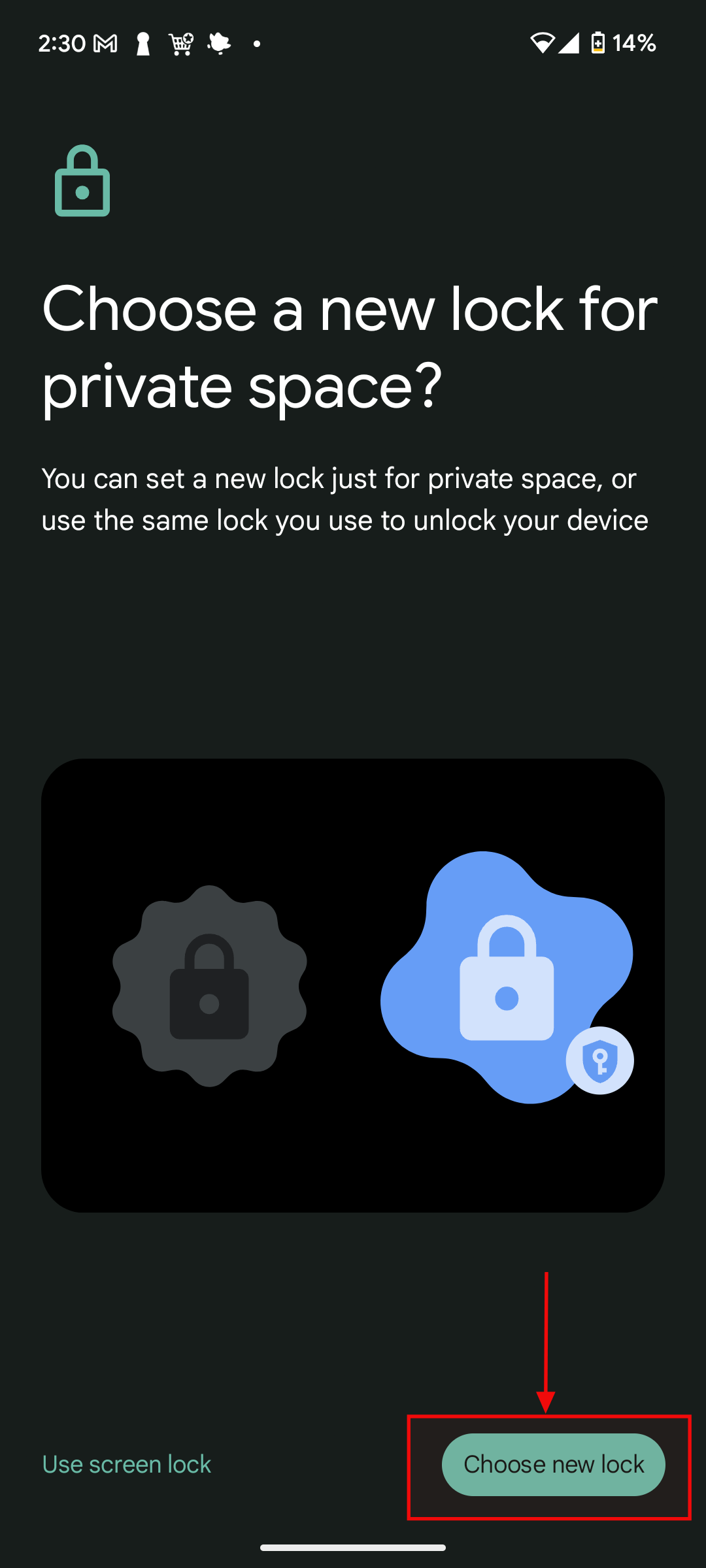
Step 5: You can use your device’s current screen lock or set a different lock type.
- For better security, it's advisable to set a different lock type. To do that, tap Choose new lock. Then select a lock for your private space.
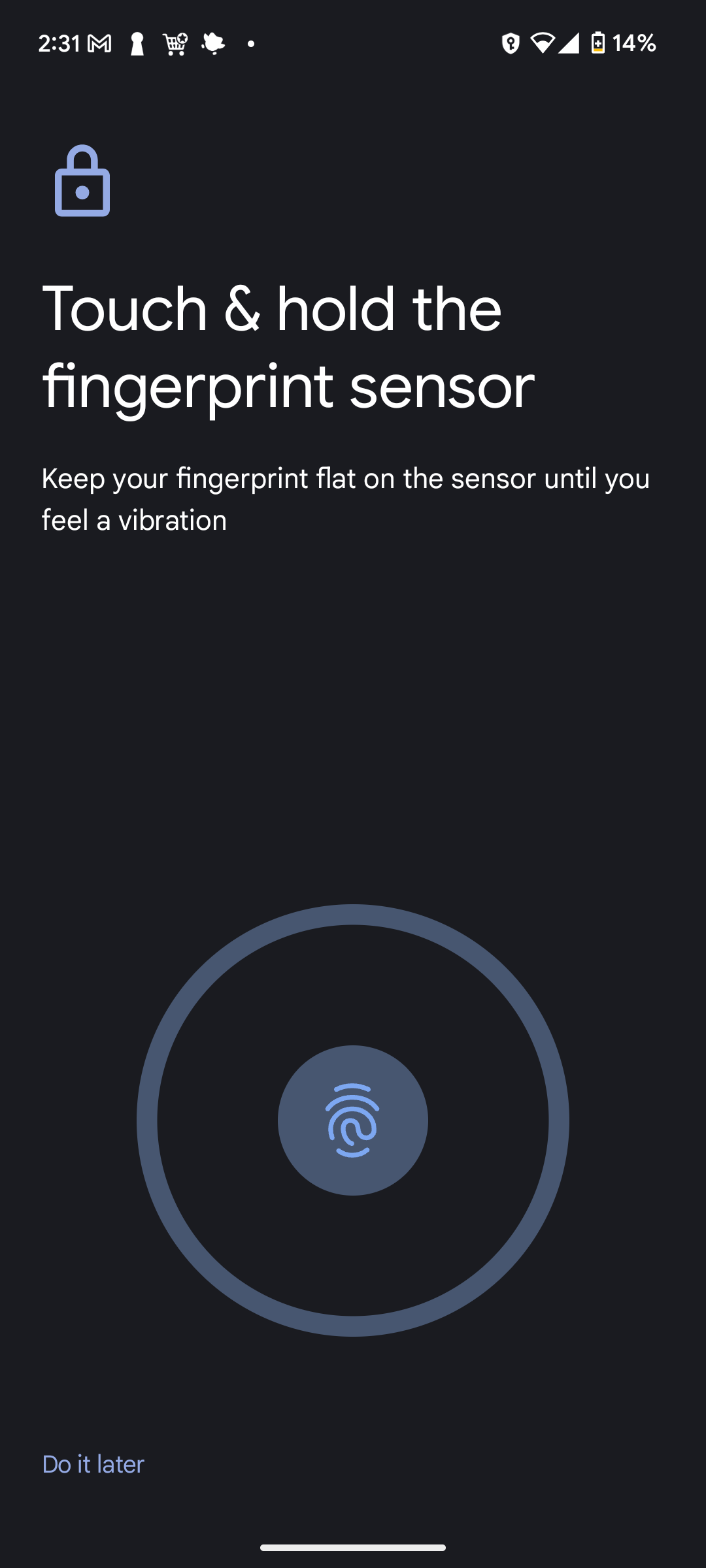
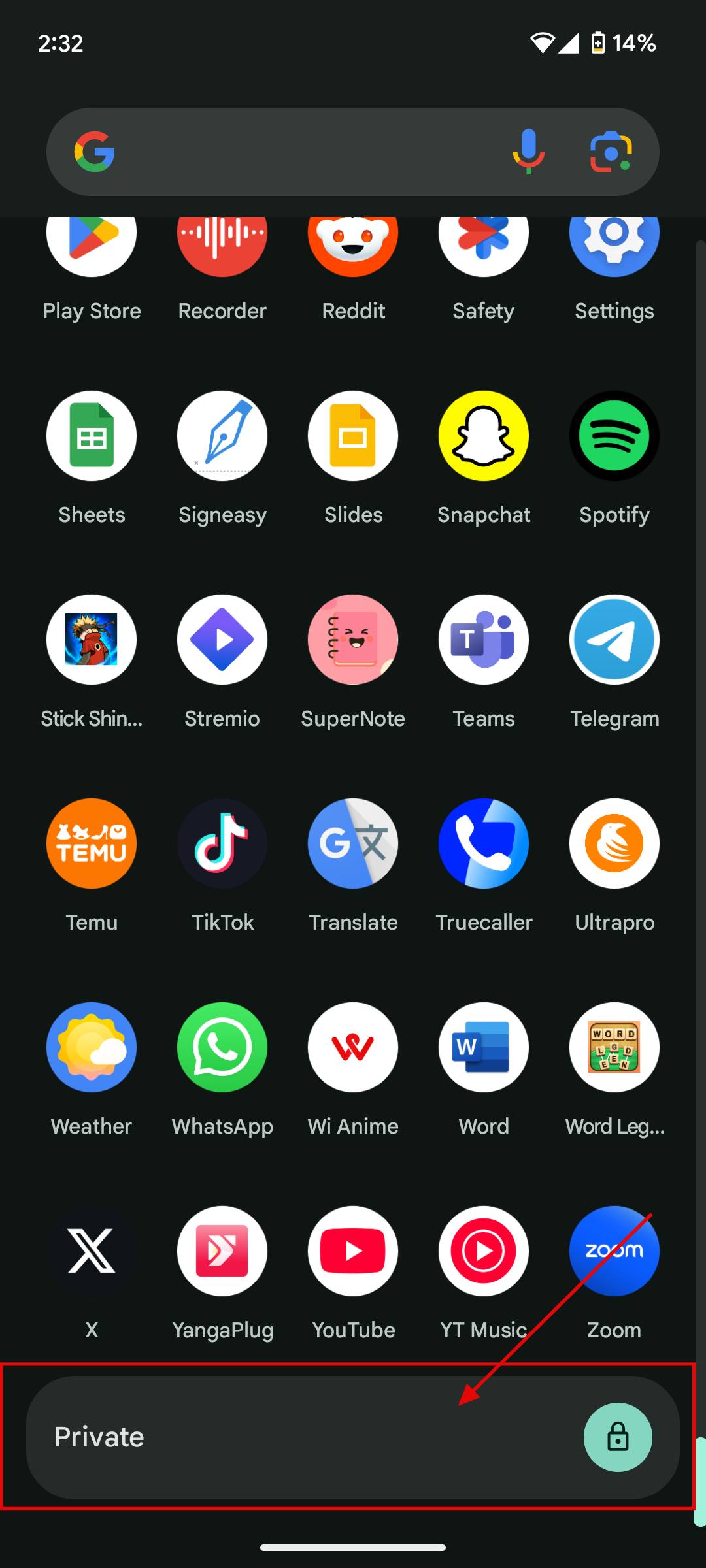
Step 6: Once you finish setting up your fingerprint, it automatically creates a Private space.
- You can now go to the bottom of your app drawer, where you'll see Private with a lock icon.
Conclusion
Privacy Space is a simple yet powerful feature that gives you greater control over what others can see or access on your Android device.
Whether you're handing your phone to a friend or just want peace of mind knowing your sensitive content is hidden, setting up a secure space adds an extra layer of protection. It's easy to set up, discreet, and gives you the confidence to share your device without oversharing your data.
 Oyinebiladou Omemu