



There are just too many notifications constantly going off, from emails, WhatsApp messages, Slack, and so on. Turning on "Do Not Disturb" is a great option to end the noise, but it silences everything so that you could miss an urgent message from your boss or a delivery notification.
But what if you could just tell a specific notification to go low for a few hours so you can focus on other things, and remind you later of its needs? That's exactly what snoozing notifications on Android lets you do. It perfectly fixes the interruptions without completely keeping you in the dark.
Unlike muting an entire app, snoozing is incredibly precise. It lets you temporarily hide a single, distracting alert and have it pop back up later when you're actually ready to deal with it. In this guide, we'll show you how to use this powerful but often overlooked feature on almost any Android device.
 Oyinebiladou Omemu
How to snooze notifications on Android
Step 1: Go to settings on your phone.
Step 2: Select Notifications.
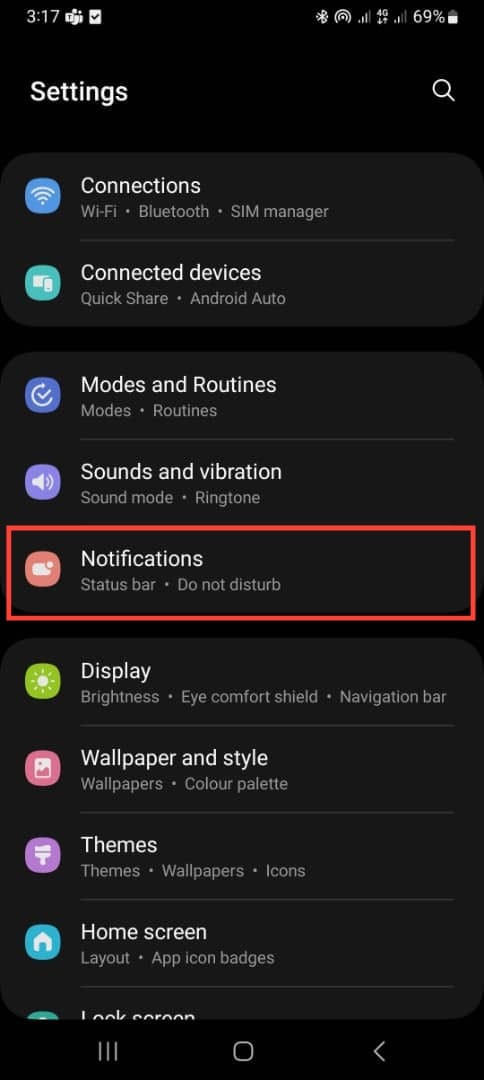
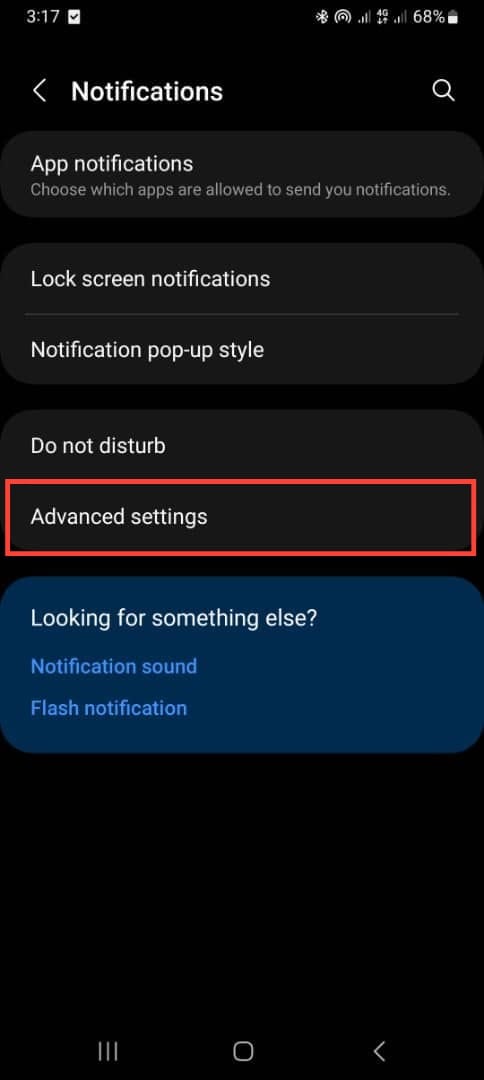
Step 3: Select Advanced settings.
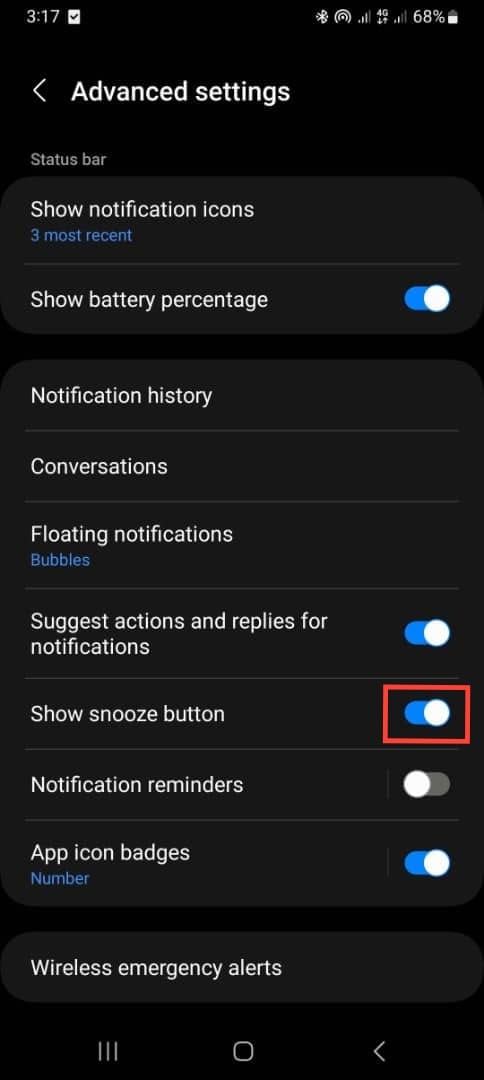
Step 4: Toggle on Show snooze button.
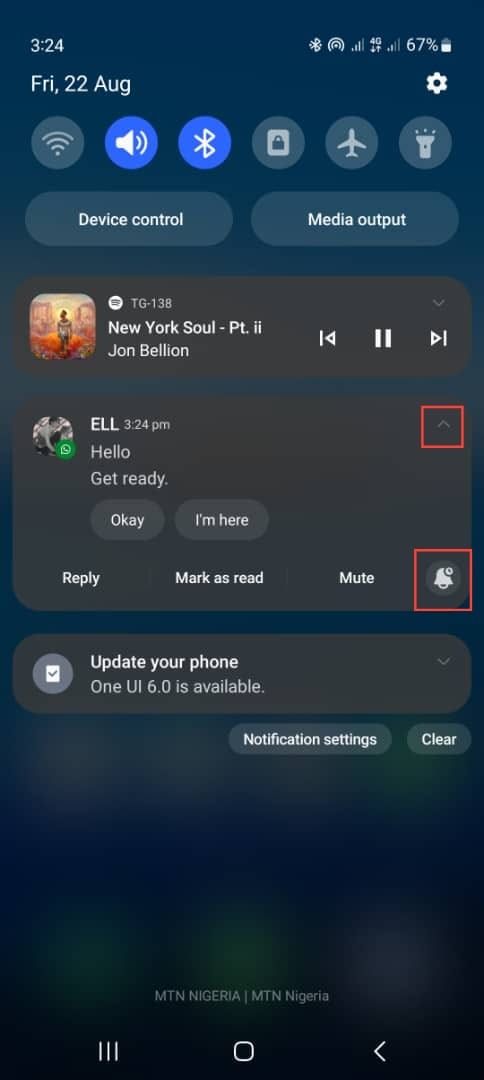
Step 5: When you get a notification from an app, tap the details icon and select the notification icon.
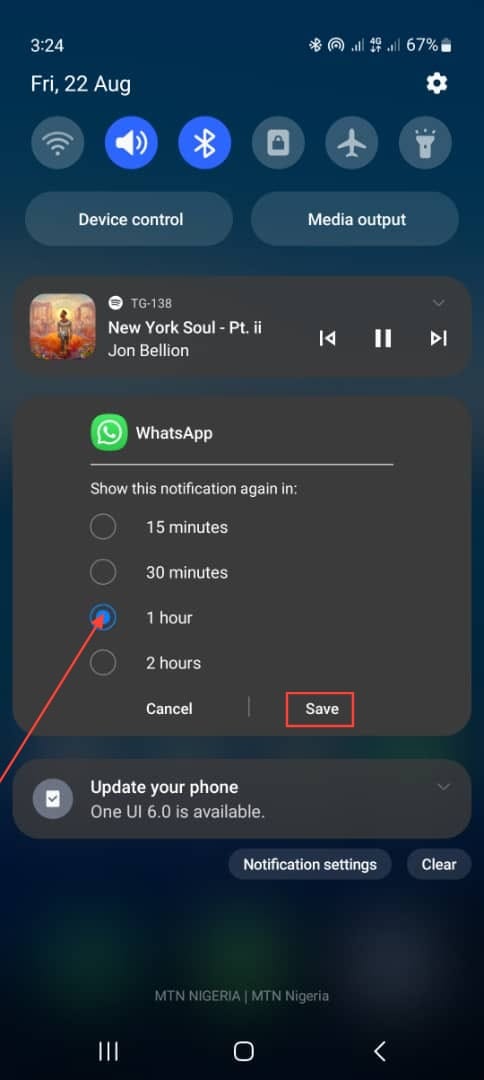
Step 6: Select the time frame to snooze the notification for that app and tap Save. The max time is 2 hours.
 Oyinebiladou Omemu
Conclusion
The snooze function helps you manage your digital life better. You don't get to ignore your responsibilities; instead, you deal with them on your own terms. By snoozing notifications, you decide when to engage with your apps.
The best part of this feature is its flexibility. Whether you need to silence a noisy group chat for an hour to focus on a project or delay your shopping app until you're actually ready to shop, you can easily just do that.
Image Credit: Oyinebiladou Omemu/Techloy.com


