



Haptic Touch comes in handy when you're previewing links, opening app shortcuts, or quickly accessing menus. But if you’ve ever felt like your iPhone takes just a little too long to respond to a long press, you can easily adjust the Haptic Touch speed.
Unlike the old 3D Touch, which reacted instantly to pressure, Haptic Touch relies on timing, so it can sometimes feel sluggish. The good news is that if you're on iOS 17 or later, Apple lets you adjust its speed.
In this guide, leanr how to speed up your haptic touch and make your iPhone feel faster.
 Ogbonda Chivumnovu
How to Speed up Haptic Touch on an iPhone
Step 1: Go to Settings.

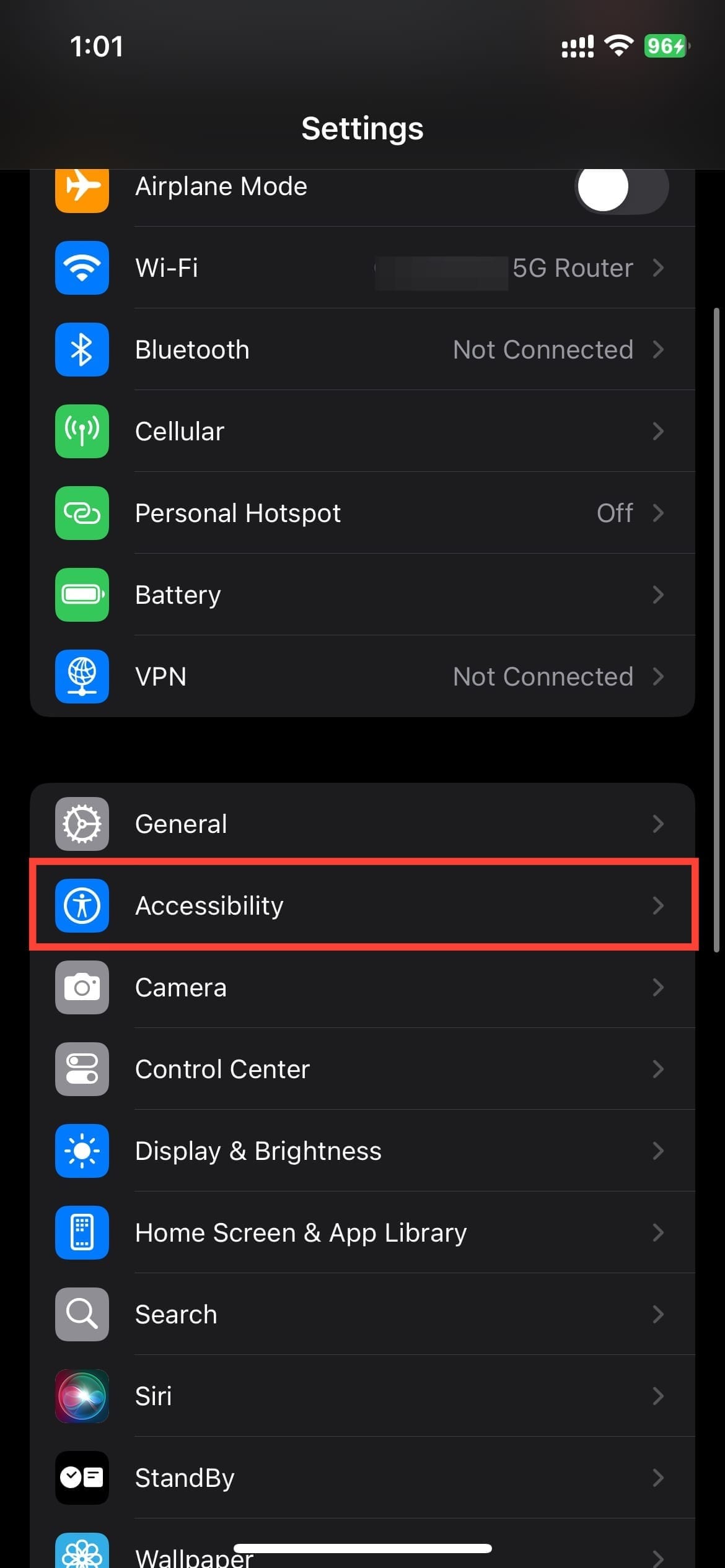
Step 2: Select Accessibility.
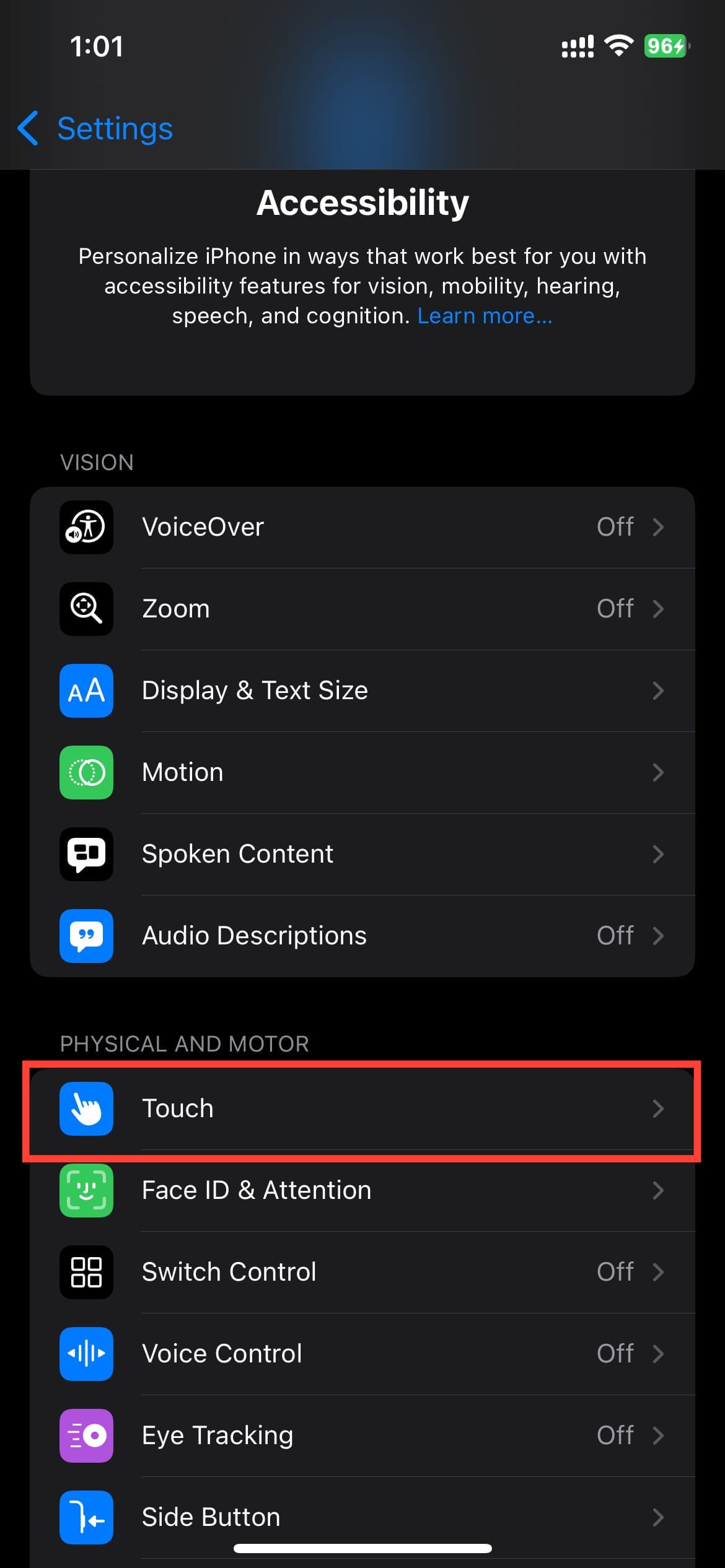
Step 3: Under "Physical and Motor," tap Touch.
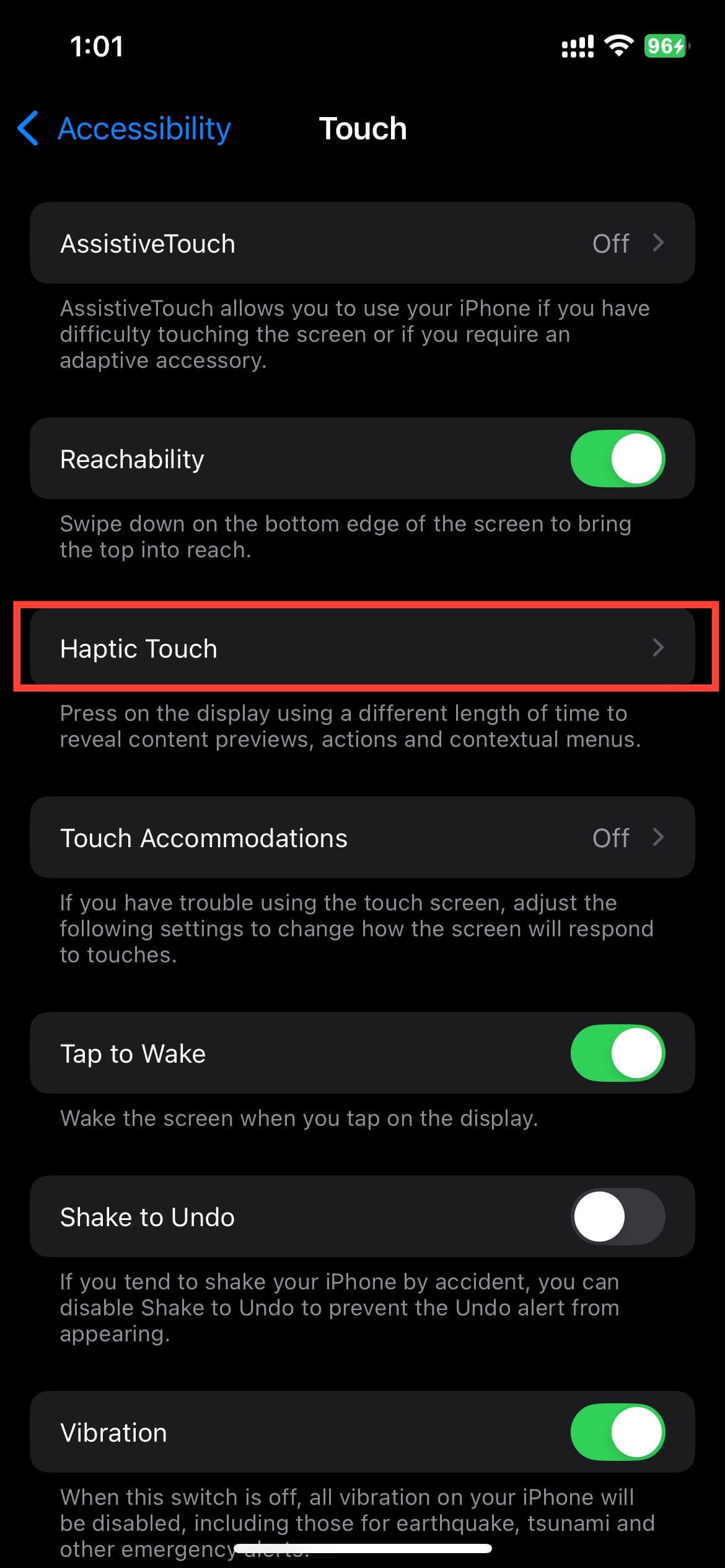
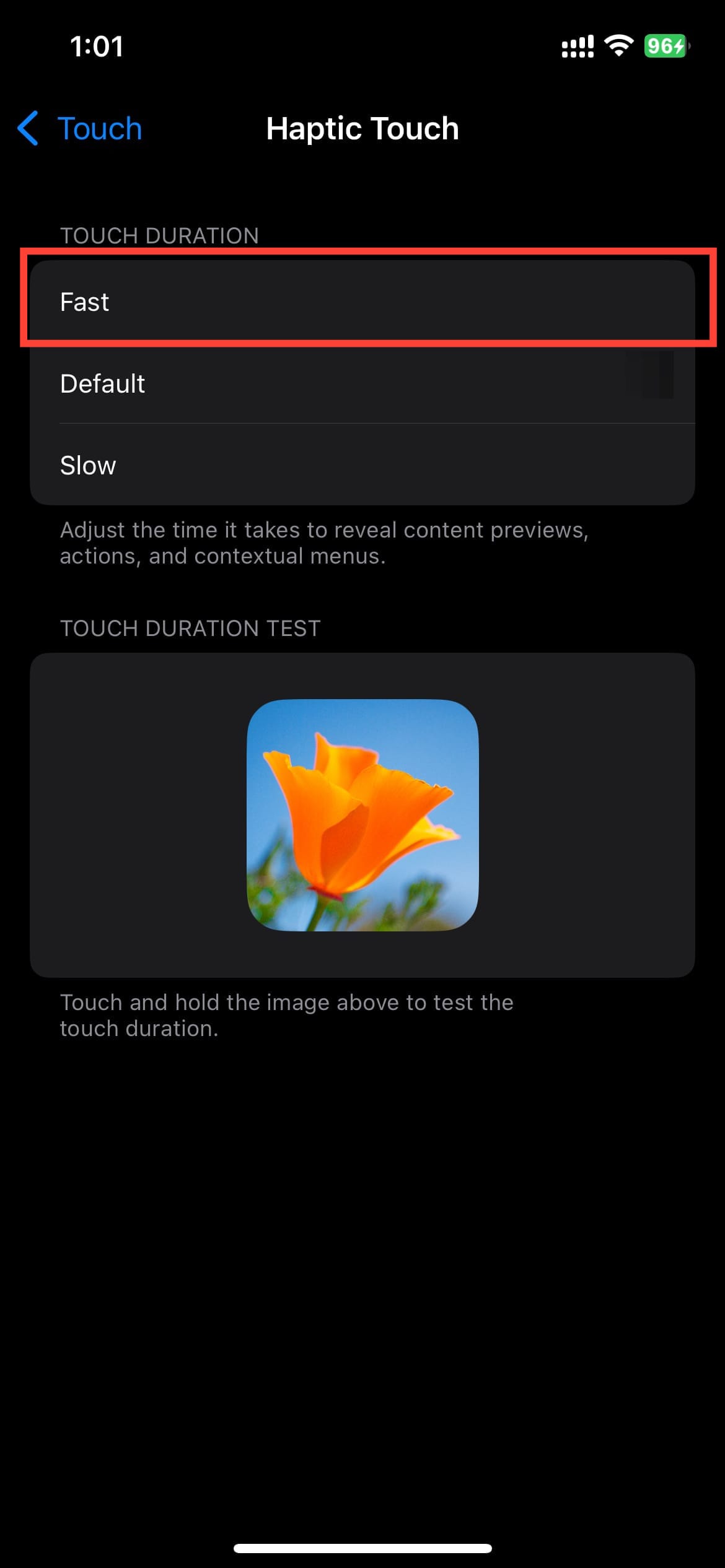
Step 4: Tap Haptic Touch.
Step 5: Select from Fast, Default, and Slow.
 Louis Eriakha
Conclusion
With just a few taps, you’ve now shaved precious milliseconds off your Haptic Touch response time. You no longer have to wait around for menus to appear, just quick interactions.
While it’s not quite 3D Touch, setting Haptic Touch to Fast gets you close enough. If you’re still missing the old pressure-sensitive days, this tweak at least makes the modern alternative feel more responsive.
Image Credit: Oyinebiladou Omemu/Techloy.com


