You’re running late for a meeting, open your Google Calendar to check the time, and boom, it’s cluttered with weird events titled “Win 5 ETH Now” or “Join Secret Investment Call.”
No, you didn’t sign up for these. And no, that mystery webinar about a “limited-time NFT drop” isn’t real. What you're seeing is calendar spam. Junk invites from strangers that sneak into your schedule without your consent.
It’s a frustrating (and growing) issue, thanks to how Google Calendar handles invites by default. But don’t worry, with a quick tweak to your settings, you can stop these spammy events from showing up ever again.
How to Stop Spam Invites from Cluttering Your Google Calendar
Step 1: Open Google Calendar in your web browser by going to calendar.google.com.
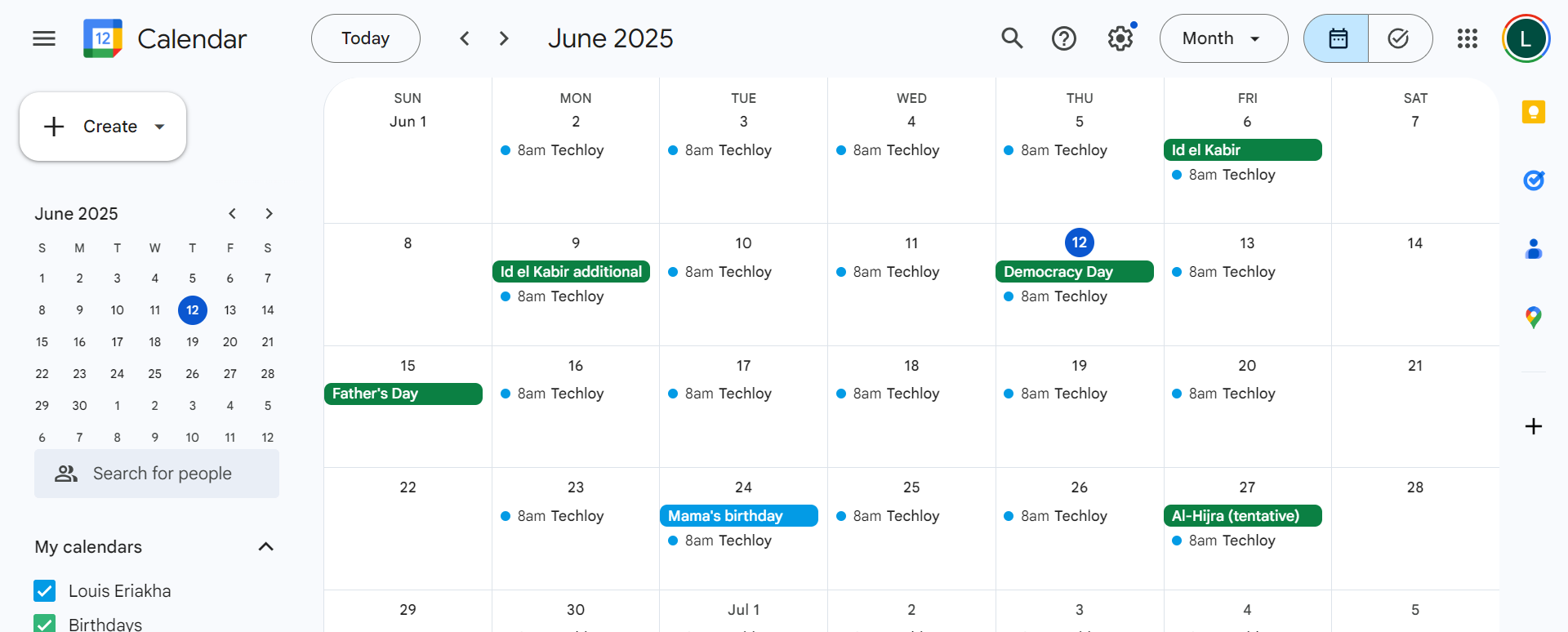
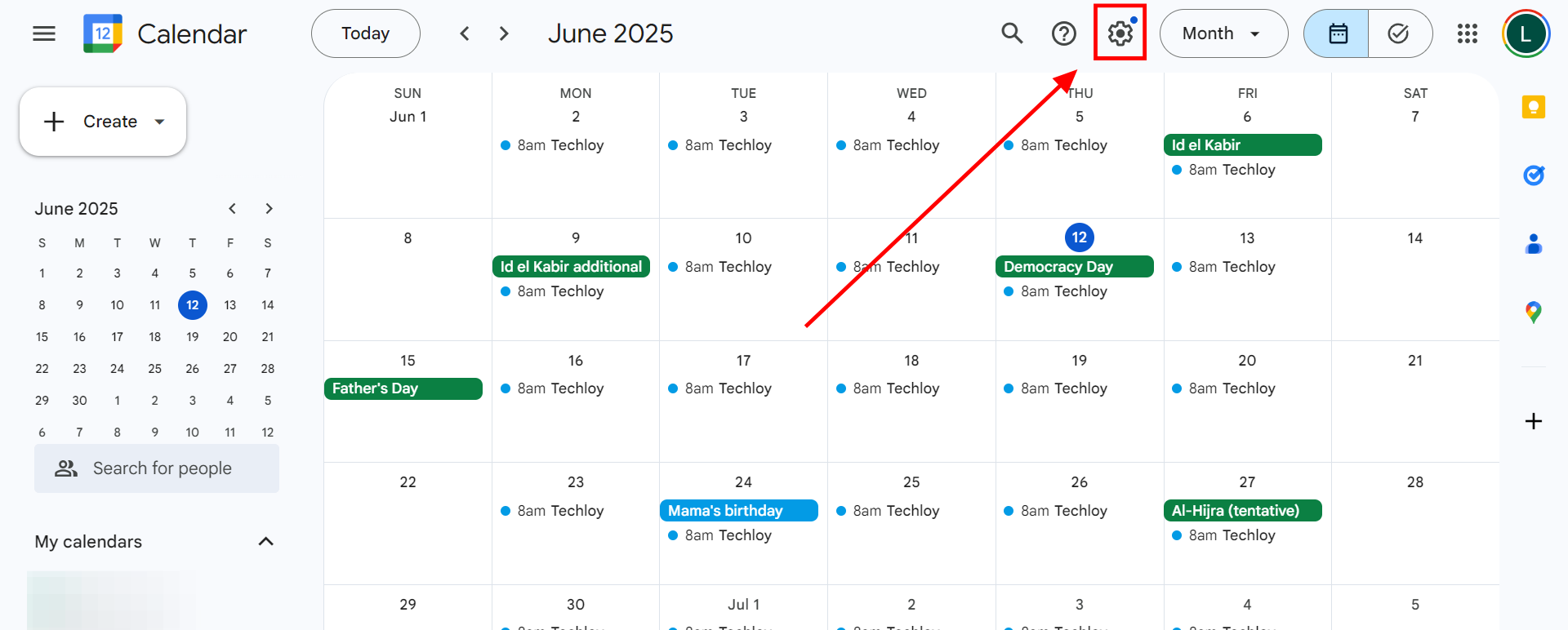
Step 2: Click the gear icon (Settings) in the top right corner of the Google Calendar interface.
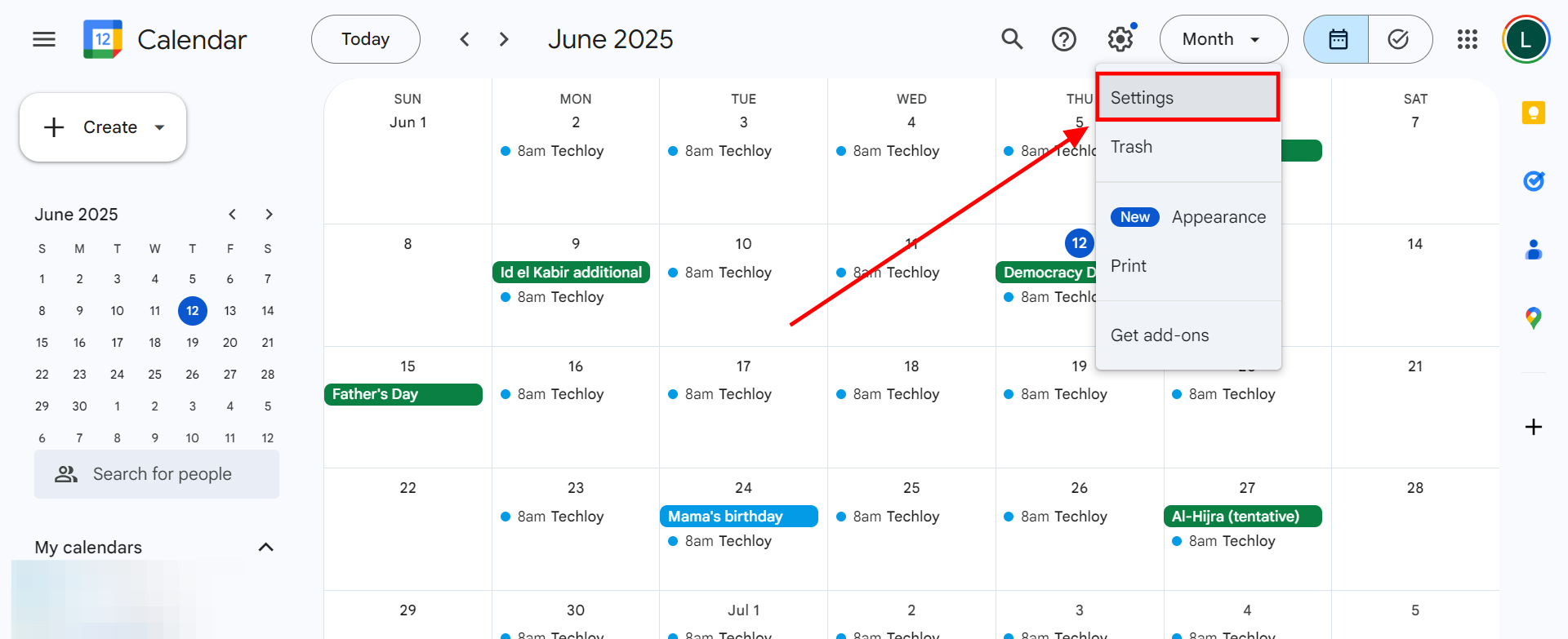
Step 3: From the drop-down menu that appears, select Settings.
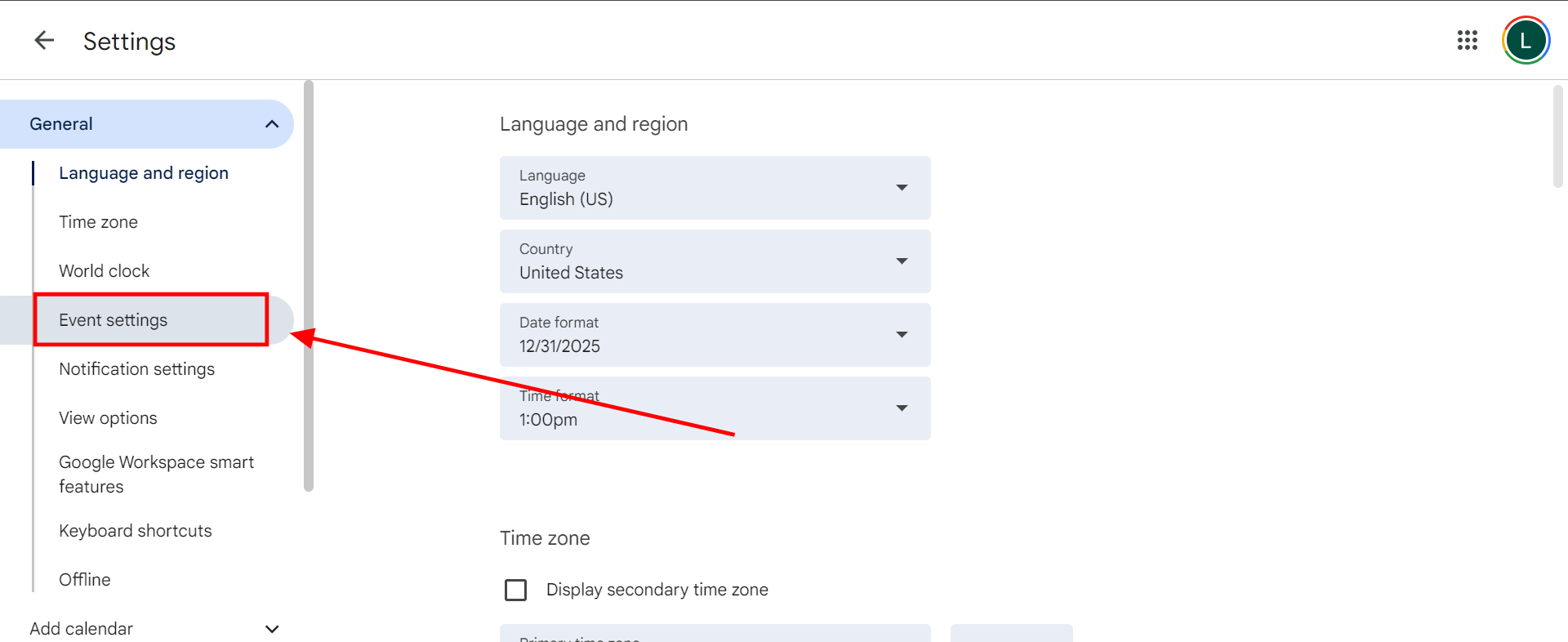
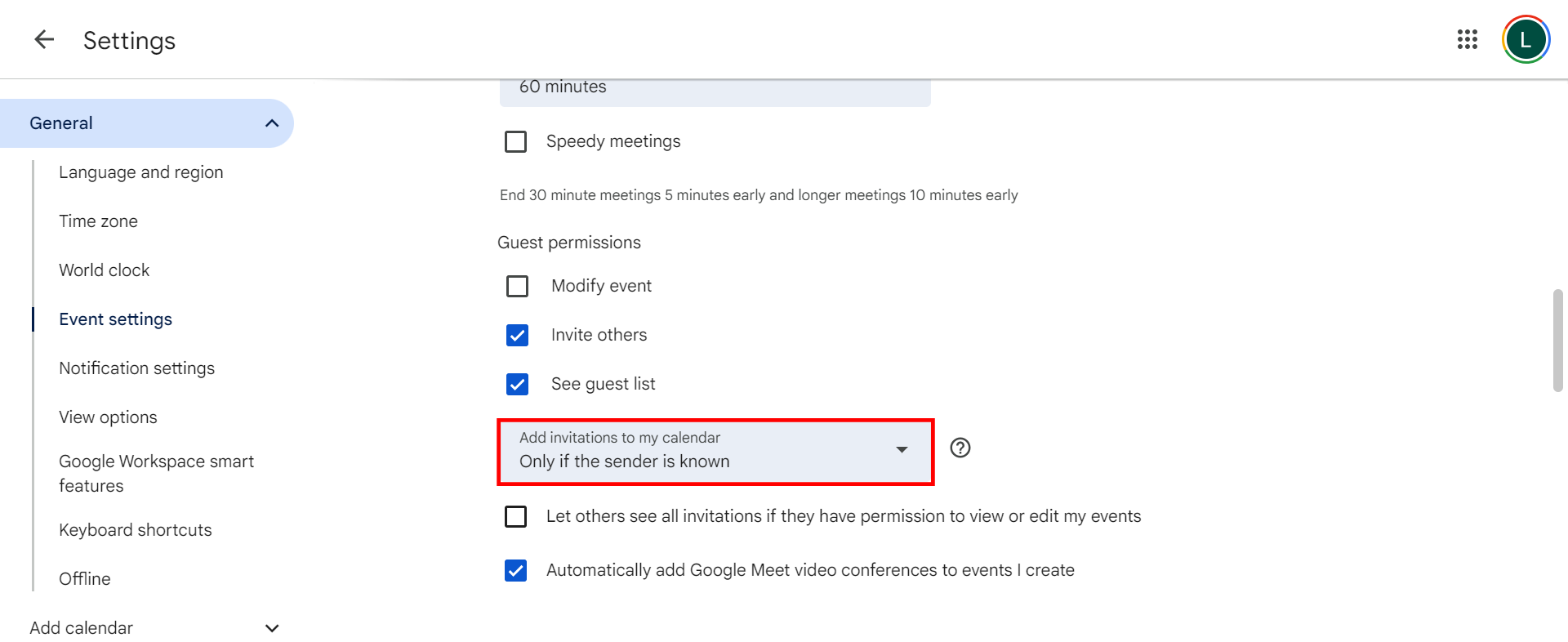
Step 4: In the left-hand menu, click on Event settings.
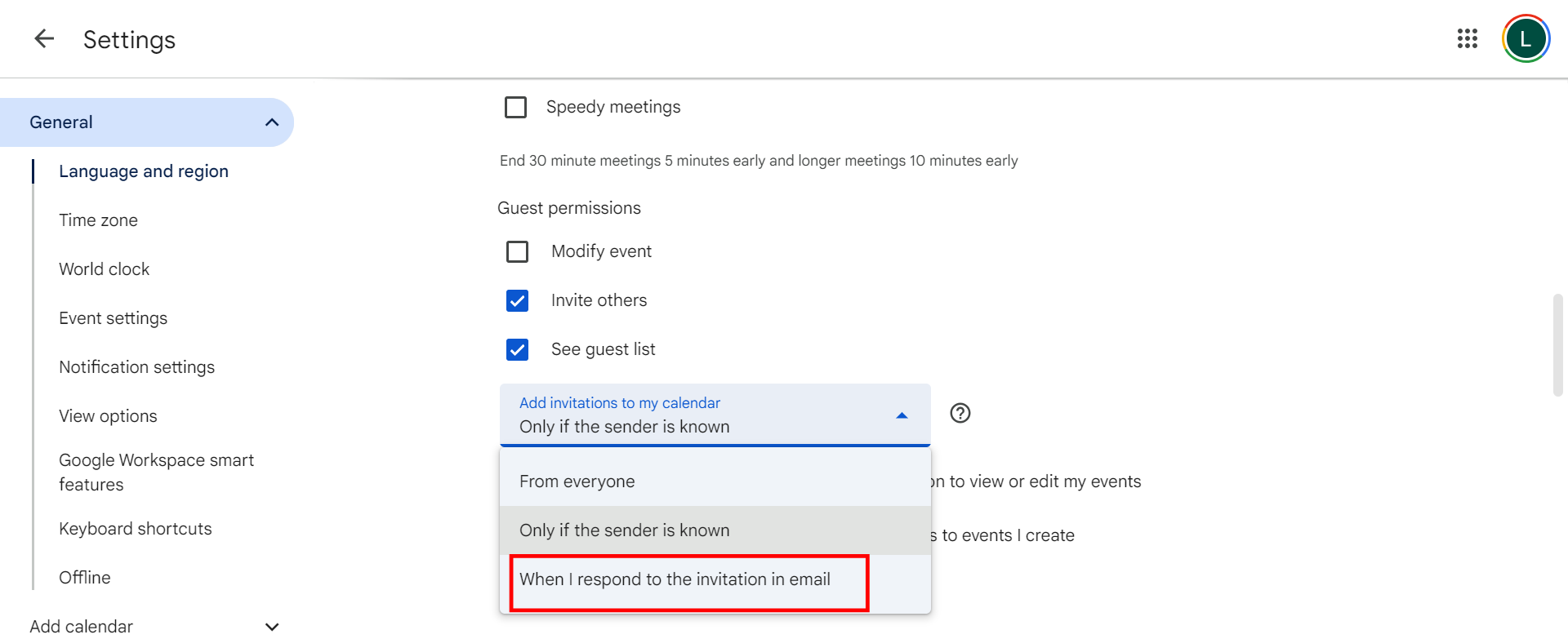
Step 5: Locate "Add invitations to my calendar" and from its drop-down menu, select "When I respond to the invitation in email."
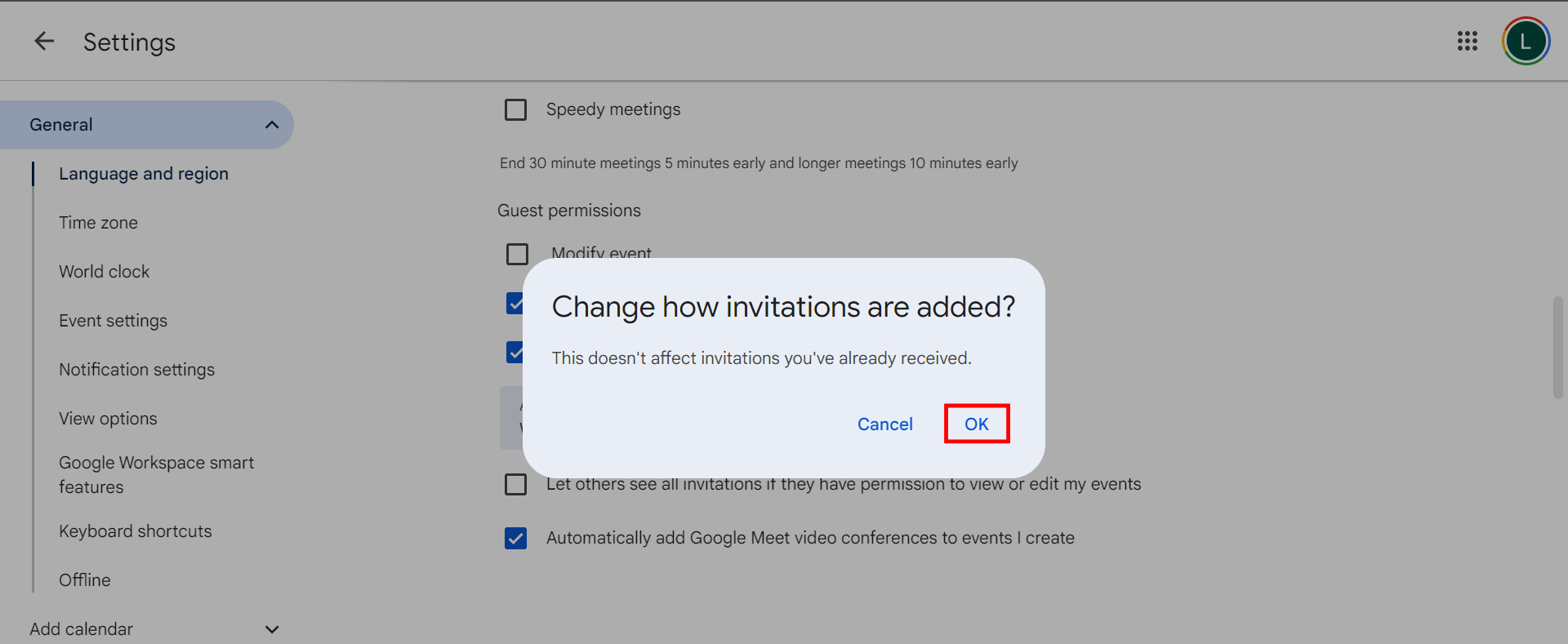
Step 6: A warning stating "Change how invitations are added?" might pop up. Simply click OK once this comes up.
Conclusion
Once you've adjusted this setting, your calendar will no longer be a dumping ground for unwanted invites. Google will only add events when you’ve explicitly responded to them via email, giving you more control over what shows up. It’s a small fix, but one that can save you a lot of digital clutter and confusion.
 David Adubiina