



If you’re active on WhatsApp, you’ve probably noticed how fast your phone's gallery can fill up. From random memes in group chats to videos you didn’t ask for, media from WhatsApp tends to sneak into your camera roll without warning. This can quickly turn your gallery into a mess and eat up storage space that could be better used elsewhere.
I remember scrolling through my photos app only to find hundreds of images I didn’t even remember receiving. It was frustrating, especially when I was trying to find something important I had actually saved.
The good news is: WhatsApp gives you full control over how media is handled. You can stop it from saving automatically to your device, keep your photos and videos inside the app, and download only what matters to you.
 Oyinebiladou Omemu
Steps to Stop WhatsApp From Saving Media to Device on iPhone
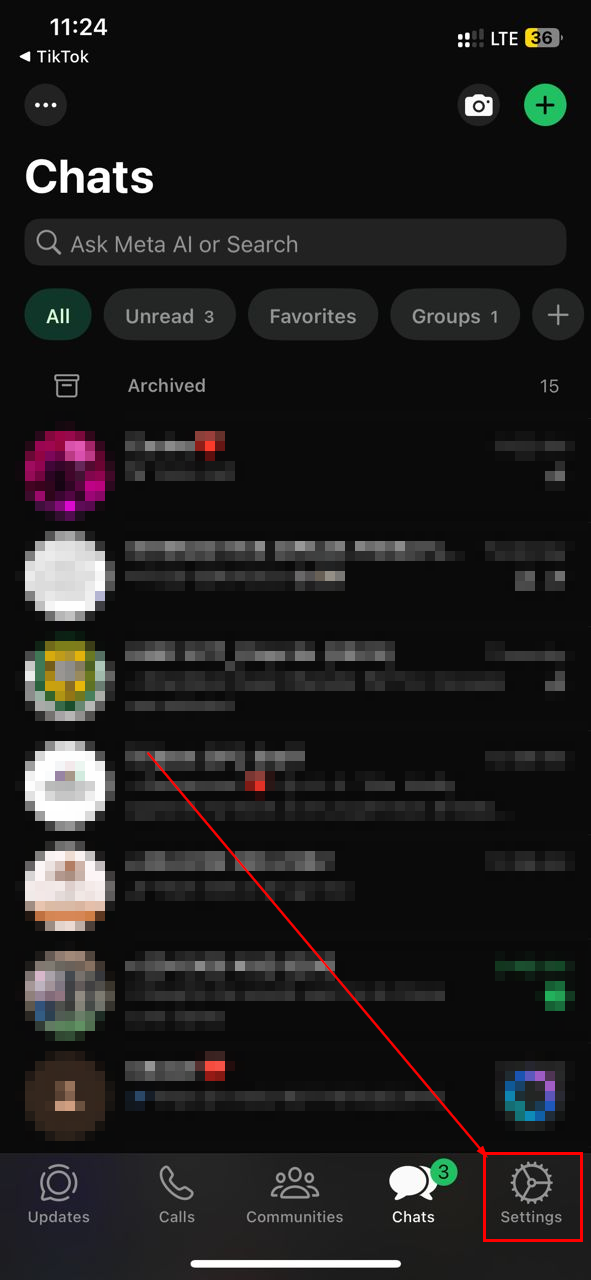
Step 1: Open the WhatsApp app and click the Settings icon in the bottom-right corner
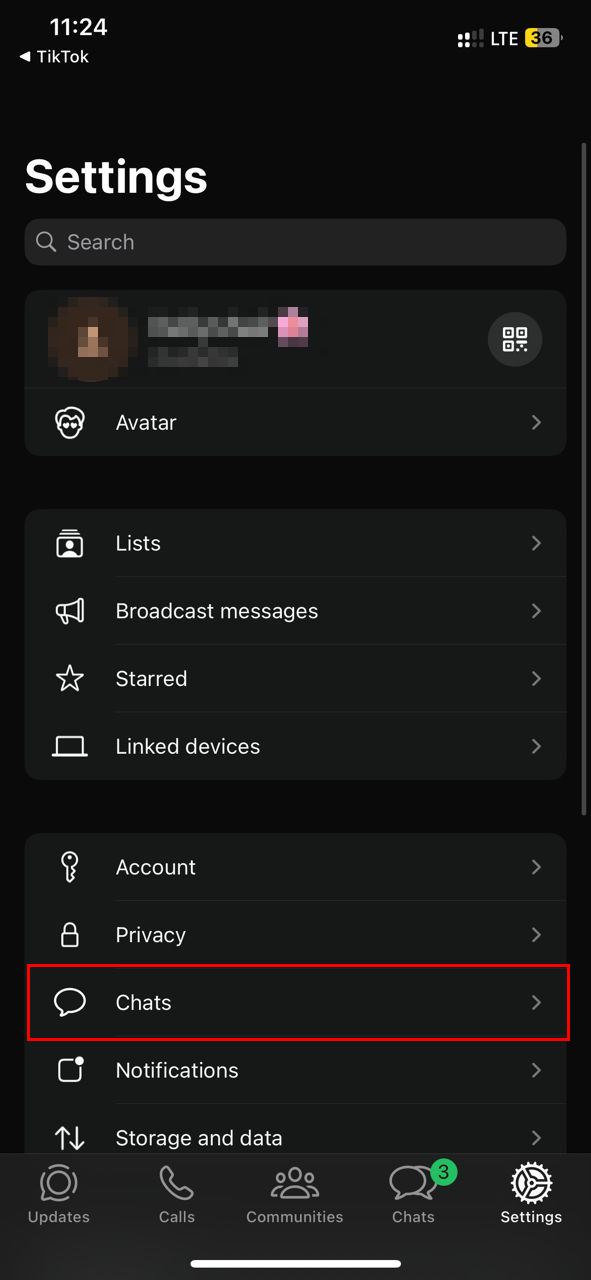
Step 2: Click "Chats"
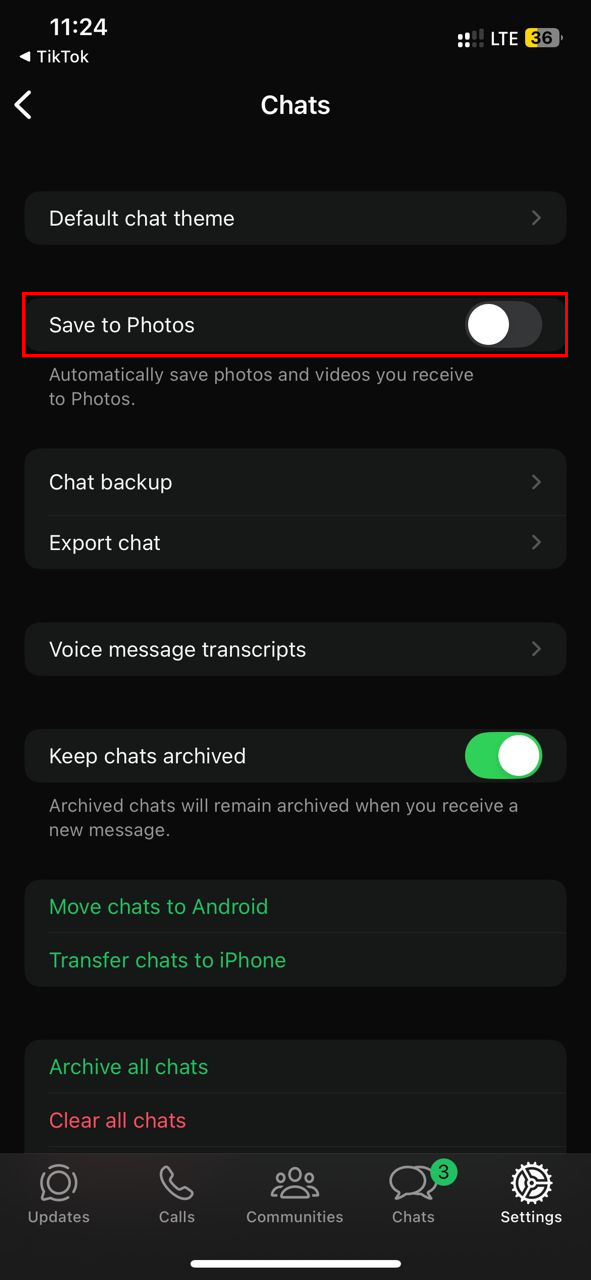
Step 3: Toggle off the Save to Photos option
Steps to Stop WhatsApp From Saving Media to Device on Android
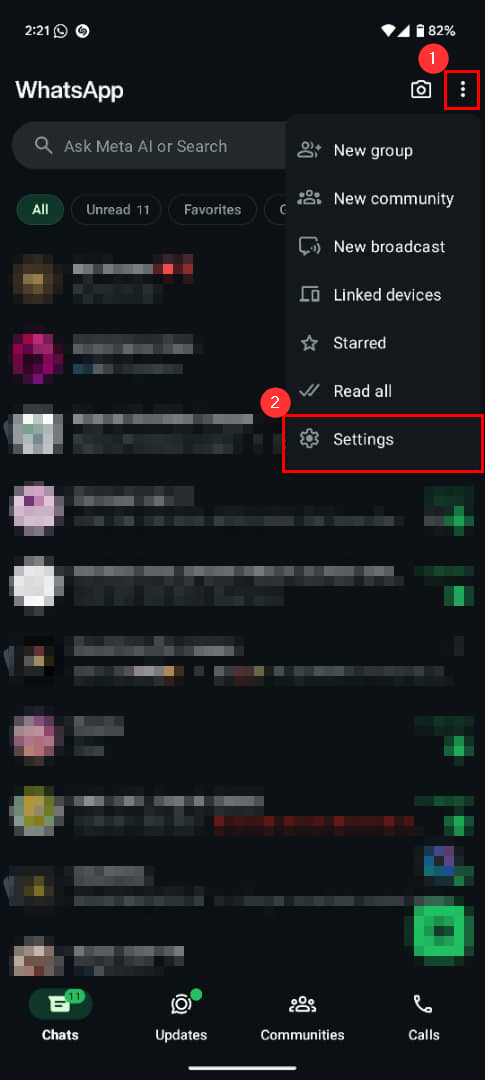
Step 1: Open WhatsApp, tap the three-dot menu in the top-right corner, and click "Settings"
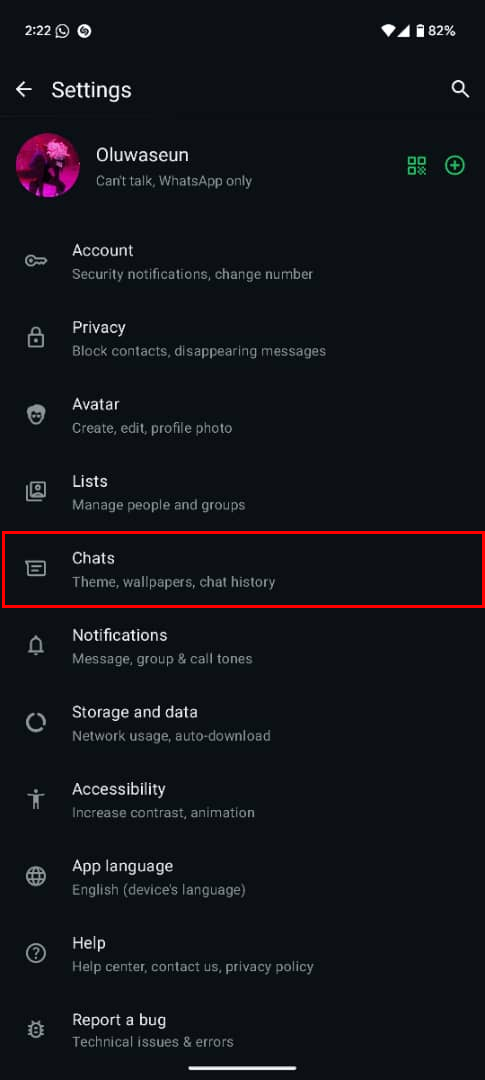
Step 2: Select "Chats"
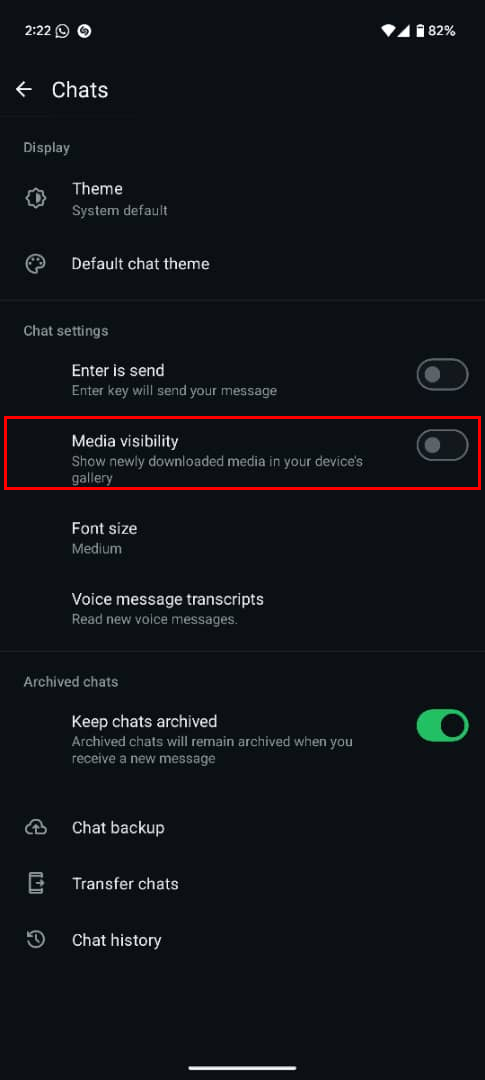
Step 3: Finally, toggle off the Media visibility option
 Louis Eriakha
Conclusion
Managing how WhatsApp handles media is one of those small settings that can have a big impact. With a few quick adjustments, you can stop the flood of unwanted photos and videos, keep your phone organised, and save space for the content that matters to you.
Whether you’re looking to improve storage efficiency, protect your privacy, or simply keep your gallery looking clean, turning off auto-save gives you the control you need. You’ll still be able to see all shared media inside WhatsApp, and you can download anything manually if you change your mind.
Image credit: Oluwaseun Bamisile/Techloy.com


