



Email notification is a useful feature that ensures you get notified of any incoming emails sent to you. This helps you check emails often and manage multiple email accounts, especially in Outlook.
Being one of the most popular email services, Outlook offers a straightforward process to turn on notifications. In this guide, learn the steps needed to turn on notifications on Outlook, ensuring that your emails are regularly checked and managed.
 David Adubiina
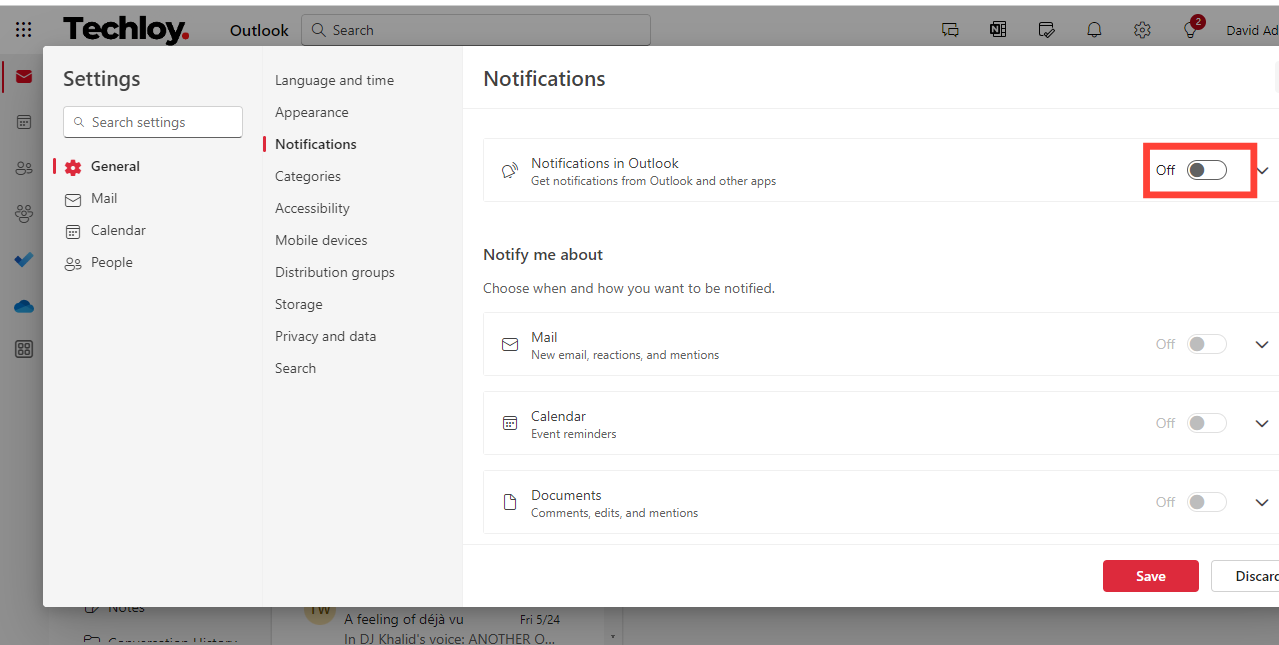
How to turn on notifications on Outlook web
Sign in to your Outlook account
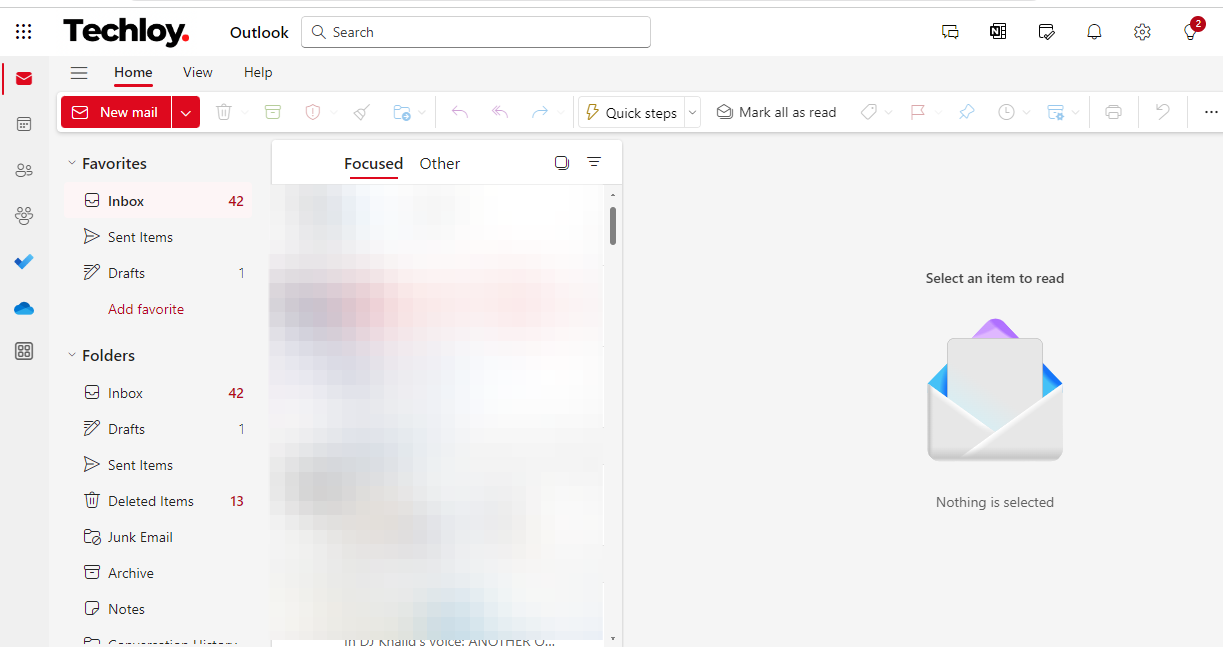
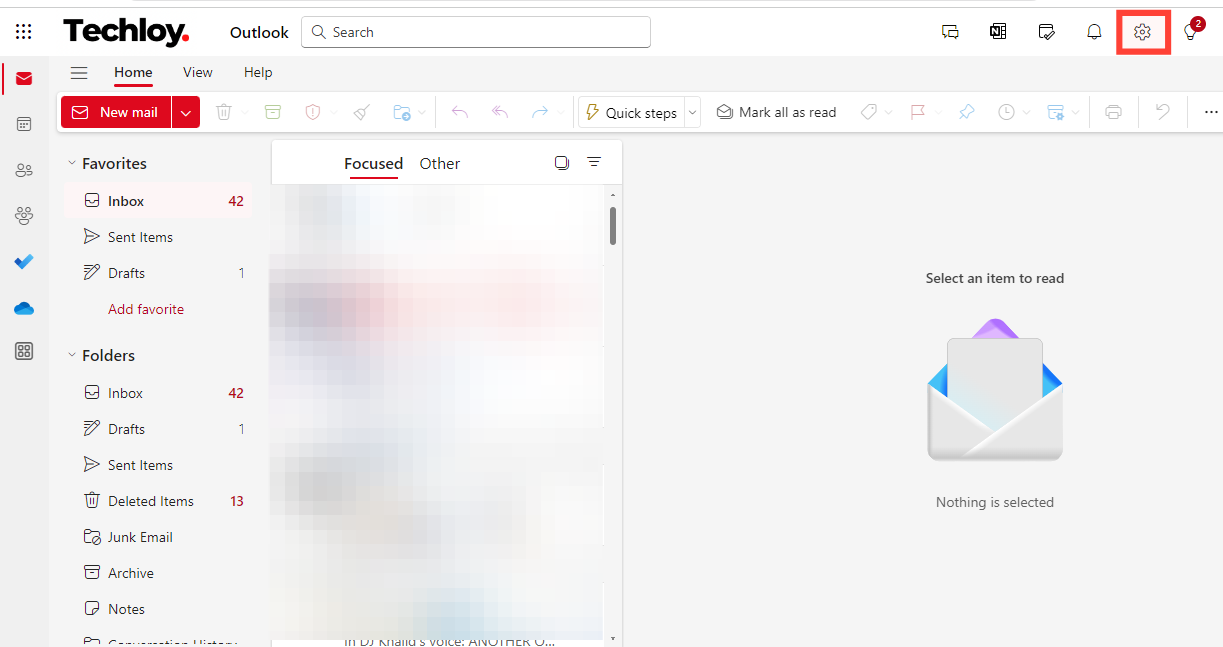
Click on the "gear" icon at the top-right corner of the Outlook interface.
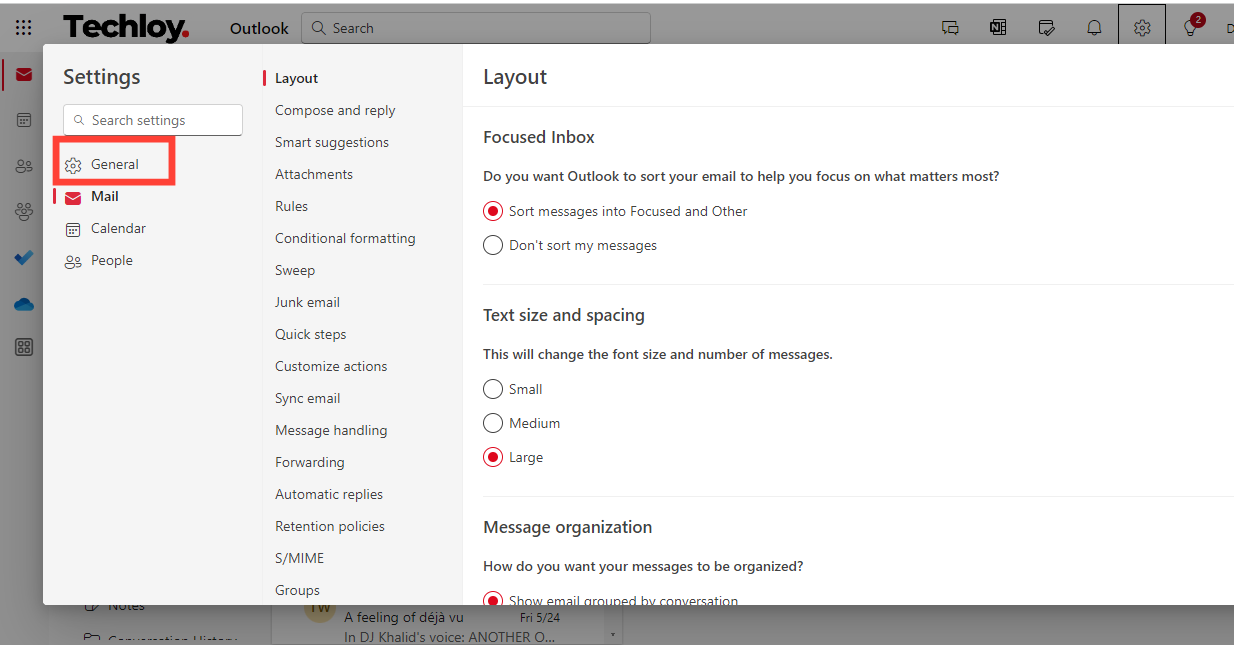
Tap on General
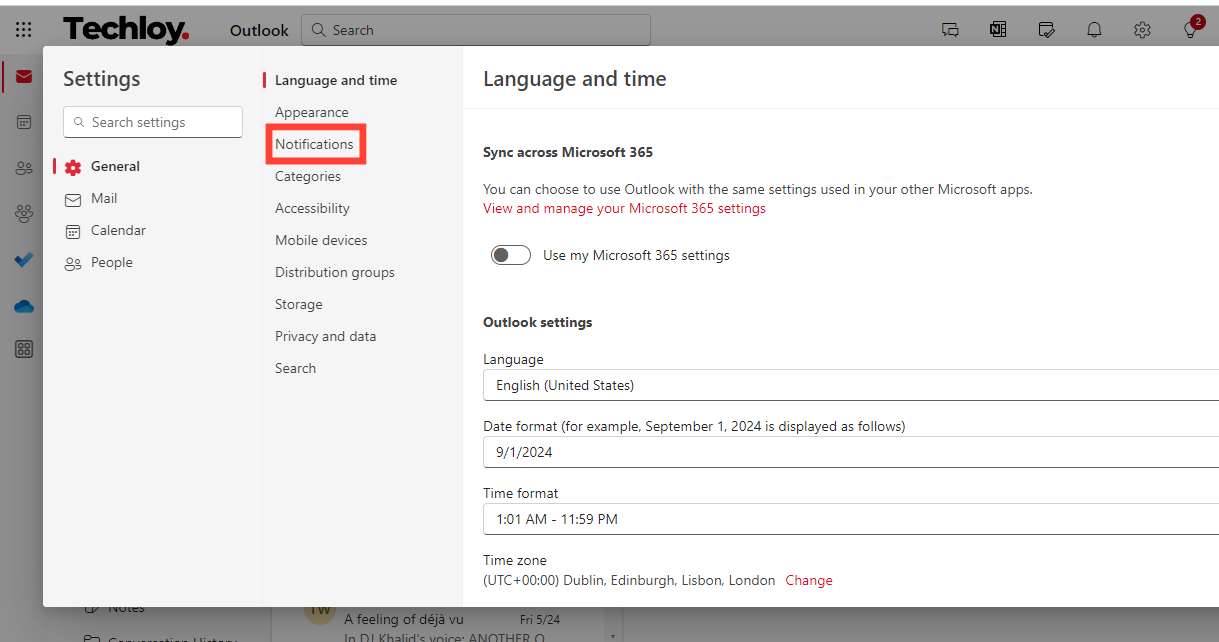
On the general tab, select "Notifications."
Toggle on "Notifications in Outlook".
How to turn on notifications on the Outlook app
Open your Outlook app
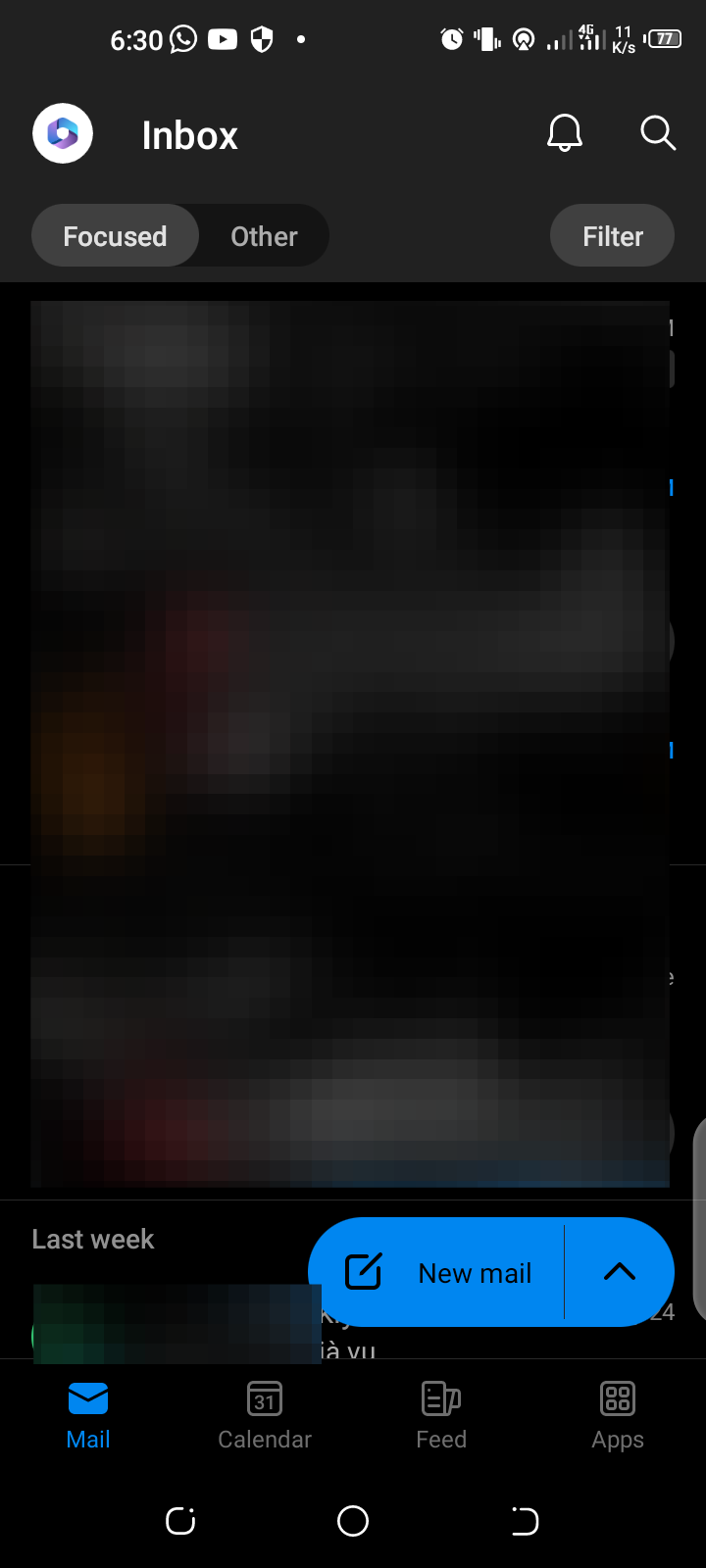
Tap on the “Microsoft 365” icon
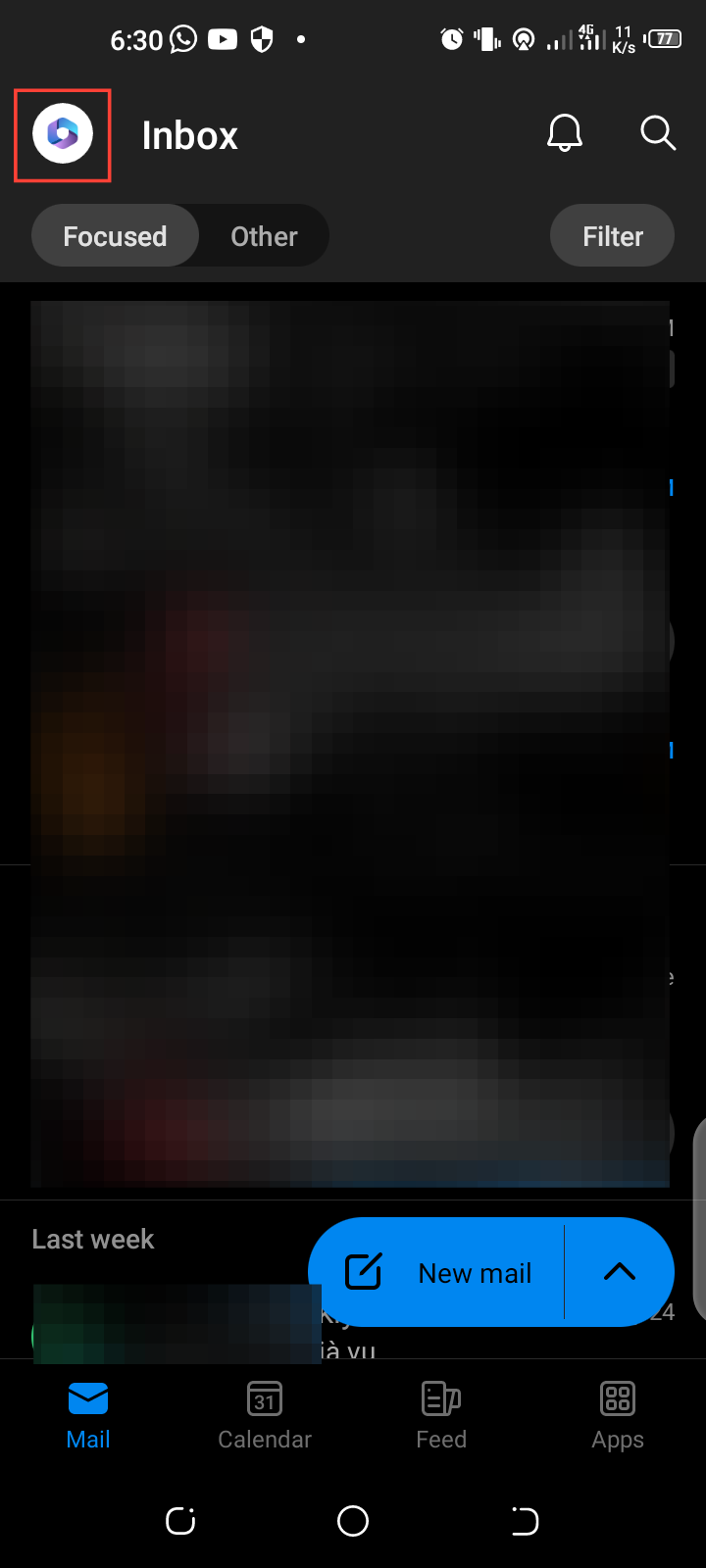
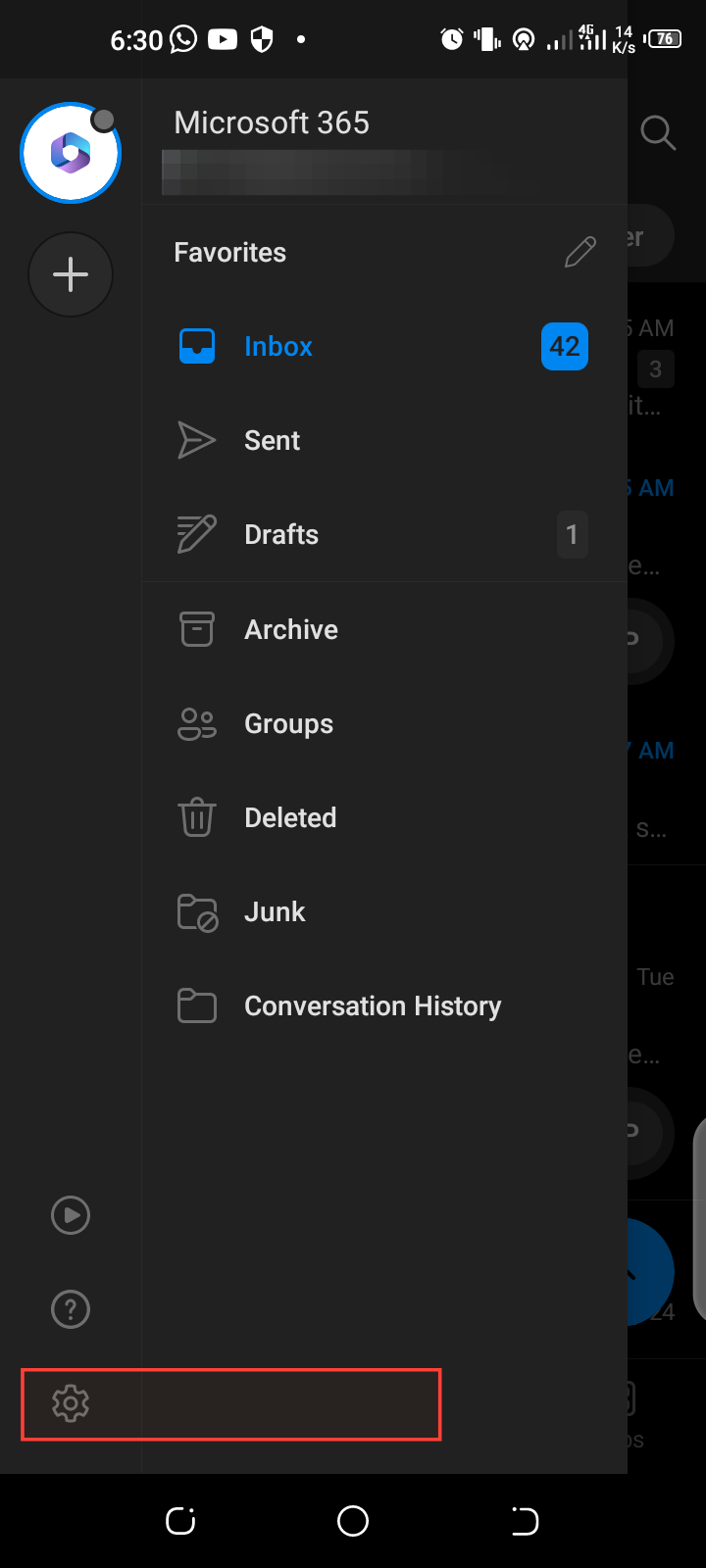
Click on the "gear" icon at the bottom.
Tap on "Notifications."
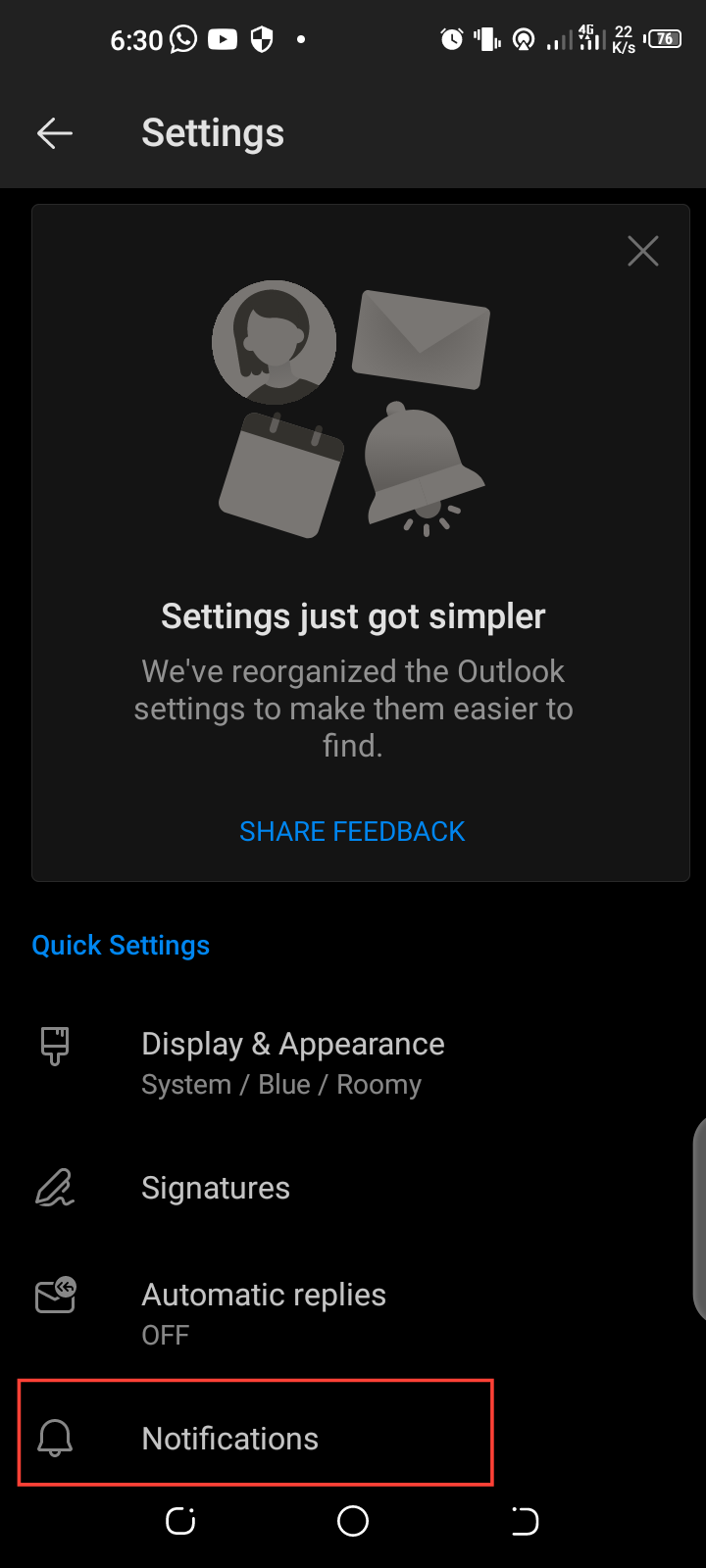
Toggle on "Allow notifications".
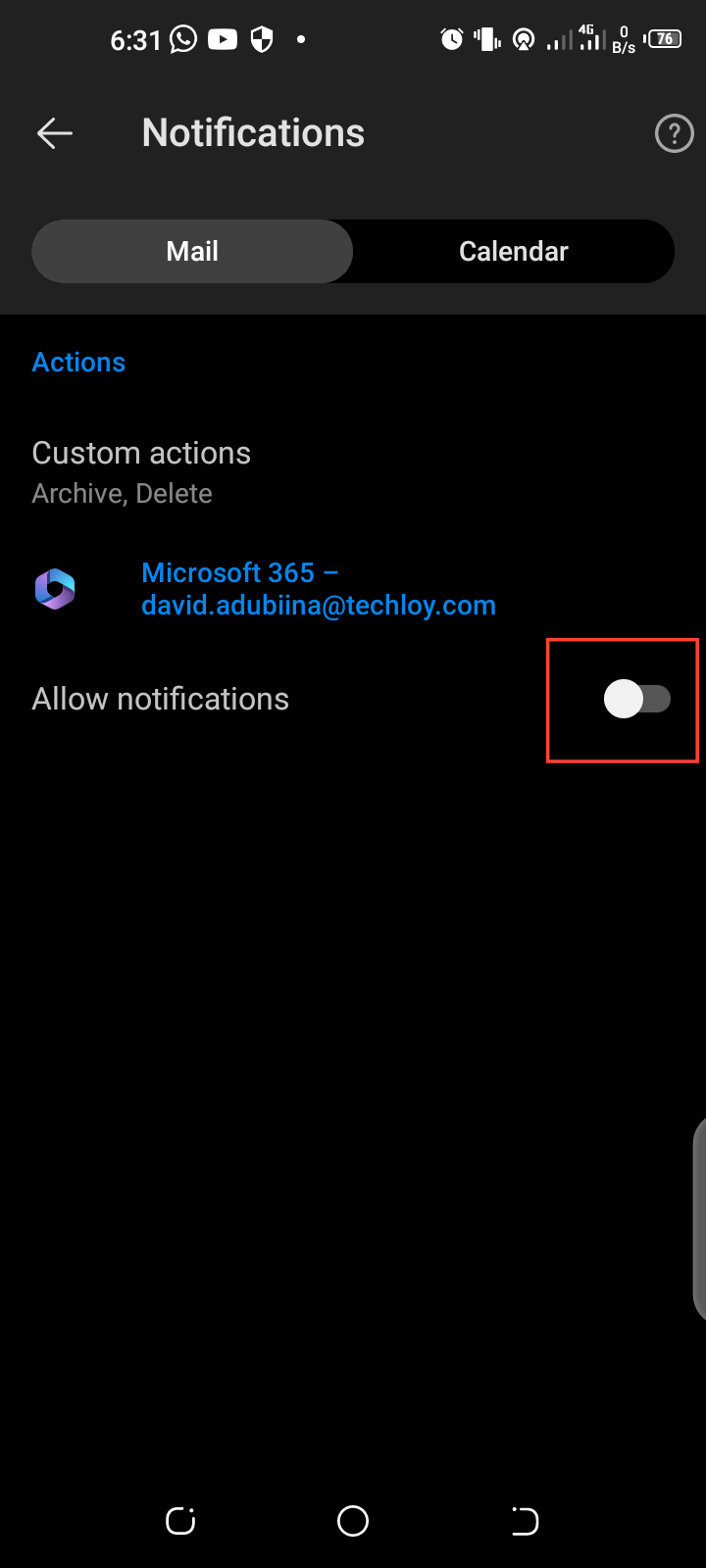
Now that your notification is turned on, you will get notified on any incoming email.
Conclusion
Turning on notifications in Outlook is a simple and effective way to manage multiple email accounts and get notified of incoming mail. This allows you to manage your email by tending to important emails and sorting out unimportant ones.


