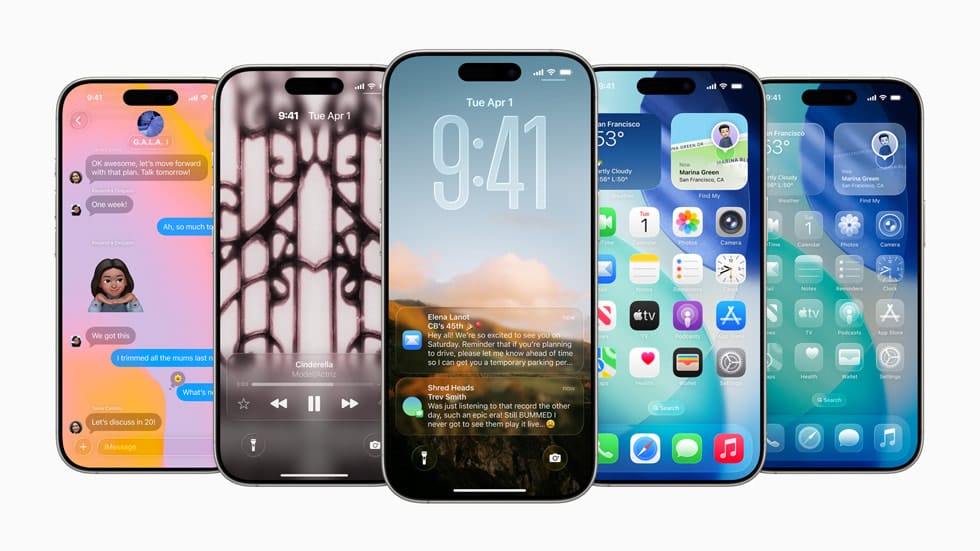
iOS 26 was officially released to the public yesterday. While the Beta had its share of sceptics, the updates Apple settled on are here to stay, at least for now. What makes this version stand out is how it gives users a bit more control over their iPhones, whether that’s tweaking the look of the interface or managing battery life.
So, without further ado, here are some of the biggest changes iOS 26 introduces, and how you can try them out yourself
 Kelechi Edeh
/1. Optimise Your Battery Life with Adaptive Power Mode
Battery life has always been a hot topic for iPhone users, and as any iOS update veteran would tell you, any fresh public update will almost always give your battery a tough time.
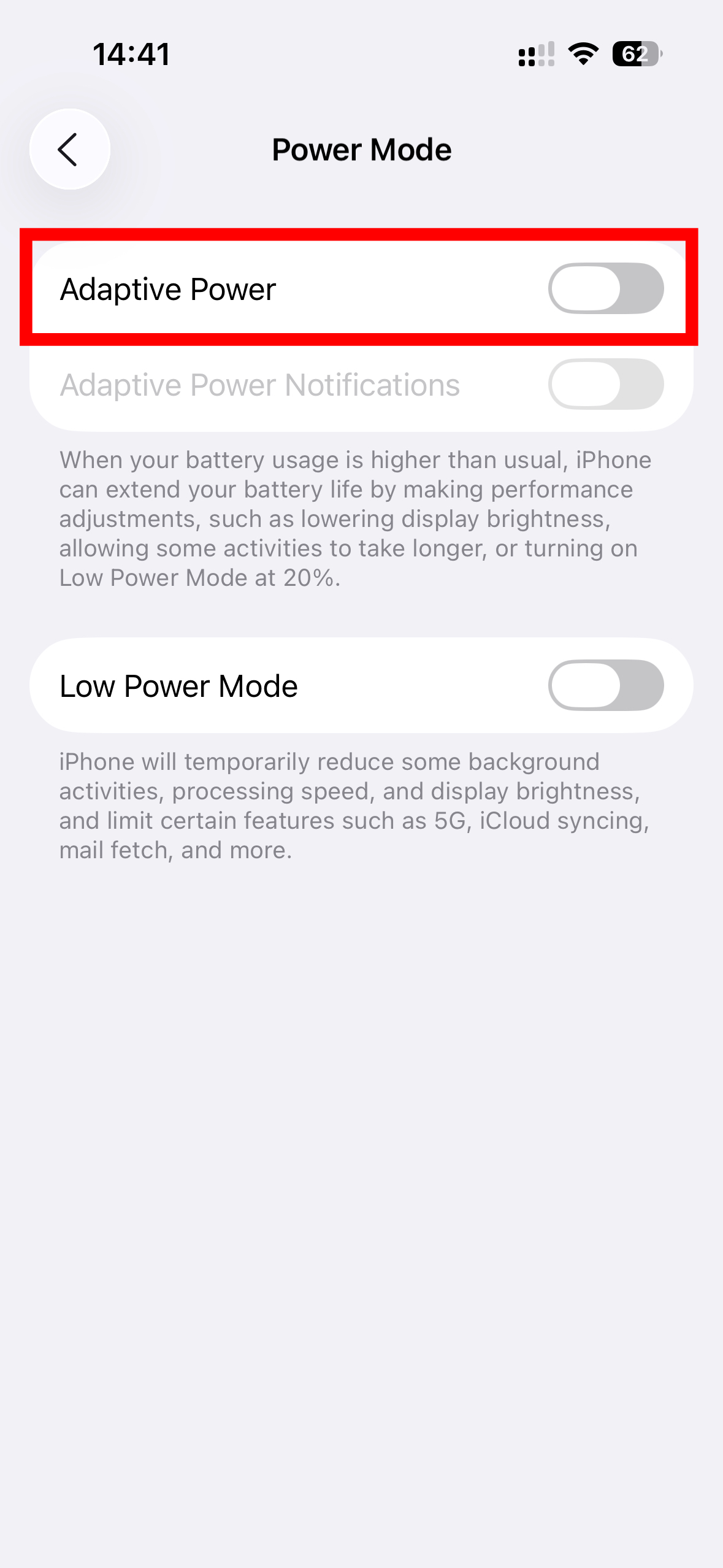
iOS 26 tries to make things easier with a new Adaptive Power Mode. Instead of constantly switching Low Power Mode on and off, this feature adjusts how your phone uses energy based on your habits and what you’re doing at the moment. It’s meant to give you longer battery life without you having to think about it.
How To Turn on Adaptive Power Mode
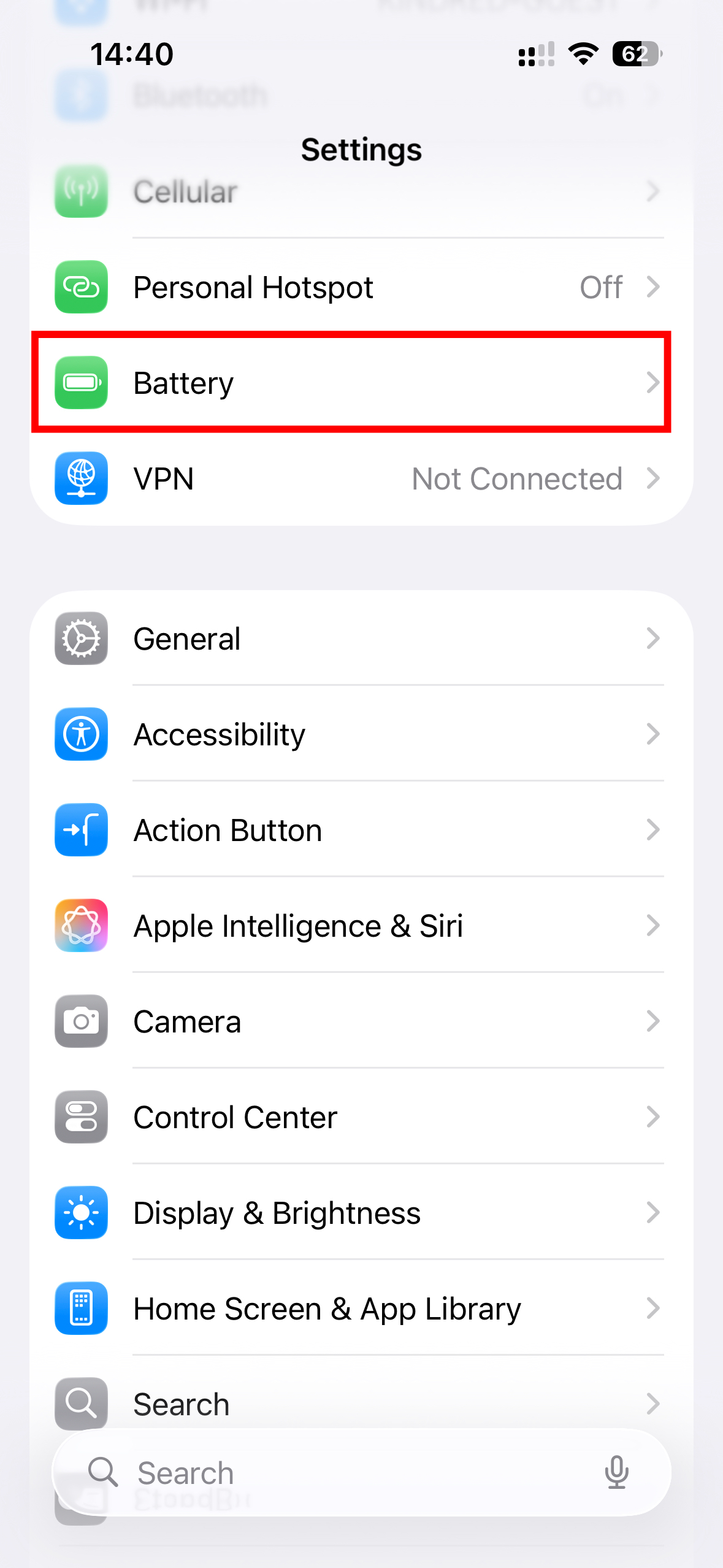
Step 1. Open the Settings app on your iPhone, scroll down and tap on Battery
Step 2. Tap on Power Mode.
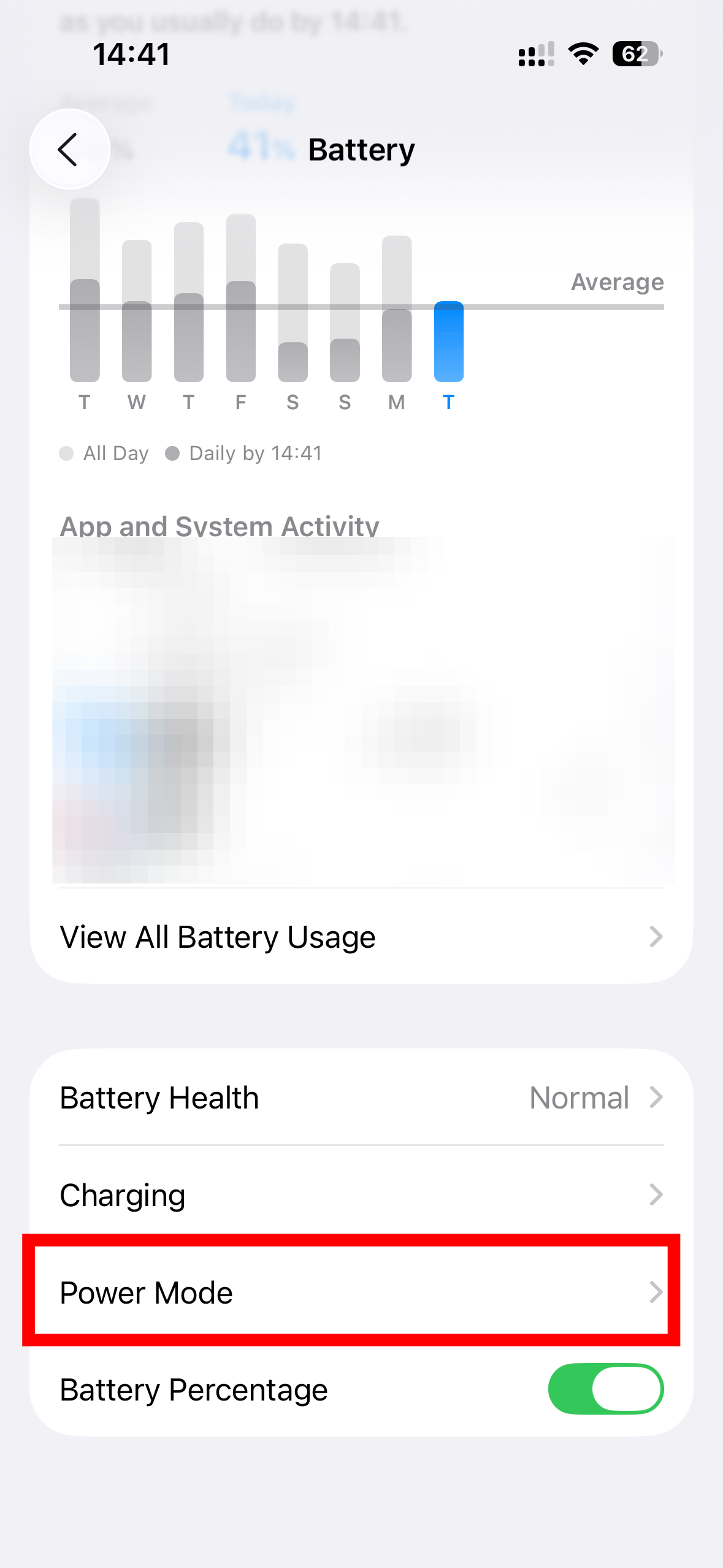
Step 3. Locate the Adaptive Power toggle and flip the switch to the on position.

2. Reduce the "Liquid Glass" Effect for a Classic Feel
One of the biggest visual changes in iOS 26 is the new “Liquid Glass” design, which gives the interface a glossy, translucent look. Some people love it, others find it a bit distracting. If you’d rather keep things more solid and closer to the classic iOS style, Apple has added a simple toggle to tone the effect down.
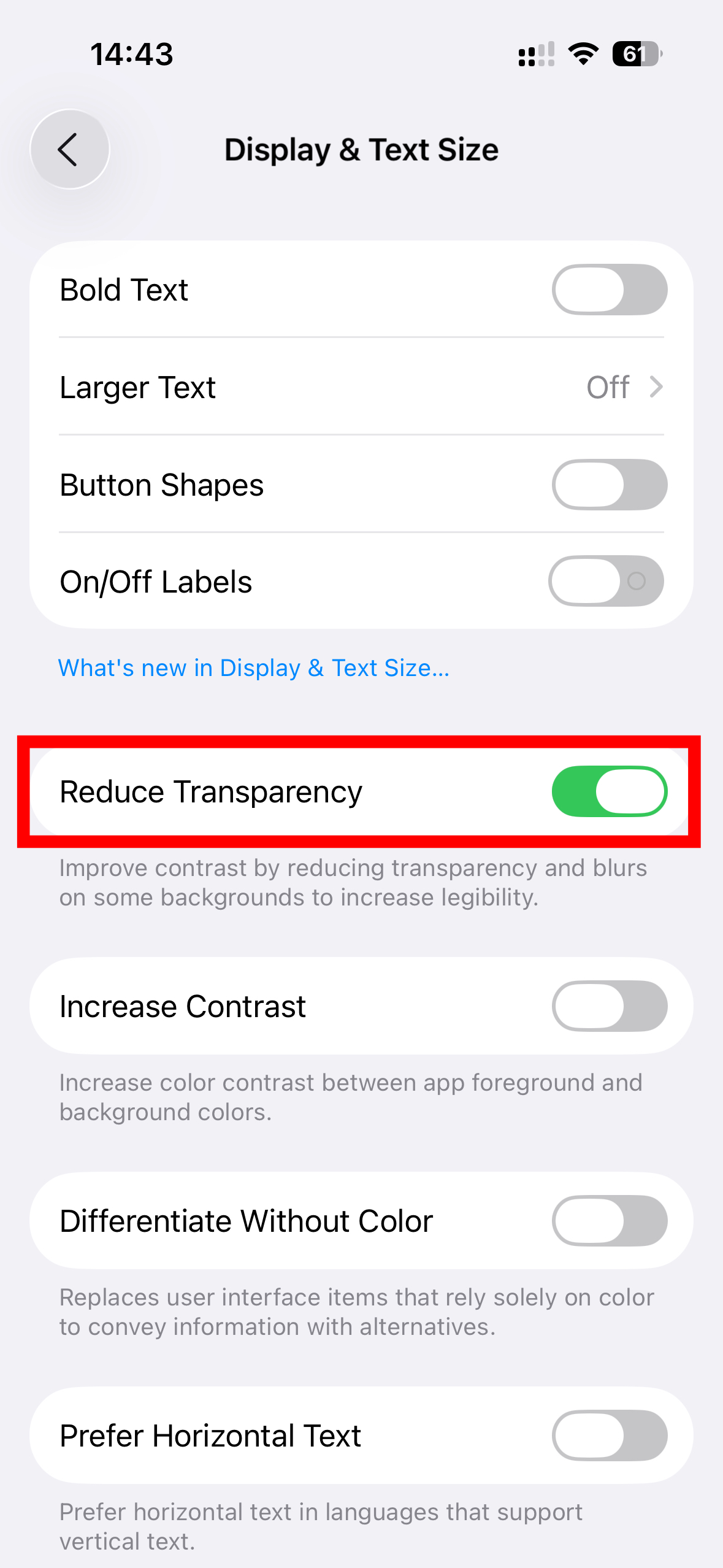
4 Steps to Reduce Transparency
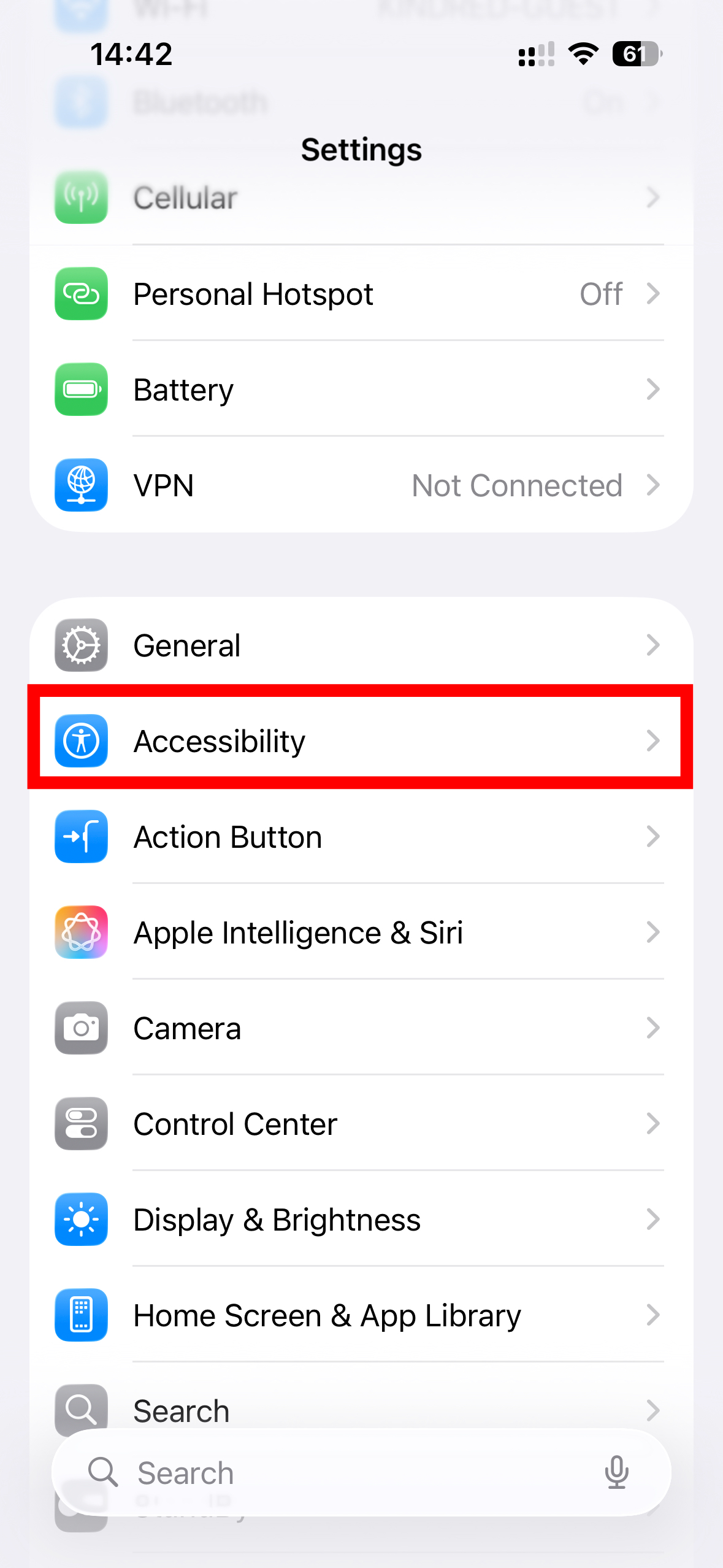
Step 1. Open the Settings app on your iPhone, then tap on 'Accessibility'.
Step 2. You might get a little prompt asking you if you would like Notifications. I opted not to get those, but the decision is yours.

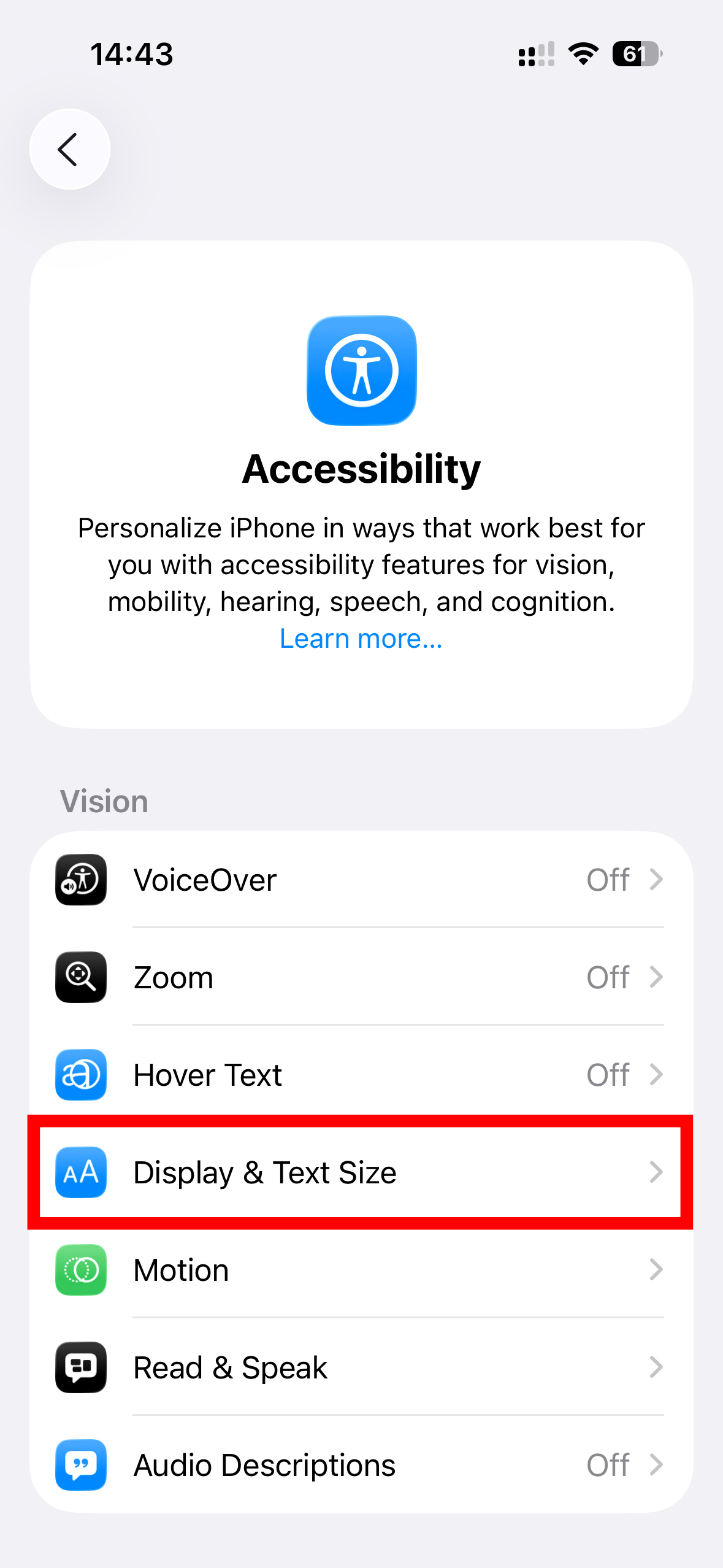
Step 3. Tap on 'Display & Text Size'.
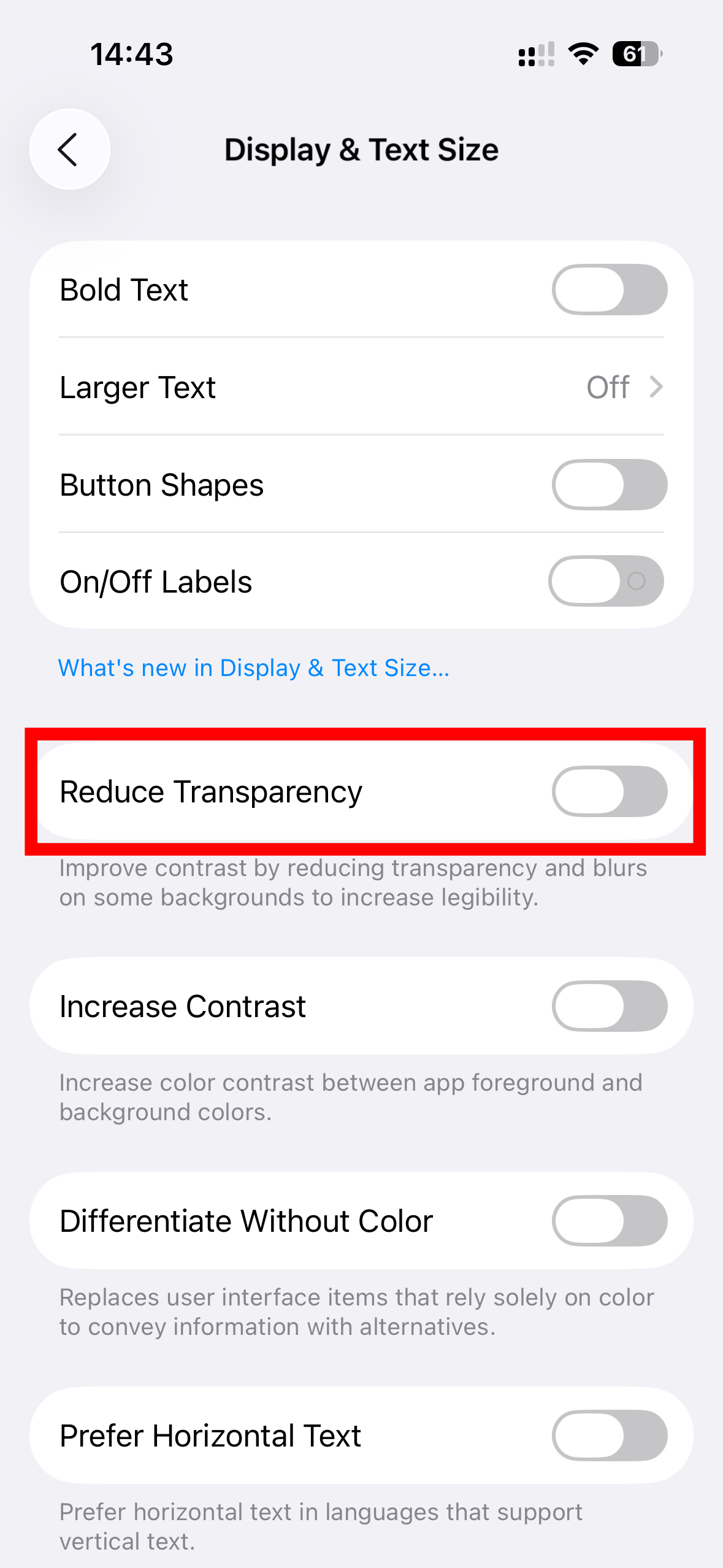
Step 4. In the Display & Text Size section, locate the Reduce Transparency toggle. Flip the switch to the on position. (This setting reduces the amount of transparency, making backgrounds more opaque.)
3. Personalise Your Conversations with Message Backgrounds
Messages also got a makeover in iOS 26, with the option to add custom chat backgrounds. It’s a small change, but it can make your conversations feel more personal, whether you want something bright and fun for group chats or a calmer vibe for one-on-one conversations.
Steps to Add Backgrounds in Messages
Step 1. Go to the Messages app on your iPhone and select the conversation where you want to add a background.
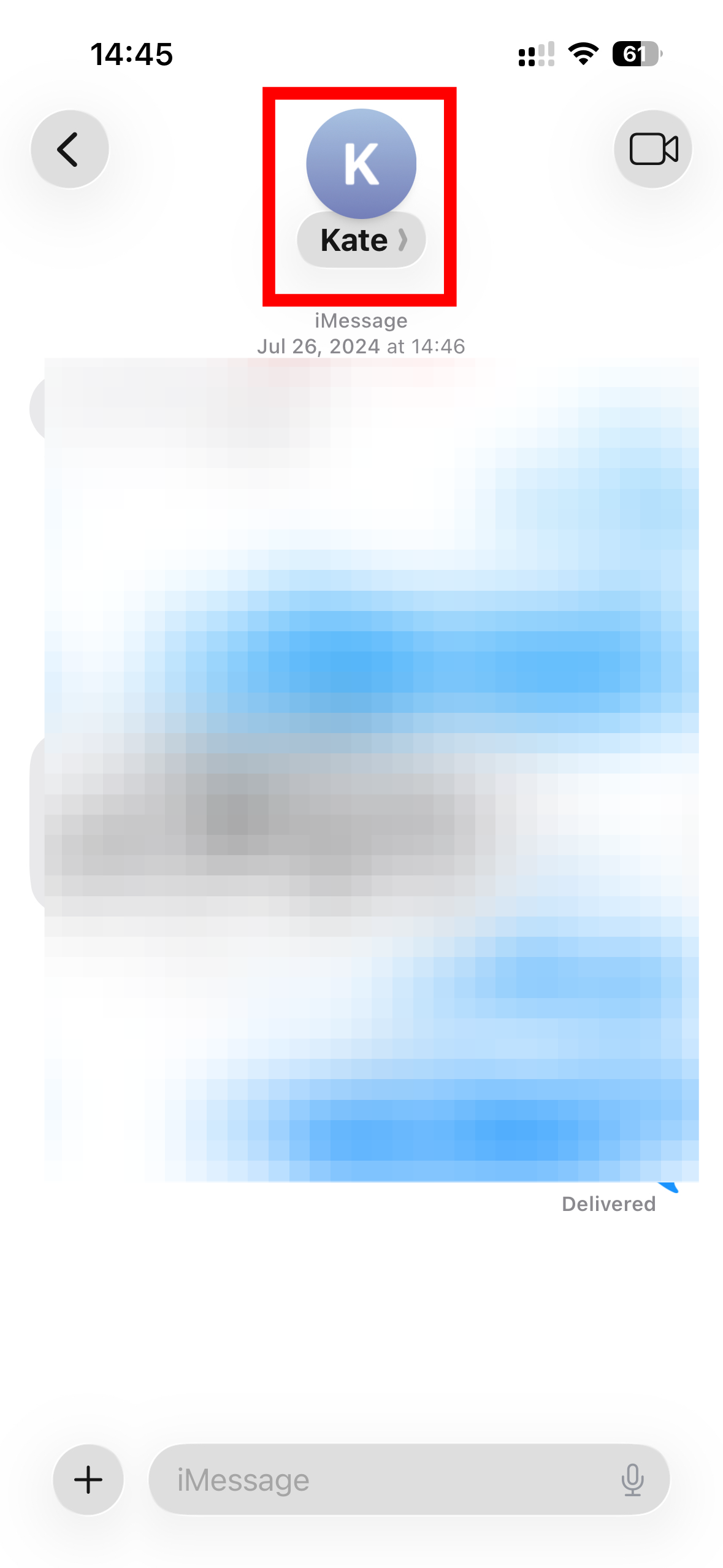
Step 2. Tap the contact or group icon at the top of the conversation. This will open a new menu.
Step 3. Tap on Backgrounds.
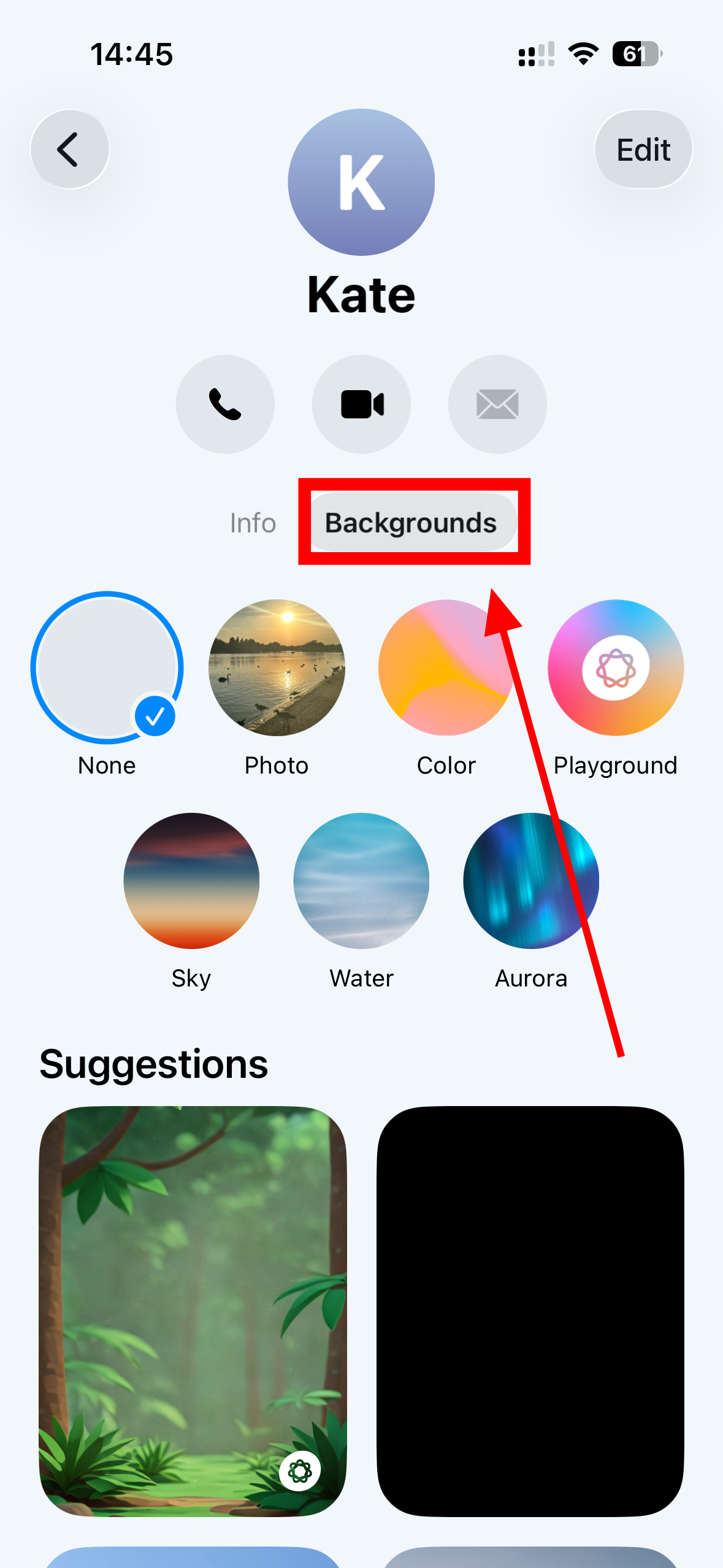
Step 4. Choose a category such as Color, Sky, Water, or Aurora.

Step 5. Swipe left or right to browse through the available options within your chosen category.
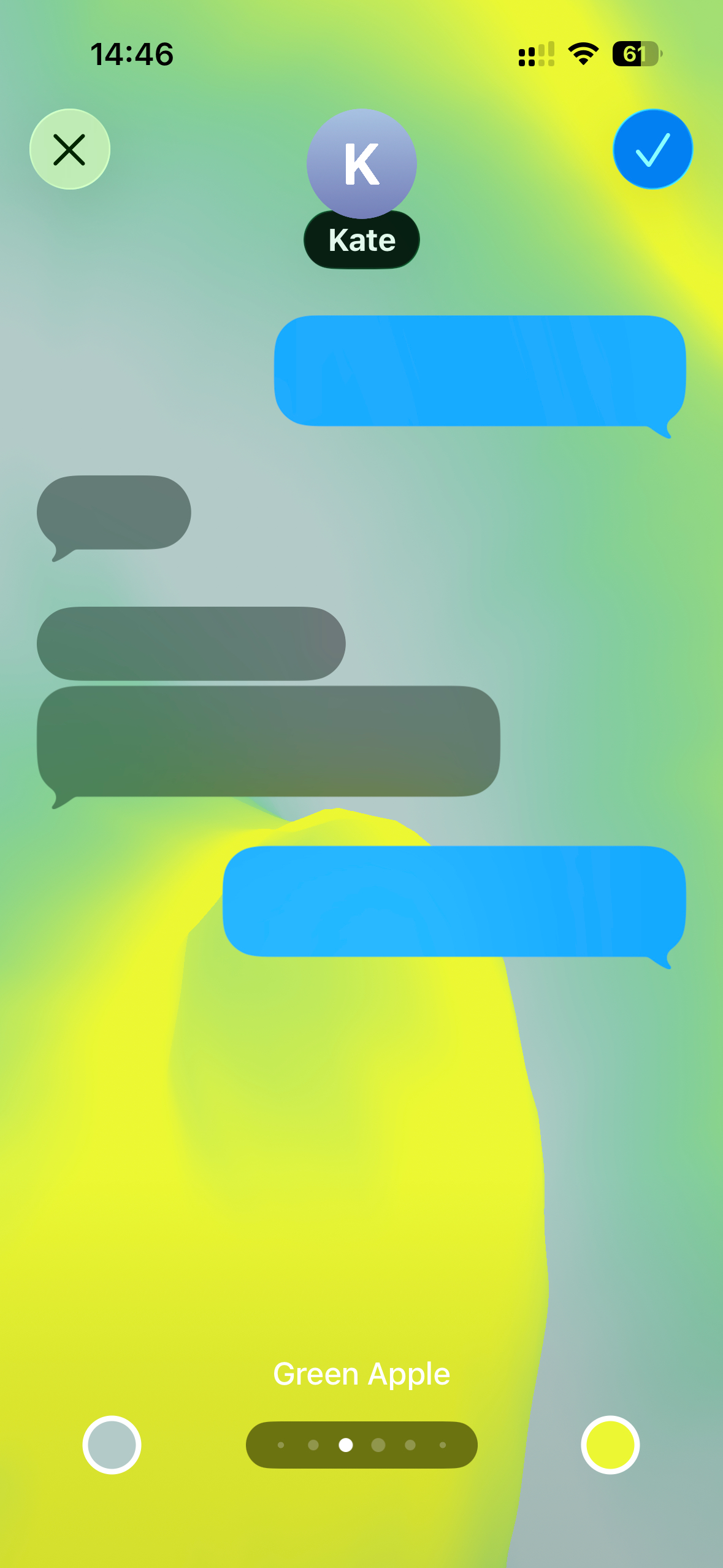
Step 6. Once you've found a background you like, tap Done to apply it to your conversation.

Conclusion
iOS 26 might not change everything about the iPhone, but the extra options for customisation make it feel more flexible than before. Apple has added plenty of smaller tweaks throughout the system, but starting with battery, visuals, and messages gives you a good sense of how the update puts more control in your hands.
Image Credit: Loy Okezie / Techloy.com
 Kelechi Edeh