



iOS 26 was officially released to the public on Monday, and one of the most noticeable changes shows up before you even unlock your iPhone: the Lock Screen. This update isn’t about flashy new apps or hidden settings; it’s about giving you more say over how your phone looks at a glance. If the last version was any indication, Apple seems to be slowly loosening its grip on some of the iPhone’s most fixed features, this time with options ranging from a glossy new “Liquid Glass” clock style to simple resizing controls.
So, if you’re curious about what’s new, here’s a closer look at how you can make the Lock Screen truly yours.
 Louis Eriakha
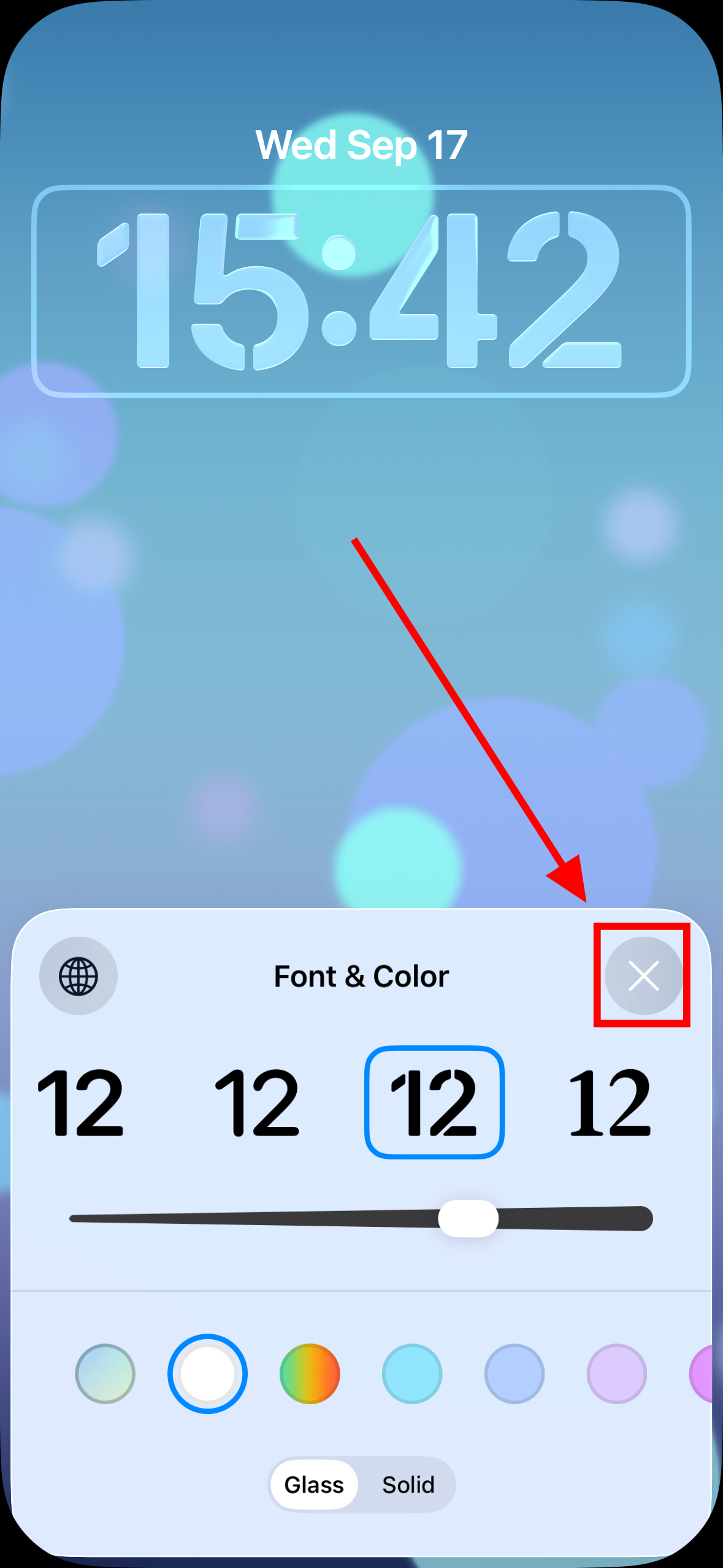
1. Change Your Clock to the “Liquid Glass” Style
The “Liquid Glass” aesthetic is one of the most noticeable design shifts in iOS 26. It gives the clock a translucent, refractive look that blends into your wallpaper instead of sitting flat on top of it. Some people will love the extra depth it adds, while others might prefer the traditional solid style — but either way, it’s worth trying out.
Steps to Change to the “Glass” Clock
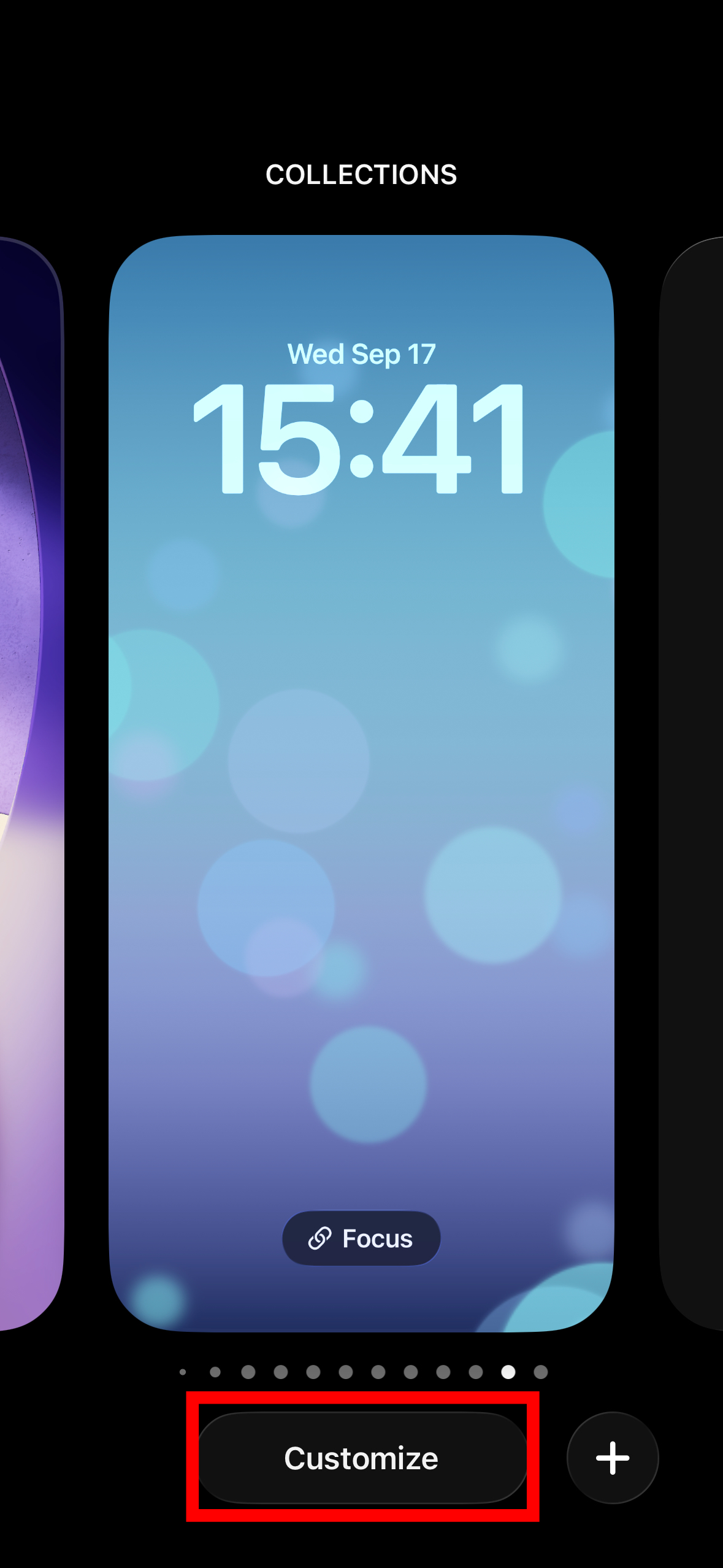
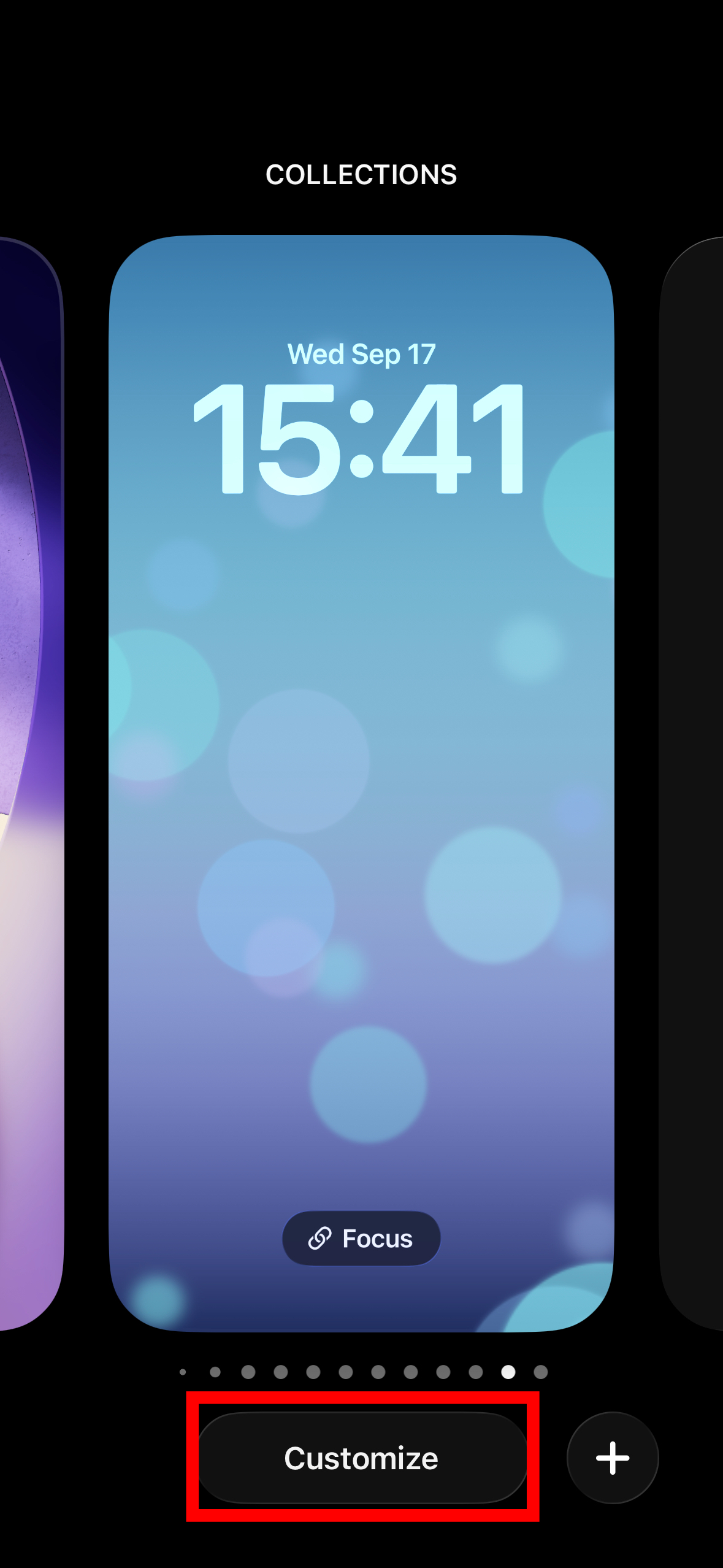
Step 1. Press and hold anywhere on the Lock Screen until the customisation options appear, then tap 'Customize'.
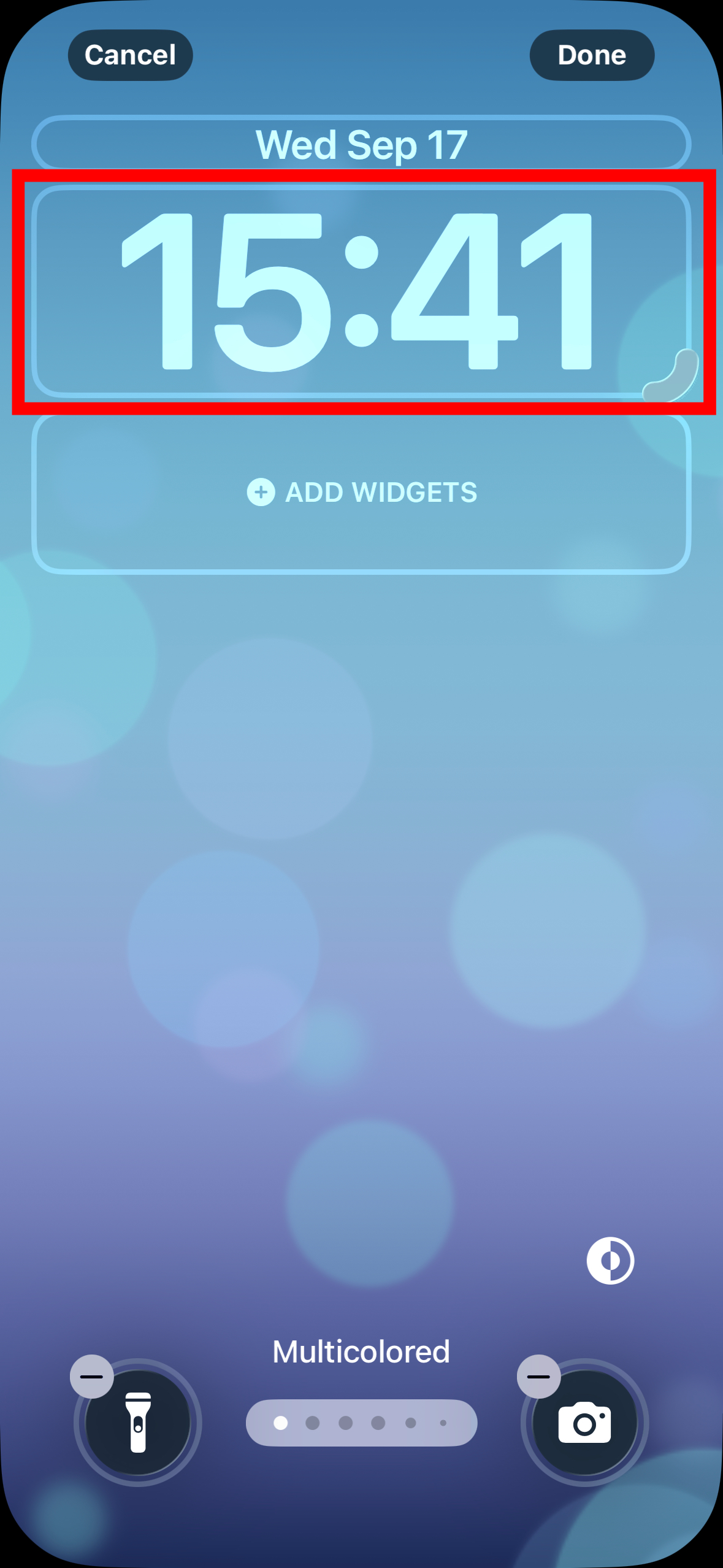
Step 2. Tap on the time within the square frame.
Step 3. Select 'Glass' from the menu at the bottom.
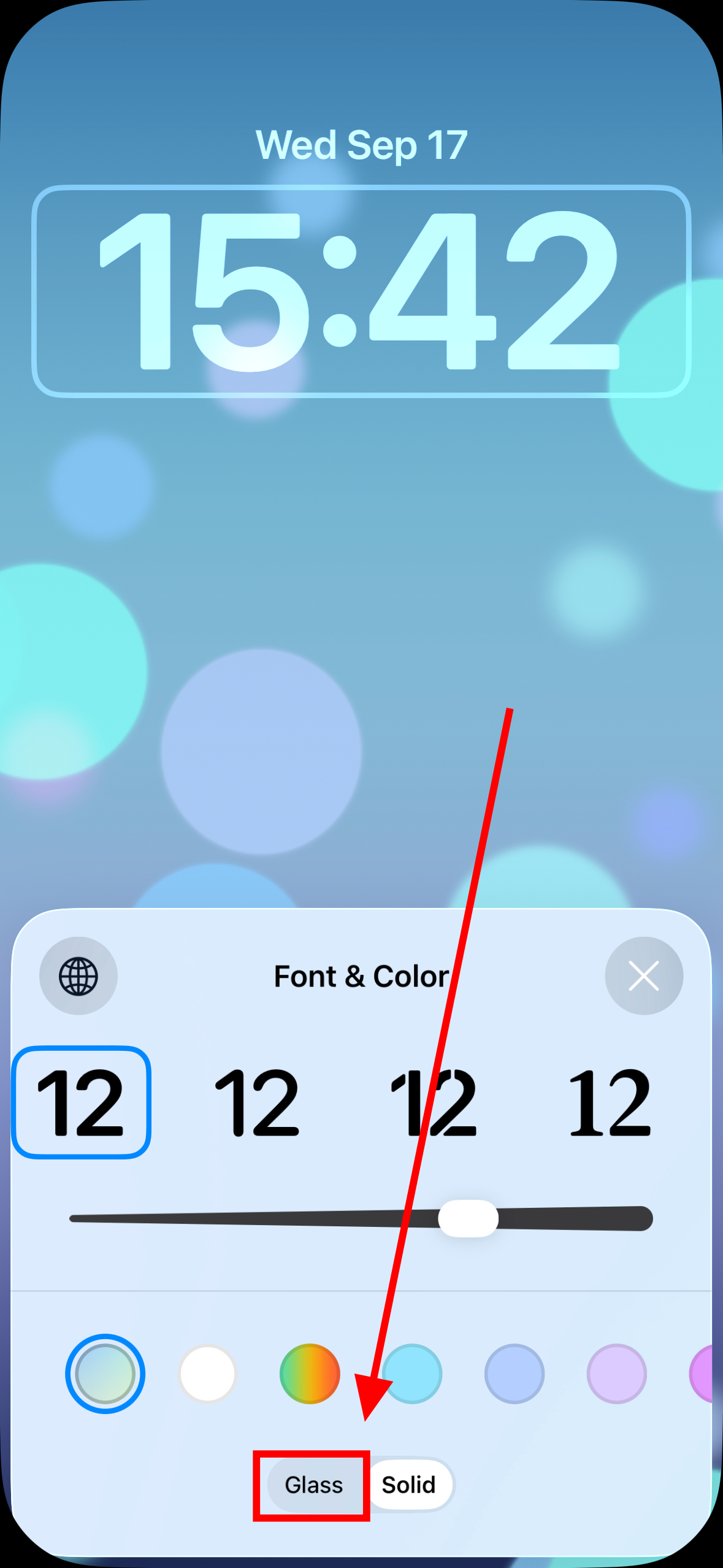
Step 4. Adjust the clock’s colour and style if you like, then tap the 'X' to finish.
2. Resize Your Lock Screen Clock
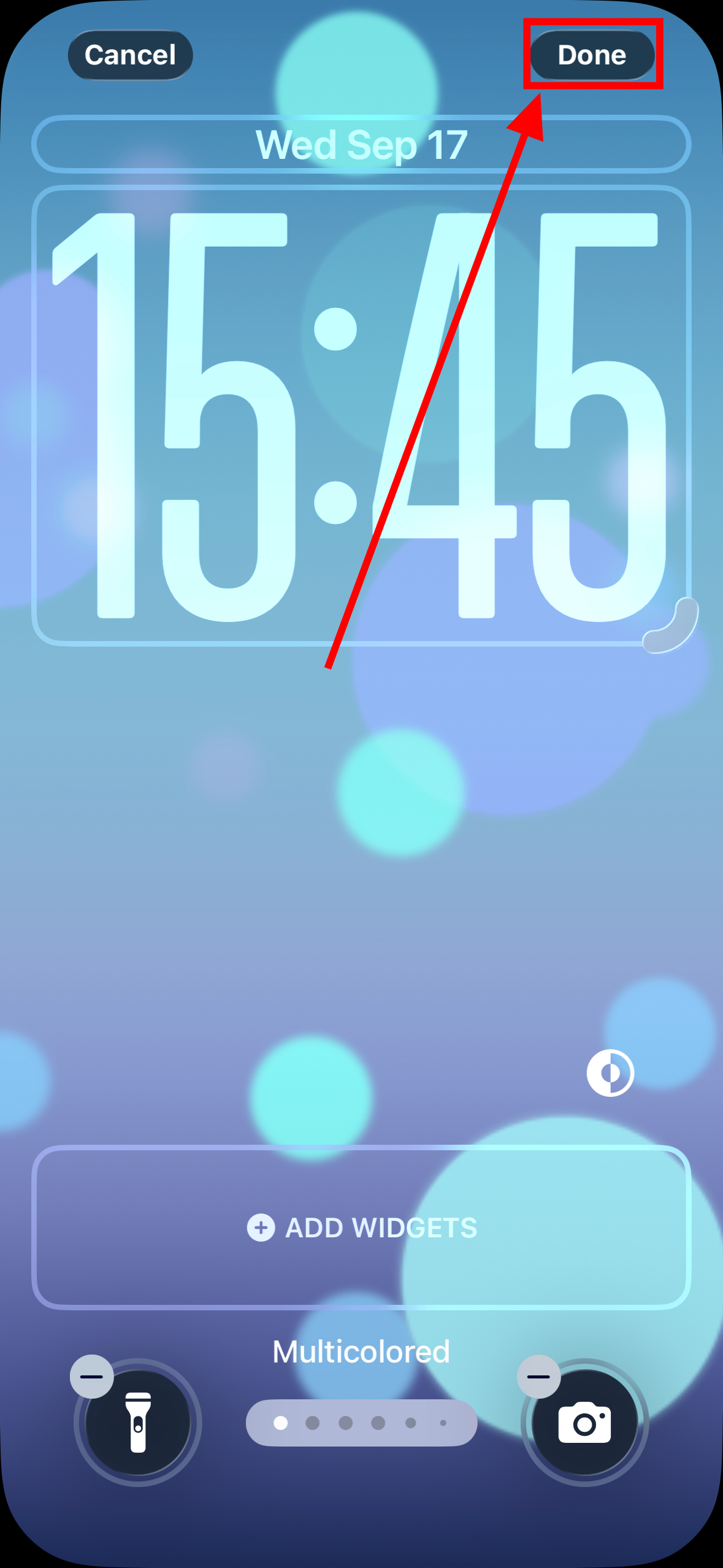
Another subtle but useful change is the ability to resize the Lock Screen clock. If you want the time to stand out more, you can make it larger; if you’d rather it not dominate your wallpaper, you can shrink it down. It’s a small touch, but it goes a long way toward letting your setup reflect your preference.
Steps to Resize the Lock Screen Clock
Step 1. Long-press anywhere on the Lock Screen, then tap Customise.
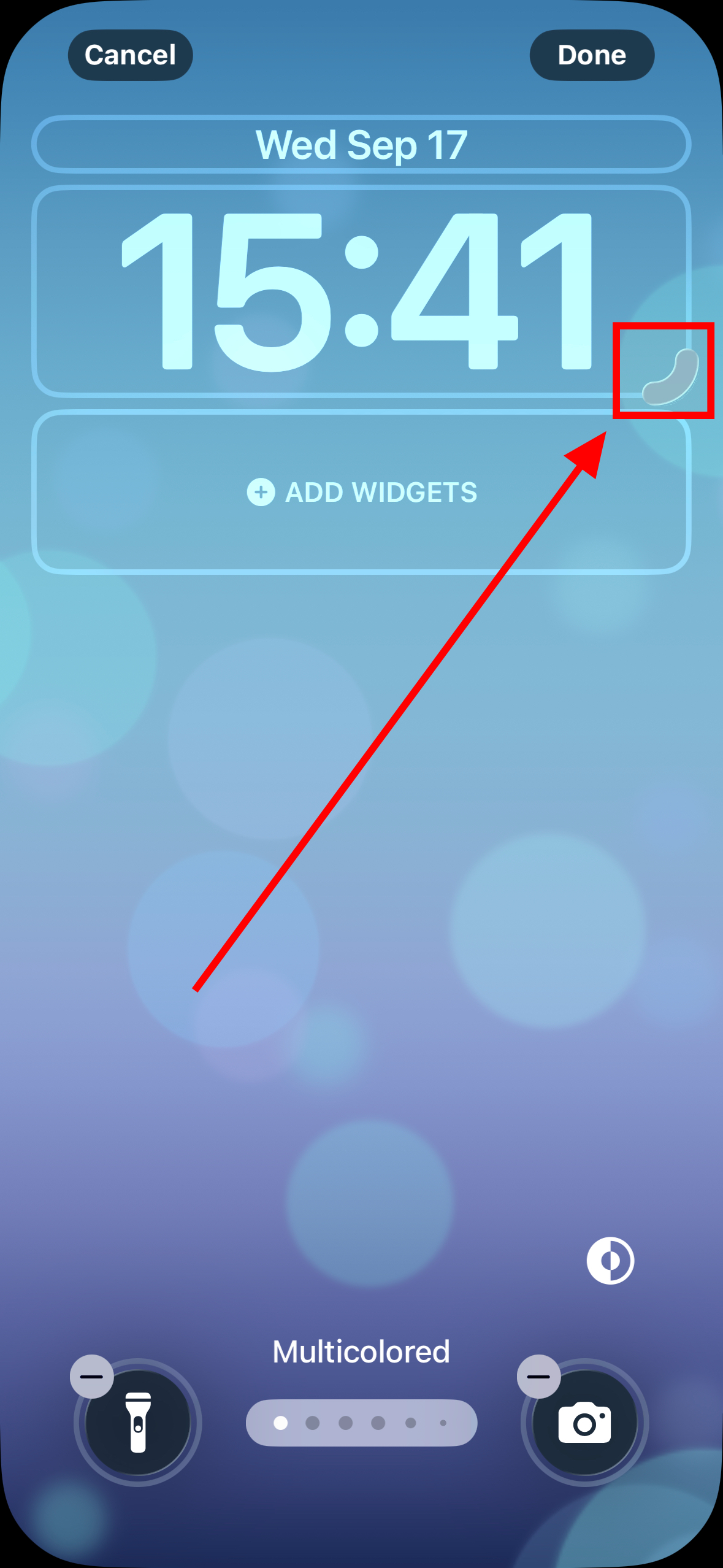
Step 2. Press and hold the drag handle at the bottom-right of the clock frame. You can drag down to increase the size of the clock, or drag up to make it smaller.
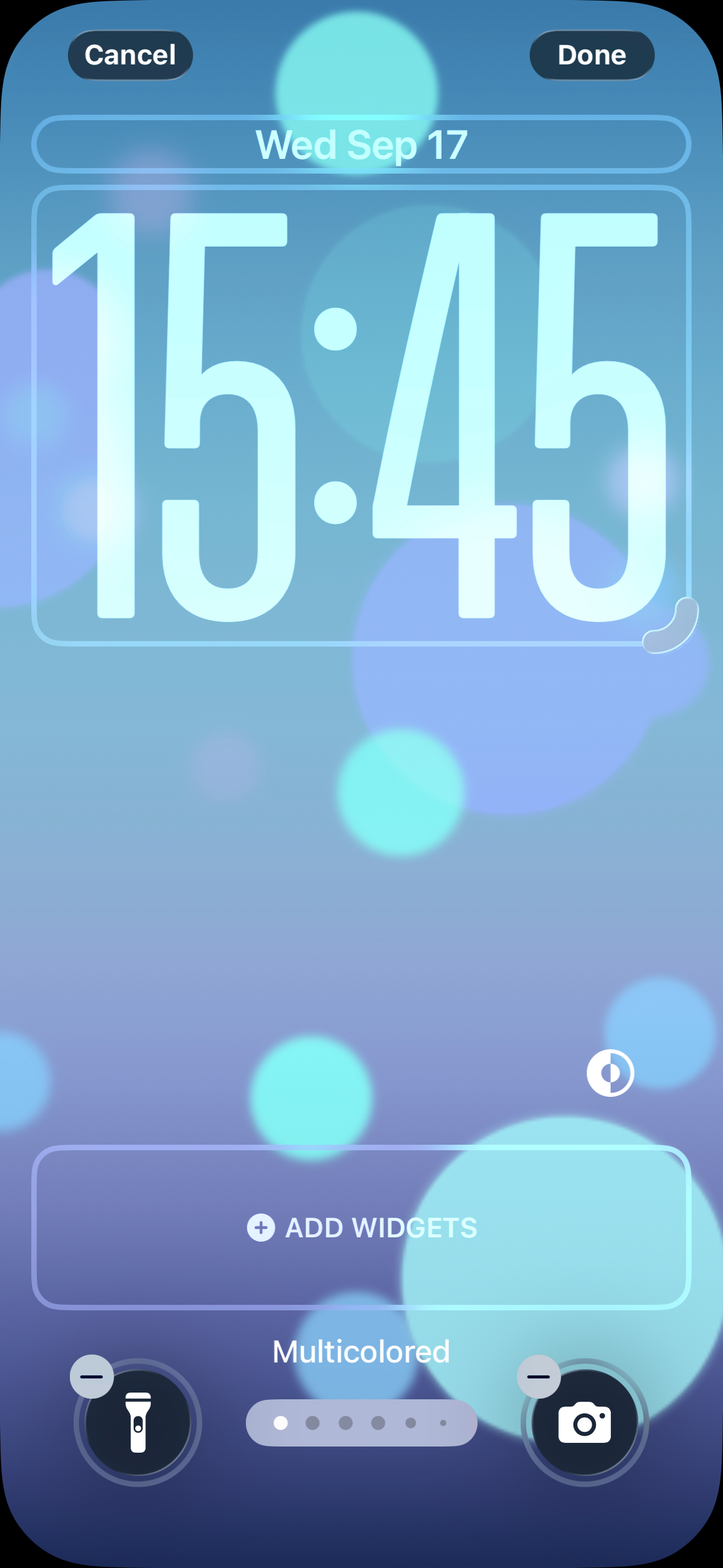
Step 3. Make any other adjustments, then tap Done.
Conclusion
These Lock Screen updates in iOS 26 don’t reinvent the iPhone, but they do make the screen you see most feel a lot more “yours.” Whether you’re testing out the shiny new “Liquid Glass” clock or shrinking the time so it doesn’t hog your wallpaper, the tweaks give you a chance to have a little fun with personalisation every time you pick up your phone.
Image Credit: Loy Okezie / Techloy.com


