



Screen recorders do not usually get much attention until they rescue a workday. A file needs to be captured, a webinar starts while nobody is at the desk, a tutorial has to be sent before lunch, or a product walkthrough needs one more take. In that sort of work, a Windows and Mac screen recorder by Movavi has been trying to grow beyond the role of a plain capture utility.
The program is at its best when someone needs to teach, demonstrate, comment, or walk a viewer through a process on screen. The strongest parts are tied to clarity: marking up the screen while recording, keeping spoken audio cleaner, setting recordings in advance, and making tutorial footage easier to follow. That gives Movavi Screen Recorder a clear role. It suits lessons, demos, webinars, and everyday work explainers far better than projects that depend on heavy production.
Part 1: Key Features in Movavi Screen Recorder
1.1 Real-Time Drawing That Makes Tutorials Easier to Follow
The feature that gives Movavi Screen Recorder the strongest identity is drawing shapes during recording. The version 23 from October 2022 introduced tidy-looking pointers and shapes that can be added while the capture is happening. That came after the earlier draw-on-video feature from 2020.
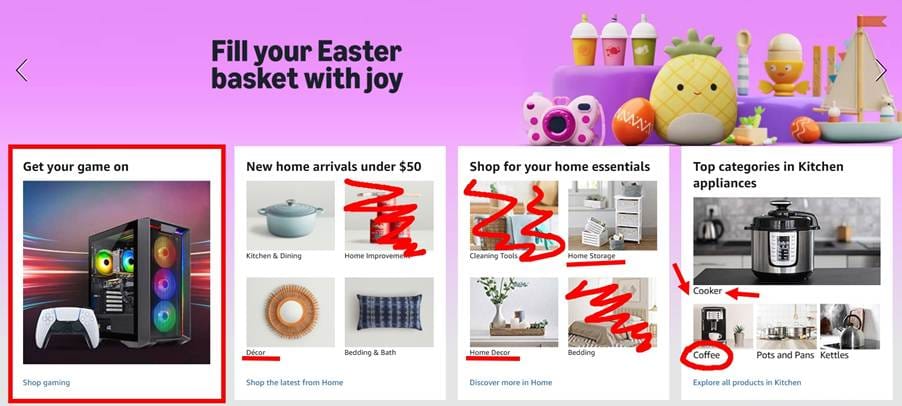
On paper, that may sound like a small extra. In practice, it changes what the software feels built for. A recorder with arrows, pointers, and on-screen markup is aimed at teachers, support teams, trainers, product marketers, and anyone making walkthroughs where attention has to be directed in real time.
1.2 Built-in Scheduling Recording Tools
Scheduled recording was absent for quite a while, but Movavi eventually brought it back. Apart from just setting the date and starting time, you’re able to add a specific time period, schedule only a part or full screen recording, and pick what action should be taken after it ends (turning off PC, putting it to sleep, or do nothing).
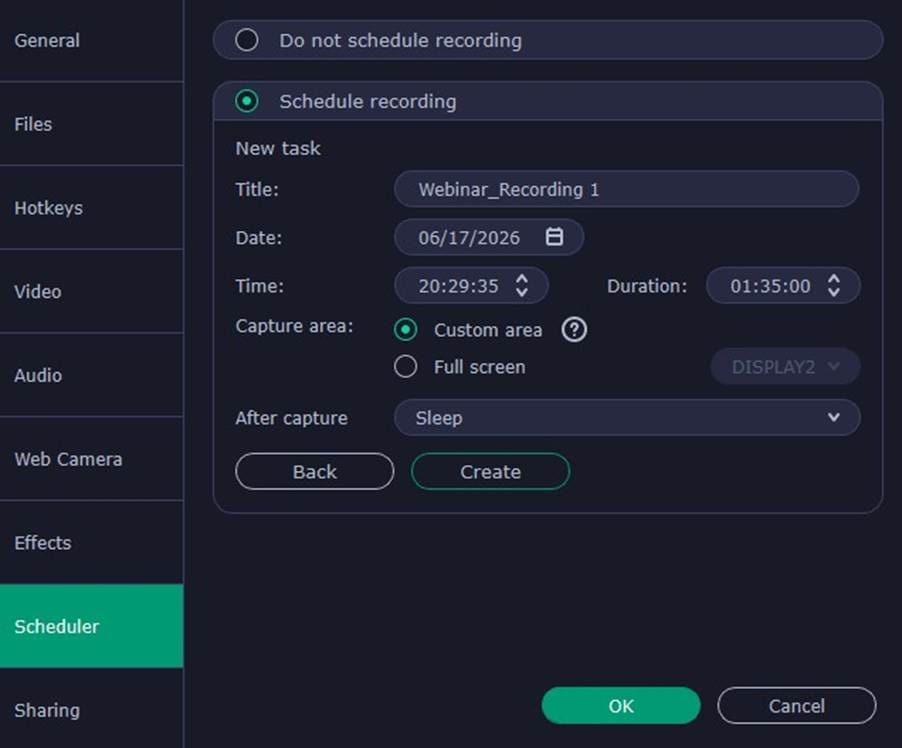
This matters because a lot of screen content is routine rather than cinematic. People record classes, work calls, platform demos, live presentations, and training sessions. And you don’t have to sit in front of a computer the entire time.
1.3 Cleaner Audio Without Leaving the Recorder
Audio is another part of the Movavi package that deserves attention. AI noise reduction is one click away and can be adjusted even after you’ve already started the recording session.
This fits neatly into day-to-day creator work. A clean take has more value than a messy one that needs repair in another app. Movavi Screen Recorder handles both: capture screen with system audio and microphone input and do a quick cleanup during that stage.
1.4 Webcam Overlay, Keystrokes, and Mouse Clicks
Movavi also earns its place through the set of features that make instructional content easier to manage. A lot of screen recorders can capture a desktop. Fewer feel shaped around explanation.
Mouse and keyboard indicators, webcam layering, and live markup all push Movavi in that direction. The app looks best when it is used for showing, pointing, and commenting rather than simply capturing whatever happens on the monitor.
1.5 Scrolling Screenshots Are a Quiet Bonus
Regular screenshotting is what we all did at least once in our life. But have you ever done multiple screen captures of the same page or Word doc or kept going back and forth because the content wouldn’t fit into one frame? That one extra that shouldn’t be skipped is called a scrolling screenshot.
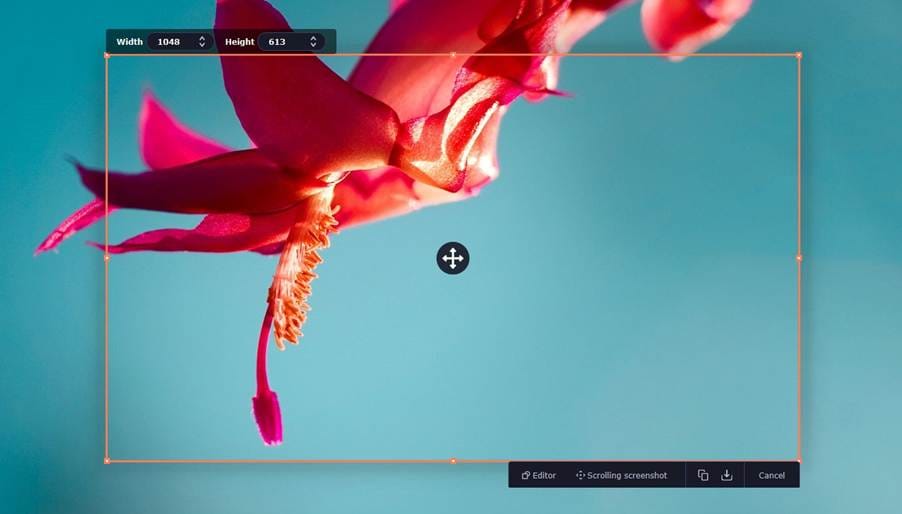
It’s an easy feature to overlook beside the video tools, though it fits the app very well. Long web pages, documents, chat histories, and dashboards are far more useful when they can be saved as one clean image instead of several disconnected files. For people who collect references, prepare tutorials, or send visual explanations to others, that small convenience can end up being genuinely useful.
Part 2: Recent Updates and What They Include
The recent update history is almost boring, and for this kind of software that’s not a bad thing. Although there hasn’t been any new features added, Movavi has been working hard to make the software launch-crash free and provide webcam-related stability. Minor improvements but still help a lot.
That tells you something useful about Movavi Screen Recorder. The product seems to have settled into its lane. The identity of the app is already in place: screen capture, webcam, audio, markup, scheduling, screenshots, and tutorial-friendly indicators.
Part 3: Who Movavi Screen Recorder Works Best For
3.1 The Tasks It Handles Best
Movavi Screen Recorder makes the most sense for people whose work starts with capture. That’s about educators recording lessons, marketers building demos, support teams sending walkthroughs, remote workers saving webinars or calls, and creators putting together tutorials for YouTube or client delivery.
The software is easier to place in a real setup because its job is fairly plain. It records the material, makes it easier to follow during the screen capture, and deals with a few common sound issues. Then, if the footage needs heavier trimming or post work, it can move into a dedicated editor. That’s a healthy place for a recorder to sit.
3.2 Where It Falls Short
The limits are clear. It’s not built for gameplay recording. It also isn’t a full editing environment, so don’t expect it to have a detailed post-production process. On top of that, the recent updates have been fairly modest, which may leave some users wanting a more active feature roadmap. The trial version also comes with the usual restrictions, including a short trial period and watermarked exports.
Movavi Screen Recorder in 2026: Worth Keeping Around?
Movavi Screen Recorder feels most convincing when it’s treated as a workhorse for clear, repeatable screen content. It helps at the recording stage, where many recordings either become useful or fall apart. Real-time markup, cleaner sound, scheduled sessions, and guidance-focused tools give it a real everyday value.
The update history may look quiet, though the program itself feels settled rather than unfinished. Movavi Screen Recorder feels like a mature utility to record your screen often and get fewer obstacles between the idea and the result. In a crowded creator toolkit, that kind of reliability can matter more than a long list of flashy changes.


